
 Join our Discord
Feature settings
Toggle optional capabilities that extend what Test Companion can do, including checkpoints, notifications, and Electron testing support.
Feature settings lets you toggle optional capabilities that extend what Test Companion can do. Each feature adds a specific capability, such as checkpoints, desktop notifications, or Electron app testing support. You can enable or disable them independently based on your needs.
How to open settings
To open the feature settings:
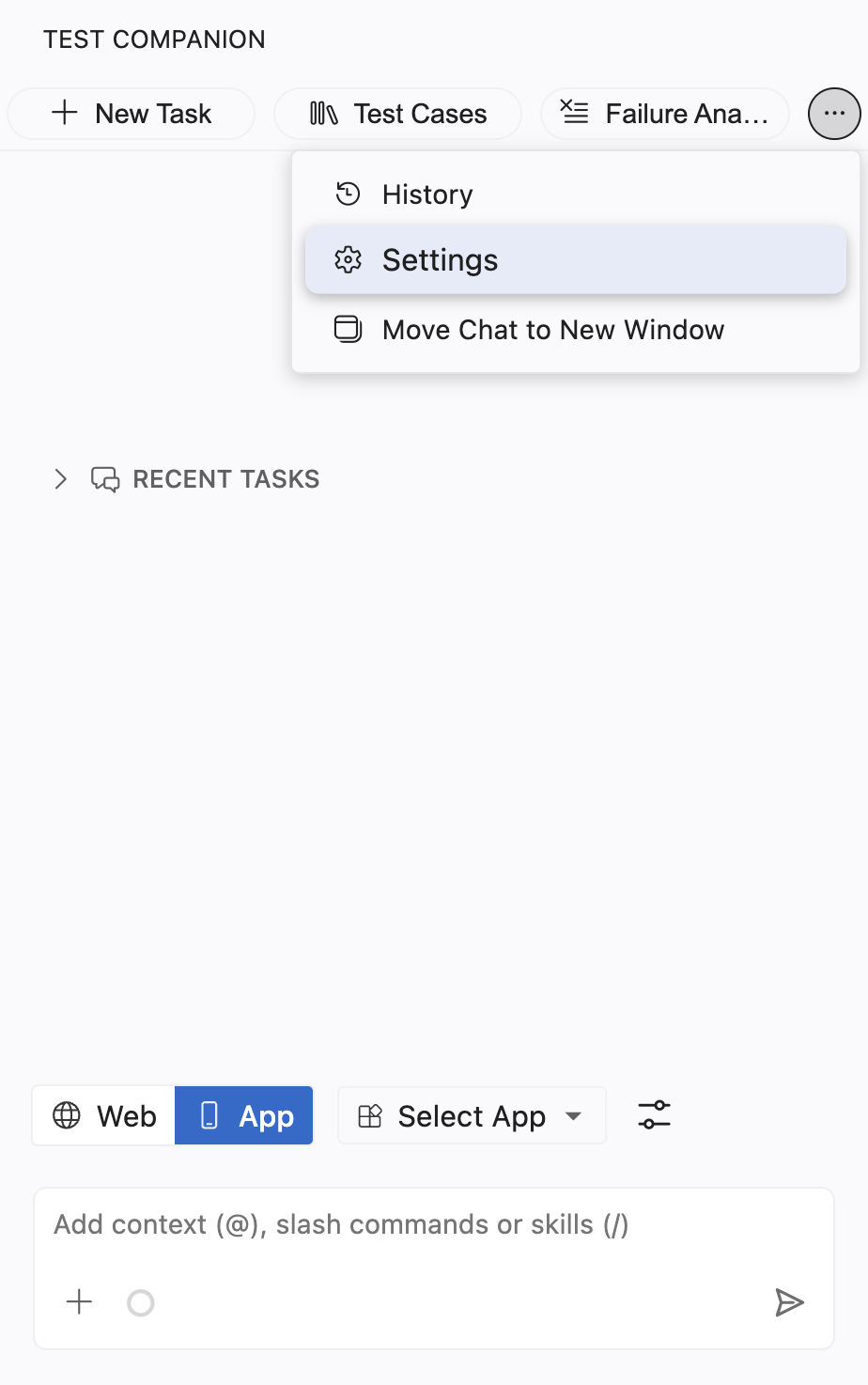
Click the ... (more options) button at the top-right corner of the Test Companion panel, then select Settings.
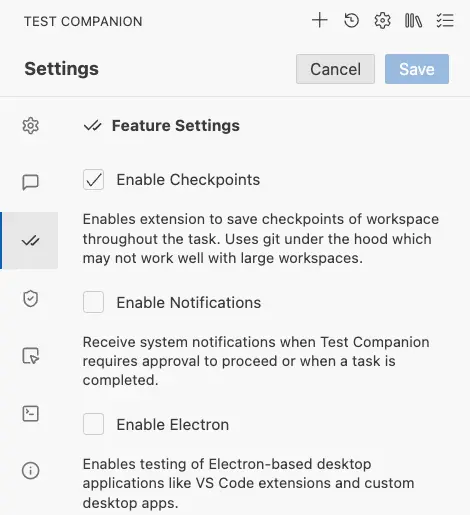
Select the Feature Settings tab.
Choose your test case type, then click Save.
Test case type
Under Test Cases, the Type control sets the format Test Companion uses when it writes test cases. You choose between two formats. The format applies to every test case the AI generates after you save.
| Setting | Details |
|---|---|
| Field type | Radio button |
| Default value | Default |
| Options | Default, BDD |
| What it does | Sets the format Test Companion uses when it writes test cases. |
Default
Default produces step-by-step test cases. Each case lists explicit actions and the expected result for each step. This format suits manual testers and anyone who reviews test cases as a numbered sequence.
Choose Default when:
- Your team reads test cases as a sequence of actions and checks.
- You import the output into a test management tool that expects discrete steps.
- You are not using a BDD framework.
BDD
BDD produces test cases as Gherkin-style Feature and Scenario blocks. Gherkin describes each scenario with Given, When, and Then steps. This format suits teams that use a BDD framework such as Cucumber, Behave, or SpecFlow.
Choose BDD when:
- Your automation framework consumes
.featurefiles. - You want test cases that map directly to step definitions.
- Your team writes acceptance criteria in Given-When-Then form.
Enable checkpoints
When checkpoints are enabled, Test Companion automatically saves a checkpoint of your workspace files at important moments while it works on a task. For example, before modifying a file or before running a command that could change your project state. If the AI makes a change you are unhappy with, you can revert to an earlier checkpoint instead of manually undoing the changes.
| Setting | Details |
|---|---|
| Field type | Checkbox |
| Default value | Enabled (checked) |
| What it does | Saves snapshots of your workspace at key points during a task, so you can roll back if something goes wrong. |
Under the hood, checkpoints use Git to track workspace state. The extension creates lightweight commits behind the scenes to mark each checkpoint.
When to enable this
Checkpoints are valuable in most situations and are enabled by default. They are especially useful when:
- You are letting the AI work autonomously in Default interaction mode
- The AI is making changes across multiple files at once
- You are experimenting with different approaches and want to easily backtrack
When to disable this
There are specific cases where you may want to turn checkpoints off:
- Very large workspaces: If your repository is exceptionally large (for example, a monorepo with tens of thousands of files), the Git operations behind checkpoints can slow down. If you notice sluggish performance during tasks, try disabling checkpoints.
- Non-Git projects: If your workspace is not a Git repository and you do not want one to be initialized, disable this feature.
Enable notifications
This is particularly useful when you start a task and then switch to another window or application while the AI works. Instead of periodically checking back, you receive a notification that brings you back to your IDE at exactly the right moment.
| Setting | Details |
|---|---|
| Field type | Checkbox |
| Default value | Disabled (unchecked) |
| What it does | Sends you a system notification when Test Companion needs your approval to continue, or when a task is completed. |
Example use case
You ask Test Companion to generate a full test suite for your user registration module. You switch to your browser to review the application’s UI while the AI works. A few minutes later, you receive a desktop notification: “Test Companion requires approval to proceed.” You switch back to your IDE and see that the AI wants to create a new file — you approve, and it continues.
When to enable this
- When you multitask and frequently switch away from your IDE while the AI is working
- When using Guided mode, where the AI pauses at each step for approval
- For long-running tasks where you want to be alerted upon completion
Enable Electron
Electron is a framework used to build cross-platform desktop applications with web technologies (HTML, CSS, JavaScript). Many popular applications, such as VS Code, Slack, and Figma, are built on Electron.
| Setting | Details |
|---|---|
| Field type | Checkbox |
| Default value | Disabled (unchecked) |
| What it does | Enables testing of Electron-based desktop applications, including VS Code extensions and custom desktop apps. |
When this setting is enabled, Test Companion can understand and interact with Electron application structures, including:
- Testing VS Code extensions within the Extension Host
- Interacting with custom Electron app windows
- Analyzing Electron-specific APIs and IPC (inter-process communication) patterns
- Generating tests that account for Electron’s main process and renderer process architecture
When to enable this
- You are developing a VS Code extension and want to generate or debug tests for it
- You are building a desktop application using Electron and need testing assistance
- Your test automation needs to interact with Electron application windows
When to leave it disabled
If your testing work is limited to web applications and mobile apps (the most common use case), leave this disabled. Keeping it off avoids any unnecessary overhead or unintended Electron-related suggestions from the AI.
We're sorry to hear that. Please share your feedback so we can do better
Contact our Support team for immediate help while we work on improving our docs.
We're continuously improving our docs. We'd love to know what you liked
We're sorry to hear that. Please share your feedback so we can do better
Contact our Support team for immediate help while we work on improving our docs.
We're continuously improving our docs. We'd love to know what you liked
Thank you for your valuable feedback!