
 Join our Discord
General settings
Manage your language preference, BrowserStack authentication, and telemetry options.
The General Settings tab covers three options:
- The language Test Companion uses to communicate.
- Your BrowserStack sign-in.
- Whether you share anonymous usage data.
How to open settings
To open the general settings:
Click the ... (more options) button at the top-right corner of the Test Companion panel, then select Settings.
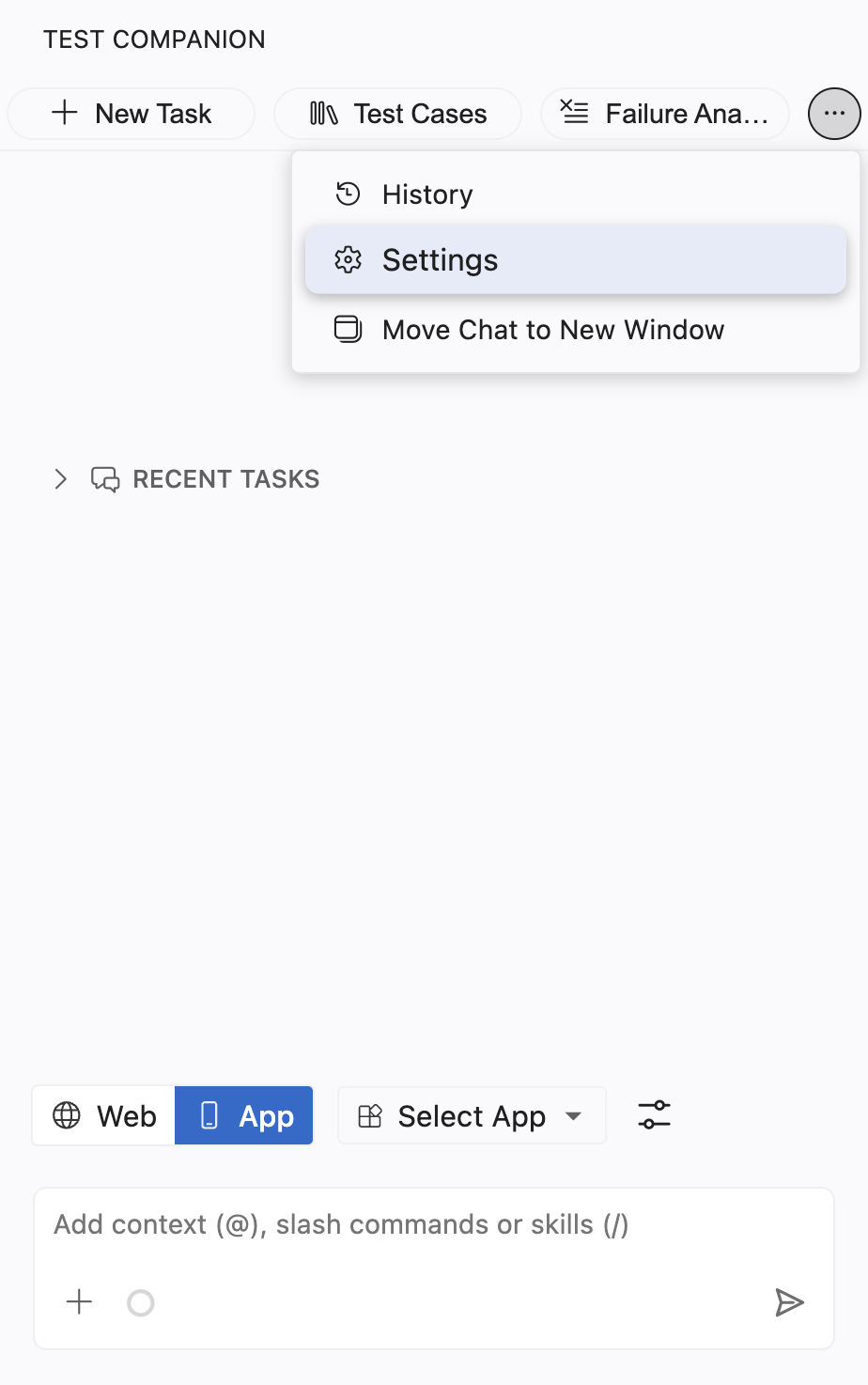
Select the General Settings tab.
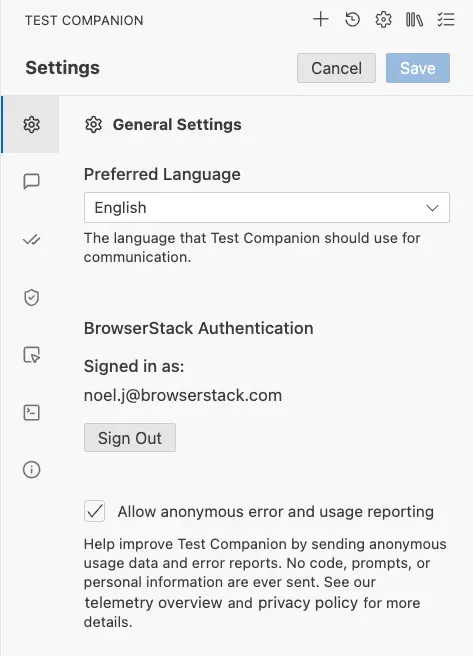
Set your preferred language, then click Save.
Preferred language
When you select a language, Test Companion writes its replies, test case descriptions, and code comments in that language. This helps teams who work in a non-English language and want generated test cases and documentation to match their organization’s language standards.
| Setting | Details |
|---|---|
| Field type | Dropdown |
| Default value | English |
| What it does | Sets the language Test Companion uses in its chat responses, suggestions, and generated content. |
Example use case
A QA team based in Brazil sets the Preferred Language to Portuguese. When they ask Test Companion to generate test cases for a login flow, the output, including test case titles, descriptions, and step-by-step instructions, is written in Portuguese, ready to add to their test management system without translation.
The Preferred Language setting only affects how Test Companion communicates. Code syntax (variable names, framework keywords, assertions) remains in English because programming languages utilize English-based syntax.
BrowserStack authentication
To switch to a different BrowserStack account (for instance, when transitioning from a personal trial to a team account), click Sign Out, then sign back in using the new account’s credentials. The extension will reload your new account’s plan, usage quota, and access permissions.
| Setting | Details |
|---|---|
| What it shows | The email address you used to sign in (for example, yourname@company.com). |
| Sign Out button | Disconnects your current BrowserStack account from the extension. |
Allow anonymous error and usage reporting
When this setting is enabled, Test Companion shares anonymized telemetry data, such as the features most frequently used and errors occurring during operation. No code, prompts, personal information, or project content is ever shared. The data is strictly limited to product usage patterns and error diagnostics.
| Setting | Details |
|---|---|
| Field type | Checkbox |
| Default value | Enabled (checked) |
| What it does | Sends anonymous usage data and error reports to BrowserStack so the team can improve Test Companion. |
You can review the specifics of what is collected by looking at the telemetry overview and privacy policy linked directly below this checkbox in the Settings panel.
When to disable this setting
If your organization’s security or compliance policies do not permit any outbound telemetry from developer tools, uncheck this box. Disabling telemetry does not affect Test Companion. All features continue to work as usual.
We're sorry to hear that. Please share your feedback so we can do better
Contact our Support team for immediate help while we work on improving our docs.
We're continuously improving our docs. We'd love to know what you liked
We're sorry to hear that. Please share your feedback so we can do better
Contact our Support team for immediate help while we work on improving our docs.
We're continuously improving our docs. We'd love to know what you liked
Thank you for your valuable feedback!