
 Join our Discord
Proxy and Local setup
Learn how to configure local testing, tunnel routing, and proxy settings so Test Companion can reach BrowserStack from your network.
If your organization’s network blocks direct outbound connections to BrowserStack, or if your apps and websites run on localhost or behind a corporate firewall, the Proxy and Local Setup panel lets you configure how Test Companion connects. The panel has two regions:
- Local controls whether Test Companion can reach apps and websites running on your local machine, and whether all session traffic must flow through your local network.
- Proxy controls how Test Companion routes traffic to BrowserStack when your network requires a proxy server.
To use Local and proxy settings, you need Test Companion v1.11.4 or later.
Configure proxy settings
To configure proxy settings:
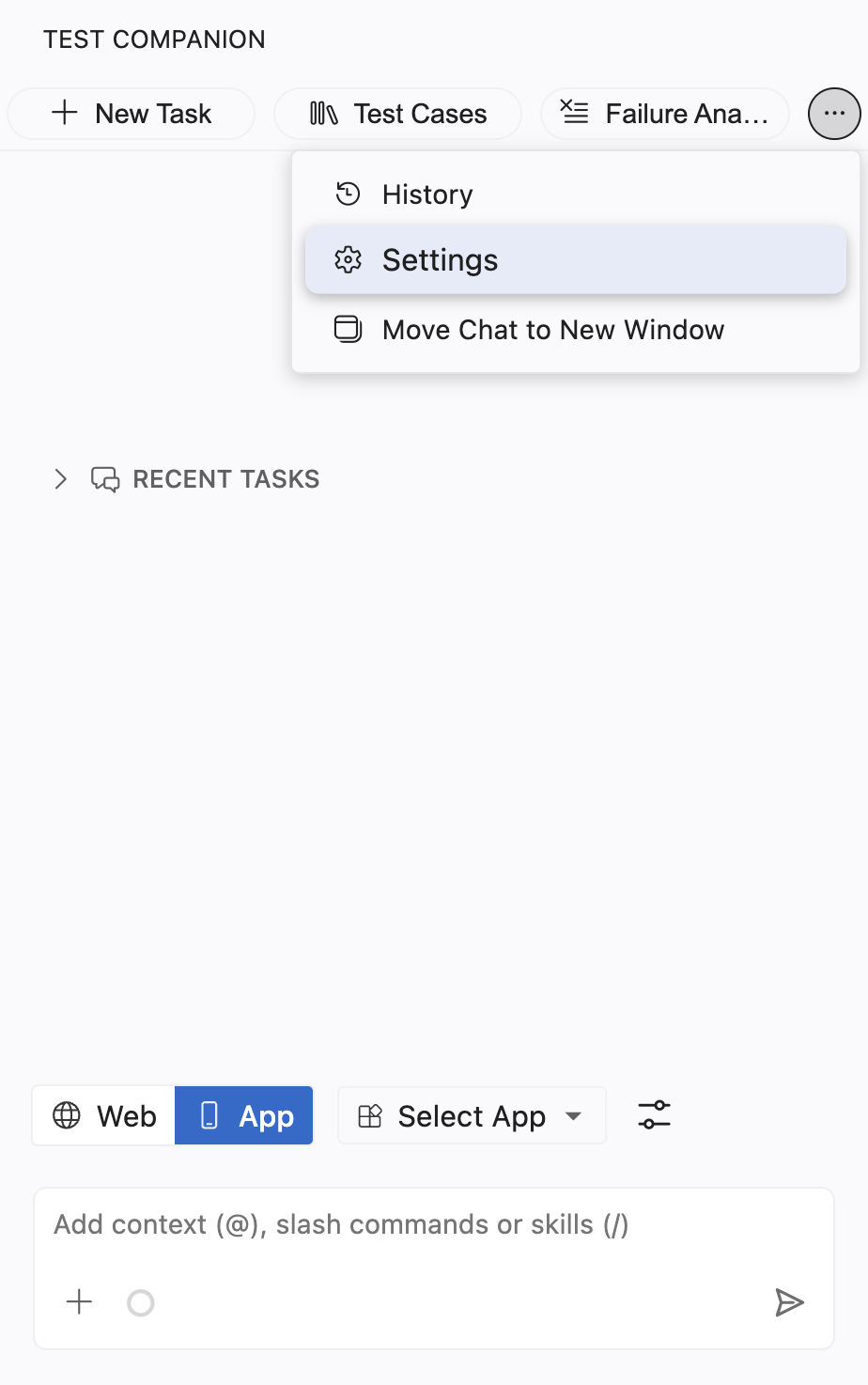
Click the ... (more options) button at the top-right corner of the Test Companion panel, then select Settings.
Select the Proxy and Local Setup tab in the sidebar.
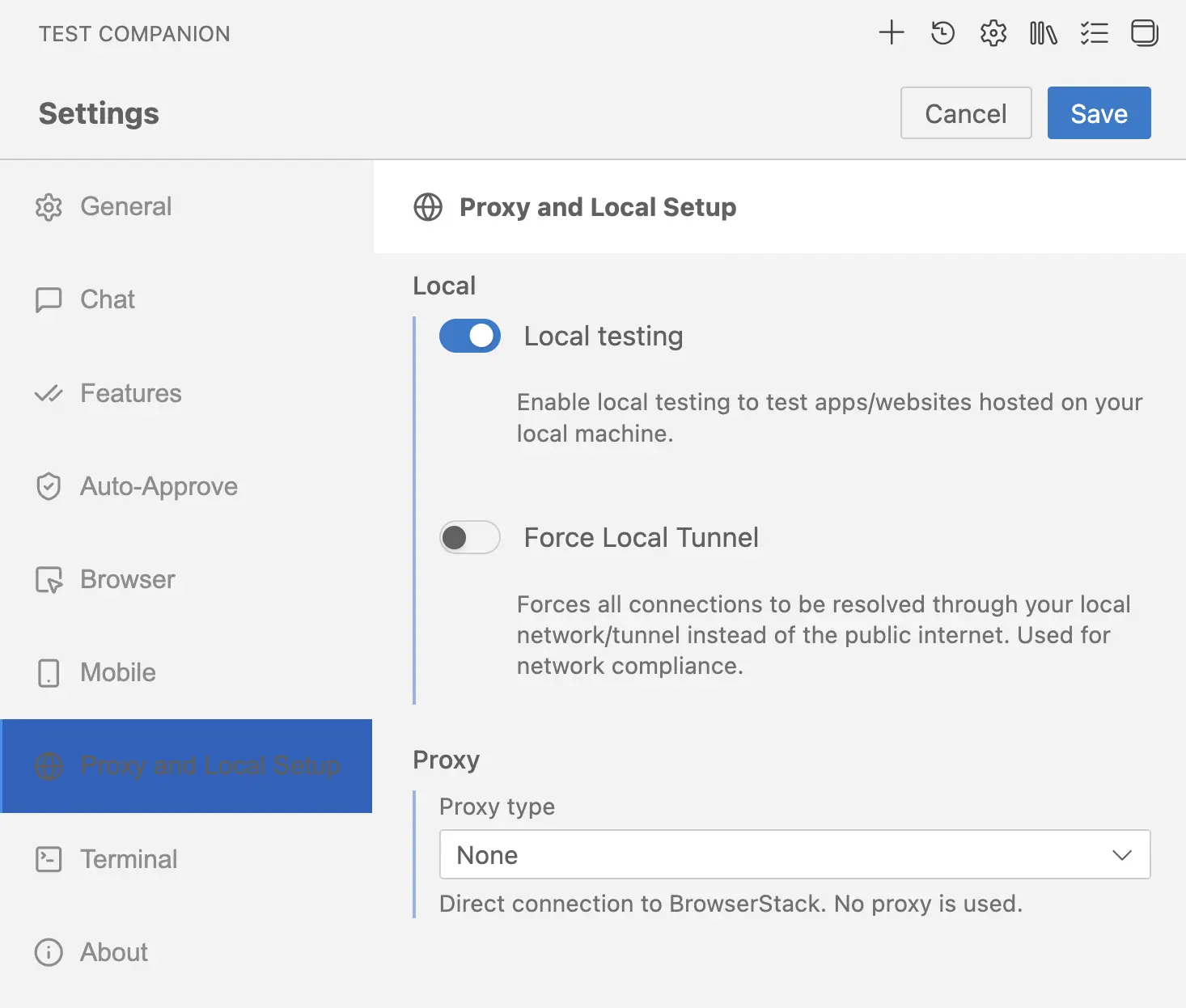
Local
The Local region controls how Test Companion reaches resources on your local machine and how session traffic flows through your network.
Local testing
Turn on Local testing to test apps and websites that are not publicly accessible, including:
- Web apps running on
localhostor a private staging URL. - Mobile apps that call APIs on your development machine or internal servers.
- Any environment behind a corporate firewall that BrowserStack devices cannot reach directly.
When Local testing is on, Test Companion establishes a secure tunnel between BrowserStack devices and your machine. The tunnel uses BrowserStack Local under the hood and starts automatically when a session begins.
Turn Local testing off when you only test public URLs and want to skip tunnel startup.
Force Local tunnel
Turn on Force Local Tunnel to route every session connection through your local network instead of the public internet. With this option on, BrowserStack devices reach all destinations, including public URLs, through your machine.
Use Force Local Tunnel when:
- Your security policy requires that all outbound traffic from test sessions egress through your corporate network.
- You need every request to pass through your network’s monitoring, filtering, or logging tools.
- You are debugging a routing issue and want to confirm that traffic is flowing through the tunnel.
Force Local Tunnel requires Local testing to be on. The setting maps to the forcelocal option on browserStackLocalOptions.
Proxy
The Proxy type dropdown controls how Test Companion routes traffic to BrowserStack. Select the option that matches your network configuration. None is selected when you first open the panel.
| Setting | Details |
|---|---|
| Field type | Dropdown |
| Default value | None |
| Options | None, Standard proxy, Local MITM proxy, PAC file |
None
Test Companion connects directly to BrowserStack. No proxy is used.
Choose None when your network allows direct outbound connections to BrowserStack without any proxy or firewall restrictions. This is the right choice for most individual setups and home networks.
Standard proxy
Test Companion routes BrowserStack Local and WebDriver traffic through a standard HTTP proxy.
Choose Standard proxy when your corporate network requires all outbound traffic to pass through an HTTP proxy server.
When you select Standard proxy, the following fields appear:
| Field | Required | Description |
|---|---|---|
| Host | Yes | The hostname or IP address of your proxy server. Example: proxy.corp.example
|
| Port | Yes | The port number your proxy server listens on. Example: 3128
|
| Username | No | The basic-auth username for proxy authentication. Leave blank if your proxy does not require authentication. |
| Password | No | The basic-auth password for proxy authentication. |
| CA certificate path | No | The absolute file path to a custom CA certificate in PEM format. Example: /absolute/path/to/cert.pem. Use this when your proxy terminates TLS with a custom certificate authority. |
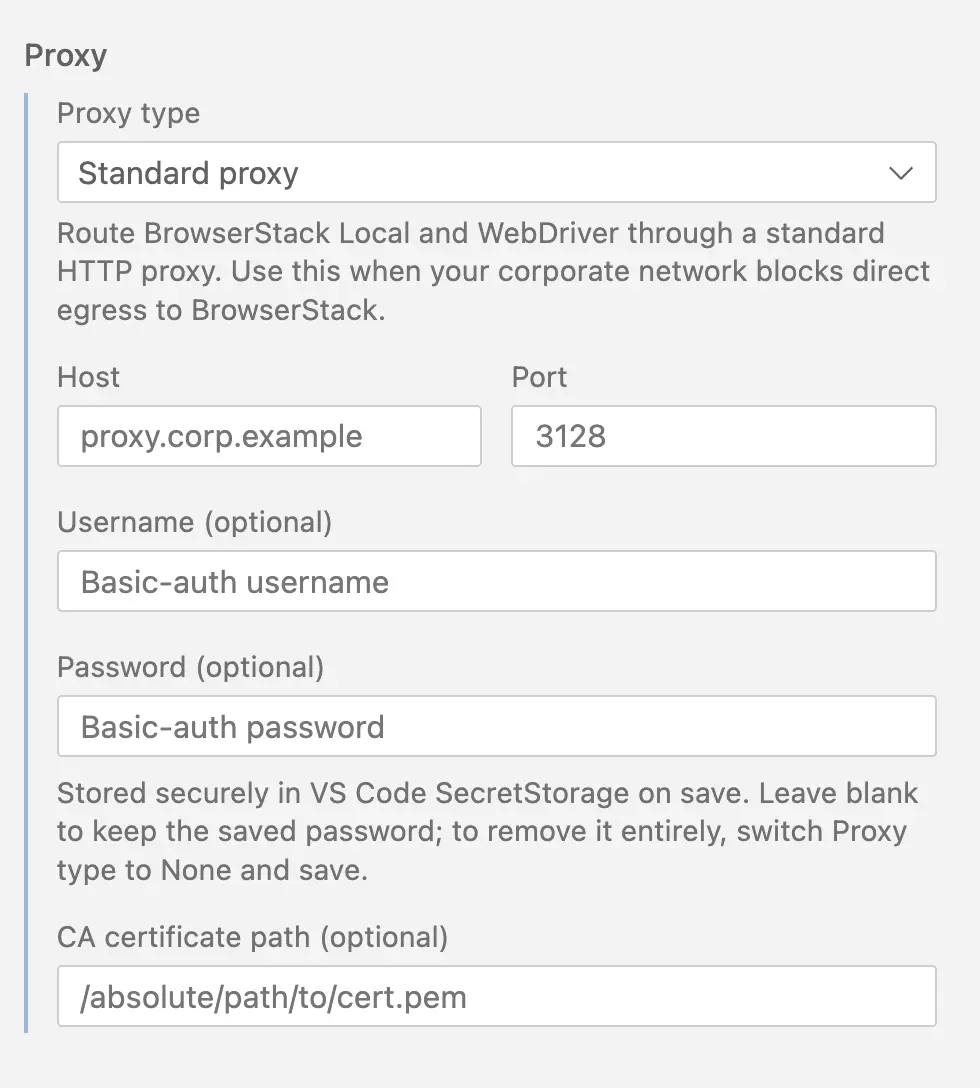
Passwords are stored securely in VS Code SecretStorage when you click Save. To keep an existing saved password, leave the field blank. To remove a saved password entirely, switch the Proxy type to None and click Save.
Local MITM proxy
Test Companion routes traffic through a local man-in-the-middle proxy, for example mitmproxy. Use this when outbound TLS must be inspected.
Choose Local MITM proxy when your security team requires TLS inspection of outbound traffic, or when you need to debug requests between Test Companion and BrowserStack using a local interception proxy.
When you select Local MITM proxy, the following fields appear:
| Field | Required | Description |
|---|---|---|
| Host | Yes | The hostname or IP address of your MITM proxy. Example: proxy.corp.example
|
| Port | Yes | The port number your MITM proxy listens on. Example: 8081
|
| Username | No | The basic-auth username for proxy authentication. Leave blank if your proxy does not require authentication. |
| Password | No | The basic-auth password for proxy authentication. |
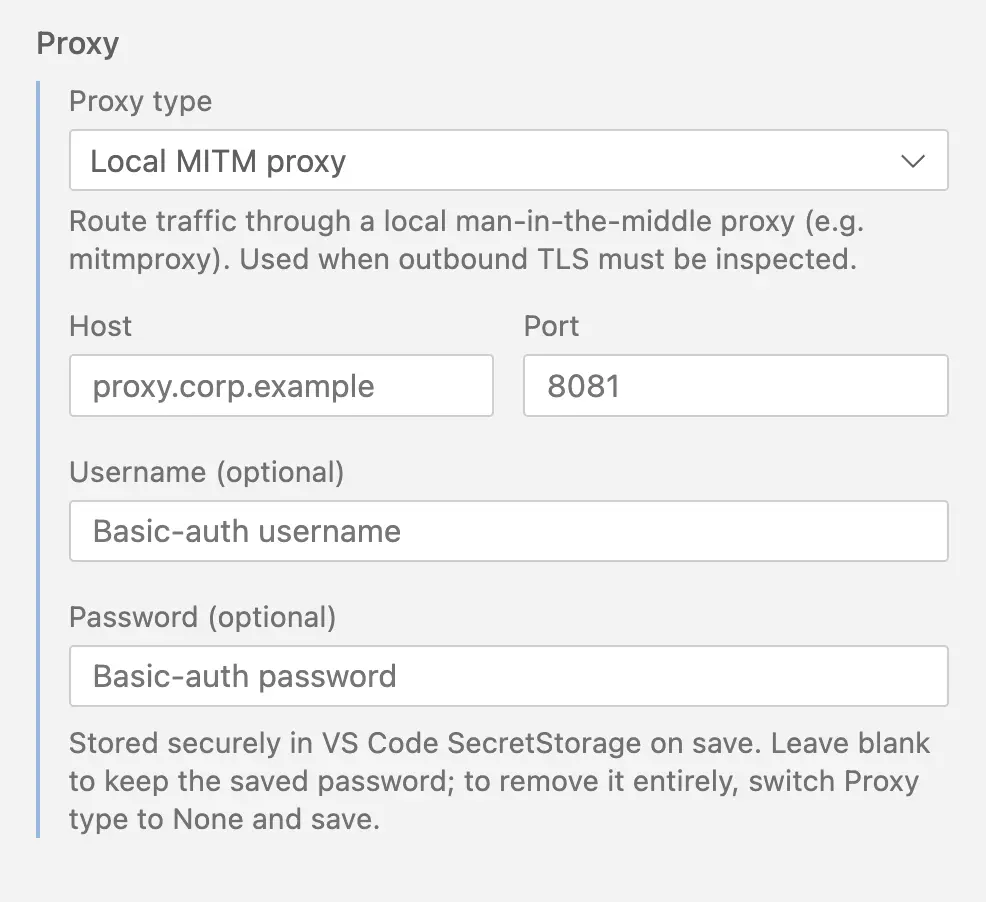
Passwords are stored securely in VS Code SecretStorage when you click Save. To keep an existing saved password, leave the field blank. To remove a saved password entirely, switch the Proxy type to None and click Save.
PAC file
Test Companion uses a PAC (Proxy Auto-Configuration) file to choose the upstream proxy on a per-request basis.
Choose PAC file when your network uses different proxies for different destinations and a PAC file already defines the routing rules.
When you select PAC file, the following field appears:
| Field | Required | Description |
|---|---|---|
| PAC file path | Yes | The absolute file path to your PAC file. Example: /absolute/path/to/proxy.pac
|
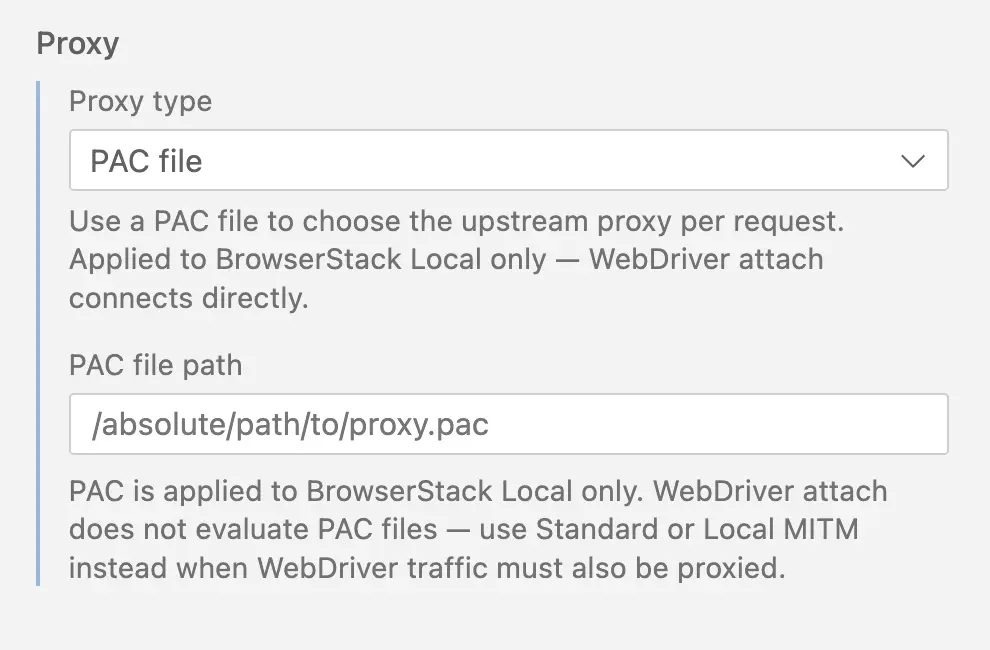
PAC routing applies to BrowserStack Local traffic only. WebDriver attach does not evaluate PAC files. If WebDriver traffic must also be proxied, use Standard proxy or Local MITM proxy instead.
We're sorry to hear that. Please share your feedback so we can do better
Contact our Support team for immediate help while we work on improving our docs.
We're continuously improving our docs. We'd love to know what you liked
We're sorry to hear that. Please share your feedback so we can do better
Contact our Support team for immediate help while we work on improving our docs.
We're continuously improving our docs. We'd love to know what you liked
Thank you for your valuable feedback!