
 Join our Discord
Terminal settings
Control how Test Companion reuses your IDE’s integrated terminal when it runs commands.
Terminal settings control how Test Companion uses your IDE’s integrated terminal when it runs commands. The single setting here controls when the extension reuses an existing terminal instead of opening a new one. Most users can leave it at the default, but it helps when you troubleshoot terminal integration issues.
How to open settings
To open the terminal settings:
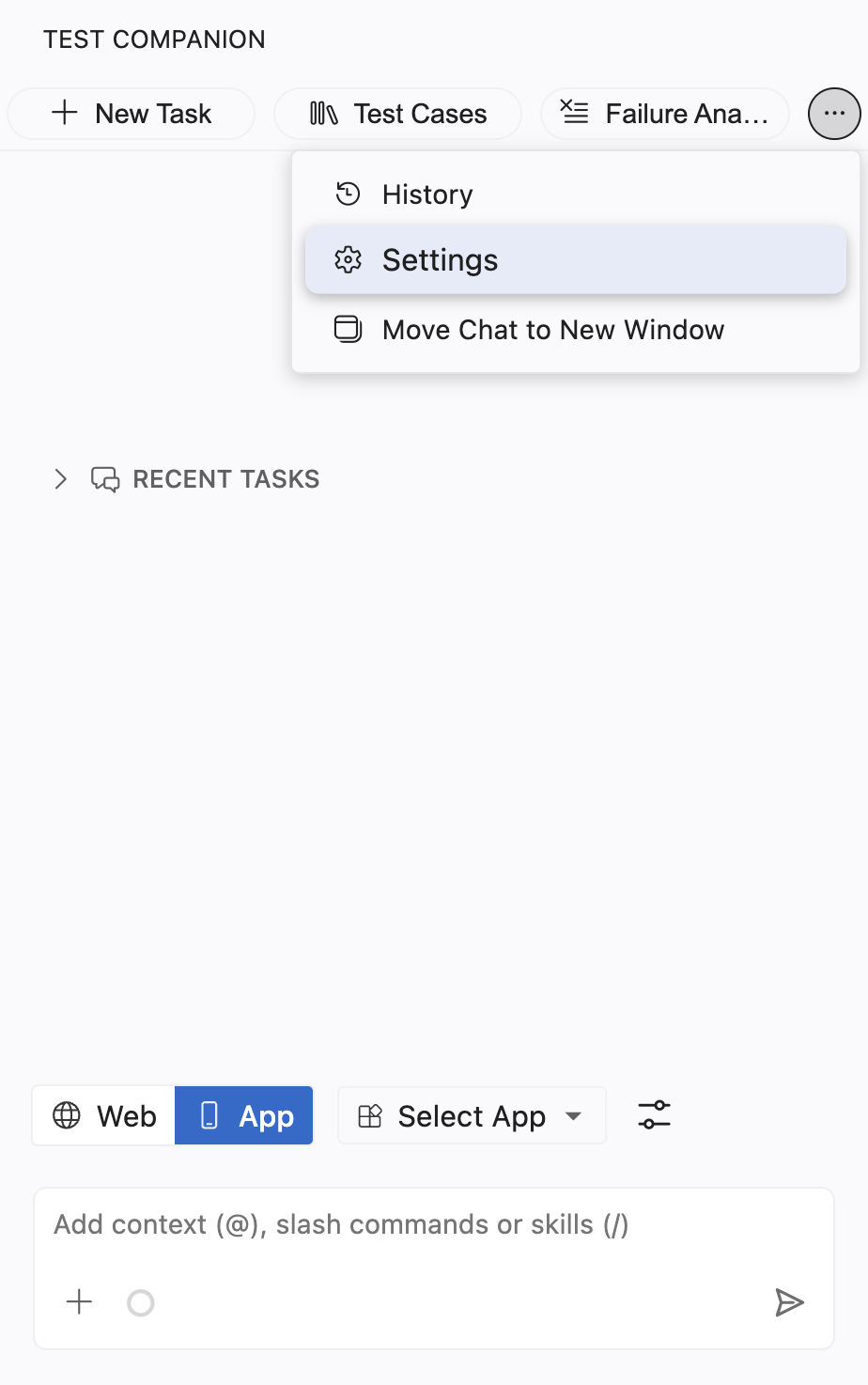
Click the ... (more options) button at the top-right corner of the Test Companion panel, then select Settings.
Select the Terminal Settings tab.
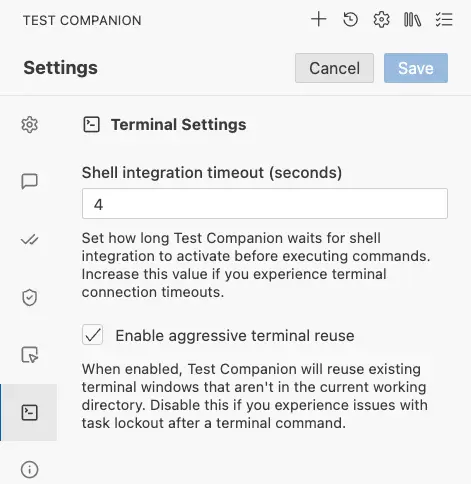
Turn on or off aggressive terminal reuse, then click Save.
Enable aggressive terminal reuse
By default, Test Companion reuses terminal instances to keep your terminal panel clean during a long session. When this option is enabled, the extension reuses an existing terminal even if it is open in a different directory. It changes to the correct directory before it runs the command.
| Setting | Details |
|---|---|
| Field type | Checkbox |
| Default value | Enabled (checked) |
| What it does | When enabled, Test Companion reuses existing terminal windows that are not in the current working directory, rather than creating new ones. |
When to disable this
If you notice issues with task lockout after a terminal command, try disabling this setting. Task lockout can occur when the extension reuses a terminal that is in the middle of a long-running process (like a development server) and cannot send new commands to it.
Disabling this setting makes Test Companion create a new terminal for each command when no idle terminal is available in the correct directory. This is safer but may result in more terminal tabs.
Example scenario
You have a terminal running npm run dev (a long-running development server). With aggressive terminal reuse enabled, Test Companion might try to reuse that terminal tab for a new command, which could interrupt the server. With aggressive terminal reuse disabled, it creates a fresh terminal tab instead, leaving the server running.
Troubleshoot terminal issues
If commands are failing silently or producing unexpected results, try these steps in order:
- Increase the shell integration timeout to 8-10 seconds and try again.
- Disable aggressive terminal reuse to rule out conflicts with running processes.
- Close all terminal tabs in your IDE and start a fresh task.
-
Check your shell startup scripts for errors or slow operations. Try running
time zsh -i -c exit(ortime bash -i -c exit) in an external terminal to measure your shell startup time.
If these steps do not resolve the issue, contact BrowserStack support with your operating system details and any error messages you see.
We're sorry to hear that. Please share your feedback so we can do better
Contact our Support team for immediate help while we work on improving our docs.
We're continuously improving our docs. We'd love to know what you liked
We're sorry to hear that. Please share your feedback so we can do better
Contact our Support team for immediate help while we work on improving our docs.
We're continuously improving our docs. We'd love to know what you liked
Thank you for your valuable feedback!