
 Join our Discord
Migrate tests
Convert an existing test suite to another framework or language, based on your live app so the migrated tests run with your current UI.
Test Companion reads your source test for the flow to perform and the assertions to make. It does not copy the selectors. Selectors copied from an old suite go stale, so Test Companion opens your live application and captures a working one for every element the test acts on. The selectors match today’s UI. It also reuses your target project’s structure and helpers, so the migrated files fit your existing layout.
How it works
When you ask Test Companion to migrate a test suite, it:
- Reads and sorts the source repository, including test files, configuration, helpers, page objects, and dependency files.
- Asks you to confirm the inputs it cannot infer, such as the target framework, the target location, and the run environment.
- Creates the target project when none exists, then installs its dependencies.
- Opens your live application and captures the current selector for each element the tests act on.
- Writes the migrated test files and page objects in your target framework’s conventions and keeps each source test’s intent and assertions.
- Runs the migrated tests, finds the cause of any failures, and fixes them until the suite passes.
- Reports the new project, the files it created, and a pass or fail result for each test.
Prerequisites
Before you migrate a suite, make sure you have the following:
- A supported IDE with the Test Companion extension installed.
- The source test suite open in your workspace.
- A target project for the new framework, or an empty folder for Test Companion to create one in.
- The application URL and any credentials or test data needed to reach the flows under test.
Migrate a test suite
Use the Test Companion chat to migrate one or more source files or your whole suite. Test Companion asks for anything it cannot infer, so you can start with a short prompt.
- Open the Test Companion panel in the IDE.
- Below the chat input, confirm the Web toggle is selected.
-
In the chat box, describe what to migrate. Include any combination of the following:
- The source files or folder, attached or referenced with
@. - The target framework and language.
- The application URL and how to authenticate.
- The source files or folder, attached or referenced with
-
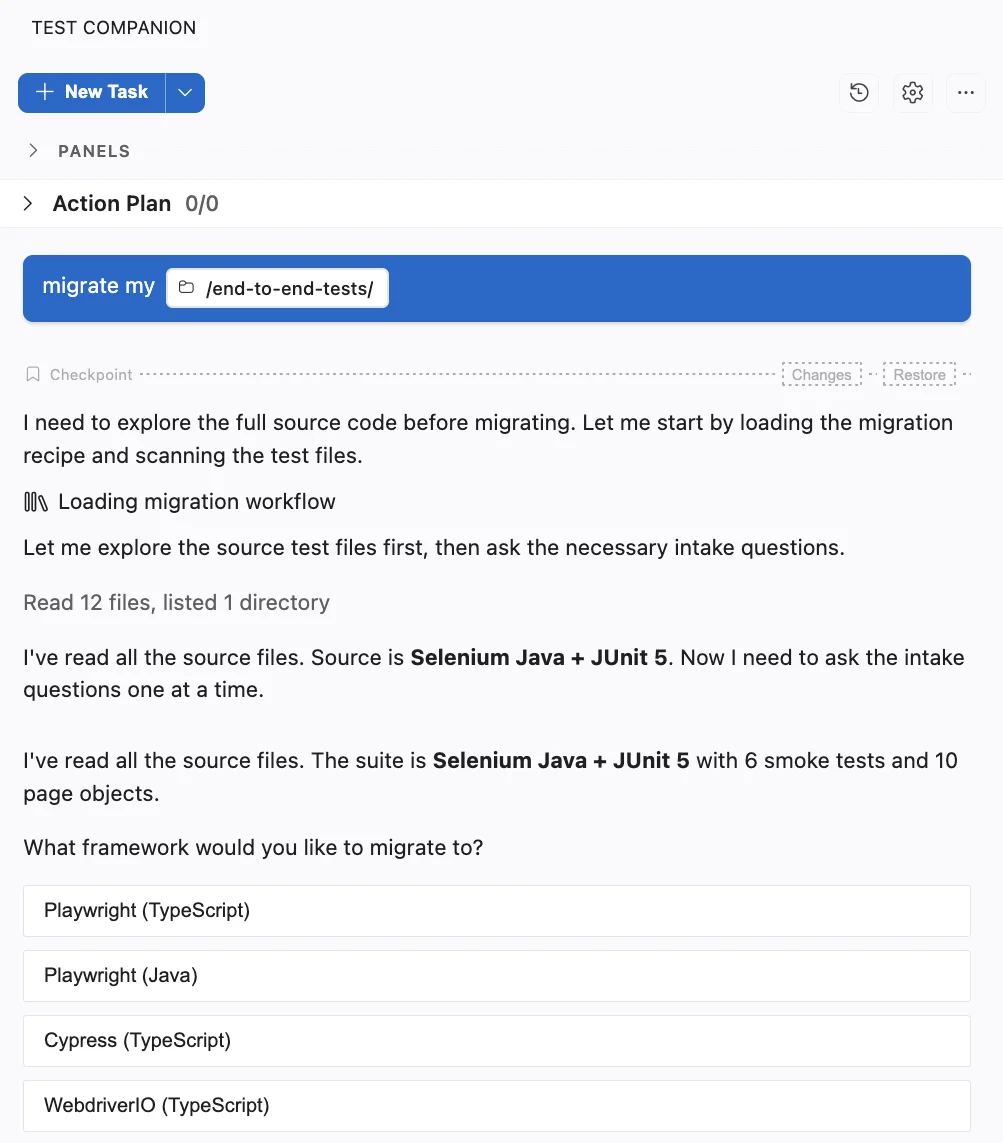
Press Enter to send. Test Companion reads your source files before it asks anything.
-
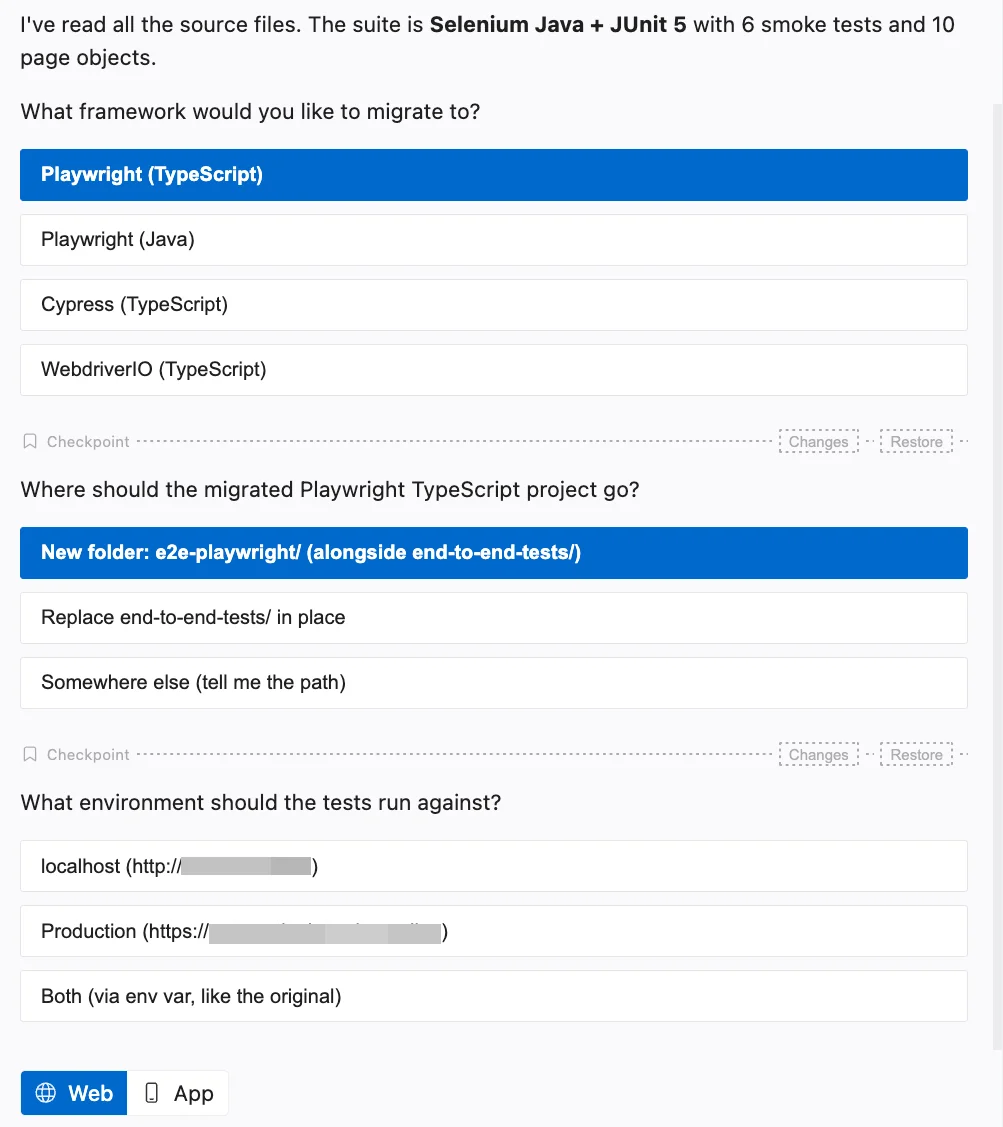
Answer each question Test Companion asks. It asks one question at a time and offers the likely answers as buttons.
-
Review the confirmation before Test Companion changes any files. It names the target framework, the target folder, and the base URL.
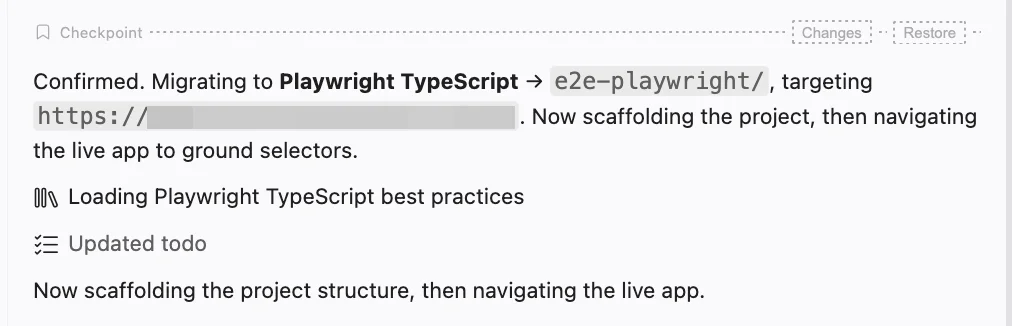
Test Companion then creates the target project, captures selectors from your live app, writes the test files and page objects, and runs them. You can follow its progress in the chat. At each checkpoint, keep or undo the change before moving on.
Example prompt
This prompt names the source, the target, and how to reach the app:
Migrate my Selenium (Python) tests in tests/ to Playwright (TypeScript) in playwright-tests/.
App: https://example.com, log in with username `testuser` and password `password123`.
Capture selectors from the live app, and run each test after writing it.
Capture selectors from your live app
Test Companion does not copy selectors from your source suite. It opens your application, follows the flow, and inspects the page to find the selector that works against the running UI. When more than one element matches, Test Companion narrows the selector to a single match before writing the step.
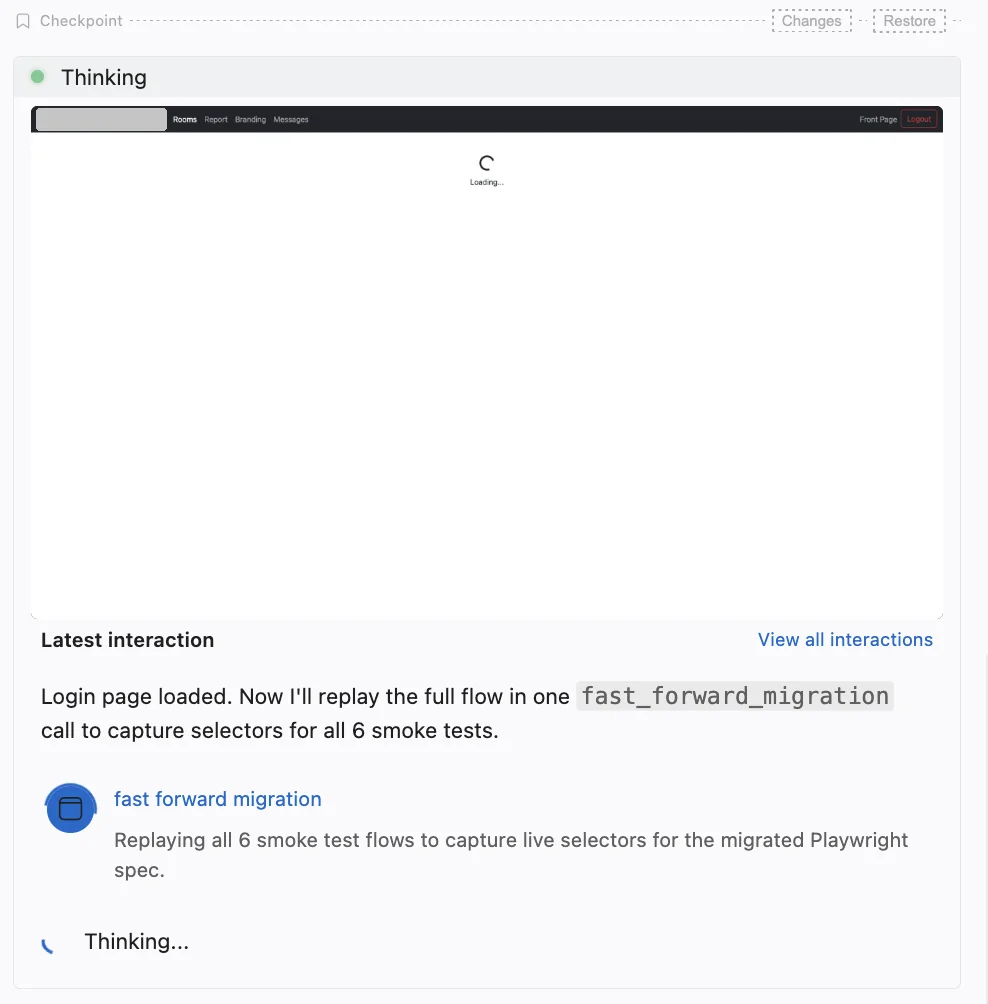
One exploration captures the selectors that the tests share. For flows a single pass cannot reach, Test Companion captures the selectors while it runs and fixes each test.
Review the migration results
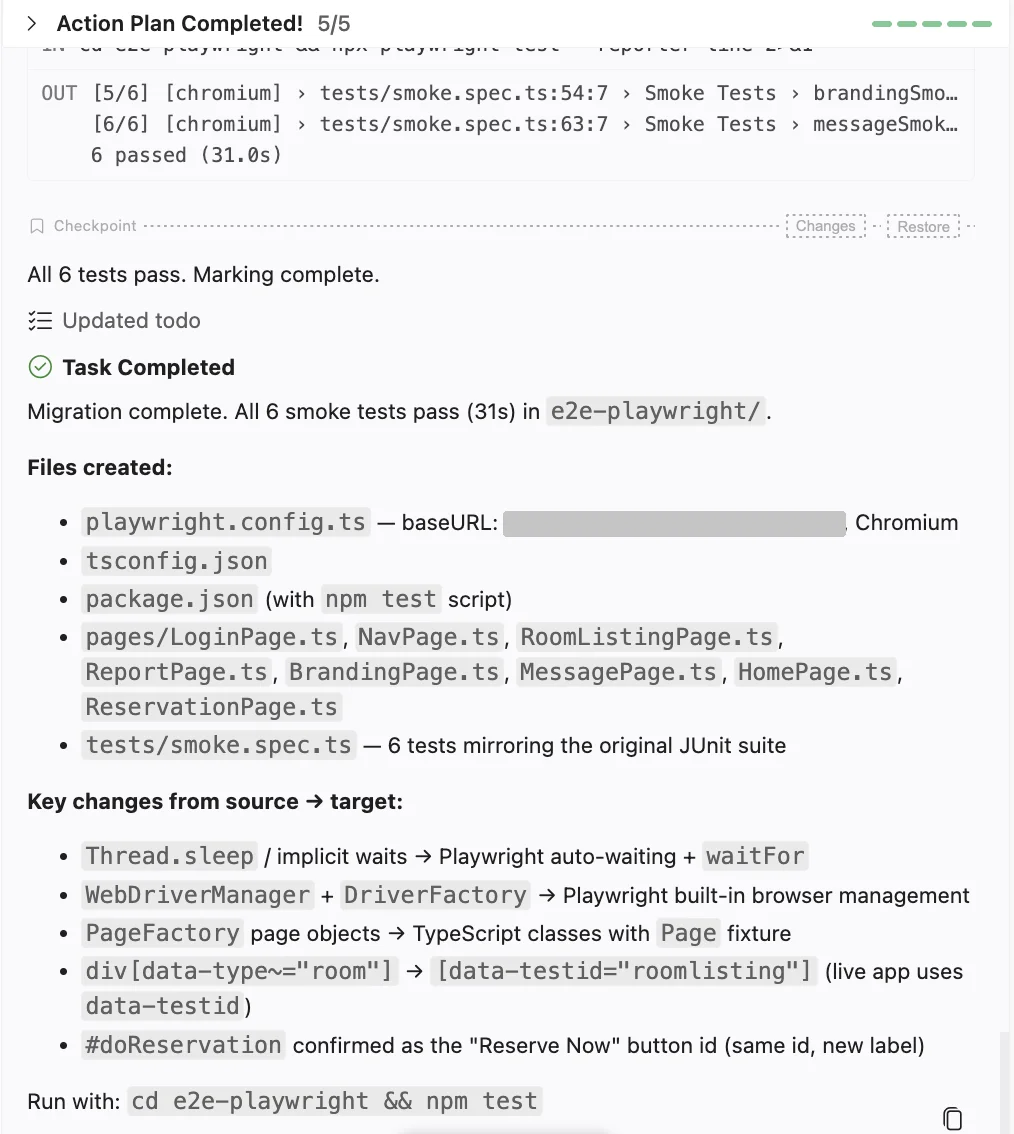
Test Companion runs the migrated suite. It reports a pass or fail result for each test in the chat. When a test fails, Test Companion reads the error, fixes the cause, and reruns the suite until every test passes.
When the migration finishes, Test Companion summarizes the migrated project, the files it created, and the run command. It also lists the changes it made from your source suite.
What gets migrated
- Selectors come from your live application, not from the source, so they match the current UI.
- Existing page objects, helpers, and fixtures in the target project are reused, not duplicated.
- The test runner configuration and dependencies migrate with the tests, so the suite runs in your project.
- Your source files stay in place, so the source and target suites can coexist until you remove the source yourself.
- Test Companion verifies each migrated test with an actual run before it marks the test complete.
Supported frameworks and languages
Test Companion migrates from Selenium, Cypress, and WebdriverIO, including Cucumber and behavior-driven development (BDD) suites. Playwright is the primary target, in TypeScript, JavaScript, or Python.
Next steps
- Automate tests: Convert manual test cases into automation scripts.
- Generate test cases: Create test cases from requirements or by exploring a live site.
- Prompt guide: Write prompts that give Test Companion the context it needs.
We're sorry to hear that. Please share your feedback so we can do better
Contact our Support team for immediate help while we work on improving our docs.
We're continuously improving our docs. We'd love to know what you liked
We're sorry to hear that. Please share your feedback so we can do better
Contact our Support team for immediate help while we work on improving our docs.
We're continuously improving our docs. We'd love to know what you liked
Thank you for your valuable feedback!