
 Join our Discord
AI form filler
Fill forms with contextually relevant data for testing.
The AI Form Filler in the BrowserStack Testing Toolkit auto-fills entire forms or individual input fields with realistic, context-aware test data in a single click. It reads each field’s label, placeholder, name, and ID to produce values that look like real user input, not random strings or lorem-ipsum, and saves several minutes of manual testers on long forms.
Key features
- Fill a single field using Fill field
- Fill an entire form in one click using Fill form
- Generate realistic, context-aware values based on each field’s label, placeholder, name, and ID
- Regenerate values on demand
- Toggle smart form filling per session
Use the AI form filler
To auto-fill forms with AI-generated test data:
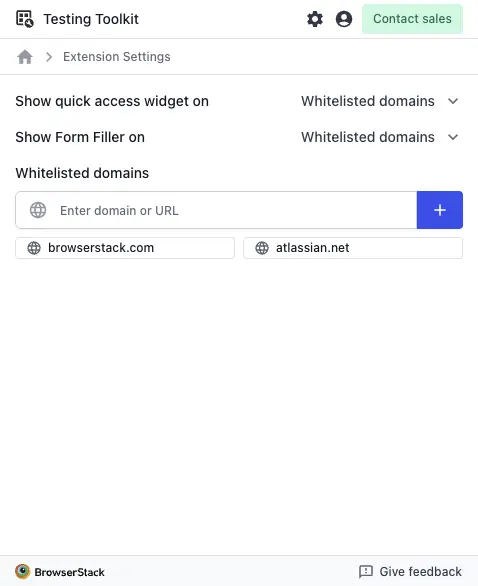
In the Testing Toolkit panel, click the Settings (gear) icon to open Extension Settings. Under Whitelisted domains, enter the domain or URL of the page you want to test, and click + to add it. AI Form Filler only runs only on domains in this list. Whitelisting is a one-time step per domain.
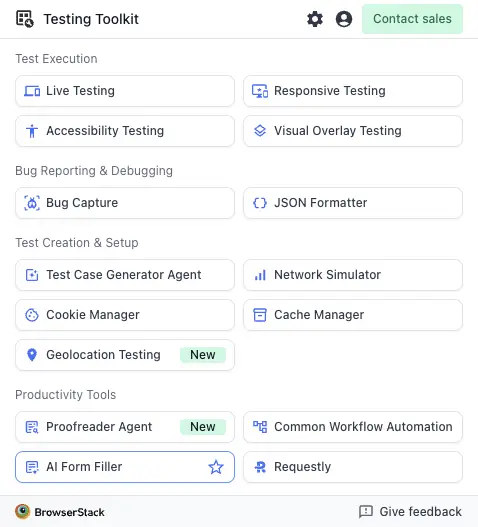
Click the Testing Toolkit icon in your Chrome toolbar, then select AI Form Filler from the Productivity Tools section.
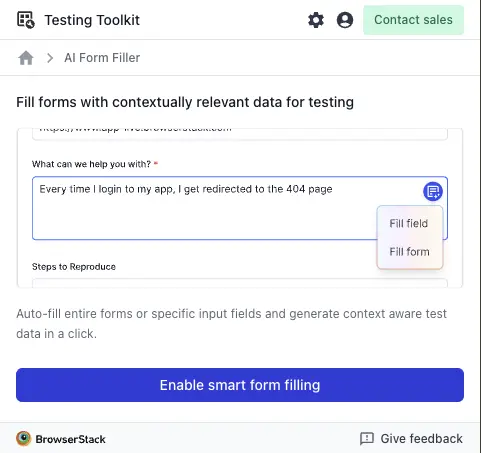
Click Enable smart form filling to turn on form detection.
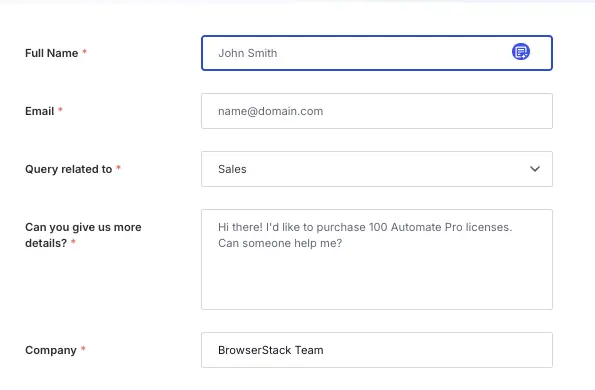
Open the page that contains the form you want to populate, then click any input field. The AI Form Filler icon appears inside the field.
Click the AI Form Filler icon in the field, then choose one of the following:
- Fill field, generates a realistic value for that single input based on its label, placeholder, name, and ID.
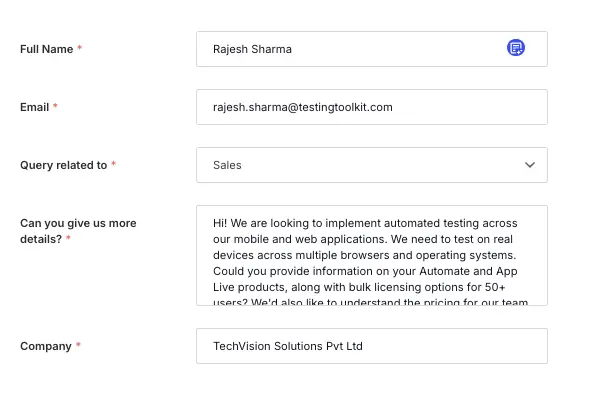
- Fill form, generates values for every detected input on the page all at once.
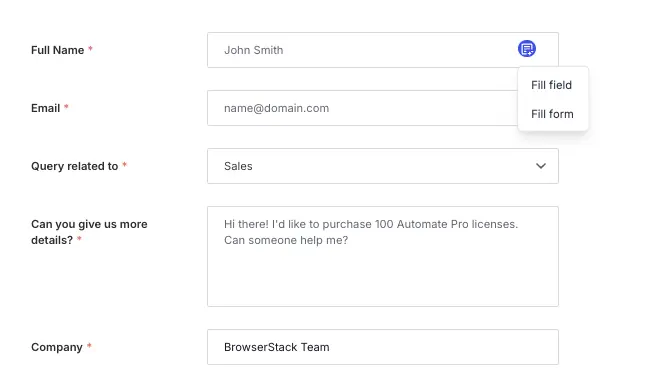
Review the auto-generated values. If a value doesn’t suit your test, click Fill field or Fill form again to regenerate fresh data. Once the form looks correct, submit it to continue testing.
To turn off form detection, return to the Testing Toolkit panel and click Disable smart form filling.
We're sorry to hear that. Please share your feedback so we can do better
Contact our Support team for immediate help while we work on improving our docs.
We're continuously improving our docs. We'd love to know what you liked
We're sorry to hear that. Please share your feedback so we can do better
Contact our Support team for immediate help while we work on improving our docs.
We're continuously improving our docs. We'd love to know what you liked
Thank you for your valuable feedback!