
 Join our Discord
Share scan reports
Learn how to share Website Scanner reports with your team or external stakeholders through internal links, public links, or CSV exports.
After a scan completes, you can share the results with others directly from the scan report page. Website Scanner provides three ways to share reports.
Share a report with Website Scanner users from your organization
Use the internal Share report link to share scan results with members of your BrowserStack organization. Follow these steps to share a report internally:
- Open the scan report you want to share.
-
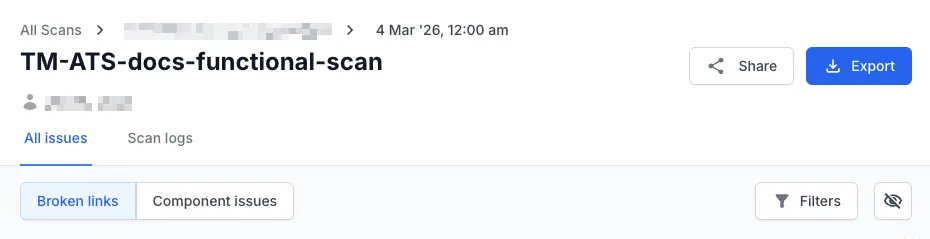
Click the Share icon at the top right of the report.
-
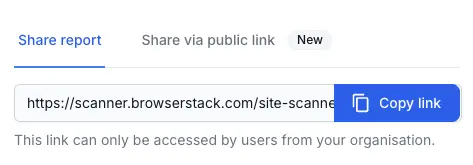
In the Share report tab, click Copy link to copy the URL to your clipboard.
- Share the copied link with your team members.
This link is accessible only to users within your organization. Recipients must have a BrowserStack account and belong to your organization to view the report.
Share a report through a public link
Use a public link to share scan results with external stakeholders who do not have a BrowserStack account. Follow these steps to share a report through a public link:
Open the scan report you want to share.
Click the Share icon at the top right of the report.
Select the Share via public link tab.
Turn on the Enable public link toggle. Website Scanner generates a unique public URL.
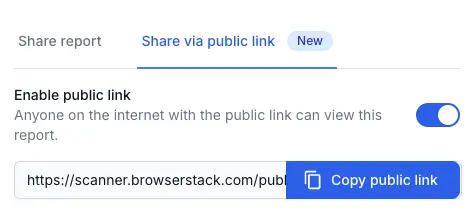
Click Copy public link to copy the URL to your clipboard.
Share the copied link with your stakeholders.
Anyone with this link can view the report without signing in to BrowserStack.
Disable a public link
When you no longer want external users to access the report, disable the public link. Follow these steps to disable a public link:
-
Click the Share icon at the top right of the report.
- Select the Share via public link tab.
-
Turn off the Enable public link toggle.
-
In the confirmation dialog, click Disable link.
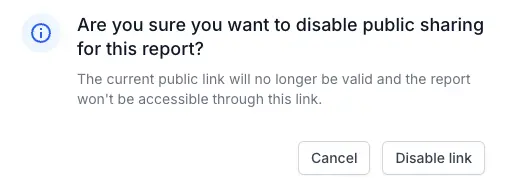
The existing public link becomes invalid immediately. Anyone who tries to access the disabled link sees a 404 error. If you enable public sharing again for the same report, Website Scanner generates a new link.
Export a report as CSV
Use the Export button to download scan results as a CSV file for offline analysis or to share through email or other channels.
- Open the scan report you want to export.
- Click Export in the top-right corner of the report page.
The CSV file downloads to your device. It contains the full list of issues detected in the scan, including the page or resource URL, parent page, error type, and error code.
We're sorry to hear that. Please share your feedback so we can do better
Contact our Support team for immediate help while we work on improving our docs.
We're continuously improving our docs. We'd love to know what you liked
We're sorry to hear that. Please share your feedback so we can do better
Contact our Support team for immediate help while we work on improving our docs.
We're continuously improving our docs. We'd love to know what you liked
Thank you for your valuable feedback!