
 Join our Discord
Bulk review potential issues
Review potential accessibility issues in bulk using the confidence score to prioritize and resolve findings faster.
Issues classified as Potential issues include a confidence score, which reflects the tool’s level of certainty regarding each finding. You can use the confidence score to prioritize higher-confidence issues and review them in bulk.
Why should you review potential issues?
Evaluating potential issues is essential for a precise analysis of your website’s accessibility compliance. By addressing these findings promptly, you ensure that your accessibility score and total issue count reflect the true health of your site, rather than just the issues that could be detected automatically.
The bulk review feature simplifies the review process by eliminating repetitive reviews.
How to bulk review potential issues?
Follow these steps to bulk review potential accessibility issues:
- Adjust the Confidence slider to filter the issues according to the confidence score. You can use this option to fix the higher confidence issues on priority.

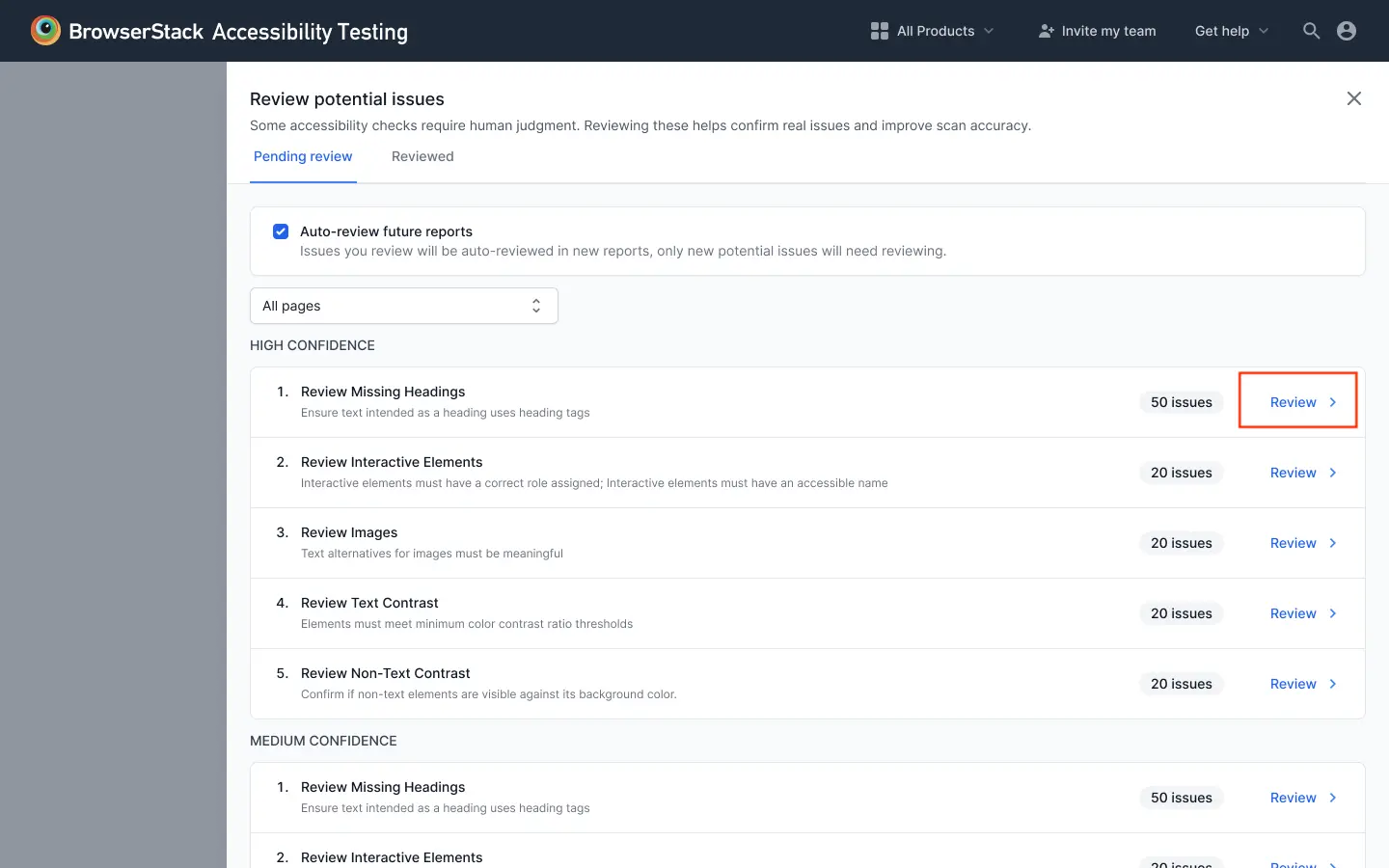
- Click Review against a potential issue.

- Select Auto-review future reports to automatically apply your decisions to future reports.

- On the Pending review tab, click Review against a specific issue you want to review.
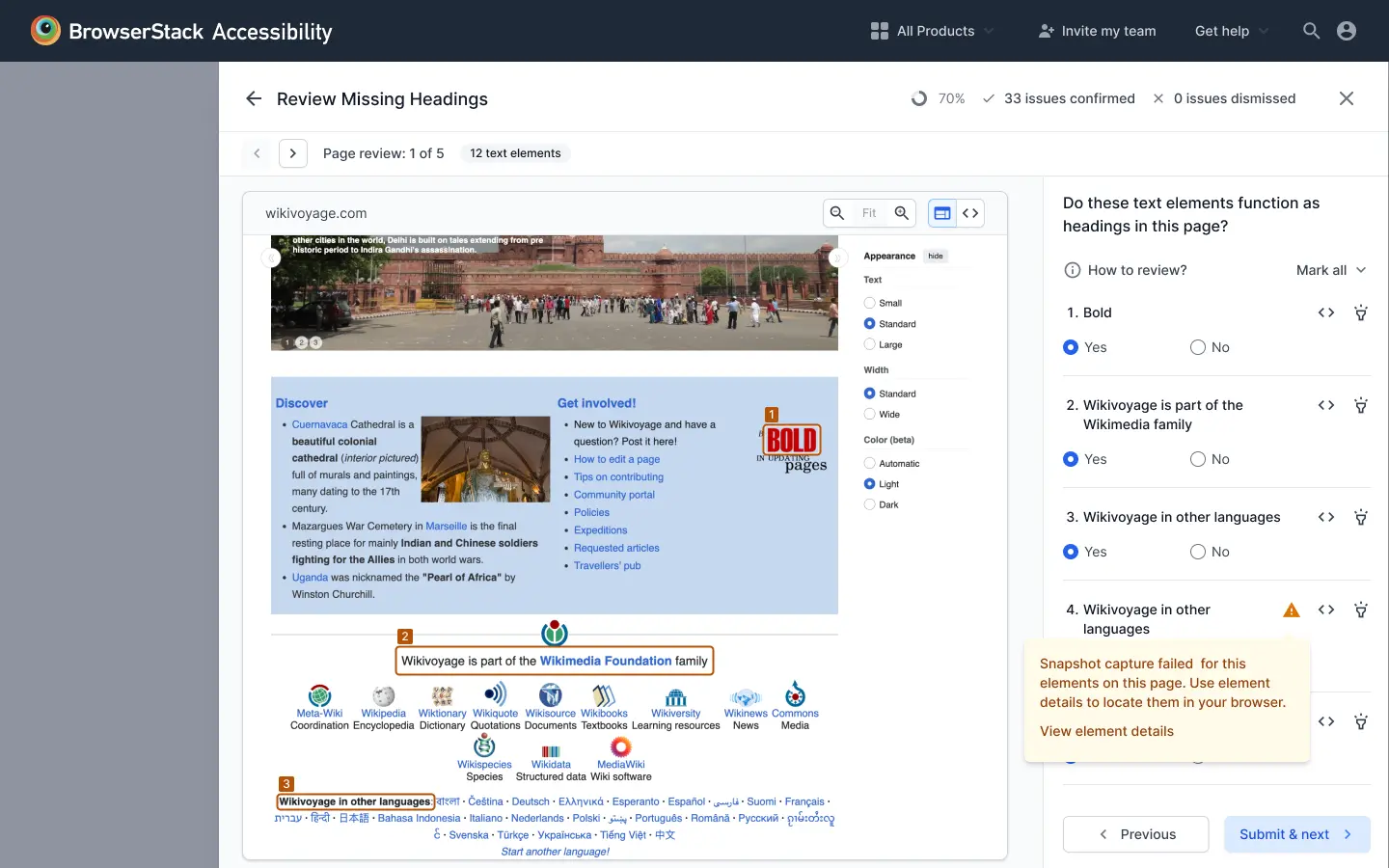
- Depending on the type of issue, answer a few questions to mark the item as an issue or not.
- Follow the instructions until you receive a message Group review complete.
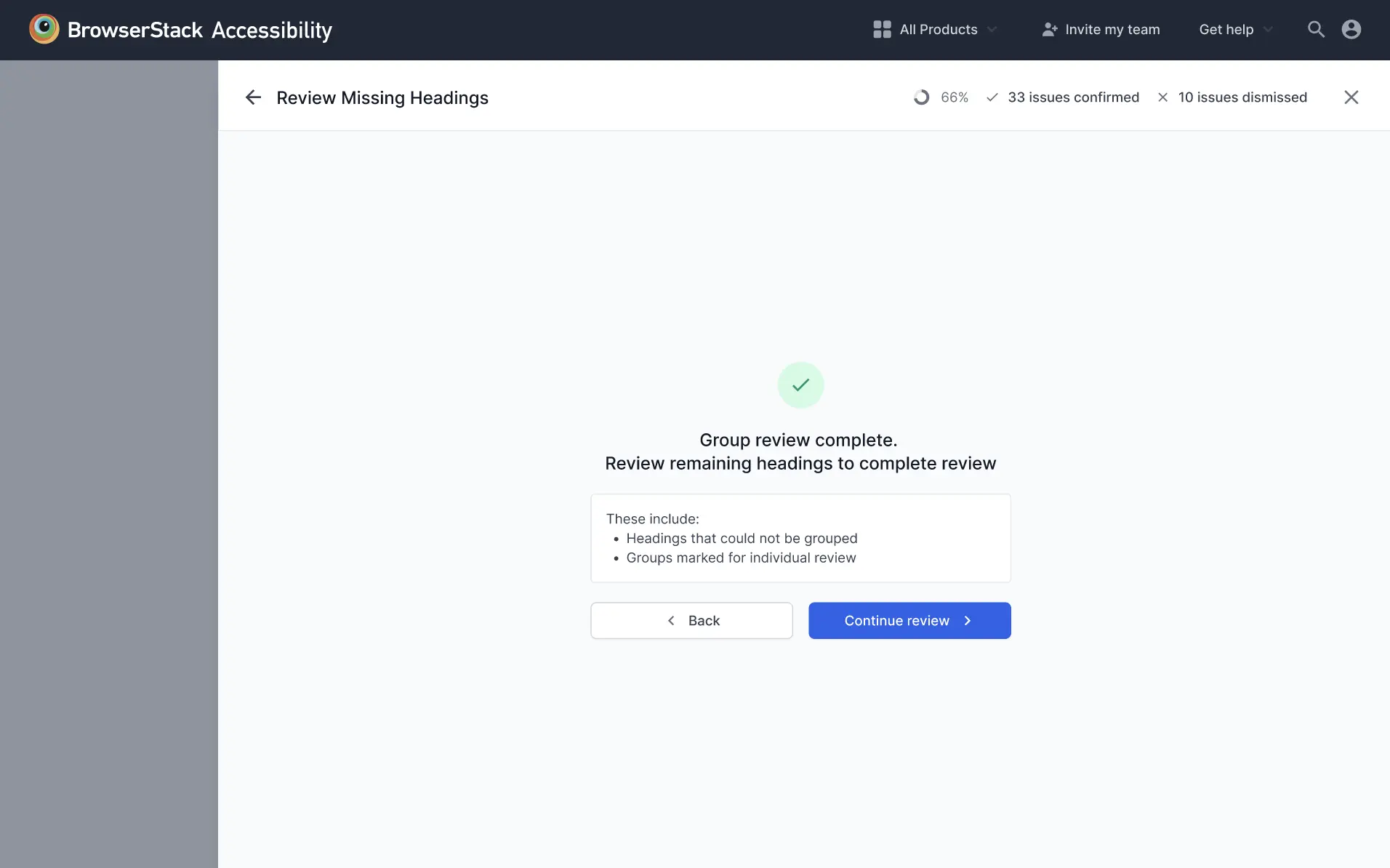
- Click Continue review to review the next item.
- Repeat steps 2 to 7 until you receive a message Review complete.
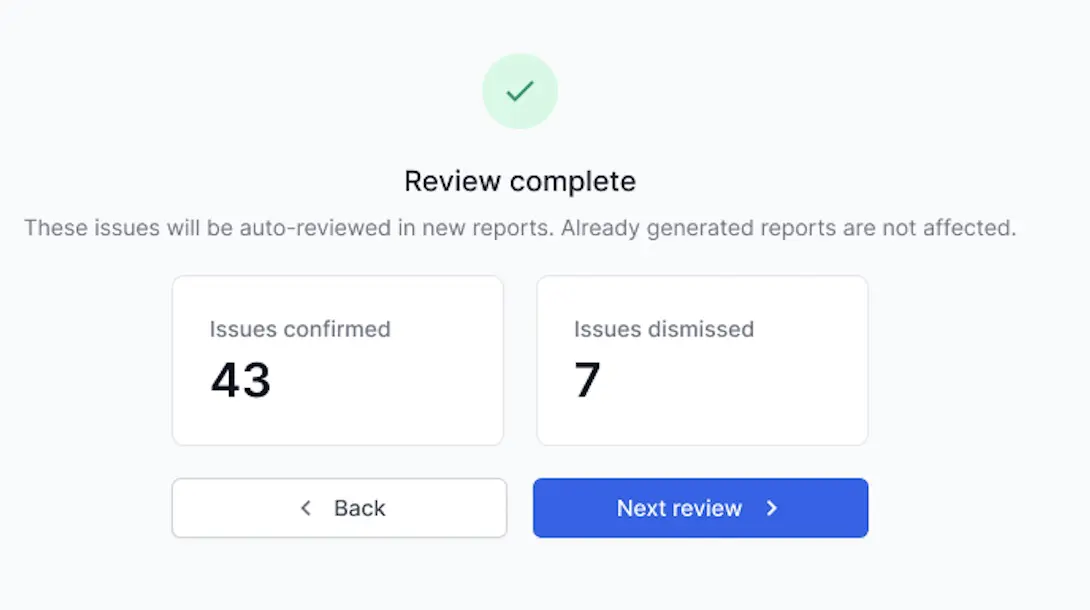
- Click Next review to review issues individually.
Examples of bulk review
This section explains how to review color contrast issues and heading issues. You can follow a similar process for other types of issues as well.
How to bulk review color contrast issues
When bulk reviewing color contrast issues, BrowserStack Accessibility Testing opens a dedicated Review Color Contrast screen. This screen groups text elements on each page by their required contrast ratio — Large text needs 3:1 contrast and Small text needs 4.5:1 contrast — and asks you to confirm whether each element meets the requirement.
The review progresses page by page. The breadcrumb at the top (for example, Page review: 1 of 5) shows your progress, and the header displays the running count of confirmed and dismissed issues.
Follow these steps to review color contrast issues:
- For each text element listed, select Yes if the element meets the required contrast ratio, or No if it does not.
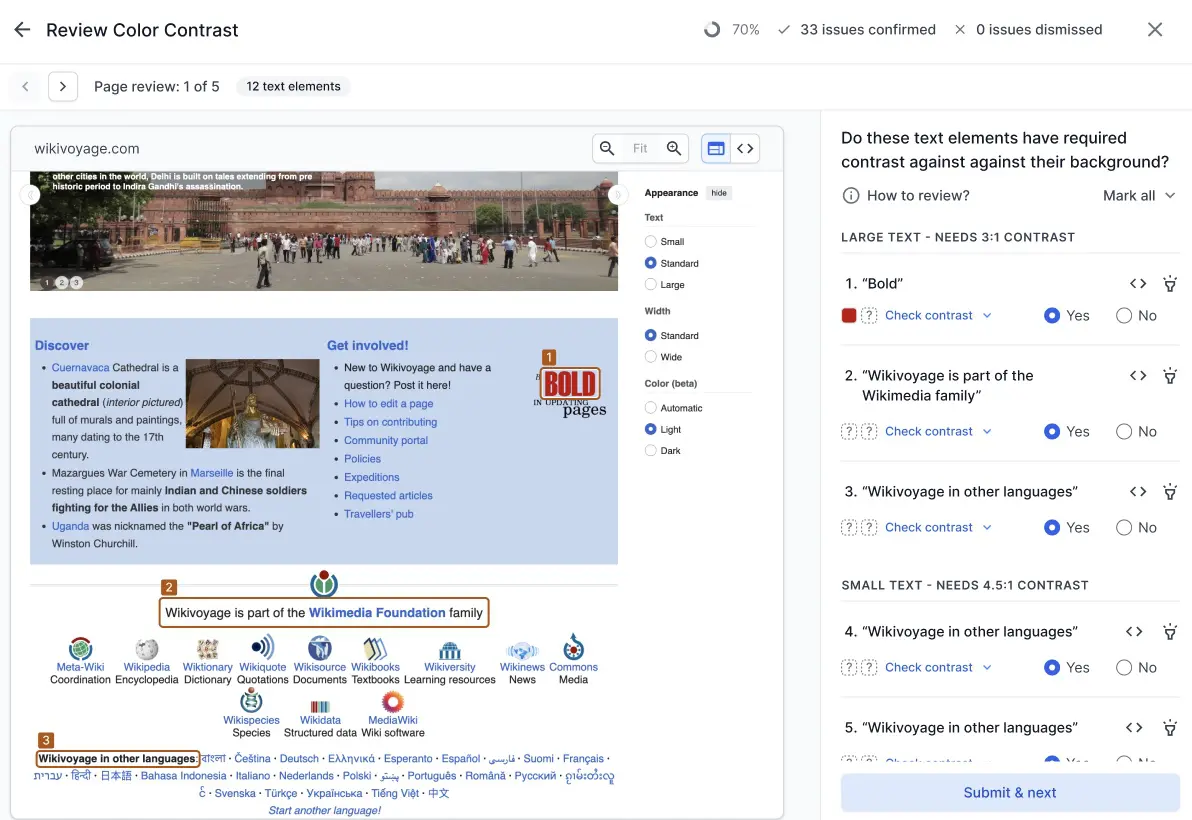
- To apply the same decision to all elements on the page at once, click Mark all and select Mark all as ‘Yes’ or Mark all as ‘No’ from the dropdown.
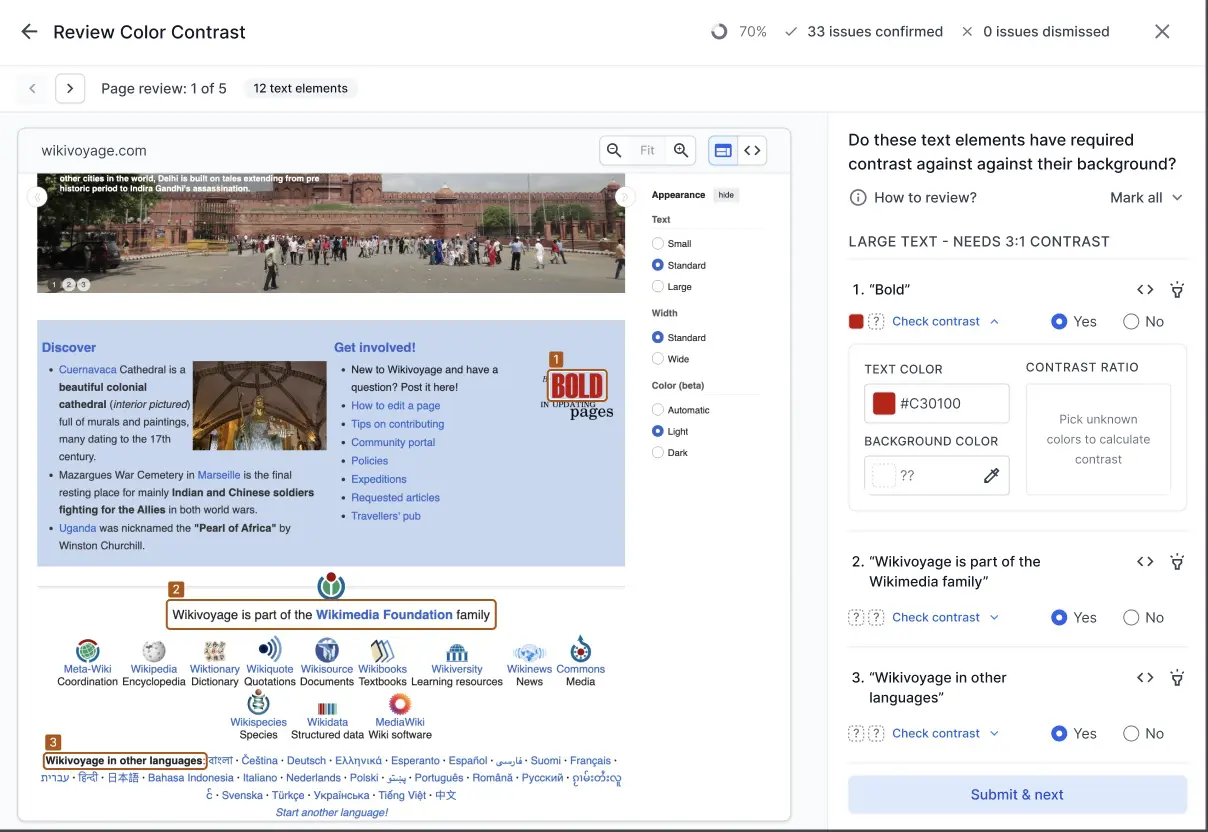
- If you are unsure about a specific element, click Check contrast to expand the contrast checker for that element. The checker displays the detected Text color and Background color. If the background color is unknown, it appears as ??.
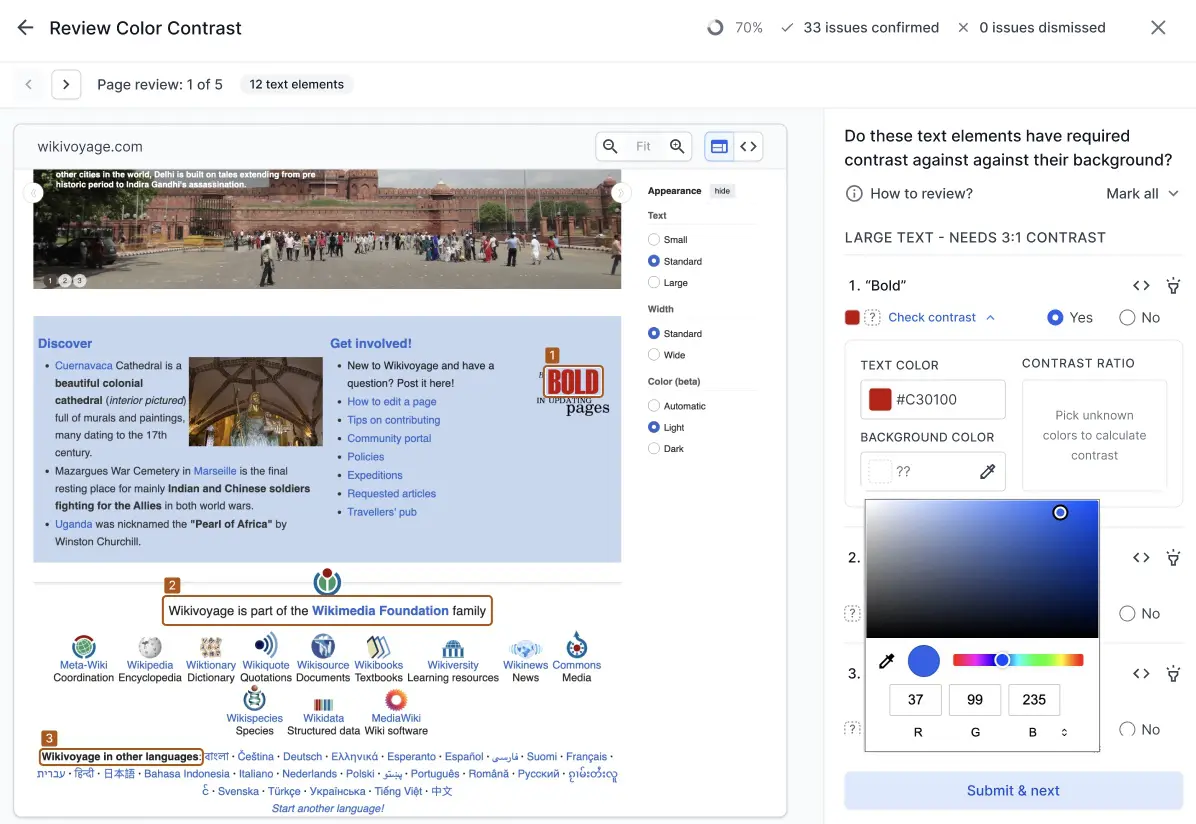
- If the background color is unknown, click the eyedropper icon next to the Background color field. A color picker opens. Use the color picker or enter the RGB values to specify the background color.
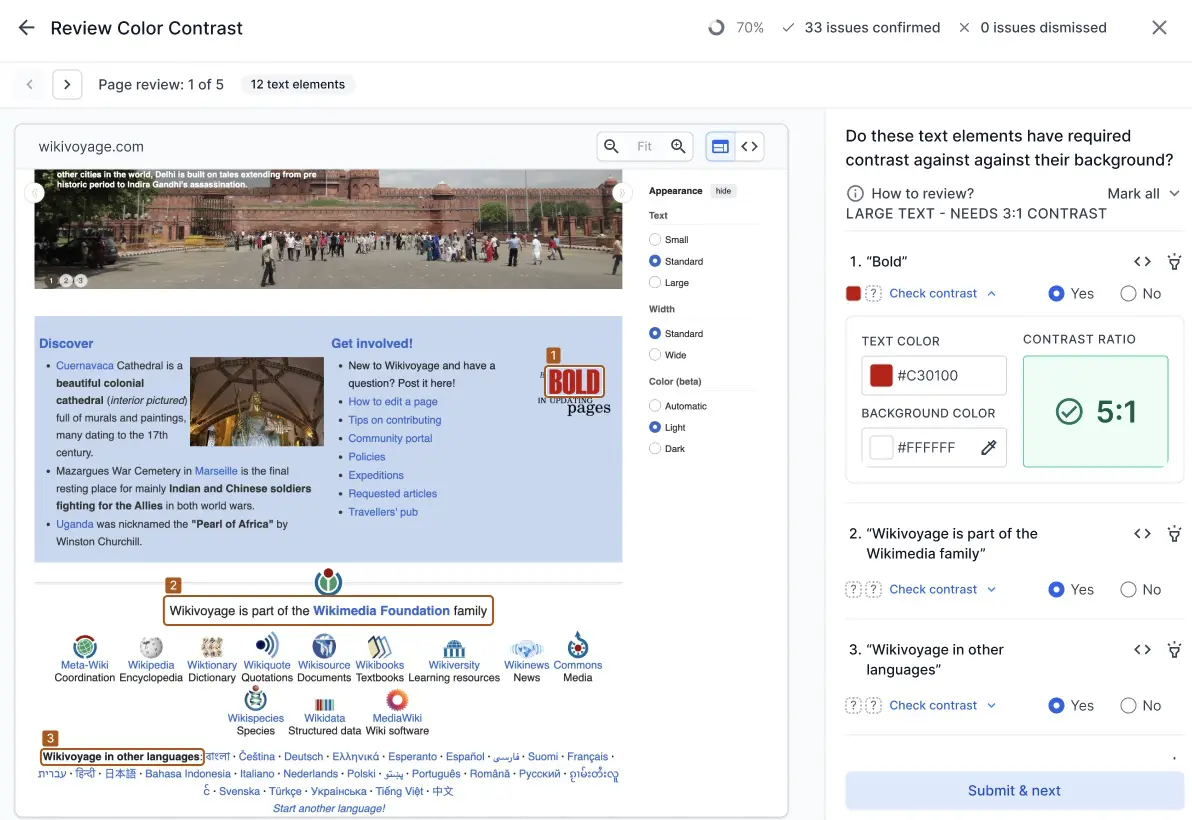
- Once both colors are defined, the Contrast ratio is calculated automatically. Use the displayed ratio to decide whether the element passes or fails, then select Yes or No accordingly.
- In the example below, the contrast ratio is 5:1, which passes the 3:1 requirement for large text.
- In the example below, the contrast ratio is 5:1, which passes the 3:1 requirement for large text.
- After reviewing all elements on the page, click Submit & next to move to the next page.
- Repeat until all pages are reviewed.
How to bulk review missing heading issues
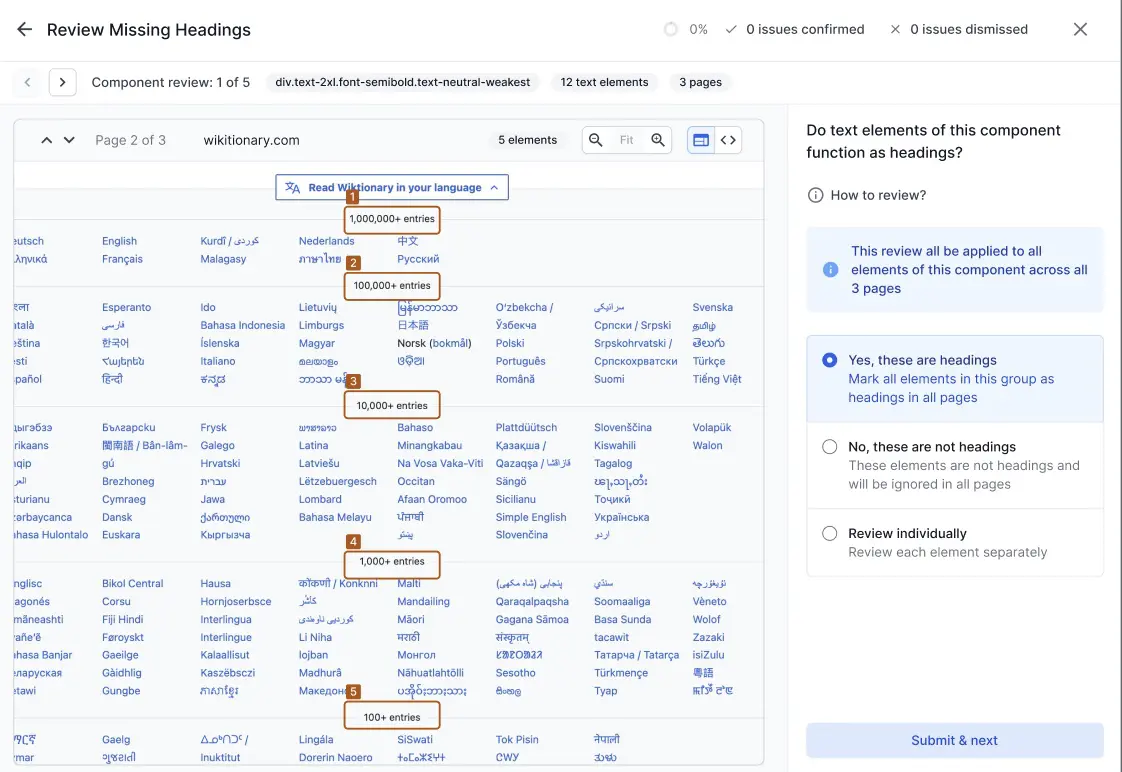
When bulk reviewing missing heading issues, BrowserStack Accessibility Testing opens a dedicated Review Missing Headings screen. The review has two modes:
- Component review: Groups all instances of the same component across multiple pages and lets you make a single decision for the entire group.
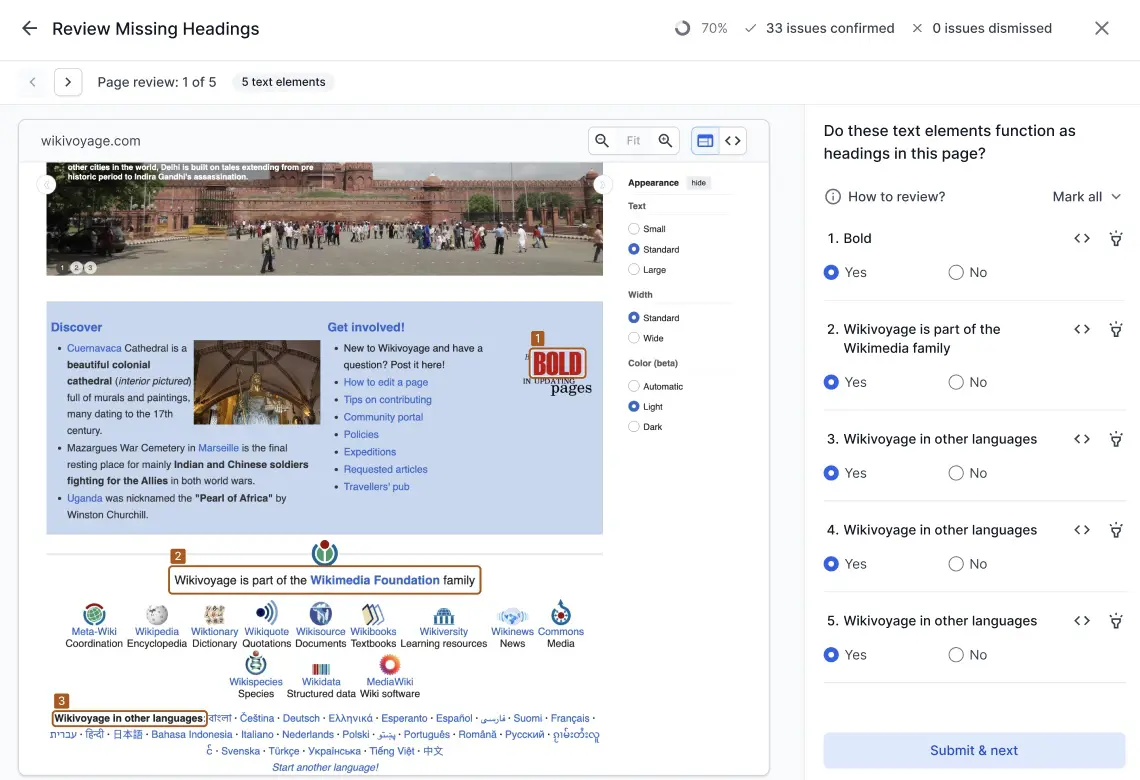
- Page review: Lists each text element individually per page for a more granular review.
The breadcrumb at the top (for example, Component review: 1 of 5 or Page review: 1 of 5) tracks your progress, and the header shows the running count of confirmed and dismissed issues.
Follow these steps to review missing heading issues:
- In component review mode, the tool groups all instances of the same component — identified by its CSS class — across multiple pages. Select one of the following options for the group:
- Yes, these are headings: Marks all elements in the group as headings across all pages.
- No, these are not headings: Marks all elements as non-headings and ignores them across all pages.
-
Review individually: Switches to page review mode so you can evaluate each element separately.
- In page review mode, each text element detected on the page is listed individually. For each element, select Yes if it functions as a heading, or No if it does not.
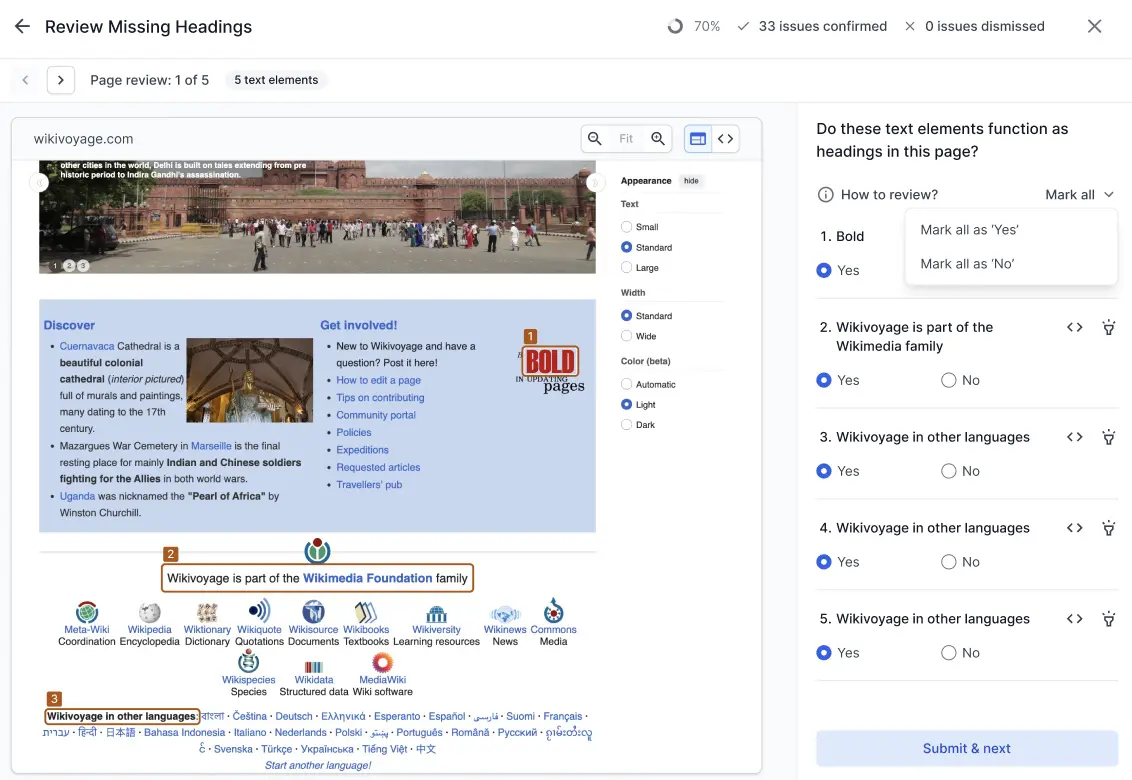
- To apply the same decision to all elements on the page at once, click Mark all and select Mark all as ‘Yes’ or Mark all as ‘No’ from the dropdown.
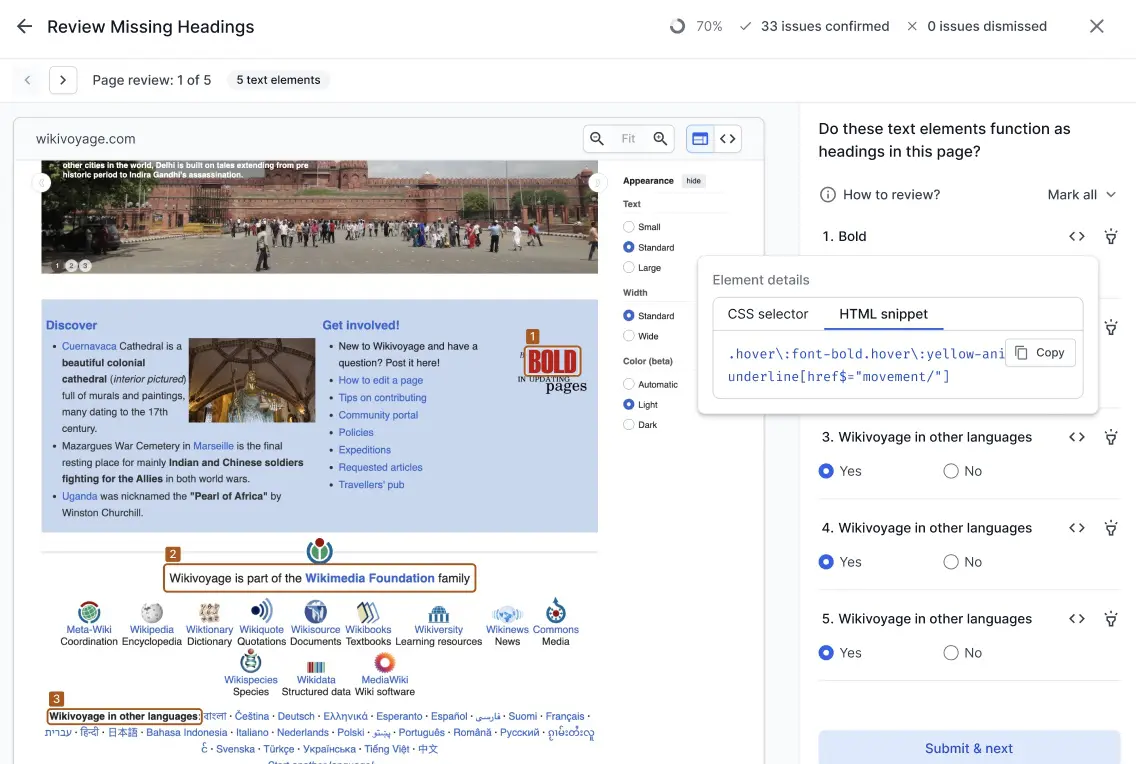
- To inspect a specific element before deciding, click the <> icon next to the element. An Element details panel opens with two tabs: CSS selector (showing the selector for the element) and HTML snippet (showing the HTML code). You can click Copy to copy the selector or snippet for reference.
- After reviewing all elements on the page, click Submit & next to move to the next page.
- Repeat until all pages are reviewed.
Persist decisions on potential issues
When you decide whether a potential issue is an issue, you can also persist your decision so the system marks similar cases as a confirmed issue or not an issue in the future, depending on your selection.
To persist your decision for future cases, you need to select the option Remember my review on this issue for my new reports of this scan before confirming.

Availability
We're sorry to hear that. Please share your feedback so we can do better
Contact our Support team for immediate help while we work on improving our docs.
We're continuously improving our docs. We'd love to know what you liked
We're sorry to hear that. Please share your feedback so we can do better
Contact our Support team for immediate help while we work on improving our docs.
We're continuously improving our docs. We'd love to know what you liked
Thank you for your valuable feedback!