
 Join our Discord
Issue groups
Learn how BrowserStack Accessibility Testing groups visually identical or similar issues to help you focus on more meaningful findings.
BrowserStack Accessibility Testing groups visually identical or similar issues together. It designates one issue in each group as the primary issue and lists the remaining occurrences as duplicates.
Your report summary reflects only unique issues by default, making the total issue count more actionable and focused.
This grouping takes effect in the following scenarios:
- Within a page: The same component appearing multiple times on a single page.
- Across pages: The same component appearing on different pages of your website.
How to view duplicate issues?
When an issue has duplicates, a View duplicates link appears next to the primary issue in the report. The number in the link indicates how many duplicates exist for that issue.
Follow these steps to view duplicates:
- Open an accessibility report.
- In the All issues tab, identify an issue that shows a View x duplicates link.
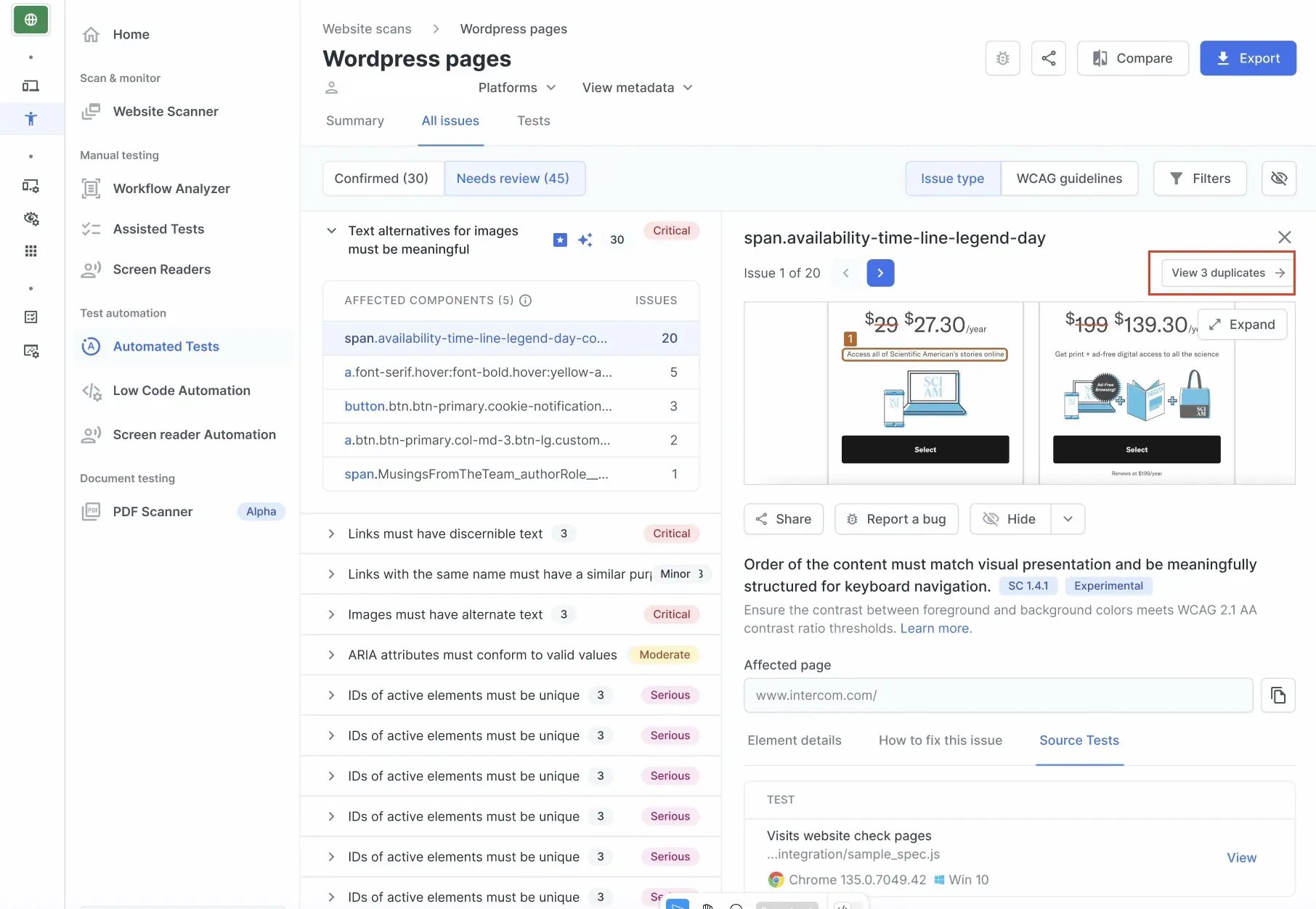
- Click View x duplicates to expand the list of duplicate occurrences.
- Expand the accordion next to a duplicate occurrence to view it’s issue snapshot.
Ungroup a duplicate issue
If the system groups two visually similar components that are functionally different, or if you want to see a duplicate issue separately, you can ungroup that specific duplicate issue from the primary group.
To ungroup a duplicate issue:
- Open an accessibility report.
- In the All issues tab, click an issue to expand it and click View duplicates.
- In the duplicates list, click Ungroup from the 3 dot menu next to the duplicate issue you want to remove from the group.
- Confirm the action.
Accessibility Testing removes the duplicate from the group and treats it as an independent issue. The issue count also increases as a result of this action.
Important considerations before ungrouping:
- Irreversible: Ungrouping is a one-time, permanent action. You cannot regroup an ungrouped issue.
- Individual action: Ungrouping applies to one duplicate at a time. You cannot ungroup multiple issues simultaneously.
- Scope: Ungrouping is specific to the current report. It does not affect other reports.
How actions on a primary issue affect duplicates?
When you take an action on a primary issue, the same action is automatically applied to all its duplicates. The following actions cascade to duplicates:
| Action | Effect on duplicates |
|---|---|
| Hide | All duplicates are hidden along with the primary issue. |
| Unhide | All duplicates are restored when you unhide the primary issue. |
| Review decision (for potential issues) | The review decision — such as marking as confirmed or not an issue — is applied to all duplicates. |
| Share | Sharing a primary issue shares the entire group, including all its duplicates. |
To learn more about hiding issues, see Hide issues from Accessibility reports.
Issue groups and CSV export
When you export a report to CSV, the export includes all issues — both primary issues and duplicates — as individual line items. An additional Duplicate column indicates whether each issue is a primary issue or a duplicate within a group.
Issue groups and report comparison
When you compare two accessibility reports, the behavior of report comparison depends on the issue grouping logic used to generate each report.
Compare reports with different grouping logic
Reports created before and after the introduction of issue groups use different counting logic. Older reports list findings individually, while newer reports group them. BrowserStack automatically selects and locks the Include duplicates checkbox when you compare an older report and a newer report. You can’t deselect this option.
You might notice a sharp decrease in issue count while resolution trends show higher numbers. This disparity occurs if you compare reports that were on older grouping mechanism against the reports that use newer grouping.
The issue summary groups issues to remove duplicates, while comparison charts use the total issue count.
Compare two reports using new grouping logic
When both reports use the new grouping logic, you can control whether to include duplicates in the comparison. Use the Include duplicates checkbox to toggle between comparing total issues (unique and duplicate) or only unique issues.
Issue groups and report consolidation
To ensure data integrity when consolidating reports:
-
All reports in the comparison must use the same grouping logic.
-
If a consolidation includes older reports (generated before the new logic), Accessibility Testing does not apply the new grouping to the final output. This ensures that the consolidated report has accurate data behind it.
Issue groups and automated tests
In automated test reports, the Source test column on the All issues tab shows the source tests only for the primary issue in each group.
To view the source tests for a specific duplicate issue:
- Click View duplicates next to the primary issue.
- Click View source tests.
Reports generated before improved grouping logic was introduced
Reports generated before the issue grouping feature launched do not receive retroactive updates. These reports continue to display all issue occurrences individually. This ensures that your user history is maintained correctly.
When grouping is not displayed
Accessibility Testing applies issue grouping only after generating the full report. While processing a report, the grouped view is not available until the scan or test run is complete.
Related topics
- Hide issues from Accessibility reports
- Compare Website Scanner or Automated tests reports
- Consolidated accessibility test report
- Bulk review potential issues
We're sorry to hear that. Please share your feedback so we can do better
Contact our Support team for immediate help while we work on improving our docs.
We're continuously improving our docs. We'd love to know what you liked
We're sorry to hear that. Please share your feedback so we can do better
Contact our Support team for immediate help while we work on improving our docs.
We're continuously improving our docs. We'd love to know what you liked
Thank you for your valuable feedback!