
 Join our Discord
Access screen reader scan reports
View the screen reader output, focus order, and issues captured in a screen reader scan report.
After a screen reader scan run completes, BrowserStack Accessibility Testing generates a screen reader scan report. The report shows how a screen reader announces each element, in the order the screen reader accesses it. Use it to spot elements that are unreachable, unlabeled, or announced incorrectly.
Screen reader scans are currently in public beta and are available on all paid plans. Scans are supported for NVDA on Windows and VoiceOver on macOS.
View a screen reader scan report
To view a screen reader scan report:
- Launch the Accessibility Testing dashboard.
- Open the report:
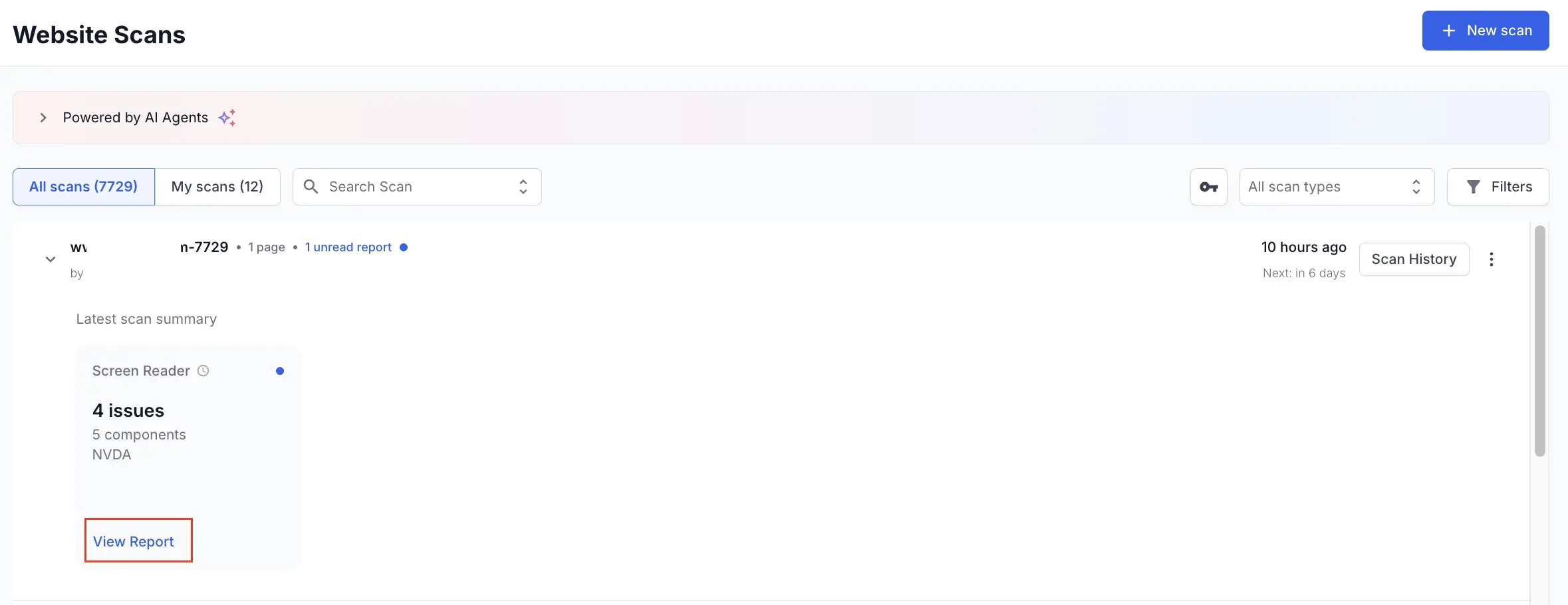
- For Website Scanner reports, click View Report next to a Website Scanner run that included the Screen Reader scan type.
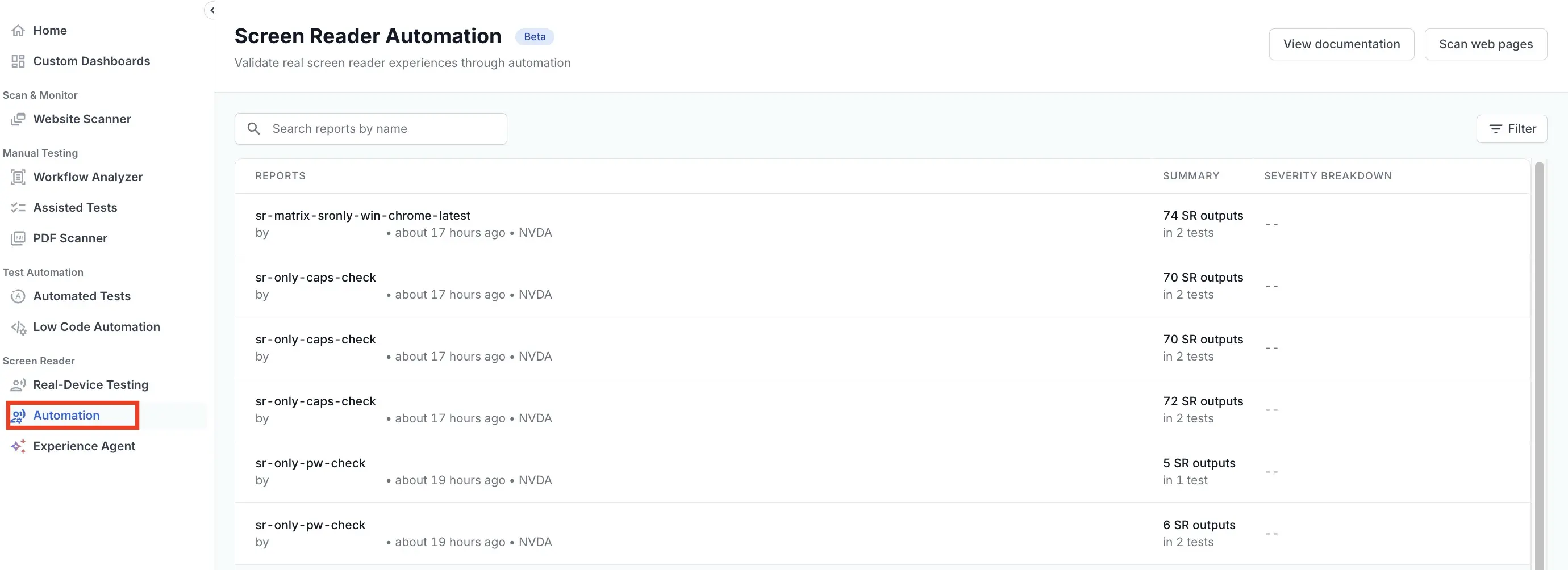
- For Screen Reader reports, click Automation under the Screen Reader section on the Accessibility Testing dashboard and click a report.
- For Website Scanner reports, click View Report next to a Website Scanner run that included the Screen Reader scan type.
- Navigate through the report page by page using the navigation buttons.
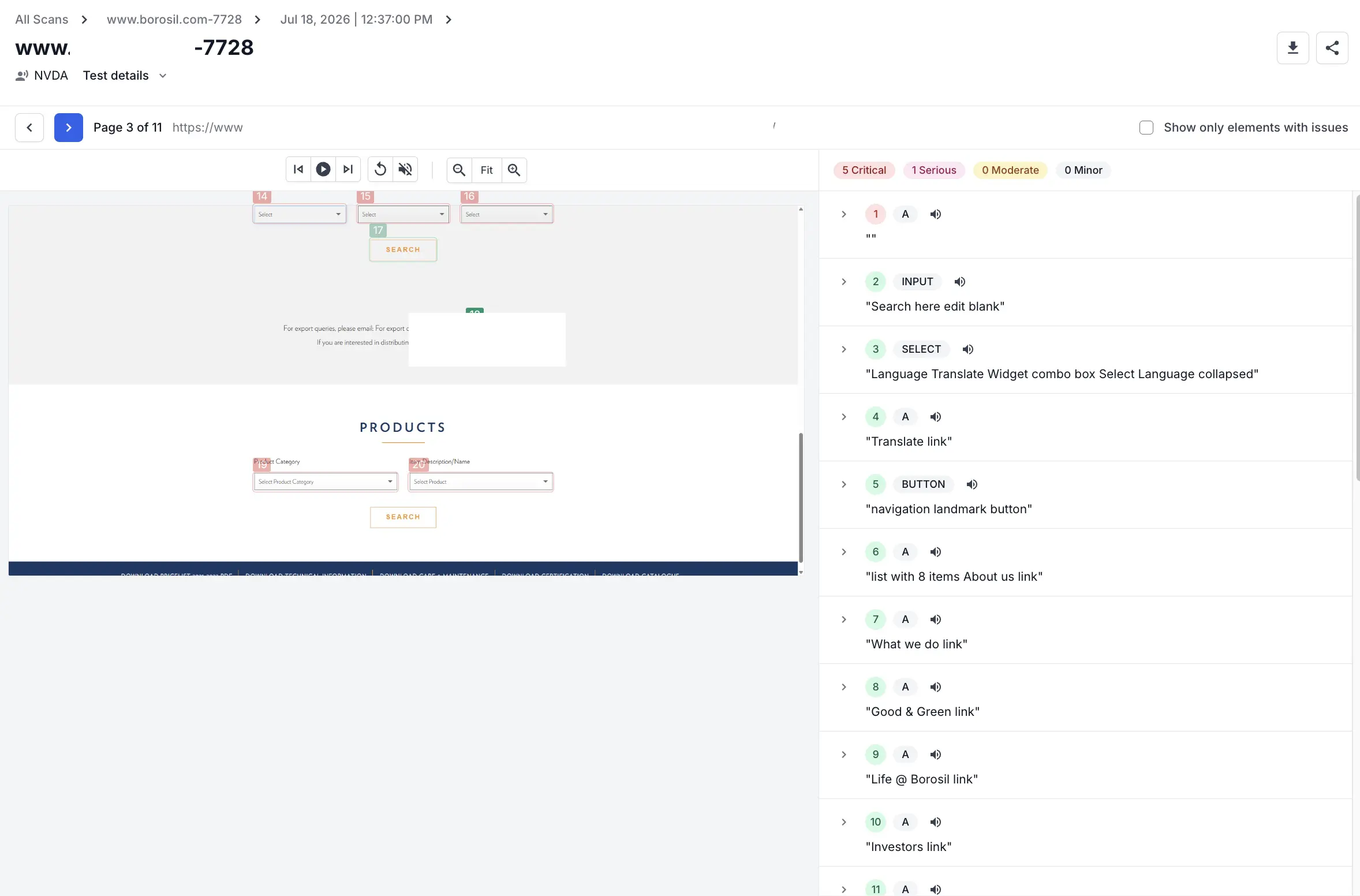
- Click the Play button to listen to the screen reader output element by element.
- On the issues pane, you can click to expand any issue.
- Click the expander next to the severity of each issue to view the issue in detail. You can view the CSS selector and the HTML snippet here.
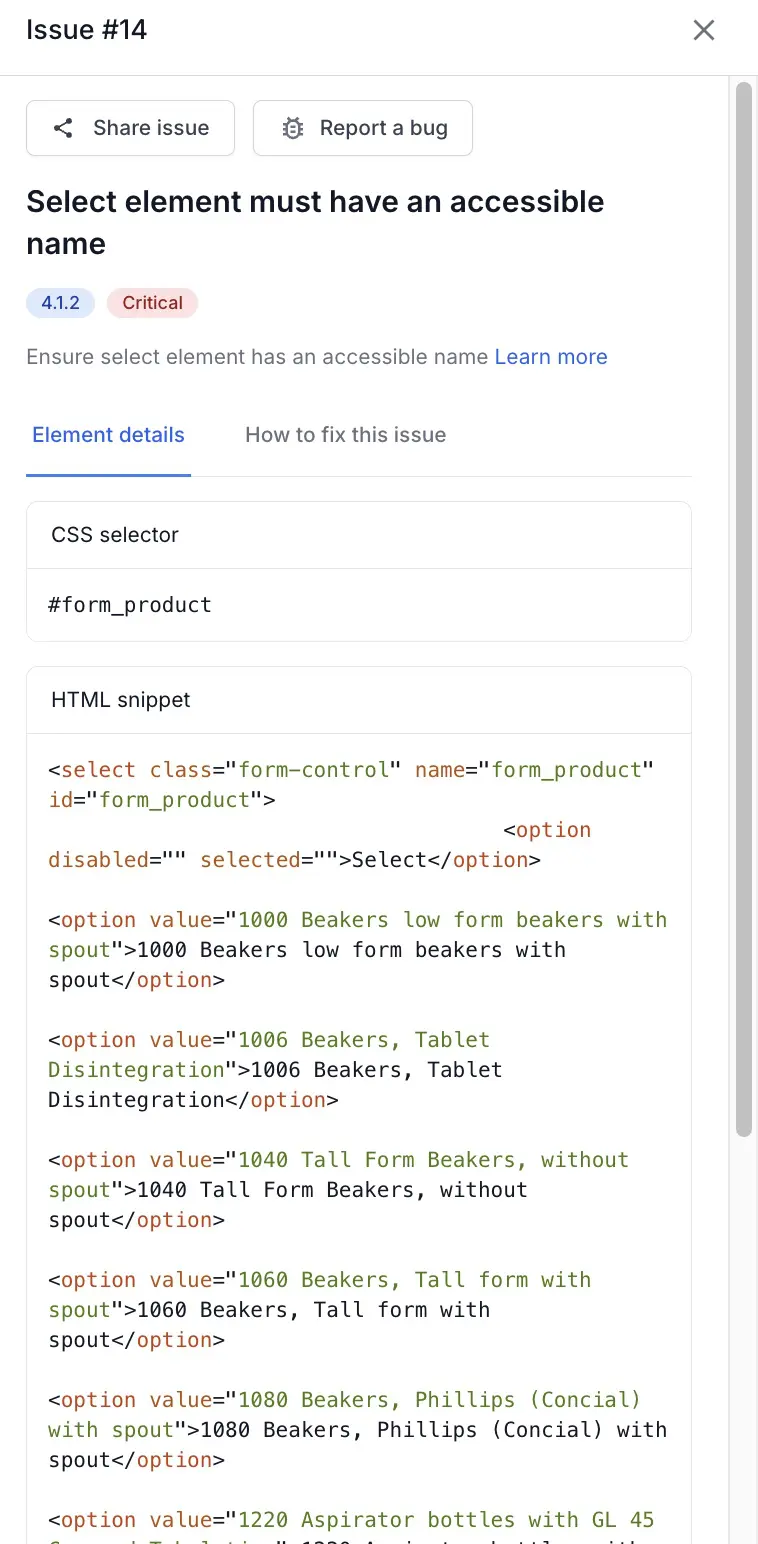
- Click How to fix this issue to see suggested solutions for that issue.
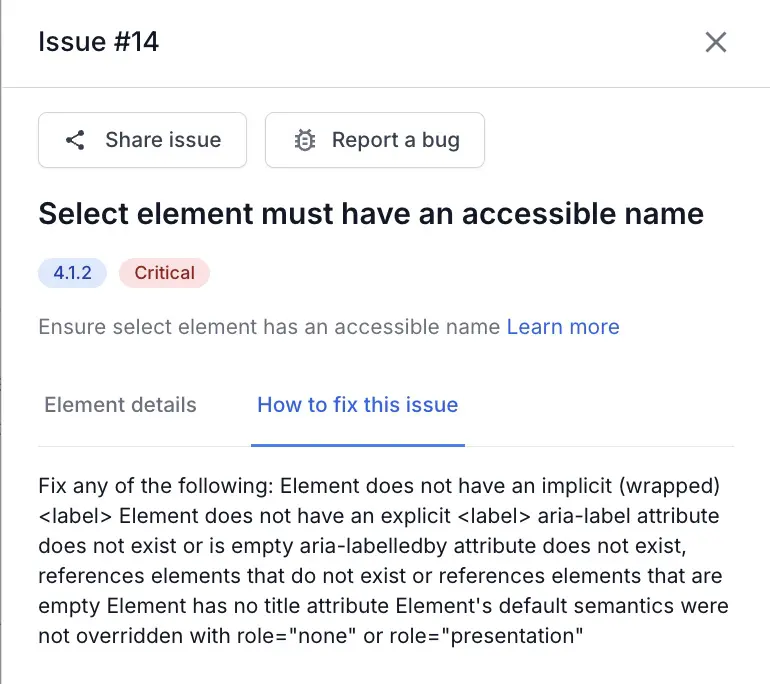
- Optionally, you can click Report a bug to log an issue in your project management tool.
The report shows:
- Screenshot with focus order: A snapshot of the page with every screen-reader-focusable element highlighted in the order the screen reader reaches it.
- Screen reader transcript: The full text output the screen reader announces for the page, read aloud when you click Play.
- Details and metadata: The scanned URL, the screen reader used, and other run details.
Share or download screen reader scan reports
To export the screen reader transcript, click the download icon.
To share a report, click Share on the top-right of the report. A two-tab window appears.
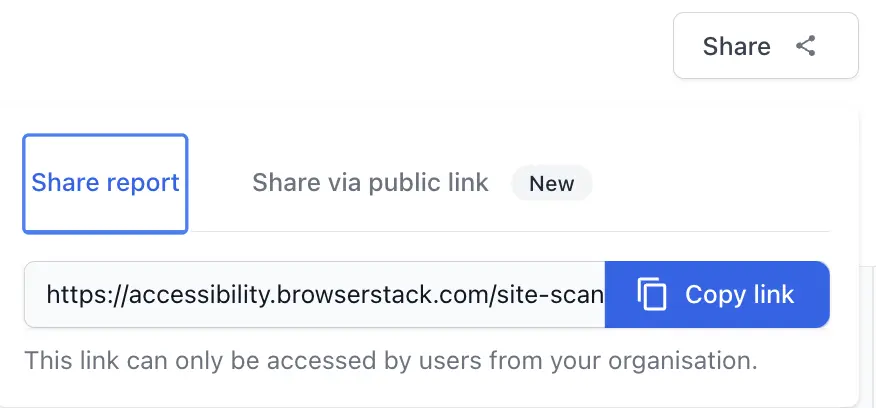
To share the report internally with users who have a BrowserStack account, click Copy link on the Share report tab, and share the link as appropriate.
To share the report externally with users who do not have a BrowserStack account, enable public link on the Share via public link tab.
Related topics
We're sorry to hear that. Please share your feedback so we can do better
Contact our Support team for immediate help while we work on improving our docs.
We're continuously improving our docs. We'd love to know what you liked
We're sorry to hear that. Please share your feedback so we can do better
Contact our Support team for immediate help while we work on improving our docs.
We're continuously improving our docs. We'd love to know what you liked
Thank you for your valuable feedback!