
 Join our Discord
Get started with screen reader scans in Accessibility Testing
Learn how to set up and run screen reader scans using NVDA on Windows or VoiceOver on macOS.
Screen reader scans use NVDA on Windows or VoiceOver on macOS to check your website for accessibility issues by simulating screen reader interactions.
Screen reader scans are currently in public beta and are available on all paid plans. Scans are supported for NVDA on Windows and VoiceOver on macOS.
How screen reader scans work
With screen reader scans, you can inspect how a screen reader announces your website’s elements to users. Screen reader scans generate a report of the accessibility issues on your website.
This feature provides the following capabilities:
- Check if your website has screen-reader-accessible elements and components: Verify if all elements:
- Have a meaningful speech output.
- Are focusable by the screen reader.
- Are interactable with the screen reader.
- Check if your website is functional for screen reader users across user workflows: Verify that you can navigate and interact with your website entirely using a screen reader.
- Check for screen reader accessibility regressions: Whenever you deploy a change to your website, run your screen reader scan tests to confirm the change hasn’t introduced new accessibility issues.
How to use screen reader scans
Follow these steps to perform a screen reader scan:
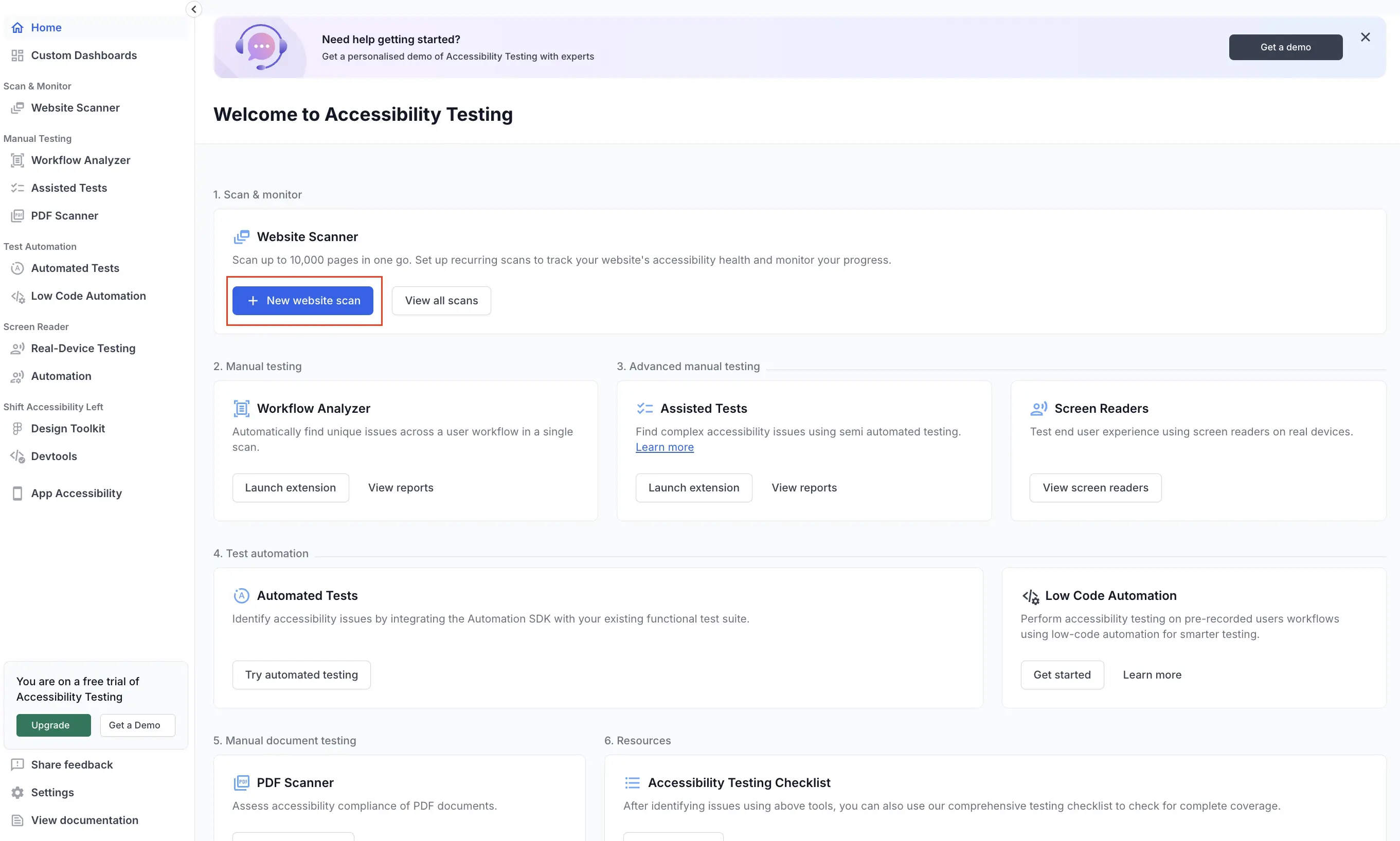
- Log in to BrowserStack Accessibility Testing and click New Website Scan under Website Scanner.
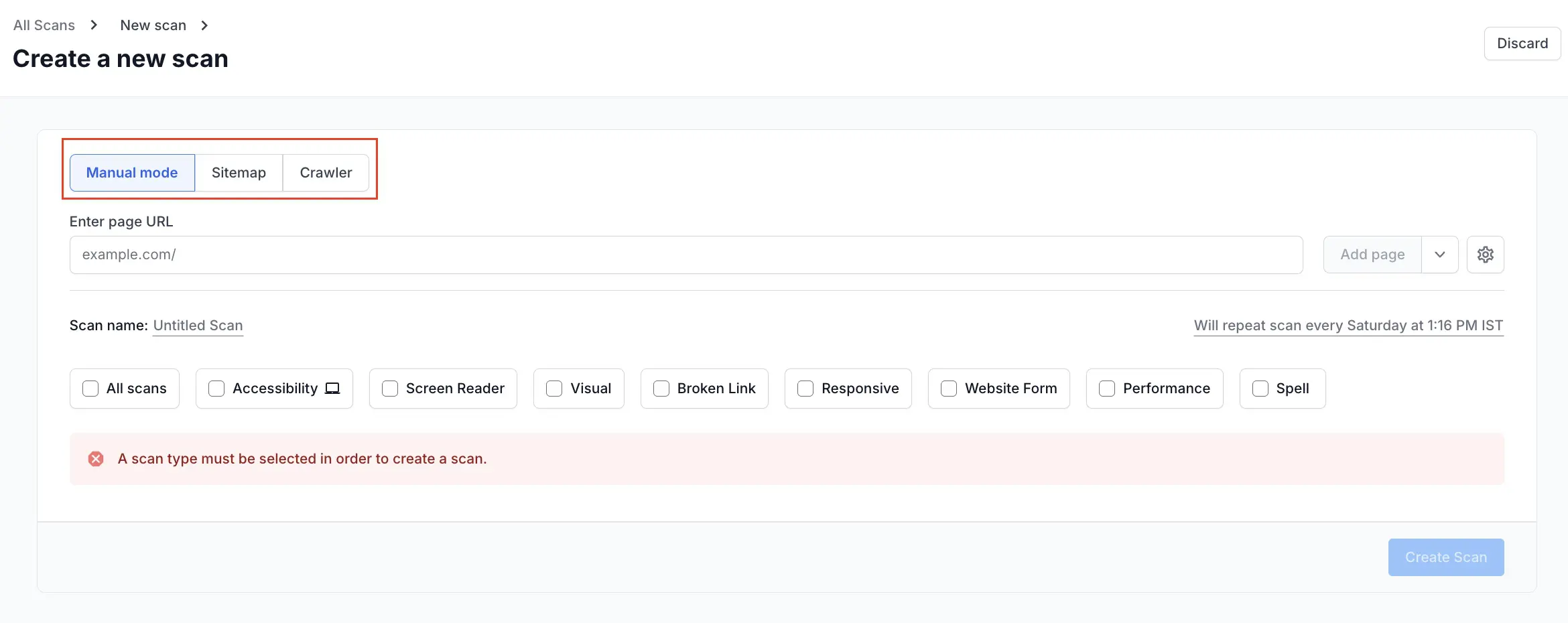
- Select from the Manual mode, Sitemap, or Crawler tabs.
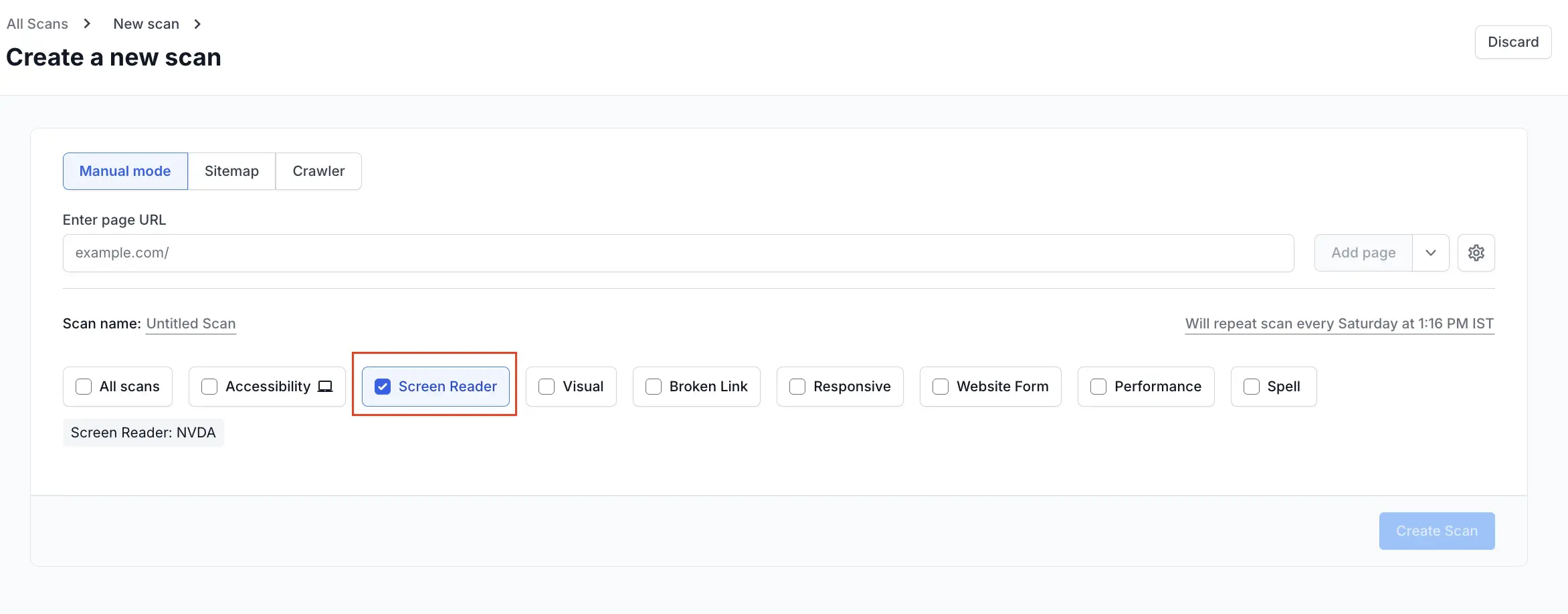
- Select the Screen Reader checkbox from the available scan types.
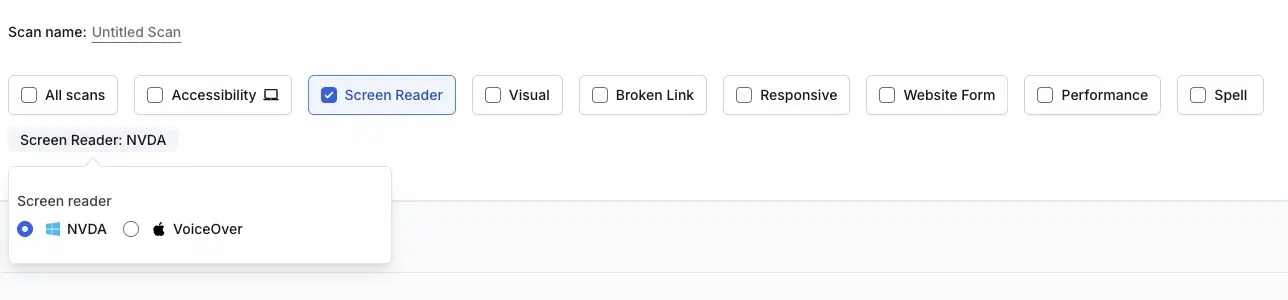
- Select the screen reader type: NVDA for Windows or VoiceOver for macOS.
- Click the settings icon and set up your scan settings based on the mode you selected in step 2.
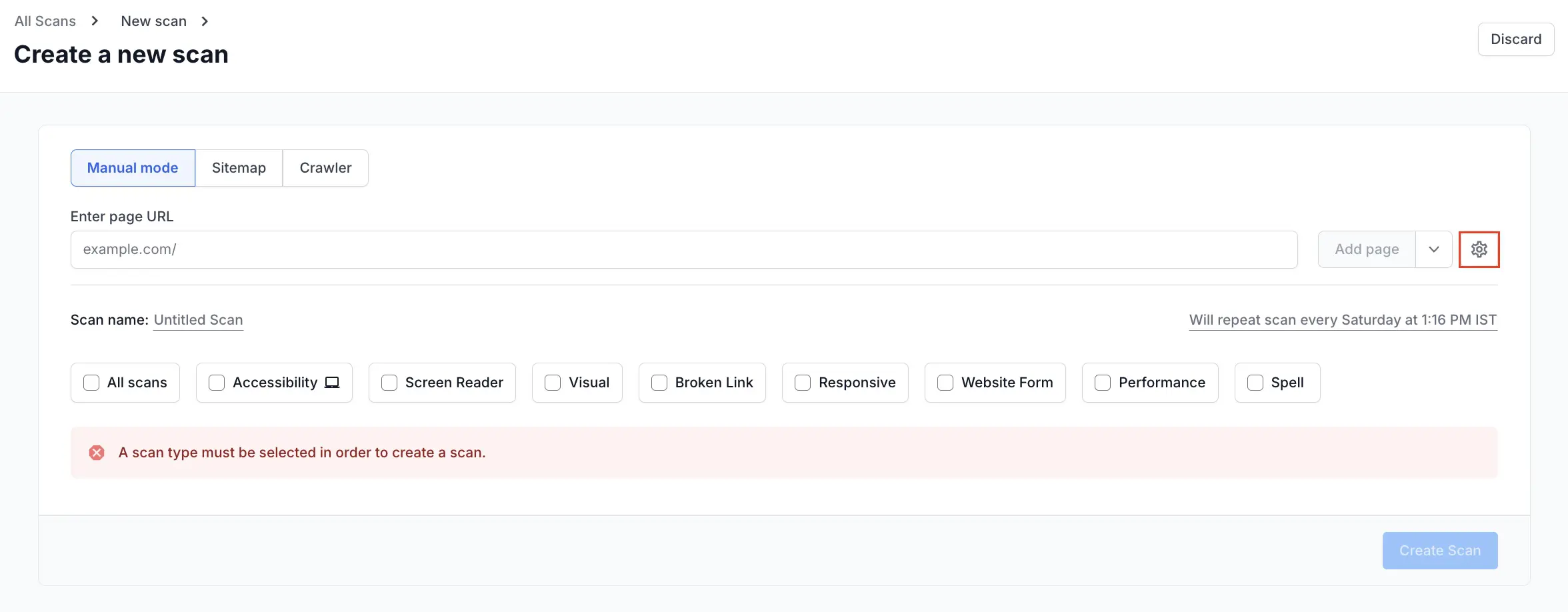
- Click Create Scan.
BrowserStack Accessibility Testing generates a report based on your scan settings.
View screen reader scan output
You can view screen reader scan output in the BrowserStack Accessibility Testing dashboard. For detailed steps, see Access screen reader scan reports.
We're sorry to hear that. Please share your feedback so we can do better
Contact our Support team for immediate help while we work on improving our docs.
We're continuously improving our docs. We'd love to know what you liked
We're sorry to hear that. Please share your feedback so we can do better
Contact our Support team for immediate help while we work on improving our docs.
We're continuously improving our docs. We'd love to know what you liked
Thank you for your valuable feedback!