
 Join our Discord
Forms assisted test
Identify accessibility issues in forms on your web pages.
Forms are components of websites that allow users to input data in a structured format. Forms often present accessibility challenges for people with disabilities, such as those using screen readers, keyboard navigation, or other assistive technologies.
A forms assisted test in Accessibility Testing is a specialized check that helps identify and resolve accessibility issues within web forms.
Steps to run and review a forms assisted test
To run and review a forms assisted test, follow these steps:
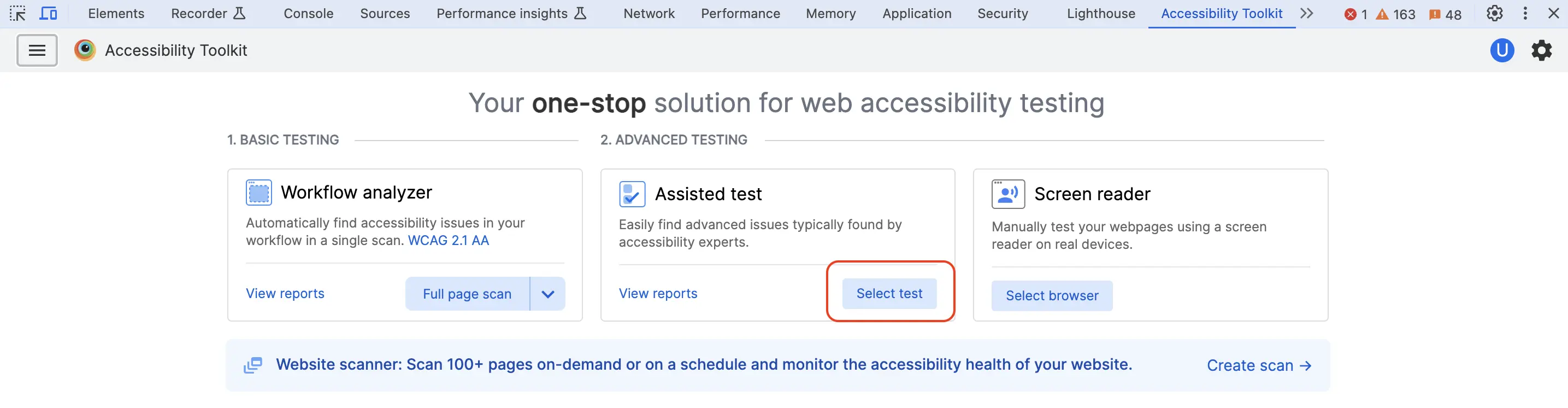
- Launch BrowserStack Accessibility Toolkit.
- In the Assisted Test tile, click WCAG 2.1 AA, the default accessibility standard, to open settings.
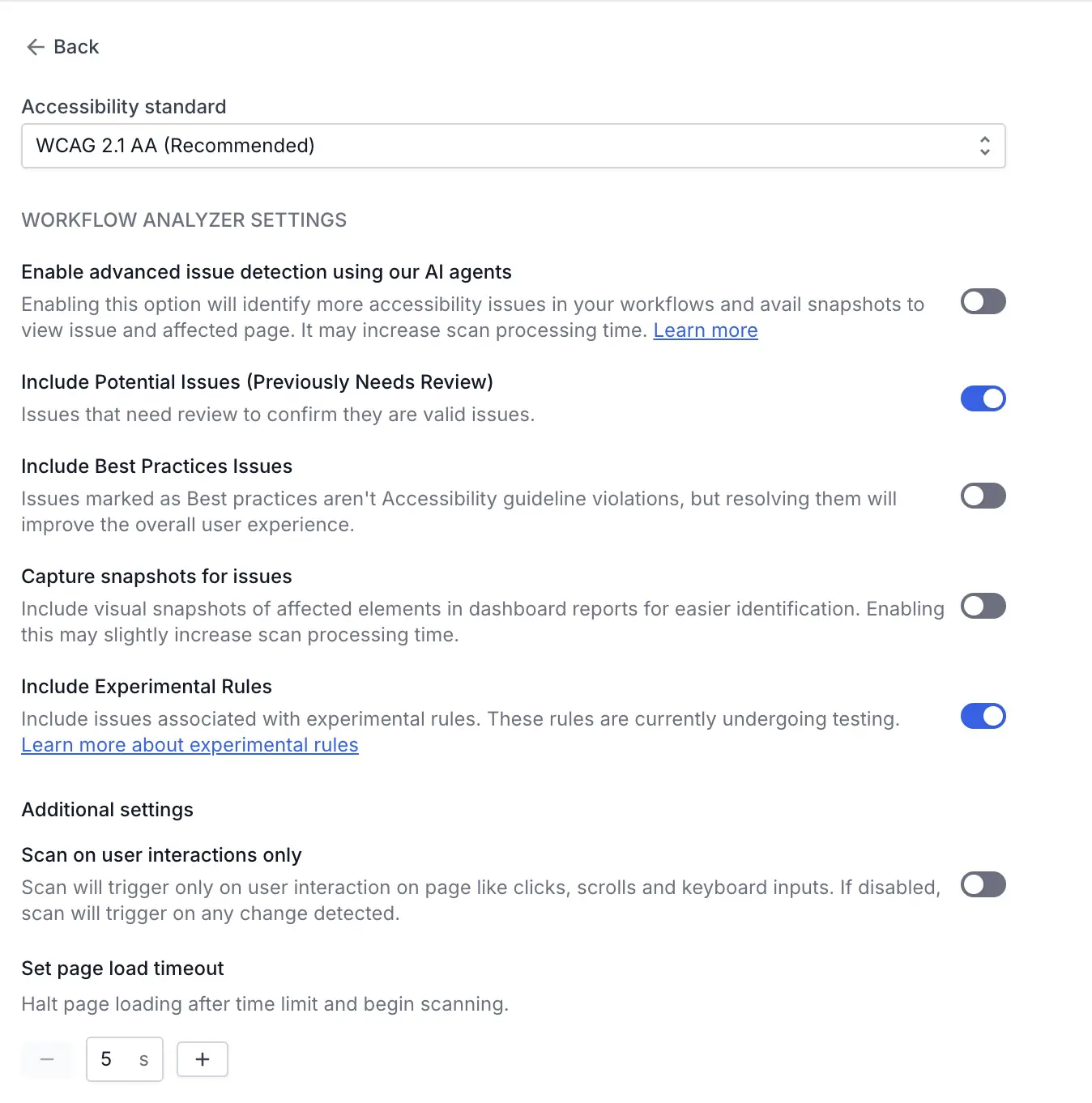
- Select the accessibility standard among WCAG guidelines or RGAA guidelines. You can also enable or disable advanced settings.
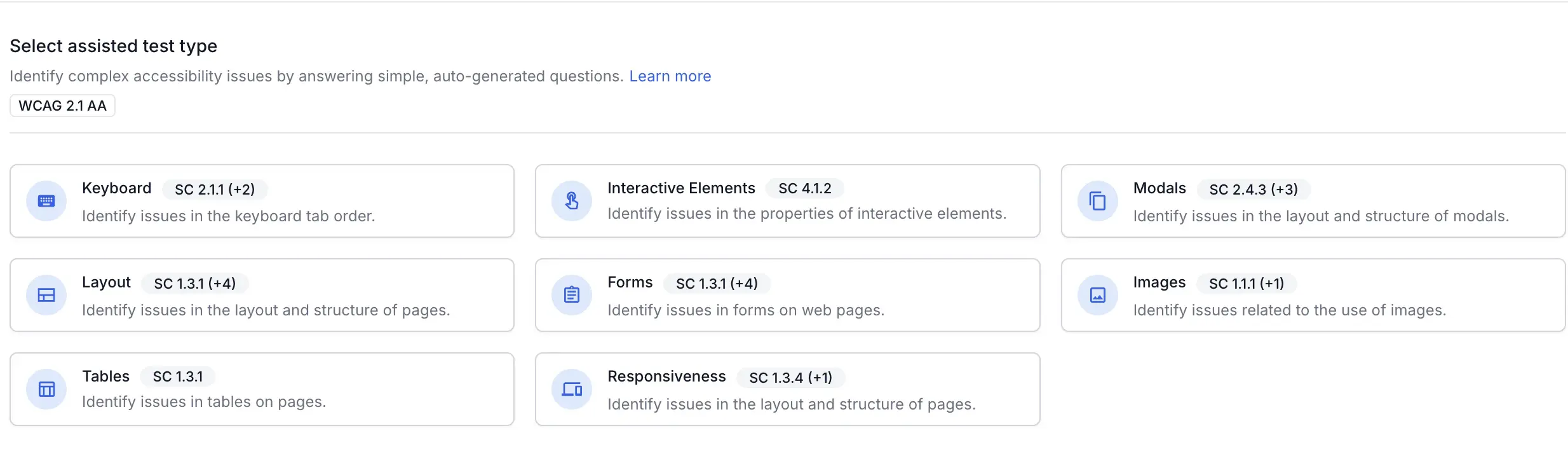
- Click Back.
- Click more to view all types of assisted tests.
-
Select Forms and click Start test.
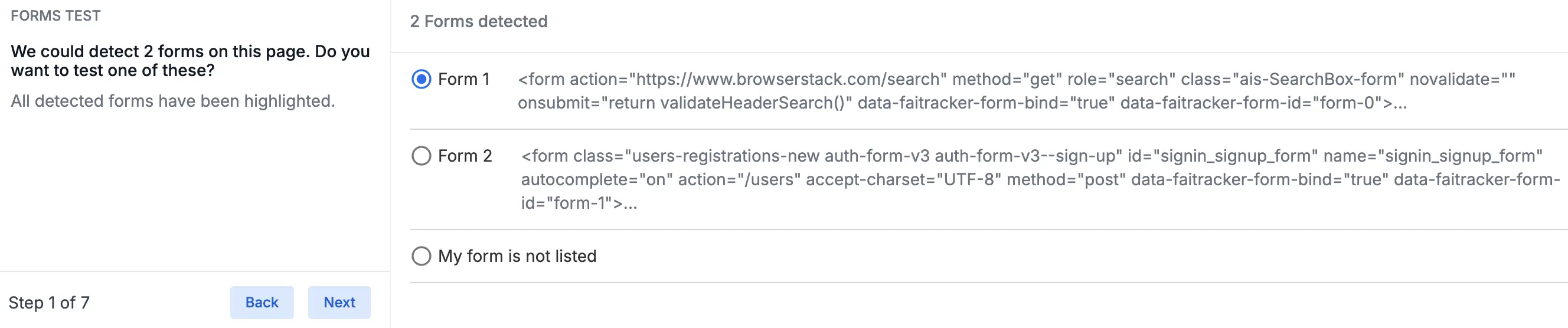
The extension automatically detects any forms available on the webpage. Select the form you want to test. In case your form is not detected, you can choose the option My form is not listed and select your form manually.
- Click Next. Select the type of form from the listed options. You can select more than one option, in case the form serves multiple purposes.
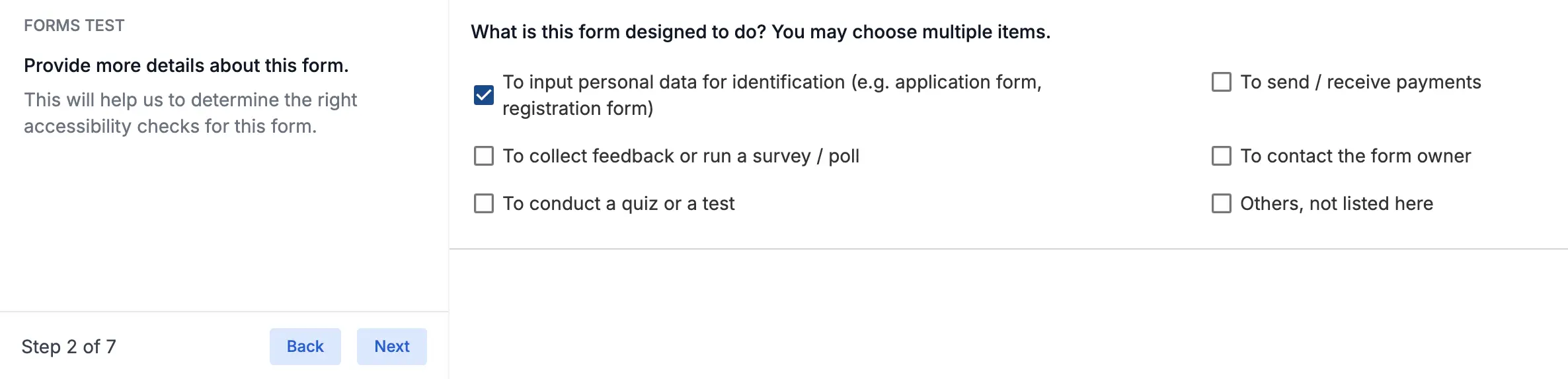
- Click Next. When prompted, select the fields that you want to test.
- Click Next. When prompted, select the groups that the fields must exist in. A group of fields could pertain to a group of radioboxes, checkboxes, or a group of related fields (e.g. fields like area, city, etc. in an address). Refer to this detailed guide by WAI for more information on grouping controls.

- Click Next. When prompted, choose from the options to answer questions on the labels used in the field. Use the navigation buttons to browse through all the questions.
- Click Next. When prompted, choose from the options to answer questions on the error handling used in the field. Use the navigation buttons to browse through all the questions.
- Click Next. When prompted, choose from the options to answer questions on group-level labels and error handling. Use the navigation buttons to browse through all the questions.
- Click Next. When prompted, choose from the options to answer questions on individual fields inside of groups for labels and error handling. Use the navigation buttons to browse through all the questions.
- Click Next. When prompted, choose whether there is an option in the form to confirm the data provided.
- Click Next. All accessibility issues detected on the website are listed.
- Click a component to know more about the issue and ways to resolve.
- Click Save and end test.
- Give the report a name and click Save.
- Review the detailed test reports in the Accessibility Testing Dashboard. You can share the report link or download the report as a CSV file from the dashboard.
Next step
- View rules for Assisted Tests.
We're sorry to hear that. Please share your feedback so we can do better
Contact our Support team for immediate help while we work on improving our docs.
We're continuously improving our docs. We'd love to know what you liked
We're sorry to hear that. Please share your feedback so we can do better
Contact our Support team for immediate help while we work on improving our docs.
We're continuously improving our docs. We'd love to know what you liked
Thank you for your valuable feedback!