
Get your setup working faster. Join our Discord for optimisation tips from elite testers.
 Join our Discord
Join our Discord
Modals assisted test
Identify accessibility issues in modals on your web pages.
Modals are dialog boxes that appear over a website’s main content. Modals are prone to a high number of accessibility issues. You can use modals Assisted Tests in BrowserStack Accessibility Testing to comprehensively check for accessibility issues in the modals of your websites.
A modals assisted test helps to comprehensively resolve the following accessibility issues of modals:
- Screen reader issues: Issues which affect screen reader readability, ranging from accessible name and role of the modal to inertness of content outside the modal while it is open.
- Keyboard focus issues: Issues due to incorrect order of content in focus as a user uses the keyboard to navigate the modal.
Steps to run and review a modals assisted test
To run and review a modals assisted test, follow these steps:
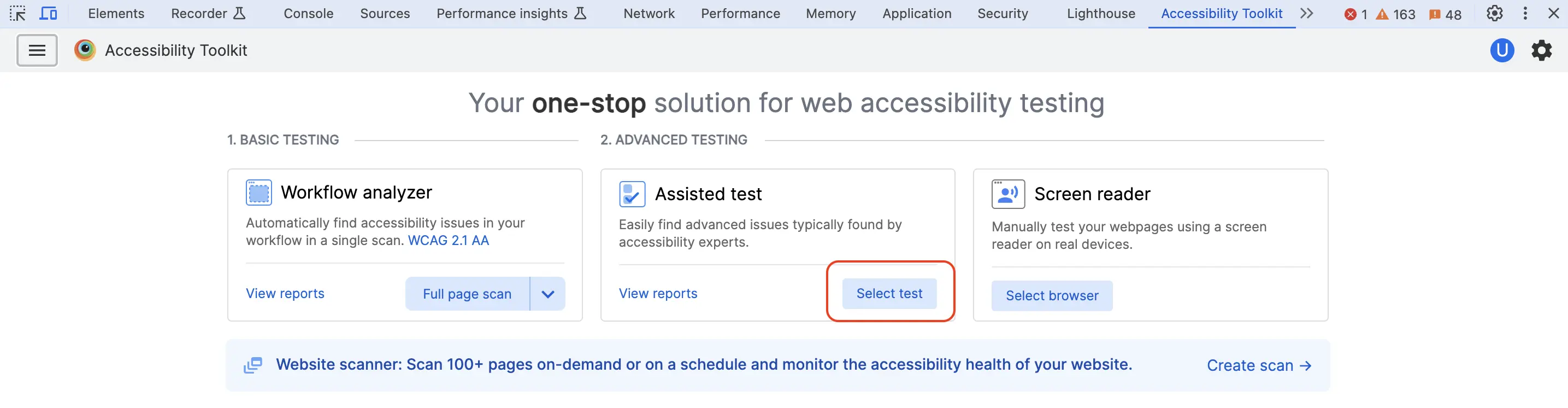
- Launch BrowserStack Accessibility Toolkit.
- In the Assisted Test tile, click WCAG 2.1 AA, the default accessibility standard, to open settings.
- Select the accessibility standard among WCAG guidelines or RGAA guidelines. You can also enable or disable advanced settings.
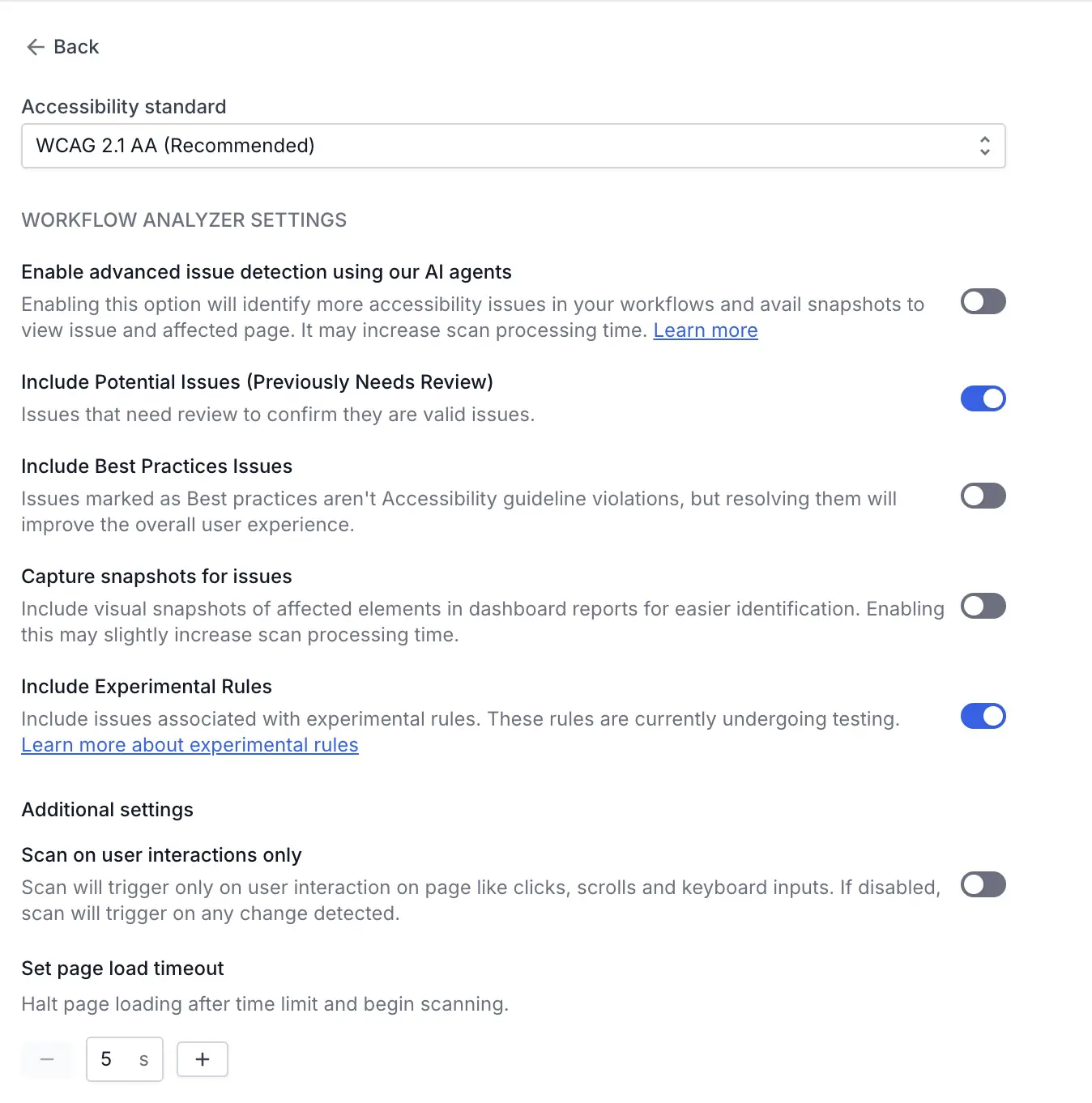
- Click Back.
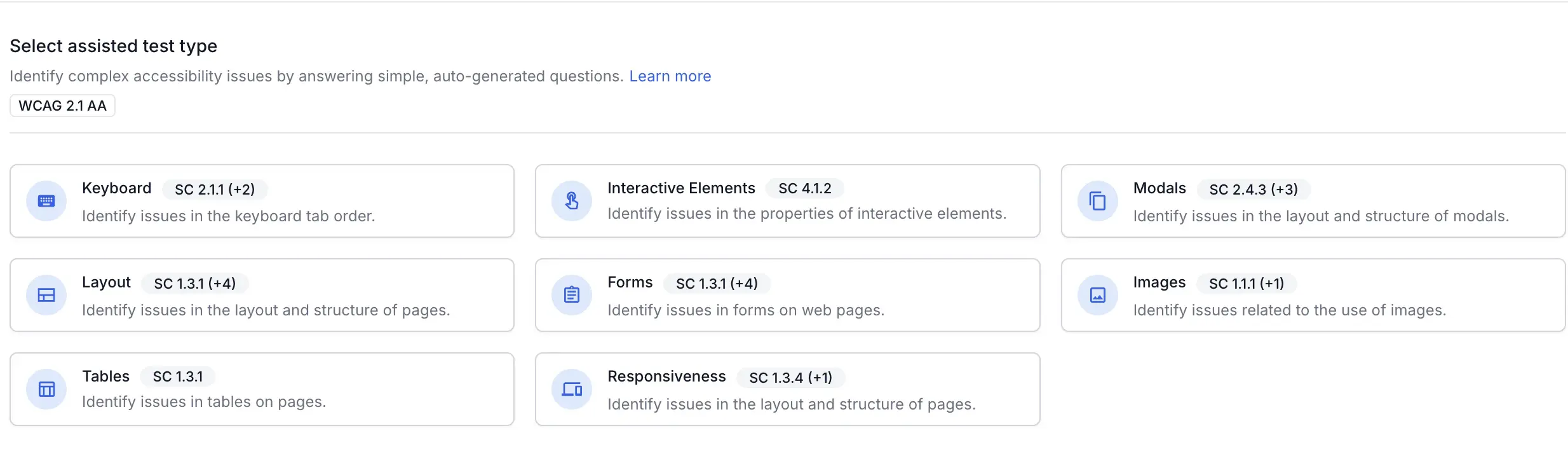
- Click more to view all types of assisted tests.
- Select Modals and click Start test.
- If a modal can be launched using any element on the web page, click it to open the modal.
- Click Next. The modal gets launched automatically in most cases. If not, open the modal manually when you are prompted.
- Click Next. Most accessibility violations are automatically detected at this stage.
- Click Next. If it is possible to close the modal, the modal gets closed automatically in most cases. If not, close the modal manually when you are prompted.
- Click Next. If prompted, check whether the element with keyboard focus is the element that triggers the modal or the next element in the logical workflow. If yes, click Yes. If no, click No.
- Click Next. All accessibility issues detected on the website are listed.
- Click Save and end test.
- Give the report a name and click Save.
- Review the detailed test reports in the Accessibility Testing Dashboard. You can share the report link or download the report as a CSV file from the dashboard.
Next step
- View rules for Assisted Tests.
We're sorry to hear that. Please share your feedback so we can do better
Contact our Support team for immediate help while we work on improving our docs.
We're continuously improving our docs. We'd love to know what you liked
We're sorry to hear that. Please share your feedback so we can do better
Contact our Support team for immediate help while we work on improving our docs.
We're continuously improving our docs. We'd love to know what you liked
Thank you for your valuable feedback!