
 Join our Discord
Low Code Automation in App Accessibility
Review accessibility reports for your App Low Code Automation tests and start new tests from the App Accessibility dashboard.
Integrating App Accessibility testing with App Low Code Automation is in beta.
With the BrowserStack App Accessibility integration, you can create tests in App Low Code Automation without scripting or an SDK, and generate accessibility reports from those tests. Run the same test multiple times or on a schedule. Each run scans every screen the tests visit and produces a report, so repeat checks stay consistent without doing them manually.
The reports appear under Low Code Automation in the App Accessibility dashboard. You can review issues, raise bugs, and track how your app’s accessibility changes over time.
Prerequisites
- Access to App Low Code Automation, with your app uploaded to your project. For more information, see Upload apps in App Low Code Automation.
Report limits during beta
How many reports you can generate depends on your subscription plans for both products. If you are on a free trial of one product, that product sets the limit:
| Your App Low Code Automation plan | Your App Accessibility plan | Reports you can generate |
|---|---|---|
| Free trial | Free trial | Three reports per user. |
| Paid | Free trial | Three reports per user. |
| Free trial | Paid | Up to your App Low Code Automation free trial execution limit. |
| Paid | Paid | Unlimited while the feature is in beta. |
Add accessibility scanning to your App Low Code Automation tests
To set up a test suite that produces accessibility reports, follow these steps:
- Navigate to the App Accessibility dashboard.
- In the left navigation pane, select Low Code Automation.
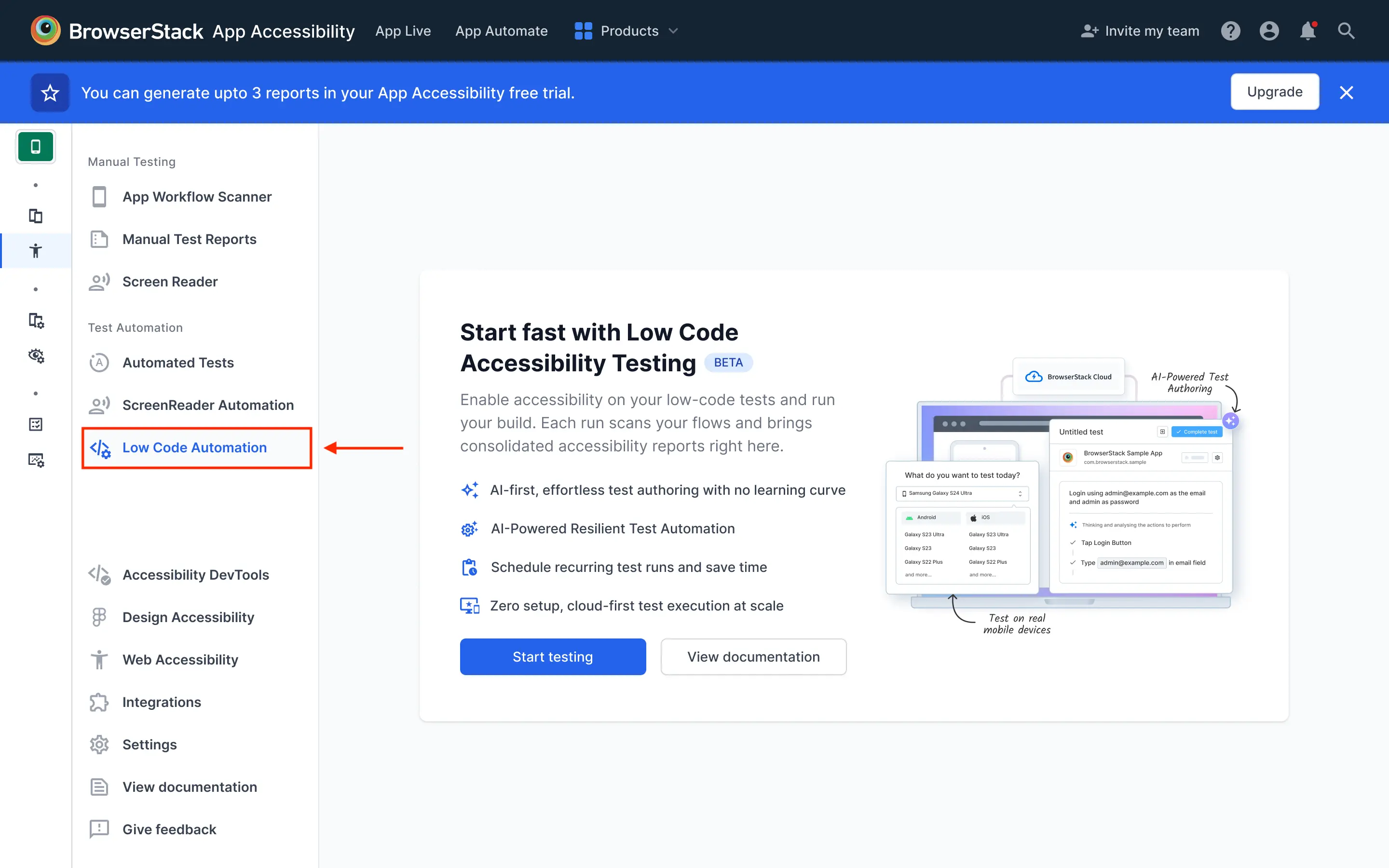
- On the Low Code Automation page in the App Accessibility dashboard, do one of the following:
- If you are setting up the test suite for the first time, click Start testing on the feature introduction card. The Tests page opens on the App Low Code Automation dashboard. To create tests, see Create tests using App Low Code Automation.
- If you are setting up a new test suite, select your project from the dropdown menu (annotation 1) and click New test (annotation 3). The Tests page for the selected project opens on the App Low Code Automation dashboard. To create tests, see Create tests using App Low Code Automation.
- If you want to work on test suites you have already configured, select your project from the dropdown menu (annotation 1) and click View test suites (annotation 2). The Test suites page opens on the App Low Code Automation dashboard. To manage test suites, see Test suites.
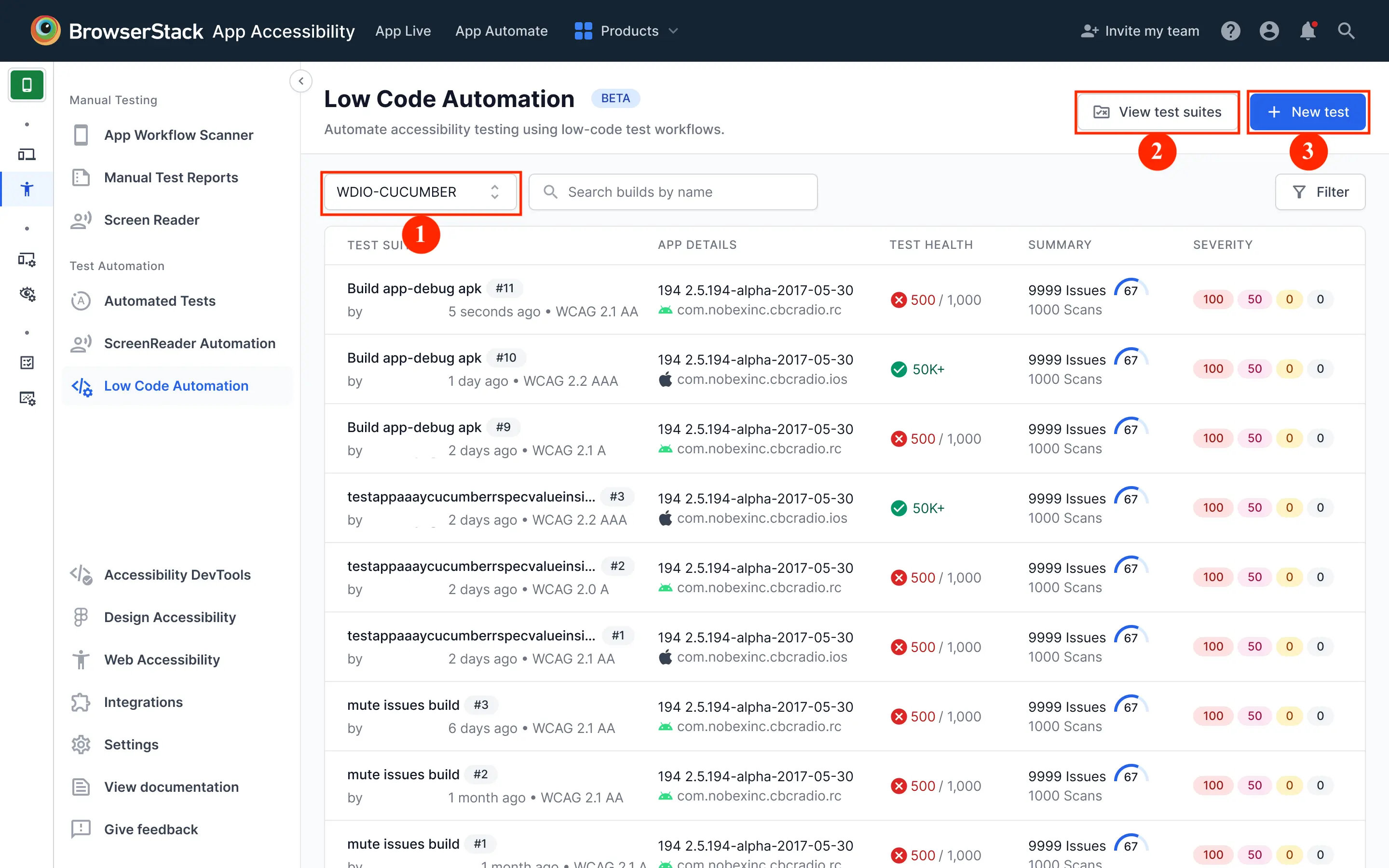
- On the App Low Code Automation dashboard, click Test suites in the left navigation pane.
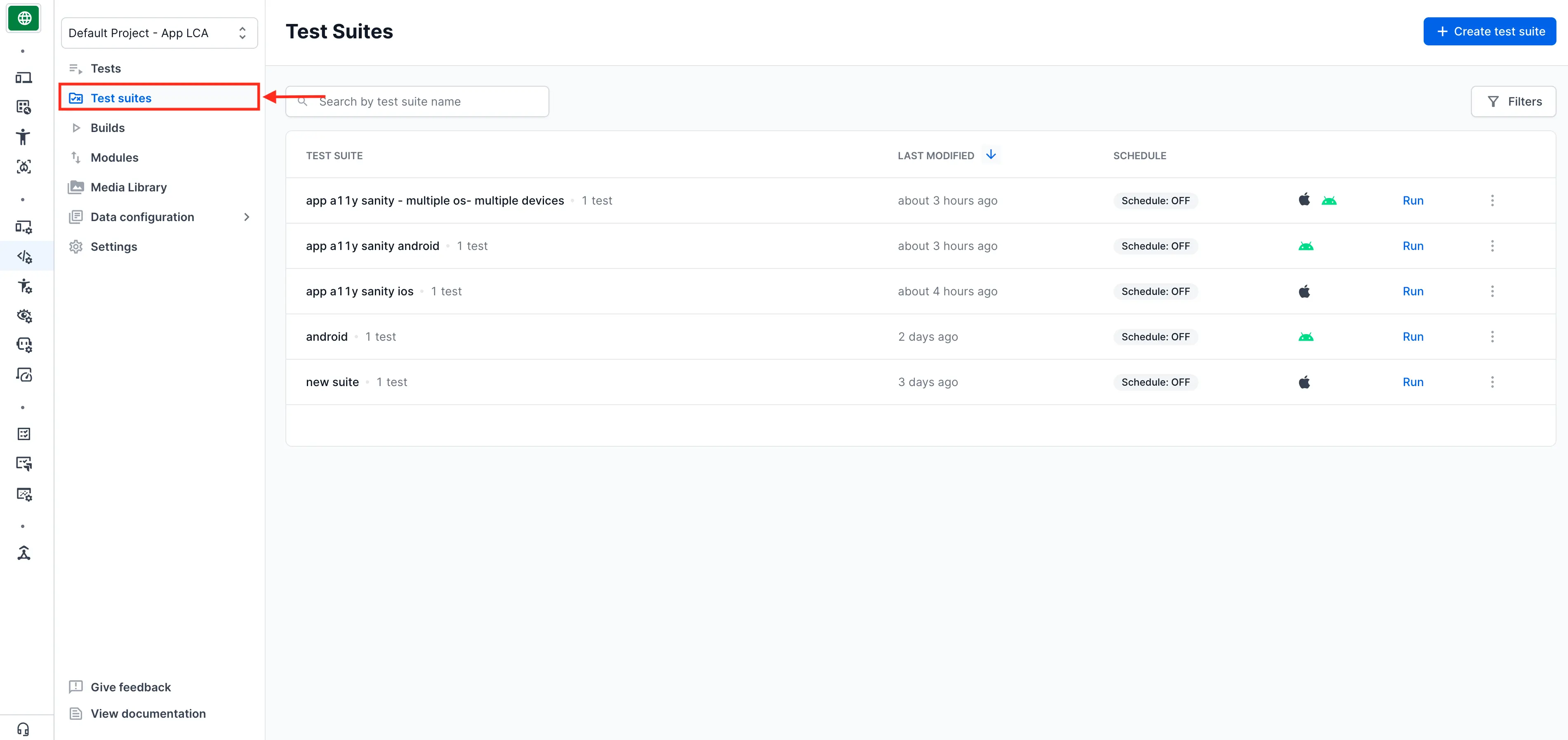
- Click the More options (three dots) icon next to the test suite you want to configure, then click Edit.
- On the Edit test suite page, turn on Accessibility testing for the test suite. For detailed steps to configure the other settings on this page, such as the platform configurations and the schedule, see Test suites.
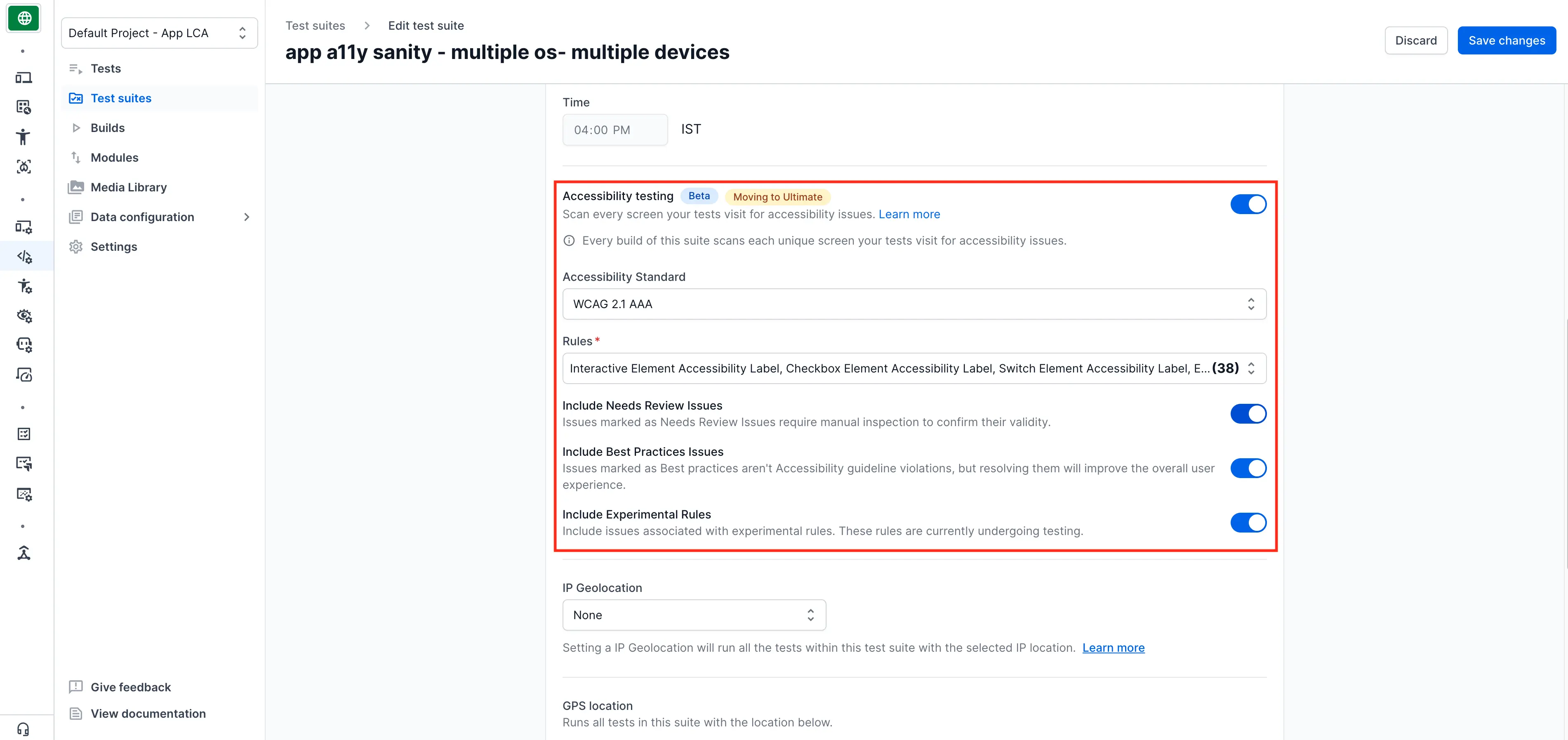
- Configure the accessibility scan settings:
- If your organization has already set an App Accessibility scan configuration, the suite inherits that configuration. The settings are read-only. To change which rules run, see Rule engine configuration.
- If your organization has not set an App Accessibility scan configuration, choose the Accessibility Standard and the Rules, then set the Needs Review, Best practices, and Experimental rules toggles. These settings apply to that test suite only.
- Click Save changes, then run the test suite on demand or on a schedule.
App Accessibility scans every screen the tests visit and produces a report for each platform the suite covers.
View your App Low Code Automation reports
To open a report for a build that ran from App Low Code Automation, follow these steps:
- Navigate to the App Accessibility dashboard.
- In the left navigation pane, select Low Code Automation.
- Select your project from the dropdown menu at the top of the page.
- To find a build, enter its name in Search builds by name or click Filter to narrow the list.
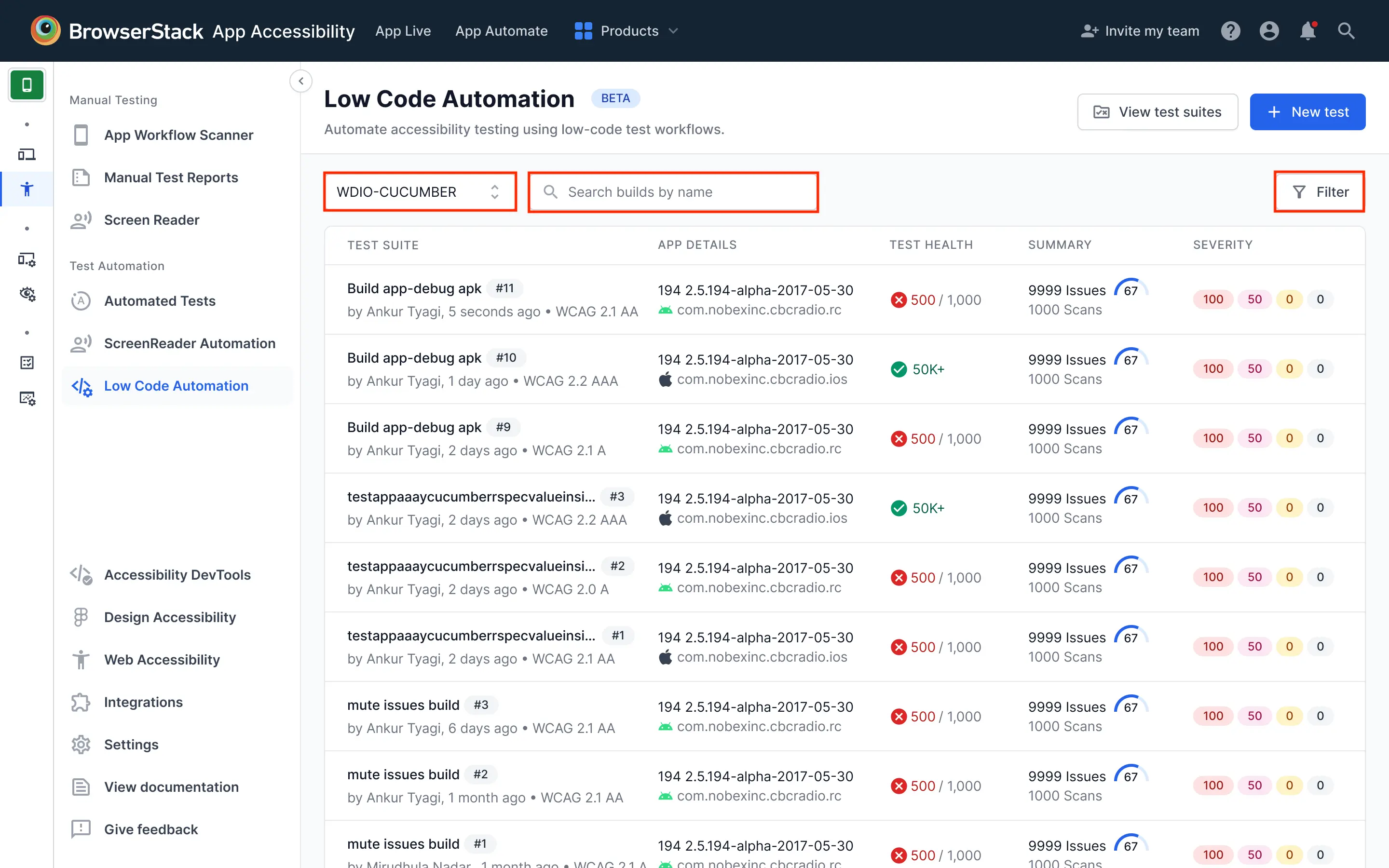
- Click a build to open its report. These reports are the same as other App Accessibility automated test reports. For more information, see Manage reports.
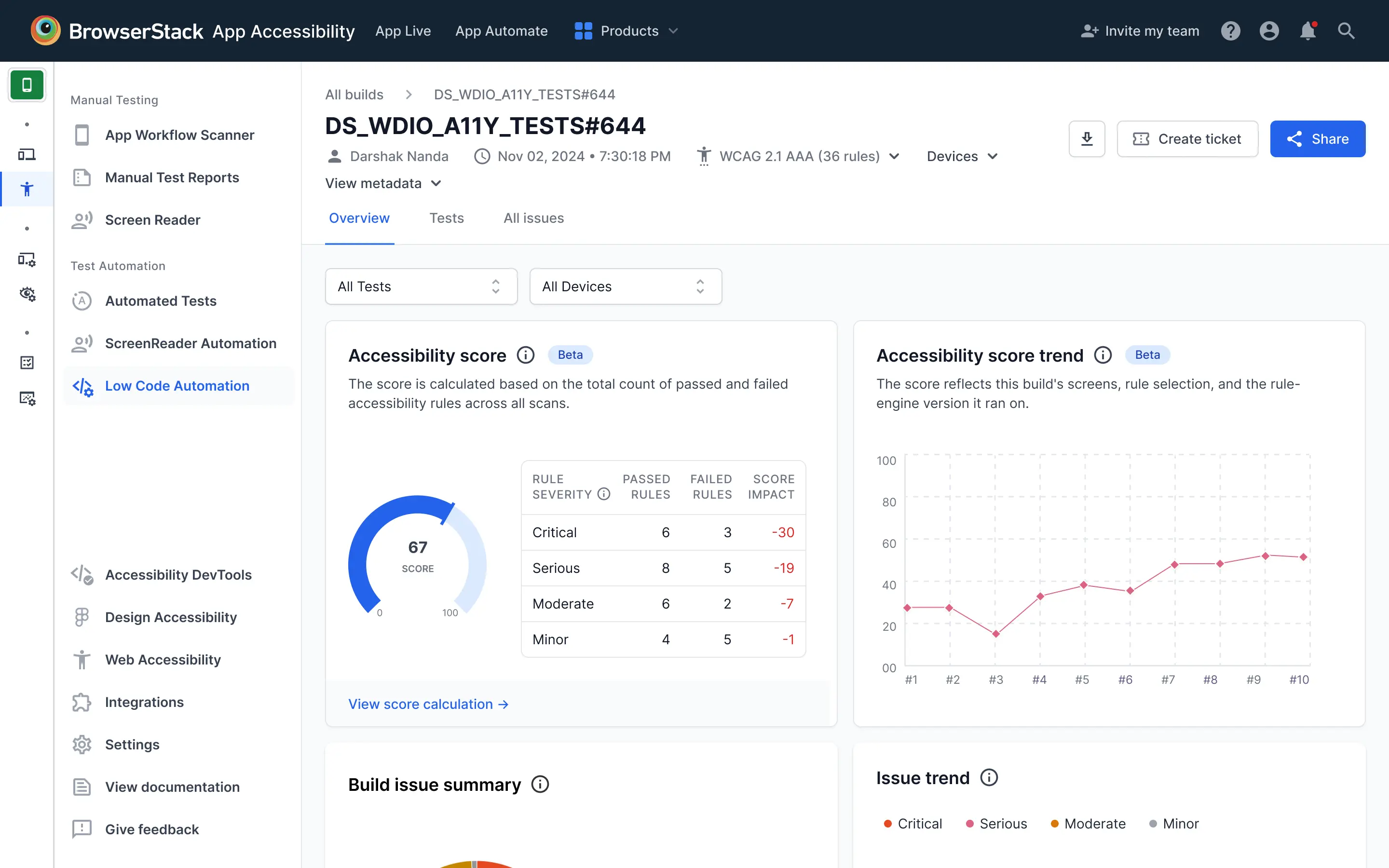
A test suite that covers both iOS and Android produces a separate report for each platform. Both reports use the test suite name on the Low Code Automation page. To tell the reports apart, check the App details column.
Next steps
- Compare reports to see how accessibility issues have changed between two builds.
We're sorry to hear that. Please share your feedback so we can do better
Contact our Support team for immediate help while we work on improving our docs.
We're continuously improving our docs. We'd love to know what you liked
We're sorry to hear that. Please share your feedback so we can do better
Contact our Support team for immediate help while we work on improving our docs.
We're continuously improving our docs. We'd love to know what you liked
Thank you for your valuable feedback!