
 Join our Discord
Test suites
Learn how to group, manage, and schedule tests in App Low Code Automation using test suites.
Group tests and configure to run on multiple environments easily. Test Suite helps you group and manage tests, and also configure them to execute on multiple environments before every release. In this page, we describe how you can create test suites and schedule them without the burden of complex manual configurations.
Create and configure a test suite
To create and configure a test suite in App Low Code Automation:
- Go to the Test suites section on the App Low Code Automation sidebar.
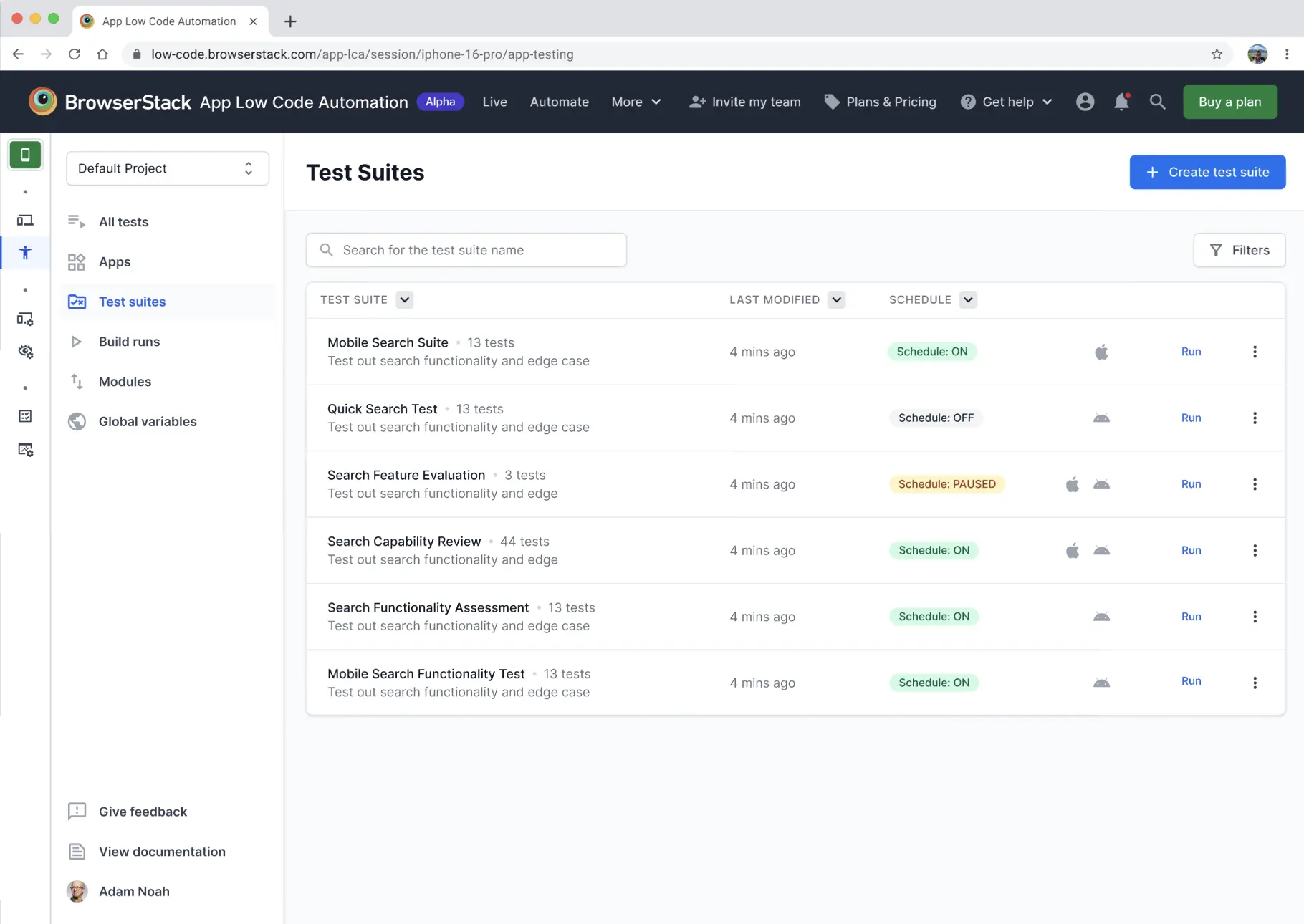
- Click +Create test suite.
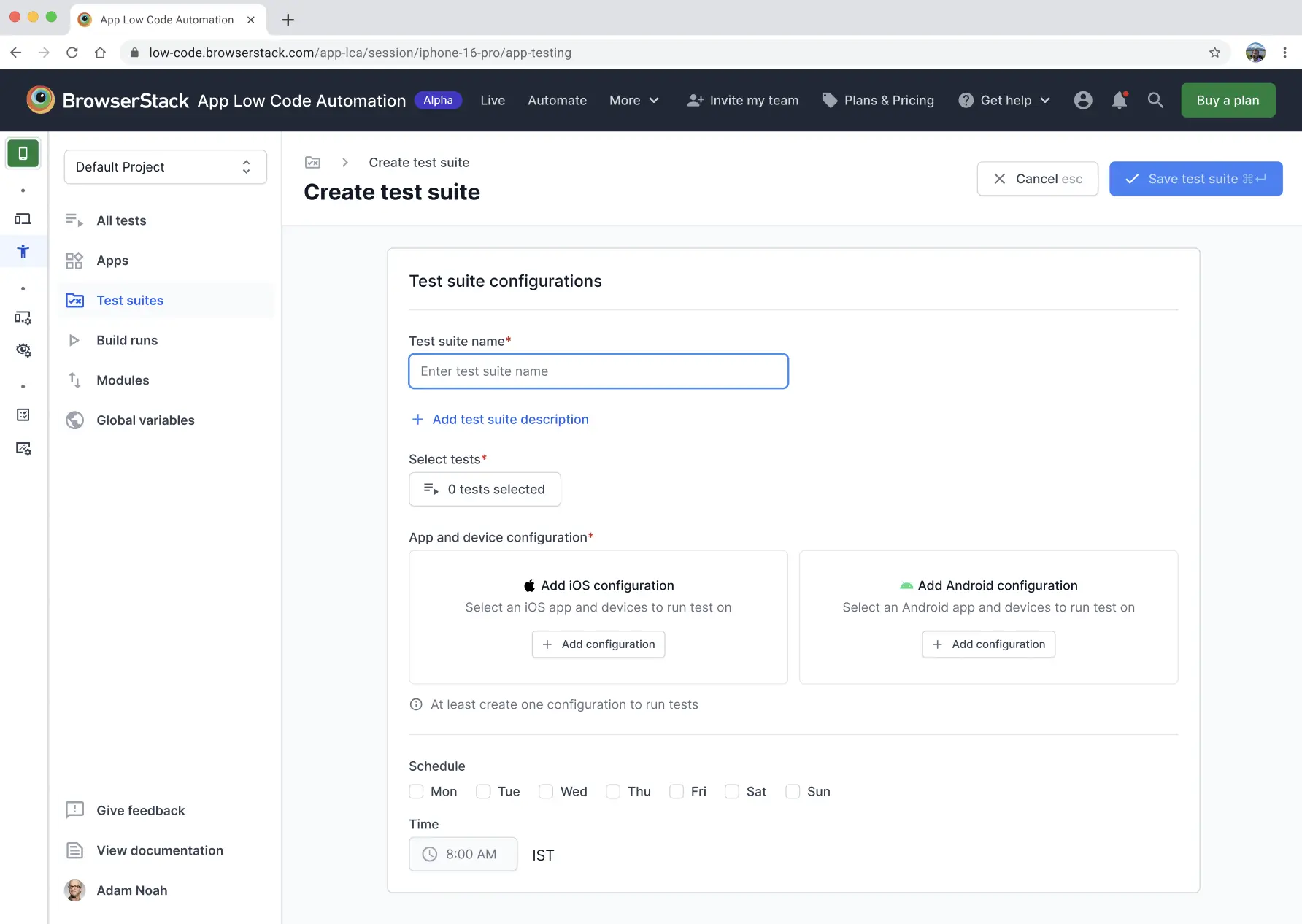
- Enter a name for your test suite in the Test suite name field.
- Add a description to explain what this test suite is about.
- Click Select tests and select one or more tests to include in the suite. You can also reorder the tests. Use the drag-and-drop handle next tes test to reorder. It executes the test in the same order.
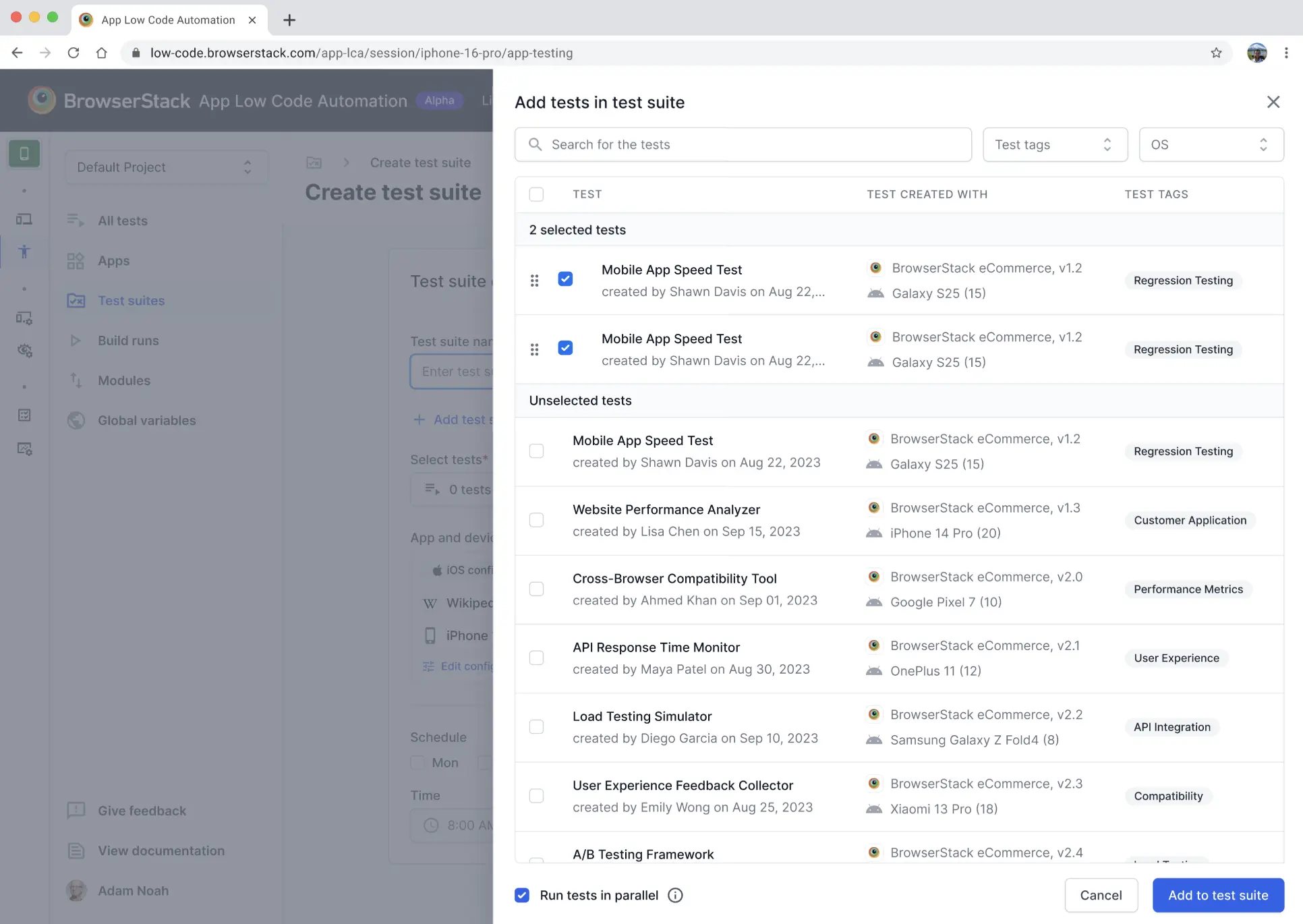
- If required, enable the Run tests in parallel option to run tests concurrently, regardless of execution order. Disable it to run tests sequentially. By default, this option is enabled for users with access to the parallels feature. To run the test sequentially, uncheck this option. Click Add to test suite. To group the tests instead and control the order in which those groups run, see Customize test execution with blocks.
- In the Add iOS configuration dialog, select the iOS app and the real devices for execution. Supported devices include iPhone 16 (iOS 18.4), iPhone 15 Pro (iOS 17.1), and iPhone 14 (iOS 16.4).
- When you select an app, you can view all available versions, including both recent and previous uploads.
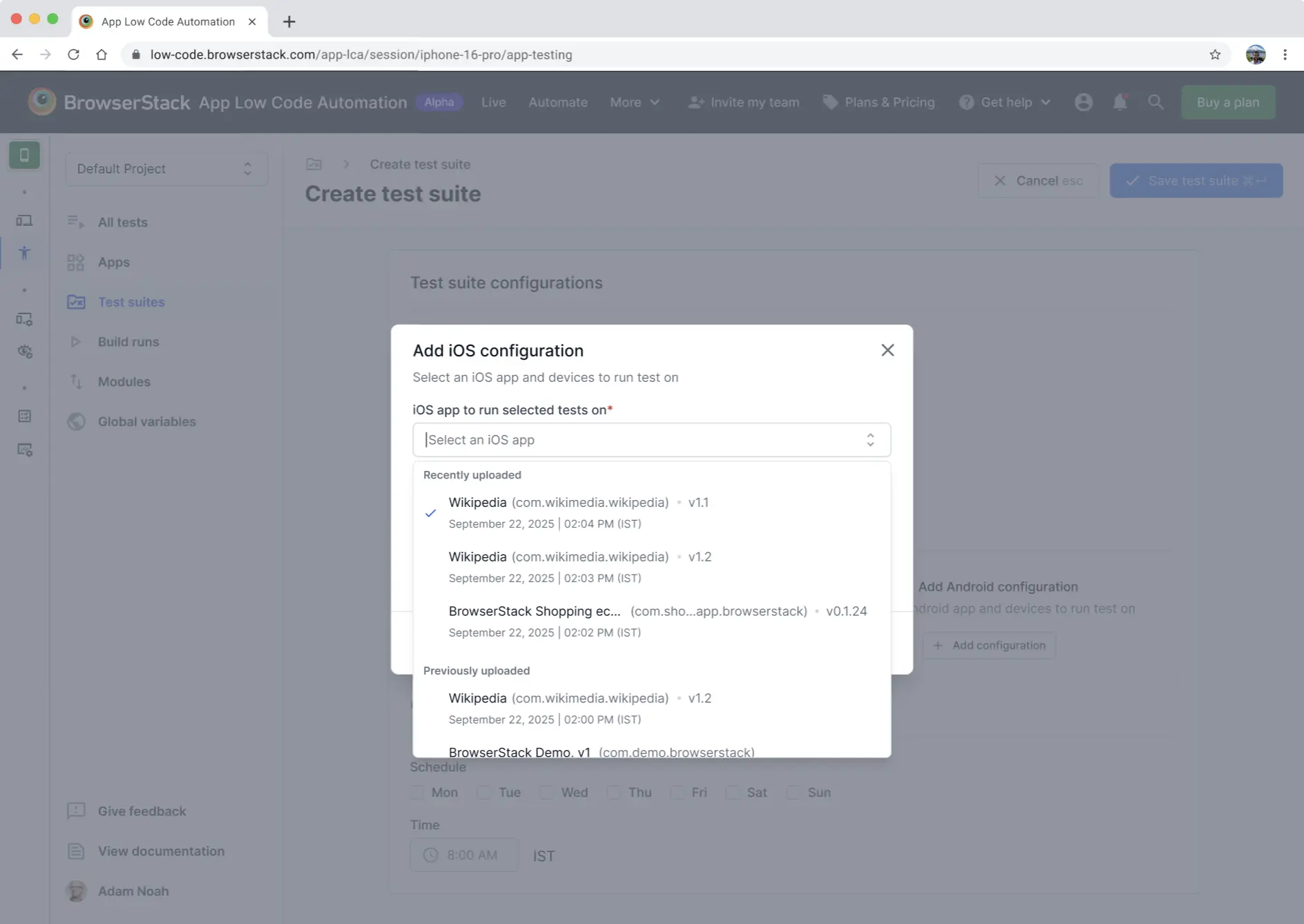
- We recommend enabling the Always use the latest version available toggle. This ensures your tests always run on the most recent app build and helps prevent build failures due to expired app versions.
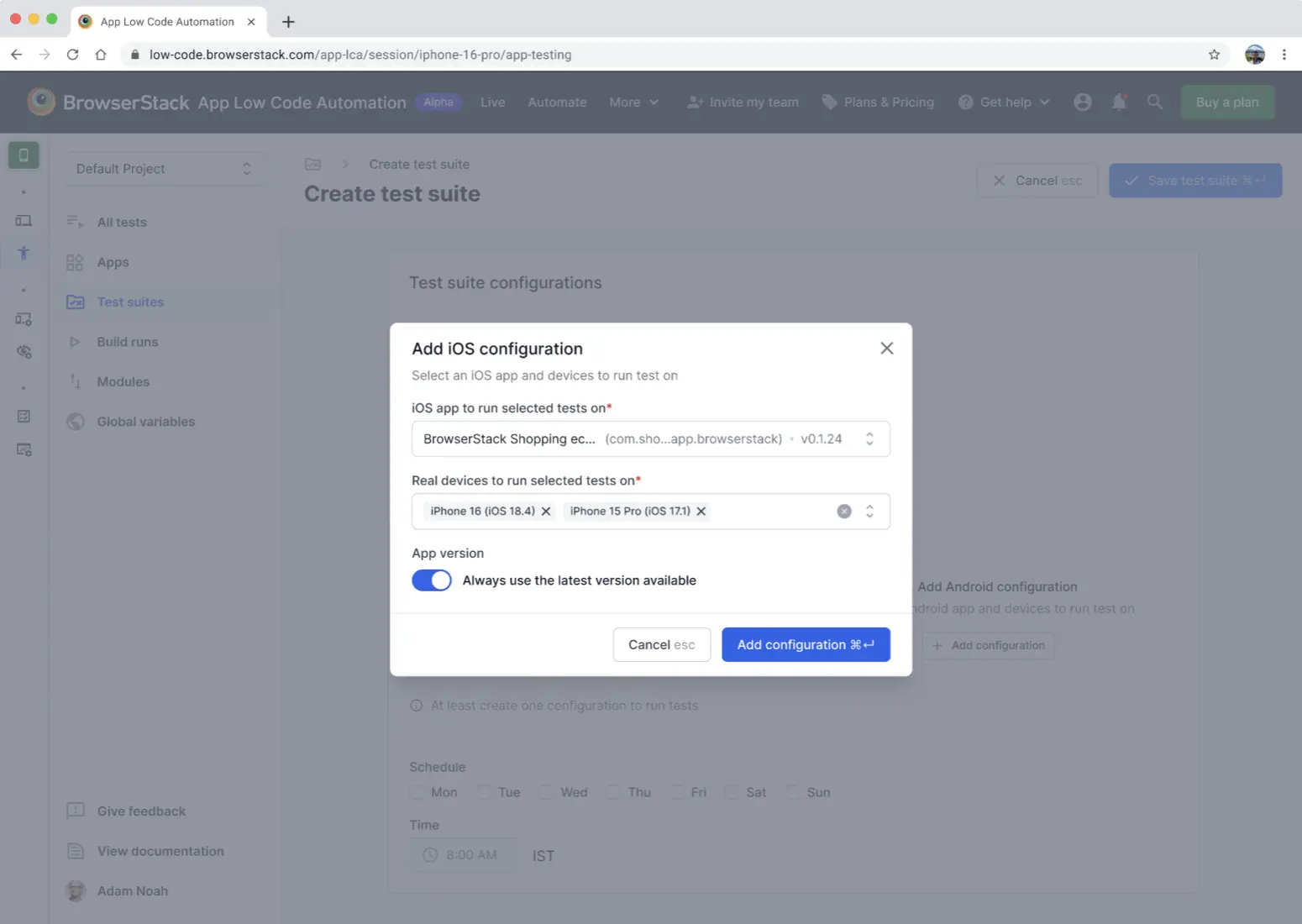
- Click Add configuration to confirm.
- When you select an app, you can view all available versions, including both recent and previous uploads.
- In the Add Android configuration dialog, select the Android app and the real devices to run the tests on. Supported devices include Samsung Galaxy S24 (Android 14.0), Samsung Galaxy S23 Ultra (Android 13.0), and Google Pixel 9 (Android 15.0).
- When you select an app, you can view all available versions, including both recent and previous uploads.
- We recommend enabling the Always use the latest version available toggle. This ensures your tests always run on the most recent app build and helps prevent build failures due to expired app versions.
- Click Add configuration to confirm.
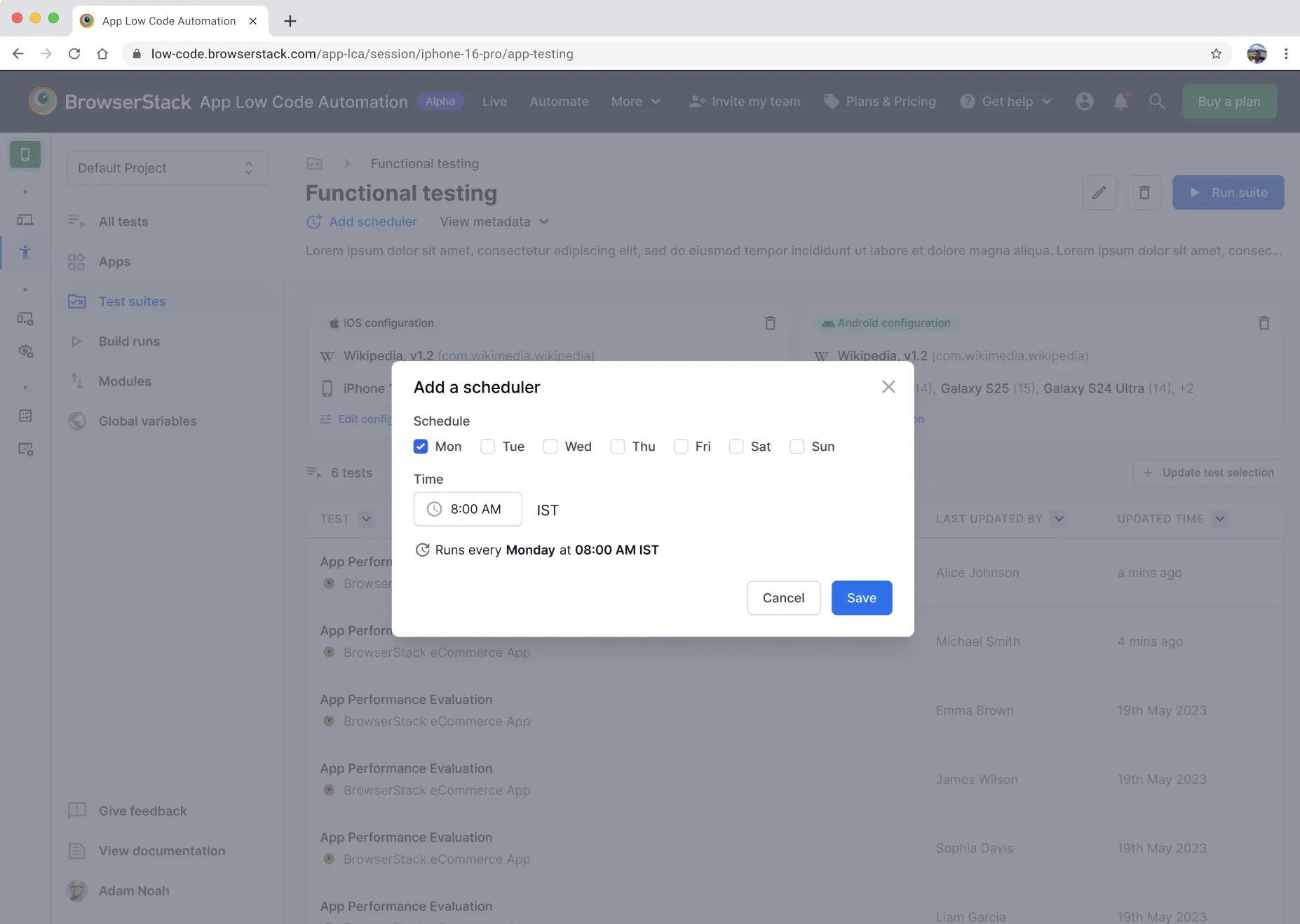
- Set the schedule by choosing the days and time to automatically run your test suite. Select one or more days and set the time (e.g., 8:00 AM IST).
- Click Save test suite.
If Always use latest version is enabled on the test suite creation page, the platform uses the most recently uploaded version of the app to run the test suite. Unless this test suite run is triggered via the Test suite execution API with an explicit app ID. In this case, the provided app ID is used to run the test suite.
Run a test suite
To run a test suite:
- In the Test suites section, select the test suite you want to run.
- Click Run suite.
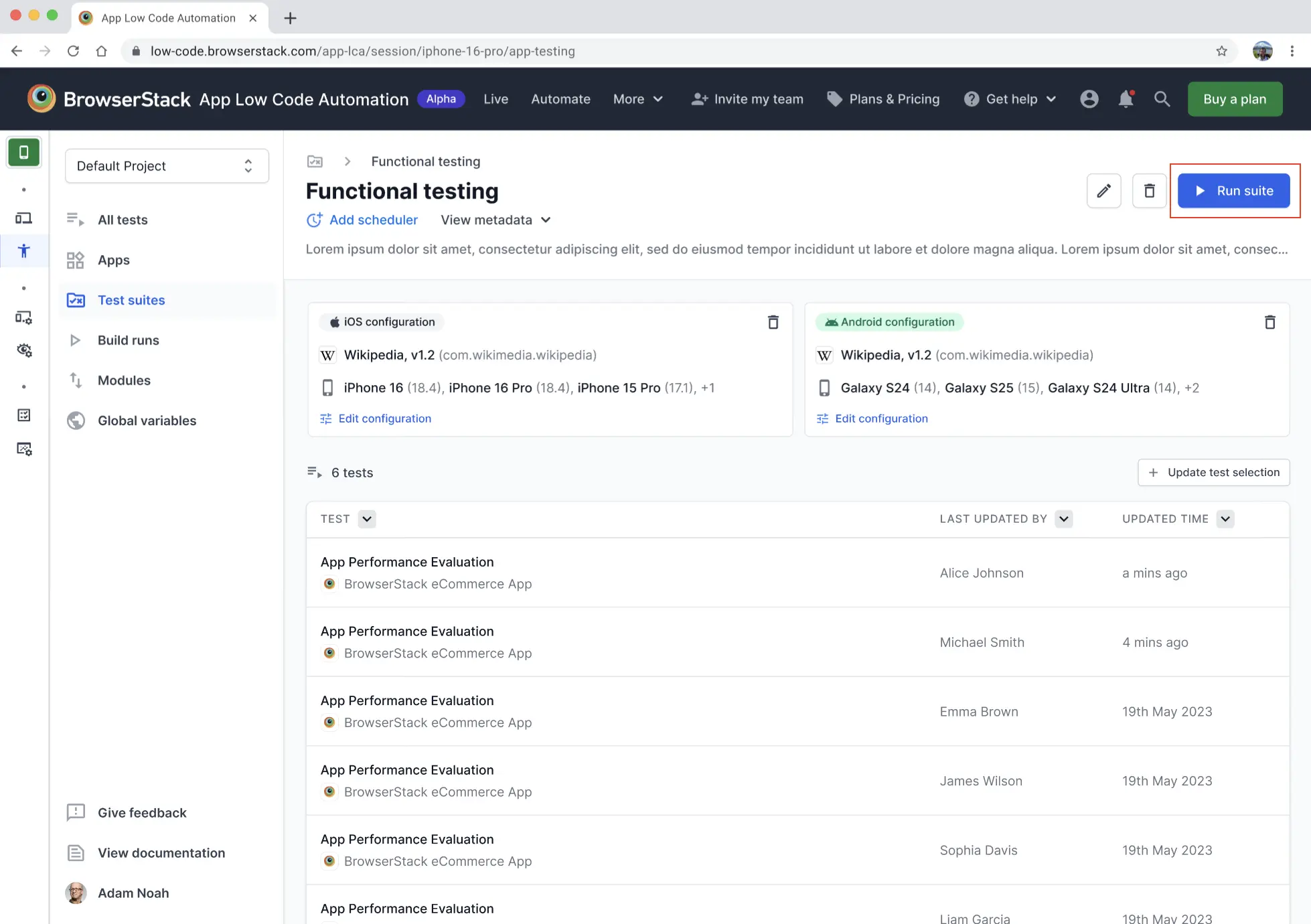
You can monitor the progress and view the results of the test run in real-time. To access detailed test report information, navigate to the Builds section, where you can view the logs and reports generated after the run has finished.
Edit a test suite
You can edit a test suite to add or remove tests, change their order, update iOS or Android configurations, and make other adjustments as needed.
To edit a specific test suite:
- Click the name of the test suite you want to edit. This opens the test suite details and configuration view.
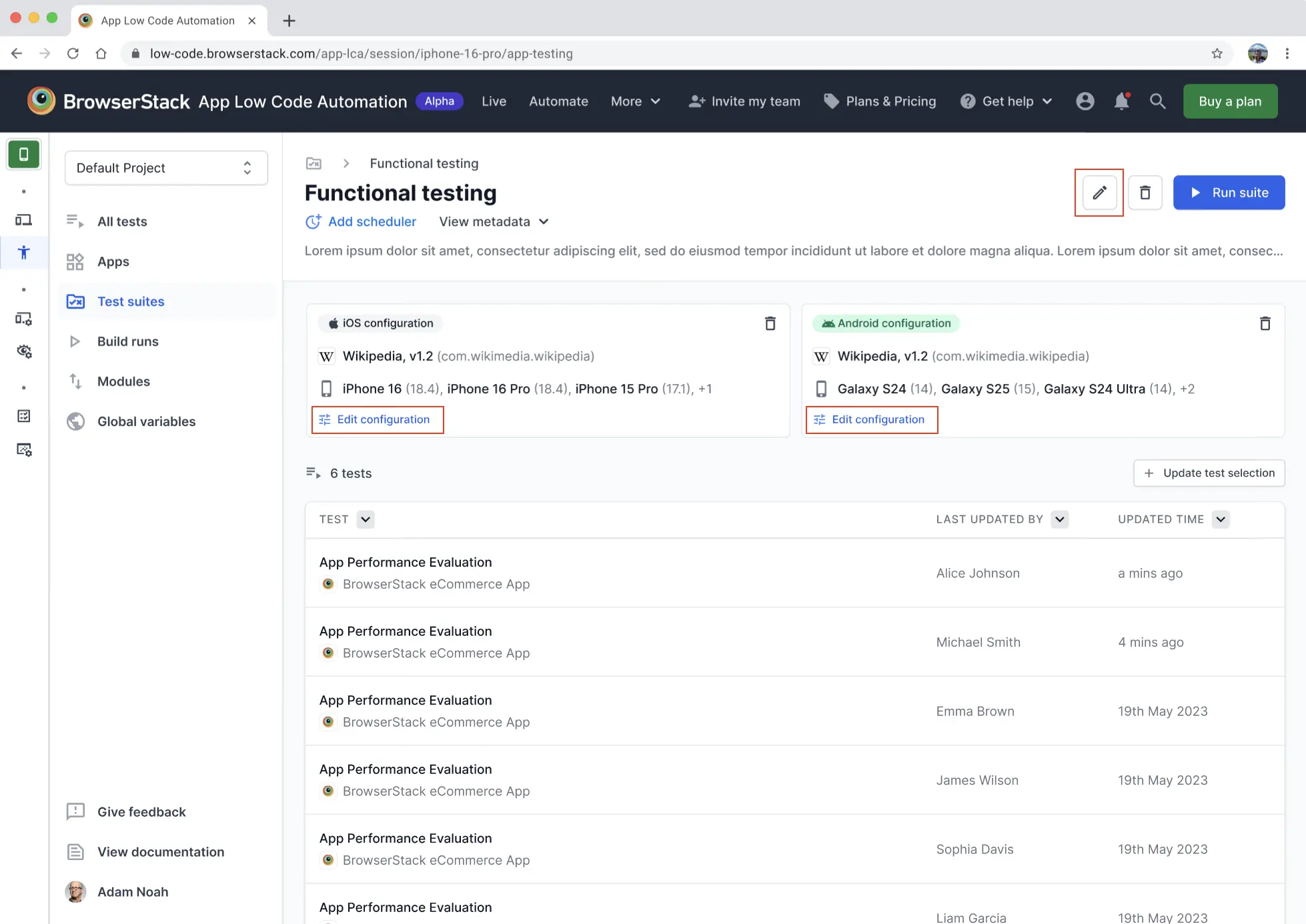
- To update the iOS or Android configuration, click Edit configuration next to the relevant platform. Select the latest uploaded app from the dropdown menu.
- To update the test suite details, click the Edit icon.
- Click +Update test selection. In the Add tests in test suite dialog, check or uncheck tests to add or remove them from the suite.
- Use filters or drag-and-drop to quickly find, select, and reorder tests. You can also enable Run tests in parallel to execute tests concurrently, or disable it to run tests sequentially.
- Click Add to test suite.
Configure the scheduler
You can update the scheduler at any time, even after saving your test suite. To do this, open the test suite and click the Add scheduler link.
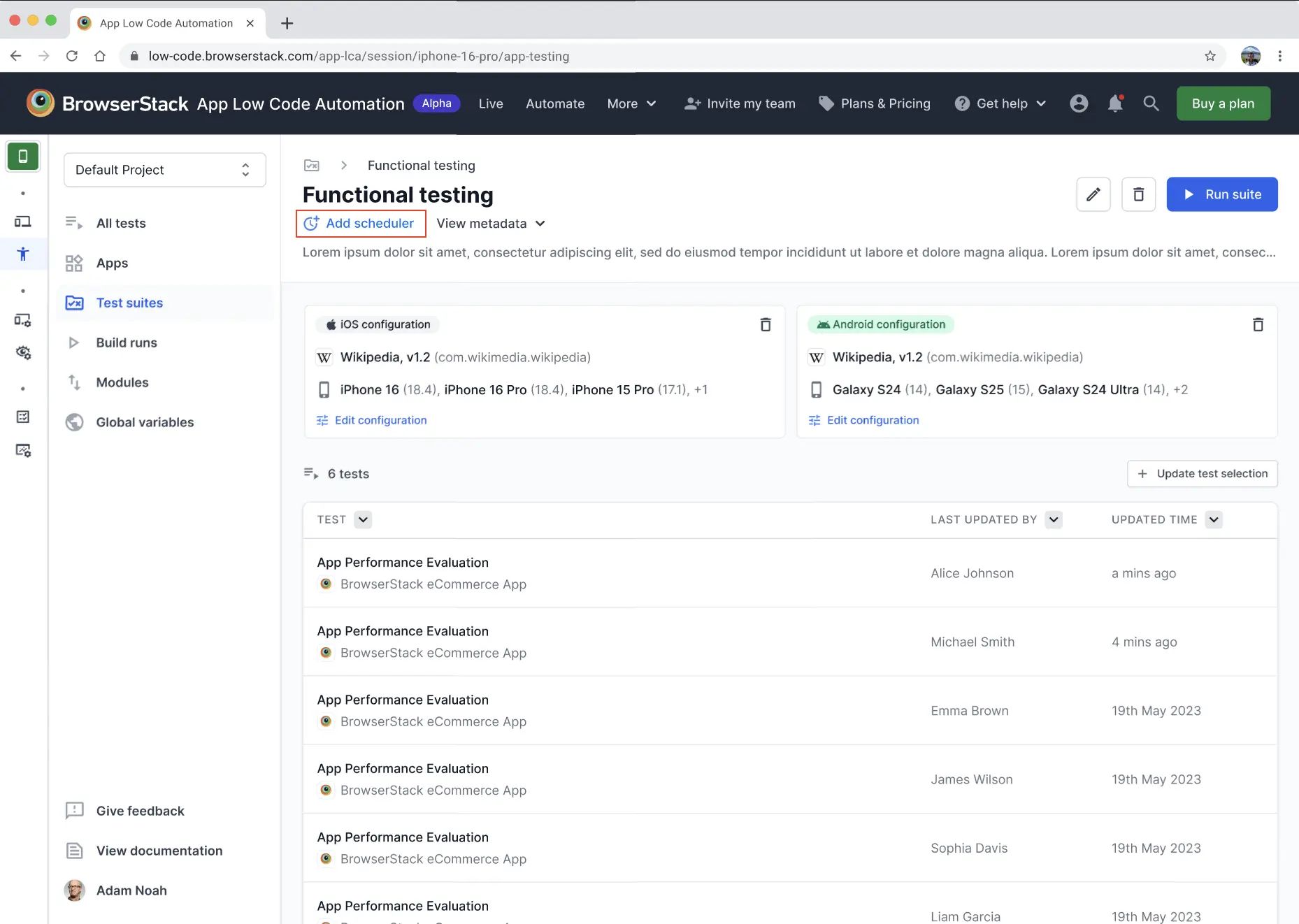
The Add a scheduler dialog appears, allowing you to modify the schedule settings and save your changes.
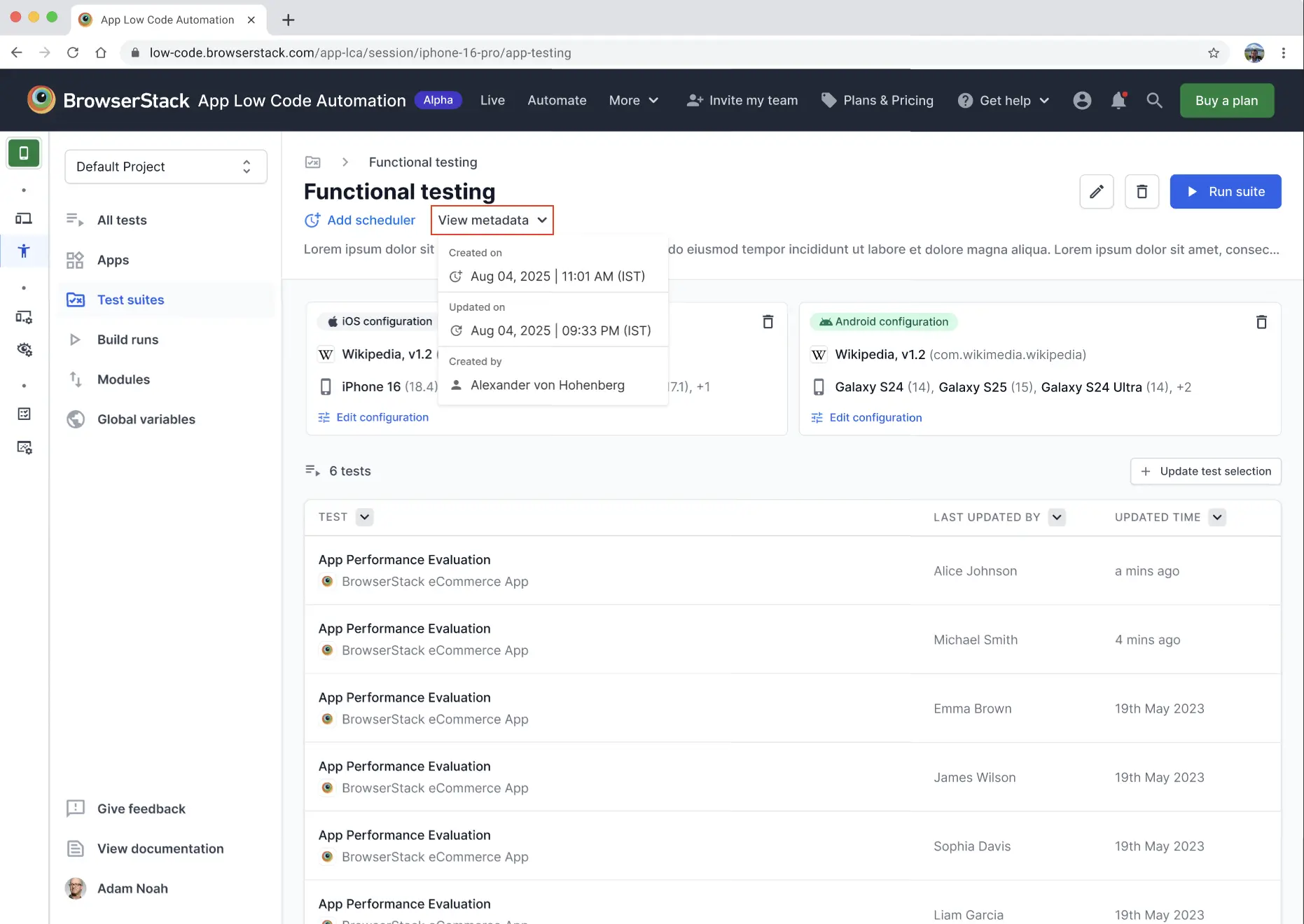
View metadata
You can view the metadata for each test suite, including who created it, when it was last updated, and a complete update log.
Delete a test suite
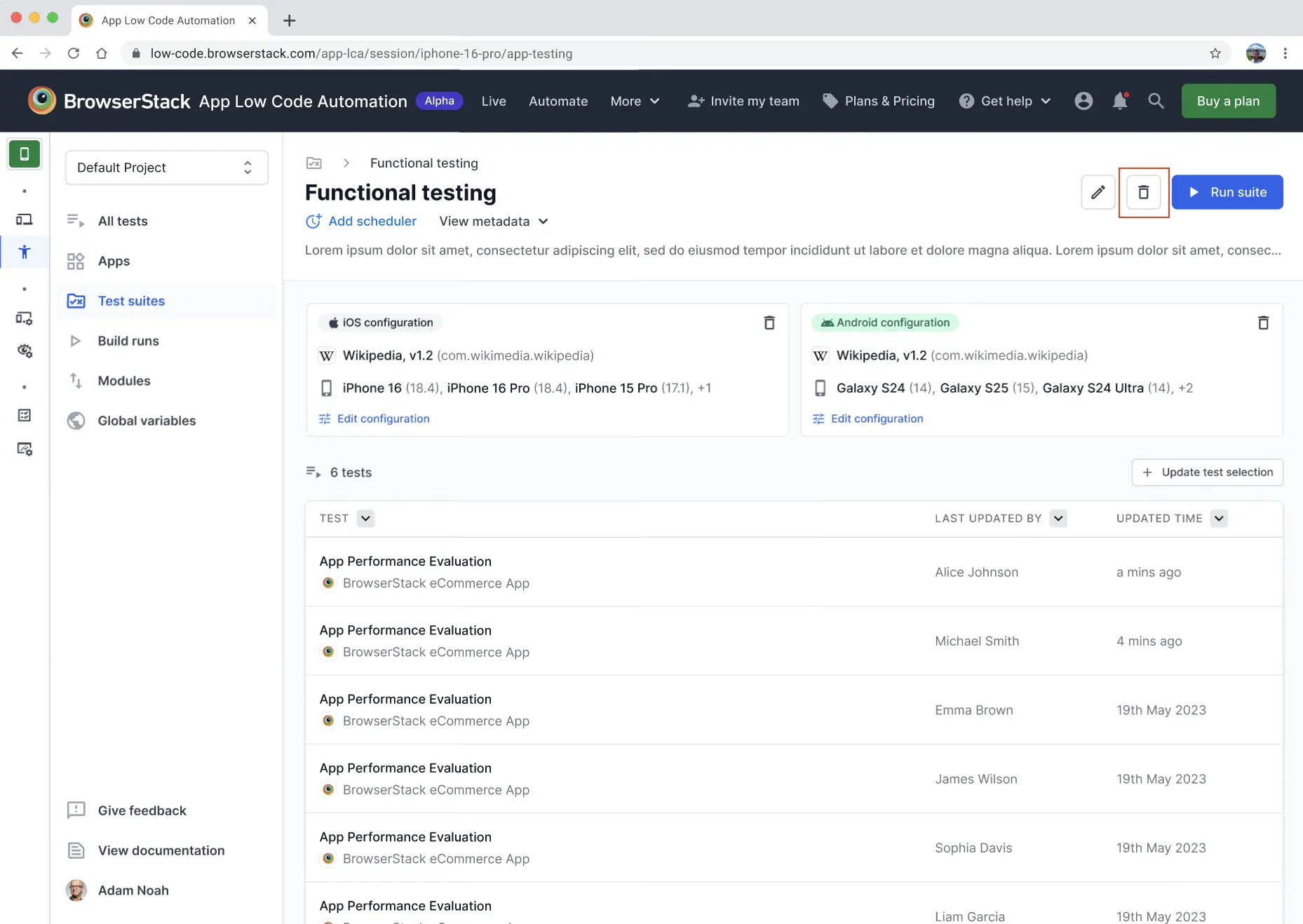
If you need to delete a test suite, proceed with caution as this action cannot be undone:
- In the Test suites section, locate the test suite you wish to delete.
- Click the More options (three dots) button next to the test suite and click Delete.
- Confirm the deletion in the dialog that appears.
- Alternatively, you can open the test suite and click the Delete icon.
We're sorry to hear that. Please share your feedback so we can do better
Contact our Support team for immediate help while we work on improving our docs.
We're continuously improving our docs. We'd love to know what you liked
We're sorry to hear that. Please share your feedback so we can do better
Contact our Support team for immediate help while we work on improving our docs.
We're continuously improving our docs. We'd love to know what you liked
Thank you for your valuable feedback!