
 Join our Discord
Compare automated test reports on BrowserStack App Accessibility
Learn how to compare two automated test reports to track accessibility progress and identify regressions.
You can compare two accessibility test reports of your automated build runs to track your app’s accessibility health over time, identify new issues introduced by code changes, and monitor resolved issues.
Report comparison is available only for Automated Tests reports. This feature is not available for Manual Test Reports generated using the Workflow Analyzer.
Comparability requirements
- You can compare reports only if the build runs meet certain core requirements:
- Same app package name: Both build runs must use the same app package.
- Same build name: Both build runs must have the same build name.
- Same accessibility standard configuration: Both build runs must be configured to test against the same accessibility standard, for example, WCAG 2.2 AA.
- Same total test count: The test suite executed in both build runs must contain the same total number of tests.
- You can compare reports of build runs that fulfill these core requirements but have different test names, device and OS combinations, or other accessibility configurations (such as exclude rules or experimental rules). However, a warning message will indicate that the comparison may not be fully reliable due to these differences.
Builds with significantly different configurations cannot be compared, and the comparison action will be disabled with a message indicating the reason.
Compare build reports
You can compare any automated build report with a previous build report that meets the comparability requirements using the App Accessibility Automated Tests dashboard.
When you select a build report to compare, it becomes the new run in the comparison. You can only compare build runs with previous (older) build runs, which will be considered the base run.
For example, if you select build #3, you can compare it with build #2 or #1, even if builds #4, #5, or #6 are available.
Prerequisites
- You have run at least two builds with the same build name in the same project using App Accessibility Automated Tests.
Compare two build reports
Follow these steps to compare two build reports:
- In the App Accessibility dashboard, select Automated Tests.
- Choose one of the following options to compare build reports:
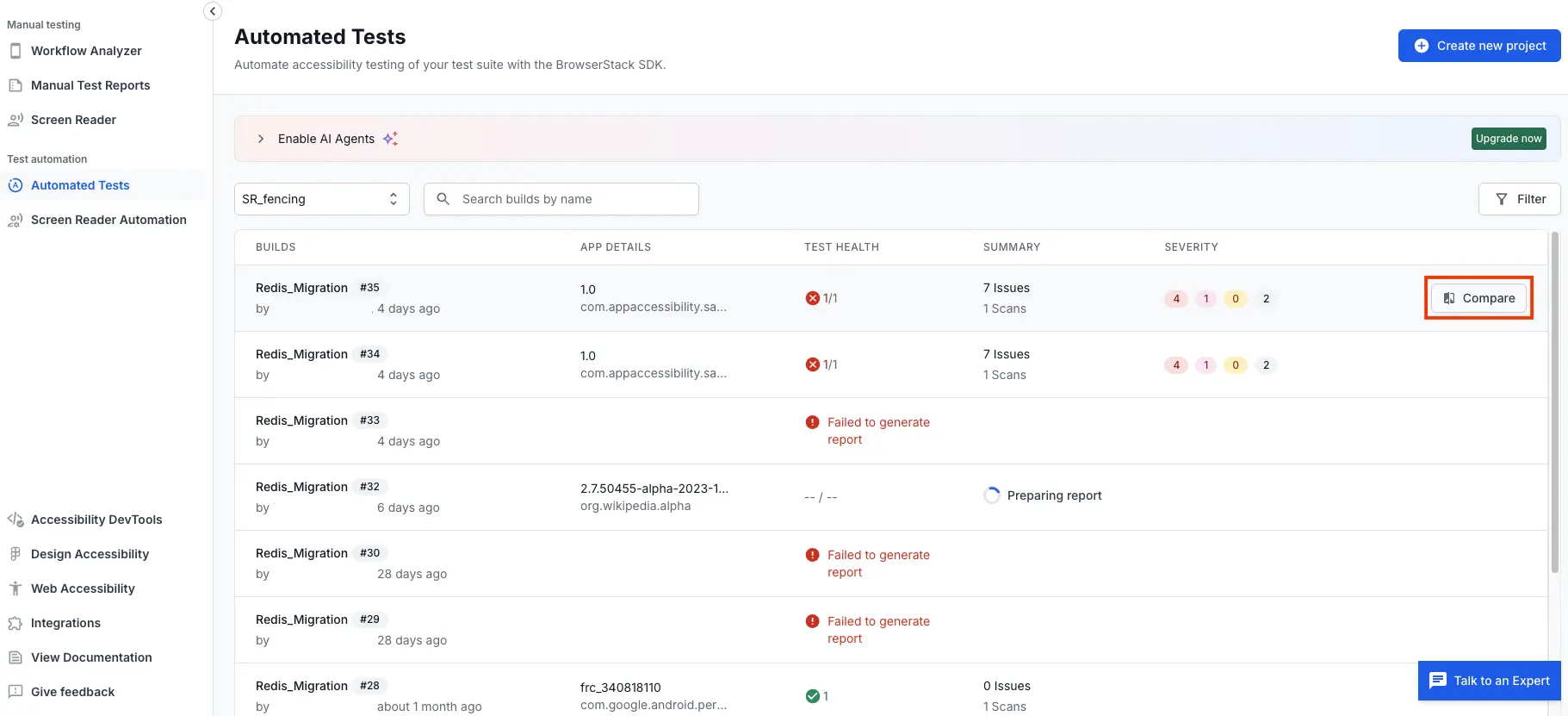
- Locate and hover over the build report you want to compare and click the Compare button that appears towards the end of the row.
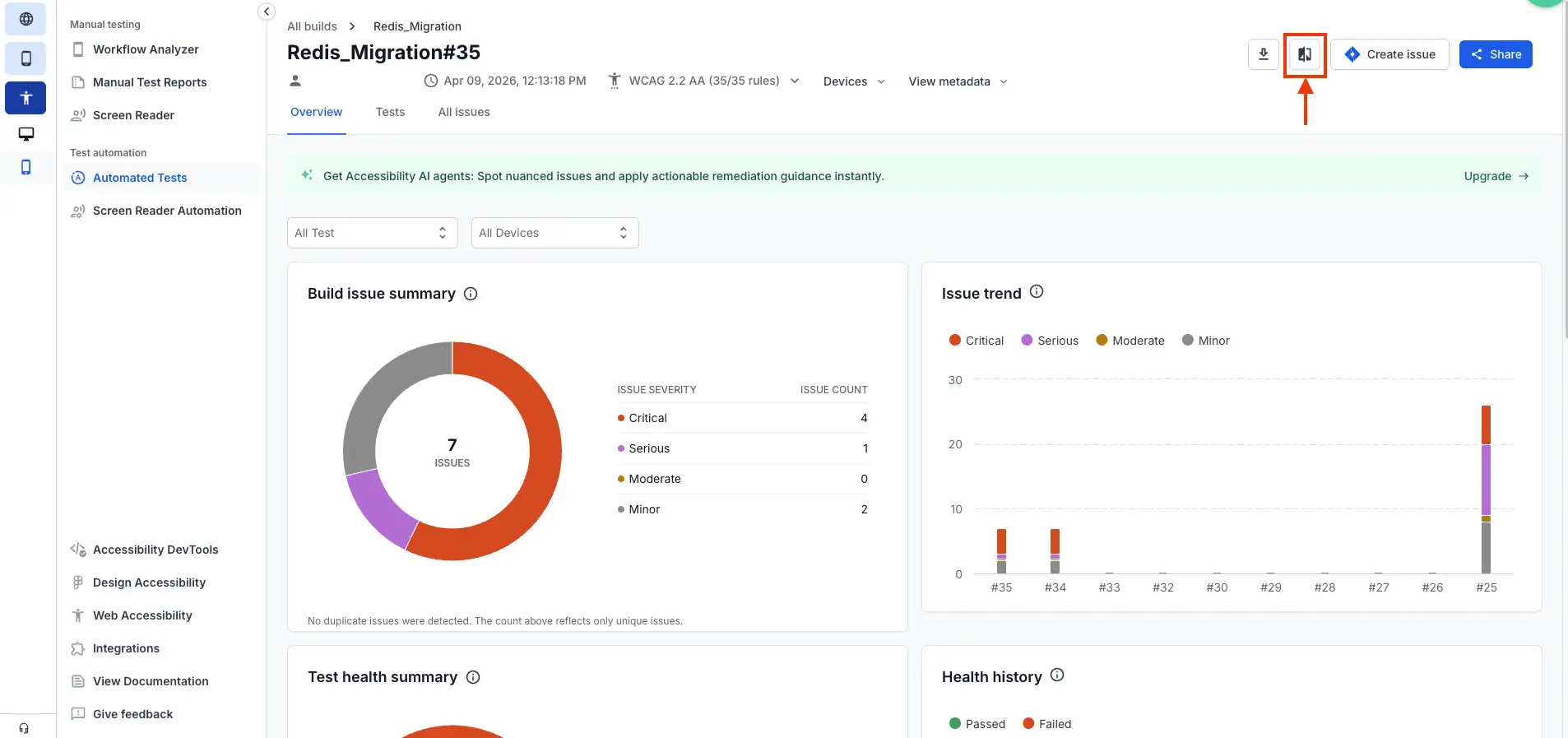
- Alternatively, click on the build report you want to compare to open its overview page. On the overview page, click the Compare button in the top-right corner of the page.
The Select a run to compare dialog opens, showing a list of previous (older) build runs that are eligible for comparison with the selected build report based on the comparability requirements.
- Locate and hover over the build report you want to compare and click the Compare button that appears towards the end of the row.
- In the Select a run to compare dialog, select the previous build run you want to compare with the build report you selected in the previous step.
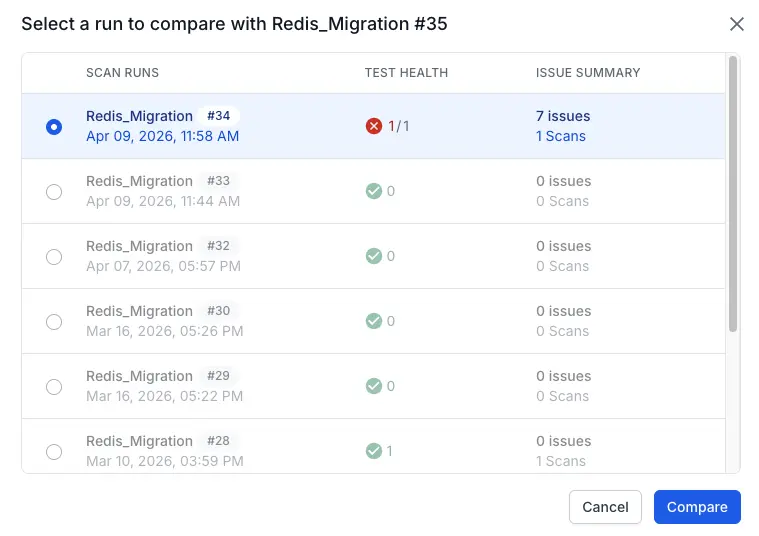
- Click Compare to view the comparison results.
Understand the comparison results
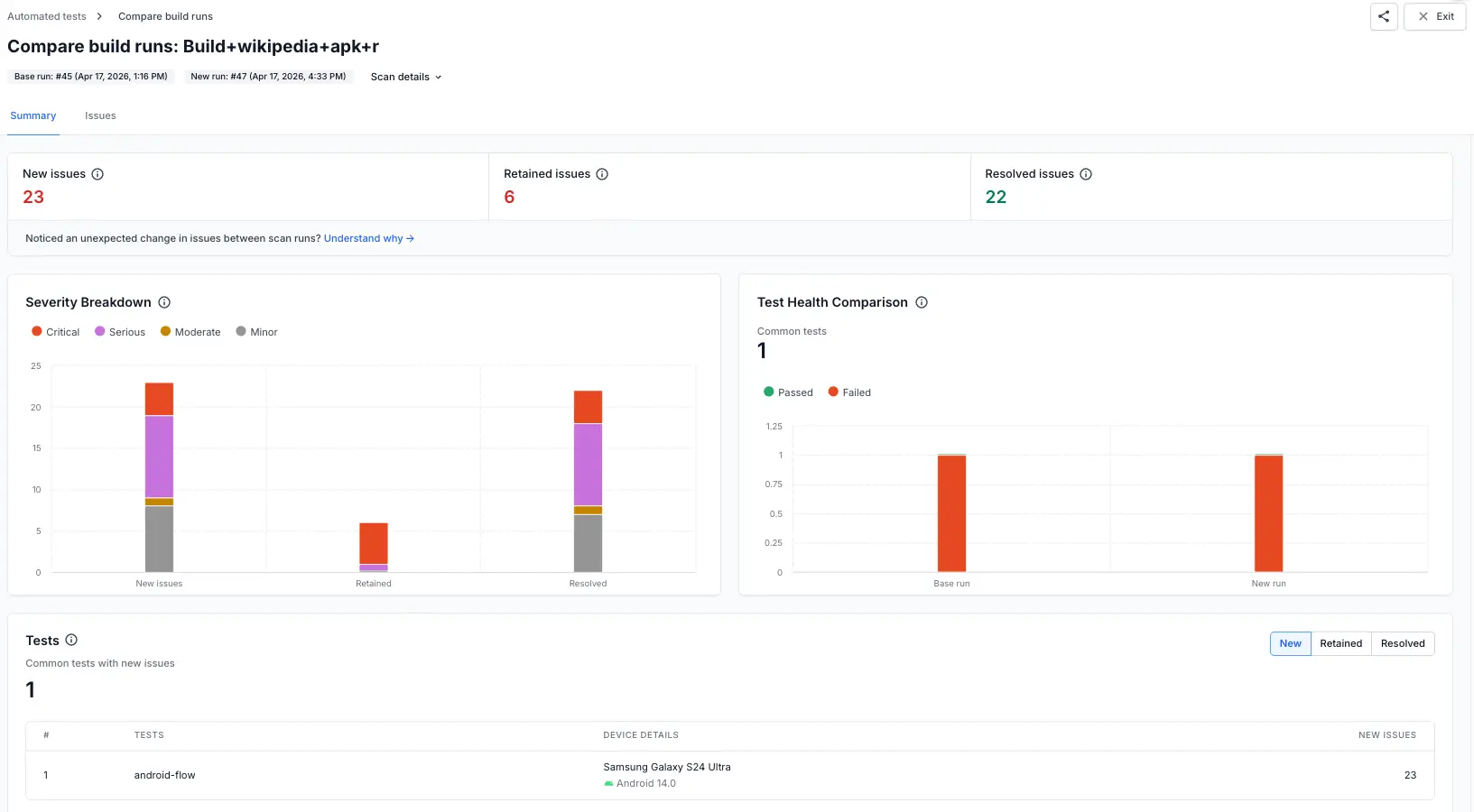
After you compare two build reports, the comparison view displays two tabs: Summary and Issues. The Summary tab opens by default, showing an overview of accessibility changes between the Base run (older) and the New run (latest).
The Scan details dropdown at the top shows which specific build runs are being compared, including their run numbers and timestamps.
The dropdown also shows the rule engine version each run used. If the change in issue counts between the runs is unexpected, see Troubleshoot differences in issue counts between reports.
Summary tab
The Summary tab provides aggregate metrics and visualizations to help you quickly assess changes between the two build reports.
Issue summary cards
At the top of the Summary tab, three cards display the total count of issues categorized by their status:
- New issues: Issues present in the new run that were absent in the base run.
- Retained issues: Issues present in both the new run and the base run.
- Resolved issues: Issues present in the base run but absent in the new run.
BrowserStack App Accessibility deduplicates issues within a test and across tests on the same device. This ensures that the same issue detected multiple times in different tests or scans is counted only once in the comparison results.
Only actionable issues (confirmed issues and issues in needs review state) are counted. This excludes hidden issues and issues marked as non-issues.

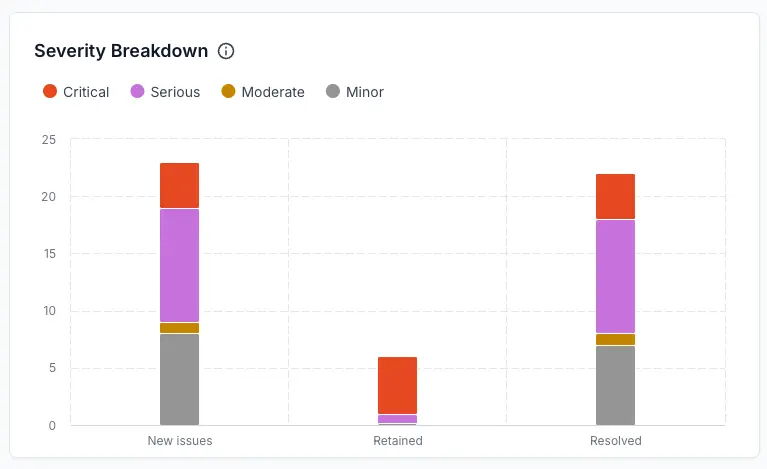
Severity breakdown
The Severity breakdown widget visualizes how new, retained, and resolved issues are distributed across severity levels (Critical, Serious, Moderate, Minor). Use this to identify if changes are concentrated in high-priority or low-priority issues.
Test health comparison
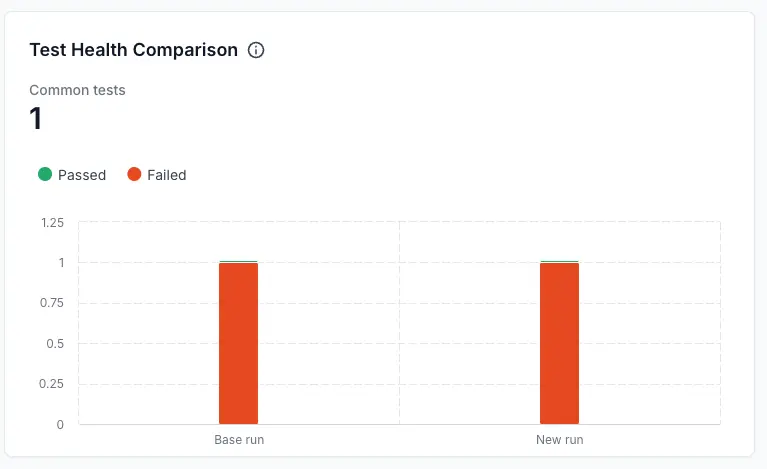
The Test health comparison widget shows:
- Common tests: The number of tests that are common in both the base and new runs.
- Test results: A comparison of passed and failed tests between the base run and new run in a stacked bar format.
This widget helps you understand whether test stability has changed between runs.
Tests
The Tests section displays a list of tests that were run in both the base and new runs, along with the count of issues in each category (new, retained, resolved) for each test.
Use the filter buttons (New, Retained, Resolved) to view tests with issues in each category. The section displays:
- Test name: The name of the test that has issues.
- Device details: The device model and OS version on which the test was executed.
- Issue count: The number of issues in the selected category (new, retained, or resolved) for that test.

Click on any test row to view detailed information about New, Retained, or Resolved issues for that specific test and device combination, depending on the selected filter.
Issues tab
The Issues tab provides a detailed view of individual accessibility issues detected in the scans.
Filter issues
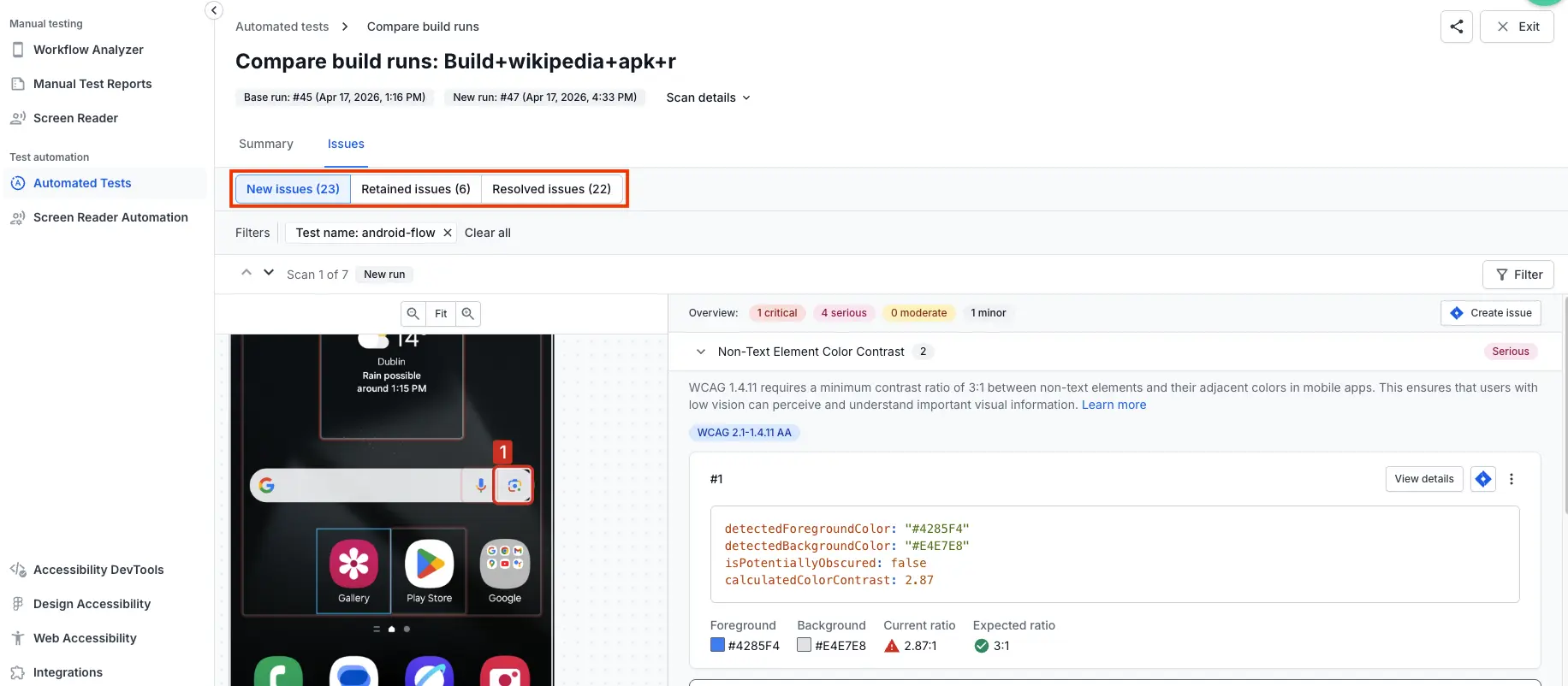
At the top of the Issues tab, use the filter buttons to view issues by status:
- New issues: Shows only issues that appeared in the new run.
- Retained issues: Shows only issues present in both runs.
- Resolved issues: Shows only issues that were in the base run but not in the new run.
You can also filter by various criteria using the Filters option. Click Clear all to remove all active filters.
View issue details
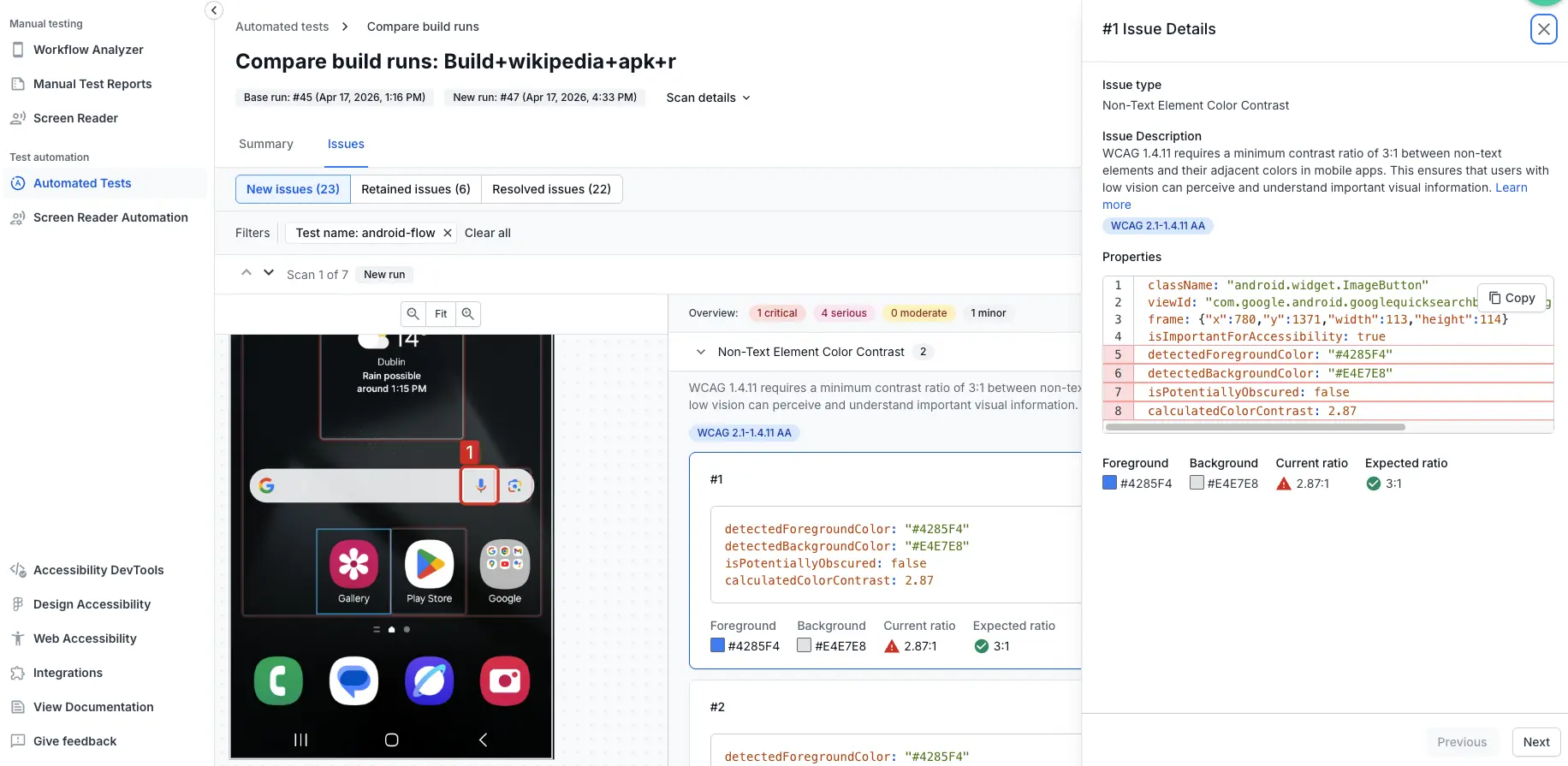
In the list of issues, click on any issue to open the issue details page. The issue details page shows comprehensive information about the issue.
Related topics
- View App Accessibility Testing reports
- Issue deduplication
- Troubleshoot differences in issue counts between reports
We're sorry to hear that. Please share your feedback so we can do better
Contact our Support team for immediate help while we work on improving our docs.
We're continuously improving our docs. We'd love to know what you liked
We're sorry to hear that. Please share your feedback so we can do better
Contact our Support team for immediate help while we work on improving our docs.
We're continuously improving our docs. We'd love to know what you liked
Thank you for your valuable feedback!