
 Join our Discord
View the conformance summary in App Accessibility reports
Understand how your app conforms to supported accessibility standards, and which success criteria require manual checks.
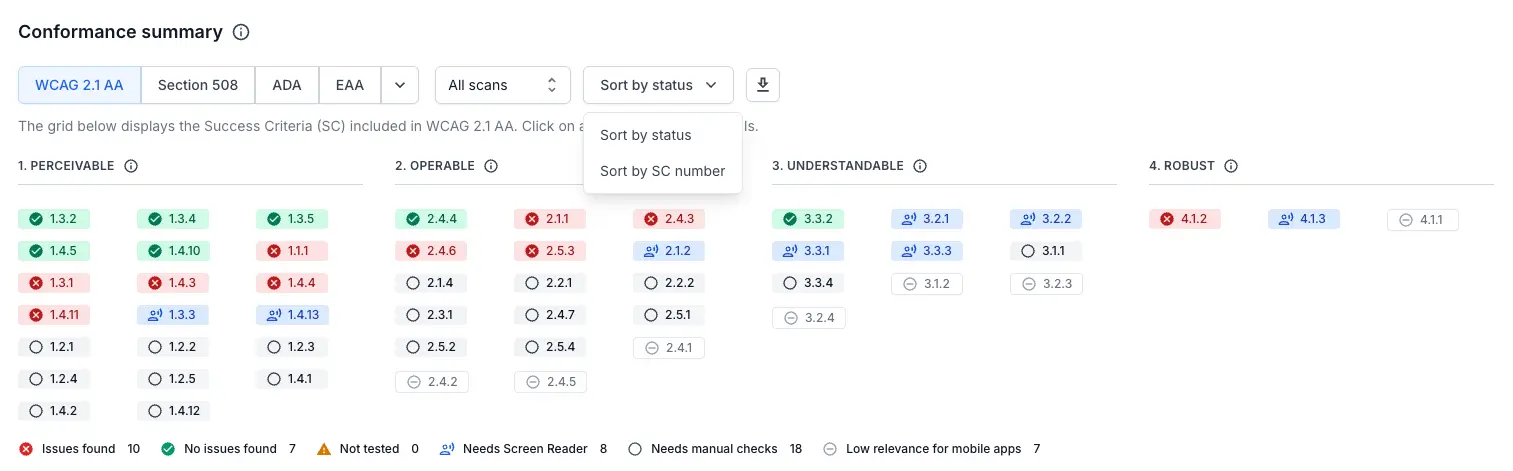
The conformance summary maps the results of an App Accessibility scan to the success criteria of a selected accessibility standard. You can switch between the various standards to view the app’s conformance with each one, without running a new scan. For each criterion, the summary shows whether BrowserStack found issues, found no issues, or couldn’t test the criterion. The summary also flags the criteria you need to check maunally.
The conformance summary supports the following accessibility standards:
- Web Content Accessibility Guidelines (WCAG)
- Section 508
- Americans with Disabilities Act (ADA)
- European Accessibility Act (EAA)
- RAAM 1.1
The conformance summary is being rolled out in phases and is available to select customers. To enable it for your account, contact support.
Prerequisites
- An App Accessibility report from an automated test run, a Workflow Analyzer session, or a consolidated report.
View the conformance summary
To open the conformance summary:
- On the App Accessibility dashboard, open a report:
- For automated test reports, go to Automated Tests.
- For Workflow Analyzer and consolidated reports, go to Manual Test Reports.
- Open the report’s summary:
- In an automated test report, click the Overview tab.
- In a Workflow Analyzer or consolidated report, click the Summary tab.
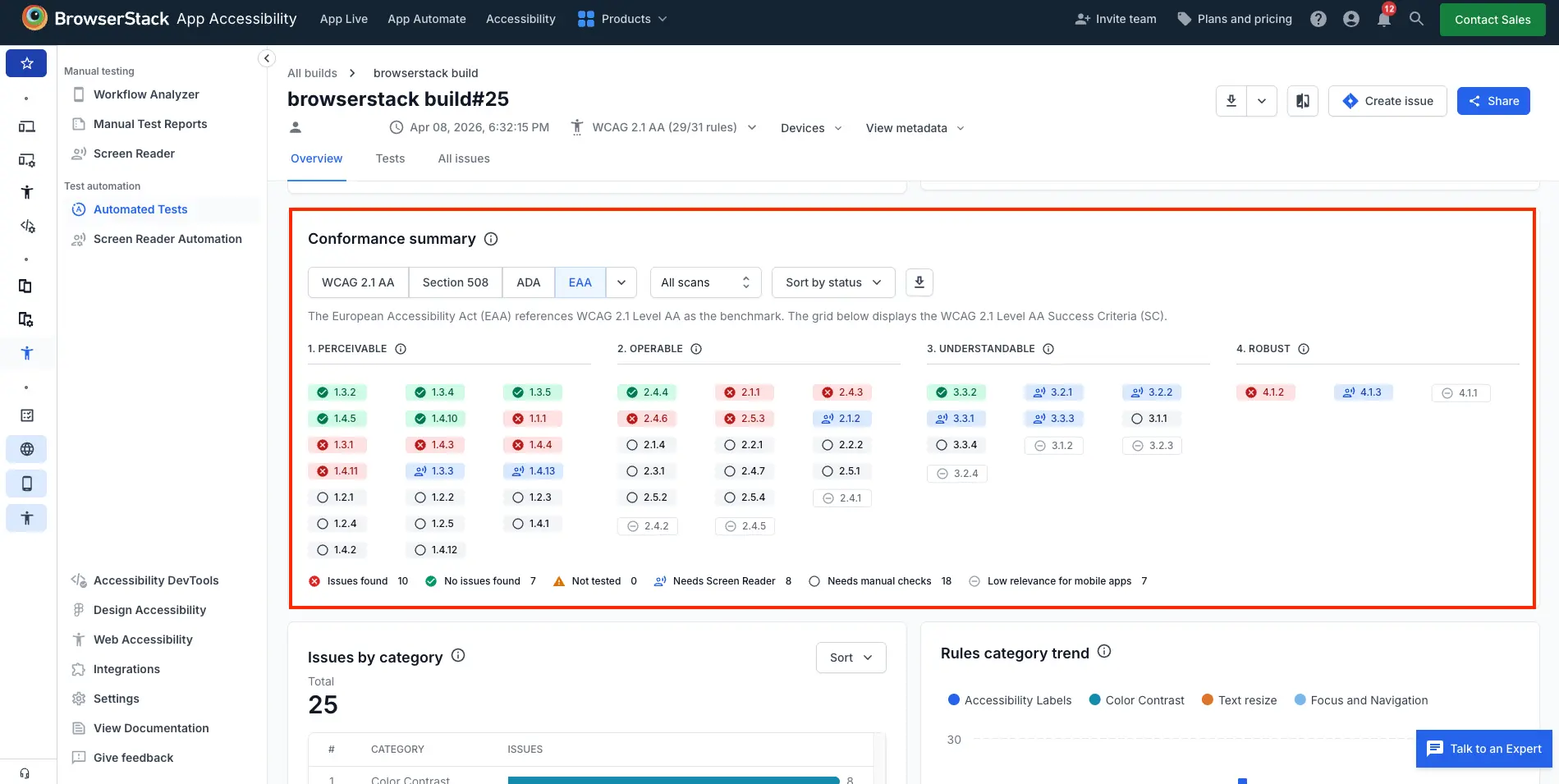
- Scroll to the Conformance summary section. The section shows a grid of the success criteria included in the selected accessibility standard, with a legend below the grid that counts how many criteria carry each status.
Select an accessibility standard
By default, the conformance summary maps your app to the accessibility standard the scan ran against. To report against a different standard, select it from the buttons above the grid, or select one from the dropdown next to them. Selecting an accessibility standard changes which success criteria the grid displays. The scan doesn’t re-run.
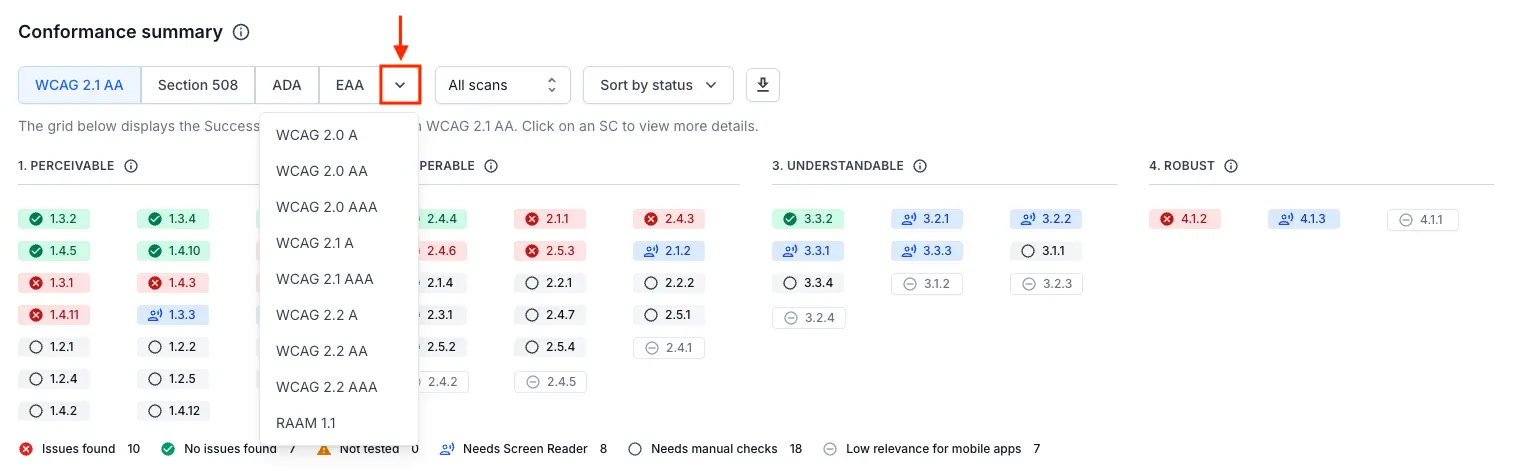
The following standards are available in the conformance summary:
| Standard | Success criteria shown in the grid |
|---|---|
| WCAG 2.0, WCAG 2.1, and WCAG 2.2 at Level A, AA, or AAA | The success criteria in the version and level you select. |
| Section 508 | The WCAG 2.0 Level AA success criteria. |
| ADA | The WCAG 2.1 Level AA success criteria. |
| EAA | The WCAG 2.1 Level AA success criteria. |
| RAAM 1.1 | The RAAM 1.1 criteria, grouped by theme instead of by principle. |
Section 508, the ADA, and the EAA each map to a WCAG version and level. Selecting one of these standards changes which success criteria the grid lists, but the underlying scan results stay the same.
Understand the conformance summary
For the WCAG-based standards, the grid groups success criteria under the four WCAG principles. For RAAM 1.1, the grid groups the criteria by theme instead. Each tile corresponds to one success criterion. The color and icon of the tile show the criterion’s status.
Success criterion status
Every success criterion carries one of the following statuses:
| Status | What it means | What to do next |
|---|---|---|
| Issues found | An automated rule ran against this success criterion and found at least one issue. | Open the criterion to see the issues, then fix them. |
| No issues found | An automated rule ran against this success criterion and found nothing. | Nothing. If you need full coverage of the criterion, run the recommended screen reader and manual checks. |
| Not tested | App Accessibility has a rule for this success criterion, but the scan didn’t run that rule. | Check whether the criterion falls outside the standard the scan ran against, or whether its rule was excluded from the scan, then run a new scan. |
| Needs Screen Reader | No automated rule covers this success criterion, but you can verify the criterion with a screen reader. | Test the criterion with App Accessibility screen reader testing. |
| Needs manual checks | No automated rule covers this success criterion, and a screen reader can’t verify the criterion. | Test the criterion manually against the WCAG techniques. |
| Low relevance for mobile apps | The success criterion has limited applicability to mobile apps, based on WCAG2ICT and W3C mobile guidance. The criterion still counts toward the total. | Nothing, in most cases. Check the criterion if your app has the content that criterion covers. |
Considerations
A criterion shows as Not tested in either of the following situations:
- If you select an accessibility standard that includes more success criteria than the one you ran the scan against, those extra criteria show as Not tested because the scan didn’t run the rules for those criteria. For example, a scan at WCAG 2.2 Level AA doesn’t run the Level AAA rules, so criteria such as 2.5.5 Target Size (Enhanced) and 3.1.6 Pronunciation show as Not tested even though BrowserStack App Accessibility has rules for both criteria.
- A criterion also shows as Not tested when its rule was excluded from the scan. A criterion can show as Not tested this way even when you view the summary at the same standard the scan ran against. In a Workflow Analyzer session, rules are excluded through the Rules dropdown or by turning off Include Best Practices Issues or Include Experimental Rules in Scan settings. In an automated test, rules are excluded through
excludeRule,excludeRuleCategory,bestPractice, orexperimentalRulesin your test configuration.
Success criterion details
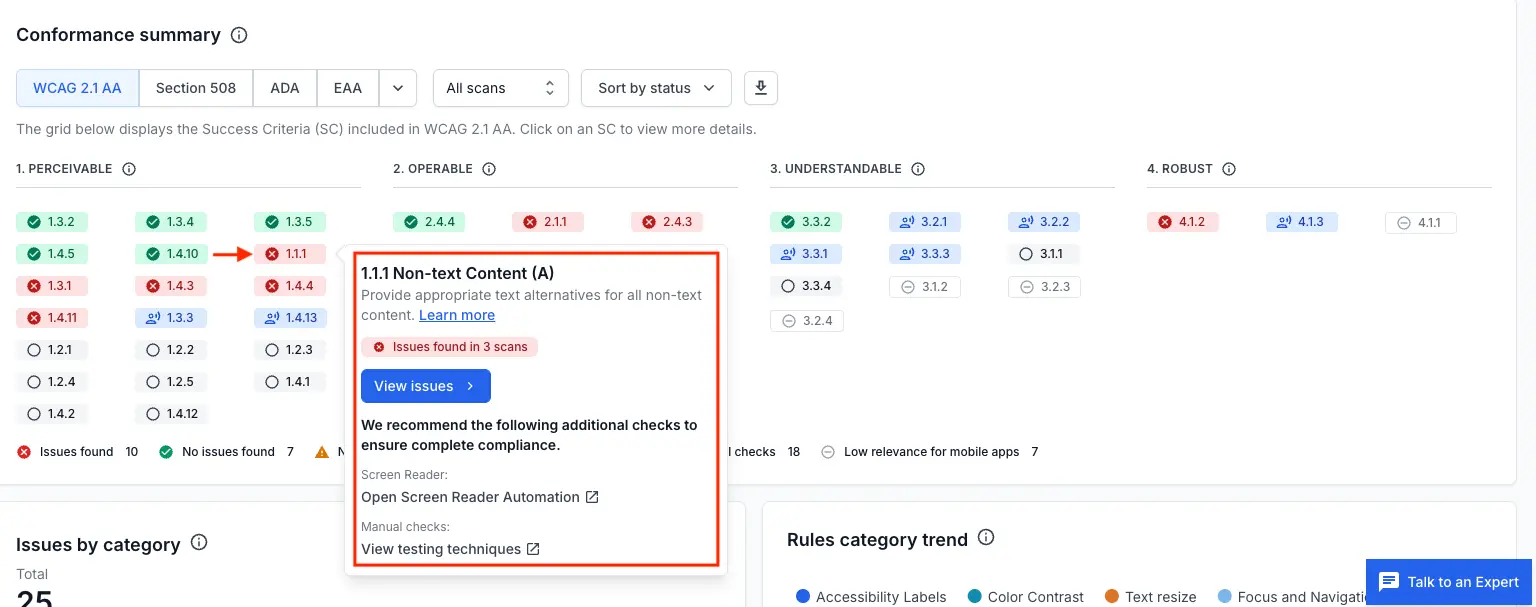
On the grid, click a tile to open its details. The details panel shows the following information:
- The success criterion number, name, and conformance level.
- A short description of what the criterion requires, with a link to the W3C understanding document.
- The current status of the criterion.
- A View issues link that opens the issues in the report. The link is displayed only if the criterion has issues.
- Additional checks BrowserStack recommends, such as screen reader and manual checks. These checks are listed under We recommend the following additional checks to ensure complete compliance.
Filter by scan
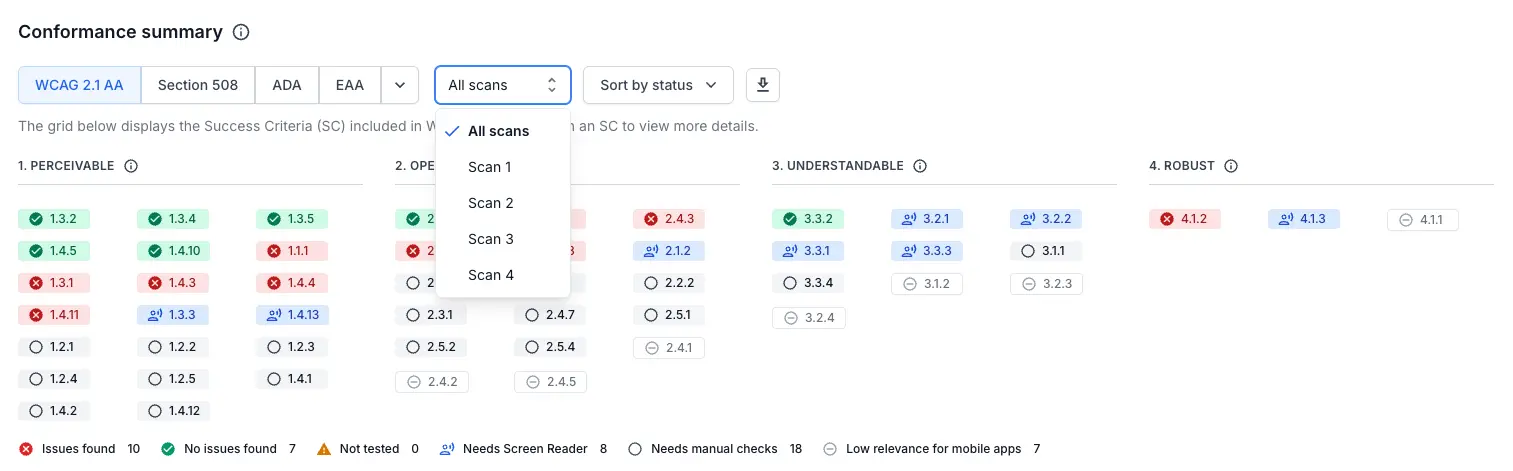
A report can contain several scans. The conformance summary combines all scans by default.
To see the conformance status for a single scan, select the scan from the All scans dropdown. The grid, the legend counts, and the CSV export all change based on the scan you select.
Sort the grid
Use the Sort by status dropdown to change the tile order within each principle or theme:
-
Sort by status: Groups criteria by their status, in the following order:
- No issues found
- Issues found
- Not tested
- Needs Screen Reader
- Needs manual checks
- Low relevance for mobile apps
- Sort by SC number: Orders the success criteria numerically in ascending order.
Export the conformance summary
Click the download icon next to the Sort by status dropdown to download the summary as a CSV file. The exported file reflects the selected standard and scan.
To export the full list of issues rather than the conformance summary, see Export reports in CSV.
Related topics
We're sorry to hear that. Please share your feedback so we can do better
Contact our Support team for immediate help while we work on improving our docs.
We're continuously improving our docs. We'd love to know what you liked
We're sorry to hear that. Please share your feedback so we can do better
Contact our Support team for immediate help while we work on improving our docs.
We're continuously improving our docs. We'd love to know what you liked
Thank you for your valuable feedback!