
 Join our Discord
Consolidate Workflow Analyzer reports
Merge multiple Workflow Analyzer session reports into one named, deduplicated App Accessibility Testing report you can share and cite.
You can combine multiple Workflow Analyzer session reports into a single, permanent report to view your app’s overall accessibility in one place, instead of reviewing each session separately.
When you consolidate reports, App Accessibility Testing deduplicates issues across the selected reports, so a violation found in several user flows appears once. A consolidated report behaves like any other report, and your source reports stay unchanged.
Prerequisites
- You have run two or more sessions in the same project using the Workflow Analyzer. Ensure all the reports have finished processing completely.
Consolidate reports
Follow these steps to combine session reports into a consolidated report:
- On the App Accessibility Testing dashboard, go to the Manual Test Reports page.
- Select the checkbox for each report you want to combine. The order in which you select the reports is the merge order, and the first report you select is the primary source for deduplication.
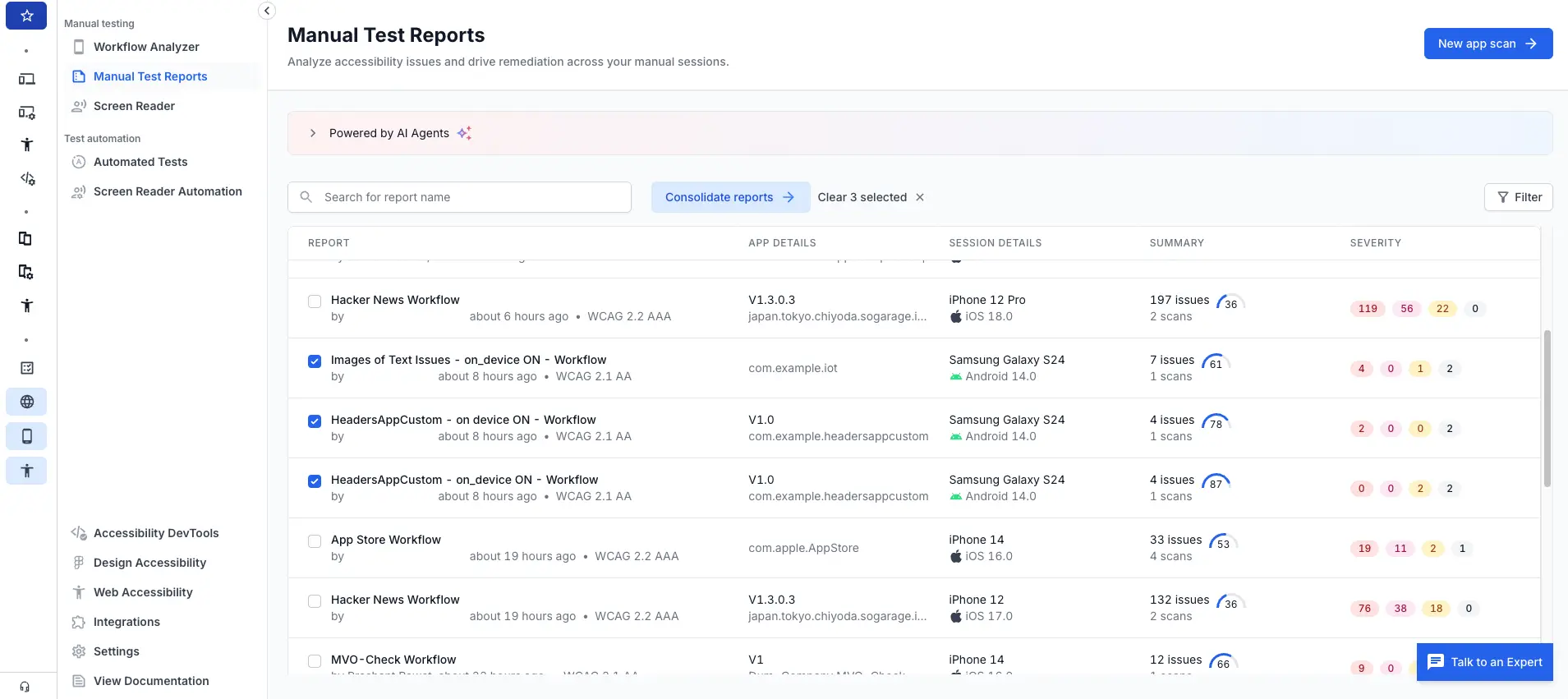
- In the list header, click Consolidate reports.
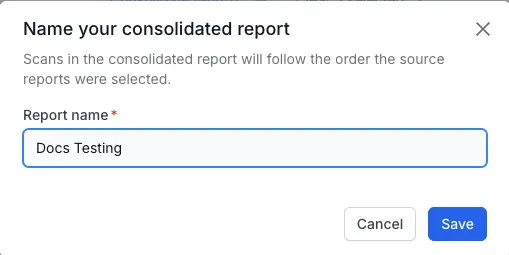
- In the Name your consolidated report prompt, enter the Report name and click Save. The name is mandatory, can be between 1 and 120 characters, and must be unique within the project.
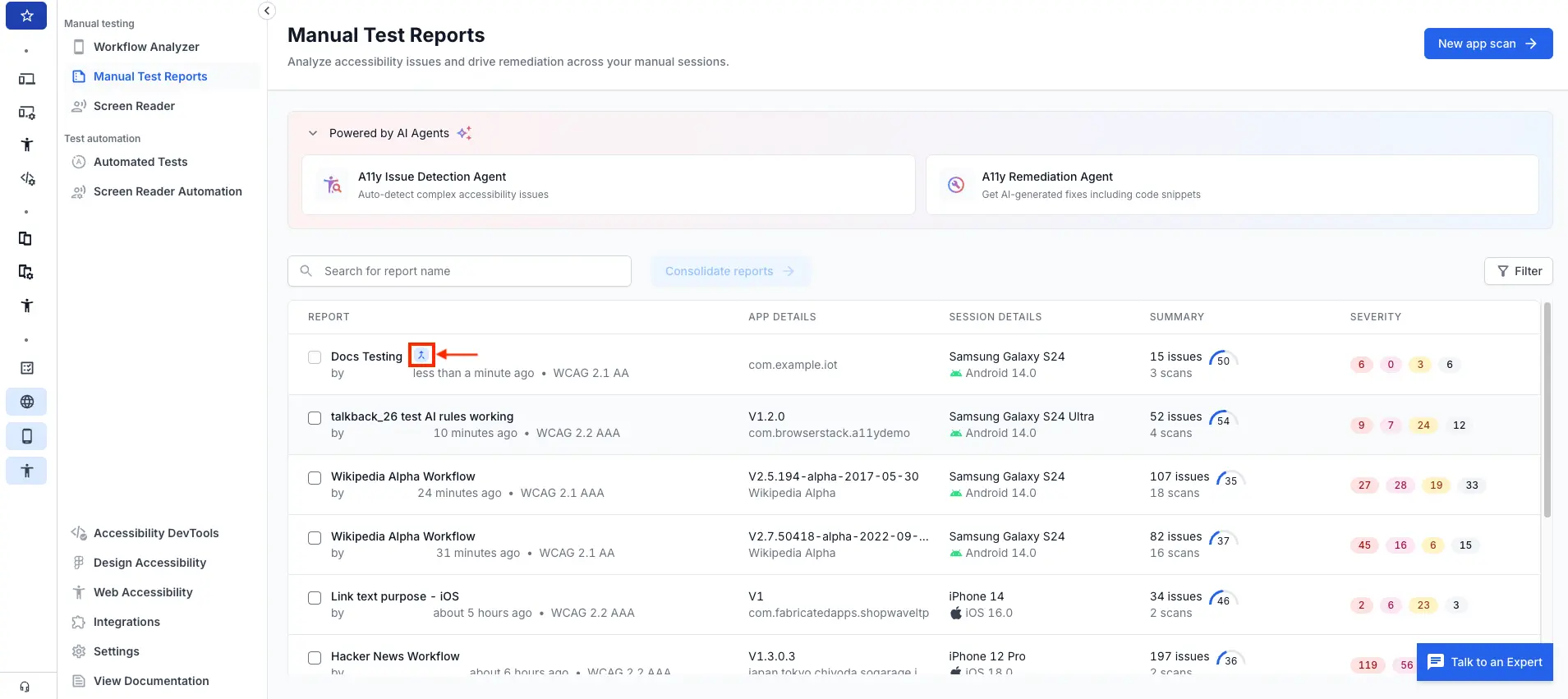
- The consolidated report opens on its own page. Your source reports remain unchanged, and the consolidated report appears as a new row in the Manual Test Reports list with a specific icon indicating it’s a consolidated report.
Understand a consolidated report
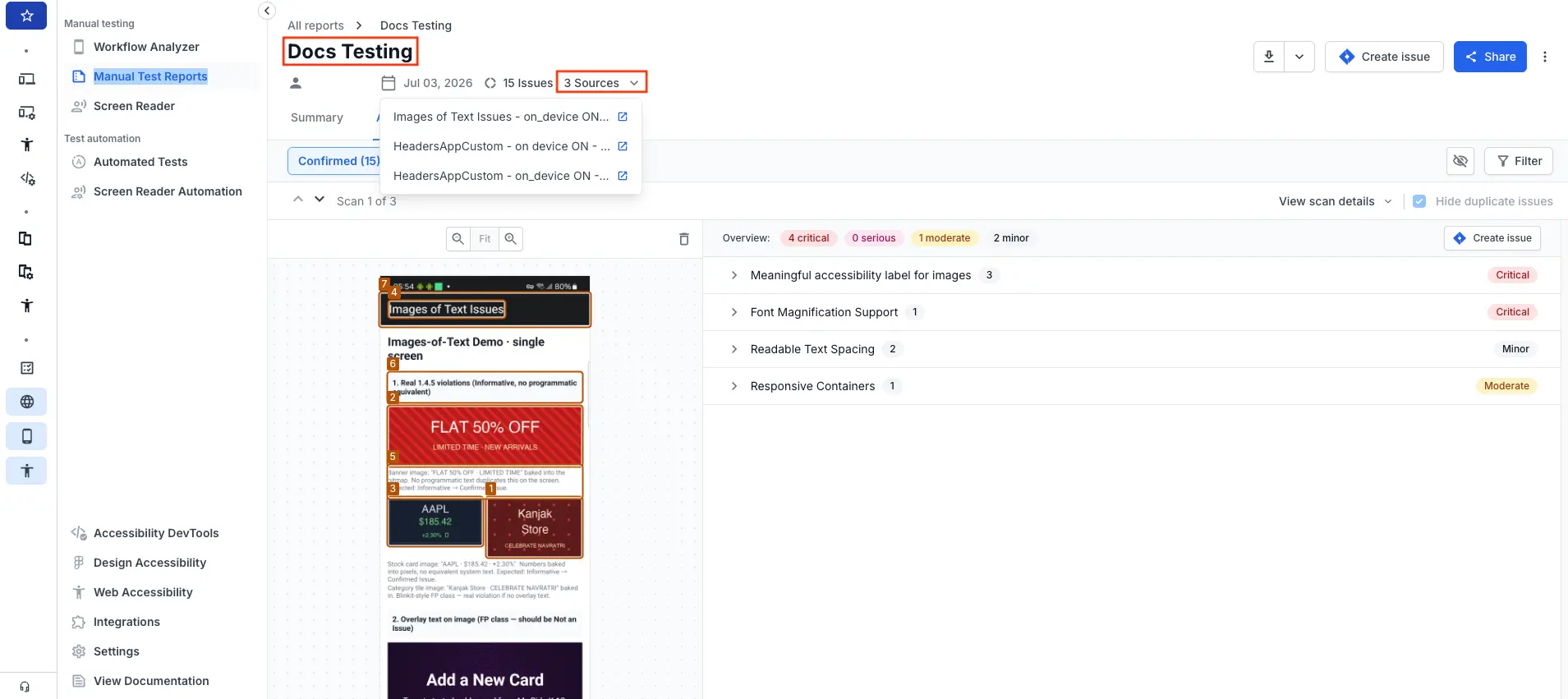
A consolidated report is saved as a permanent report with its own shareable URL, so you can return to it, share it, and reference it later. Its header shows:
- The name you gave it and the date it was consolidated.
-
Every source report in merge order.
How issues are deduplicated
The consolidated issue count represents the total number of unique issues across all source reports after deduplication. The system aggregates and deduplicates these issues across its source reports. If the same issue appears in multiple reports, the consolidated report preserves the issue details from the first report based on the specified merge order. All subsequent instances are flagged as duplicates.
Scans are not deduplicated. If multiple source reports contain identical scans, the consolidated report retains all instances of those scans.
Manage hidden and Needs Review issues
When the same issue has a different hidden or Needs Review state across its sources, the consolidated report resolves the conflict automatically.
Hidden issues
The consolidated report keeps an issue hidden if it was hidden in any of its sources:
| Issue state across sources | Issue state in the consolidated report |
|---|---|
| Hidden in all sources where the issue appears | Hidden |
| Hidden in some sources, actionable in others | Hidden |
Hide settings applied to a whole rule or element are not carried forward. Each hidden issue is evaluated individually, regardless of whether it was hidden at the issue, element, or rule level.
Needs Review issues
The consolidated report applies the Needs Review state with the highest precedence across the sources, in the order Confirmed, Needs review, then Rejected:
| Issue state across sources | Issue state in the consolidated report |
|---|---|
| At least one source has the issue Confirmed | Confirmed |
| No source has it Confirmed, but at least one has it as Needs review | Needs review |
| Every source has it Rejected | Rejected |
Hide and Needs Review decisions you make on a consolidated report apply to that report only. They do not change the source reports. Changes you make in a source report after consolidation do not update the consolidated report.
File a Jira or Azure DevOps ticket
You file a ticket from a consolidated report the same way you do from a single report, using the same dialog and field mapping. See Report bugs on Jira or Azure DevOps.
The ticket description links back to every source, regardless of the level you file at. In addition to the existing content, such as rule, severity, screenshot, and suggested remediation, the description includes:
- A link to the consolidated report by name.
- A list of every source report, with its name, URL, date, and the number of issues it contributed.
- For an issue-level ticket, a link to the issue in each source where it appeared.
- For a scan-level ticket, a link to the same scan in each source that captured it.
Limits and considerations
The following limits and considerations apply to consolidated reports:
- You cannot select a consolidated report as the source to create a new consolidated report.
- Deleting a consolidated report does not affect its source reports.
- Deleting a source report does not affect the consolidated report. The source is marked as deleted in the consolidated report.
- If sources use different app packages or app versions, the header shows a mixed app versions chip and lists each source’s app details.
- When you share the report, a recipient without access to a source report can see the consolidated view, but links to the source reports lead to a no-access page. Source data is not exposed.
If source reports use different accessibility standards or test settings, the consolidated report shows a warning and combines the findings without changing them.
Related topics
- View App Accessibility Testing reports
- Issue deduplication
- Hide issues in reports
- Managing Needs Review
- Report bugs on Jira or Azure DevOps
- Export reports in CSV
We're sorry to hear that. Please share your feedback so we can do better
Contact our Support team for immediate help while we work on improving our docs.
We're continuously improving our docs. We'd love to know what you liked
We're sorry to hear that. Please share your feedback so we can do better
Contact our Support team for immediate help while we work on improving our docs.
We're continuously improving our docs. We'd love to know what you liked
Thank you for your valuable feedback!