
 Ask the Community
Missing view type in spoken output
The Missing view type in spoken output rules ensures that all interactive elements, such as buttons, switches, and links, expose the correct role or type to assistive technologies. This allows screen readers like TalkBack (Android) or VoiceOver (iOS) to announce the role or type of the element to users, helping them understand how to interact with the element.
- Rule Category :
Accessibility Labels - WCAG 2.1 & 2.2 SC :
4.1.2 (A) - Rule Severity :
Serious - Supported Platforms :
Android,iOS,React Native,Flutter
Success criteria
- The rule checks whether all interactive elements correctly expose their role or type to screen readers.
How to fix
To fix violations related to missing view type in spoken output:
- Use appropriate widget classes, such as
ButtonorImageButton, to ensure TalkBack recognizes the role or type. - For custom controls, set the correct
accessibilityClassNameso TalkBack can announce the role or type correctly.
- Use standard controls where possible, such as
UISwitchorUISegmentedControl, to ensure VoiceOver recognizes the control type. - For custom controls, expose the correct role and state by setting
accessibilityTraitsso VoiceOver can announce the role correctly.
- Use the
accessibilityRoleproperty to define the element type (e.g.,button, link, header).
- Wrap custom interactive widgets in a
Semanticswidget and set the appropriate flag (e.g.,button: true,enabled: true), to ensure the correct trait is exposed.
Example
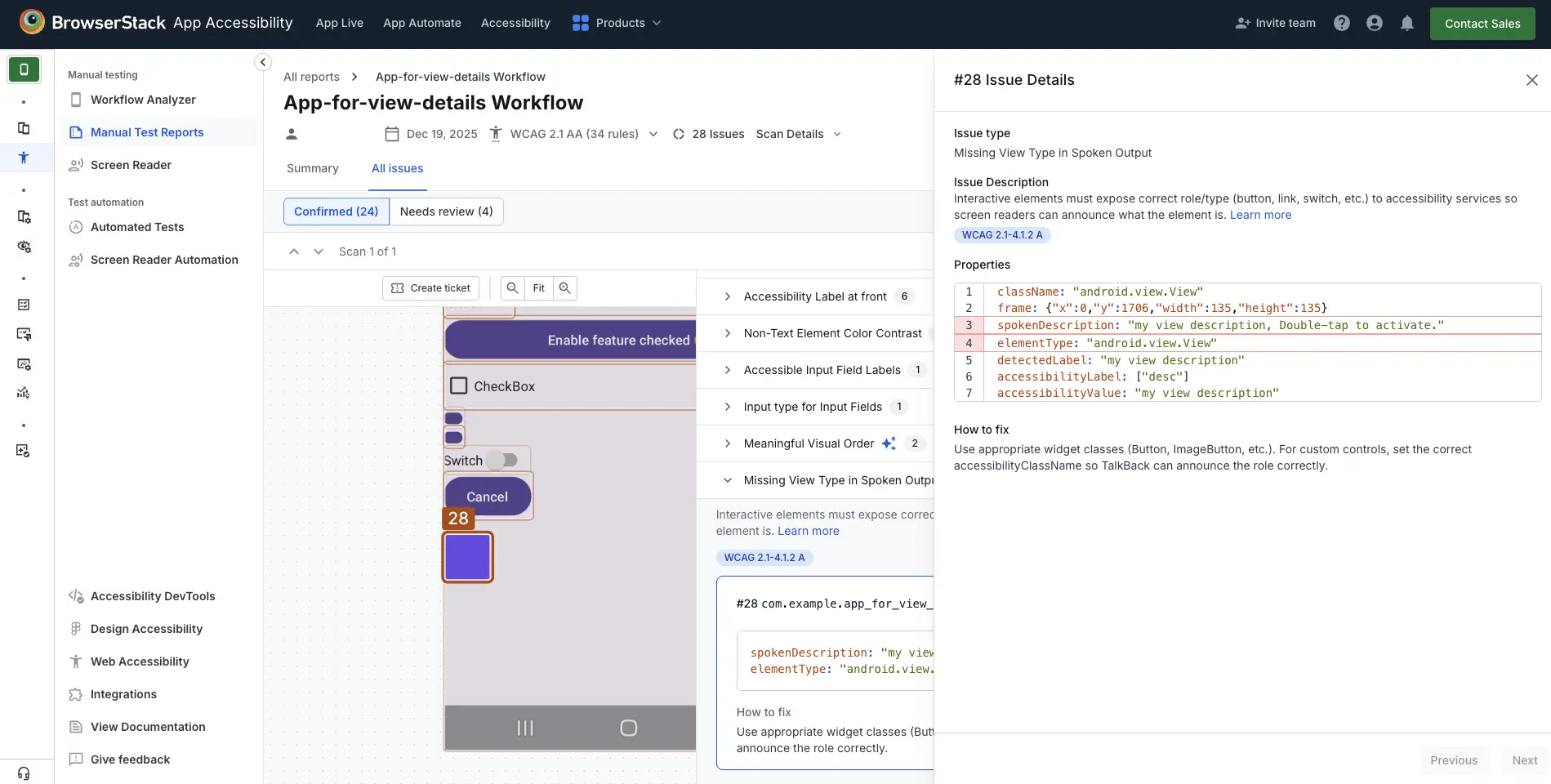
The following example scan report shows a missing view type in spoken output violation. The issue is identified for a custom view that does not expose its control type to the screen reader.
Violation
-
Custom View:
The element with
className: "android.view.View"andelementType: "android.view.View"is missing a proper control type. The spoken description is set as"my view description, Double–tap to activate.", but the screen reader cannot announce what type of element this is (e.g., button, switch, etc.).
Fix
Ensure the custom view exposes a meaningful control role to the screen reader instead of using a generic android.view.View:
- If the element behaves like a standard control, use the appropriate native view class. For example,
Button. - If you must use a custom view, explicitly set the accessibility role using
AccessibilityNodeInfo. For example, set the role toROLE_BUTTONif it behaves like a button.
References
We're sorry to hear that. Please share your feedback so we can do better
Contact our Support team for immediate help while we work on improving our docs.
We're continuously improving our docs. We'd love to know what you liked
We're sorry to hear that. Please share your feedback so we can do better
Contact our Support team for immediate help while we work on improving our docs.
We're continuously improving our docs. We'd love to know what you liked
Thank you for your valuable feedback!