Get your setup working faster. Join our Discord for optimisation tips from elite testers.Join our Discord
Enable and configure network logs for Appium tests
Enable network logs for your Appium tests on BrowserStack App Automate, capture response content, and limit capture to specific hosts.
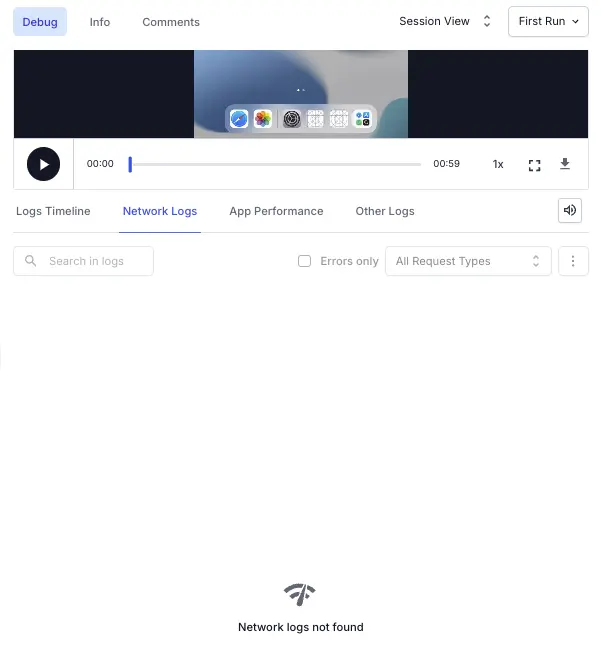
Network logs are disabled by default. When you run a test without network logs enabled, the Network Logs tab on the dashboard shows the following message:
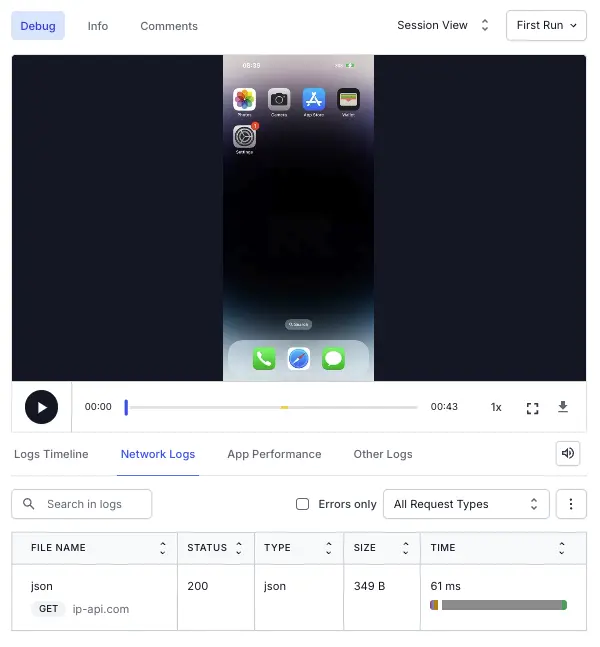
After you enable network logs, the Network Logs tab on the dashboard shows the captured requests:
Capture response content
By default, network logs record request and response metadata but not response bodies. To capture the response payload shown under the Response tab, set captureContent to true within networkLogsOptions. The following table describes the capability:
Capability
Configuration
Value
networkLogsOptions
captureContent
true, false Default:false (no content under the Response tab).
Use the following code snippet to set the network log configurations:
Use networkLogsIncludeHosts to capture network logs only for specific hosts. Traffic for all other hosts bypasses the BrowserStack MITM proxy and isn’t captured in network logs. Pass this capability at the top level, not inside networkLogsOptions.
Capability
Description
Value
networkLogsIncludeHosts
Captures network logs only for the specified hosts. Traffic for all other hosts bypasses the BrowserStack MITM proxy and isn’t captured in network logs.
List of hosts (Array) or regex value (String)
The following example captures logs only for requests made to google.com:
Both HTTP and HTTPS URLs are captured for the specified hosts.
The following rules apply to host filtering:
networkLogsIncludeHosts and networkLogsExcludeHosts are mutually exclusive. Passing both fails the session.
Each list accepts a maximum of 10 hosts, and each host entry, including a regex string, is capped at 200 characters.
Wildcards, such as *.example.com, aren’t supported. Use exact hostnames or a regex value.
Host filtering works at the host level only. You can’t include or exclude individual requests or paths on a host.
BrowserStack SDK is a plug-n-play solution that takes care of all the integration steps for you. Using the BrowserStack SDK is the recommended integration method for your project. To know more, visit the SDK core concepts page.
Set the network logs capability to true based on the protocol your test uses:
After you enable network logs, the Network Logs tab on the dashboard shows the captured requests:
Capture response content
By default, network logs record request and response metadata but not response bodies. To capture the response payload shown under the Response tab, set captureContent to true within browserstack.networkLogsOptions. The following table describes the capability:
Capability
Configuration
Value
browserstack.networkLogsOptions
captureContent
true, false Default:false (no content under the Response tab).
Use the following code snippet to set the network log configurations:
Use the include hosts capability to capture network logs only for specific hosts. Traffic for all other hosts bypasses the BrowserStack MITM proxy and isn’t captured in network logs.
Captures network logs only for the specified hosts. Traffic for all other hosts bypasses the BrowserStack MITM proxy and isn’t captured in network logs.
List of hosts (Array) or regex value (String)
The following example captures logs only for network requests made to api.example.com and google.com:
Instead of an array, you can pass a regex value as a string to match a list of hosts. The following example captures logs for network requests made to example.com and its subdomains:
Captures network logs only for the specified hosts. Traffic for all other hosts bypasses the BrowserStack MITM proxy and isn’t captured in network logs.
List of hosts (Array) or regex value (String)
The following example captures logs only for network requests made to api.example.com and google.com:
Instead of an array, you can pass a regex value as a string to match a list of hosts. The following example captures logs for network requests made to example.com and its subdomains:

 Join our Discord