Get your setup working faster. Join our Discord for optimisation tips from elite testers.
Join our Discord
Appium with Serenity
Test your native and hybrid apps on a real device cloud. This guide helps you run your first Serenity test build on a real Android or iOS device on BrowserStack.
This section covers running your first build with BrowserStack’s sample repo. To run builds with your existing test suite(s), skip to integrate your test suite .
app-automate-serenity-sdk-template/alert-doc.md
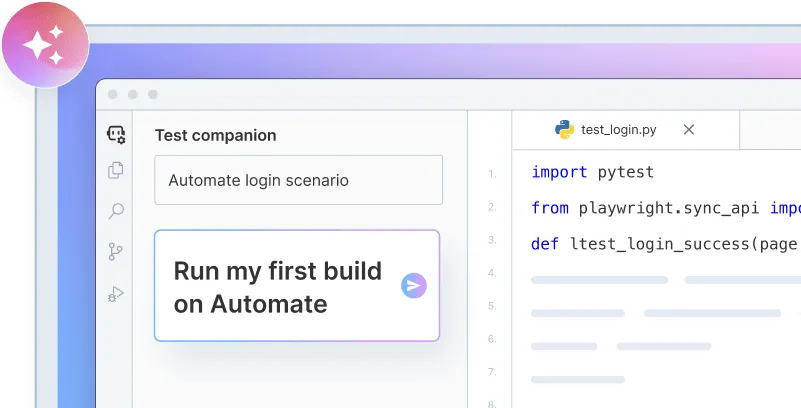
Onboard faster with Test Companion
Launch in your IDE. Chat with the AI assistant to configure and run your first build instantly.
Opening Test Companion in your IDE
× Dismiss
Prerequisites
BrowserStack Username and Access key. You can find this in your account profile . If you do not have an account yet, please sign up for a Free Trial .
Serenity v2+, Java v8+.
If you are using Eclipse or IntelliJ IDEA for running tests, install the corresponding JUnit plugin.
If you are using CLI for running tests, ensure that Maven is installed on your machine, Maven environment variables are set, and Maven bin is added to system path, $PATH.
Run a sample build
Run a sample Serenity test build, which is based on the JUnit runner, using your preferred method on BrowserStack:
Get Sample Project
Get our sample project using one of the following options:
Option 2: Via Git
Clone our sample Git repository using the commands.
```bash
git clone https://github.com/browserstack/serenity-appium-app-browserstack.git
cd serenity-appium-app-browserstack
```
Copy icon
Copy
Option 3: Via Maven Archetype
Setup using Maven archetype to create a new sample project with your BrowserStack credentials pre-configured.
```bash
mvn archetype:generate -B -DarchetypeGroupId=com.browserstack \
-DarchetypeArtifactId=browserstack-sdk-archetype-setup -DarchetypeVersion=1.1 \
-DgroupId=com.browserstack -DartifactId=serenity-browserstack -Dversion=1.0 \
-DBROWSERSTACK_USERNAME=YOUR_USERNAME -DBROWSERSTACK_ACCESS_KEY=YOUR_ACCESS_KEY -DBROWSERSTACK_PROJECT_REPO=serenity-browserstack
cd serenity-browserstack
```
Copy icon
Copy
```bash
mvn archetype:generate -B -DarchetypeGroupId="com.browserstack" -DarchetypeArtifactId="browserstack-sdk-archetype-setup" -DarchetypeVersion="1.1" -DgroupId="com.browserstack" -DartifactId="serenity-browserstack" -Dversion="1.0" -DBROWSERSTACK_USERNAME="YOUR_USERNAME" -DBROWSERSTACK_ACCESS_KEY="YOUR_ACCESS_KEY" -DBROWSERSTACK_PROJECT_REPO="serenity-browserstack"; cd serenity-browserstack
```
Copy icon
Copy
```bash
mvn archetype:generate -B -DarchetypeGroupId="com.browserstack" -DarchetypeArtifactId="browserstack-sdk-archetype-setup" -DarchetypeVersion="1.1" -DgroupId="com.browserstack" -DartifactId="serenity-browserstack" -Dversion="1.0" -DBROWSERSTACK_USERNAME="YOUR_USERNAME" -DBROWSERSTACK_ACCESS_KEY="YOUR_ACCESS_KEY" -DBROWSERSTACK_PROJECT_REPO="serenity-browserstack" && cd serenity-browserstack
```
Copy icon
Copy
Update your serenity.conf file
Since our sample project uses the Serenity BrowserStack plugin , set your BrowserStack credentials in the serenity.conf file, available in the src/test/resources directory.
Note : If you have downloaded project using Maven archetype , skip this step.
```conf
webdriver {
driver = remote
remote.url = "https://hub.browserstack.com/wd/hub"
remote.driver = "appium"
}
browserstack.user="YOUR_USERNAME"
browserstack.key="YOUR_ACCESS_KEY"
```
Copy icon
Copy
The browserstack.yml file holds all the required capabilities to run your tests on BrowserStack
Set access credentials
Set userName and accessKey parameters in the browserstack.yml file, available in the root directory, to authenticate your tests on BrowserStack.
Select Android or iOS devices from a list of 150+ available combinations:
Use one of our sample apps to run your first Appium test on BrowserStack App Automate. Choose from the options below:
Update the browserstack.yml config file
Copy and replace the platforms object in the browserstack.yml file.
```yml
userName: YOUR_USERNAME
accessKey: YOUR_ACCESS_KEY
framework: serenity
app: bs://sample.app
platforms:
- YOUR_FIRST_OS_TYPE: YOUR_FIRST_OS
YOUR_FIRST_BROWSER_TYPE: YOUR_FIRST_BROWSER
YOUR_FIRST_BROWSER_VERSION_TYPE: 'YOUR_FIRST_BROWSER_VERSION'
- YOUR_SECOND_OS_TYPE: YOUR_SECOND_OS
YOUR_SECOND_BROWSER_TYPE: YOUR_SECOND_BROWSER
YOUR_SECOND_BROWSER_VERSION_TYPE: 'YOUR_SECOND_BROWSER_VERSION'
- YOUR_THIRD_OS_TYPE: YOUR_THIRD_OS
YOUR_THIRD_BROWSER_TYPE: YOUR_THIRD_BROWSER
YOUR_THIRD_BROWSER_VERSION_TYPE: 'YOUR_THIRD_BROWSER_VERSION'
browserstackLocal: true
buildName: browserstack-build-1
projectName: BrowserStack Sample
```
Copy icon
Copy
Run sample tests on BrowserStack!
Install dependencies and run a sample test build on BrowserStack:
cd android
mvn clean
mvn verify -P sample-test
cd ios
mvn clean
mvn verify -P sample-test
Get Sample Project
Download Project
Download ZIP
After downloading the sample project, unzip it in the desired location.
Import the downloaded project
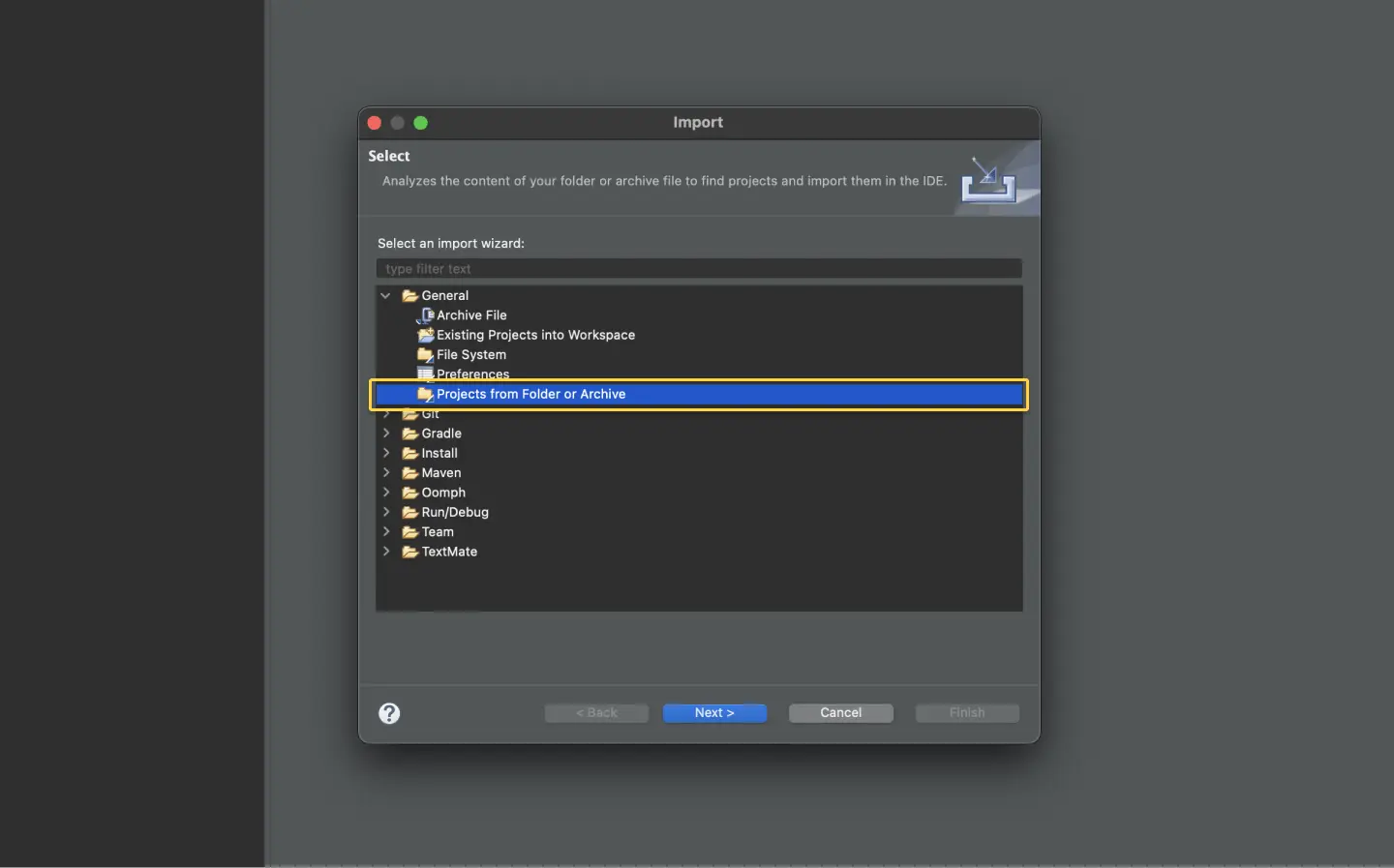
Click File → Import . Expand General , select Projects from Folder or Archive , and click Next . Then, navigate to the earlier unzipped downloaded project .
Update your serenity.conf file
Since our sample project uses the Serenity BrowserStack plugin , set your BrowserStack credentials in the serenity.conf file, available in the src/test/resources directory.
```conf
webdriver {
driver = remote
remote.url = "https://hub.browserstack.com/wd/hub"
remote.driver = "appium"
}
browserstack.user="YOUR_USERNAME"
browserstack.key="YOUR_ACCESS_KEY"
```
Copy icon
Copy
The browserstack.yml file holds all the required capabilities to run your tests on BrowserStack
Set access credentials
Set userName and accessKey properties in the browserstack.yml file, available in the root directory, to authenticate your tests on BrowserStack.
Select Android or iOS devices from a list of 150+ available combinations:
Use one of our sample apps to run your first Appium test on BrowserStack App Automate. Choose from the options below:
Update the browserstack.yml config file
Copy and replace the platforms object in the browserstack.yml file.
```yml
userName: YOUR_USERNAME
accessKey: YOUR_ACCESS_KEY
framework: serenity
app: bs://sample.app
platforms:
- YOUR_FIRST_OS_TYPE: YOUR_FIRST_OS
YOUR_FIRST_BROWSER_TYPE: YOUR_FIRST_BROWSER
YOUR_FIRST_BROWSER_VERSION_TYPE: 'YOUR_FIRST_BROWSER_VERSION'
- YOUR_SECOND_OS_TYPE: YOUR_SECOND_OS
YOUR_SECOND_BROWSER_TYPE: YOUR_SECOND_BROWSER
YOUR_SECOND_BROWSER_VERSION_TYPE: 'YOUR_SECOND_BROWSER_VERSION'
- YOUR_THIRD_OS_TYPE: YOUR_THIRD_OS
YOUR_THIRD_BROWSER_TYPE: YOUR_THIRD_BROWSER
YOUR_THIRD_BROWSER_VERSION_TYPE: 'YOUR_THIRD_BROWSER_VERSION'
browserstackLocal: true
buildName: browserstack-build-1
projectName: BrowserStack Sample
```
Copy icon
Copy
Run sample tests on BrowserStack
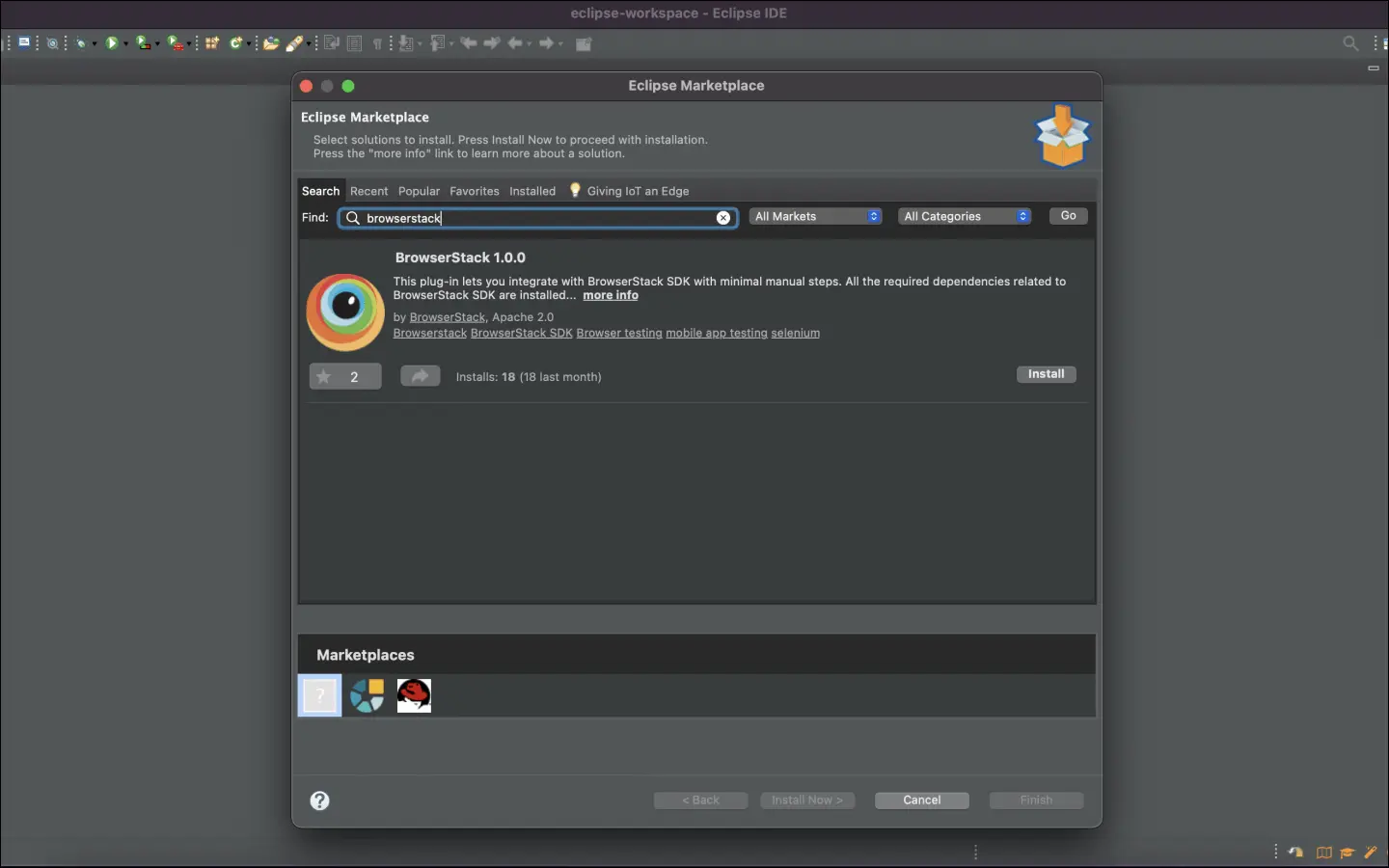
Install the BrowserStack Plugin - on the Eclipse toolbar, click Help > Eclipse Marketplace .
In the Eclipse Marketplace , search for BrowserStack , click Install > Finish .
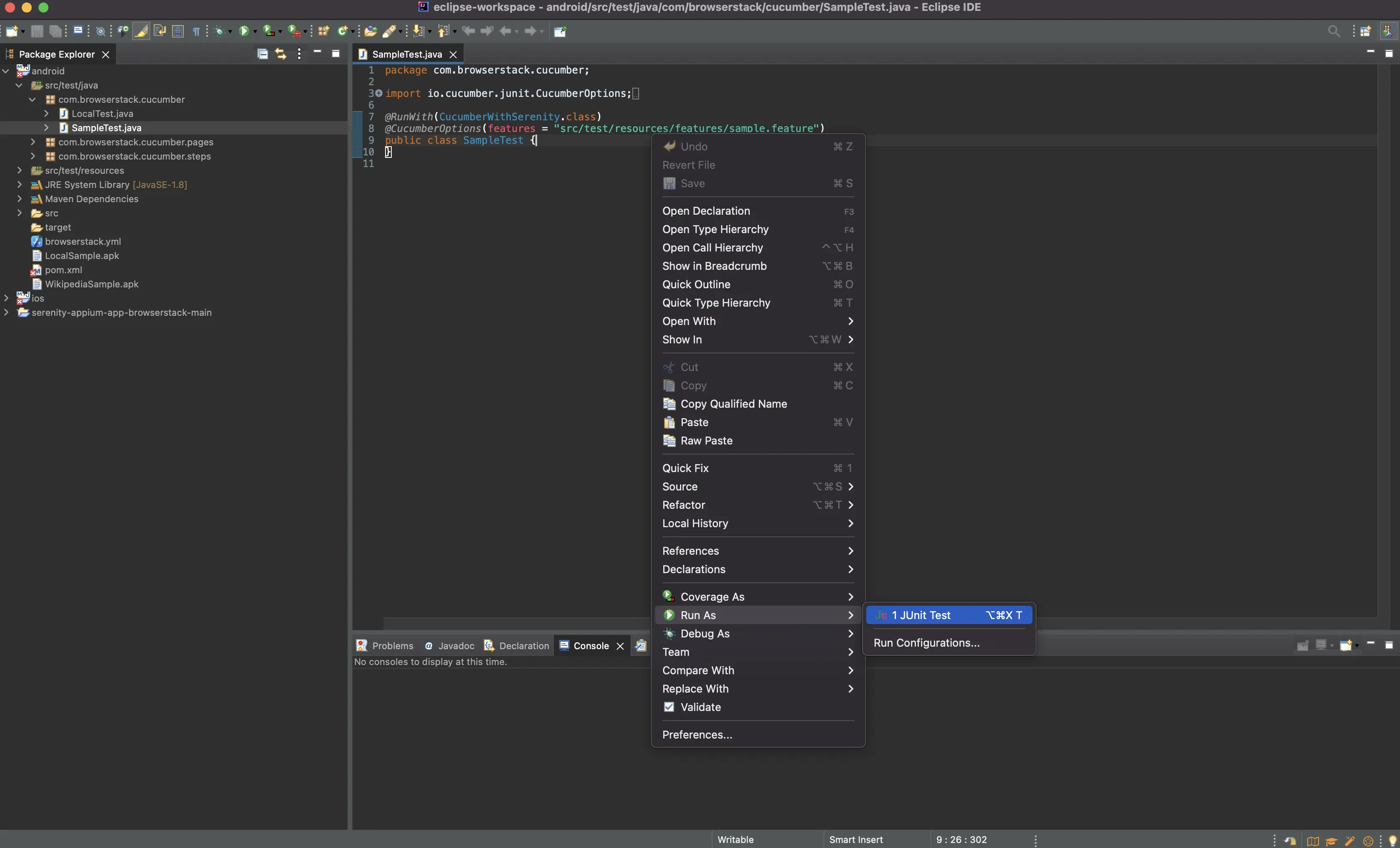
Right-click anywhere on the file SampleTest.java > Run As > JUnit Test .
Get Sample Project
Download Project
Download ZIP
After downloading the sample project, unzip it in the desired location.
Import the downloaded project
Click File → Open . Navigate to the earlier unzipped downloaded project .
Update your serenity.conf file
Since our sample project uses the Serenity BrowserStack plugin , set your BrowserStack credentials in the serenity.conf file, available in the src/test/resources directory.
```conf
webdriver {
driver = remote
remote.url = "https://hub.browserstack.com/wd/hub"
remote.driver = "appium"
}
browserstack.user="YOUR_USERNAME"
browserstack.key="YOUR_ACCESS_KEY"
```
Copy icon
Copy
The browserstack.yml file holds all the required capabilities to run your tests on BrowserStack
Set access credentials
Set userName and accessKey properties in the browserstack.yml file,available in the root directory, to authenticate your tests on BrowserStack.
Select Android or iOS devices from a list of 150+ available combinations:
Use one of our sample apps to run your first Appium test on BrowserStack App Automate. Choose from the options below:
Update the browserstack.yml config file
Copy and replace the platforms object in the browserstack.yml file.
```yml
userName: YOUR_USERNAME
accessKey: YOUR_ACCESS_KEY
framework: serenity
app: bs://sample.app
platforms:
- YOUR_FIRST_OS_TYPE: YOUR_FIRST_OS
YOUR_FIRST_BROWSER_TYPE: YOUR_FIRST_BROWSER
YOUR_FIRST_BROWSER_VERSION_TYPE: 'YOUR_FIRST_BROWSER_VERSION'
- YOUR_SECOND_OS_TYPE: YOUR_SECOND_OS
YOUR_SECOND_BROWSER_TYPE: YOUR_SECOND_BROWSER
YOUR_SECOND_BROWSER_VERSION_TYPE: 'YOUR_SECOND_BROWSER_VERSION'
- YOUR_THIRD_OS_TYPE: YOUR_THIRD_OS
YOUR_THIRD_BROWSER_TYPE: YOUR_THIRD_BROWSER
YOUR_THIRD_BROWSER_VERSION_TYPE: 'YOUR_THIRD_BROWSER_VERSION'
browserstackLocal: true
buildName: browserstack-build-1
projectName: BrowserStack Sample
```
Copy icon
Copy
Run sample tests on BrowserStack
Run the tests using the following steps:
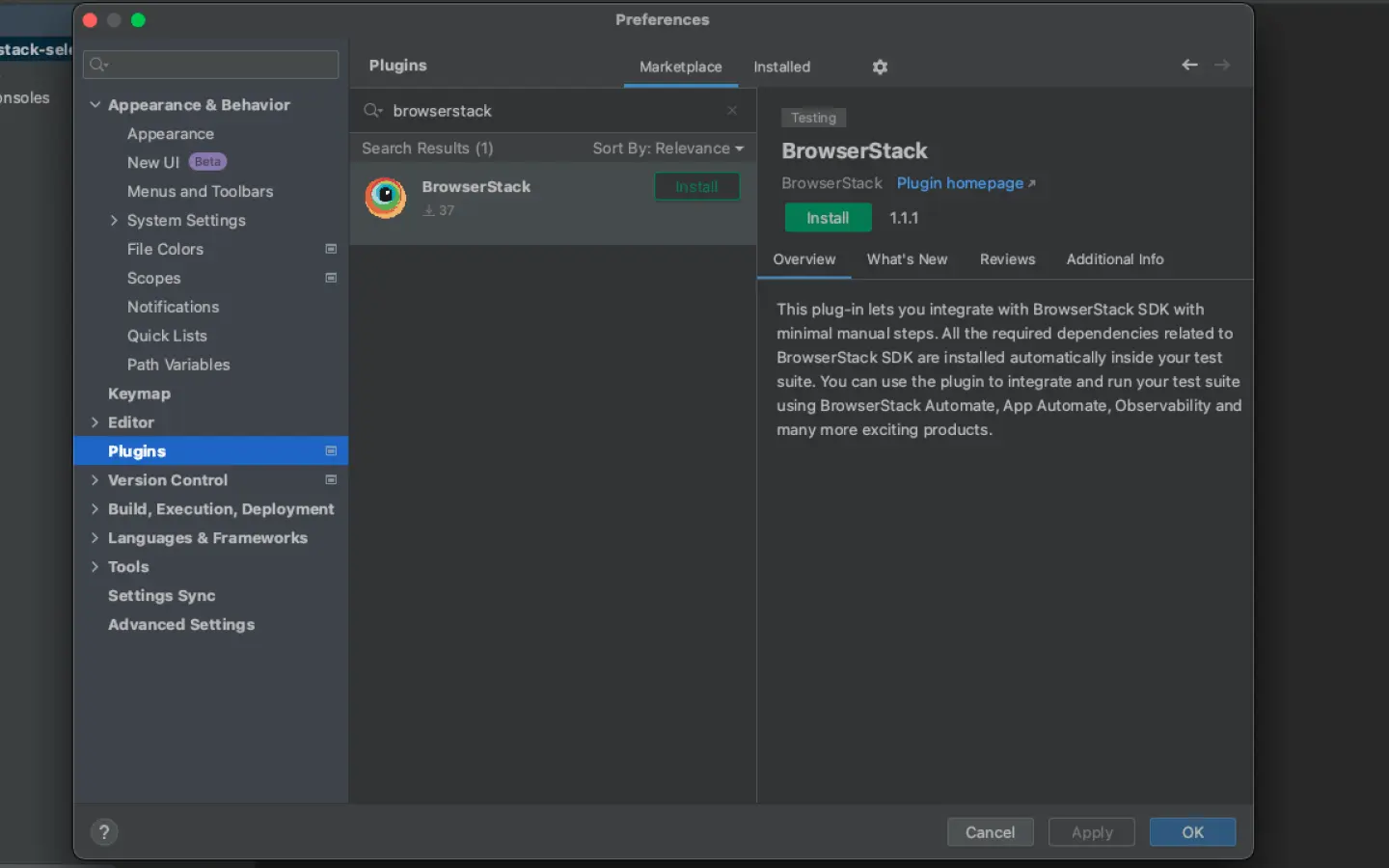
Install the BrowserStack Plugin: click IntelliJ IDEA > Preferences > Plugins .
Search for BrowserStack and click Install .
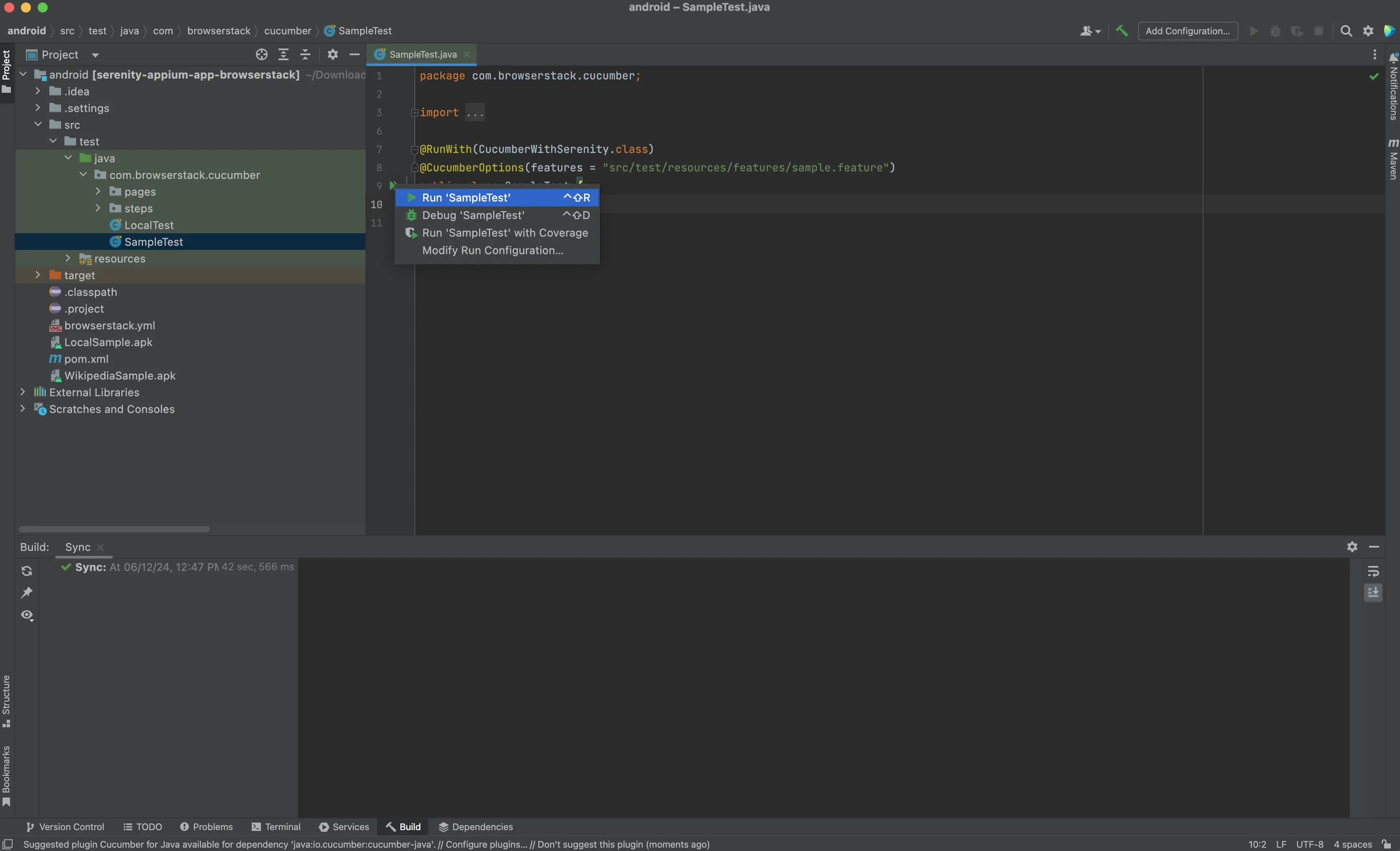
Open the file SampleTest.java and click the Run button.
After you run your test, visit the App Automate dashboard to view your test results.
If you want to toggle between BrowserStack and your Local device grid when using BrowserStack SDK, refer to the commands here .
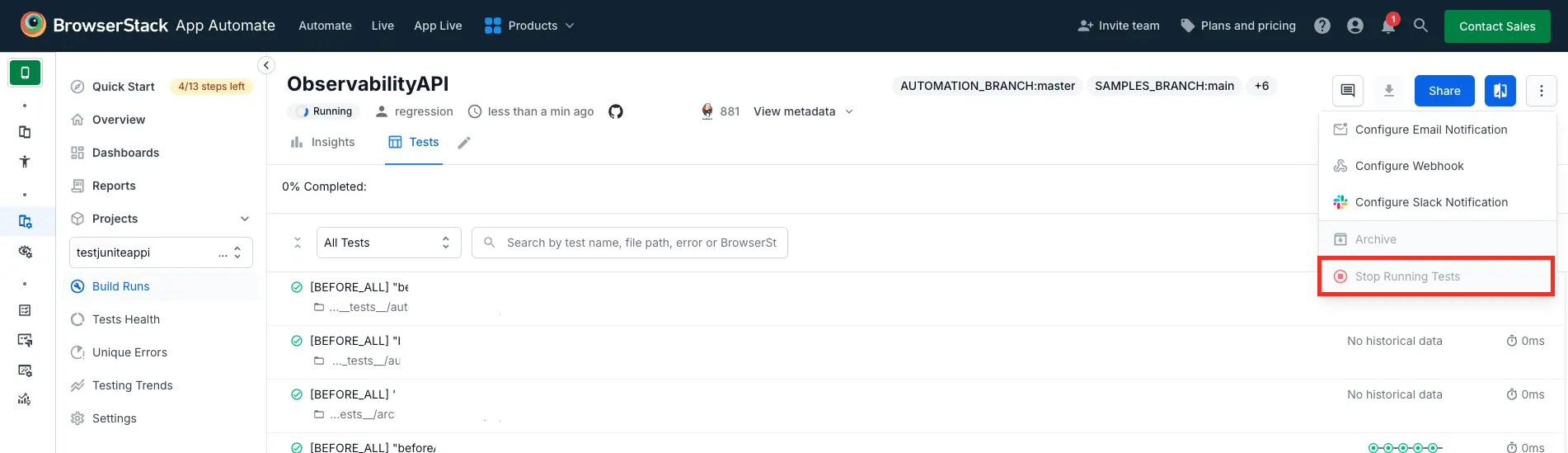
If a test run stops due to a crash, you can stop the build from running by clicking the Stop build option from the App Automate dashboard.
Next steps
After you have successfully run your first test on BrowserStack, try integrating your test suite with BrowserStack .
Is this page helping you?
Thank you for your valuable feedback!

 Join our Discord