
 Join our Discord
Run your first XCUITest test on Apple TV
Upload your app and test suite, start a build on an Apple TV device, and view the results on the App Automate dashboard.
XCUITest is a UI automation framework provided by Apple. BrowserStack App Automate runs your compiled XCUITest test suite for tvOS apps on real Apple TV devices. This guide helps you run your first XCUITest build on an Apple TV device.
XCUITest on Apple TV is available only on private devices dedicated to your group. To learn how to set up private devices for your group, see Custom Device Lab. To request access, contact support.
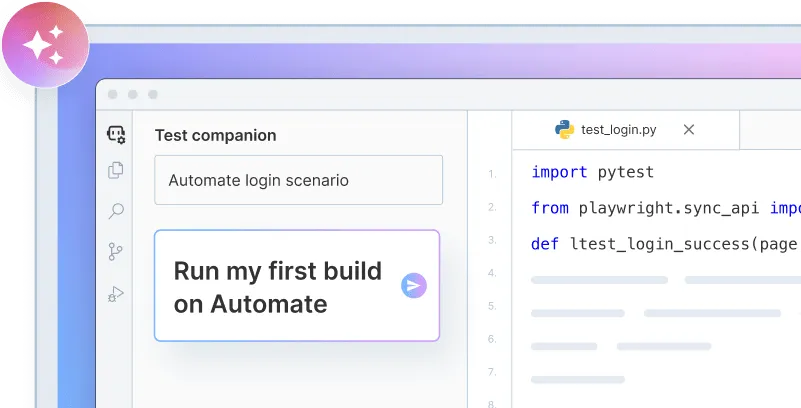
Onboard faster with Test Companion
Launch in your IDE. Chat with the AI assistant to configure and run your first build instantly.
Prerequisites
- You need a BrowserStack
usernameandaccess-key. To obtain your access credentials, sign up for a free trial or purchase a plan. - You need your tvOS app (
.ipafile) and your XCUITest test suite (.zipfile).
Only Apple TV 4K devices running tvOS 26.x are supported. A build request for any other Apple TV model or tvOS version returns an invalid device error.
Run your first test
Upload your app
Upload your tvOS app (.ipa file) to BrowserStack servers using one of the following methods:
Upload app using App Management UI
To upload an app using the App Management UI, follow these steps:
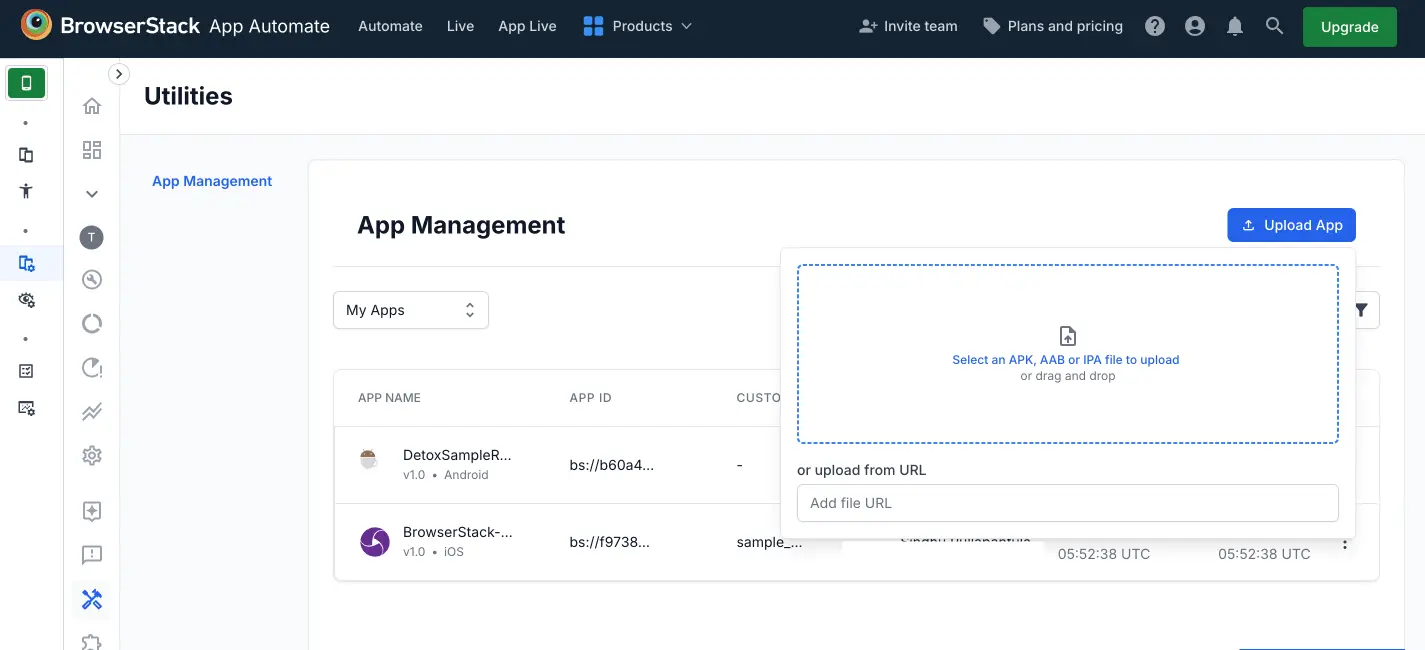
- Navigate to the App Automate dashboard. On the sidebar, click App Management.
- On the App Management UI, click Upload App.
- Select the tvOS app (
.ipafile) you want to upload from your filesystem. To upload the app using a public URL, paste the URL of your app in the or upload from URL box. - After selecting the app, choose XCUITest as the App Automate framework. You can optionally add flags and a custom ID.
- Click Upload. The app is uploaded to the BrowserStack servers, and you receive an App ID that you can use to run tests.
Upload app using REST API
To upload an app from your filesystem using the REST API, run the following cURL command:
curl -u "YOUR_USERNAME:YOUR_ACCESS_KEY" \
-X POST "https://api-cloud.browserstack.com/app-automate/xcuitest/v2/app" \
-F "file=@/path/to/app/file/YourTVApp.ipa"
A sample response is as follows:
{
    "app_url":"bs://<hashed_app_id>"
}
Save the app_url value from the response. You use it to specify the application under test when you execute your tests.
App upload takes a few seconds to about a minute depending on the size of your app. Don’t interrupt the cURL command until you get the response back.
Upload your test suite
Upload your XCUITest test suite (.zip file) using the REST API.
The test suite .zip file must contain your <Name>-Runner.app built for the tvOS SDK (appletvos), with UIDeviceFamily in its Info.plist containing 3.
The following sample cURL command uploads a test suite:
curl -u "YOUR_USERNAME:YOUR_ACCESS_KEY" \
-X POST "https://api-cloud.browserstack.com/app-automate/xcuitest/v2/test-suite" \
-F "file=@/path/to/test-suite/YourTVAppUITests.zip"
A sample response for the request is as follows:
{
    "test_suite_name":"YourTVAppUITests.zip",
    "test_suite_url":"bs://<hashed_test_suite_id>",
    "test_suite_id":"<hashed_test_suite_id>",
    "uploaded_at":"2026-11-03 06:17:50 UTC",
    "expiry":"2026-12-03 06:17:50 UTC",
    "framework":"xcuitest"
}
The value of the test_suite_url parameter in the response is used to specify the test suite when you execute your tests.
Execute XCUITest tests
After you upload the app and test suite, send an API request to start the test execution on a dedicated Apple TV device in your group, as shown in the following sample cURL request. Apple TV devices aren’t part of the public device catalog, so set dedicatedDevice to true in every build request.
curl -u "YOUR_USERNAME:YOUR_ACCESS_KEY" \
-X POST "https://api-cloud.browserstack.com/app-automate/xcuitest/v2/build" \
-d '{"app": "<app_url>", "testSuite": "<test_suite_url>", "devices": ["Apple TV 4K-26.2"], "dedicatedDevice": true}' \
-H "Content-Type: application/json"
A sample response for the request is as follows:
{
    "message":"Success",
    "build_id":"4d2b4deb810af077d5aed98f479bfdd2e64f36c3"
}
The build_id is used to uniquely identify your build in App Automate.
View test results
After you start the build, visit your App Automate dashboard to view per-test results, video recordings, and debugging logs. You can also get the build status and results using the Get build status API.
If your app plays DRM-protected content, that content appears as a black screen in the video recording. This is expected and doesn’t indicate a problem with your app or test.
Related topics
- Upload your app using a public URL or a custom ID.
- Learn about the test suite requirements for Apple TV.
- Run tests on a dedicated device and review the supported build parameters.
We're sorry to hear that. Please share your feedback so we can do better
Contact our Support team for immediate help while we work on improving our docs.
We're continuously improving our docs. We'd love to know what you liked
We're sorry to hear that. Please share your feedback so we can do better
Contact our Support team for immediate help while we work on improving our docs.
We're continuously improving our docs. We'd love to know what you liked
Thank you for your valuable feedback!