
 Join our Discord
Test image injection with XCUITest on BrowserStack
Use BrowserStack’s Image Injection to simulate a device camera in automated tests.
BrowserStack’s image injection simulates a device camera capturing specific images in automated tests. Use this feature to test image capture, QR scanning, and barcode recognition, automating mobile app features like check scanning and profile image capture.
Prerequisites
- Ensure you have a valid BrowserStack
usernameandaccesskey. You can obtain them from the Account & Profile section on the dashboard. - Ensure you have the app file (
.ipa) and your XCUI test suite that contains your test cases. - Ensure you have the
BrowserStackTestHelper.frameworkfile. To get the framework, contact BrowserStack support.
How BrowserStack enables camera testing
BrowserStack enables apps to interact with mobile sensors like cameras and biometric authentication using Sensor Instrumentation. When Camera Image Injection is enabled, BrowserStack injects its Camera code module into the app. This module overrides or mocks the camera APIs in the iOS or Android SDK that the app uses.
Camera or barcode image injection doesn’t support:
- iOS apps signed with Enterprise certificates. These apps have the
browserstack.resignAppcapability set tofalse, but camera image injection requires this capability to betrue. - Capturing media types other than images, such as video, from the camera.
- Android apps that use code obfuscation tools like Proguard.
Test camera image capture in an App Automate session
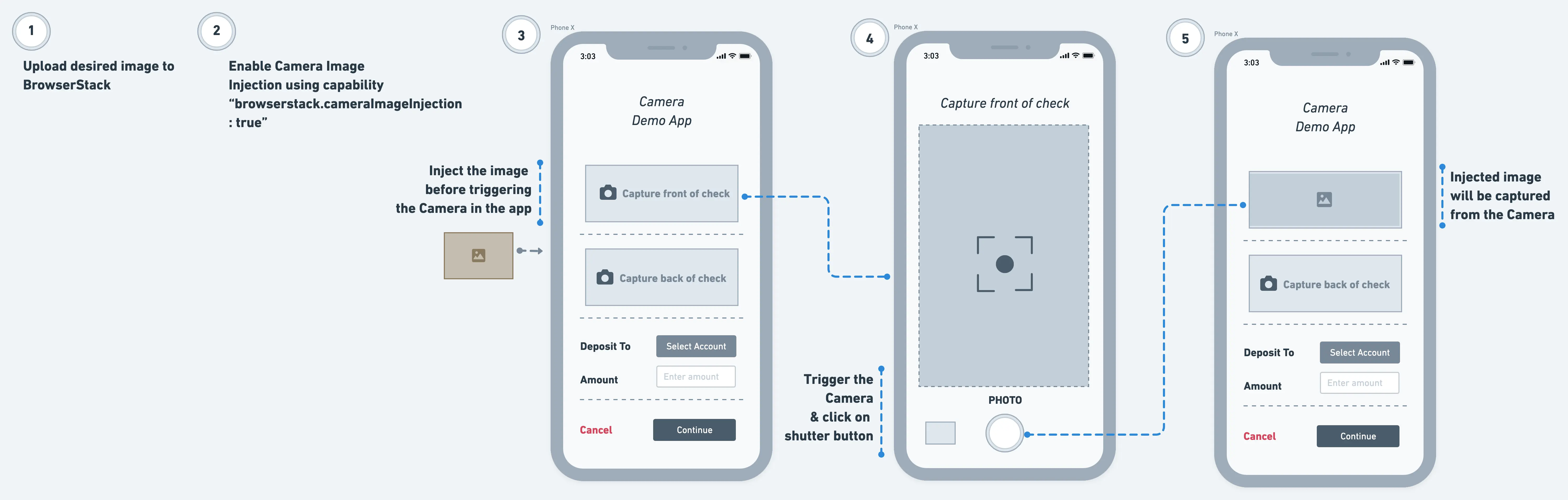
Consider the example of a banking app in the following image that accepts the image capture of the front and back of a physical check. This is a common use case in modern banking applications that lets customers deposit their physical check using pictures of the check. To test such a use case, upload the image to our cloud, set the capability, and then inject the image just before the click camera button event occurs in the script.
Supported APIs and devices
Camera image injection is supported for the following Camera APIs. Check with your app development team to get more details about the Camera APIs your app uses.
| OS | OS version | Supported APIs |
|---|---|---|
| iOS | iOS 13 and above | - didFinishPickingMediaWithInfo API of UIImagePickerController iOS SDK class for capturing an image. For more information, see the Apple Documentation for UIImagePickerControllerDelegate. - AVCapturePhoto iOS SDK class for receiving captured photos from AVCapturePhotoOutput API. For more information, see the Apple Documentation for AVCapturePhoto. - jpegStillImageNSDataRepresentation of AVCaptureStillImageOutput iOS SDK class. For more information, see the Apple Documentation for AVCaptureStillImageOutput. |
Run XCUI tests with camera image injection
Complete the following steps to set up and run your XCUI tests with camera image injection:
Upload app
Upload your iOS app (.ipa file) to BrowserStack servers using one of the following ways:
Upload app using the App Automate dashboard
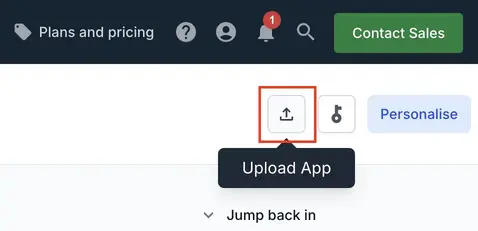
On the App Automate dashboard, click the Upload button in the top-right corner. Select the app you want to upload from your filesystem.
Upload app using App Management UI
To upload an app using the App Management UI, complete the following steps:
-
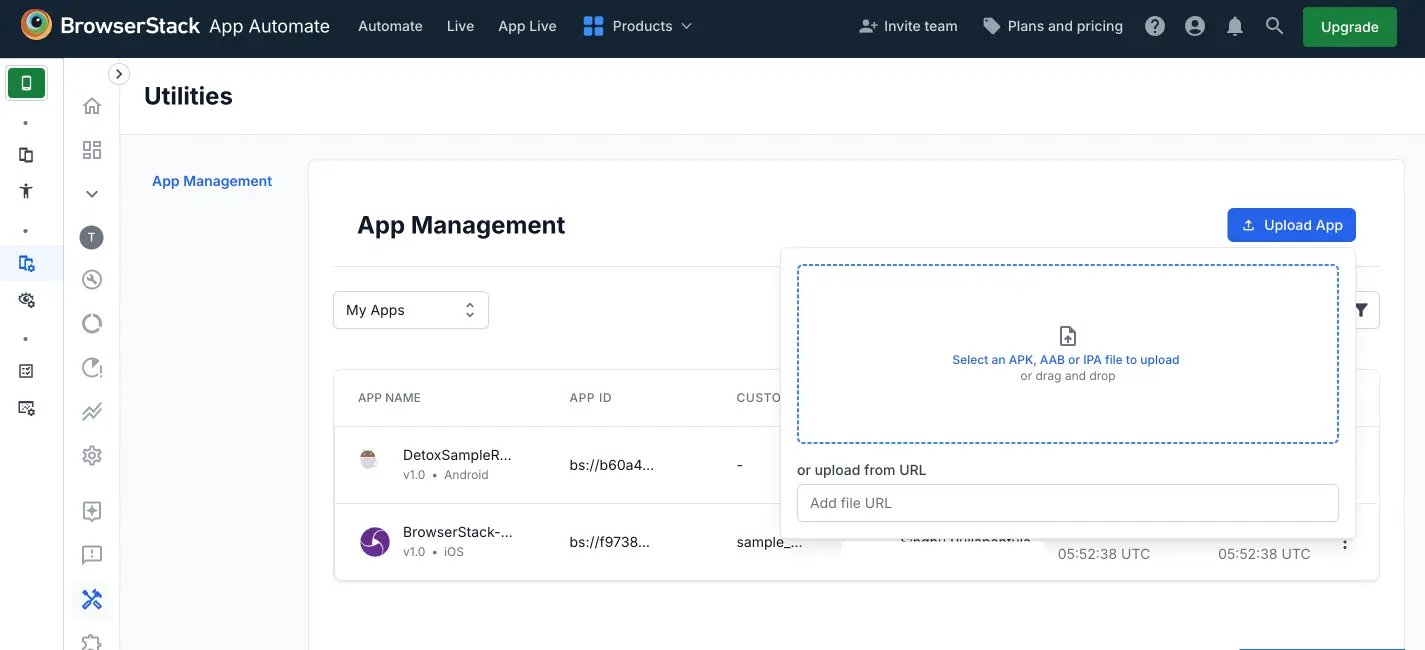
Go to the App Automate dashboard, and on the sidebar, click App Management.
-
On the App Management UI, click Upload App.
-
Select the app you want to upload from your filesystem. If you are uploading the app using a public URL, paste the URL of your app in the or upload from URL box.
-
After selecting the app, choose the App Automate framework you want to use for testing. You can optionally add flags and a custom ID.
-
Click Upload. The app is uploaded to the BrowserStack servers. You receive an App ID, which you can use to run tests.
To manage your apps, refer to the documentation on managing apps using App Management UI.
Upload app using REST API
To upload an app using the REST API, use the following cURL command:
Here is a sample response:
- To run XCUI tests on BrowserStack, use the
app_urlvalue from the response. - Depending on the app size, uploading takes a few seconds to a minute. Do not interrupt the upload process until you receive a response.
Add the BrowserStackTestHelper framework to your project
To get the BrowserStackTestHelper.framework file, contact BrowserStack support.
After you receive the framework, drag BrowserStackTestHelper.framework into your project’s UI Test Target folder in Xcode. This links the framework to your test suite and enables image injection on BrowserStack.
Update Build Phases to include the framework
Complete the following steps to ensure the framework is listed under your UI Test Target’s Build Phases:
Open project settings and select the UI Test Target.
Go to the Build Phases tab, click +, and then select New Copy Files Phase.
Set the Destination to Frameworks.
Drag BrowserStackTestHelper.framework into this section. Use one of the following framework versions:
- For simulators, use the framework built for simulators.
- For real devices, use the framework built for physical devices.
Import BrowserStackTestHelper and inject the image
Import the framework into your test file:
Initialize the injector using the following code:
Call the injector before the camera is triggered in the app. Set imageName to the filename of the image you upload to BrowserStack, for example, image.png:
Each image you upload gets its own media URL. Pass the media URL in cameraInjectionMedia when you start the build, and pass the original filename of the image in imageName. For example, if you upload check-front.jpeg and receive media://<hash>, add media://<hash> to cameraInjectionMedia and call injectImage(imageName: "check-front.jpeg") in your test.
Upload XCUI test suite
After you add the framework, build and export your XCUI test suite as a .zip file. To upload the test suite, use the following cURL command:
Here is a sample response:
- To run XCUI tests on BrowserStack, use the
test_suite_urlvalue from the response. - If you do not have a .zip file for your test-suite, follow the step by step instructions on Build and Export Test-Suite to generate the zip file.
Upload desired image to BrowserStack
Upload your desired image to BrowserStack using the following cURL command. Supported formats for images are JPG, JPEG, PNG, and the maximum file size is 10 MB.
Here is a sample response. Note the media_url value. You use it later to set cameraInjectionMedia when you start the build.
If UDAC (User Data Access Control) is enabled for a group, shareable IDs are accessible only to users within that same team structure.
Enable camera image injection and start the build
Set the enableCameraImageInjection capability to true to ensure your app undergoes Sensor Instrumentation, a process that lets BrowserStack support an app’s interaction with different mobile sensors, such as camera or biometric authentication.
Use the following cURL command to start the test execution by enabling the enableCameraImageInjection capability and adding cameraInjectionMedia. cameraInjectionMedia is an array of media URLs:
Here is a sample response:
Trigger camera in the app and take a photo
In your XCUI test, add the logic to tap the Camera button in the app after the injectImage call. The image captured from the camera is the last injected image.
Frequently asked questions
Do I need to make any changes to the app code?
You do not need to make any changes to the app code.
What kind of apps are supported?
BrowserStack supports the following apps:
- Native iOS apps
- Cross-platform iOS apps
We're sorry to hear that. Please share your feedback so we can do better
Contact our Support team for immediate help while we work on improving our docs.
We're continuously improving our docs. We'd love to know what you liked
We're sorry to hear that. Please share your feedback so we can do better
Contact our Support team for immediate help while we work on improving our docs.
We're continuously improving our docs. We'd love to know what you liked
Thank you for your valuable feedback!