
 Join our Discord
Custom actions with Appium commands written in JavaScript
Run Appium commands written in JavaScript from a test step in App Low Code Automation.
Some mobile test scenarios go beyond what the built-in commands can do. With custom actions, you cover these advanced or unique scenarios by running your own Appium commands written in JavaScript inside the test.
A custom action is a set of Appium commands written in JavaScript that you call through the Appium driver object. The step runs like any other step, whether you’re authoring the test or running a build.
Only the Appium commands and JavaScript features listed on this page are available in a custom action.
Custom actions are moving to the Pro plan soon. After the change takes effect, you need to upgrade to the Pro plan to continue using custom actions. For more information about the Pro plan, contact BrowserStack Support.
Add custom actions
-
In the test editor, type
custom.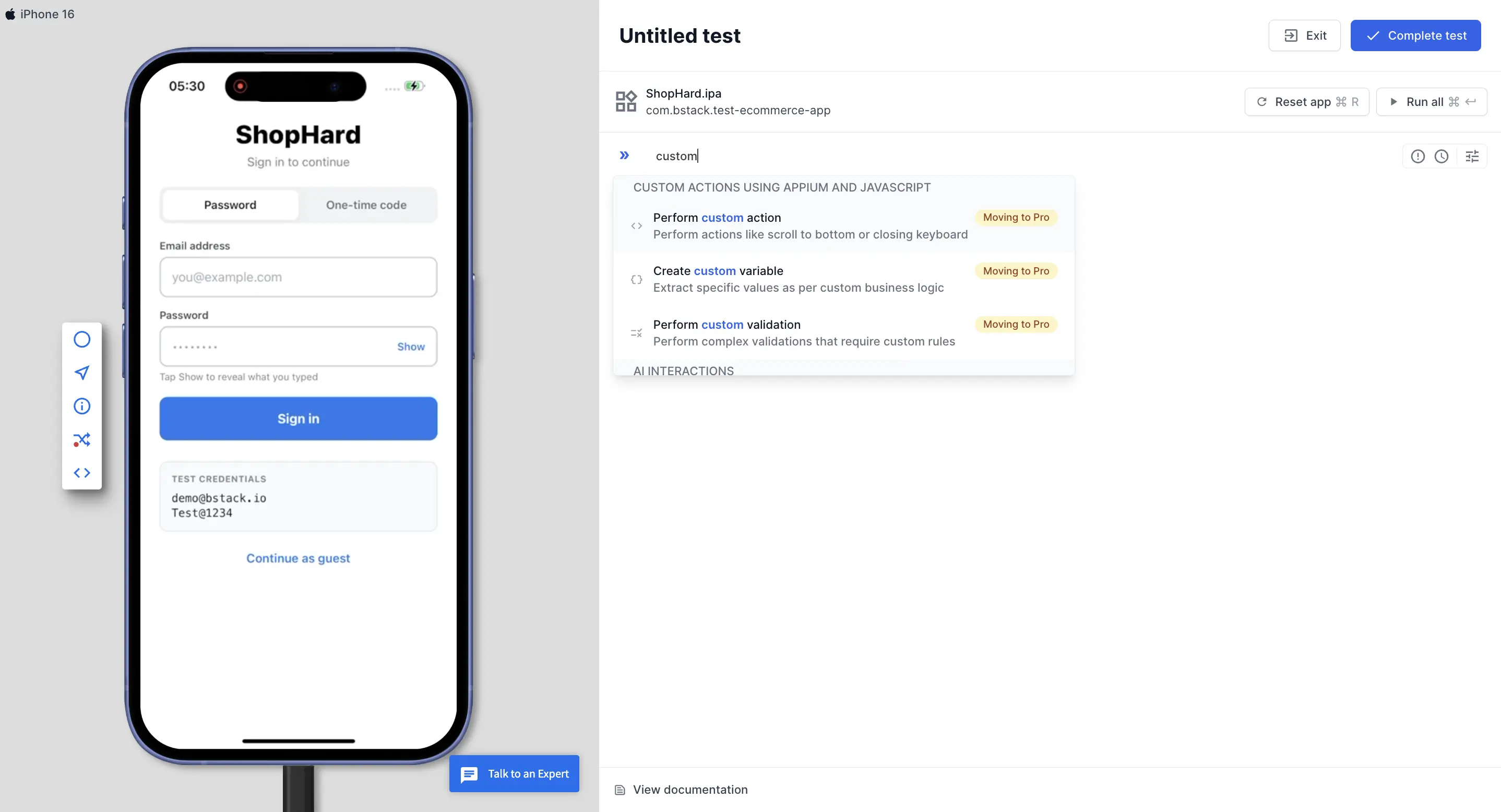
-
Select a command from the Custom Actions using Appium and JavaScript section. The Settings of step panel opens.
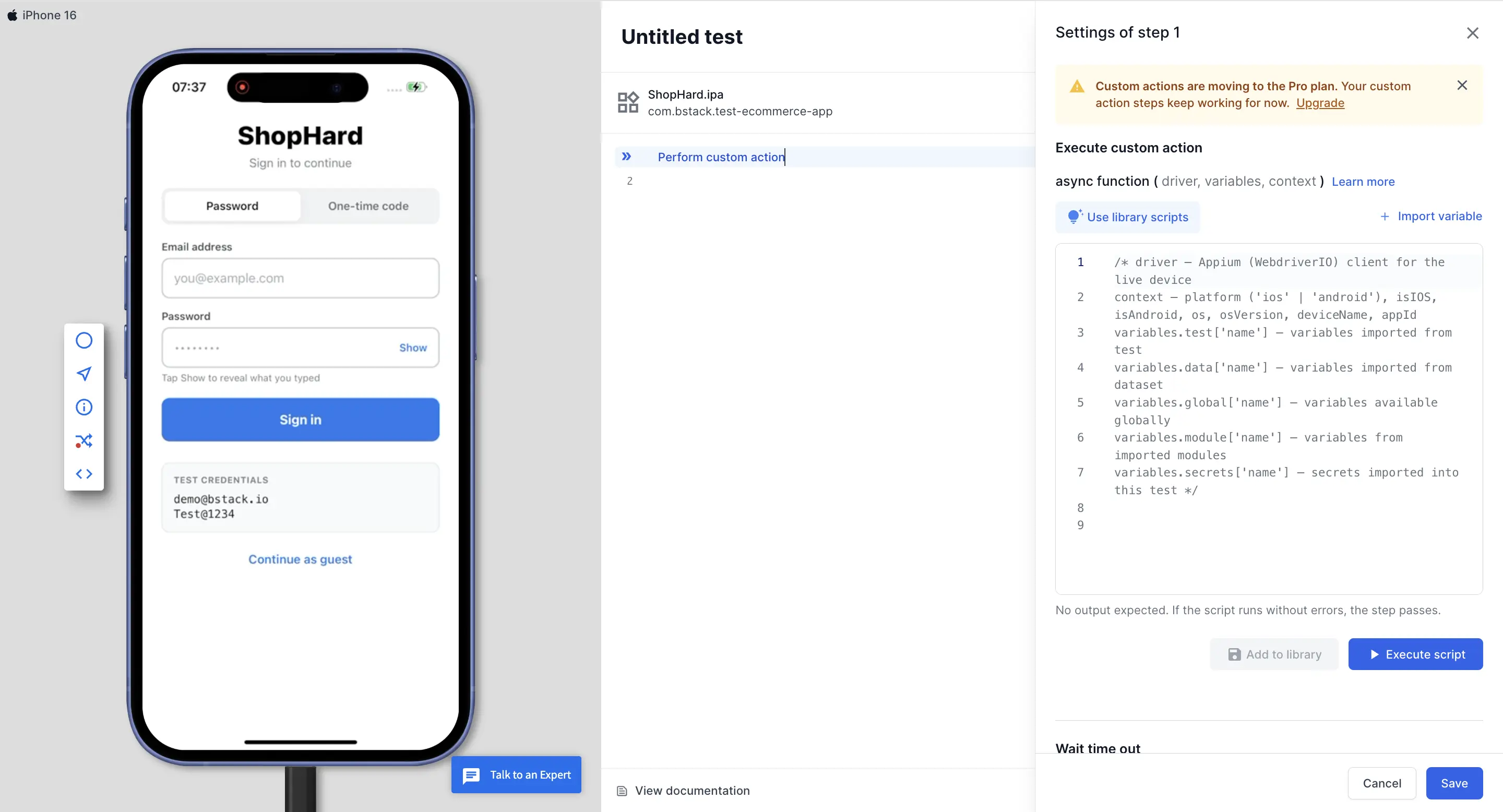
- Write your script in the code editor.
- Click Execute script to run it on the device.
- Click Save.
Custom action commands
You can use the following three commands to create custom actions:
| Command | Use it to | How it works |
|---|---|---|
| Perform custom action | Scroll, close the keyboard, or do other actions on the device. | The script doesn’t need to return a value. If it runs without errors, the step passes. |
| Create custom variable | Get a value and save it for later steps. | The script must return a string or a number. The value shows in the Extracted value field. Enter a name in the Name of the variable field, and click Create variable. Only later steps can use the variable. |
| Perform custom validation | Check a rule that built-in validations can’t. | The script must return true or false. The true value passes the step, and false fails it. |
Use the script library
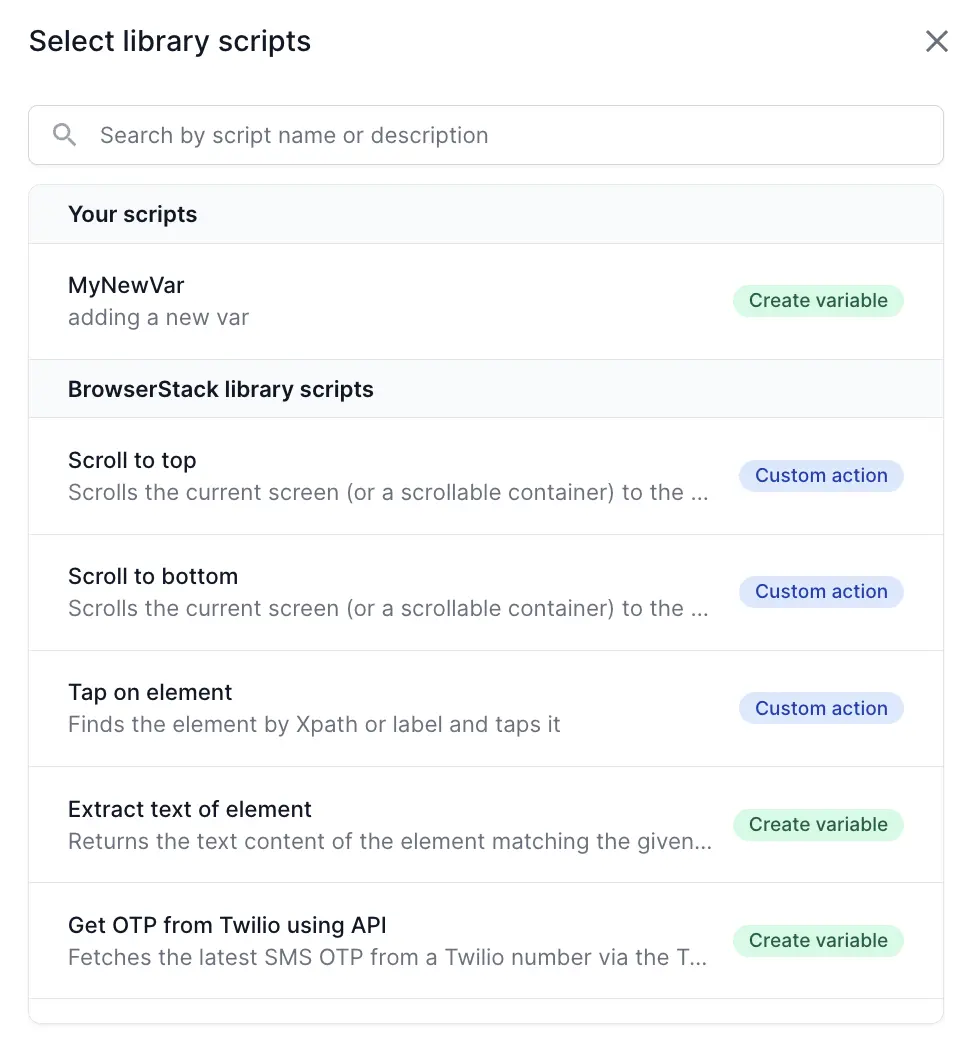
The library has scripts that are ready to use. To open it, click Use library scripts. Pick a script to add its code to the editor.
The library has two sections:
- Your scripts: scripts that you and your team saved.
- BrowserStack library scripts: ready-to-use scripts that BrowserStack provides, such as getting an OTP from Twilio using an API or scrolling to an element. Each one works on Android and iOS.
Save your own script
- Write your script and click Execute script.
-
When the script passes, click Add to library. The Add new script dialog opens.
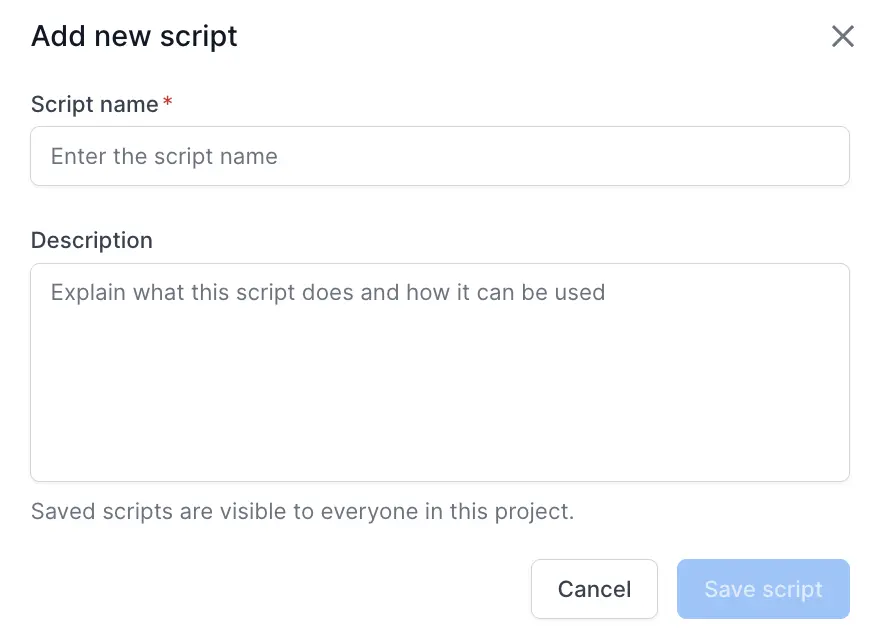
- Enter a Script name and a Description, and click Save script.
Everyone in your project can use the scripts you save.
Add to library stays off until the script runs without errors. If you change a script after you import it, the saved copy doesn’t change.
Variable support
To use data in your script, click Import variable. You can import variables, secrets, and one dataset. The variable is added to your script and referenced automatically, so you don’t need to write any syntax to read it.
Your script can read these values. It can’t change a global variable.
The USED IN count doesn’t include scripts. If you delete a global variable or secret that a script uses, the step fails. Check your scripts first.
Check the platform
Use the context object to find out which device the script runs on. This helps when a step works differently on Android and iOS.
| Property | Returns |
|---|---|
context.platform |
'ios' or 'android'
|
context.isIOS |
true on iOS |
context.isAndroid |
true on Android |
context.os |
The device OS |
context.osVersion |
The OS version |
context.deviceName |
The device name |
context.appId |
The app ID |
Supported Appium commands
You can only use the following Appium commands on the driver object. Any other command, such as deleteSession, installApp, pushFile, or mobile: shell, isn’t allowed and fails the step.
| Category | Commands |
|---|---|
| Find elements |
findElement, findElements
|
| Read element state |
isDisplayed, isExisting, isEnabled, isSelected, getText, getAttribute, getValue, getLocation, getSize, getRect, getTagName
|
| Interact with elements |
click, setValue, addValue, clearValue, touchAction, performActions, releaseActions
|
| Android gestures |
mobile: scrollGesture, mobile: swipeGesture, mobile: pinchOpenGesture, mobile: pinchCloseGesture, mobile: dragGesture, mobile: flingGesture, mobile: longClickGesture, mobile: doubleClickGesture, mobile: clickGesture
|
| iOS gestures |
mobile: scroll, mobile: swipe, mobile: pinch, mobile: tap, mobile: doubleTap, mobile: touchAndHold, mobile: dragFromToForDuration, mobile: selectPickerWheelValue
|
| Read device state |
getWindowSize, getWindowRect, getOrientation, getDeviceTime, isKeyboardShown, getCurrentPackage, getCurrentActivity
|
| Change device state |
setOrientation, hideKeyboard, back, shake, setGeoLocation, pressKeyCode, longPressKeyCode, mobile: pressButton
|
| Read the page source | getPageSource |
To find elements, you can use these locator strategies: accessibility ID, XPath, resource ID or ID, class name, and text match.
Supported JavaScript features
You can only use the following JavaScript features in your script:
| Feature | Details |
|---|---|
| Standard JavaScript built-ins |
Object, Array, String, Math, JSON, Date, RegExp, Map, Set, and Promise with async and await. |
bstack.mobile.getDriver() |
Returns the driver object that runs Appium commands. |
fetch(url, options) |
Calls an API. The URL must be open to the public internet. |
console.log, console.warn, and console.error
|
The output shows in the step logs. |
setTimeout |
Waits for a set time before it runs a function. |
Limitations
- A script can have up to 9,000 characters.
- Scripts can’t use the file system or environment variables. They can’t end the device session.
- The step doesn’t wait for elements to load. Use the
driverwait methods in your code. - You can call an API with
fetch. The API must be open to the public internet. - AI authoring doesn’t create custom action steps.
Locators in your script don’t self-heal. If the app changes, the step might break. Use a built-in command when one fits.
Related topics
- Variables
- Modules
- Data-driven testing
- Validations
- Call an API and extract values
- Configure step behaviour
We're sorry to hear that. Please share your feedback so we can do better
Contact our Support team for immediate help while we work on improving our docs.
We're continuously improving our docs. We'd love to know what you liked
We're sorry to hear that. Please share your feedback so we can do better
Contact our Support team for immediate help while we work on improving our docs.
We're continuously improving our docs. We'd love to know what you liked
Thank you for your valuable feedback!