
 Join our Discord
Modules
Learn how to create, import, edit, and manage reusable modules in App Low Code Automation to simplify and streamline your test automation.
Modules in App Low Code Automation help you reuse common test steps across multiple tests. Modules are groups of steps that you can create, edit, and import into your tests. By using modules, you avoid repeating the same actions in different tests and keep your test cases organized.
Example use cases
- Login module: Automate login steps and reuse them in every test that requires authentication.
- Registration module: Standardize user registration across tests.
- Navigation module: Simplify navigation to frequently visited pages.
- AI-based module: Reuse an AI prompt that adapts to app changes at run time.
Create a module
To create a module:
- Start writing a test on App Low Code Automation.
- In the test editor, you can select a group of steps you want to include in the module and select Create module block.
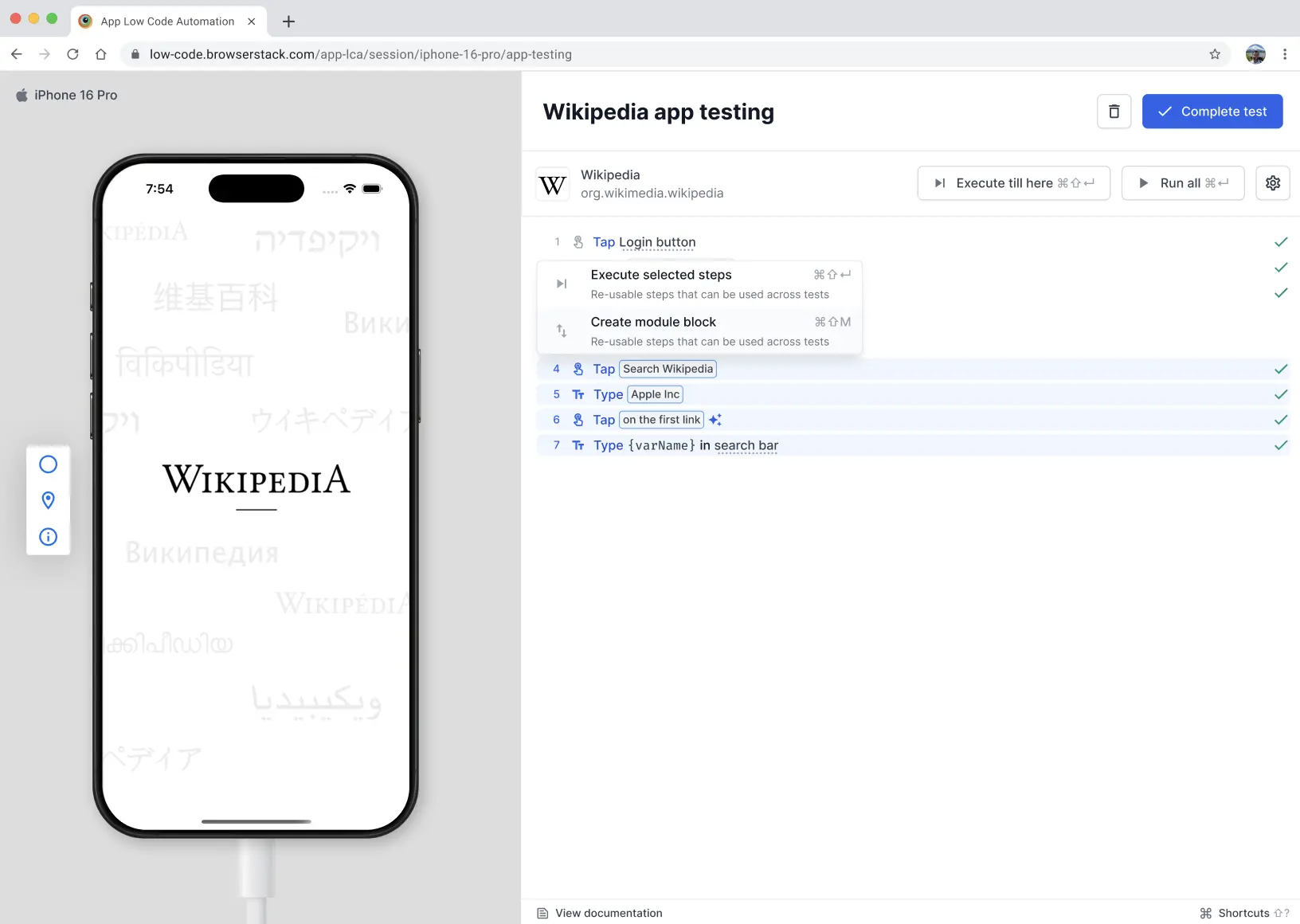
- In the Create module dialog, enter the test name and click Create module.
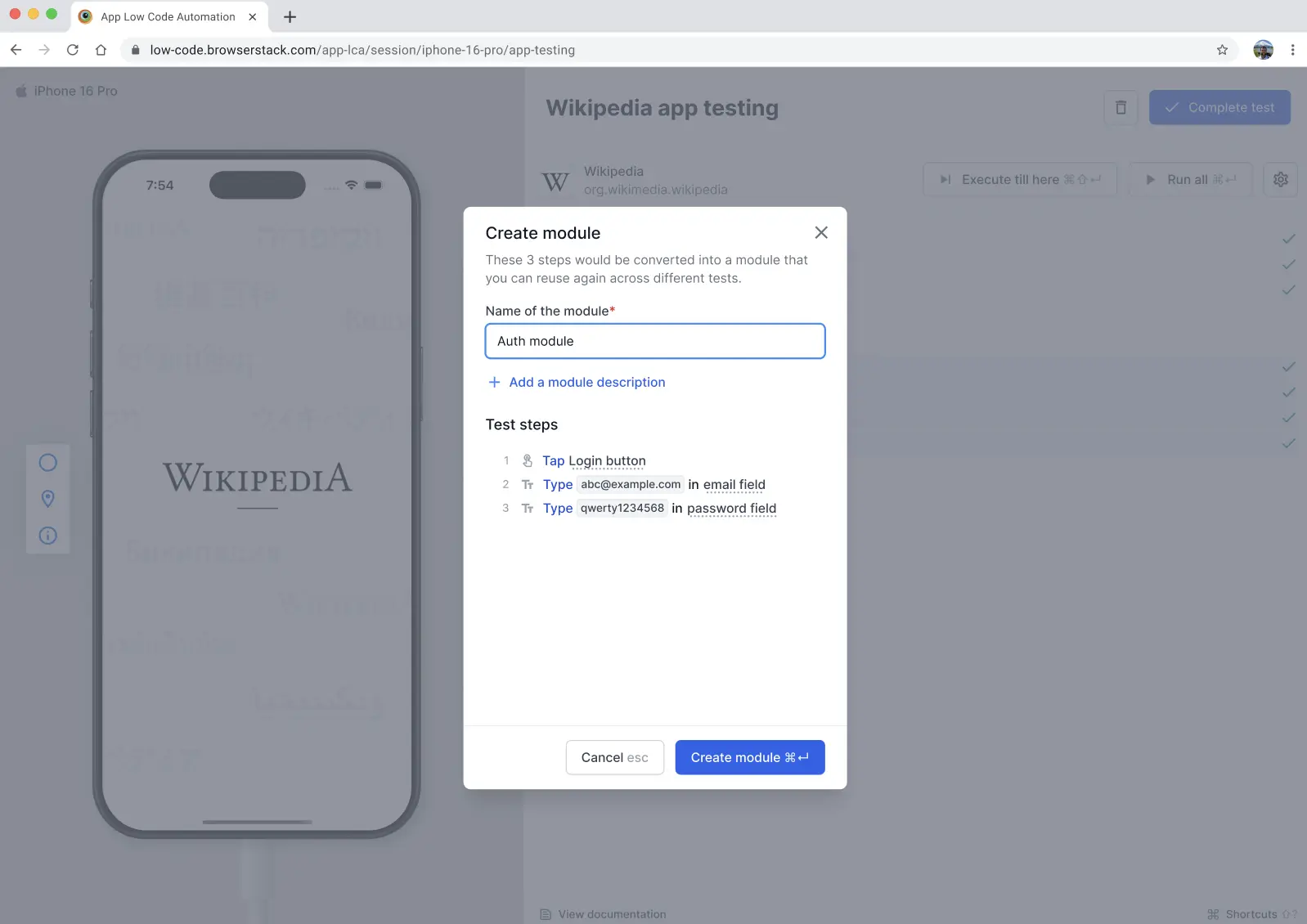
The module is now available for reuse in other tests. You can view the newly created module in the Modules section.
Import a module
To import a module into your test:
- Open the test where you want to add the module.
- Enter + to open the list of existing modules.
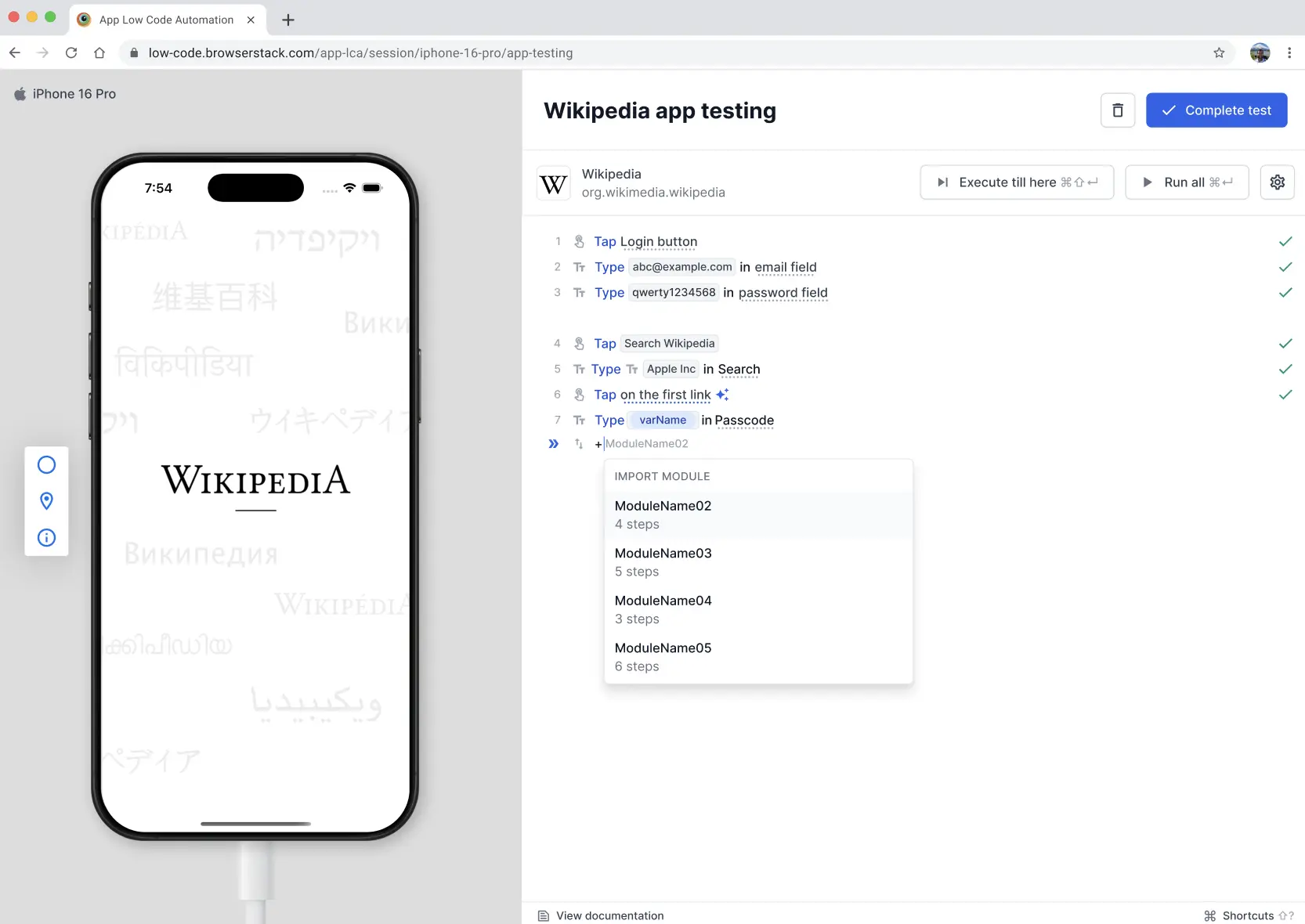
- Select the required module from the list.
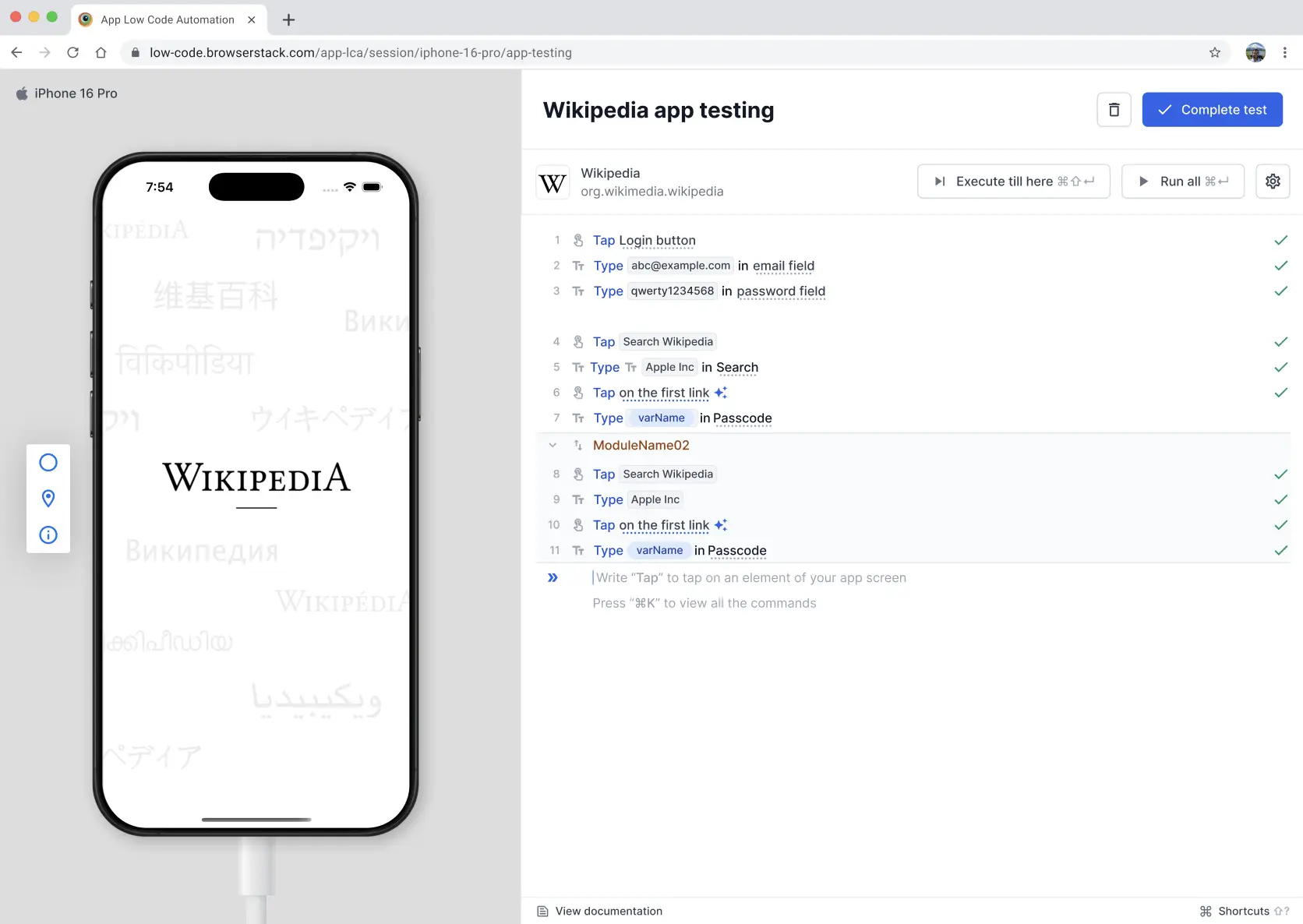 The imported module appears in your test steps. You can click the Expand icon to view all the steps inside a module.
Edit a module
To edit a module:
- You can open the test and edit the module directly within the test editor. Remember that any changes made to a module applies to all other tests that use the same module.
- Alternatively, go to the Modules section on the left bar of App Low Code Automation. It displays all the modules. It shows it is used in how many tests.
- Click the ︙ icon next to the module, click Edit module details.
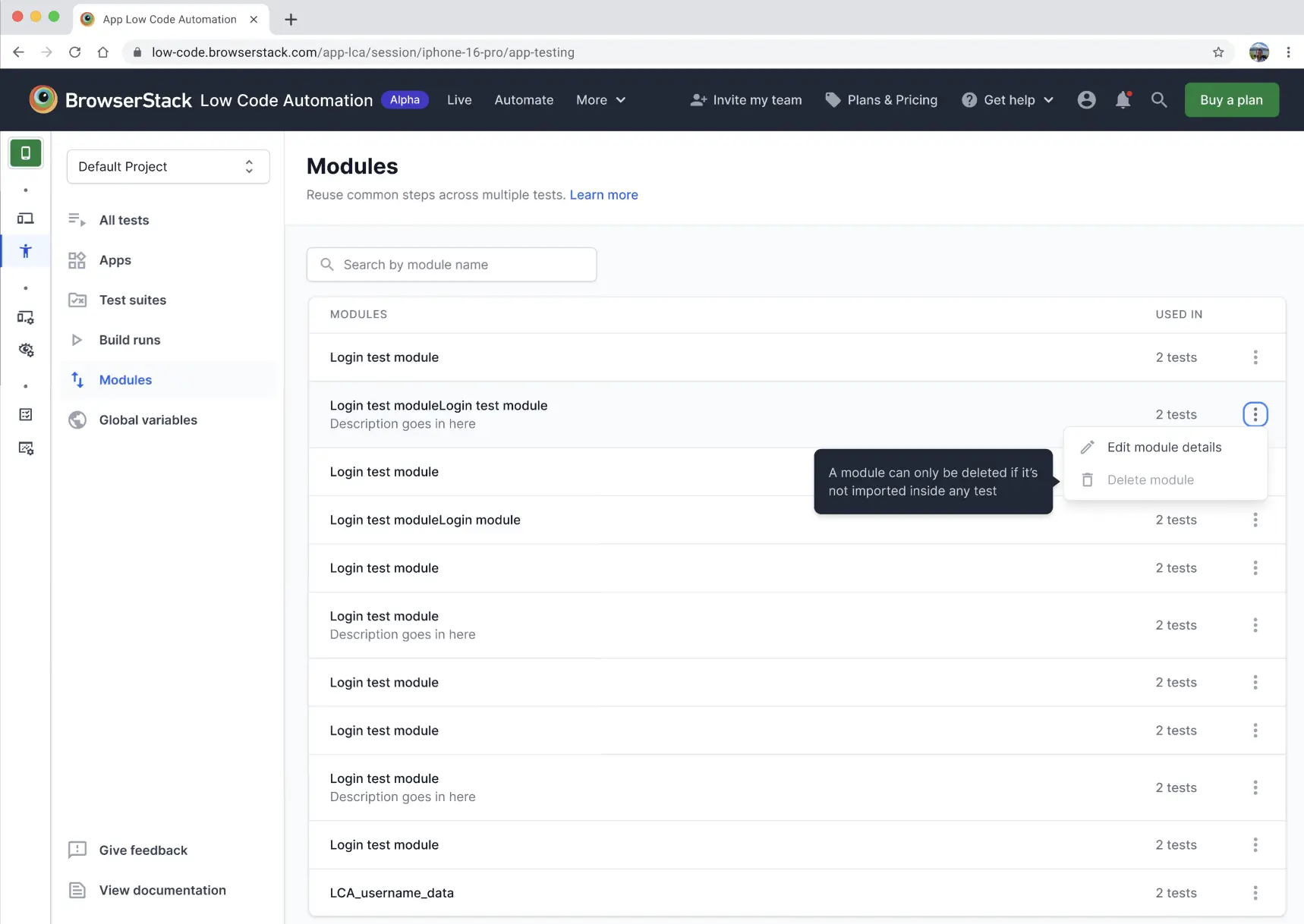
- You can only modify the name and description here.
- Click Save changes.
Delete a module
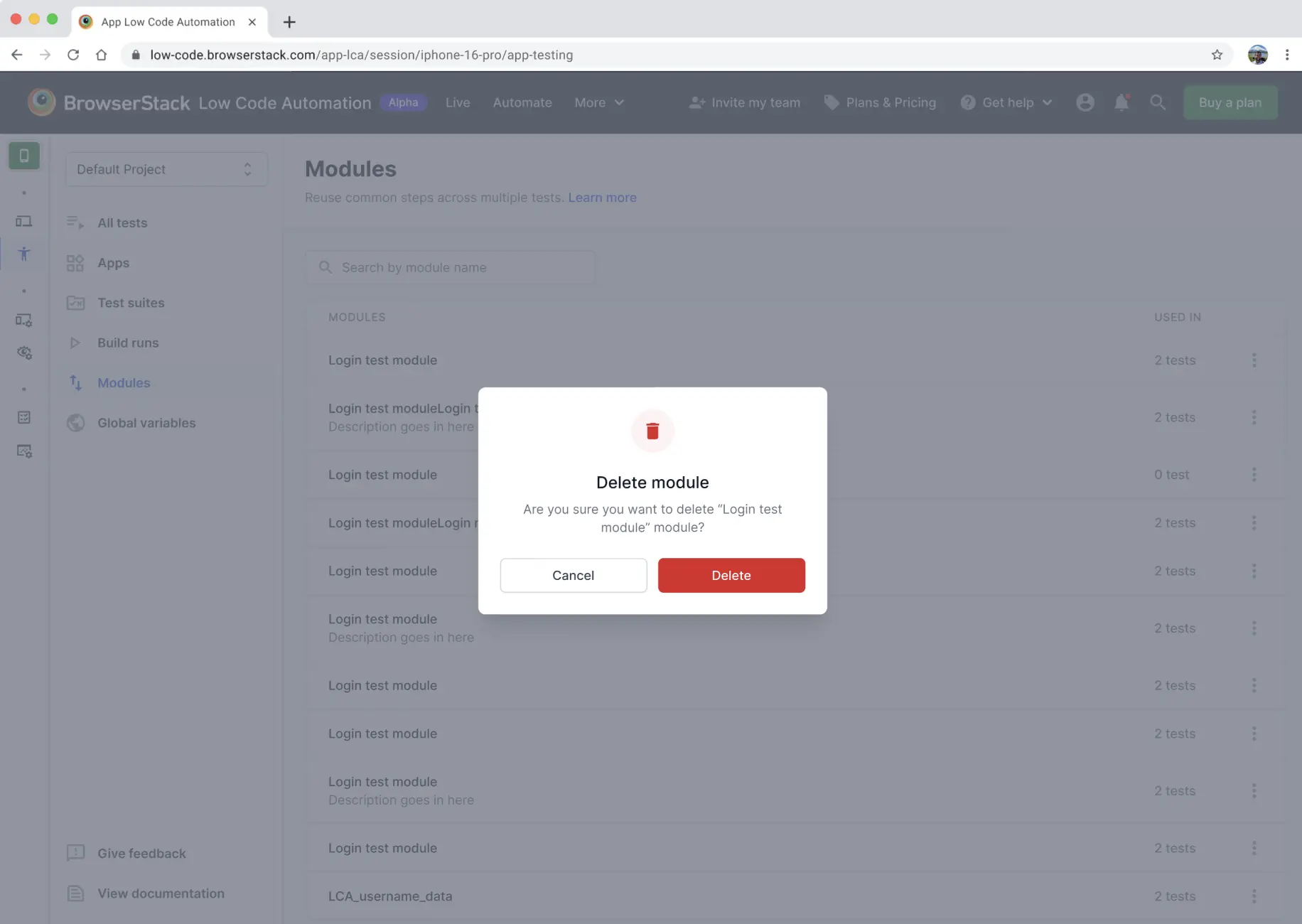
You can only delete modules that are not imported in any test steps.
To delete a module:
- In the Modules section, click the ︙ icon next to the module you want to remove.
- Select Delete module.
- In the Delete module dialog, click Delete to confirm.
AI steps in modules
A module can contain AI steps, so you can write a reusable AI flow once instead of copying the prompt into every test.
- Select steps that include an AI interaction and select Create module block to create a module from them.
- Add an AI step to an existing module by expanding the module inside any test that uses it and adding the prompt there.
- Edit the AI prompt from inside any test that uses the module. After you save that test, all other tests using the module pick up the new prompt and regenerate their steps on the next run.
- An AI step inside a module runs the same way as a test-level AI step during replay and in cloud builds. Each run consumes one AI interaction from your usage limits, for every test and every device the module runs on.
- Converting a module’s AI step to static steps applies to all tests that use the module and cannot be undone. The confirmation dialog shows how many tests are affected.
There is no limit on the number of AI steps you can add to a module.
Variables in modules
- Variables declared within a module are accessible in subsequent steps, not in steps before the module.
- Variables declared outside a module cannot be used inside the module.
- Global variables are accessible within modules.
- Variables cannot be used inside an AI prompt, whether the prompt is in a test or in a module.
We're sorry to hear that. Please share your feedback so we can do better
Contact our Support team for immediate help while we work on improving our docs.
We're continuously improving our docs. We'd love to know what you liked
We're sorry to hear that. Please share your feedback so we can do better
Contact our Support team for immediate help while we work on improving our docs.
We're continuously improving our docs. We'd love to know what you liked
Thank you for your valuable feedback!