
 Join our Discord
Generate test steps using AI
Use AI-powered prompts to generate test steps automatically in BrowserStack’s App Low Code Automation editor without learning commands.
BrowserStack’s App Low Code Automation editor provides an AI-first experience that lets you generate test steps using natural language prompts. Instead of manually adding commands, you can describe your testing intentions in plain English, such as Login with valid credentials or Verify the checkout process, and AI automatically generates the corresponding test steps. This approach reduces the learning curve for manual QA testers by eliminating the need to learn specific commands upfront, allowing them to focus on what they want to test.
AI can make mistakes. Review and validate generated steps before running tests. This feature is currently experimental.
Key benefits include:
- Plain English language input: Describe your test intentions using everyday language
- Reduced friction: Start testing immediately without learning complex syntax
- Flexible workflow: Convert AI-generated steps to editable static steps when needed
- Seamless integration: Works alongside commands for advanced users
Example Use Cases
You can use AI interactions for various testing scenarios:
- Select dynamic dates: Select today’s date for departure
- Smart form completion: Fill only the mandatory fields in the registration form
- Product selection: Add any red colored iPhone to the cart
-
Login flow: Log in using the username
user@example.comand passwordPassword123
Generate dynamic test steps with AI interactions
- In the App Low Code Automation test editor, enter your prompt in the What do you want to test today? text box. You can use natural language prompts to describe any action or validation you want to perform.
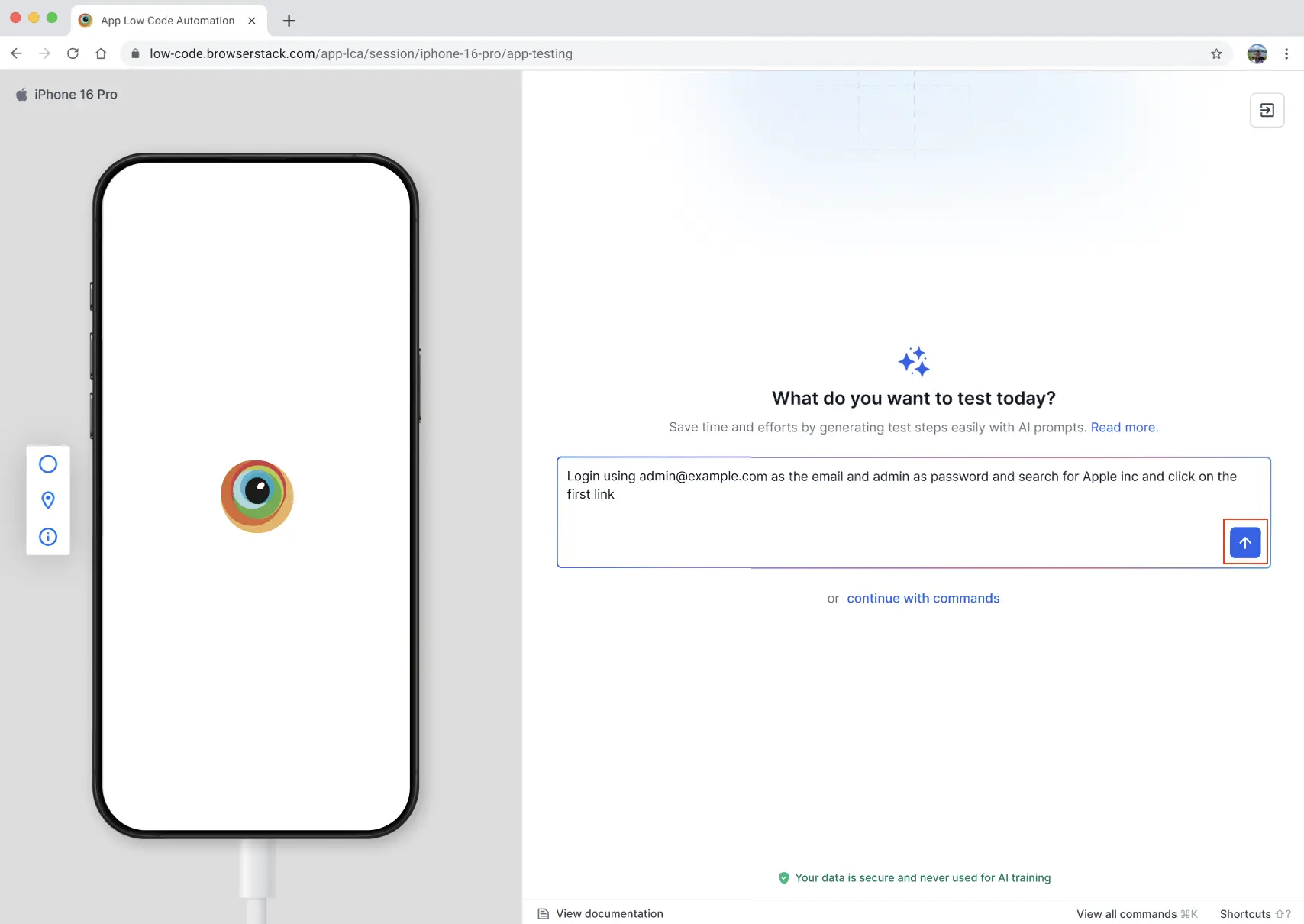
- Click the Generate button (↑) to execute the action or validation. The AI analyzes your prompt and generates the test steps.
- While the steps are being generated, you can view the AI thoughts to understand what the AI is doing.
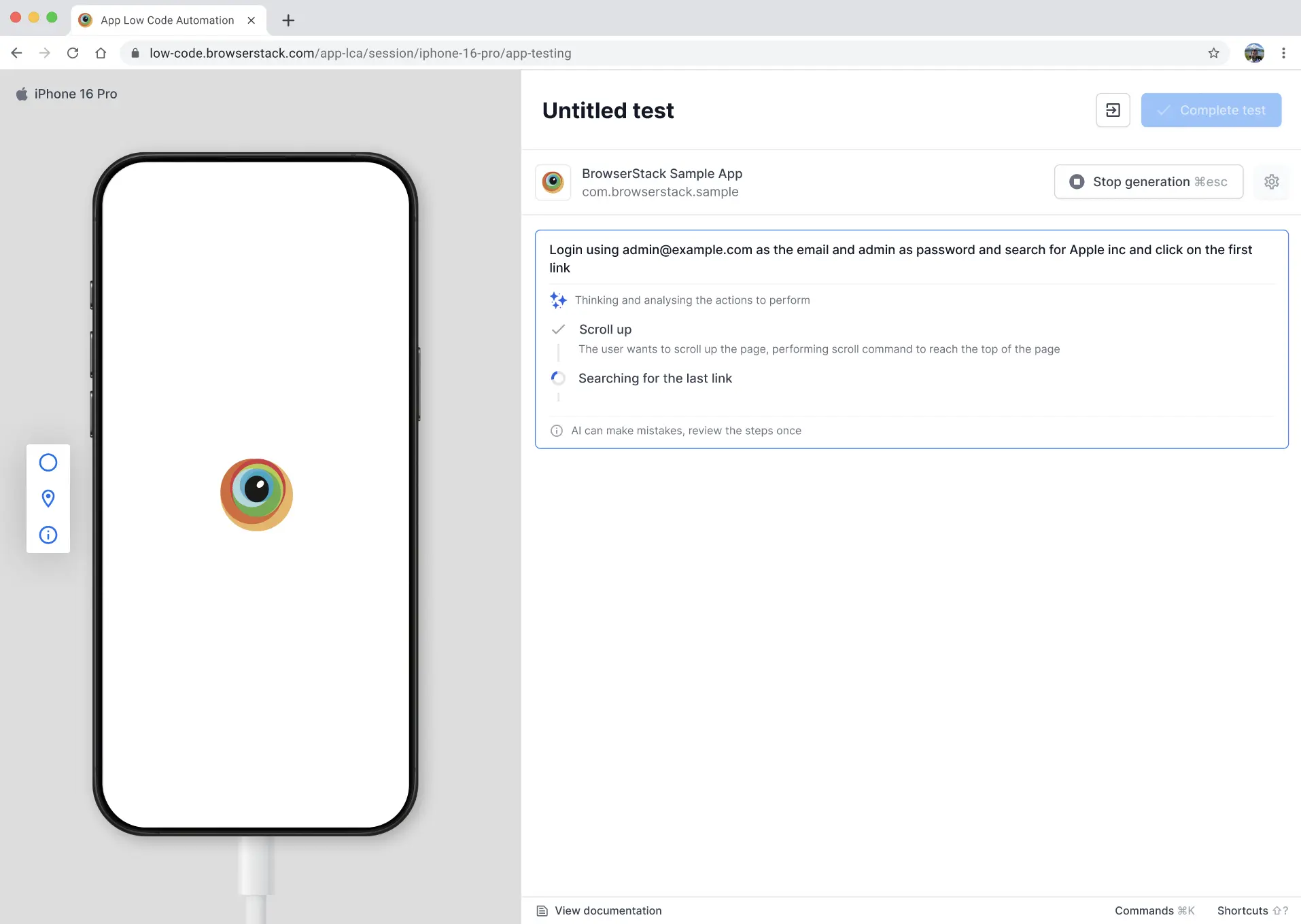
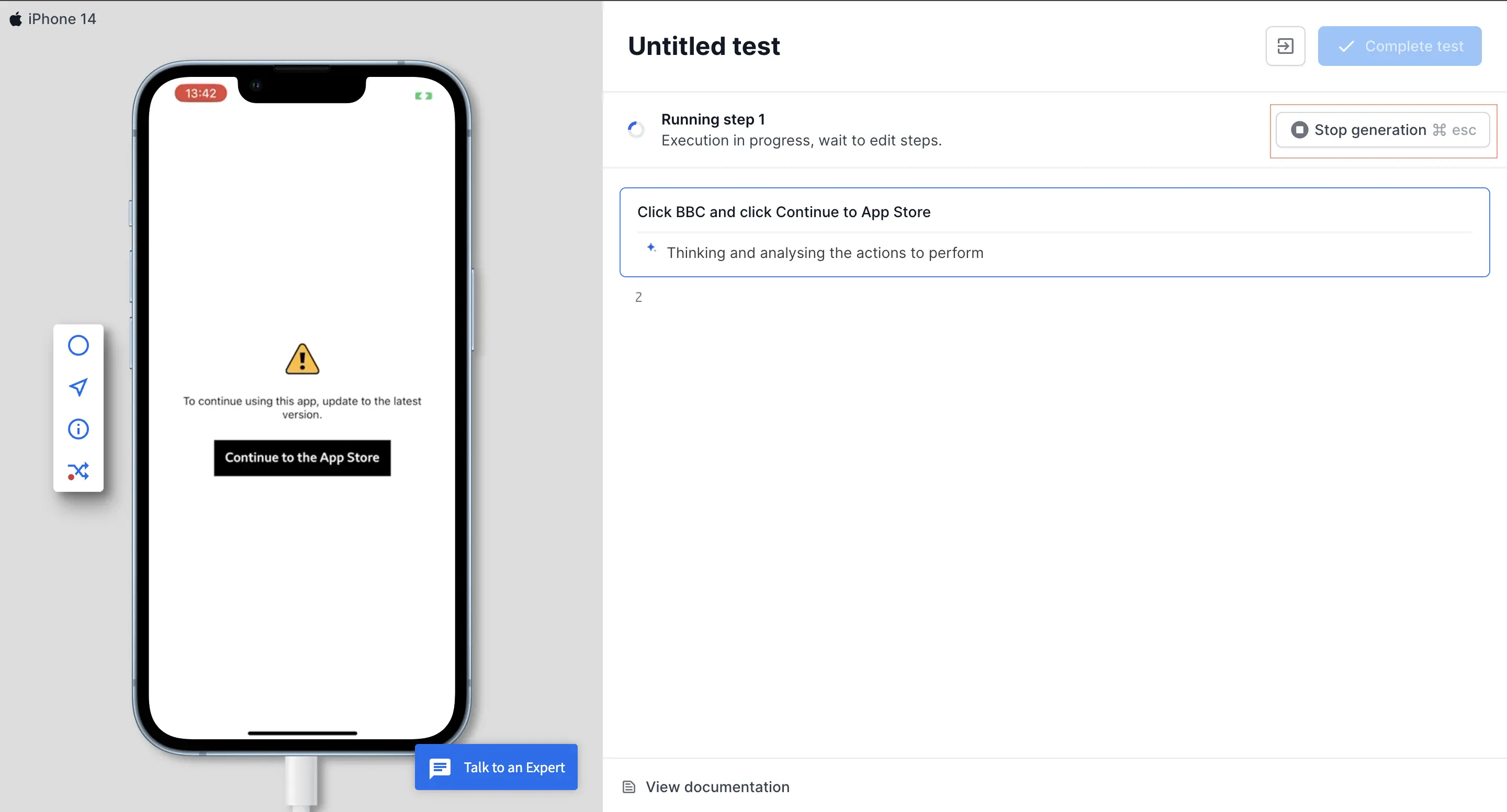
- If required, you can click Stop generation if you want to halt the process at any time. For more information, refer to the Stop AI generation section.
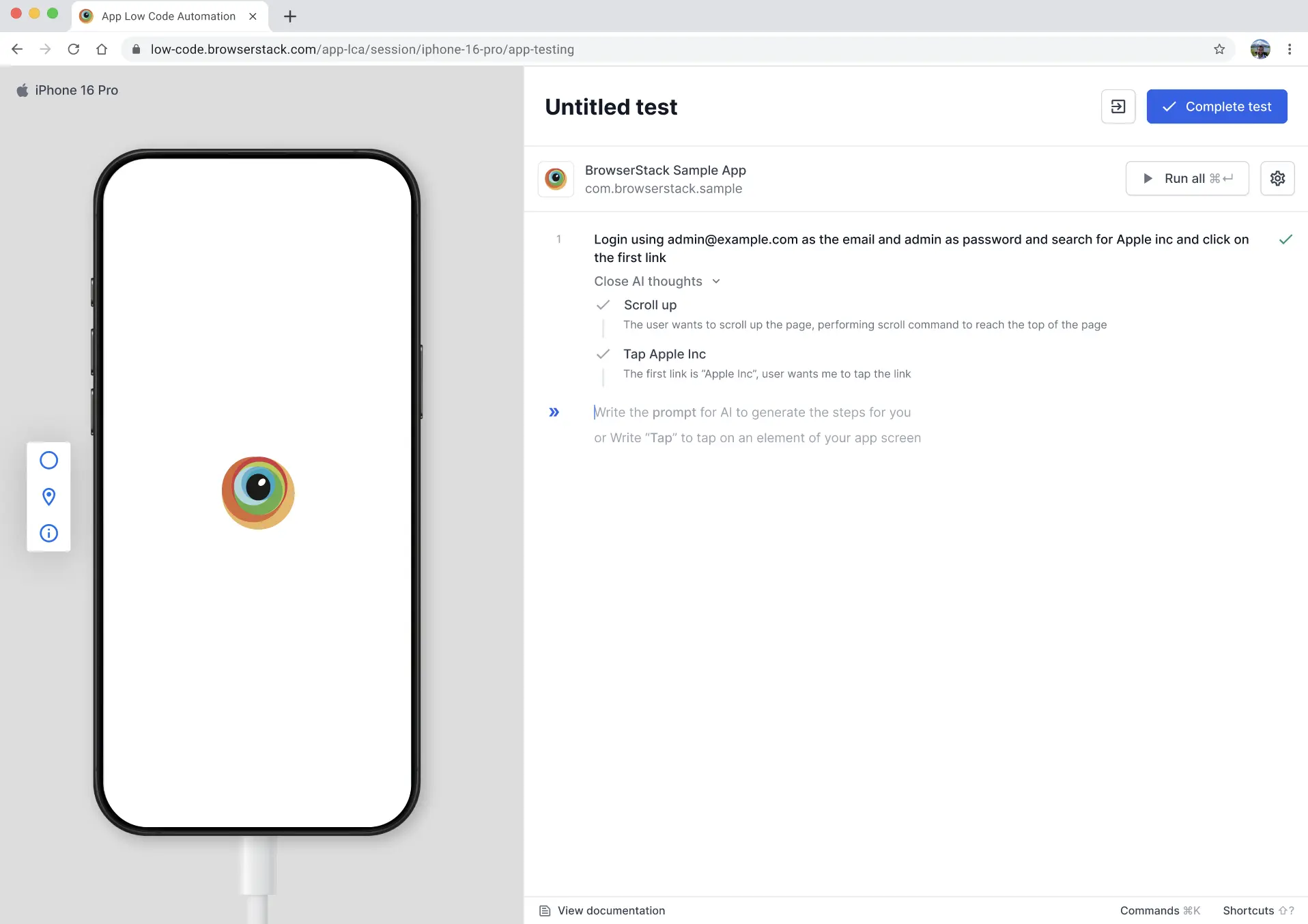
- Once the AI steps are generated, click Run all or Complete test.
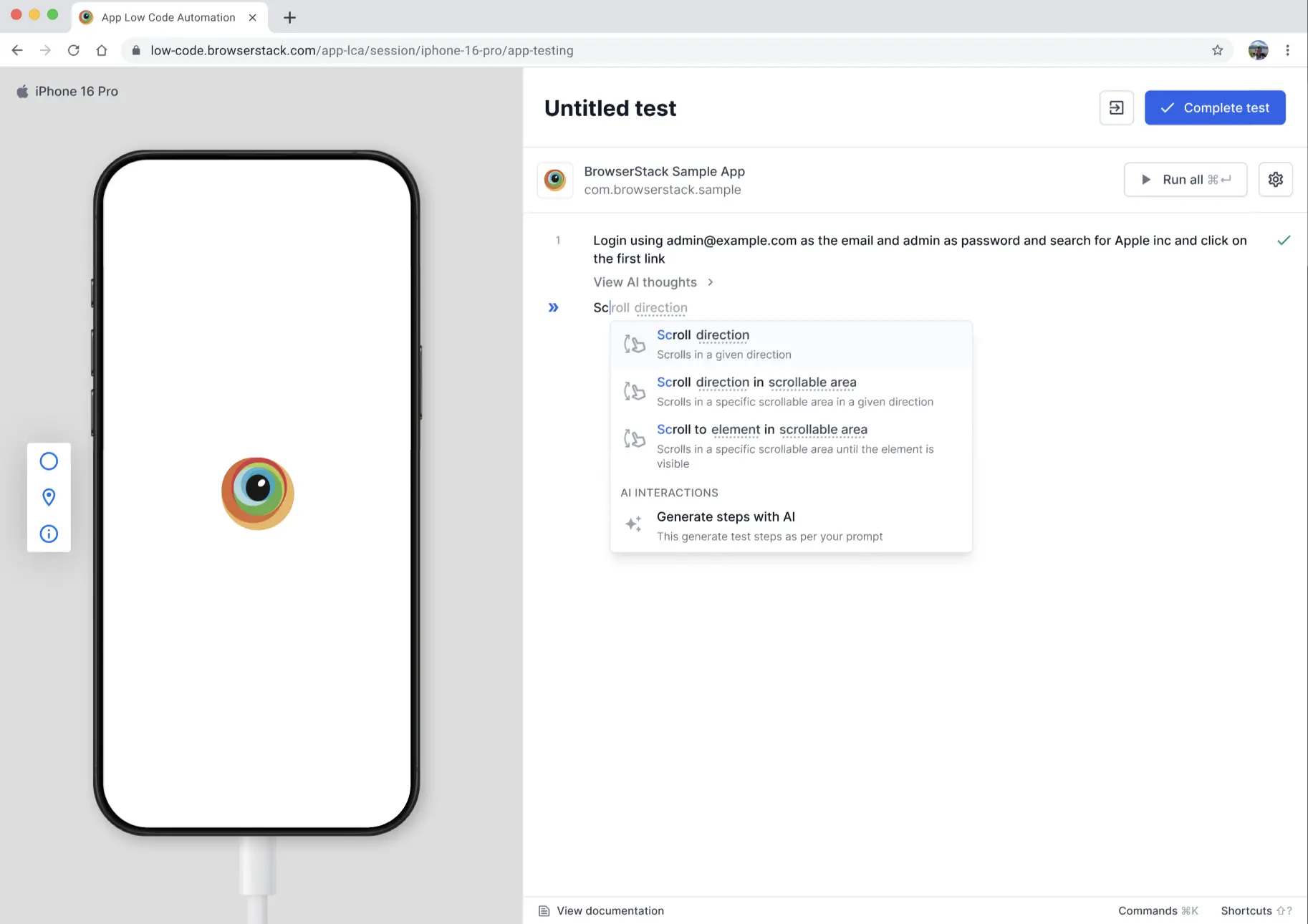
You can combine AI-generated steps with manual command steps in your test. To add AI steps at any point, write a natural language prompt in the text box (for example, Tap the Login button or Fill in the email address field) or select Generate steps with AI from the dropdown menu.
Use the thumbs up or thumbs down buttons to share your feedback. Your input helps us improve and refine the AI prompts for better performance.
If you prefer to use commands instead of AI, click continue with commands.
Edit an AI prompt
You can edit the step by modifying the prompt even after execution.
- Click the Edit icon next to the AI interaction to update the prompt and regenerate the step.
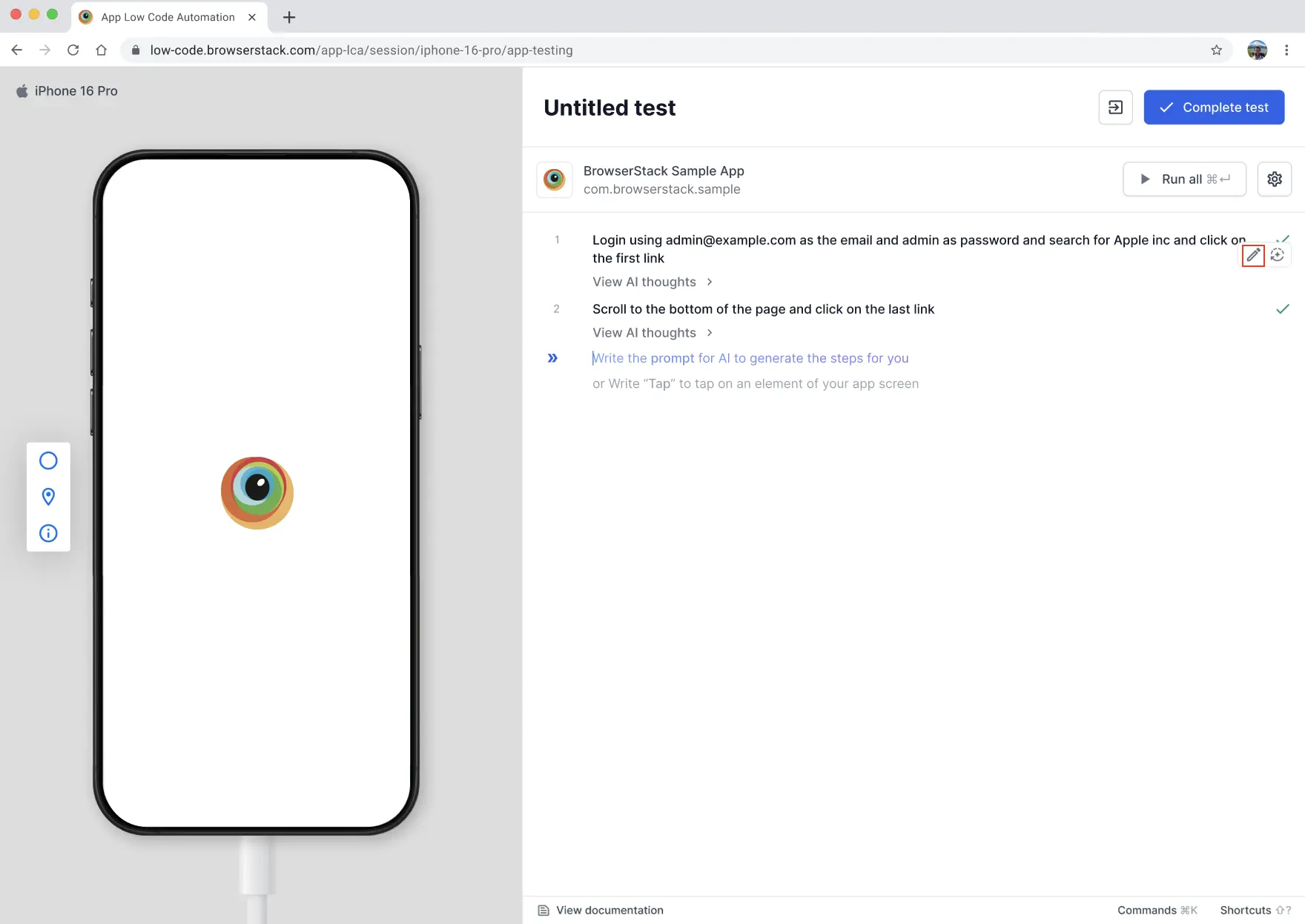
- In the prompt editor, modify the existing prompt text in the text box.
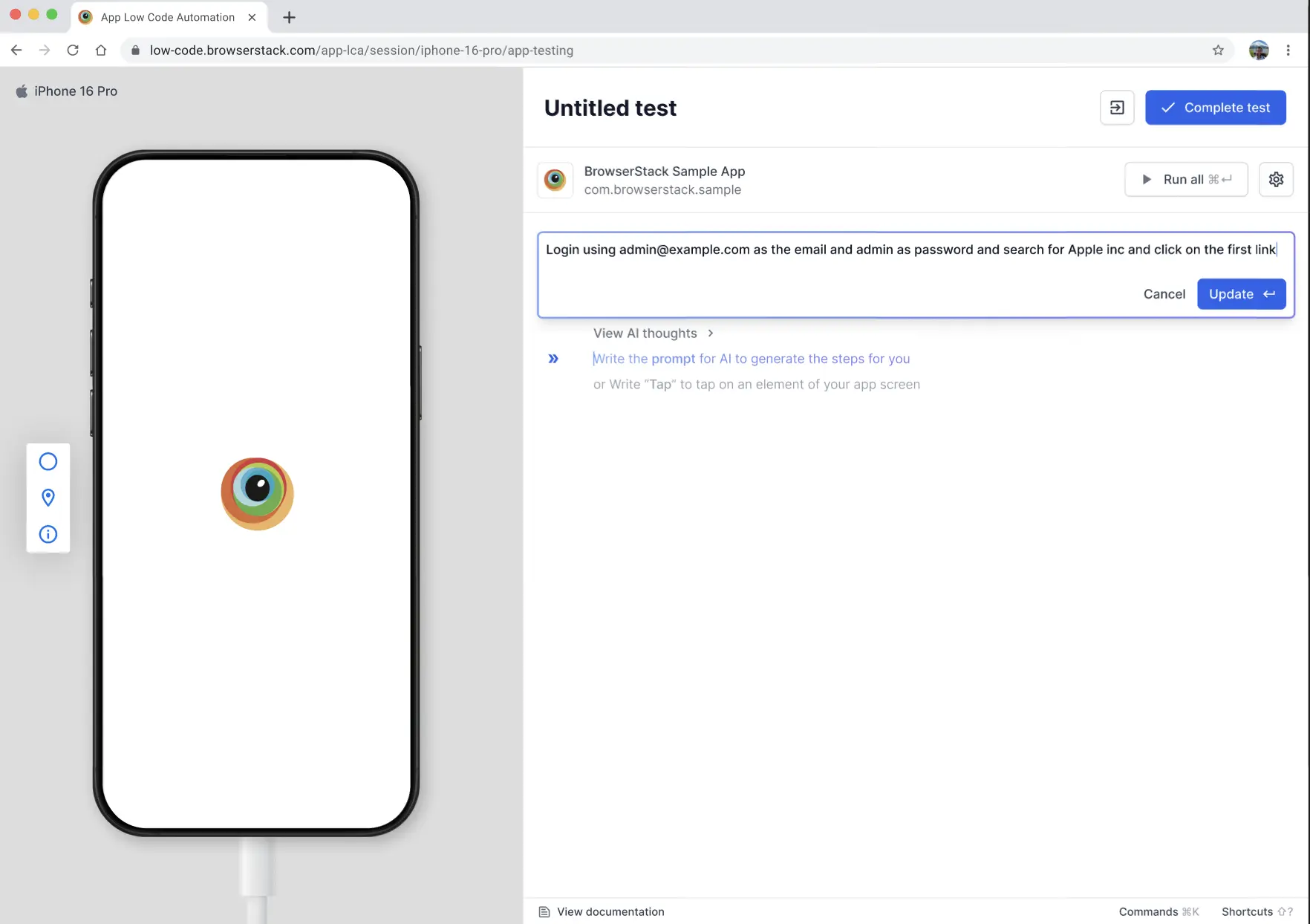
- Click Update to regenerate the test steps with your modified prompt, or click Cancel to discard changes.
The AI analyzes your updated prompt and generates new test steps accordingly.
Stop AI generation
You can stop the AI generation process at any time while the AI is generating test steps. This is useful when you want to halt the process if the AI is not behaving as expected.
To stop AI generation, while the AI is generating steps, click the Stop generation button in the top-right corner of the test editor.
When you stop the generation, an AI Generation stopped message appears, indicating that the app may be in an unexpected state. You may need to manually reset the app before proceeding.
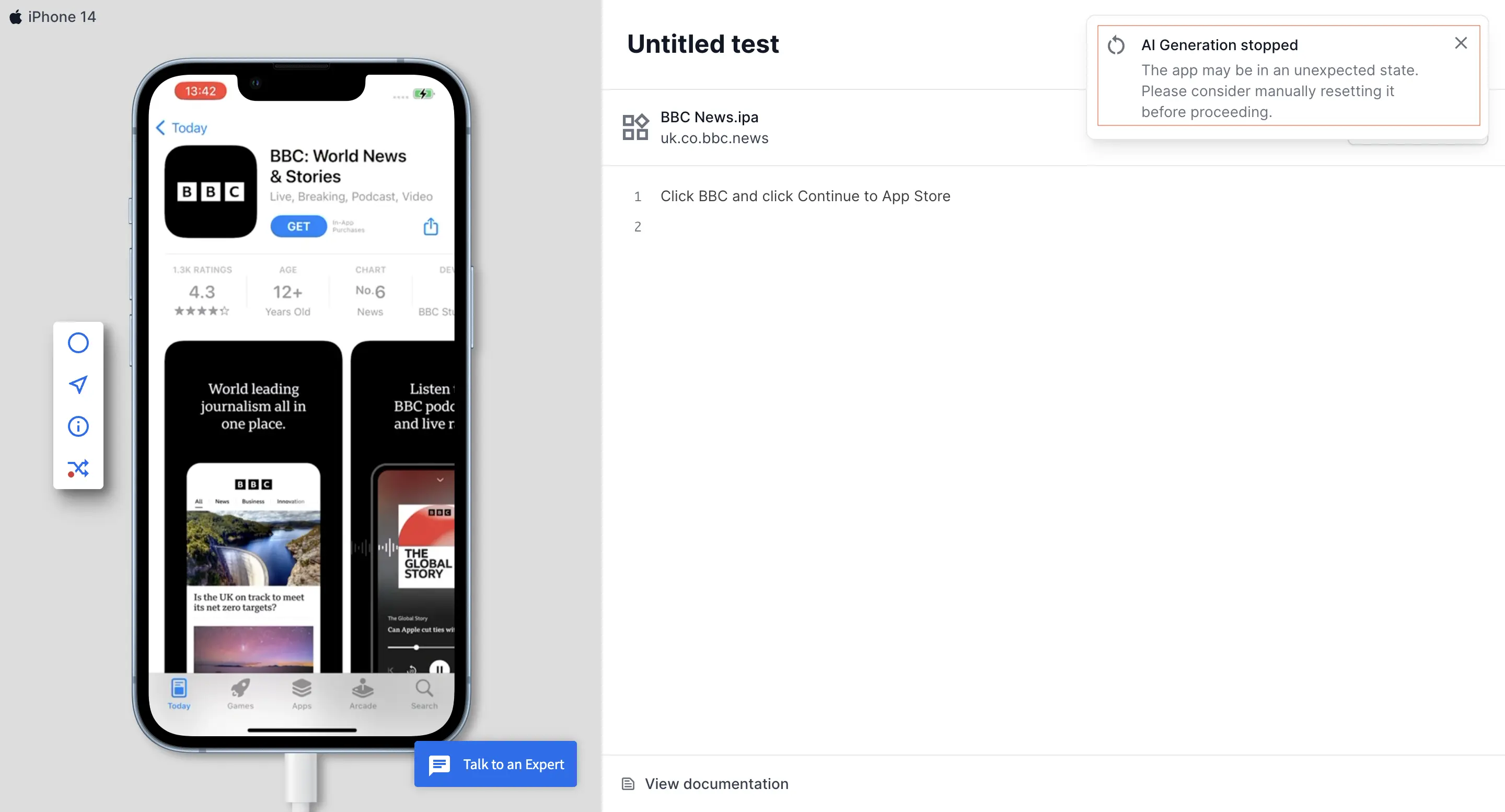
Stopping AI generation halts the current step creation process. Any partially generated steps may be incomplete and should be reviewed before proceeding with your test.
Execute AI steps
Each time the step runs during replay, it uses AI based on the provided prompt. You can expand the View AI thoughts button to see how the AI analyzes and decides how to execute the step.
You can use AI to generate single-line or multi-line commands. However, we recommend using commands for single-line step generation to optimize your usage. Reserve AI for multi-step command generation, as AI-based generation consumes your Fair Usage Policy (FUP) limits more quickly.
Use AI steps in modules
You can include AI steps in a module so that a reusable AI flow is written once and shared across every test that imports the module.
- Create a module from an AI step: Select one or more steps that include an AI interaction and select Create module block. The usual module rules still apply: you can’t create a module from a selection that is already inside a module or that straddles a conditional or loop block.
- Add an AI step to an existing module: Open a test that imports the module, expand the module, and add the AI step from within it using a natural language prompt or the Generate steps with AI option.
- Edit the prompt: Edit the module’s AI prompt from inside any test that uses the module. After you save the test, every other test that uses the module picks up the new prompt and regenerates its steps on the next run.
- Run the module: An AI step inside a module runs exactly like a test-level AI step during replay and in cloud builds, and consumes one AI interaction from your usage limits per run.
Because a module is shared across the project, editing an AI prompt inside it changes every test that imports the module. Review the USED IN count of the module in the Modules section before you change a shared prompt.
Convert AI steps to static test steps
You can convert AI-generated steps to static test steps when you want to edit the individual commands manually. Converting to static steps transforms the AI prompts into specific commands that run consistently without AI interpretation.
To convert AI steps to static test steps:
- In the test editor, click the AI interaction step, and then click the Convert AI steps to static test steps icon.
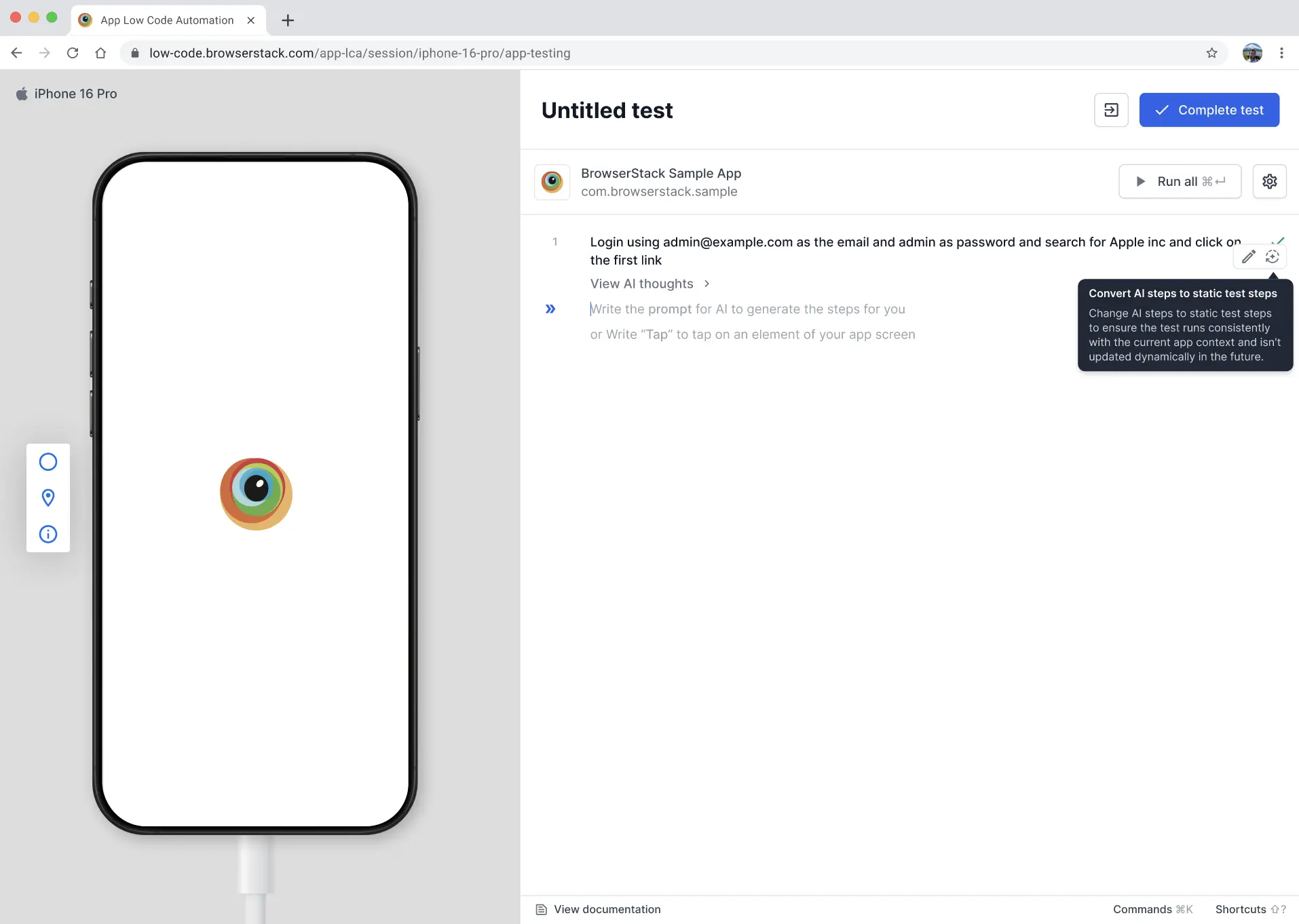
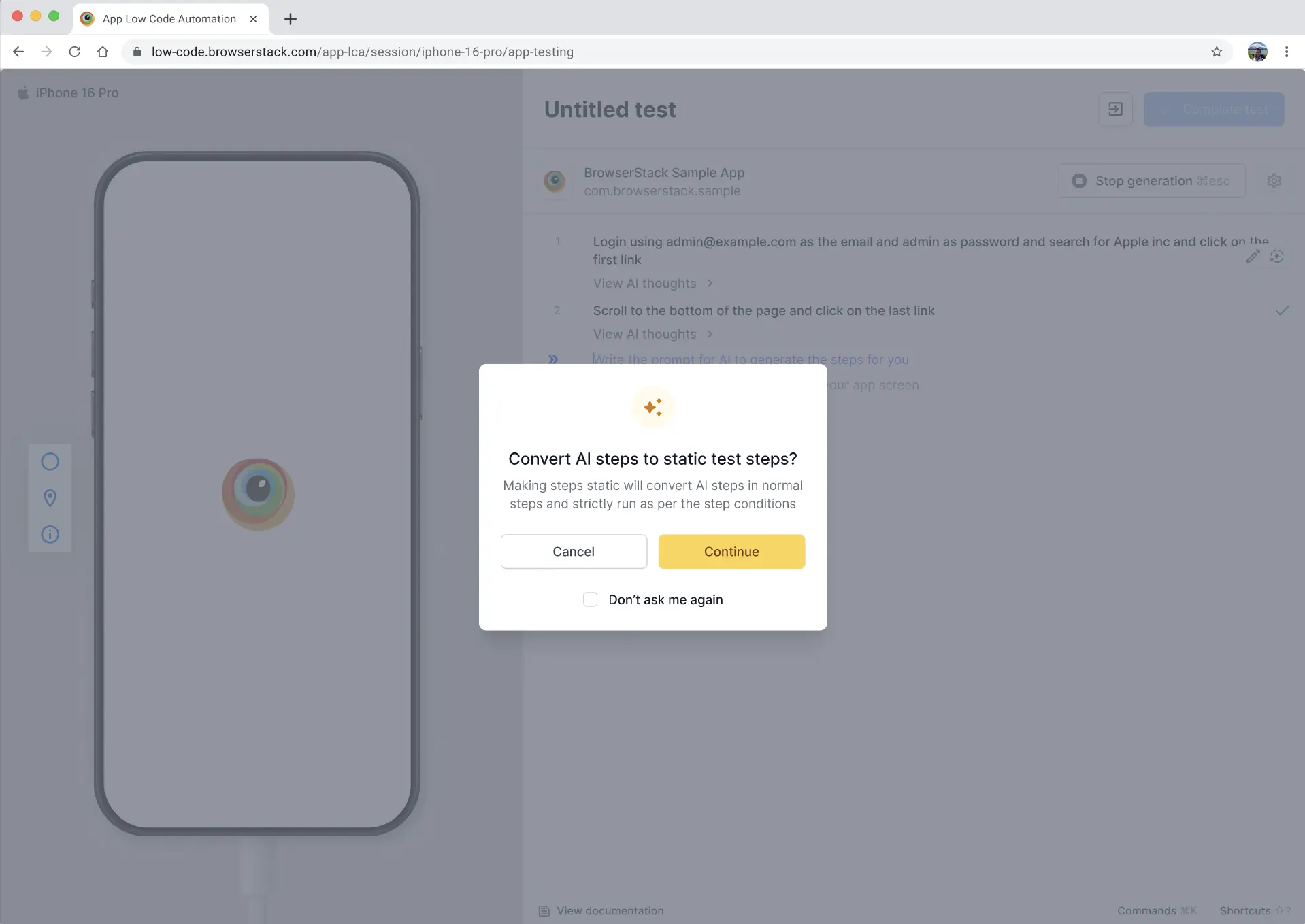
- In the Convert AI steps to static test steps? dialog, click Continue. Changing the steps static converts AI steps to normal steps and strictly run as per the step conditions.
After conversion, your AI steps are transformed into individual static commands that you can edit manually. The converted steps maintain the same functionality but run as fixed commands rather than dynamic AI interpretations.
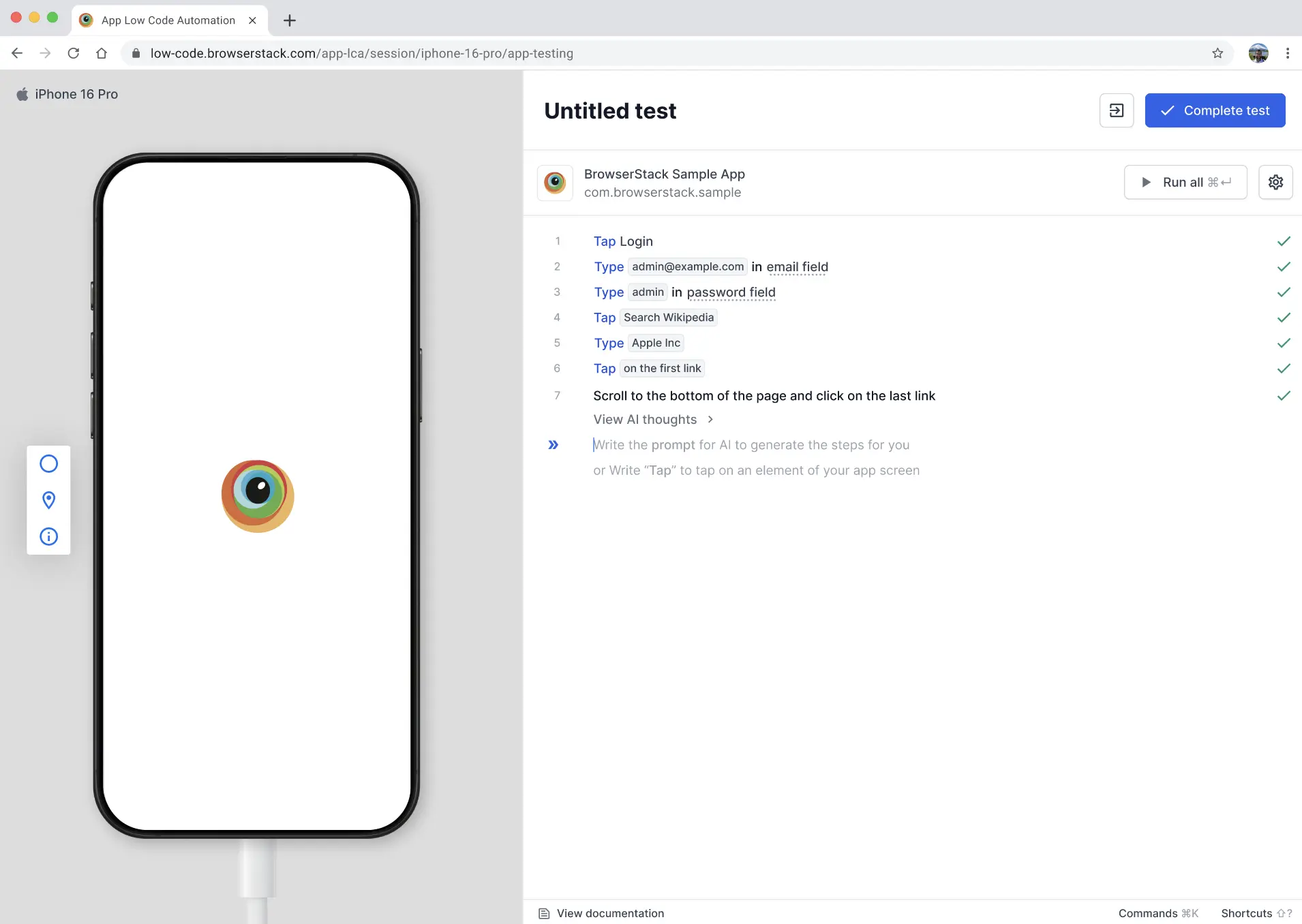
Once converted to static steps, you cannot revert them back to AI interactions. The conversion is permanent for those specific steps.
If you convert an AI step that is inside a module, the conversion applies to every test that uses that module.
Reset the app during test execution
You can reset the app to its initial state during test execution to ensure a clean testing environment. Resetting the app clears all data, cache, and session information, returning the app to its freshly installed state without reinstalling it.
When to reset the app:
- Before starting a new test scenario to ensure a clean state
- After completing a test flow that modifies app data
- When testing the initial app launch experience
- To clear user sessions between different test cases
To reset the app:
You can reset the app in two ways:
Option 1: Reset during test run
- In the test editor, click Run all to execute your test steps.
- A Clear app state before running steps? dialog appears, explaining that clearing app state resets the app data to ensure it starts in the correct state.
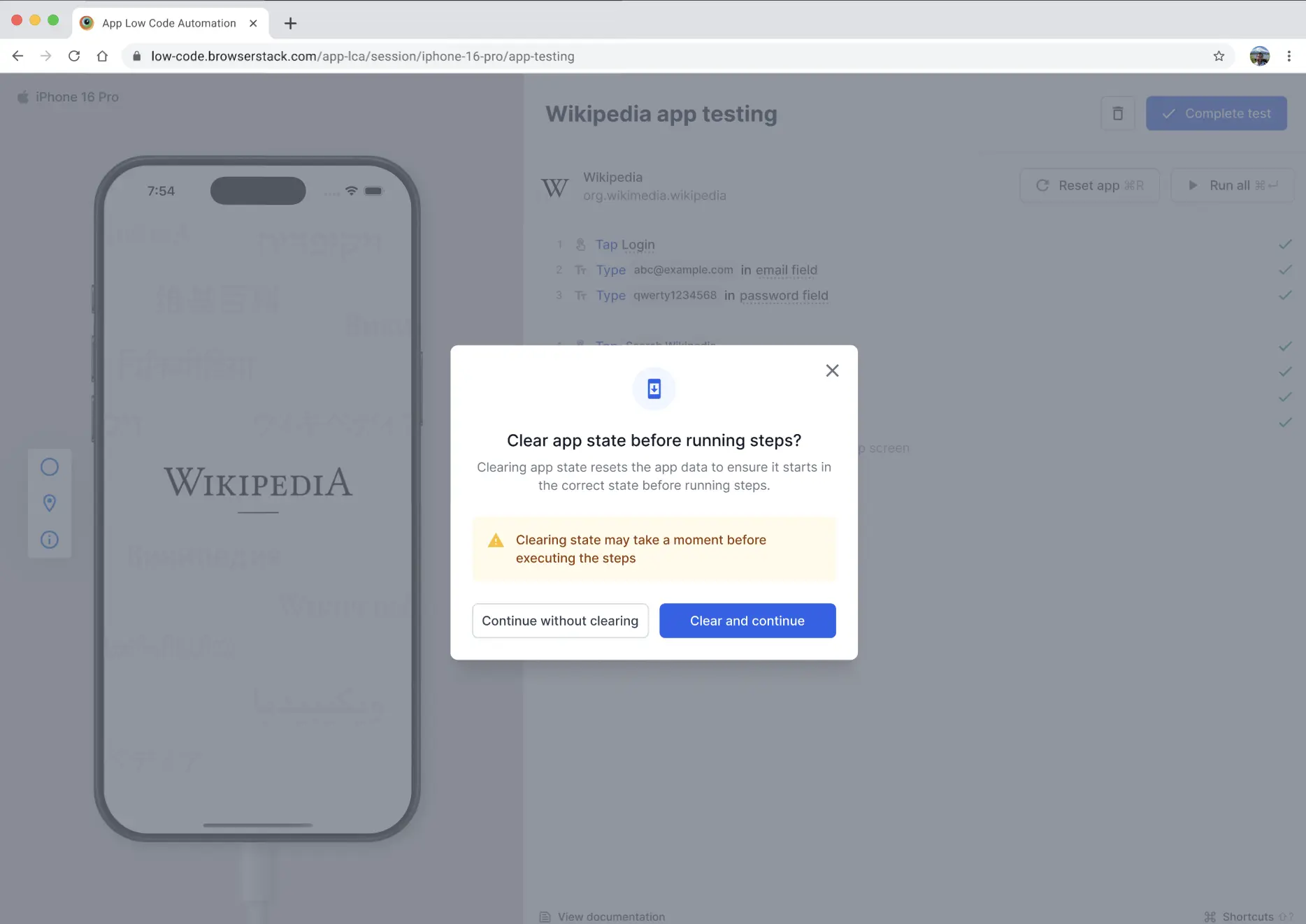
- Click Clear and continue to reset the app, or Continue without clearing to proceed without resetting. The warning indicates that clearing state may take a moment before executing the steps.
- The app resets to its initial state and your test steps execute.
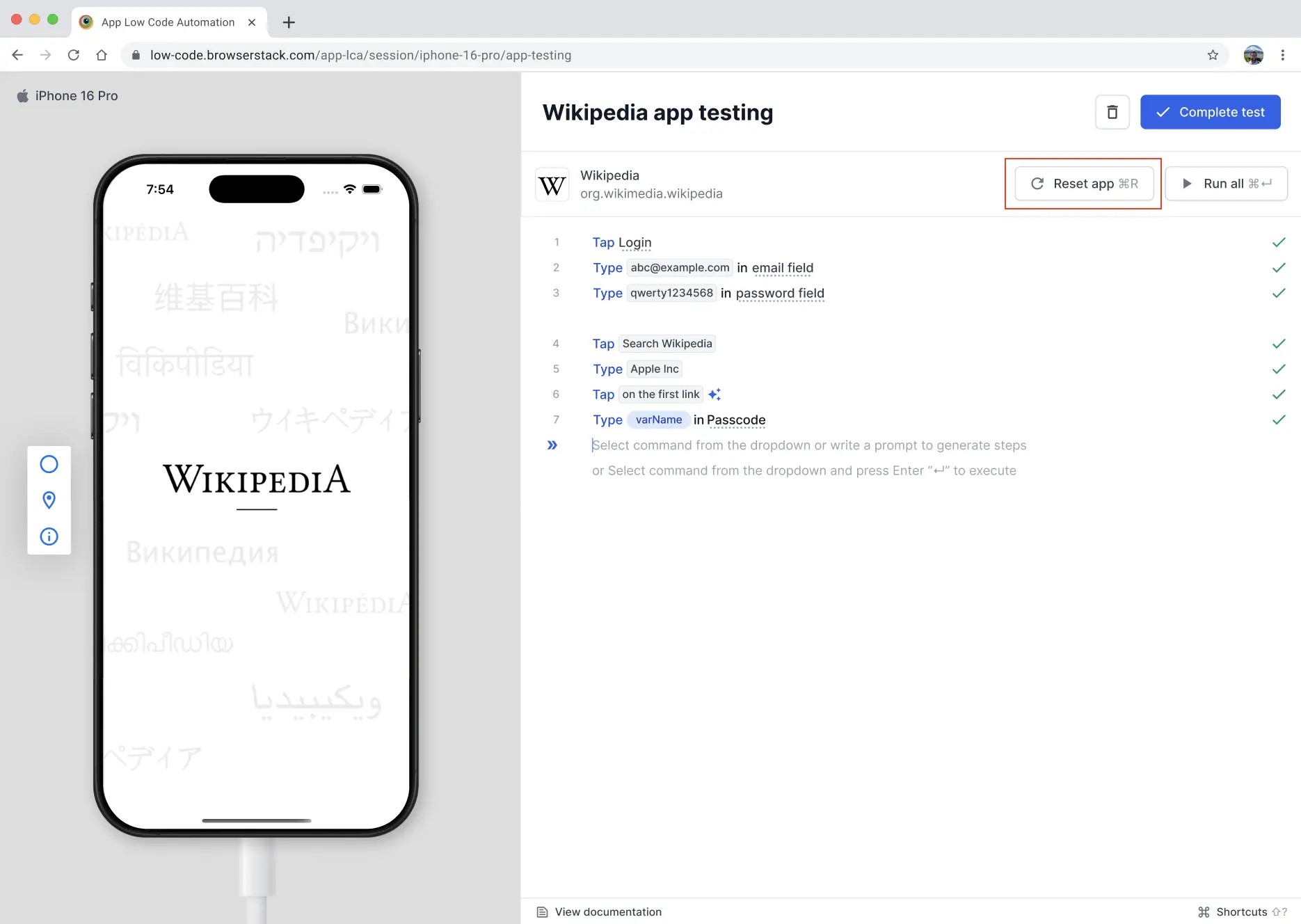
Option 2: Reset using the Reset app button
- In the test editor, click the Reset app button from the toolbar or, on macOS, use the keyboard shortcut ⌘+R.
- A Reset app state dialog appears with the message “This will clear app data and restart the app to its initial state.”
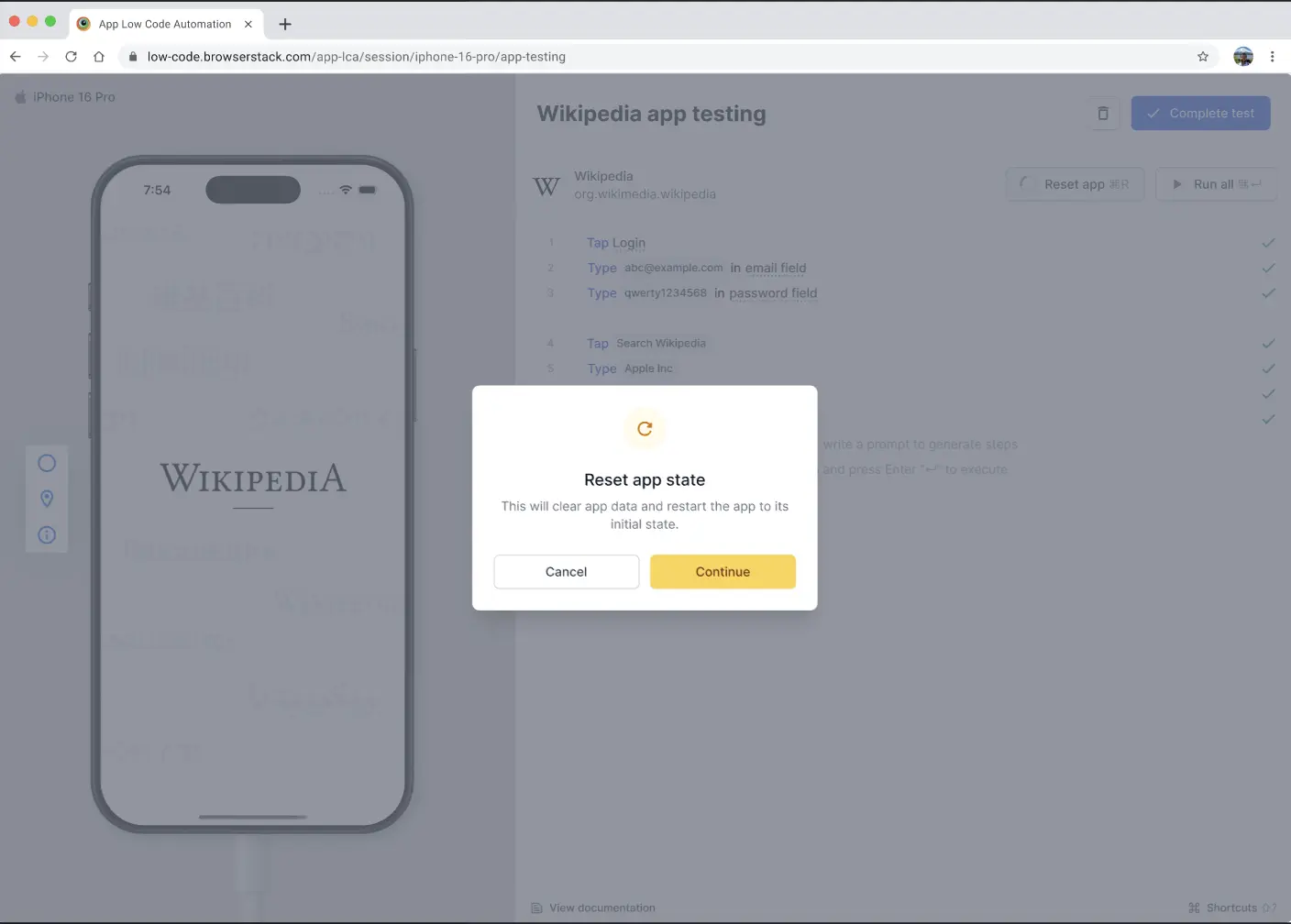
- Click Continue to reset the app before running the steps, or click Cancel to run without resetting.
What happens if reset fails:
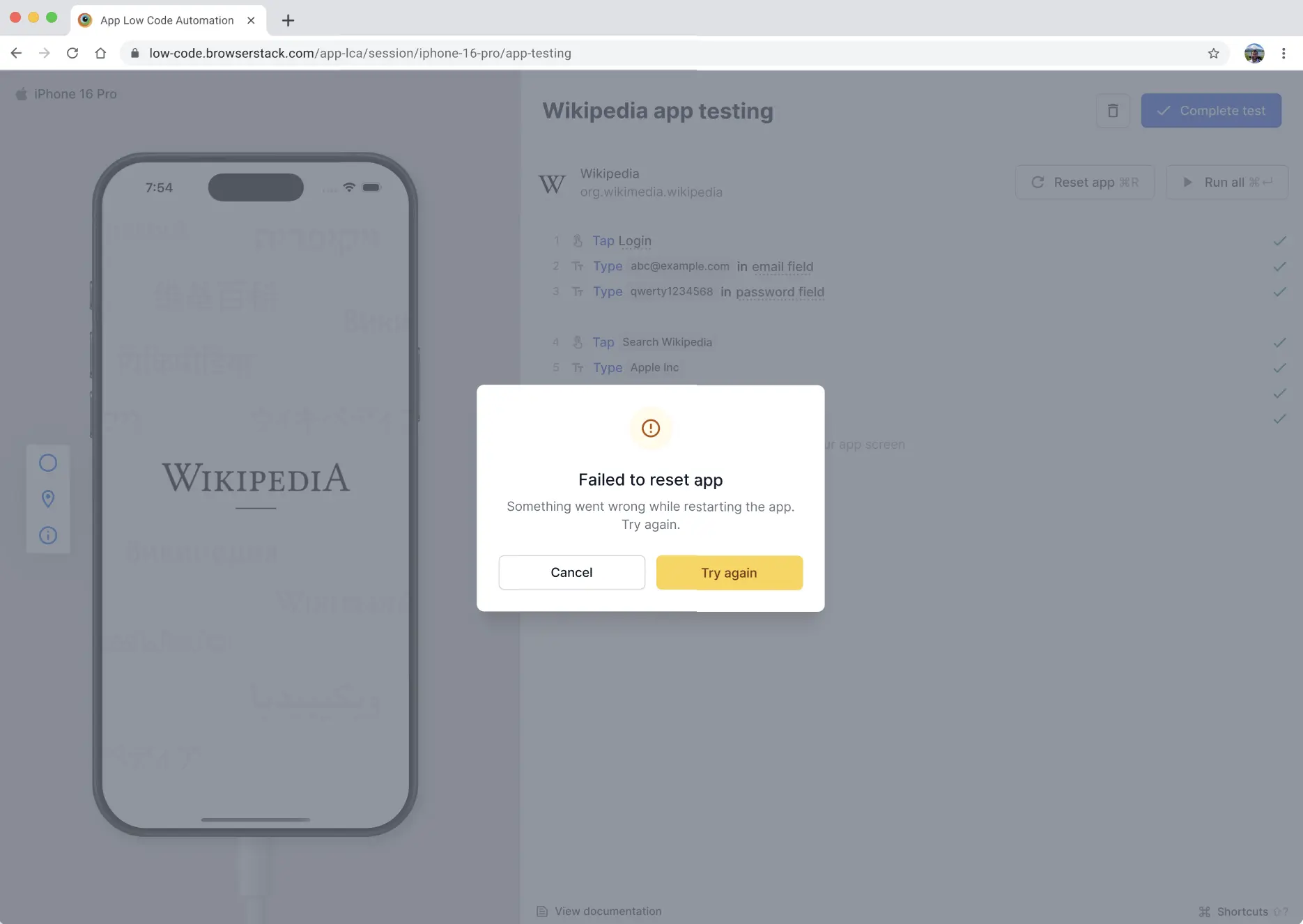
If the reset operation fails during test execution, an error dialog appears with the message Failed to reset app. You can:
- Click Try again to retry the reset operation
- Click Cancel to stop the reset and continue with your current test session
Supported actions for AI interactions
AI interactions support all commands, except for the features listed below that are not supported.
Unsupported features for AI interactions
AI interactions do not currently support the following user actions, but support for these features will be added soon:
- Importing variables into an AI prompt
- Triggering soft or hard failures at the prompt level
- Validation commands
We're sorry to hear that. Please share your feedback so we can do better
Contact our Support team for immediate help while we work on improving our docs.
We're continuously improving our docs. We'd love to know what you liked
We're sorry to hear that. Please share your feedback so we can do better
Contact our Support team for immediate help while we work on improving our docs.
We're continuously improving our docs. We'd love to know what you liked
Thank you for your valuable feedback!