
 Join our Discord
Rotate the device
Rotate the device to portrait or landscape during a test in App Low Code Automation to test landscape layouts and rotation behavior.
Mobile apps often behave differently when the device rotates. Layouts reflow, screen state resets, and media players switch modes. The Rotate device to command sets the device to portrait or landscape at any point in your test, so you can validate landscape layouts and catch rotation-related bugs.
The command works on both Android and iOS, on phones and tablets, while you author a test and when the test runs in a build.
Add a rotate step
- In the test editor, start typing
Rotate device to, or open the command suggestions and select Rotate device to from the device and system interactions group.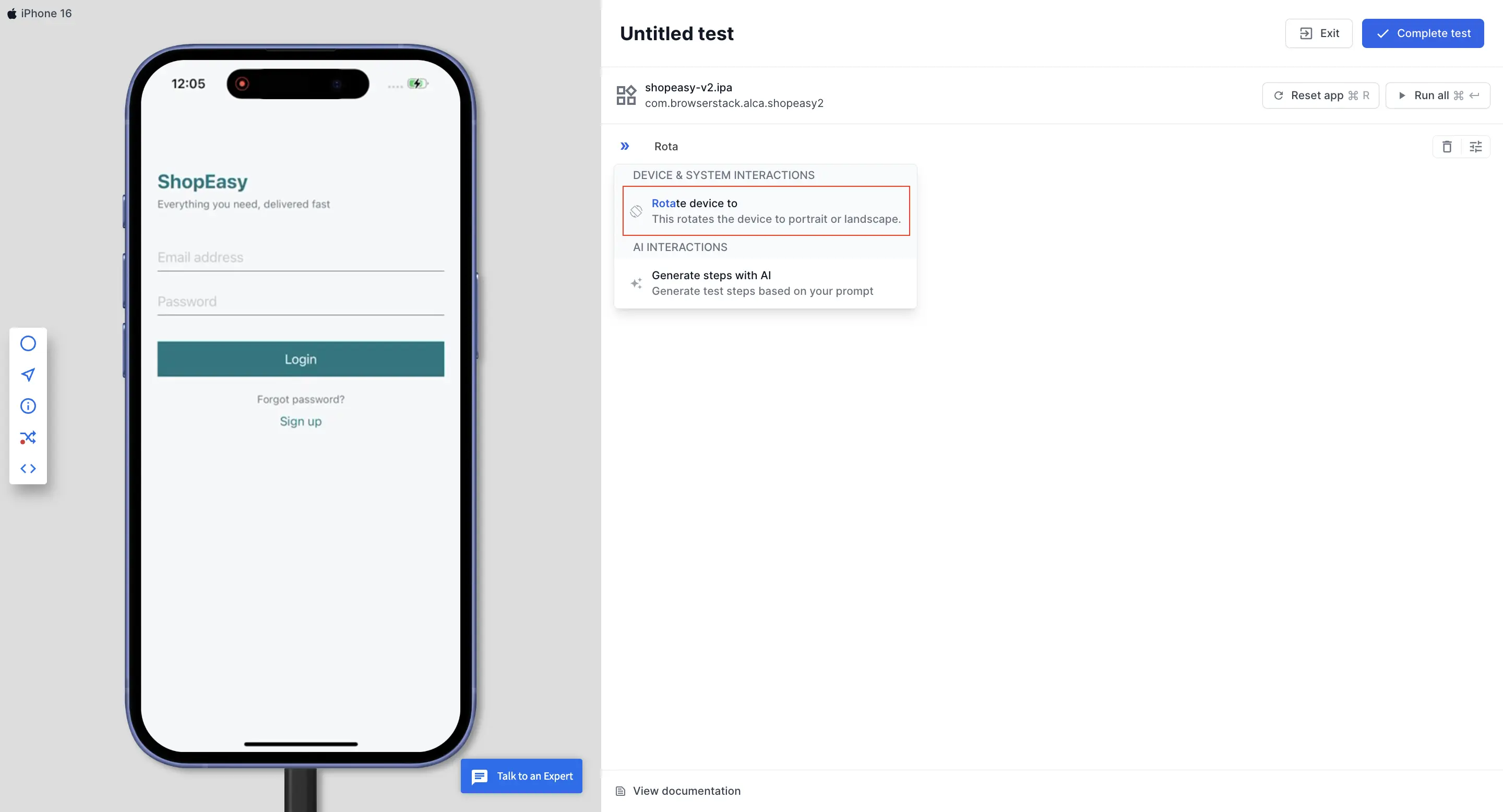
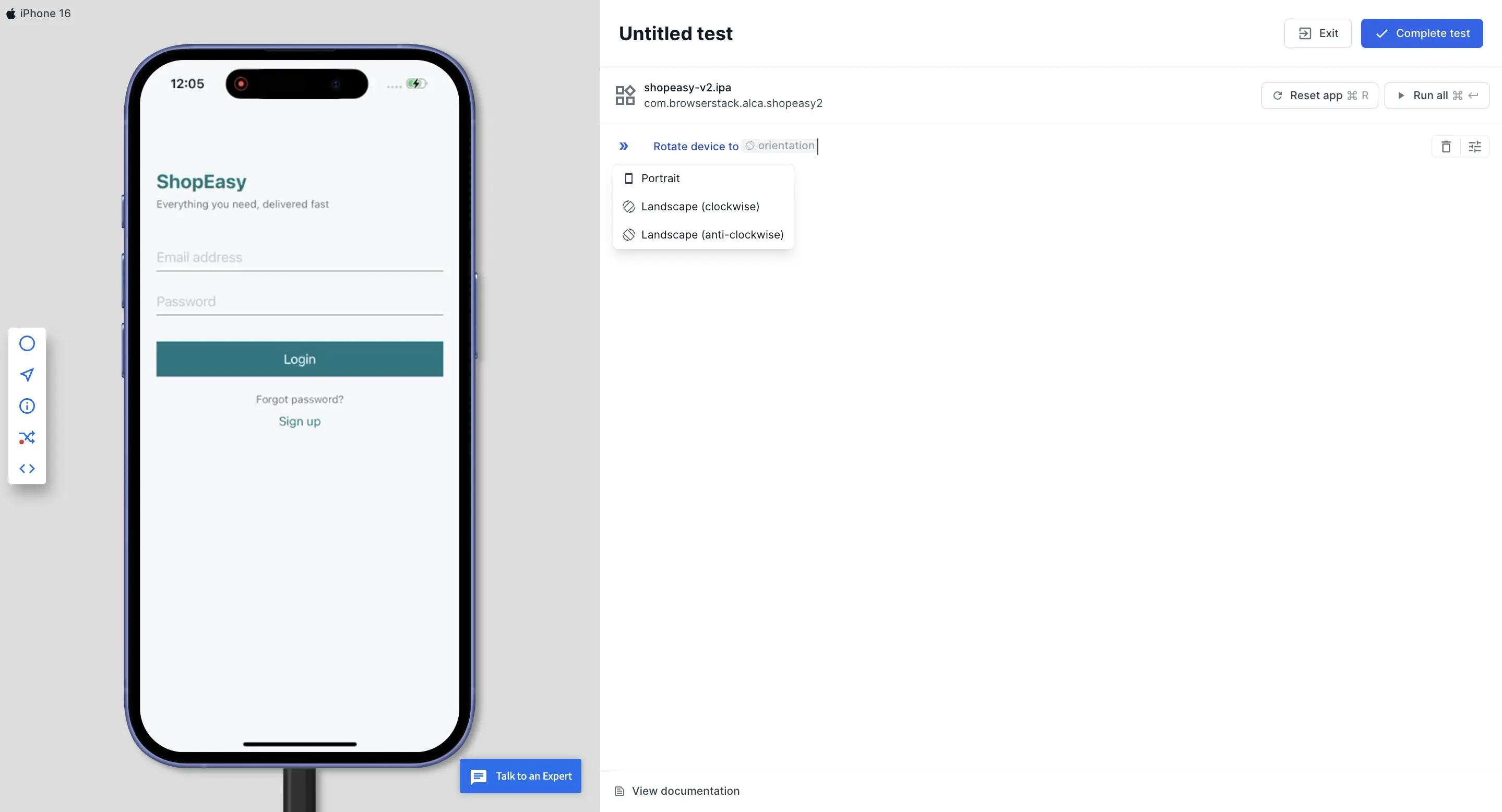
- In the orientation dropdown, select one of the following options:
- Portrait: Rotates the device to portrait.
- Landscape (clockwise): Rotates the device clockwise to landscape.
-
Landscape (anti-clockwise): Rotates the device anti-clockwise to landscape.
- Press
Enterto run the step.
The device rotates to the orientation you selected, and the device view shows the rotated device immediately. In landscape, the device view scales the device down to fit the available space.
Every test session starts in portrait, both while you author a test and when the test runs in a build. After a rotate step runs, the device stays in that orientation until the next rotate step or the next app reset.
Related topics
We're sorry to hear that. Please share your feedback so we can do better
Contact our Support team for immediate help while we work on improving our docs.
We're continuously improving our docs. We'd love to know what you liked
We're sorry to hear that. Please share your feedback so we can do better
Contact our Support team for immediate help while we work on improving our docs.
We're continuously improving our docs. We'd love to know what you liked
Thank you for your valuable feedback!