
 Join our Discord
Validations
Learn how to add validations for text, visuals, and more in App Low Code Automation. You can also add AI validations written in plain English.
App Low Code Automation’s validations feature lets you verify that your app behaves as expected during automated tests. You can check page content, text values, element states, and variable conditions directly from the test authoring interface. For checks that need judgment, such as whether an image has loaded or whether amounts on screen add up, you can describe the check in plain English and let AI verify it. Use validations to catch errors early, confirm UI changes, and ensure your app delivers the right experience to users.
App Low Code Automation provides the following four types of validations:
Page validation
Page validation lets you check if a page contains or does not contain specific text, keywords, or patterns. You can use this to confirm that the correct screen is displayed, or that error messages and important content appear as expected. Page validation supports both direct text matching and regular expressions for advanced checks.
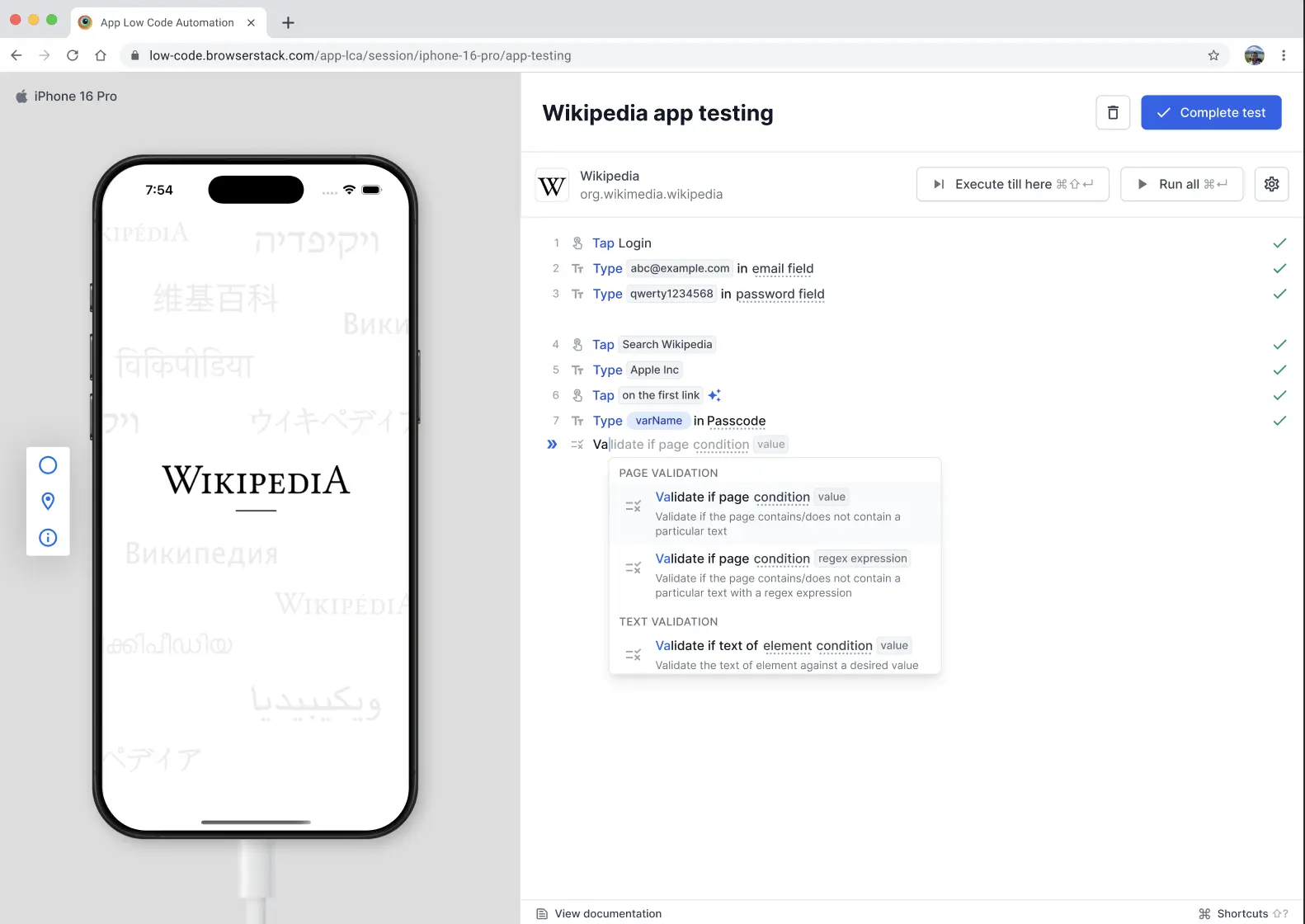
Text validation
Text validation allows you to verify the text of a specific UI element against a value, number, or regular expression. This is useful for checking labels, button text, dynamic values, and other content that may change based on user actions or app state. You can validate if the text matches exactly, contains a substring, or meets a numeric condition.
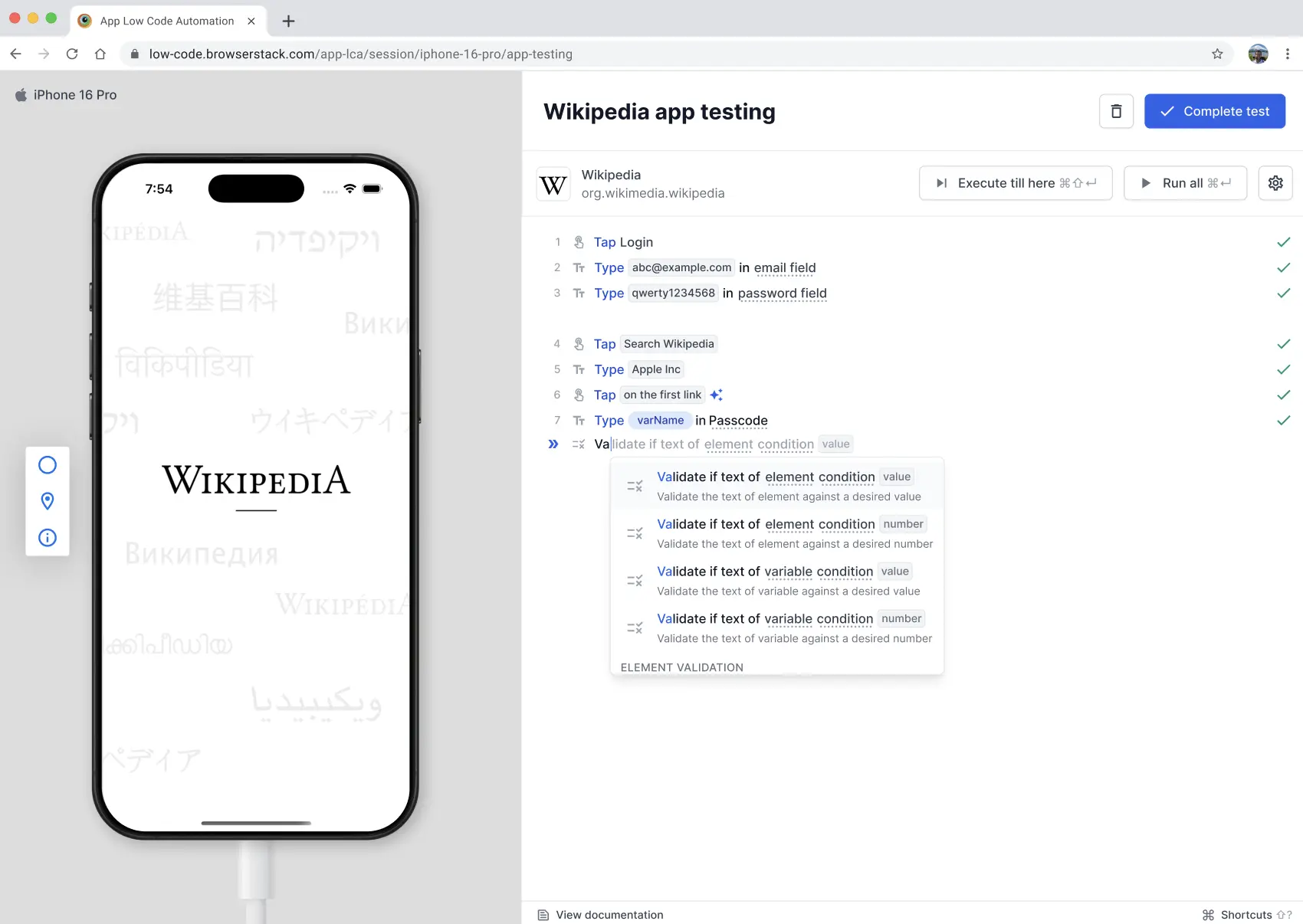
Element validation
Element validation lets you check the state of UI elements such as checkboxes, toggles, and switches. You can confirm if an element is checked, enabled, visible, or meets other conditions. This helps ensure your app’s interactive components behave as expected during automated tests.
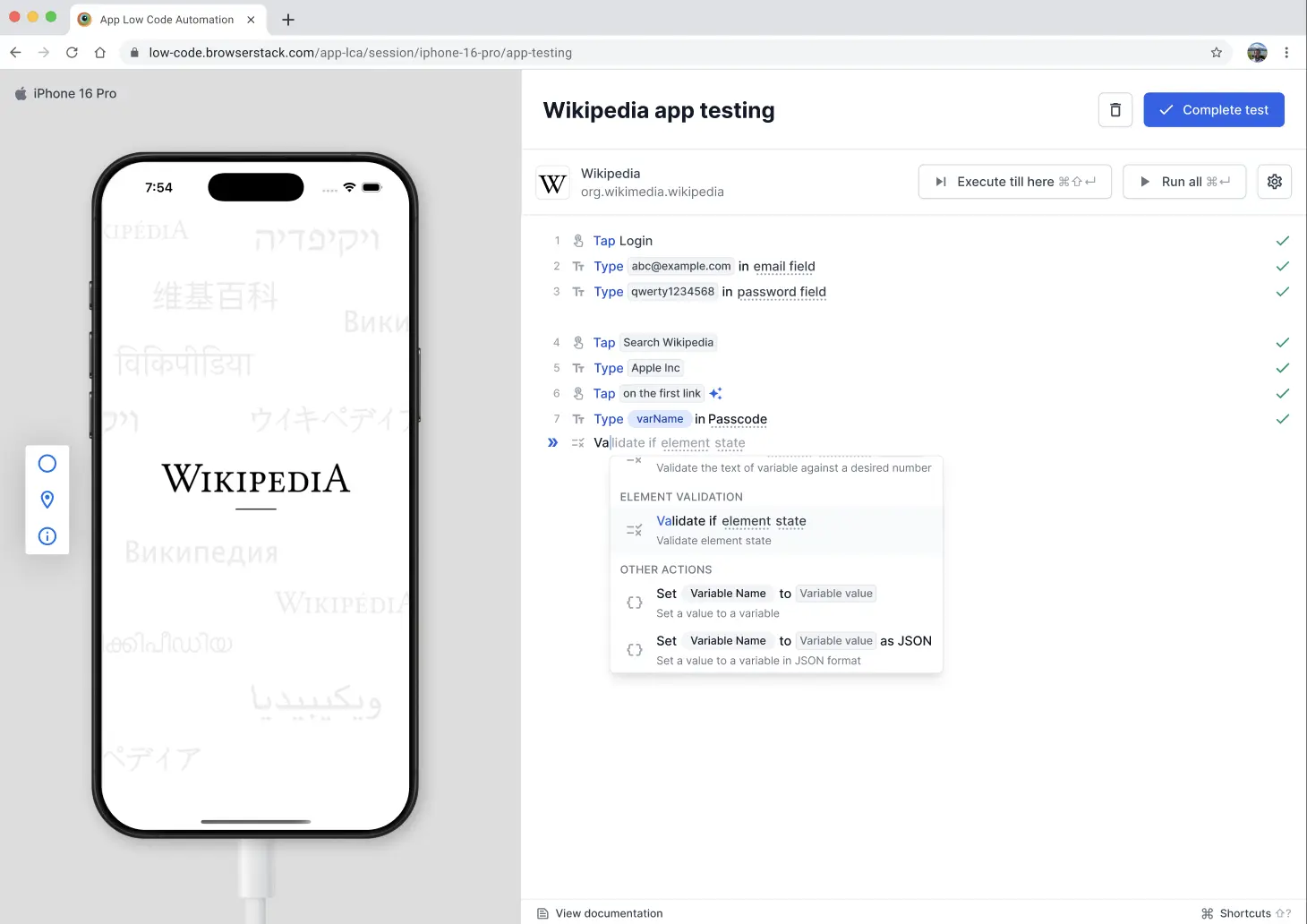
AI validation
AI validation lets you describe what should be true on the screen in plain English and let AI judge whether it holds. Use it for checks that the other three validations can’t express, such as whether an image has loaded, whether amounts on screen add up, how many items a list shows, or how an element looks. AI validates your prompt against the screenshot and page source of the screen, and returns a pass or fail result with its reasoning. You can review the reasoning from the step and from the build report.
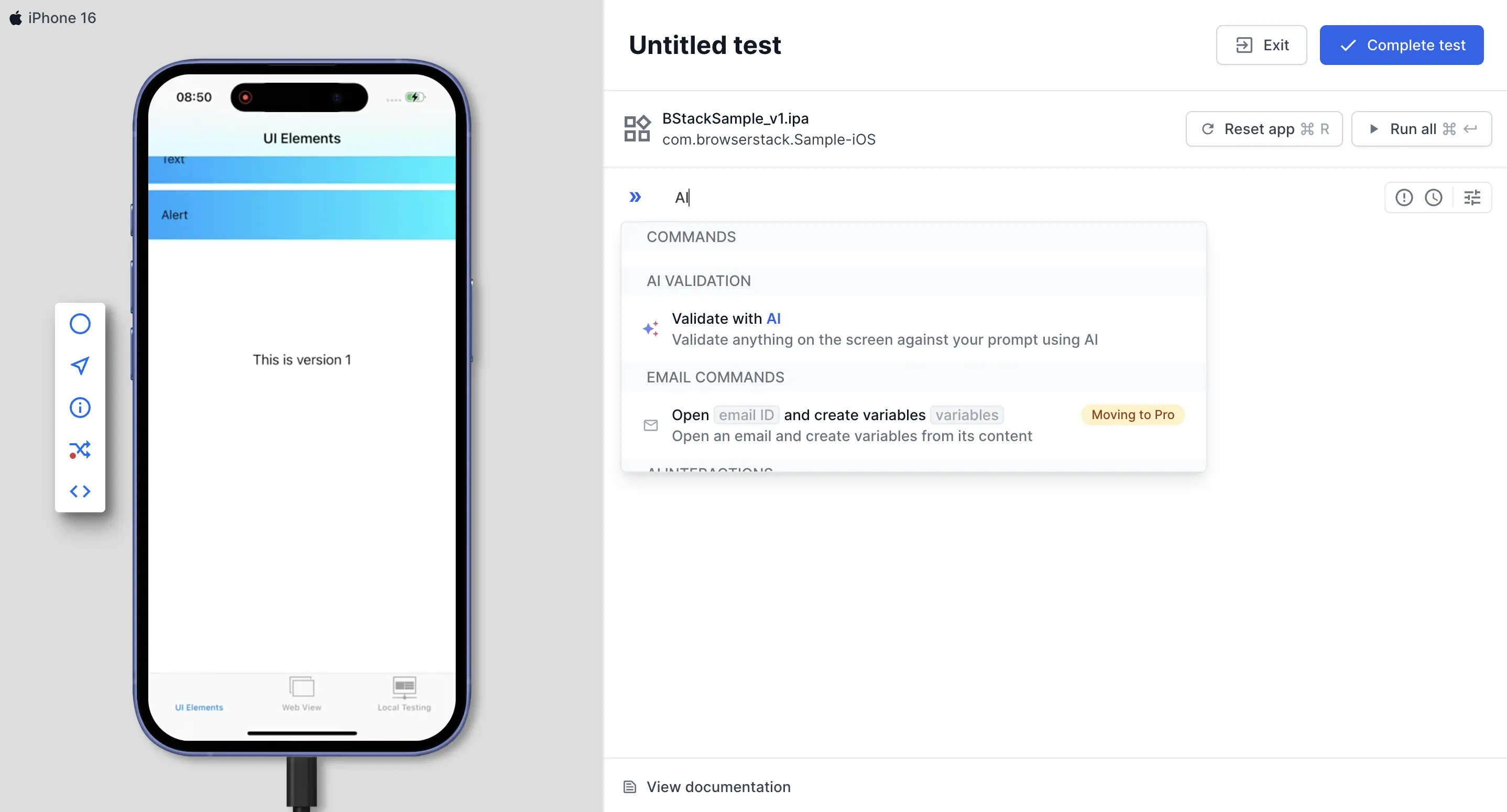
Unlike the other validations, AI validation uses AI on every run. For the add flow, prompt guidance, step settings, and constraints, see the AI validation document.
The validations feature is accessible from the command palette, where you can search and select validation commands. For a full list of supported validation commands and syntax, see the Natural Language Syntax documentation.
We're sorry to hear that. Please share your feedback so we can do better
Contact our Support team for immediate help while we work on improving our docs.
We're continuously improving our docs. We'd love to know what you liked
We're sorry to hear that. Please share your feedback so we can do better
Contact our Support team for immediate help while we work on improving our docs.
We're continuously improving our docs. We'd love to know what you liked
Thank you for your valuable feedback!