
 Join our Discord
Variables
Learn how to use local and global variables in App Low Code Automation to reuse test data across multiple steps, making your tests flexible and easy to maintain.
Variables make your tests flexible, readable, and easy to maintain. There are two types of variables in App Low Code Automation:
- Local variables are used within a single test.
- Global variables can be used across any test in your project.
Use variables to eliminate hardcoded values, centralize data, and make your tests easier to update.
You can create a variable in the following ways:
- Set a static value in a test step. See Create a local variable.
- Extract text from an element on the app screen at run time. See Extract a value into a variable.
- Extract a value from an API response or a database query result. See Filter values extracted from API and database steps.
- Create a global variable on the App Low Code Automation dashboard. See Create a global variable.
Sample use case: Suppose you want to test login functionality across multiple test cases. Instead of hardcoding the password or email in every test step, you can create a variable called email and another called password. Reference these variables in your test steps, so you only need to update the value in one place if it changes. This makes your tests easier to maintain and reduces errors from inconsistent data.
Create a local variable
Local variables let you reuse values within the same test.
To create a local variable:
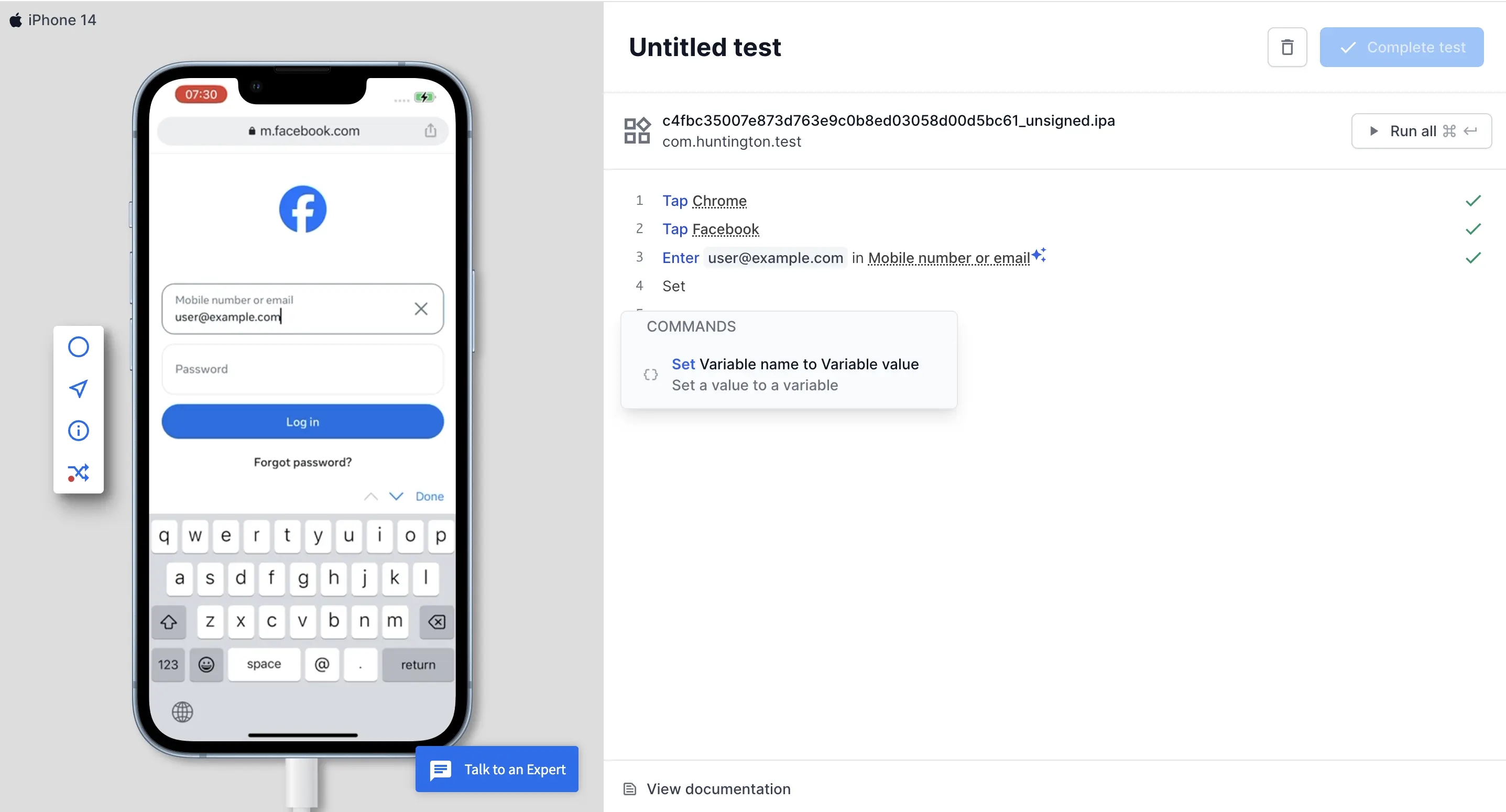
Enter Set in the test step. The Set Variable name to Variable value command appears in the test editor. Click the command to proceed.
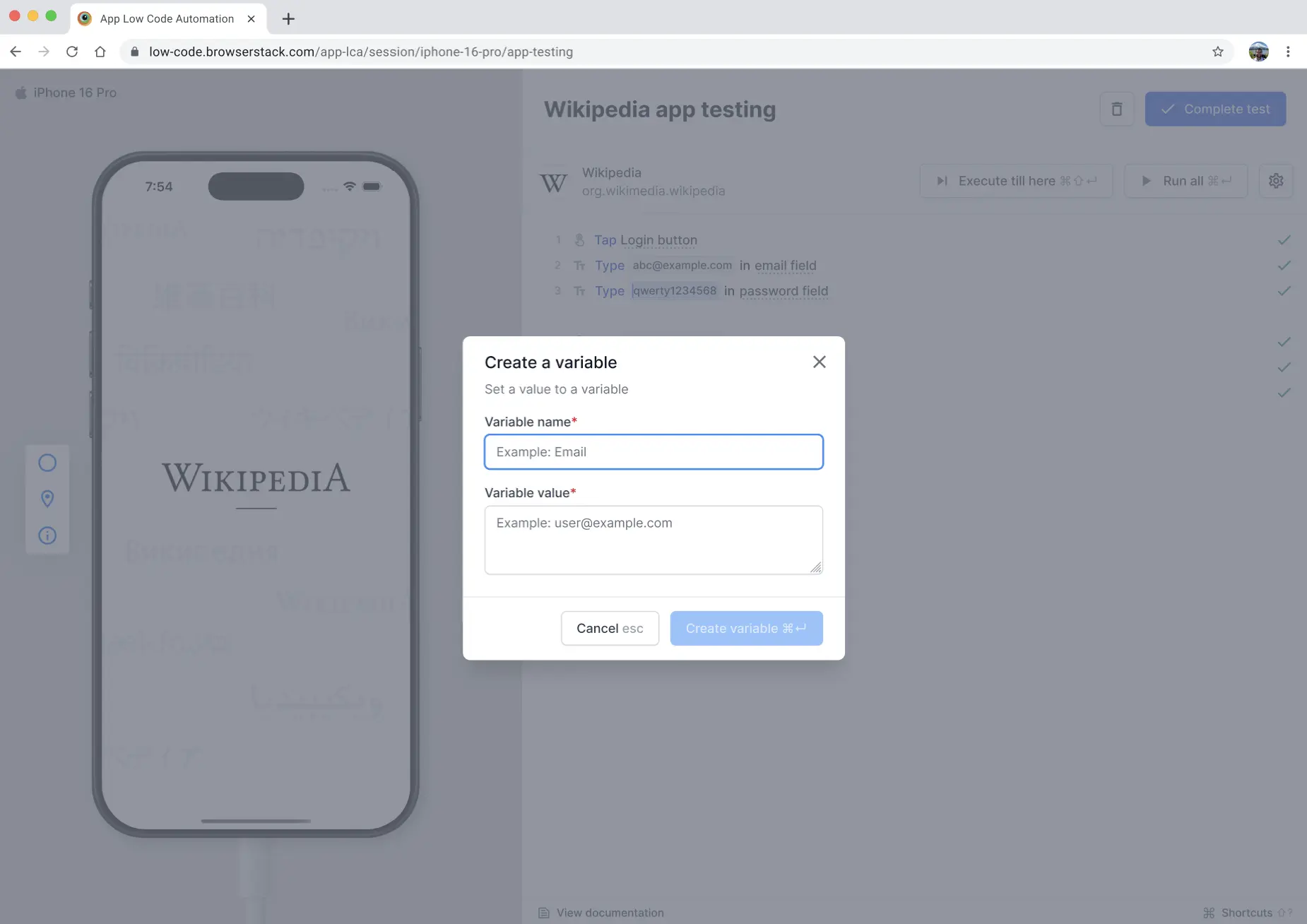
In the Create a variable dialog, enter the variable name and the variable value.
In the below example, the email address user@example.com is stored in the Email variable and the password 123abc is stored in the Password variable.
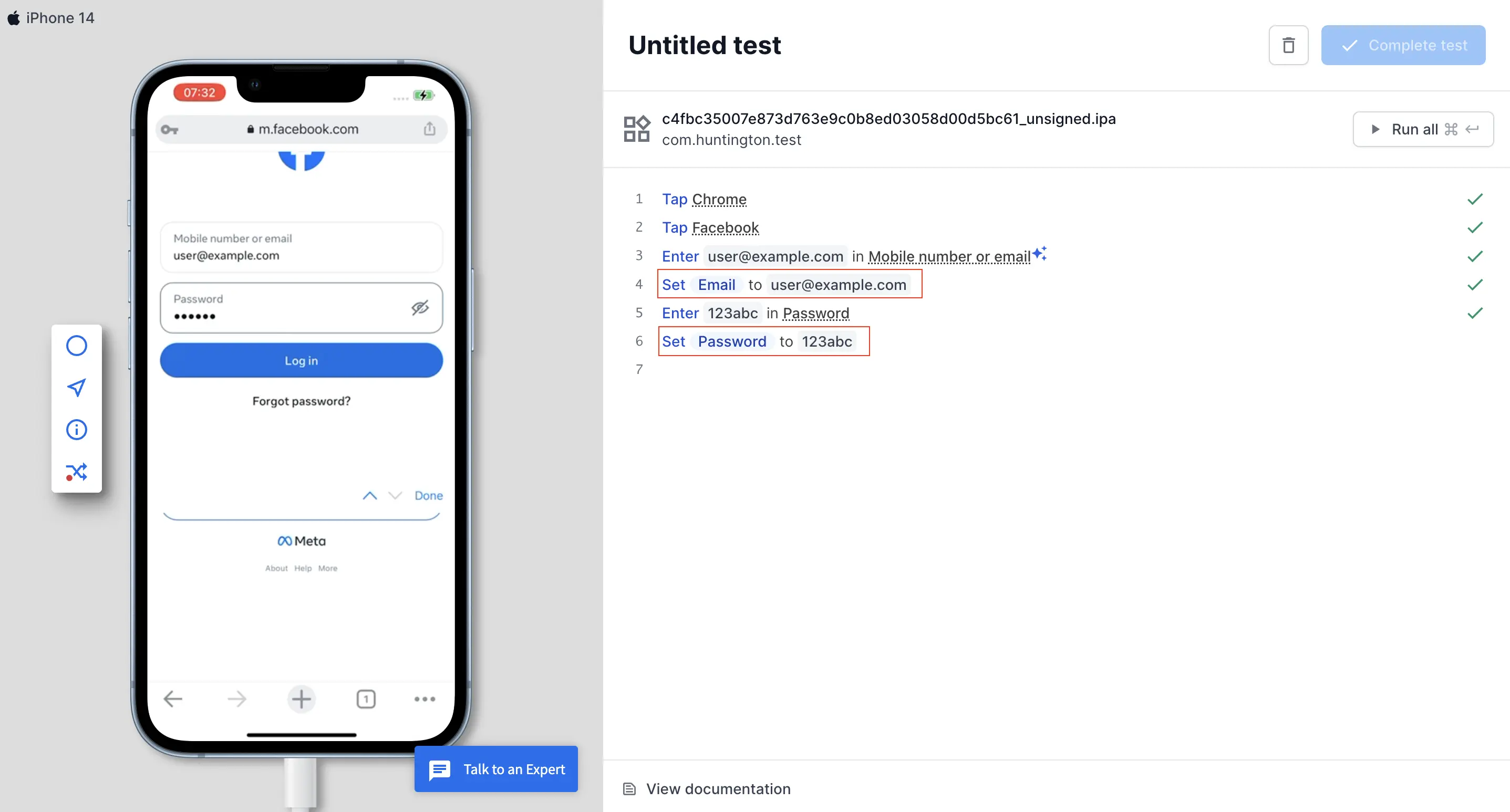
You can now reference this variable in other steps within the same test.
Deleting the original instance where the variable was created deletes the local variable from App Low Code Automation.
Extract a value into a variable
Some values change on every run, such as a one-time password, an order ID, or an order total. Hardcoding these values makes a test fail as soon as the value changes. Instead, extract the value at run time and store it in a variable that later steps can use. You can extract a value from an element on the app screen, from an API response, or from a database query result.
Extract text from an app element
Use the Set Variable name to text of AI prompt command to read the text of an element at run time.
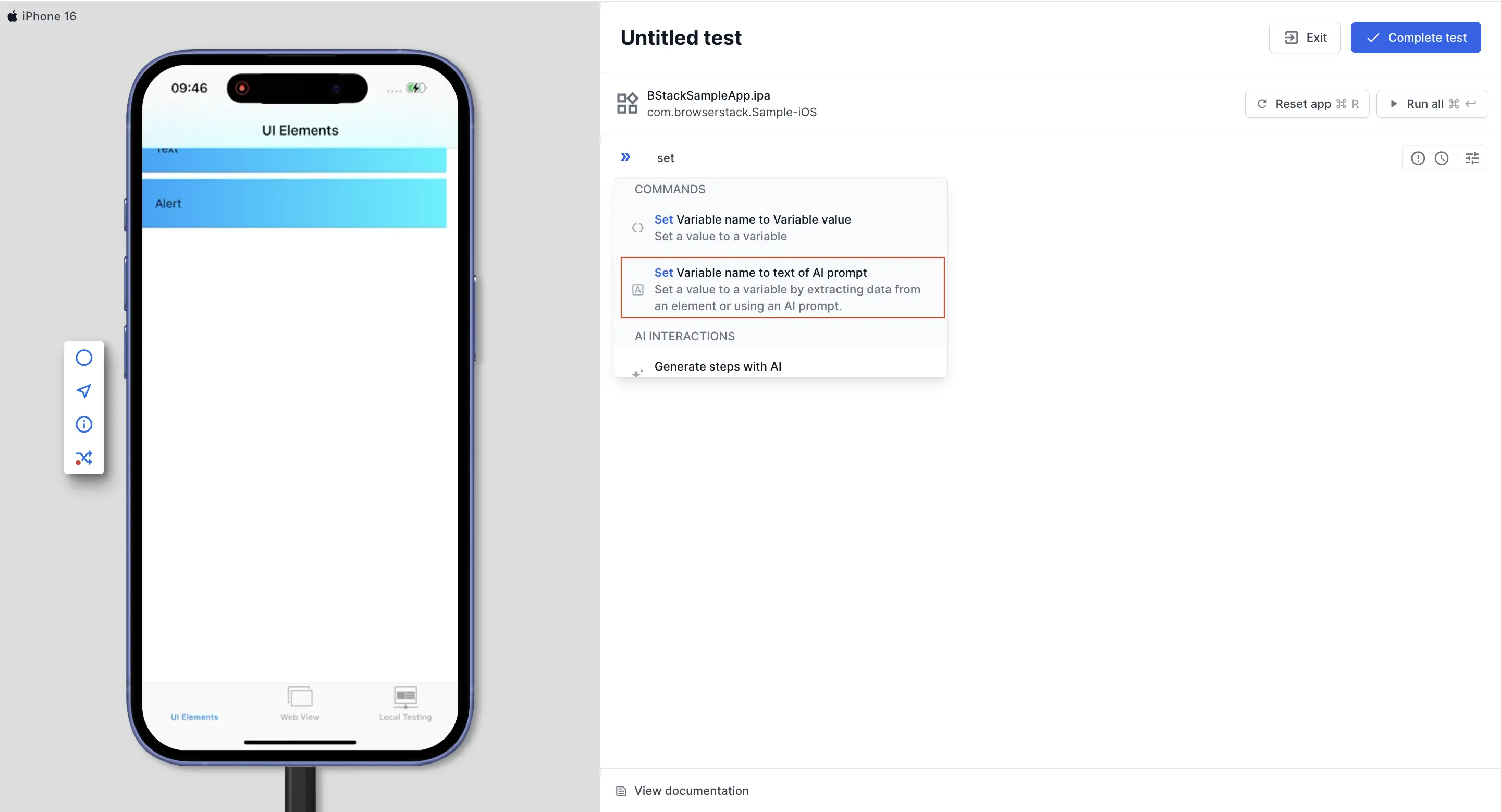
In the test editor, enter Set and select the Set Variable name to text of AI prompt command. The Extract value to a variable with AI dialog opens.
In the Variable name field, enter a name for the variable.
In the Value extraction prompt field, describe the element you want to read the text from, such as order confirmation message.
Click Extract. App Low Code Automation resolves the element on the device and shows the extracted text in the box below the Entire text and Filter specific text options.
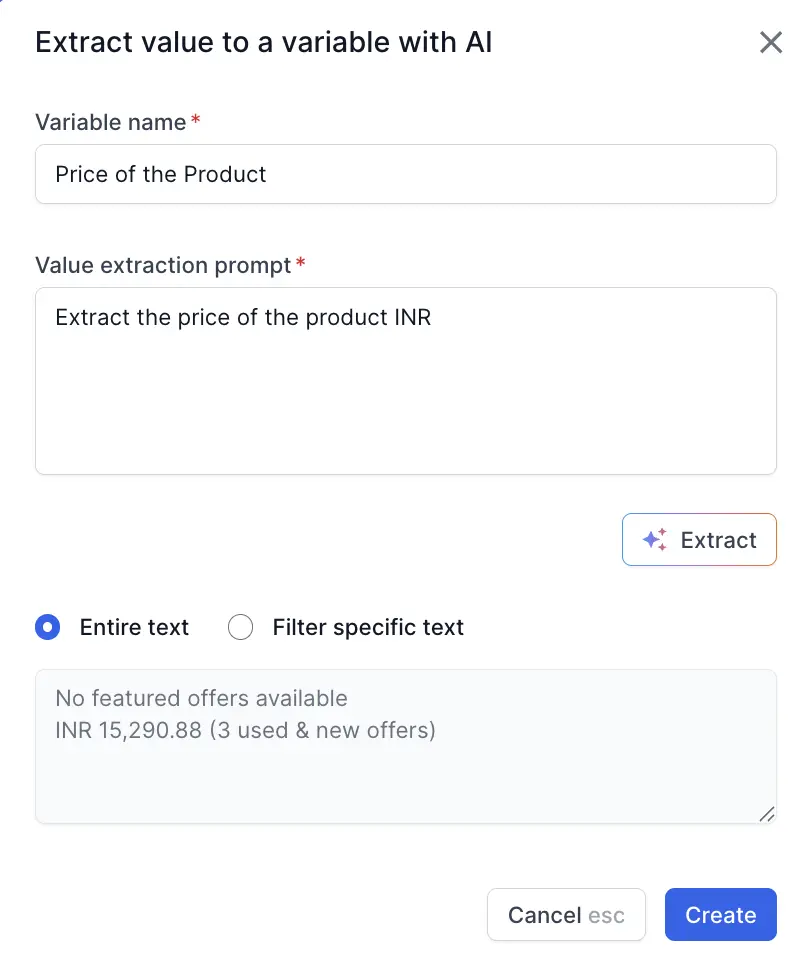
Select one of the following options:
- Entire text: Stores the full text of the element. This is the default option and matches the behavior of tests you created earlier.
- Filter specific text: Stores only the part of the extracted text that matches a regular expression. For more information, see Filter the extracted text with a regular expression.
Click Create. The step is added to your test with the value already extracted. The variable is a local variable, so it is available only to the steps that follow within this test.
To read more than one value, add a separate Set Variable name to text of AI prompt step for each value. A single step extracts one value from one element.
Filter the extracted text with a regular expression
A dynamic value is often embedded in a longer string, such as an order ID inside a confirmation sentence. Select Filter specific text and enter a regular expression to store only the matching part of the extracted text. The matched value appears under Value, below the Enter regex field, so you can confirm the pattern before you save the step.
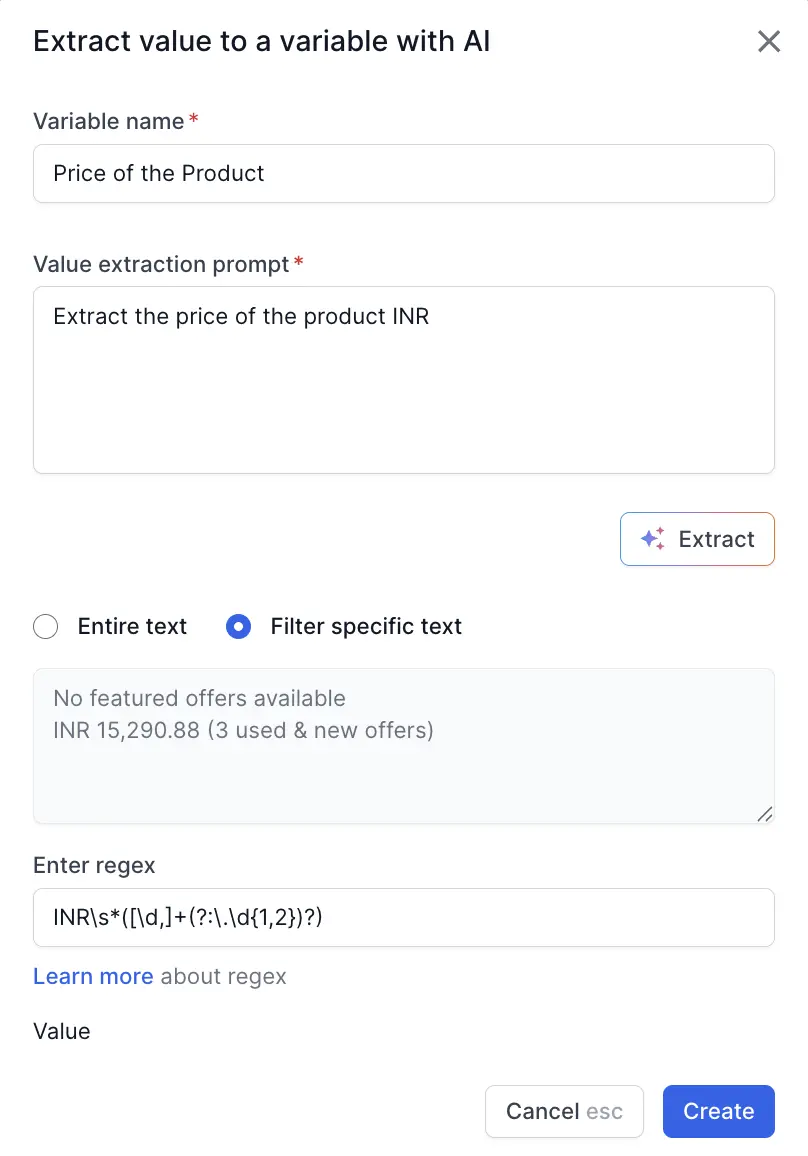
The following table shows some common patterns:
| Extracted text | Pattern | Stored value |
|---|---|---|
Your BrowserStack OTP is 493028. Valid for 5 min. |
[0-9]{6} |
493028 |
INR 15,290.88 (3 used & new offers) |
(?<=INR )[0-9,]+\.[0-9]{2} |
15,290.88 |
Your order ORD-2026-88213 has been placed |
ORD-[0-9]{4}-[0-9]{5} |
ORD-2026-88213 |
Total: 1,299.00 incl. tax |
[0-9,]+\.[0-9]{2} |
1,299.00 |
Confirmation sent to jane.doe@example.com |
[a-zA-Z0-9._%+-]+@[a-zA-Z0-9.-]+\.[a-z]{2,} |
jane.doe@example.com |
Arriving by 12 Mar 2026 |
[0-9]{2} [A-Za-z]{3} [0-9]{4} |
12 Mar 2026 |
Booking reference 7KX92P is confirmed |
[A-Z0-9]{6} |
7KX92P |
You saved 15% on this order |
[0-9]{1,3}% |
15% |
The pattern runs on every test run. If it matches nothing during a run, the step fails and follows the failure logic set for that step. To let the test continue, set the step to Warn but continue execution. For more information, see Configure step failure logic.
For more details on regular expressions and advanced patterns, see the regular expressions guide and the regex cheat sheet.
Filter values extracted from API and database steps
- Call API: Narrows the value that the JSON path or the XPath returns. For more information, see Call an API and extract values.
- Run DB query: Narrows the value that the query returns. For more information, see Data-driven testing.
In both steps, the regular expression runs on the value that the step already extracts. It narrows the result instead of replacing the JSON path, the XPath, or the query.
Create a global variable
Global variables help you share data across multiple tests and modules.
You cannot create global variables in the test editor. You can only create them in the Global variables section on the App Low Code Automation dashboard.
To create a global variable:
Go to the Global variables section in the sidebar.
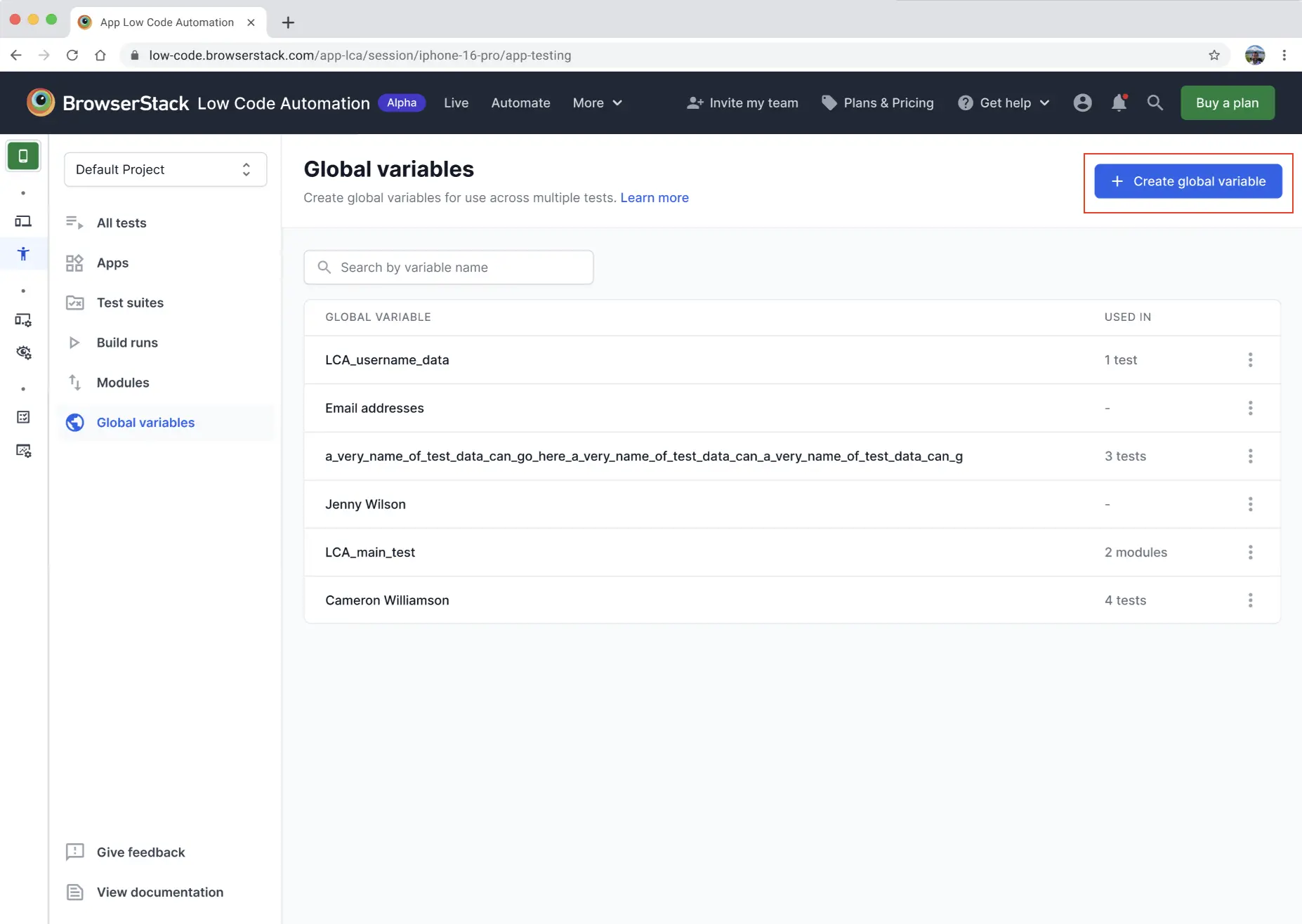
Click + Create global variable.
Enter a name and value for the variable.
Save the variable. You can now use it in any tests within App Low Code Automation.
Manage global variables
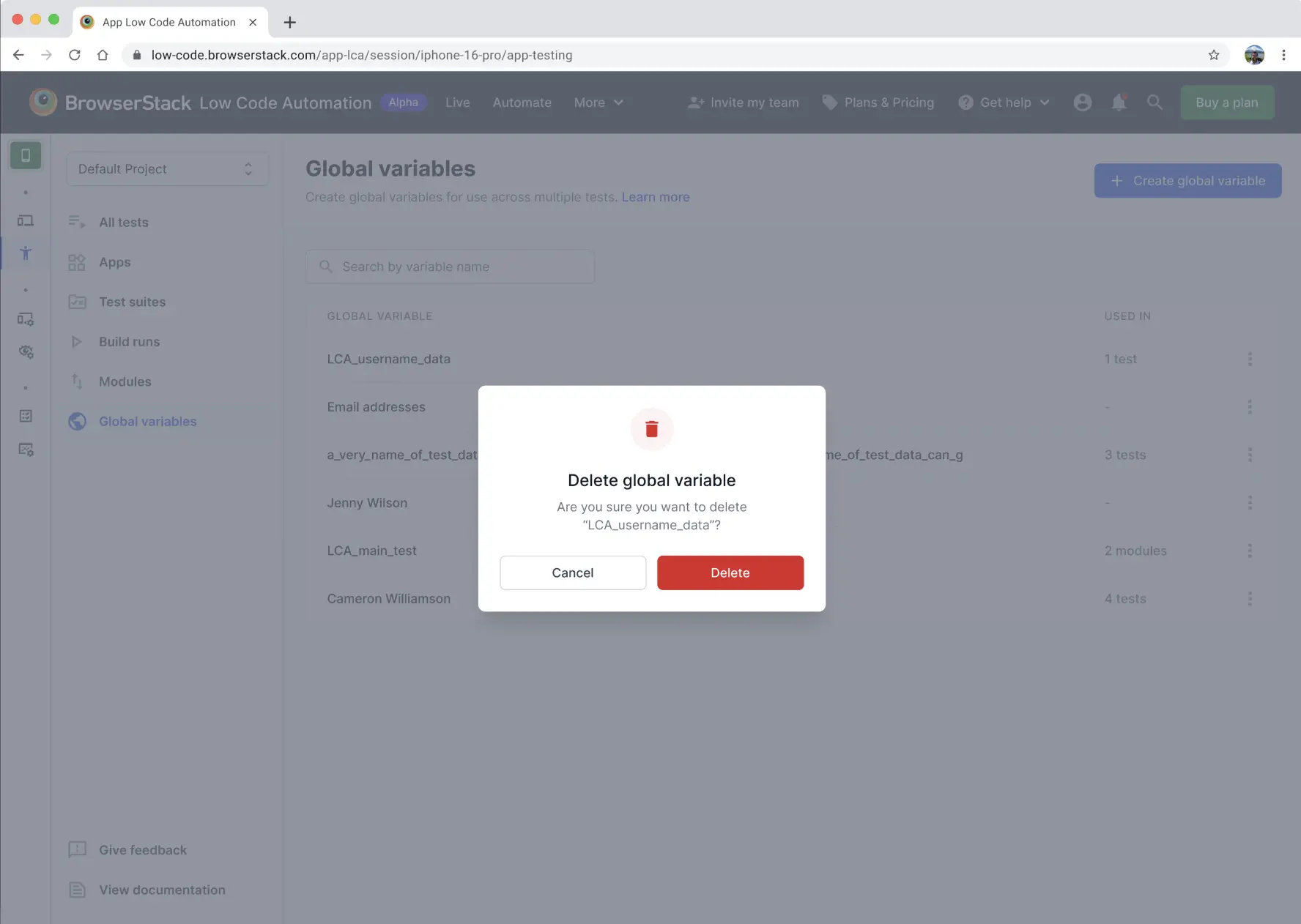
In the Global variables section, you see a list of all global variables. In the USED IN column, you can see how many tests use each global variable.
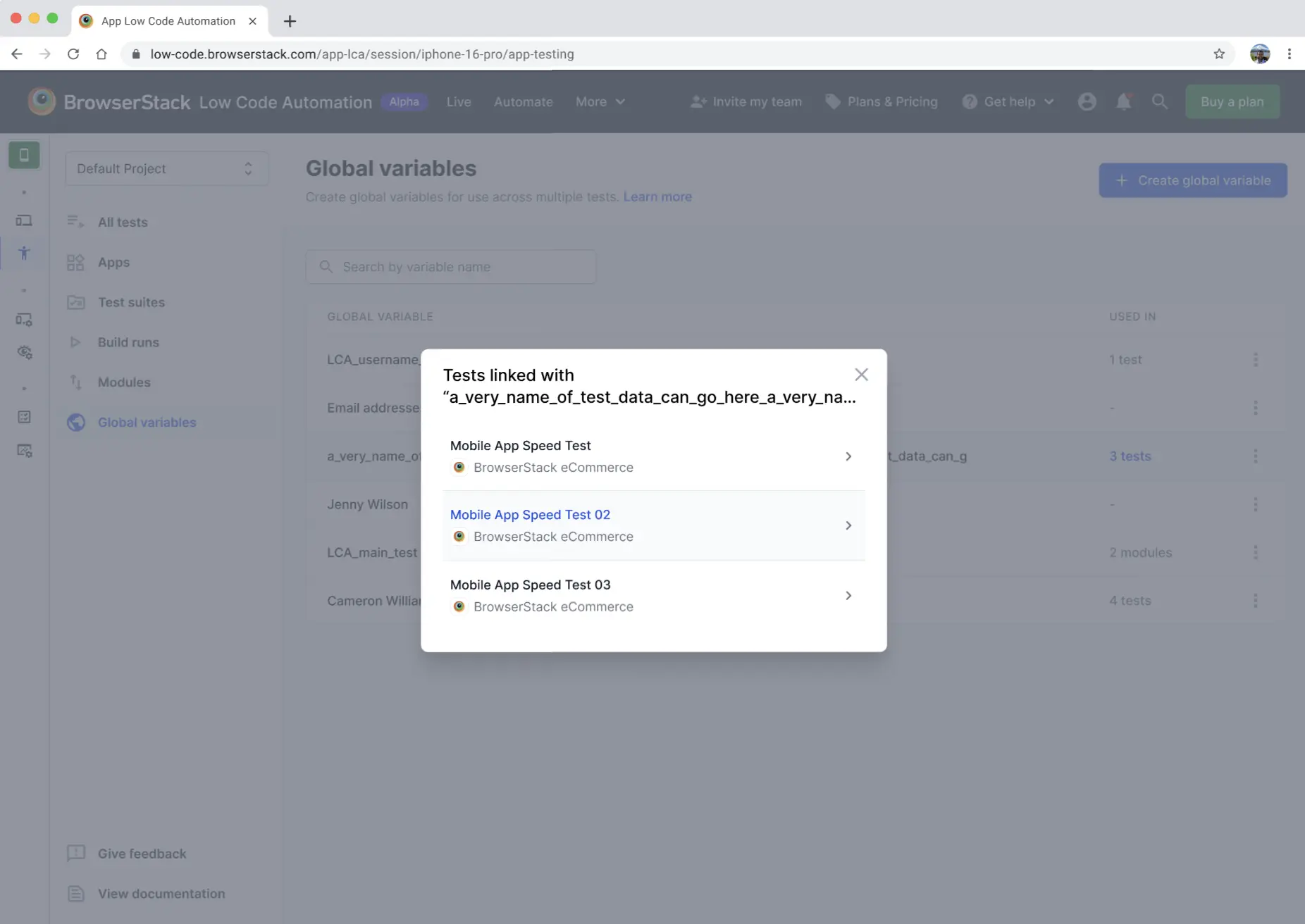
To delete a global variable, click the ︙ icon next to it, then click Delete. In the dialog, click Delete again to confirm.
Import variables into a test
You can import both local and global variables into your test steps:
In the test editor, type the Type command and then type @ at the location where you want to use a variable. The editor displays a dropdown with available local and global variables, including their names and values. The dropdown is visually grouped by LOCAL VARIABLES and GLOBAL VARIABLES.
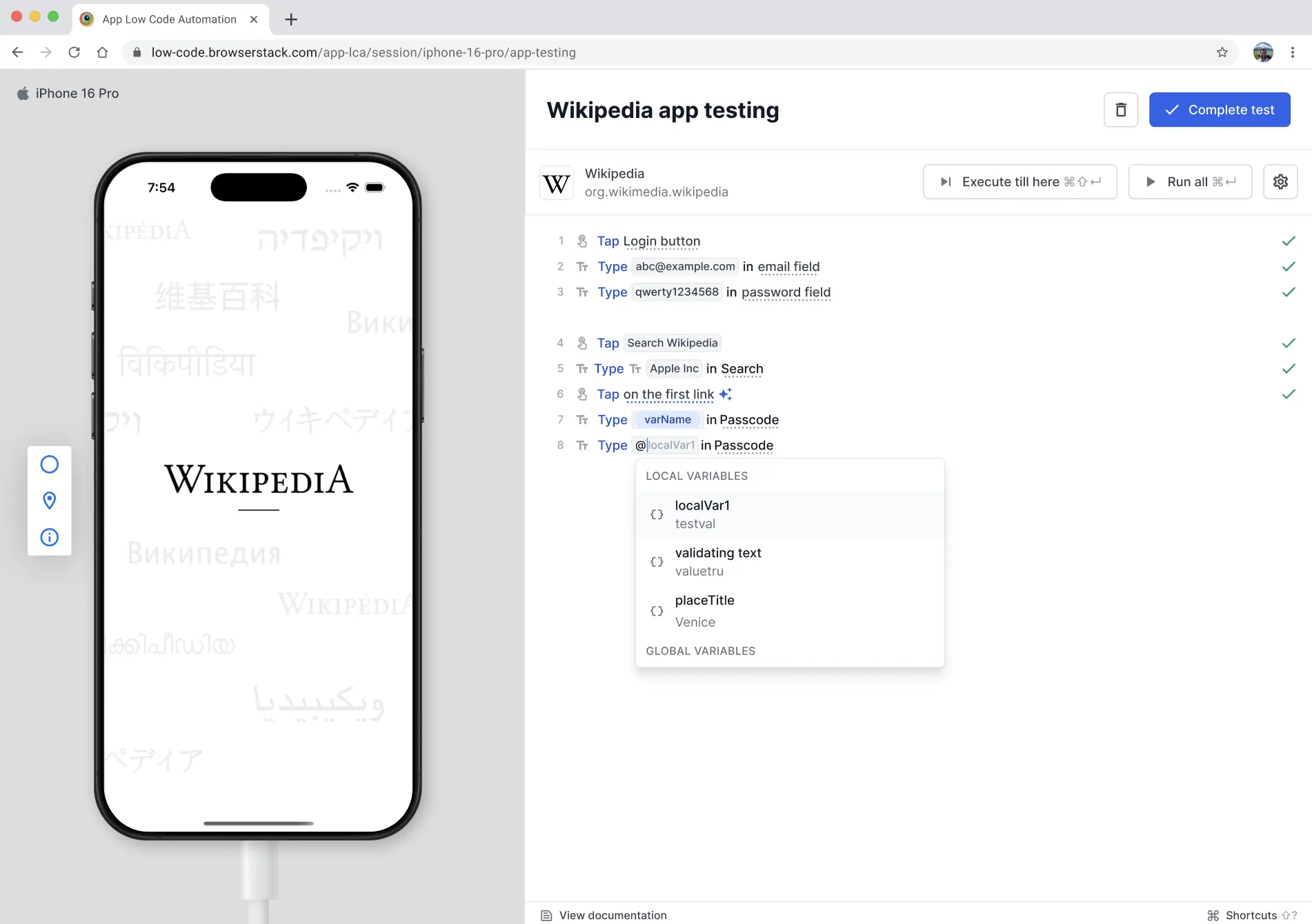
Select the variable from the list. The selected variable is inserted into your test step.
Variables help you centralize and manage data, making your tests easier to update and maintain. For more details, refer to the documentation or reach out to support.
We're sorry to hear that. Please share your feedback so we can do better
Contact our Support team for immediate help while we work on improving our docs.
We're continuously improving our docs. We'd love to know what you liked
We're sorry to hear that. Please share your feedback so we can do better
Contact our Support team for immediate help while we work on improving our docs.
We're continuously improving our docs. We'd love to know what you liked
Thank you for your valuable feedback!