Your test script contains contextual information related to the test, such as description of the test, start and end of scenarios, or any other data that you may want to print on the console for debugging and tracking. Using console annotations, you can add configurations in your tests that will log this information on BrowserStack. These logs are available on the Automate Dashboard along with the Selenium raw logs. These logs provide a way for you to quickly search and go to a specific section of the test and troubleshoot any failed tests.
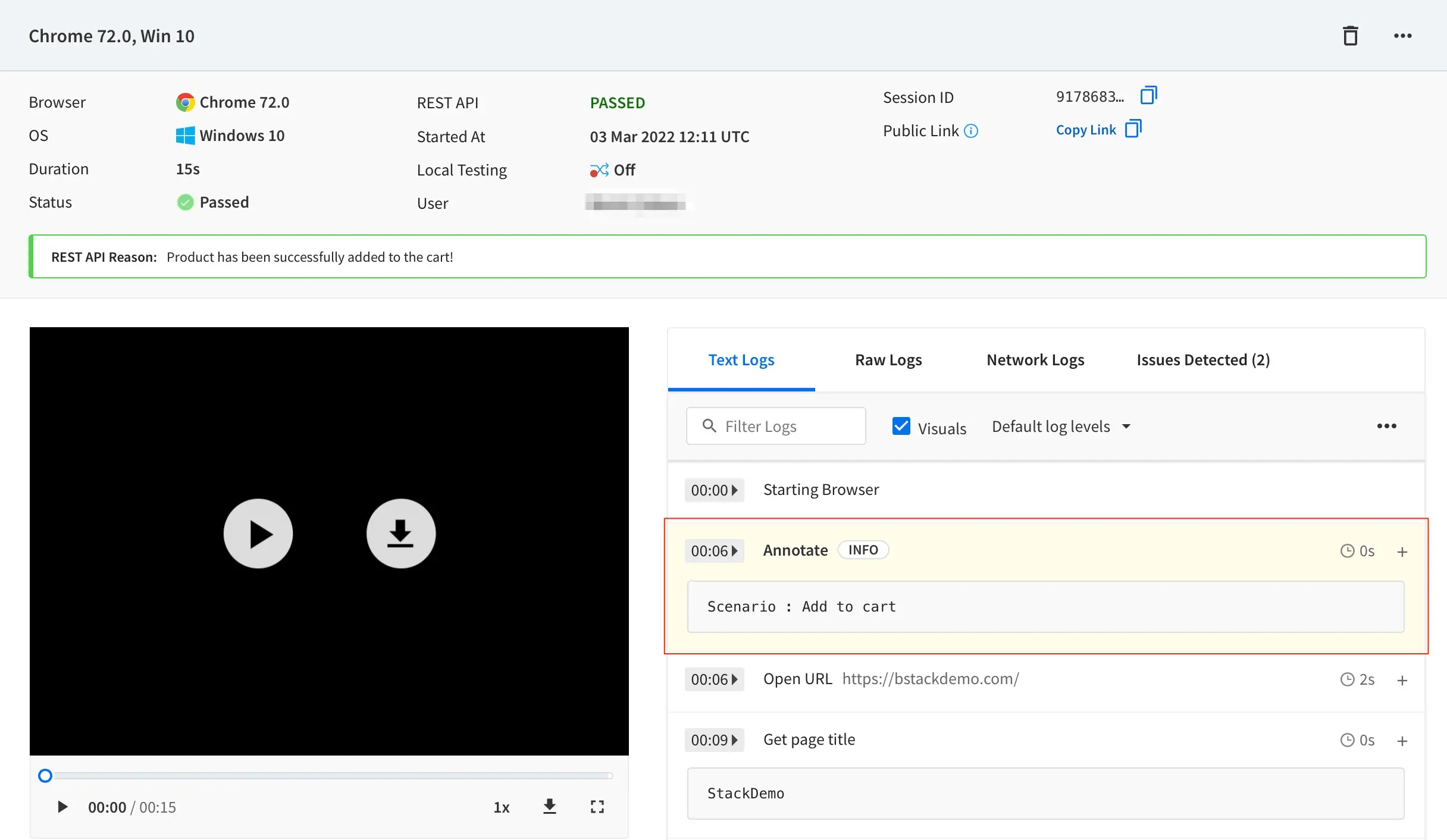
After you run a test that includes console annotations, you can view the logs with these annotations on the Automate Dashboard as seen in the following example:
Send logs to BrowserStack using JavascriptExecutor
You can send annotations to BrowserStack from within the test script using the annotate action implemented through the JavascriptExecutor as shown in the following snippets:
caps["javascriptEnabled"]="true"#Additionally, include this capability for JavaScript Executors to workdriver.execute_script('browserstack_executor: {"action": "annotate", "arguments": {"data":"<any string>", "level": "<info/warn/debug/error>"}}')
The arguments passed in the JavaScript method for setting the status and the corresponding reason for the test are data and level.
data accepts a value in string data-type.
level accepts the standard log severity levels, namely info , debug , warn, and error . This argument is optional with the default value of info.
Searching and Filtering
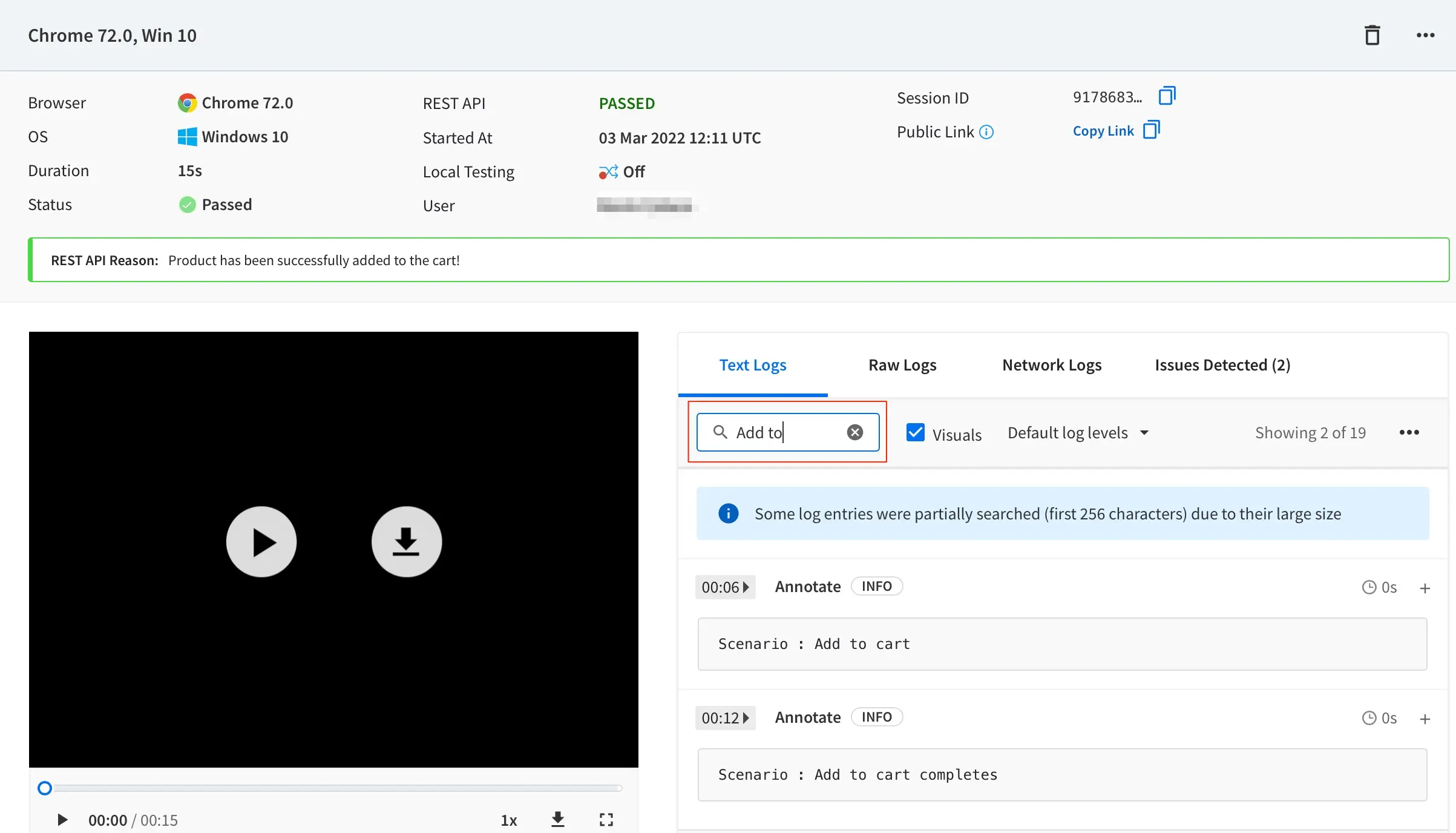
After your test script has sent console annotations to BrowserStack, you can find all the annotations pushed to the logs in the Text Logs tab on the Automate dashboard.
You can either search with the logged text in the searchbar or directly navigate to the section of test execution where you want to troubleshoot. This search feature is particularly helpful when your test sessions run for a long duration.
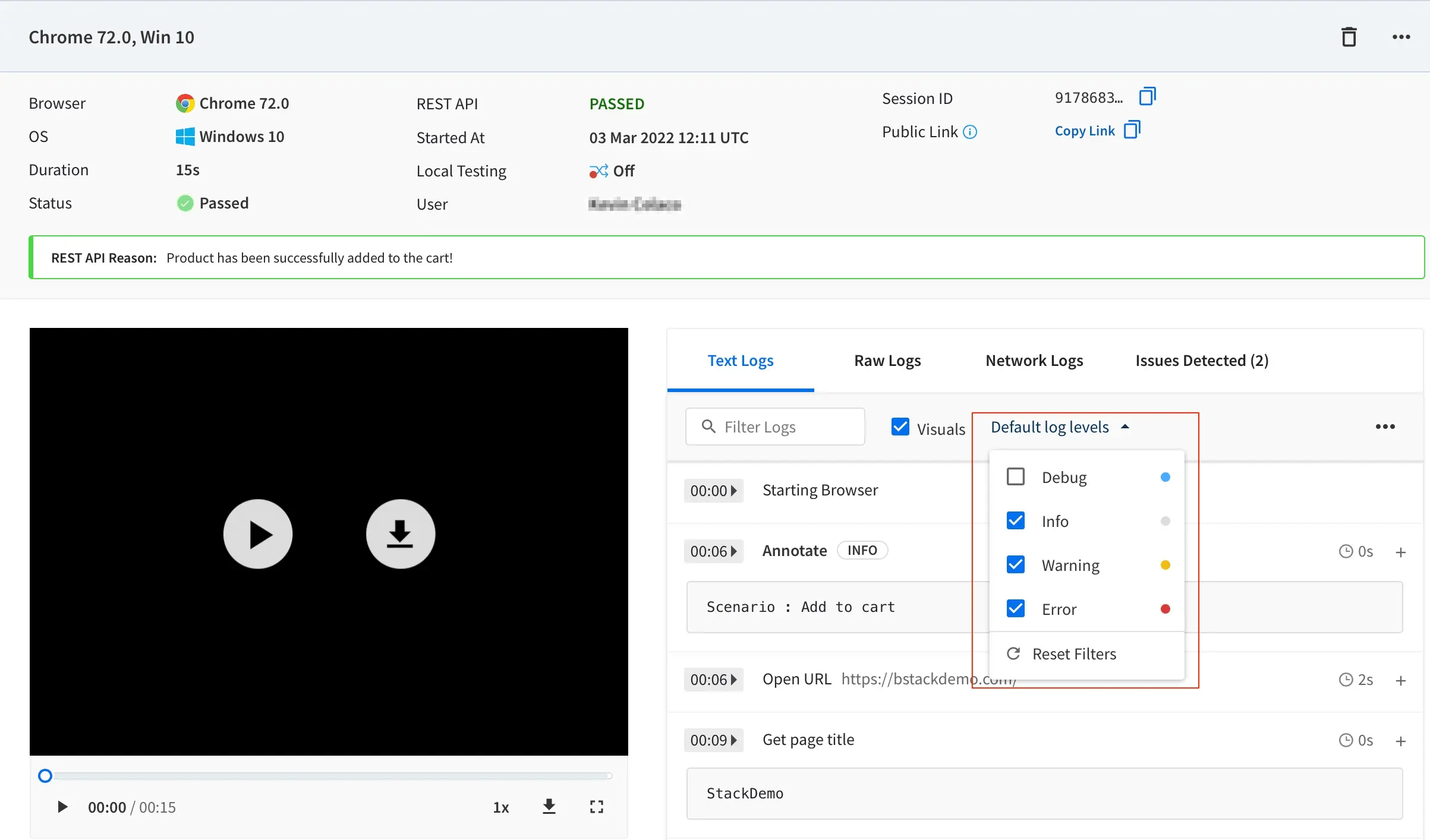
You can also filter these annotated logs based on the severity levels and customize the selection based on your logging patterns.
Sample code
The following code snippets show the annotation that is sent to BrowserStack when a product is added to the cart.
// Sample test in Java to run Automate session.importorg.openqa.selenium.By;importorg.openqa.selenium.Platform;importorg.openqa.selenium.WebDriver;importorg.openqa.selenium.WebElement;importorg.openqa.selenium.remote.DesiredCapabilities;importorg.openqa.selenium.remote.RemoteWebDriver;importorg.openqa.selenium.JavascriptExecutor;importjava.net.URL;importorg.openqa.selenium.support.ui.ExpectedConditions;importorg.openqa.selenium.support.ui.WebDriverWait;publicclassJavaSample{publicstaticfinalStringAUTOMATE_USERNAME="YOUR_USERNAME";publicstaticfinalStringAUTOMATE_ACCESS_KEY="YOUR_ACCESS_KEY";publicstaticfinalStringURL="https://"+AUTOMATE_USERNAME+":"+AUTOMATE_ACCESS_KEY+"hub.browserstack.com/wd/hub";publicstaticvoidmain(String[]args)throwsException{DesiredCapabilitiescapabilities=newDesiredCapabilities();HashMap<String,Object>browserstackOptions=newHashMap<String,Object>();browserstackOptions.put("osVersion","14");browserstackOptions.put("deviceName","iPhone 12");browserstackOptions.put("realMobile","true");browserstackOptions.put("projectName","BStack Sample Test");browserstackOptions.put("buildName","BStack Build Number 1");capabilities.setCapability("bstack:options",browserstackOptions);finalWebDriverdriver=newRemoteWebDriver(newURL(URL),caps);try{// logging start of test session at BrowserStackannotate("Add to cart","info",driver);driver.get("https://bstackdemo.com/");finalWebDriverWaitwait=newWebDriverWait(driver,10);wait.until(ExpectedConditions.titleIs("StackDemo"));// getting name of the productStringproduct_name=wait.until(ExpectedConditions.visibilityOfElementLocated(By.xpath("//*[@id=\'1\']/p"))).getText();// waiting for the Add to cart button to be clickableWebElementcart_btn=wait.until(ExpectedConditions.elementToBeClickable(By.xpath("//*[@id=\'1\']/div[4]")));// clicking the 'Add to cart' buttoncart_btn.click();// checking if the Cart pane is visiblewait.until(ExpectedConditions.visibilityOfElementLocated(By.className("float-cart__content")));// getting the product's name added in the cartfinalStringproduct_in_cart=wait.until(ExpectedConditions.visibilityOfElementLocated(By.xpath("//*[@id=\'__next\']/div/div/div[2]/div[2]/div[2]/div/div[3]/p[1]"))).getText();// logging variable for debugging purposeannotate("product in cart = "+product_in_cart,"debug",driver);// verifying whether the product added to cart is available in the cartif(product_name.equals(product_in_cart)){markTestStatus("passed","Product has been successfully added to the cart!",driver);}else{markTestStatus("failed","Product has not successfully added to the cart!",driver);annotate("Product not found in cart. Test Failed","error",driver);}}catch(Exceptione){markTestStatus("failed","Some elements failed to load",driver);}driver.quit();}// This method accepts the status, reason and WebDriver instance and marks the test on BrowserStackpublicstaticvoidmarkTestStatus(Stringstatus,Stringreason,WebDriverdriver){finalJavascriptExecutorjse=(JavascriptExecutor)driver;jse.executeScript("browserstack_executor: {\"action\": \"setSessionStatus\", \"arguments\": {\"status\": \""+status+"\", \"reason\": \""+reason+"\"}}");}publicstaticvoidannotate(Stringdata,Stringlevel,WebDriverdriver){finalJavascriptExecutorjse=(JavascriptExecutor)driver;jse.executeScript("browserstack_executor: {\"action\": \"annotate\", \"arguments\": {\"data\": \""+data+"\", \"level\": \""+level+"\"}}");}}
varwebdriver=require('selenium-webdriver');const{By}=require('selenium-webdriver');constassert=require('assert');// Input capabilitiesvarcapabilities={'bstack:options':{"osVersion":"14","deviceName":"iPhone 12","realMobile":"true","projectName":"BStack Sample Test","buildName":"BStack Build Number 1","userName":"YOUR_USERNAME","accessKey":"YOUR_ACCESS_KEY",},"browserName":"safari",}functionsleep(time){returnnewPromise((resolve)=>setTimeout(resolve,time));}asyncfunctionrunTestWithCaps(){letdriver=newwebdriver.Builder().usingServer(`https://YOUR_USERNAME:YOUR_ACCESS_KEY@hub.browserstack.com/wd/hub`).withCapabilities(capabilities).build();try{awaitdriver.executeScript('browserstack_executor: {"action": "annotate", "arguments": {"data":"Scenario : Add to cart","level": "info"}}');awaitdriver.get("https://bstackdemo.com/");awaitdriver.wait(webdriver.until.titleMatches(/StackDemo/i),10000);// locating product on webpageconstproductOnScreen=awaitdriver.wait(webdriver.until.elementLocated(By.xpath('//*[@id="1"]/p')),10000)// getting name of the product when the product is visibleconstproductText=awaitdriver.wait(webdriver.until.elementIsVisible(productOnScreen,10000)).getText();// clicking the 'Add to cart' buttonawaitdriver.wait(webdriver.until.elementIsVisible(driver.findElement(By.xpath('//*[@id="1"]/div[4]'),10000))).click();// waiting until the Cart pane has been displayed on the webpageawaitdriver.wait(webdriver.until.elementIsVisible(driver.findElement(By.className('float-cart__content'),10000)));// locating product in cartconstproductInCart=awaitdriver.wait(webdriver.until.elementLocated(By.xpath('//*[@id="__next"]/div/div/div[2]/div[2]/div[2]/div/div[3]/p[1]')),10000);// getting name of the product in cart if the product is visible on web pageconstproductCartText=awaitdriver.wait(webdriver.until.elementIsVisible(productInCart,10000)).getText();awaitdriver.executeScript('browserstack_executor: {"action": "annotate", "arguments": {"data":"product in cart = '+productCartText+'","level": "debug"}}');// checking whether product has been added to cart by comparing product nameassert(productText===productCartText);//marking the test as Passed if product has been added to the cartawaitdriver.executeScript('browserstack_executor: {"action": "setSessionStatus", "arguments": {"status":"passed","reason": "Product has been successfully added to the cart!"}}');awaitdriver.executeScript('browserstack_executor: {"action": "annotate", "arguments": {"data":"Scenario : Add to cart completes","level": "info"}}');}catch(e){//marking the test as Failed if product has not been added to the cartconsole.log("Error:",e.message)awaitdriver.executeScript('browserstack_executor: {"action": "setSessionStatus", "arguments": {"status":"failed","reason": "Add to cart failed"}}');awaitdriver.executeScript('browserstack_executor: {"action": "annotate", "arguments": {"data":"Scenario : Add to cart - failed","level": "error"}}');}awaitdriver.quit();}runTestWithCaps();
usingSystem;usingOpenQA.Selenium;usingOpenQA.Selenium.Remote;usingOpenQA.Selenium.Support.UI;namespaceSeleniumTest{classProgram{staticvoidMain(string[]args){IWebDriverdriver;SafariOptionscapabilities=newSafariOptions();Dictionary<string,object>browserstackOptions=newDictionary<string,object>();browserstackOptions.Add("osVersion","14");browserstackOptions.Add("deviceName","iPhone 12");browserstackOptions.Add("realMobile","true");browserstackOptions.Add("projectName","BStack Sample Test");browserstackOptions.Add("buildName","BStack Build Number 1");browserstackOptions.Add("local","true");browserstackOptions.Add("userName","YOUR_USERNAME");browserstackOptions.Add("accessKey","YOUR_ACCESS_KEY");capabilities.AddAdditionalOption("bstack:options",browserstackOptions);driver=newRemoteWebDriver(newUri("https://hub.browserstack.com/wd/hub/"),capability);WebDriverWaitwait=newWebDriverWait(driver,TimeSpan.FromSeconds(10));try{// logging start of test session at BrowserStack((IJavaScriptExecutor)driver).ExecuteScript("browserstack_executor: {\"action\": \"annotate\", \"arguments\": {\"data\":\"Add to cart\", \"level\": \"info\"}}");driver.Navigate().GoToUrl("https://bstackdemo.com/");// getting name of the productIWebElementproduct=driver.FindElement(By.XPath("//*[@id='1']/p"));wait.Until(driver=>product.Displayed);Stringproduct_on_page=product.Text;// clicking the 'Add to Cart' buttonIWebElementcart_btn=driver.FindElement(By.XPath("//*[@id='1']/div[4]"));wait.Until(driver=>cart_btn.Displayed);cart_btn.Click();// waiting for the Cart pane to appearwait.Until(driver=>driver.FindElement(By.ClassName("float-cart__content")).Displayed);// getting name of the product in the cartStringproduct_in_cart=driver.FindElement(By.XPath("//*[@id='__next']/div/div/div[2]/div[2]/div[2]/div/div[3]/p[1]")).Text;// logging variable for debugging purpose((IJavaScriptExecutor)driver).ExecuteScript("browserstack_executor: {\"action\": \"annotate\", \"arguments\": {\"data\":\"product in cart = "+product_in_cart+"\", \"level\": \"debug\"}}");if(product_on_page==product_in_cart){((IJavaScriptExecutor)driver).ExecuteScript("browserstack_executor: {\"action\": \"setSessionStatus\", \"arguments\": {\"status\":\"passed\", \"reason\": \" Product has been successfully added to the cart!\"}}");}}catch{((IJavaScriptExecutor)driver).ExecuteScript("browserstack_executor: {\"action\": \"setSessionStatus\", \"arguments\": {\"status\":\"failed\", \"reason\": \" Some elements failed to load.\"}}");}driver.Quit();}}}
<?phprequire_once('vendor/autoload.php');useFacebook\WebDriver\Remote\RemoteWebDriver;useFacebook\WebDriver\WebDriverBy;useFacebook\WebDriver\WebDriverExpectedCondition;$caps=array('bstack:options'=>array("osVersion"=>"14","deviceName"=>"iPhone 12","realMobile"=>"true","projectName"=>"BStack Sample Test","buildName"=>"BStack Build Number 1",),)$web_driver=RemoteWebDriver::create("https://YOUR_USERNAME:YOUR_ACCESS_KEY@hub.browserstack.com/wd/hub",$caps);try{# logging start of test session at BrowserStack$web_driver->executeScript('browserstack_executor: {"action": "annotate", "arguments": {"data":"Scenario : Add to cart","level": "info"}}');$web_driver->get("https://bstackdemo.com/");$web_driver->wait(10000)->until(WebDriverExpectedCondition::titleIs("StackDemo"));# getting text of the product$product_on_page=$web_driver->wait(10000)->until(WebDriverExpectedCondition::presenceOfElementLocated(WebDriverBy::XPath("//*[@id='1']/p")))->getText();# clicking the 'Add to cart' button$web_driver->wait(10000)->until(WebDriverExpectedCondition::presenceOfElementLocated(WebDriverBy::XPath("//*[@id='1']/div[4]")))->click();# checking whether the cart pane is present on webpage$web_driver->wait(10000)->until(WebDriverExpectedCondition::presenceOfElementLocated(WebDriverBy::className("float-cart__content")));# getting text of the product$product_in_cart=$web_driver->wait(10000)->until(WebDriverExpectedCondition::presenceOfElementLocated(WebDriverBy::XPath("//*[@id='__next']/div/div/div[2]/div[2]/div[2]/div/div[3]/p[1]")))->getText();# logging variable for debugging purpose$web_driver->executeScript('browserstack_executor: {"action": "annotate", "arguments": {"data":"product in cart = '+productCartText+'","level": "debug"}}');# Setting the status of test as 'passed' or 'failed' based on the condition; if title of the web page starts with 'BrowserStack'if($product_on_page==$product_in_cart){$web_driver->executeScript('browserstack_executor: {"action": "setSessionStatus", "arguments": {"status":"passed", "reason": "Product has been successfully added to the cart!"}}');// logging completion of scenario$web_driver->executeScript('browserstack_executor: {"action": "annotate", "arguments": {"data":"Scenario : Add to cart completes","level": "info"}}');}else{$web_driver->executeScript('browserstack_executor: {"action": "setSessionStatus", "arguments": {"status":"failed", "reason": "Failed to add product to the cart or some elements might have failed to load."}}');}}catch(Exception$e){echo'Message: '.$e->getMessage();}$web_driver->quit();?>
fromseleniumimportwebdriverfromselenium.webdriver.common.keysimportKeysfromselenium.webdriver.common.desired_capabilitiesimportDesiredCapabilitiesfromselenium.common.exceptionsimportTimeoutExceptionfromselenium.webdriver.support.uiimportWebDriverWaitfromselenium.webdriver.supportimportexpected_conditionsasECfromselenium.webdriver.common.byimportBydesired_cap={'bstack:options':{"osVersion":"14","deviceName":"iPhone 12","realMobile":"true","projectName":"BStack Sample Test","buildName":"BStack Build Number 1",},}driver=webdriver.Remote(command_executor='https://YOUR_USERNAME:YOUR_ACCESS_KEY@hub.browserstack.com/wd/hub',desired_capabilities=desired_cap)try:driver.get("https://bstackdemo.com/")# Logging start of test session at BrowserStack
driver.execute_script('browserstack_executor: {"action": "annotate", "arguments": {"data":"Scenario : Add to cart","level": "info"}}');WebDriverWait(driver,10).until(EC.title_contains("StackDemo"))# Get text of an product - iPhone 12
item_on_page=WebDriverWait(driver,10).until(EC.visibility_of_element_located((By.XPATH,'//*[@id="1"]/p'))).text# Click the 'Add to cart' button if it is visible
WebDriverWait(driver,10).until(EC.visibility_of_element_located((By.XPATH,'//*[@id="1"]/div[4]'))).click()# Check if the Cart pane is visible
WebDriverWait(driver,10).until(EC.visibility_of_element_located((By.CLASS_NAME,"float-cart__content")))## Get text of product in cart
item_in_cart=WebDriverWait(driver,10).until(EC.visibility_of_element_located((By.XPATH,'//*[@id="__next"]/div/div/div[2]/div[2]/div[2]/div/div[3]/p[1]'))).text# logging variable for debugging purpose
driver.execute_script('browserstack_executor: {"action": "annotate", "arguments": {"data":"product in cart = '+productCartText+'","level": "debug"}}');# Verify whether the product (iPhone 12) is added to cart
ifitem_on_page==item_in_cart:# Set the status of test as 'passed' or 'failed' based on the condition; if item is added to cart
driver.execute_script('browserstack_executor: {"action": "setSessionStatus", "arguments": {"status":"passed", "reason": "iPhone 12 has been successfully added to the cart!"}}')# logging completion of scenario
driver.execute_script('browserstack_executor: {"action": "annotate", "arguments": {"data":"Scenario : Add to cart completes","level": "info"}}');exceptNoSuchElementException:driver.execute_script('browserstack_executor: {"action": "setSessionStatus", "arguments": {"status":"failed", "reason": "Some elements failed to load"}}')# Stop the driver
driver.quit()
require'rubygems'require'selenium-webdriver'# Input capabilitiescapabilities={'bstack:options'=>{"osVersion"=>"14","deviceName"=>"iPhone 12","realMobile"=>"true","projectName"=>"BStack Sample Test","buildName"=>"BStack Build Number 1",},}driver=Selenium::WebDriver.for(:remote,:url=>"https://YOUR_USERNAME:YOUR_ACCESS_KEY@hub.browserstack.com/wd/hub",:desired_capabilities=>caps)begin# logging start of test session at BrowserStackdriver.execute_script('browserstack_executor: {"action": "annotate", "arguments": {"data":"Scenario : Add to cart","level": "info"}}')# opening the bstackdemo.com websitedriver.navigate.to"https://bstackdemo.com/"wait=Selenium::WebDriver::Wait.new(:timeout=>10)# secondswait.until{!driver.title.match(/StackDemo/i).nil?}# getting name of the product available on the webpageproduct=driver.find_element(:xpath,'//*[@id="1"]/p')wait.until{product.displayed?}product_text=product.text# waiting until the Add to Cart button is displayed on webpage and then clicking itcart_btn=driver.find_element(:xpath,'//*[@id="1"]/div[4]')wait.until{cart_btn.displayed?}cart_btn.click# waiting until the Cart pane appearswait.until{driver.find_element(:xpath,'//*[@id="__next"]/div/div/div[2]/div[2]/div[2]/div/div[3]/p[1]').displayed?}# getting name of the product in the cartproduct_in_cart=driver.find_element(:xpath,'//*[@id="__next"]/div/div/div[2]/div[2]/div[2]/div/div[3]/p[1]')wait.until{product_in_cart.displayed?}product_in_cart_text=product_in_cart.text# logging variable for debugging purposedriver.execute_script('browserstack_executor: {"action": "annotate", "arguments": {"data":"product in cart = '+product_in_cart_text+'","level": "debug"}}')# checking if the product has been added to the cartifproduct_text.eql?product_in_cart_text# marking test as 'passed' if the product is successfully added to the cartdriver.execute_script('browserstack_executor: {"action": "setSessionStatus", "arguments": {"status":"passed", "reason": "Product has been successfully added to the cart!"}}')# logging completion of scenariodriver.execute_script('browserstack_executor: {"action": "annotate", "arguments": {"data":"Scenario : Add to cart completes","level": "info"}}')else# marking test as 'failed' if the product is not added to the cartdriver.execute_script('browserstack_executor: {"action": "setSessionStatus", "arguments": {"status":"failed", "reason": "Failed to add product to the cart"}}')end# marking test as 'failed' if test script is unable to open the bstackdemo.com websiterescuedriver.execute_script('browserstack_executor: {"action": "setSessionStatus", "arguments": {"status":"failed", "reason": "Some elements failed to load"}}')enddriver.quit
// Sample test in Java to run Automate session.importorg.openqa.selenium.By;importorg.openqa.selenium.Platform;importorg.openqa.selenium.WebDriver;importorg.openqa.selenium.WebElement;importorg.openqa.selenium.remote.DesiredCapabilities;importorg.openqa.selenium.remote.RemoteWebDriver;importorg.openqa.selenium.JavascriptExecutor;importjava.net.URL;importorg.openqa.selenium.support.ui.ExpectedConditions;importorg.openqa.selenium.support.ui.WebDriverWait;publicclassJavaSample{publicstaticfinalStringAUTOMATE_USERNAME="YOUR_USERNAME";publicstaticfinalStringAUTOMATE_ACCESS_KEY="YOUR_ACCESS_KEY";publicstaticfinalStringURL="https://"+AUTOMATE_USERNAME+":"+AUTOMATE_ACCESS_KEY+"hub.browserstack.com/wd/hub";publicstaticvoidmain(String[]args)throwsException{DesiredCapabilitiescaps=newDesiredCapabilities();caps.setCapability("os_version","11");caps.setCapability("browser","Chrome");caps.setCapability("browser_version","latest");caps.setCapability("os","Windows");caps.setCapability("name","BStack-[Java] Sample Test");// test namecaps.setCapability("build","BStack Build Number 1");// CI/CD job or build namefinalWebDriverdriver=newRemoteWebDriver(newURL(URL),caps);try{// logging start of test session at BrowserStackannotate("Add to cart","info",driver);driver.get("https://bstackdemo.com/");finalWebDriverWaitwait=newWebDriverWait(driver,10);wait.until(ExpectedConditions.titleIs("StackDemo"));// getting name of the productStringproduct_name=wait.until(ExpectedConditions.visibilityOfElementLocated(By.xpath("//*[@id=\'1\']/p"))).getText();// waiting for the Add to cart button to be clickableWebElementcart_btn=wait.until(ExpectedConditions.elementToBeClickable(By.xpath("//*[@id=\'1\']/div[4]")));// clicking the 'Add to cart' buttoncart_btn.click();// checking if the Cart pane is visiblewait.until(ExpectedConditions.visibilityOfElementLocated(By.className("float-cart__content")));// getting the product's name added in the cartfinalStringproduct_in_cart=wait.until(ExpectedConditions.visibilityOfElementLocated(By.xpath("//*[@id=\'__next\']/div/div/div[2]/div[2]/div[2]/div/div[3]/p[1]"))).getText();// logging variable for debugging purposeannotate("product in cart = "+product_in_cart,"debug",driver);// verifying whether the product added to cart is available in the cartif(product_name.equals(product_in_cart)){markTestStatus("passed","Product has been successfully added to the cart!",driver);}else{markTestStatus("failed","Product has not successfully added to the cart!",driver);annotate("Product not found in cart. Test Failed","error",driver);}}catch(Exceptione){markTestStatus("failed","Some elements failed to load",driver);}driver.quit();}// This method accepts the status, reason and WebDriver instance and marks the test on BrowserStackpublicstaticvoidmarkTestStatus(Stringstatus,Stringreason,WebDriverdriver){finalJavascriptExecutorjse=(JavascriptExecutor)driver;jse.executeScript("browserstack_executor: {\"action\": \"setSessionStatus\", \"arguments\": {\"status\": \""+status+"\", \"reason\": \""+reason+"\"}}");}publicstaticvoidannotate(Stringdata,Stringlevel,WebDriverdriver){finalJavascriptExecutorjse=(JavascriptExecutor)driver;jse.executeScript("browserstack_executor: {\"action\": \"annotate\", \"arguments\": {\"data\": \""+data+"\", \"level\": \""+level+"\"}}");}}
varwebdriver=require('selenium-webdriver');const{By}=require('selenium-webdriver');constassert=require('assert');// Input capabilitiesvarcapabilities={'browserName':'chrome','browserVersion':'72.0','os':'',}functionsleep(time){returnnewPromise((resolve)=>setTimeout(resolve,time));}asyncfunctionrunTestWithCaps(){letdriver=newwebdriver.Builder().usingServer(`https://YOUR_USERNAME:YOUR_ACCESS_KEY@hub.browserstack.com/wd/hub`).withCapabilities(capabilities).build();try{awaitdriver.executeScript('browserstack_executor: {"action": "annotate", "arguments": {"data":"Scenario : Add to cart","level": "info"}}');awaitdriver.get("https://bstackdemo.com/");awaitdriver.wait(webdriver.until.titleMatches(/StackDemo/i),10000);// locating product on webpageconstproductOnScreen=awaitdriver.wait(webdriver.until.elementLocated(By.xpath('//*[@id="1"]/p')),10000)// getting name of the product when the product is visibleconstproductText=awaitdriver.wait(webdriver.until.elementIsVisible(productOnScreen,10000)).getText();// clicking the 'Add to cart' buttonawaitdriver.wait(webdriver.until.elementIsVisible(driver.findElement(By.xpath('//*[@id="1"]/div[4]'),10000))).click();// waiting until the Cart pane has been displayed on the webpageawaitdriver.wait(webdriver.until.elementIsVisible(driver.findElement(By.className('float-cart__content'),10000)));// locating product in cartconstproductInCart=awaitdriver.wait(webdriver.until.elementLocated(By.xpath('//*[@id="__next"]/div/div/div[2]/div[2]/div[2]/div/div[3]/p[1]')),10000);// getting name of the product in cart if the product is visible on web pageconstproductCartText=awaitdriver.wait(webdriver.until.elementIsVisible(productInCart,10000)).getText();awaitdriver.executeScript('browserstack_executor: {"action": "annotate", "arguments": {"data":"product in cart = '+productCartText+'","level": "debug"}}');// checking whether product has been added to cart by comparing product nameassert(productText===productCartText);//marking the test as Passed if product has been added to the cartawaitdriver.executeScript('browserstack_executor: {"action": "setSessionStatus", "arguments": {"status":"passed","reason": "Product has been successfully added to the cart!"}}');awaitdriver.executeScript('browserstack_executor: {"action": "annotate", "arguments": {"data":"Scenario : Add to cart completes","level": "info"}}');}catch(e){//marking the test as Failed if product has not been added to the cartconsole.log("Error:",e.message)awaitdriver.executeScript('browserstack_executor: {"action": "setSessionStatus", "arguments": {"status":"failed","reason": "Add to cart failed"}}');awaitdriver.executeScript('browserstack_executor: {"action": "annotate", "arguments": {"data":"Scenario : Add to cart - failed","level": "error"}}');}awaitdriver.quit();}runTestWithCaps();
usingSystem;usingOpenQA.Selenium;usingOpenQA.Selenium.Remote;usingOpenQA.Selenium.Support.UI;namespaceSeleniumTest{classProgram{staticvoidMain(string[]args){IWebDriverdriver;OpenQA.Selenium.Safari.SafariOptionscapability=newOpenQA.Selenium.Safari.SafariOptions();capability.AddAdditionalCapability("browser","iPhone");capability.AddAdditionalCapability("device","iPhone 11");capability.AddAdditionalCapability("realMobile","true");capability.AddAdditionalCapability("os_version","14.0");capability.AddAdditionalCapability("name","BStack-[C_sharp] Sample Test");// test namecapability.AddAdditionalCapability("build","BStack Build Number 1");// CI/CD job or build namecapability.AddAdditionalCapability("browserstack.user","YOUR_USERNAME");capability.AddAdditionalCapability("browserstack.key","YOUR_ACCESS_KEY");driver=newRemoteWebDriver(newUri("https://hub.browserstack.com/wd/hub/"),capability);WebDriverWaitwait=newWebDriverWait(driver,TimeSpan.FromSeconds(10));try{// logging start of test session at BrowserStack((IJavaScriptExecutor)driver).ExecuteScript("browserstack_executor: {\"action\": \"annotate\", \"arguments\": {\"data\":\"Add to cart\", \"level\": \"info\"}}");driver.Navigate().GoToUrl("https://bstackdemo.com/");// getting name of the productIWebElementproduct=driver.FindElement(By.XPath("//*[@id='1']/p"));wait.Until(driver=>product.Displayed);Stringproduct_on_page=product.Text;// clicking the 'Add to Cart' buttonIWebElementcart_btn=driver.FindElement(By.XPath("//*[@id='1']/div[4]"));wait.Until(driver=>cart_btn.Displayed);cart_btn.Click();// waiting for the Cart pane to appearwait.Until(driver=>driver.FindElement(By.ClassName("float-cart__content")).Displayed);// getting name of the product in the cartStringproduct_in_cart=driver.FindElement(By.XPath("//*[@id='__next']/div/div/div[2]/div[2]/div[2]/div/div[3]/p[1]")).Text;// logging variable for debugging purpose((IJavaScriptExecutor)driver).ExecuteScript("browserstack_executor: {\"action\": \"annotate\", \"arguments\": {\"data\":\"product in cart = "+product_in_cart+"\", \"level\": \"debug\"}}");if(product_on_page==product_in_cart){((IJavaScriptExecutor)driver).ExecuteScript("browserstack_executor: {\"action\": \"setSessionStatus\", \"arguments\": {\"status\":\"passed\", \"reason\": \" Product has been successfully added to the cart!\"}}");}}catch{((IJavaScriptExecutor)driver).ExecuteScript("browserstack_executor: {\"action\": \"setSessionStatus\", \"arguments\": {\"status\":\"failed\", \"reason\": \" Some elements failed to load.\"}}");}driver.Quit();}}}
<?phprequire_once('vendor/autoload.php');useFacebook\WebDriver\Remote\RemoteWebDriver;useFacebook\WebDriver\WebDriverBy;useFacebook\WebDriver\WebDriverExpectedCondition;$caps=array("browserName"=>"iPhone","device"=>"iPhone 11","realMobile"=>"true","os_version"=>"14.0","name"=>"BStack-[Php] Sample Test",// test name"build"=>"BStack Build Number 1"// CI/CD job or build name);$web_driver=RemoteWebDriver::create("https://YOUR_USERNAME:YOUR_ACCESS_KEY@hub.browserstack.com/wd/hub",$caps);try{# logging start of test session at BrowserStack$web_driver->executeScript('browserstack_executor: {"action": "annotate", "arguments": {"data":"Scenario : Add to cart","level": "info"}}');$web_driver->get("https://bstackdemo.com/");$web_driver->wait(10000)->until(WebDriverExpectedCondition::titleIs("StackDemo"));# getting text of the product$product_on_page=$web_driver->wait(10000)->until(WebDriverExpectedCondition::presenceOfElementLocated(WebDriverBy::XPath("//*[@id='1']/p")))->getText();# clicking the 'Add to cart' button$web_driver->wait(10000)->until(WebDriverExpectedCondition::presenceOfElementLocated(WebDriverBy::XPath("//*[@id='1']/div[4]")))->click();# checking whether the cart pane is present on webpage$web_driver->wait(10000)->until(WebDriverExpectedCondition::presenceOfElementLocated(WebDriverBy::className("float-cart__content")));# getting text of the product$product_in_cart=$web_driver->wait(10000)->until(WebDriverExpectedCondition::presenceOfElementLocated(WebDriverBy::XPath("//*[@id='__next']/div/div/div[2]/div[2]/div[2]/div/div[3]/p[1]")))->getText();# logging variable for debugging purpose$web_driver->executeScript('browserstack_executor: {"action": "annotate", "arguments": {"data":"product in cart = '+productCartText+'","level": "debug"}}');# Setting the status of test as 'passed' or 'failed' based on the condition; if title of the web page starts with 'BrowserStack'if($product_on_page==$product_in_cart){$web_driver->executeScript('browserstack_executor: {"action": "setSessionStatus", "arguments": {"status":"passed", "reason": "Product has been successfully added to the cart!"}}');// logging completion of scenario$web_driver->executeScript('browserstack_executor: {"action": "annotate", "arguments": {"data":"Scenario : Add to cart completes","level": "info"}}');}else{$web_driver->executeScript('browserstack_executor: {"action": "setSessionStatus", "arguments": {"status":"failed", "reason": "Failed to add product to the cart or some elements might have failed to load."}}');}}catch(Exception$e){echo'Message: '.$e->getMessage();}$web_driver->quit();?>
fromseleniumimportwebdriverfromselenium.webdriver.common.keysimportKeysfromselenium.webdriver.common.desired_capabilitiesimportDesiredCapabilitiesfromselenium.common.exceptionsimportTimeoutExceptionfromselenium.webdriver.support.uiimportWebDriverWaitfromselenium.webdriver.supportimportexpected_conditionsasECfromselenium.webdriver.common.byimportBydesired_cap={'browserName':'iPhone','device':'iPhone 11','realMobile':'true','os_version':'14.0','name':'BStack-[Python] Sample Test',# test name
'build':'BStack Build Number 1'# CI/CD job or build name
}driver=webdriver.Remote(command_executor='https://YOUR_USERNAME:YOUR_ACCESS_KEY@hub.browserstack.com/wd/hub',desired_capabilities=desired_cap)try:driver.get("https://bstackdemo.com/")# Logging start of test session at BrowserStack
driver.execute_script('browserstack_executor: {"action": "annotate", "arguments": {"data":"Scenario : Add to cart","level": "info"}}');WebDriverWait(driver,10).until(EC.title_contains("StackDemo"))# Get text of an product - iPhone 12
item_on_page=WebDriverWait(driver,10).until(EC.visibility_of_element_located((By.XPATH,'//*[@id="1"]/p'))).text# Click the 'Add to cart' button if it is visible
WebDriverWait(driver,10).until(EC.visibility_of_element_located((By.XPATH,'//*[@id="1"]/div[4]'))).click()# Check if the Cart pane is visible
WebDriverWait(driver,10).until(EC.visibility_of_element_located((By.CLASS_NAME,"float-cart__content")))## Get text of product in cart
item_in_cart=WebDriverWait(driver,10).until(EC.visibility_of_element_located((By.XPATH,'//*[@id="__next"]/div/div/div[2]/div[2]/div[2]/div/div[3]/p[1]'))).text# logging variable for debugging purpose
driver.execute_script('browserstack_executor: {"action": "annotate", "arguments": {"data":"product in cart = '+productCartText+'","level": "debug"}}');# Verify whether the product (iPhone 12) is added to cart
ifitem_on_page==item_in_cart:# Set the status of test as 'passed' or 'failed' based on the condition; if item is added to cart
driver.execute_script('browserstack_executor: {"action": "setSessionStatus", "arguments": {"status":"passed", "reason": "iPhone 12 has been successfully added to the cart!"}}')# logging completion of scenario
driver.execute_script('browserstack_executor: {"action": "annotate", "arguments": {"data":"Scenario : Add to cart completes","level": "info"}}');exceptNoSuchElementException:driver.execute_script('browserstack_executor: {"action": "setSessionStatus", "arguments": {"status":"failed", "reason": "Some elements failed to load"}}')# Stop the driver
driver.quit()
require'rubygems'require'selenium-webdriver'# Input capabilitiescaps=Selenium::WebDriver::Remote::Capabilities.newcaps['device']='iPhone 11'caps['realMobile']='true'caps['os_version']='14.0'caps['javascriptEnabled']='true'caps['name']='BStack-[Ruby] Sample Test'# test namecaps['build']='BStack Build Number 1'# CI/CD job or build namedriver=Selenium::WebDriver.for(:remote,:url=>"https://YOUR_USERNAME:YOUR_ACCESS_KEY@hub.browserstack.com/wd/hub",:desired_capabilities=>caps)begin# logging start of test session at BrowserStackdriver.execute_script('browserstack_executor: {"action": "annotate", "arguments": {"data":"Scenario : Add to cart","level": "info"}}')# opening the bstackdemo.com websitedriver.navigate.to"https://bstackdemo.com/"wait=Selenium::WebDriver::Wait.new(:timeout=>10)# secondswait.until{!driver.title.match(/StackDemo/i).nil?}# getting name of the product available on the webpageproduct=driver.find_element(:xpath,'//*[@id="1"]/p')wait.until{product.displayed?}product_text=product.text# waiting until the Add to Cart button is displayed on webpage and then clicking itcart_btn=driver.find_element(:xpath,'//*[@id="1"]/div[4]')wait.until{cart_btn.displayed?}cart_btn.click# waiting until the Cart pane appearswait.until{driver.find_element(:xpath,'//*[@id="__next"]/div/div/div[2]/div[2]/div[2]/div/div[3]/p[1]').displayed?}# getting name of the product in the cartproduct_in_cart=driver.find_element(:xpath,'//*[@id="__next"]/div/div/div[2]/div[2]/div[2]/div/div[3]/p[1]')wait.until{product_in_cart.displayed?}product_in_cart_text=product_in_cart.text# logging variable for debugging purposedriver.execute_script('browserstack_executor: {"action": "annotate", "arguments": {"data":"product in cart = '+product_in_cart_text+'","level": "debug"}}')# checking if the product has been added to the cartifproduct_text.eql?product_in_cart_text# marking test as 'passed' if the product is successfully added to the cartdriver.execute_script('browserstack_executor: {"action": "setSessionStatus", "arguments": {"status":"passed", "reason": "Product has been successfully added to the cart!"}}')# logging completion of scenariodriver.execute_script('browserstack_executor: {"action": "annotate", "arguments": {"data":"Scenario : Add to cart completes","level": "info"}}')else# marking test as 'failed' if the product is not added to the cartdriver.execute_script('browserstack_executor: {"action": "setSessionStatus", "arguments": {"status":"failed", "reason": "Failed to add product to the cart"}}')end# marking test as 'failed' if test script is unable to open the bstackdemo.com websiterescuedriver.execute_script('browserstack_executor: {"action": "setSessionStatus", "arguments": {"status":"failed", "reason": "Some elements failed to load"}}')enddriver.quit

 Join our Discord