
 Join our Discord
Device Allocation Management
Allocate and manage devices across teams and users with flexible access controls.
BrowserStack’s Custom Device Lab simplifies device access across multiple teams by allowing admins to create teams and assign devices, ensuring efficient resource utilization and access control. Devices that are not assigned to any team remain in the shared pool, which everyone in the organization can access regardless of role. For information on user roles and access permissions, refer to the device management section.
Assign a single device to a team
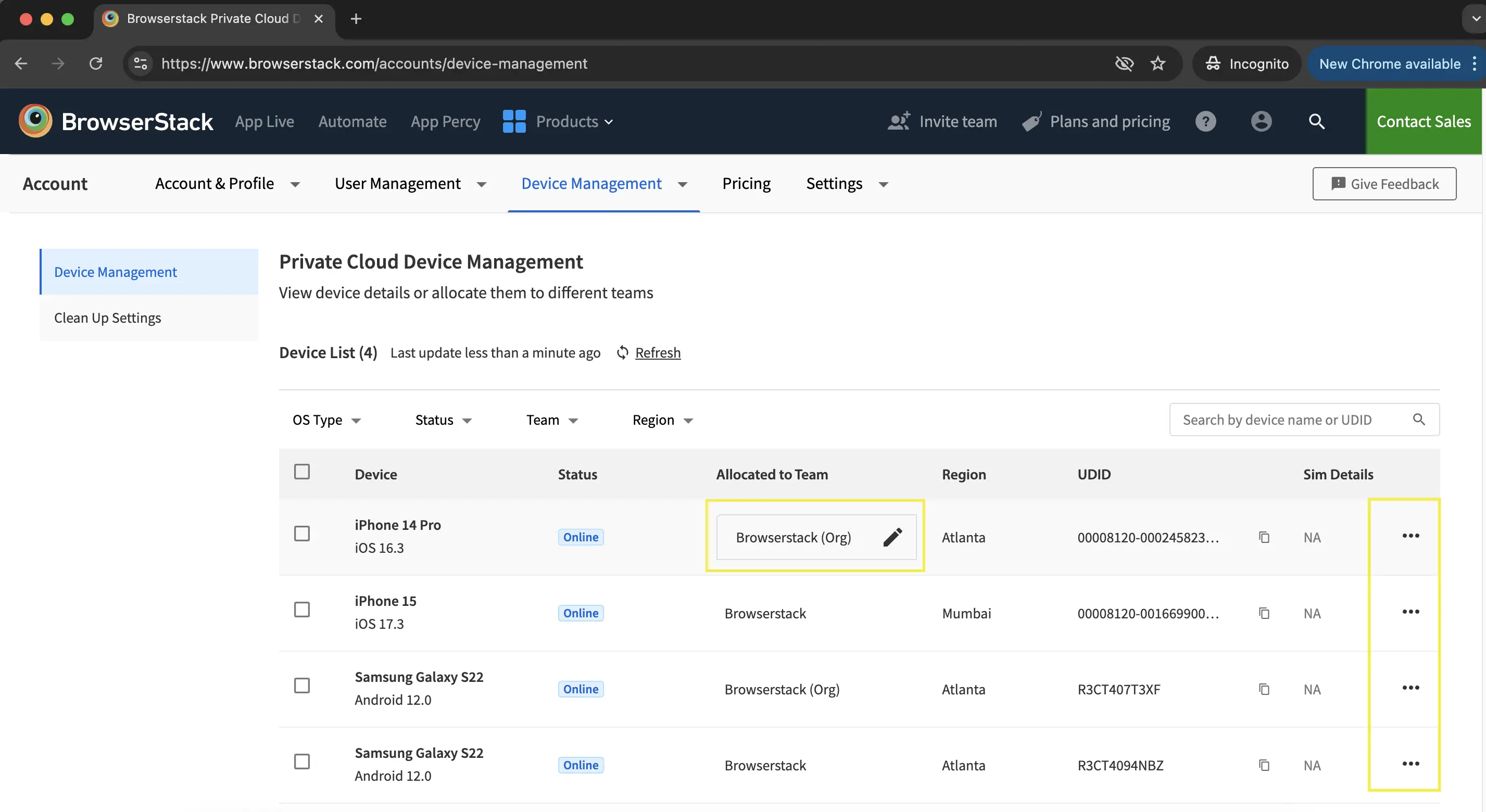
To assign a single device to a team, follow these steps:
-
On the Device Management Dashboard, locate the device you want to assign.
-
In the Allocated to Team section, click the edit icon or the three-dot menu. A pop-up appears with the list of available teams.
-
Select the desired team from the list.
-
Click Save to confirm your changes.
Assign multiple devices to a team
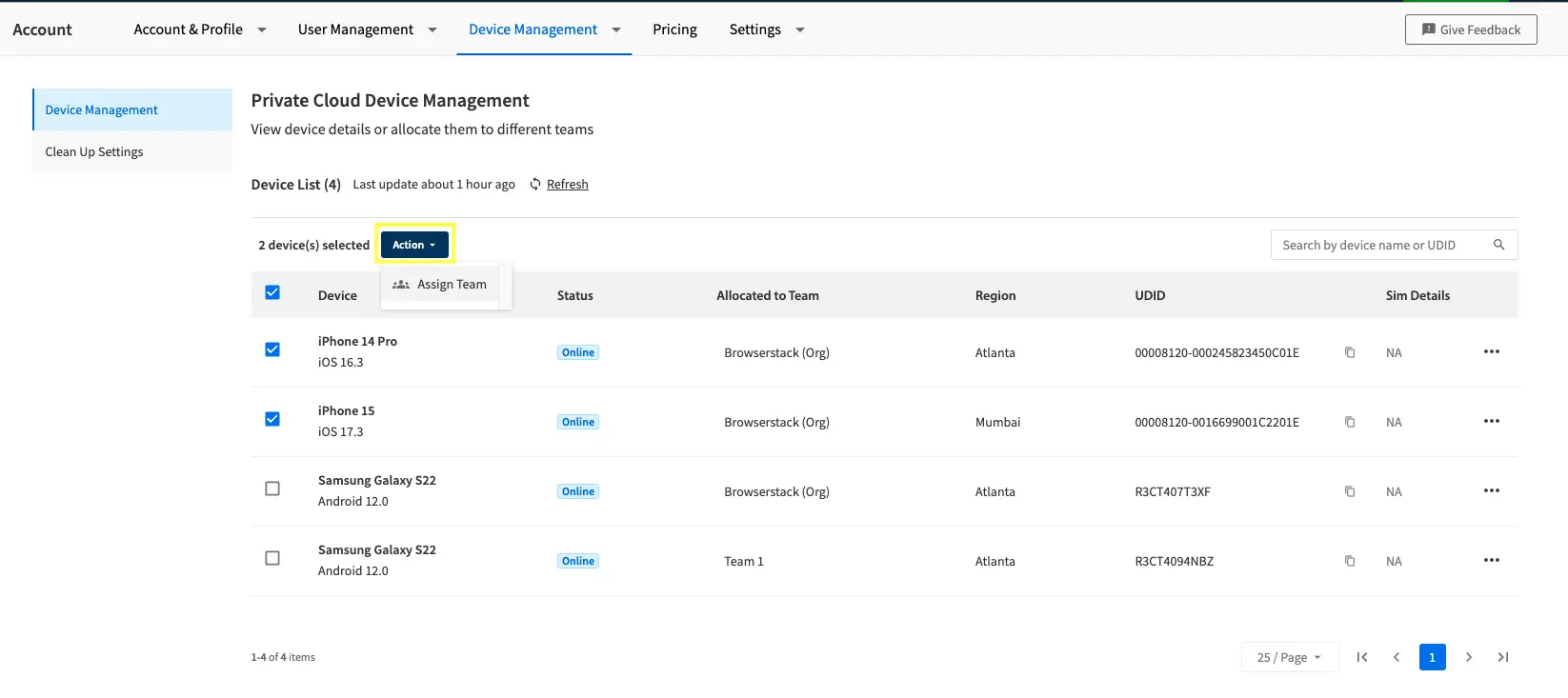
To assign multiple devices to a team, follow these steps:
- Select the devices you want to assign by checking the boxes next to them.
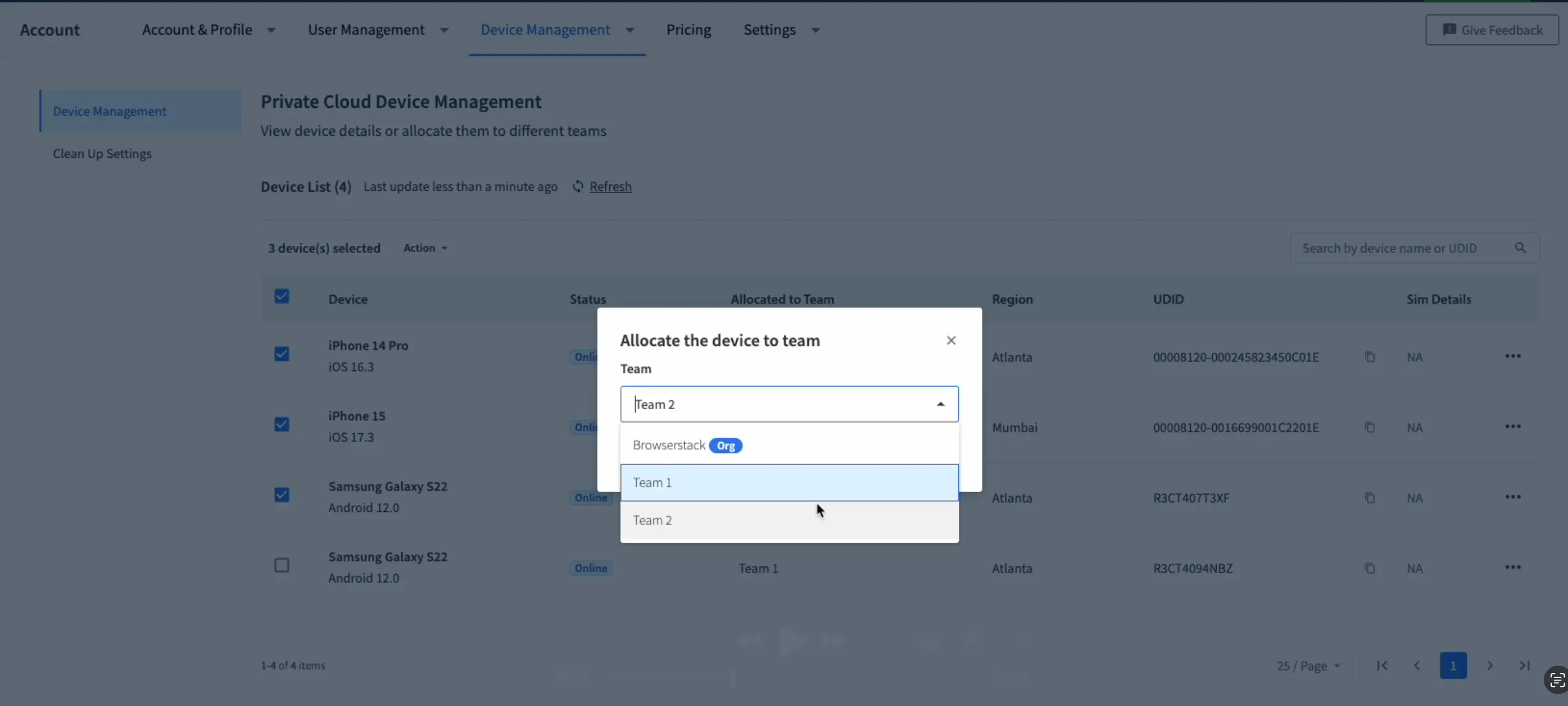
- Click the Action dropdown button in the header and select Assign Team. A pop-up appears with a list of available teams.
- Choose the desired team and click Save.
Example: Device allocation to teams
You will get access to devices based on your allocated team. For more information, refer to the Device Management Dashboard.
Here’s an example to help you understand how device allocation works:
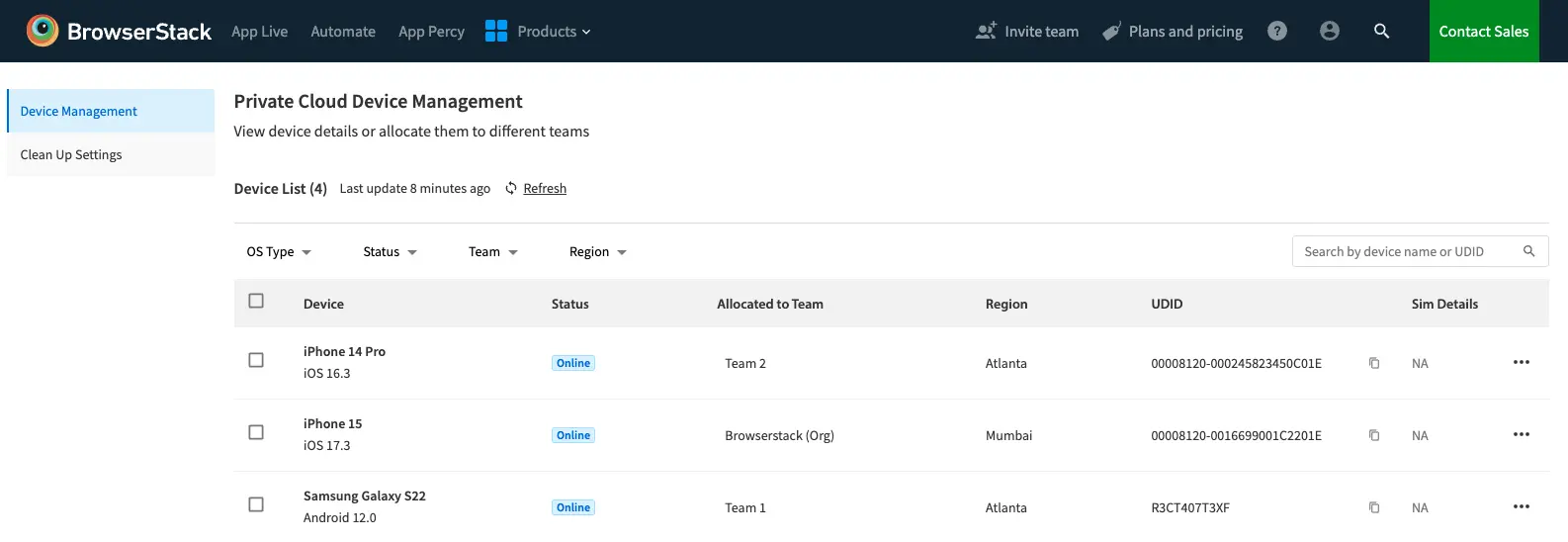
Organization: BrowserStack (Org)
Teams: Team 1 (Android App testing), Team 2 (iOS App testing)
Shared pool: Devices not assigned to any team (e.g., iPhone 15). These devices belong to the organization (BrowserStack (Org)).
Device allocation:
-
Samsung Galaxy S22 → Assigned to Team 1.
-
iPhone 14 Pro → Assigned to Team 2.
-
iPhone 15 → In the shared pool (accessible to all teams).
Access permissions:
-
Team 1 users or admins → Can access Samsung Galaxy S22 and shared pool devices (iPhone 15).
-
Team 2 users or admins → Can access iPhone 14 Pro and shared pool devices (iPhone 15).
-
Group admins or owners → Can access all devices and manage allocations.
We're sorry to hear that. Please share your feedback so we can do better
Contact our Support team for immediate help while we work on improving our docs.
We're continuously improving our docs. We'd love to know what you liked
We're sorry to hear that. Please share your feedback so we can do better
Contact our Support team for immediate help while we work on improving our docs.
We're continuously improving our docs. We'd love to know what you liked
Thank you for your valuable feedback!