
 Join our Discord
Switch browser version on Android devices
Switch browser versions during an active Live test session.
You can switch between different browser versions during an active Live test session on Android devices. This feature allows you to test your website’s compatibility across multiple browser versions without starting a new session.
This feature is available only under the Team Pro plan. For more details, check out our pricing page.
Supported platforms and browsers
The following platforms and browsers support switching browser versions:
| Platform | Browser |
|---|---|
| Android 13 and later | Chrome |
The Switch browser version feature is not supported for Live sessions on Motorola Android devices.
Supported browser versions
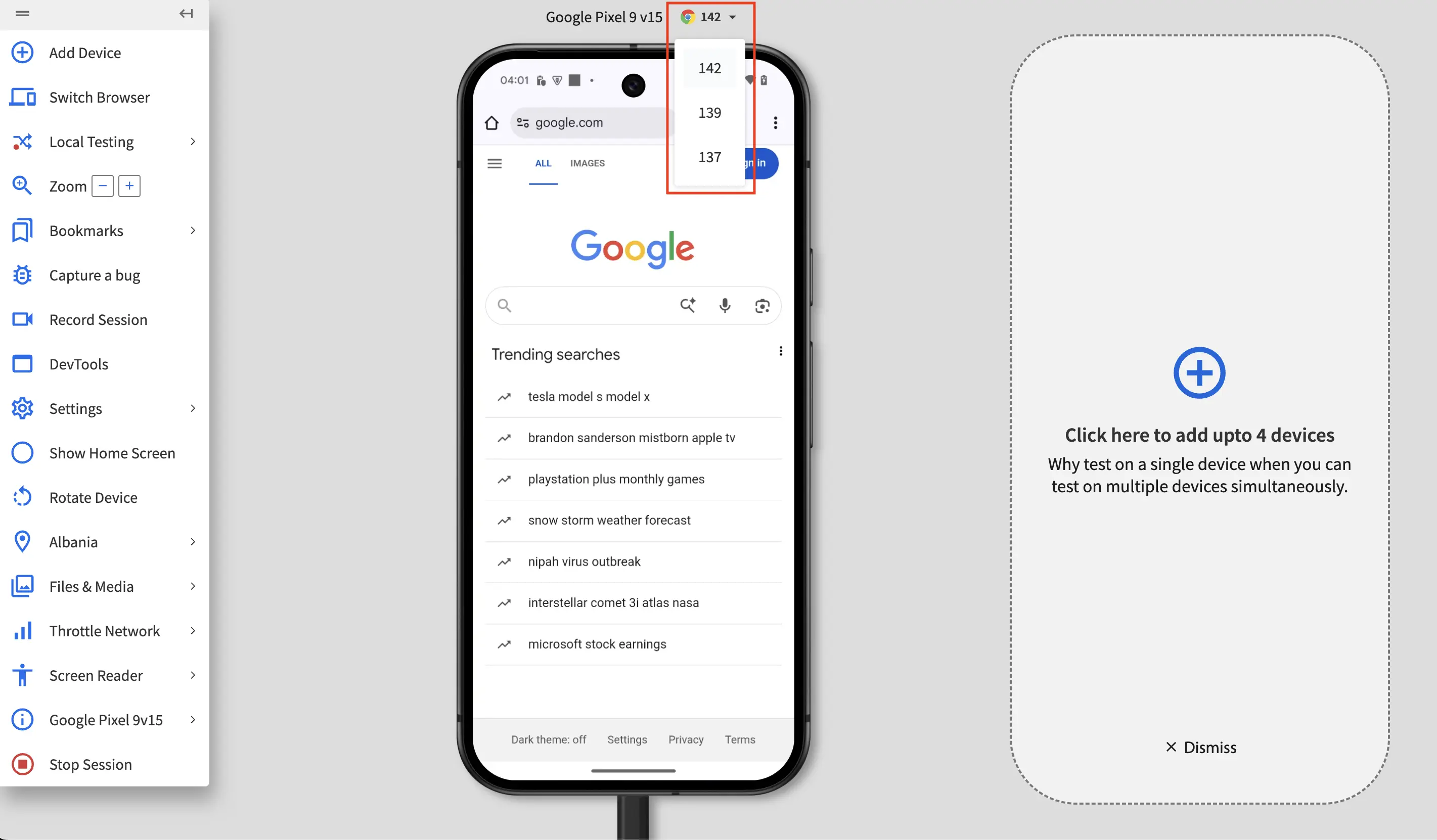
- You can switch between the latest and the last 2 supported browser versions. For example, if the latest version is Chrome
142, you can switch to the two previously supported versions.
Switch browser version during a test session
To switch browser versions during your Live test session:
- Log in to the Live dashboard.
- Start a Live test session on an Android device.
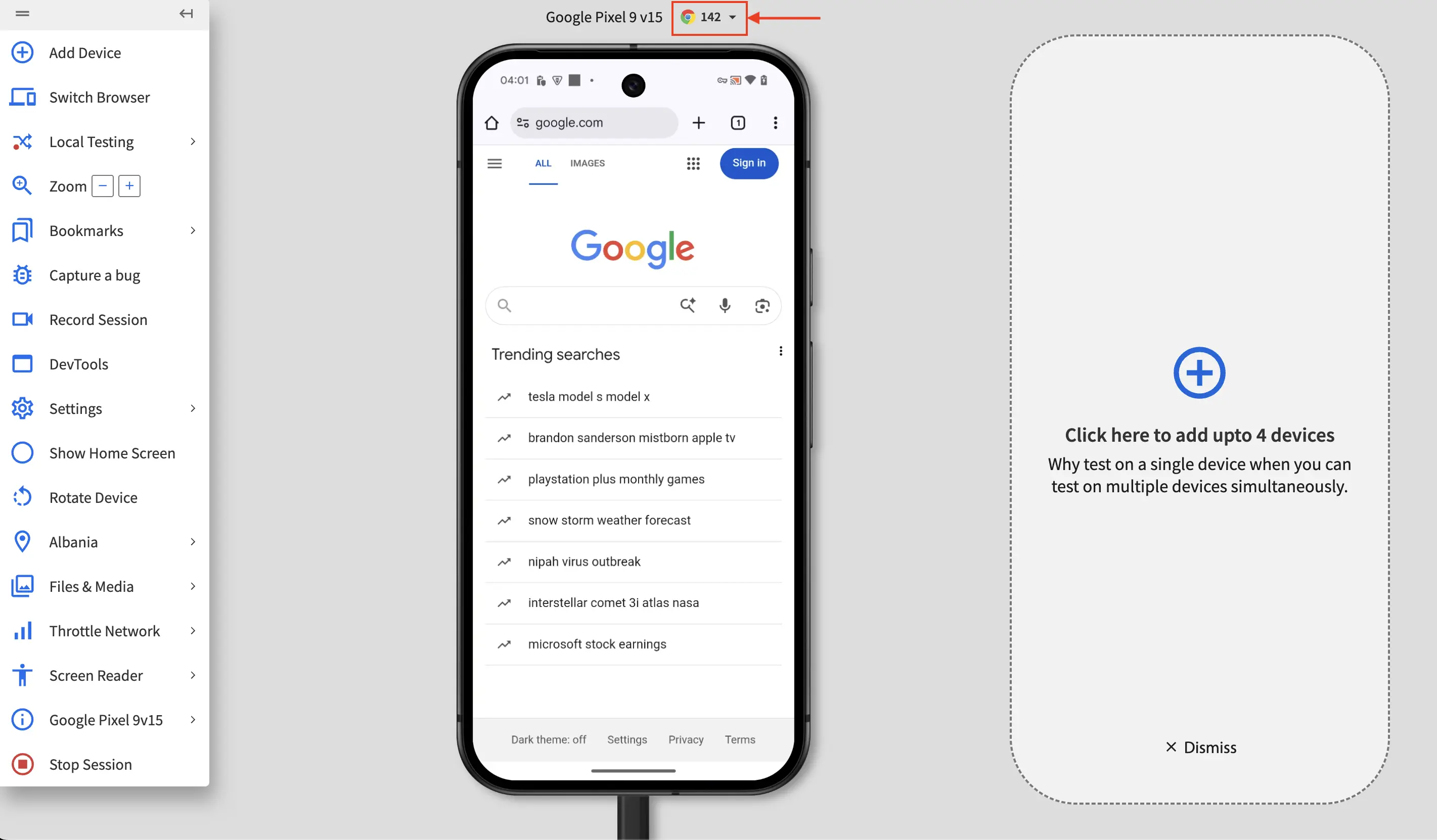
- At the top of the session window, click the browser version drop-down.
- In the dropdown, select the browser version you want to test. The browser restarts with the selected version.
Switching browser versions may take up to 30 seconds.
If the switch is unsuccessful, an error message is displayed in the session window and the browser remains on the current version.
Switch browser versions in multi-device testing
When testing on multiple devices simultaneously, you can use different browser versions on each device:
- Start a multi-device test session with Android devices.
- Use the switch browser version option for each device to select the browser version.
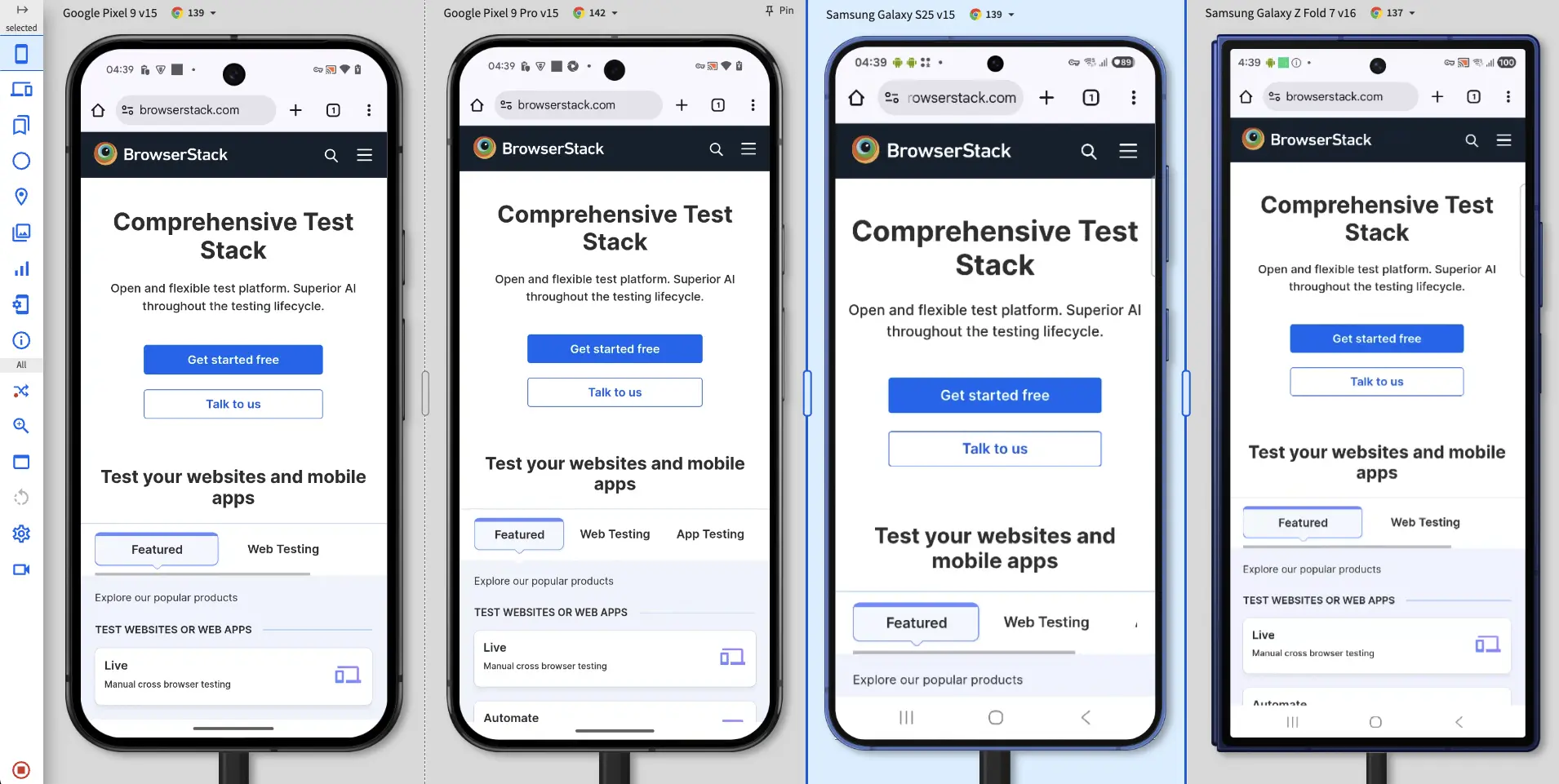
When you add a device to a multi-device session, it will start with the latest browser version by default, regardless of which version the first device is using.
We're sorry to hear that. Please share your feedback so we can do better
Contact our Support team for immediate help while we work on improving our docs.
We're continuously improving our docs. We'd love to know what you liked
We're sorry to hear that. Please share your feedback so we can do better
Contact our Support team for immediate help while we work on improving our docs.
We're continuously improving our docs. We'd love to know what you liked
Thank you for your valuable feedback!