
 Join our Discord
Choose the browser for a load test
Choose Chrome or Microsoft Edge for your browser and hybrid load tests from the UI Builder or the CLI, without changing your test script.
Browser load tests run on Chrome by default. You can run them on Microsoft Edge instead. BrowserStack Load Testing starts the browser you choose, so your test script stays the same. Browser choice works for browser tests running Playwright, Selenium, WebdriverIO, or Nightwatch, and for the browser part of hybrid tests.
Supported browsers
You can run browser and hybrid load tests on the following browsers:
| Browser |
browserName value |
Default |
|---|---|---|
| Chrome | chrome |
Yes |
| Microsoft Edge | edge |
No |
Reasons to test on more than one browser
Load test on more than one browser for the following reasons:
- Your users aren’t all on one browser. Real traffic is spread across different browsers, and they don’t all render pages, run JavaScript, or manage memory the same way. Testing on a single browser measures an experience that many of your users never have.
- Performance problems can be browser-specific. Under the same load, a page can stay fast on one browser and slow down, stutter, or grow memory on another. Testing across browsers surfaces these issues in the browser where they happen, before your users run into them.
- Your users judge performance on every browser. Core Web Vitals scores, such as load time and interaction latency, can differ between browsers. Cross browser testing confirms that those targets hold for your whole audience under peak load.
Prerequisites
Before you choose a browser, confirm you have:
- A browser or hybrid load test you’re creating or editing.
- BrowserStack CLI version 1.72.0 or later, if you run load tests from the command line.
Choose the browser
You can choose the browser using the UI Builder dashboard or by editing your CLI configuration file. Choose the method that fits your workflow.
Choose the browser from the load test configuration screen:
Open a load test in Create or Edit mode and go to Step 3/3: Load Configuration.
Select the Advanced Settings tab and go to the Execution section. In a hybrid test, the Execution section is under For Browser Script Only.
Under Select Browser, choose Microsoft Edge. The default is Chrome.
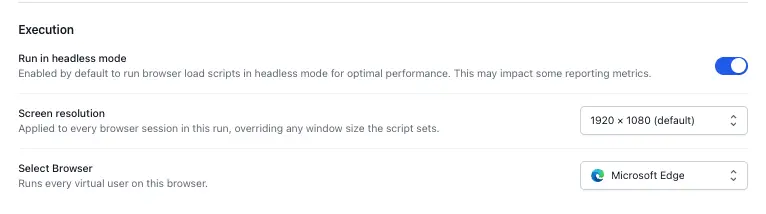
Click Save & Run Test or Save Only. Every virtual user in the run uses the browser you chose.
Rules and limits
You can choose only one browser per load test. Every virtual user, in every load zone and scenario, runs on the browser you choose.
Browser choice follows these rules when you run or save a test:
| Rule | Detail |
|---|---|
| No script changes | Browser settings in your script or framework configuration, such as browserName: 'chrome' in Selenium capabilities, don’t change the browser. |
| Other settings carry over | Headless mode and screen resolution work the same on Chrome and Edge. |
| Saved with the test | When you run the test again, or a schedule runs it, it uses the saved browser. |
| Low Code Automation tests | These tests always run on Chrome. The Select Browser option doesn’t appear for them. |
| API load tests | API load tests don’t use a browser. The CLI ignores browserName for them and prints a message. The test runs as before. |
Verify the browser
Check which browser a run used in either of the following places:
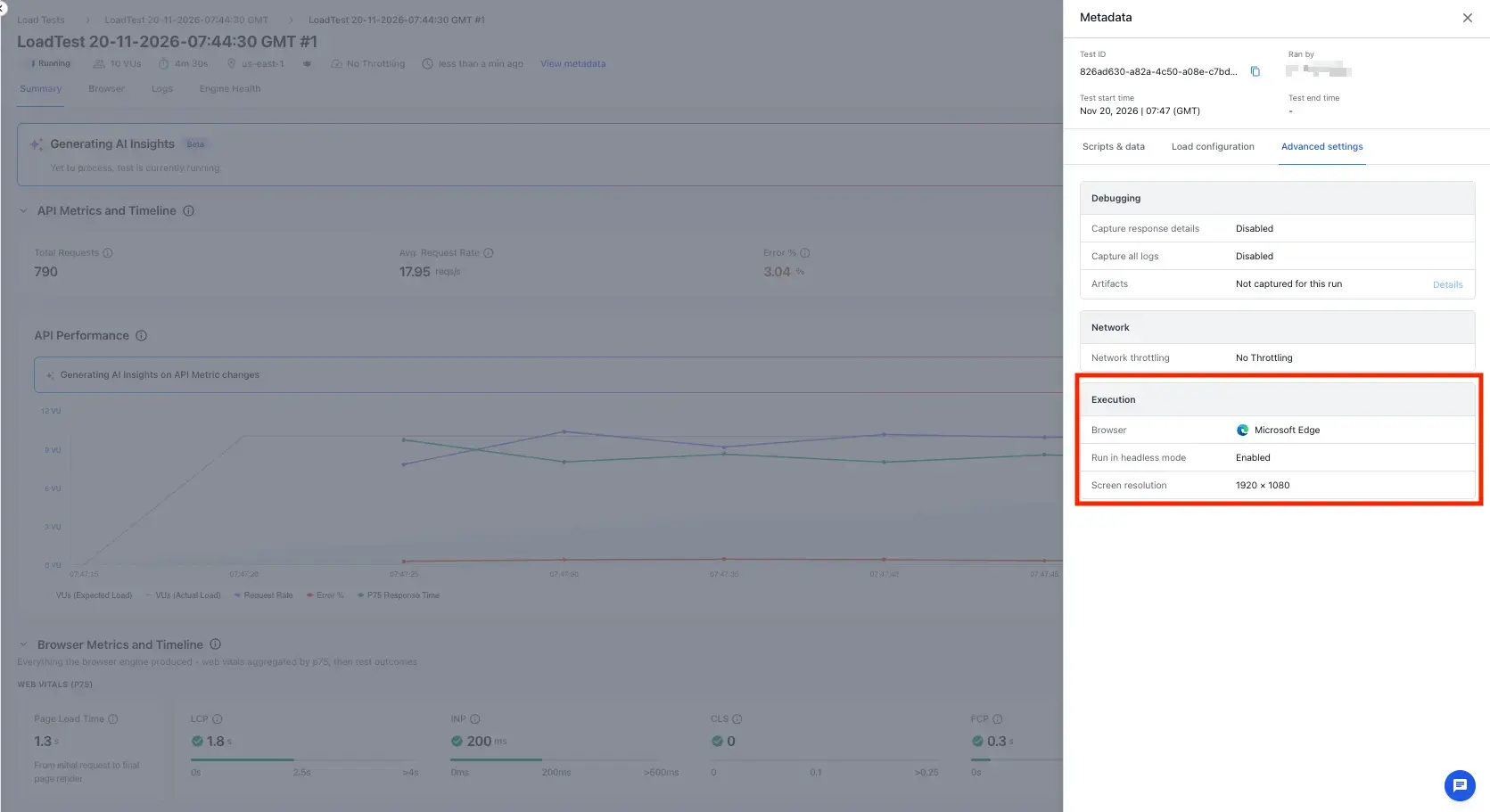
- UI Builder: open the run’s report and select View metadata. In the Metadata panel, go to the Advanced settings tab. Under Execution, the Browser row shows Microsoft Edge.
- CLI: the banner when the test starts and the summary at the end of the run both show
Browser: Microsoft Edge. A Chrome run showsBrowser: Chrome.
Related topics
- Override DNS for a load test to resolve a hostname to a specific IP address for a single run.
- Headful and headless mode to control whether the browser renders a visible UI during a run.
- Browser load testing and hybrid load testing to set up the test you want to run on Edge.
We're sorry to hear that. Please share your feedback so we can do better
Contact our Support team for immediate help while we work on improving our docs.
We're continuously improving our docs. We'd love to know what you liked
We're sorry to hear that. Please share your feedback so we can do better
Contact our Support team for immediate help while we work on improving our docs.
We're continuously improving our docs. We'd love to know what you liked
Thank you for your valuable feedback!