
 Join our Discord
Override DNS for a load test
Resolve a hostname to a specific IP address for a single load test run, without changing your test script.
DNS override points a hostname to an IP address of your choice for a single load test run. BrowserStack Load Testing resolves the hostname to your chosen IP for that run only. Your script, the Host header, TLS SNI, and cookies stay exactly as written. So the target still receives a normal request for the original hostname. DNS override works across every test type: API tests running k6, JMeter, Locust, or Gatling; browser tests running Selenium, WebdriverIO, Playwright, or Nightwatch; and hybrid tests.
Use cases
Use DNS override when your script points at a hostname you cannot edit, or do not want to edit:
- Staging and pre-production testing: run your production test script against a staging or pre-production host without touching the script.
- Blue-green deployments: direct load at the green environment before you cut traffic over, using the same hostname your script already expects.
- Canary releases: send load at a canary instance while keeping requests identical to production traffic.
- Load balancer testing: target one specific server behind a load balancer to isolate its behavior under load.
Prerequisites
Before you add a DNS override, confirm you have:
- A load test you are creating or editing.
- The IP address you want the hostname to resolve to.
The IP address you enter must be publicly routable. Private ranges (10.x.x.x, 172.16.x.x through 172.31.x.x, 192.168.x.x), loopback (127.x.x.x), and link-local or metadata addresses (169.254.x.x) are rejected for security reasons. IPv6 addresses must also be publicly routable; private ranges include fc00::/7 and link-local fe80::/10. If you need private IPs for a staging or internal testing environment, contact support to request access.
Add a DNS override
You can add DNS override rules using the UI Builder dashboard or by editing your CLI configuration file. Choose the method that fits your workflow.
Add DNS override rules directly from the load test configuration screen:
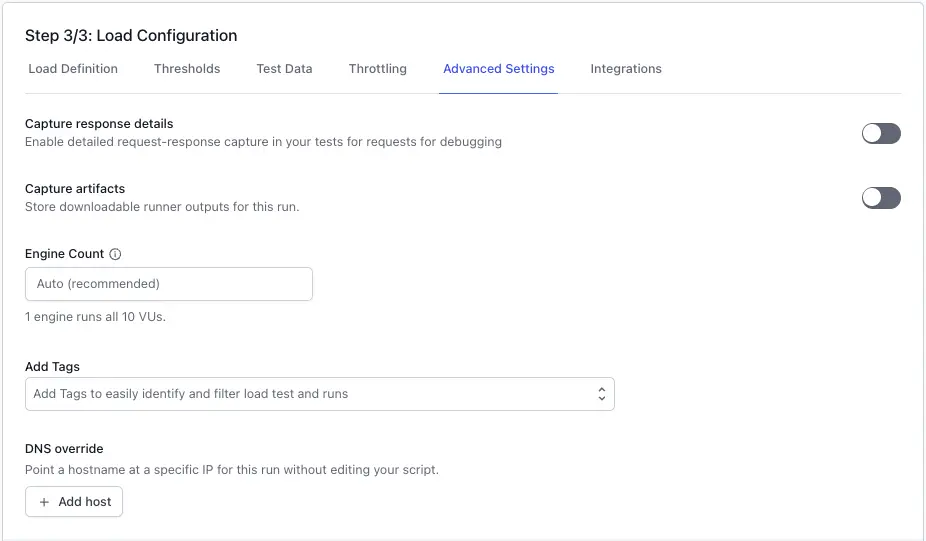
Open a load test in Create or Edit mode and go to Step 3/3: Load Configuration. Expand Advanced Settings to reveal the DNS override section, with a row for Hostname and Resolve to IP.
In Hostname, enter the exact hostname to override, for example api.staging.example.com. In Resolve to IP, enter the IP address it should resolve to. You can use publicly routable IPv4 addresses (for example 203.0.113.42) or IPv6 addresses (for example 2001:db8::1). Use the exact hostname only, with no scheme, port, or wildcard.
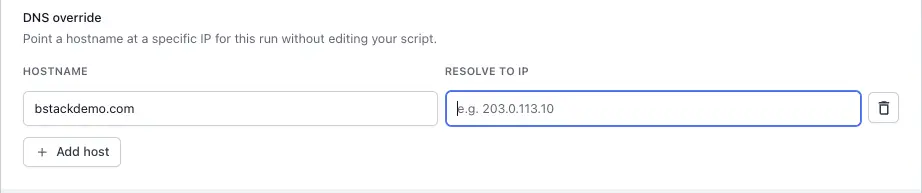
To map more hostnames, click Add host and fill in another row. You can add up to 20 overrides. Use one row per hostname, even when two hostnames resolve to the same IP address.
Click Run or Save. The override applies for the whole run and every virtual user.
Rules and limits
DNS override enforces the following rules when you run or save a test:
DNS override rules and limits
| Rule | Detail |
|---|---|
| Hostname format | Exact hostname only. No wildcards (*.myapp.com), scheme (https://), or port (:8080). |
| Hostname length | Up to 253 characters. |
| Entries per run | Up to 20 DNS overrides. |
| IP address | Must be publicly routable. Private (10.x.x.x, 172.16.x.x through 172.31.x.x, 192.168.x.x), loopback (127.x.x.x), and link-local or metadata (169.254.x.x) addresses are rejected. IPv6 must also be publicly routable (fc00::/7 and fe80::/10 are blocked). Contact support to request access for private ranges. |
| Duplicate hostnames | Each hostname can appear once per run. A duplicate blocks Run or Save until you fix it. |
| Incomplete rows | A row missing either the hostname or the IP is skipped when you submit. |
Verify the override applied
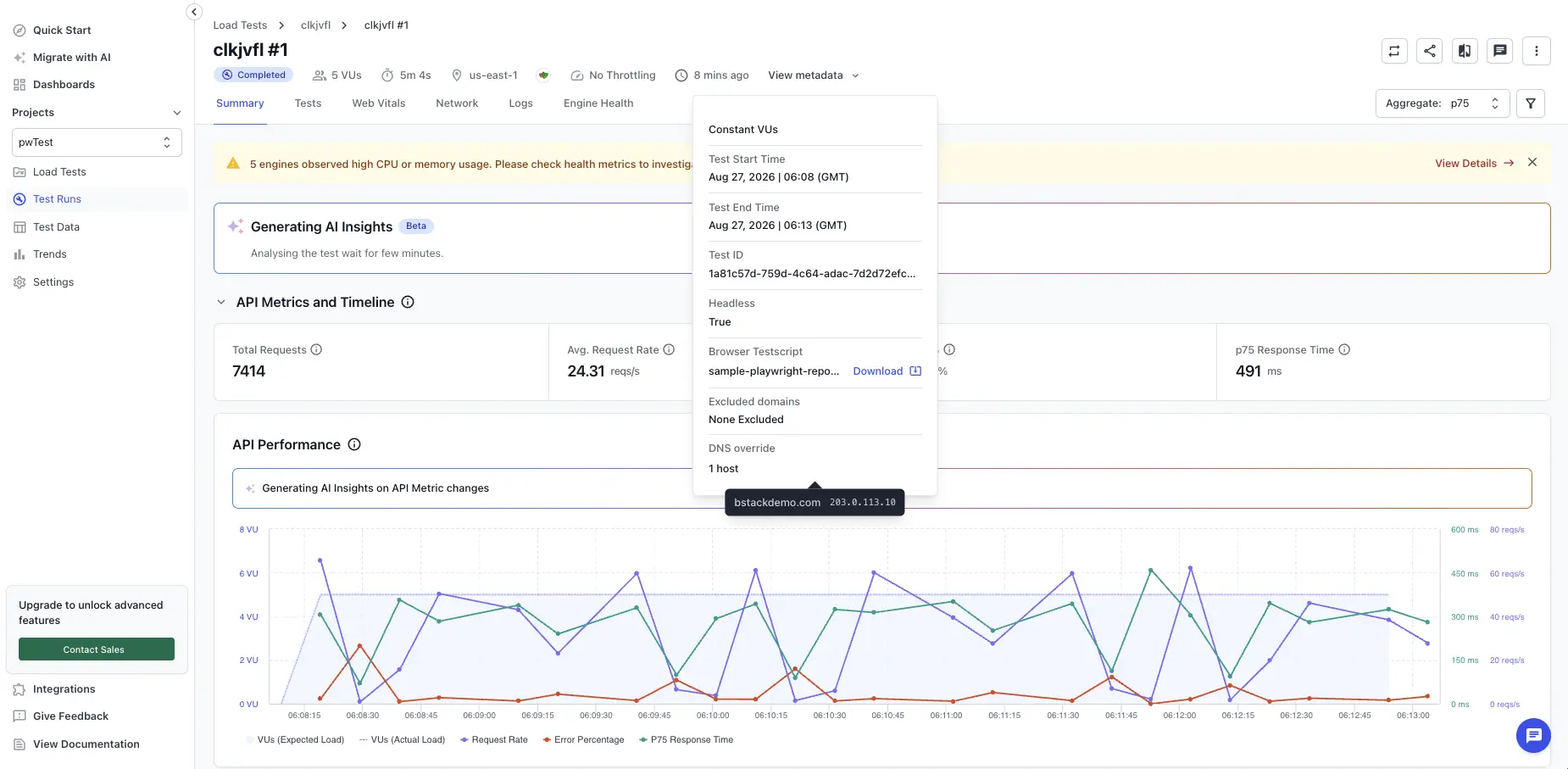
- Open the run’s report and select View Metadata. The DNS override entry shows how many overrides were applied and the full hostname-to-IP map.
- The downloadable PDF report includes a DNS override line in the run metadata.
Common issues
If a DNS override does not behave as expected, check it against these common causes:
| Issue | Cause | Resolution |
|---|---|---|
| An error saying the IP address is not allowed for security reasons | The target IP is a private, loopback, or link-local address. | Enter a publicly routable IP address, or contact support to request access for private IP ranges. |
| Run or Save is blocked | A duplicate hostname, or a malformed hostname or IP, is in the list. | Fix the row flagged in the UI. |
| “Wildcards are not supported” | You entered a hostname pattern like *.myapp.com instead of an exact hostname. |
Enter the exact hostname, for example api.myapp.com. |
| The override does not take effect | The hostname does not exactly match what your script requests, or a row was left incomplete. | Confirm the hostname has no scheme or port and matches your script exactly. Confirm both the hostname and IP were filled in before you ran or saved the test. |
Related topics
- Exclude domains from load test reports to leave third-party domains, CDNs, or non-critical services out of your results.
- Network throttling to simulate bandwidth and latency conditions during a run.
We're sorry to hear that. Please share your feedback so we can do better
Contact our Support team for immediate help while we work on improving our docs.
We're continuously improving our docs. We'd love to know what you liked
We're sorry to hear that. Please share your feedback so we can do better
Contact our Support team for immediate help while we work on improving our docs.
We're continuously improving our docs. We'd love to know what you liked
Thank you for your valuable feedback!