
 Join our Discord
AI Insights
AI Insights reads your load test report and explains what went wrong, classifies the root cause, and recommends what to fix next.
After a load test finishes, your report holds many metrics, charts, and logs. AI Insights reads that report and turns it into a short, plain-language analysis of what happened and what to do next.
AI Insights is in Beta and is rolling out across Load Testing. Availability can vary by account and test type.
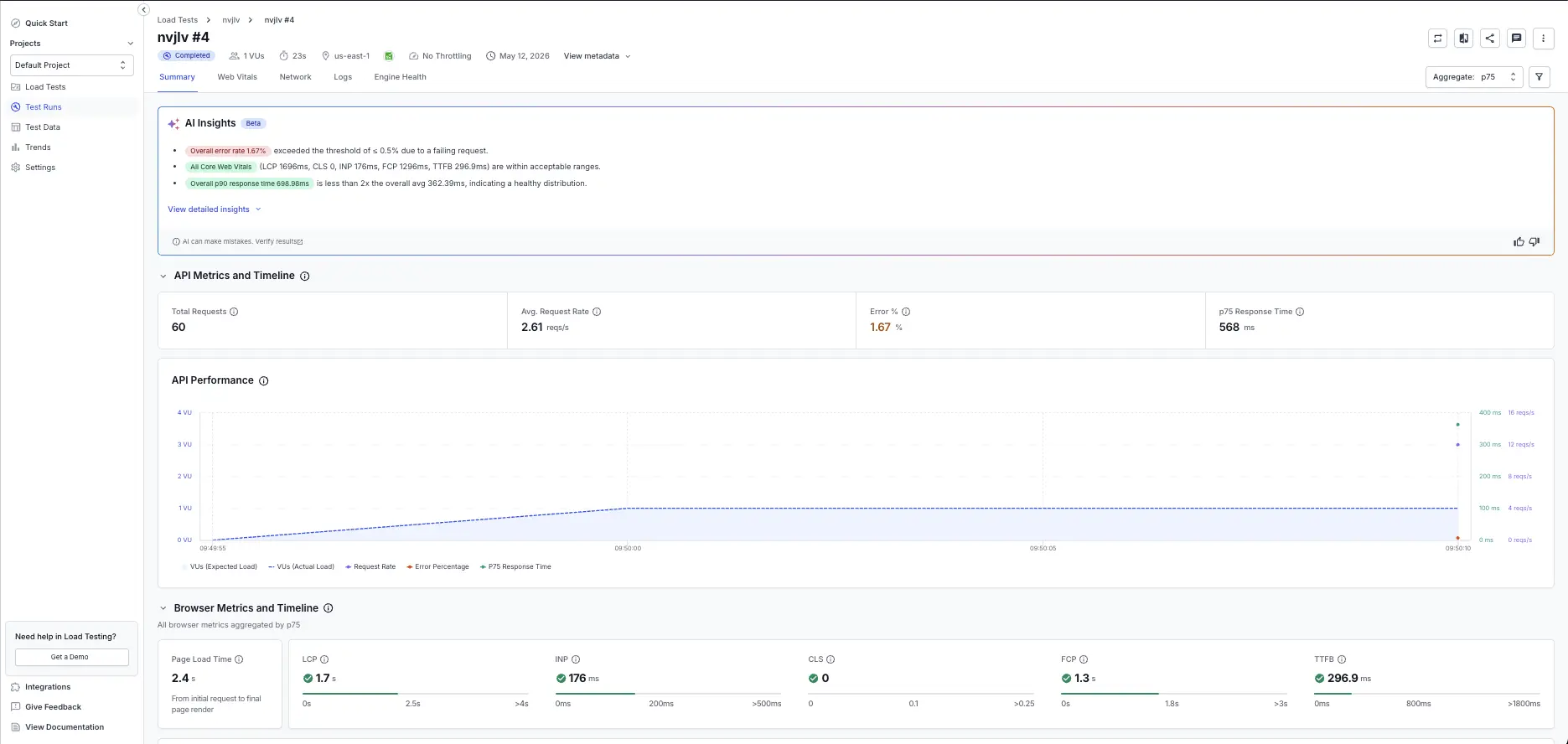
The analysis is generated automatically when a report is ready. The AI Insights summary appears on the Summary tab.
Supported test types
AI Insights works on every load test type and focuses on the signals that matter for each:
| Test type | What AI Insights analyzes |
|---|---|
| Browser load testing | Core Web Vitals, user-flow pass and fail rates, network errors, and engine health. |
| API load testing | Response times, error rates, throughput, response codes, and engine health. |
| Hybrid load testing | Browser and API signals together, so you can see how front-end and back-end behavior relate under load. |
What the AI Insights summary tells you
The AI Insights card appears at the top of the Summary tab. It opens with headline insights in plain language, each focused on a key signal such as error rate, Core Web Vitals, response time, or throughput. Color highlights show which signals are healthy and which need attention.
Select View detailed insights to expand the full list of findings.
View detailed insights
The detailed view lists every finding in a table, ordered from most to least important:
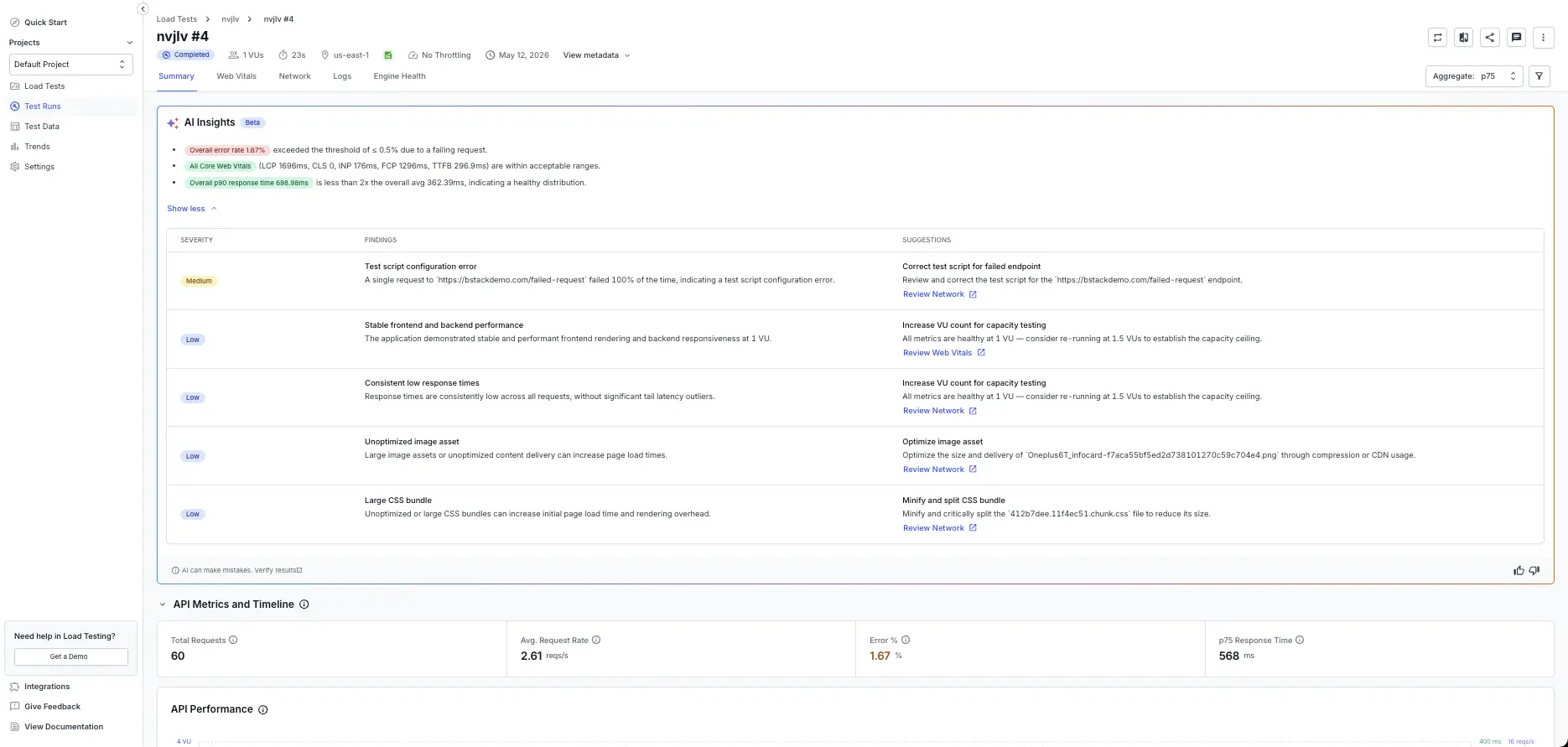
The table has three columns:
| Column | What it shows |
|---|---|
| Severity | How much a finding matters, such as Medium or Low, so you can address the most important items first. |
| Findings | What the AI observed, including the specific metric, endpoint, or asset involved. |
| Suggestions | A recommended action for the finding, with a link to review the related tab in your report. |
Each suggestion includes a Review link that opens the related tab, such as Network or Web Vitals.
Findings also name the likely source of a problem, for example a test script configuration error. This helps you decide whether an issue belongs to your application, your test environment, or your test setup.
Give feedback on the analysis
Each analysis includes thumbs up and thumbs down controls. Use them to tell us whether the insights were helpful and add a short note. Your feedback improves the accuracy of future analyses.
AI Insights is advisory. Verify the findings against the underlying metrics, logs, and charts in your report before you act on them.
FAQs
Which load tests get an AI Insights summary?
Completed browser, API, and hybrid load test reports get an AI Insights summary. Because the feature is in Beta, availability can vary by account and test type.
Do I need to trigger the analysis manually?
No. The summary is generated automatically when your report is ready. You don’t need to start the analysis or write a prompt.
How accurate are the insights?
AI Insights is advisory. It speeds up your investigation, but you should verify each finding against the underlying metrics, logs, and charts in your report before acting on it.
Can I ask follow-up questions about a report?
Follow-up conversations are planned for a future release. For now, AI Insights gives you a structured summary and a detailed list of findings for each report, with links to the relevant tabs to investigate further.
We're sorry to hear that. Please share your feedback so we can do better
Contact our Support team for immediate help while we work on improving our docs.
We're continuously improving our docs. We'd love to know what you liked
We're sorry to hear that. Please share your feedback so we can do better
Contact our Support team for immediate help while we work on improving our docs.
We're continuously improving our docs. We'd love to know what you liked
Thank you for your valuable feedback!