
 Join our Discord
Integrate Slack with BrowserStack Load Testing
A step-by-step guide to help you integrate Slack with BrowserStack to monitor your failed tests and daily builds summary.
Integrating Slack with BrowserStack helps you:
- Debug your failed tests directly from Slack
- Obtain a summary of all your builds executed during the day
In case of failed tests, a message is sent to your desired channel on Slack with the following information:
- The name of the test executed
- The reason why your test failed
- A link to see the video of the test
- A link to debug your test from the dashboard
At the end of the day, the summary of all the builds that were executed during the day will be sent. The Slack message will contain the following information:
- Number of builds executed in the day
- Number of builds passed in the day
- Number of builds failed in the day
- A link to the dashboard to debug failed builds
The Slack notification for your BrowserStack builds is received at an individual user level and not at a group or organization level.
Integrating with Slack
Navigate to the Load Testing dashboard and select any of the available tests you want to configure Slack notifications for.
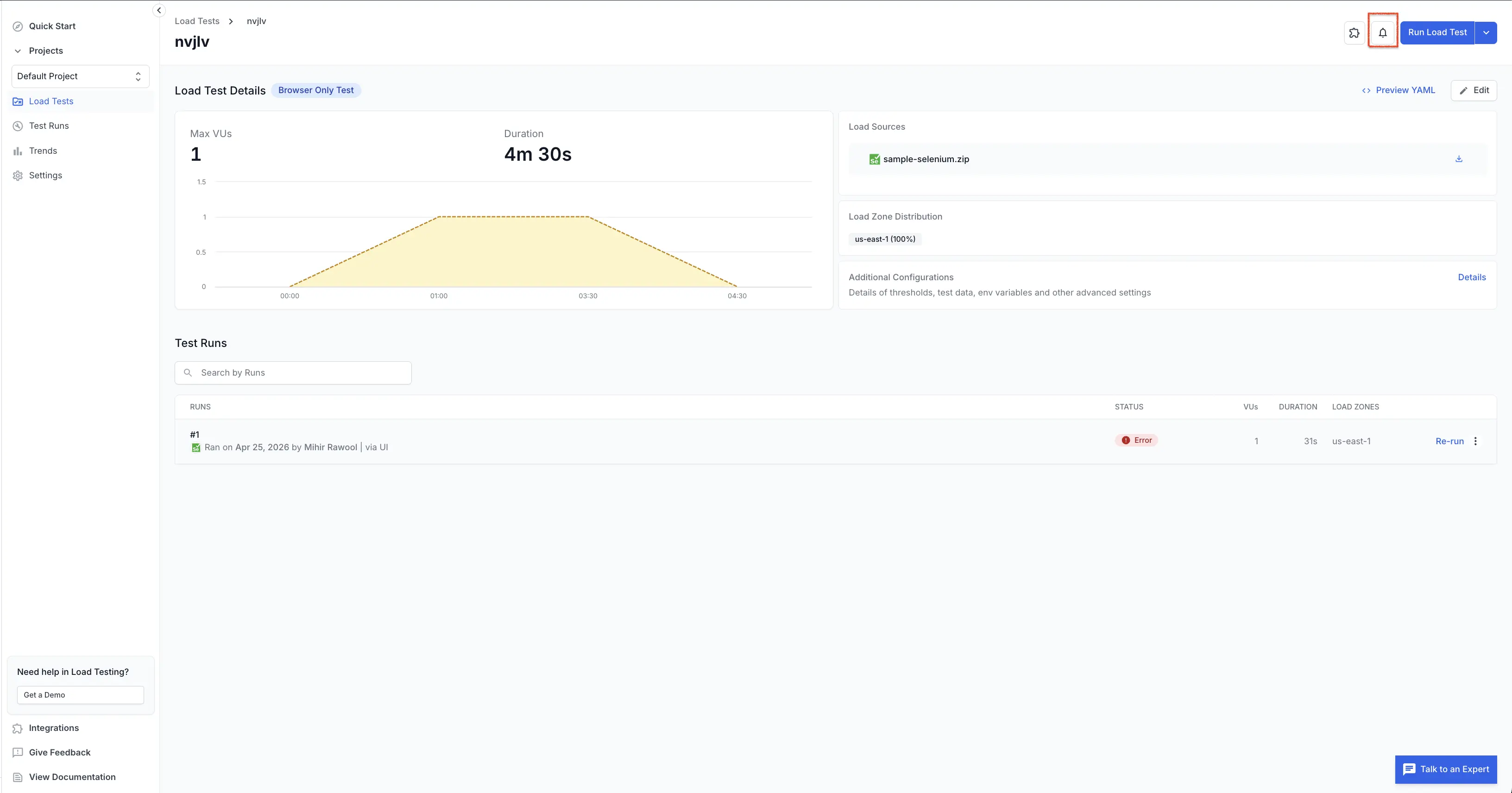
Click the bell icon on the top right corner of the test details page.
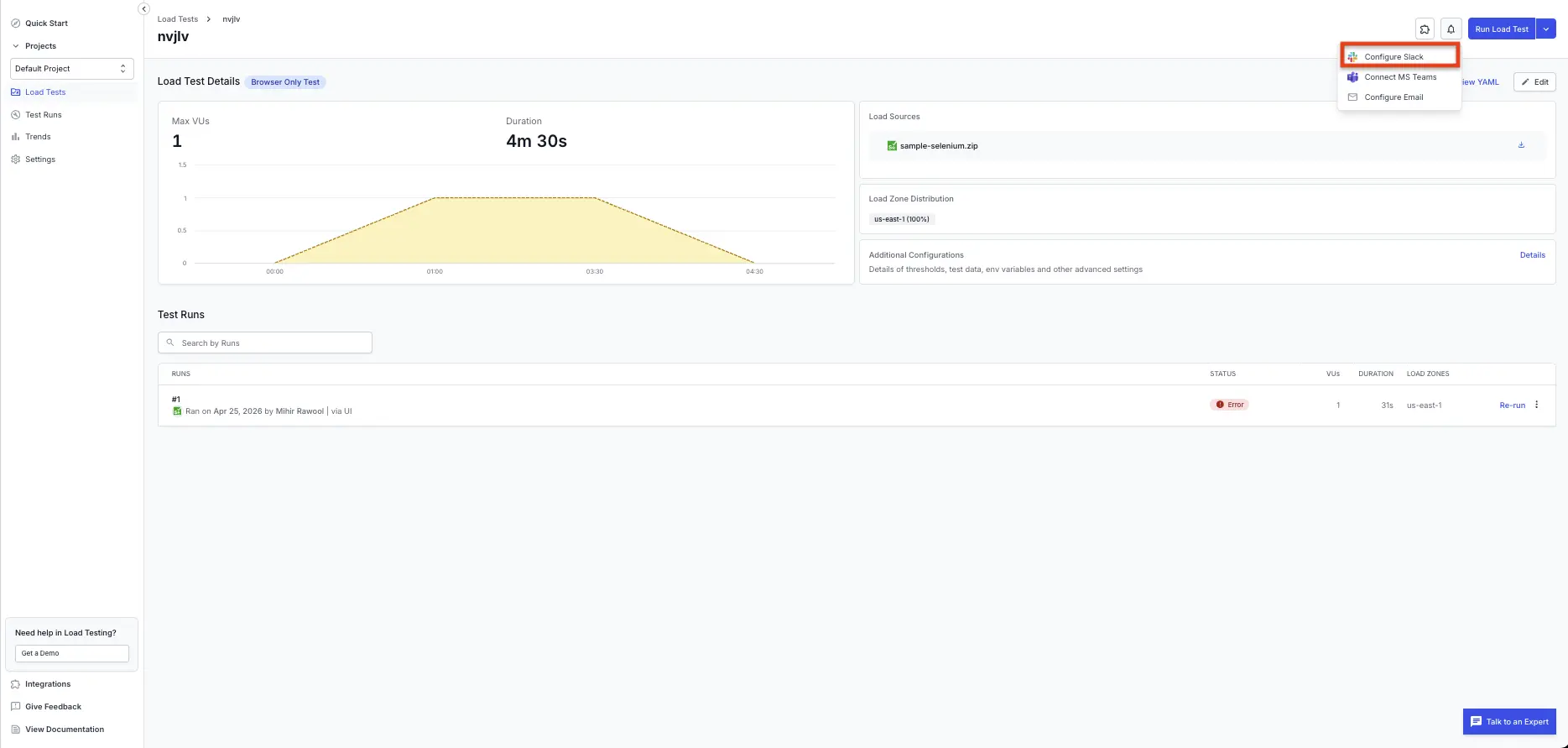
Select Configure Slack from the dropdown menu.
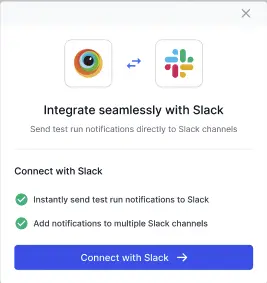
If this is your first time integrating Slack with BrowserStack:
Click Connect with Slack to begin the integration process.
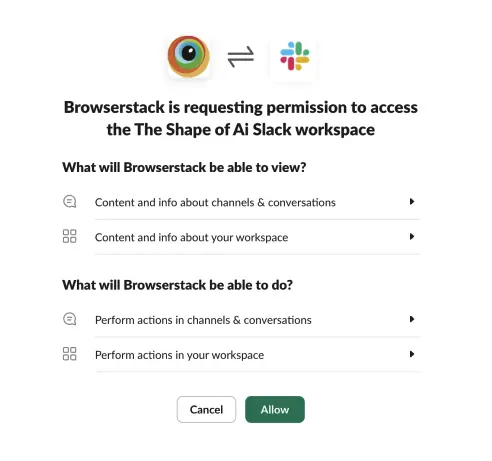
Authorize BrowserStack to access your Slack workspace by clicking Allow in the permission request dialog.
If you have already integrated Slack with any other BrowserStack product:
Your Slack workspace is already connected. Proceed to configure the channels where you want to receive notifications.
In the Slack configuration dialog, select the Slack channels where you want to receive test run notifications.
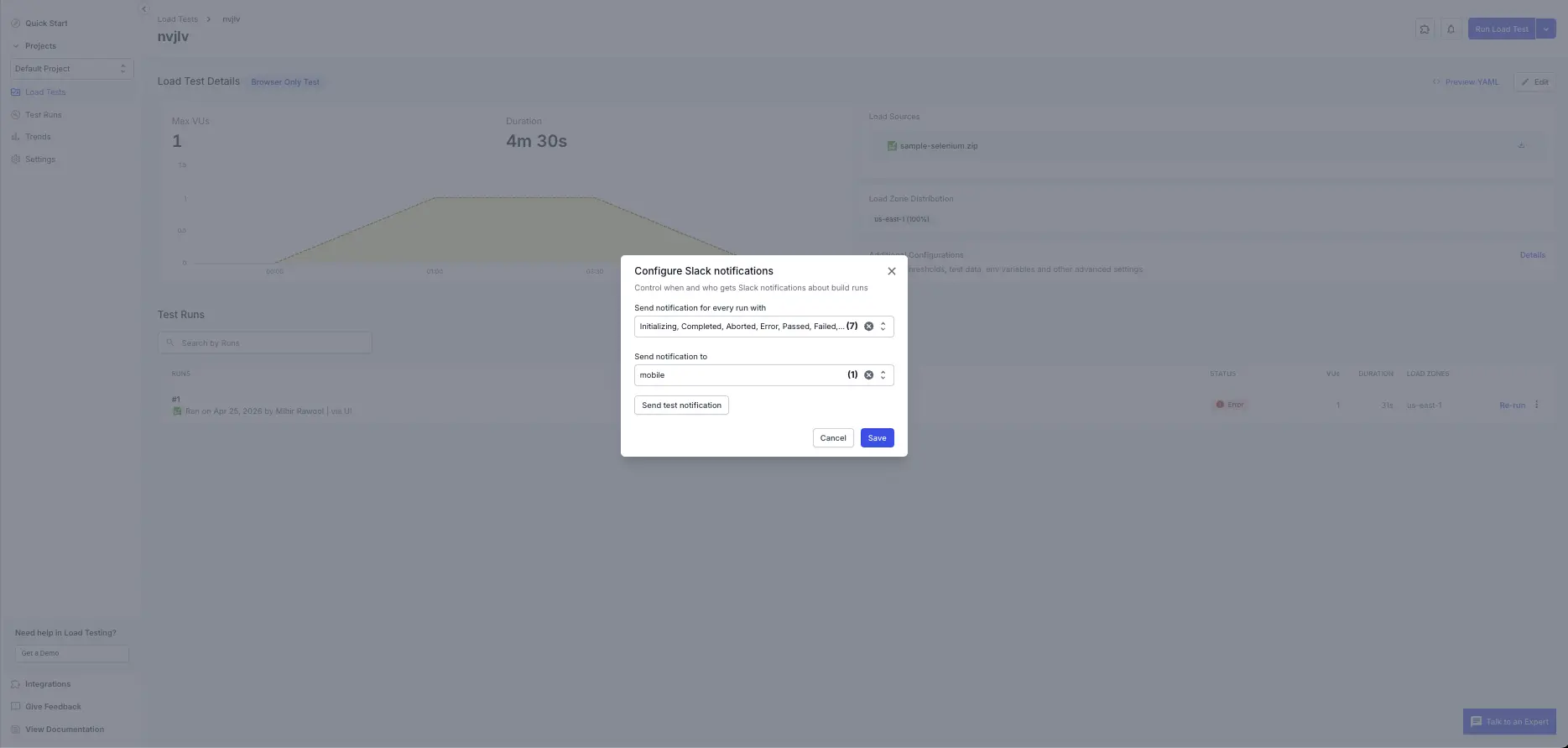
Click Save to save your Slack notification configuration.
Once configured, you will receive Slack notifications for failed tests and daily build summaries in your selected channels.
Your privacy is important to us, and so is being transparent about how we collect, use, and share information about you. View our Privacy Policy.
We're sorry to hear that. Please share your feedback so we can do better
Contact our Support team for immediate help while we work on improving our docs.
We're continuously improving our docs. We'd love to know what you liked
We're sorry to hear that. Please share your feedback so we can do better
Contact our Support team for immediate help while we work on improving our docs.
We're continuously improving our docs. We'd love to know what you liked
Thank you for your valuable feedback!