Get your setup working faster. Join our Discord for optimisation tips from elite testers.Join our Discord
Configure multiple scenarios
Create and orchestrate multiple scenarios to model complex user behavior.
Configure multiple scenarios to represent different user journeys and traffic mixes in a single load test. Each scenario runs a subset of your tests with its own load configuration, and all scenarios run in parallel under one job for unified reporting.
Multiple scenarios in browser tests
Multiple scenarios in browser tests support Playwright, Selenium TestNG, and WebdriverIO.
Depending on your preferred method, select any one of the following to configure multiple scenarios:
The Multiple Scenarios feature in the Load Configuration section allows you to simulate diverse user behaviors by executing different test flows simultaneously within a single load test. Instead of running a uniform workload, you can define specific user journeys to run in parallel, creating a more realistic traffic simulation.
All scenarios execute concurrently during the test run. You can configure up to 10 distinct scenarios per test.
Steps to configure multiple scenarios
Enable multiple scenarios
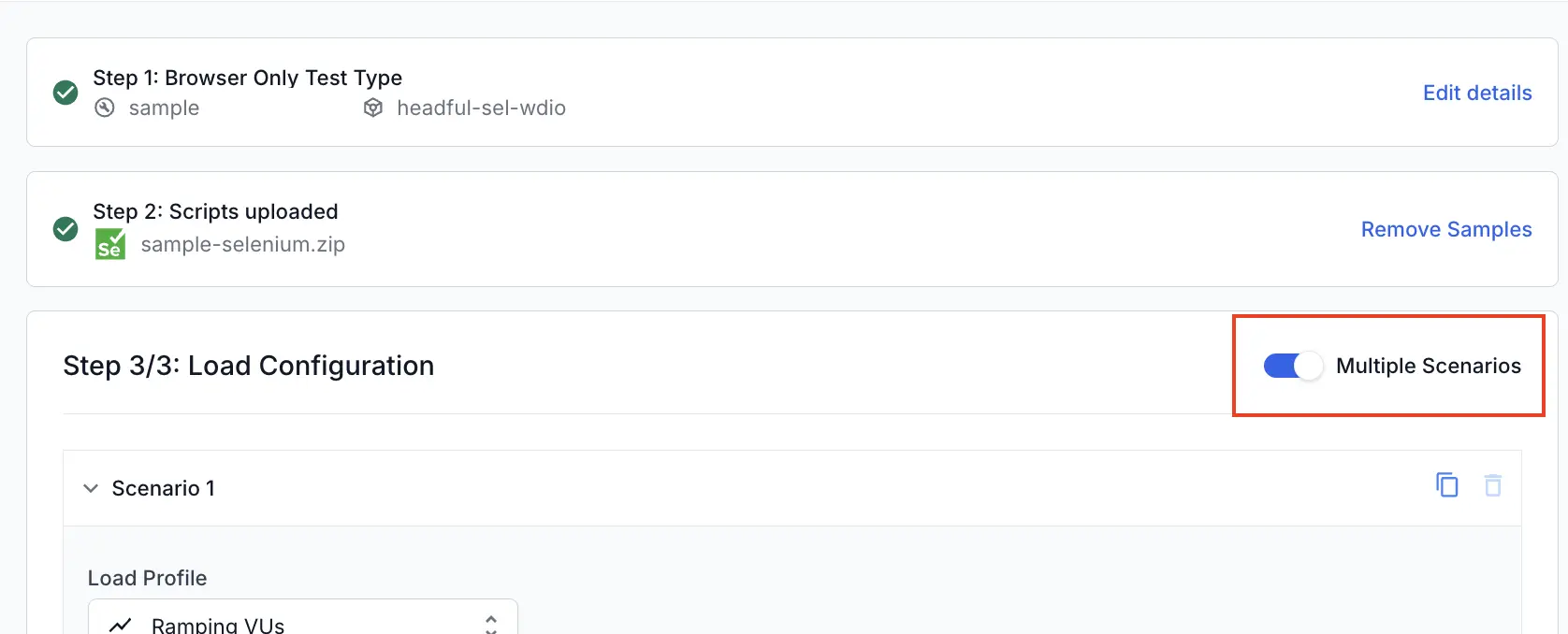
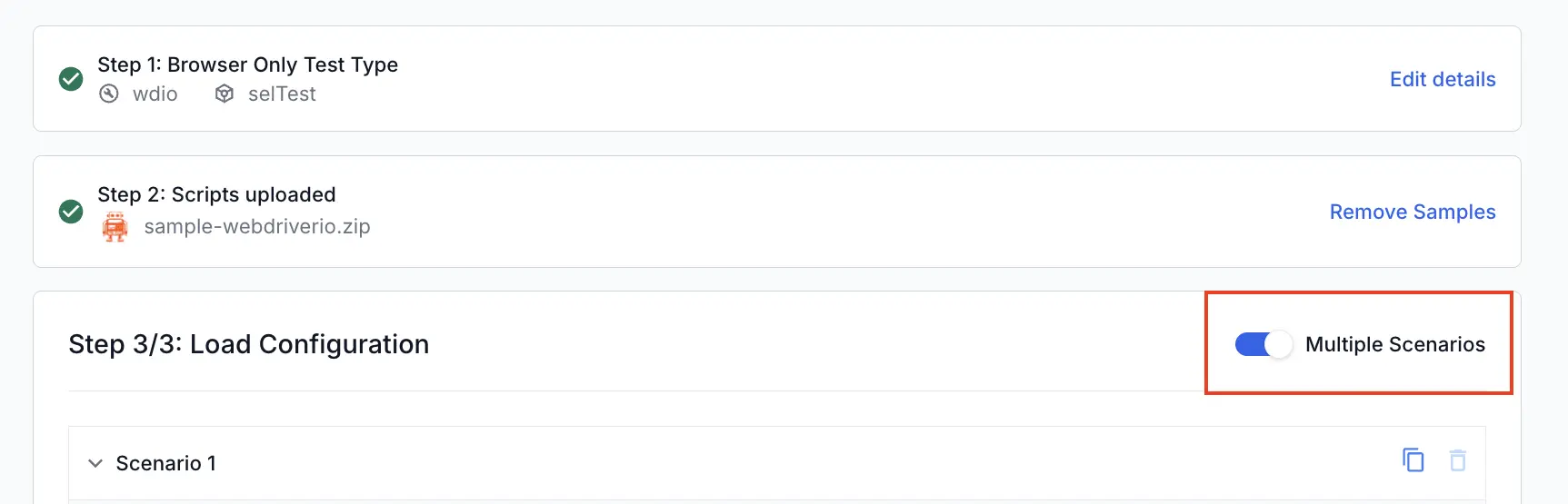
In the Load Configuration section, enable the Multiple Scenarios toggle.
Add a new scenario
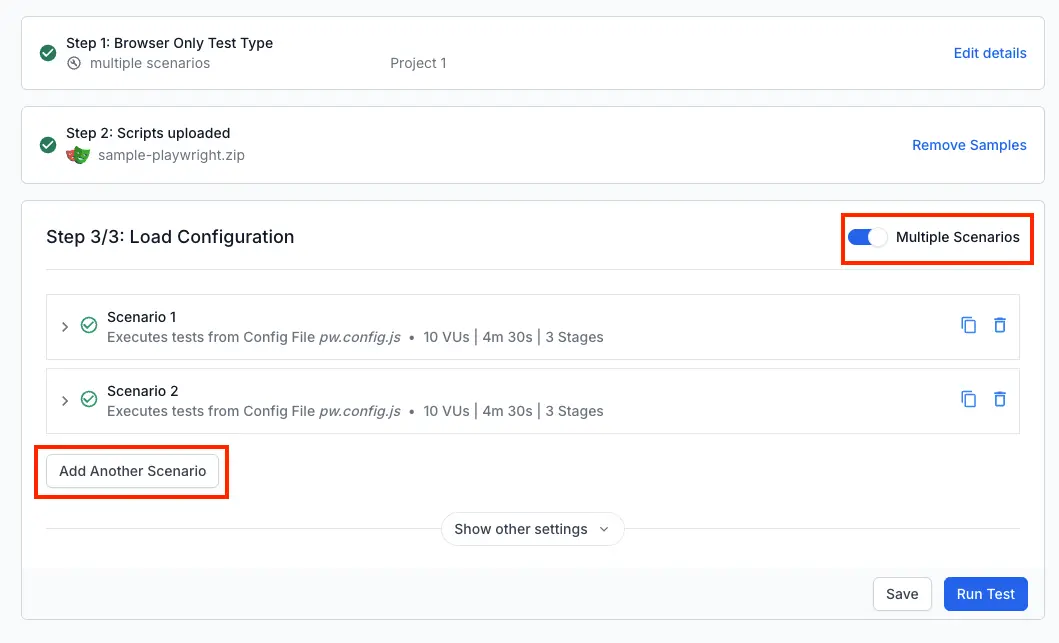
Click Add Scenario to create a new scenario.
Configure scenario details
For each scenario:
Provide a unique name for easy identification.
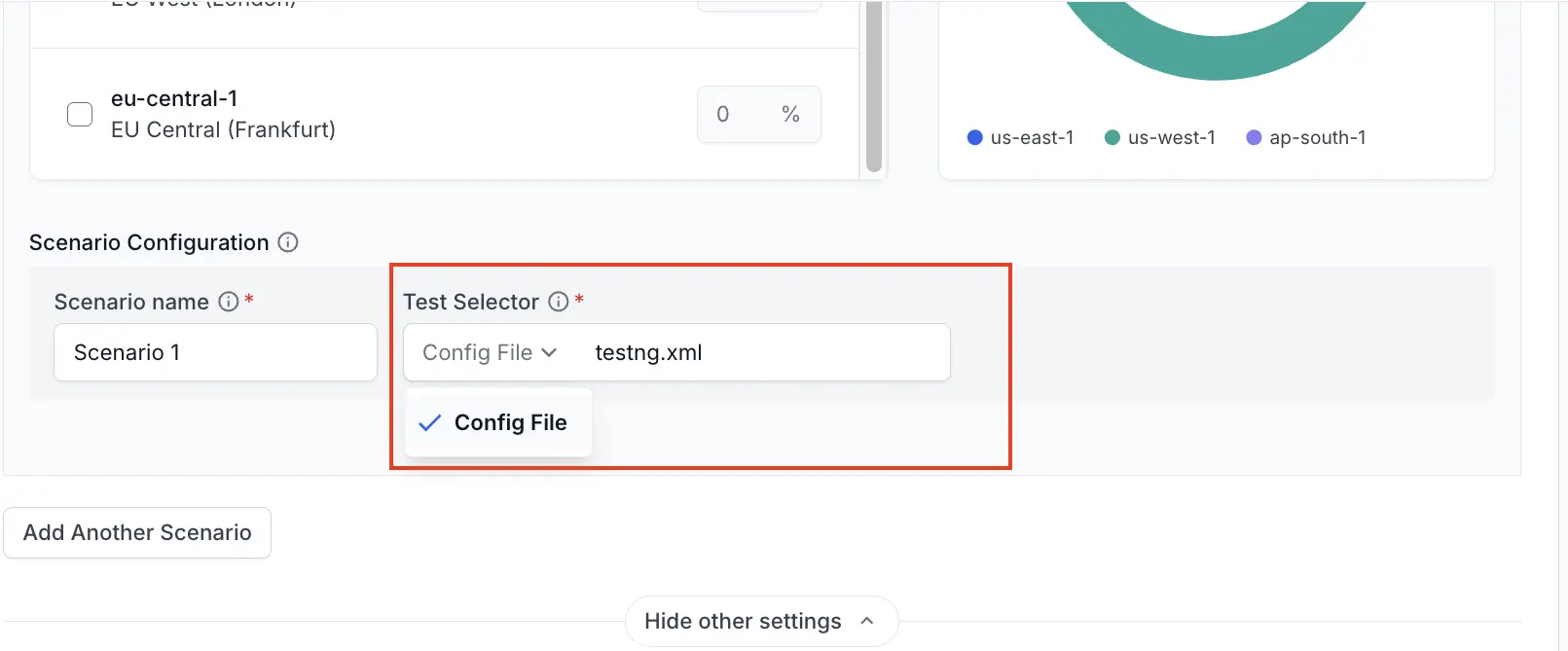
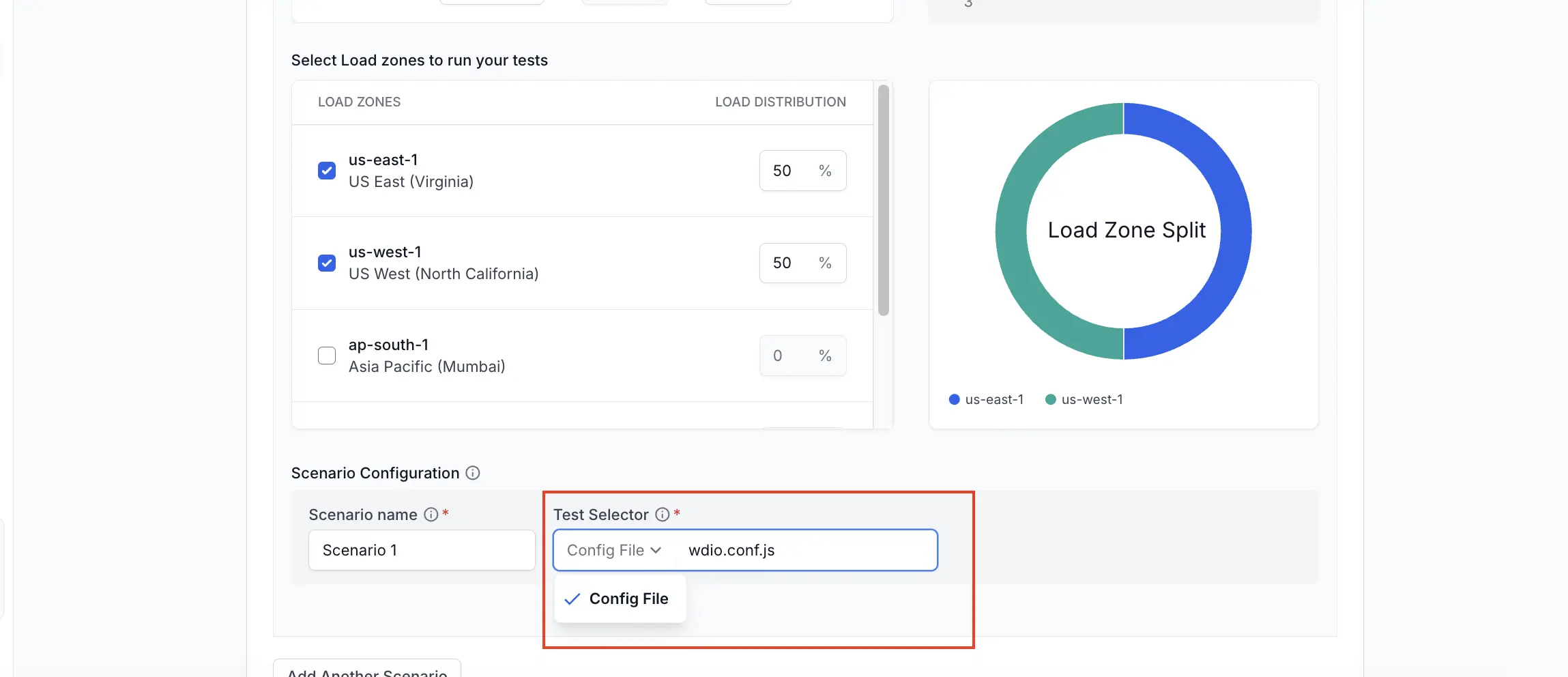
Select the desired test cases using the supported selector types.
Provide load configuration details like number of VUs, load profile and regions.
For Selenium tests, the following selector types are supported:
Selector type
Description
Config file
TestNG xml file path
This feature is currently available for TestNG only.
Add additional scenarios
Repeat the process to add more scenarios as needed, up to the maximum limit of 10 scenarios per test.
Review the configuration
Review the configuration to ensure all scenarios are set up correctly.
Configure multiple scenarios
The Multiple Scenarios feature in the Load Configuration section allows you to simulate diverse user behaviors by executing different test flows simultaneously within a single load test. Instead of running a uniform workload, you can define specific user journeys to run in parallel, creating a more realistic traffic simulation.
All scenarios execute concurrently during the test run. You can configure up to 10 distinct scenarios per test.
Steps to configure multiple scenarios
Enable multiple scenarios
In the Load Configuration section, enable the Multiple Scenarios toggle.
Add a new scenario
Click Add Scenario to create a new scenario.
Configure scenario details
For each scenario:
Provide a unique name for easy identification.
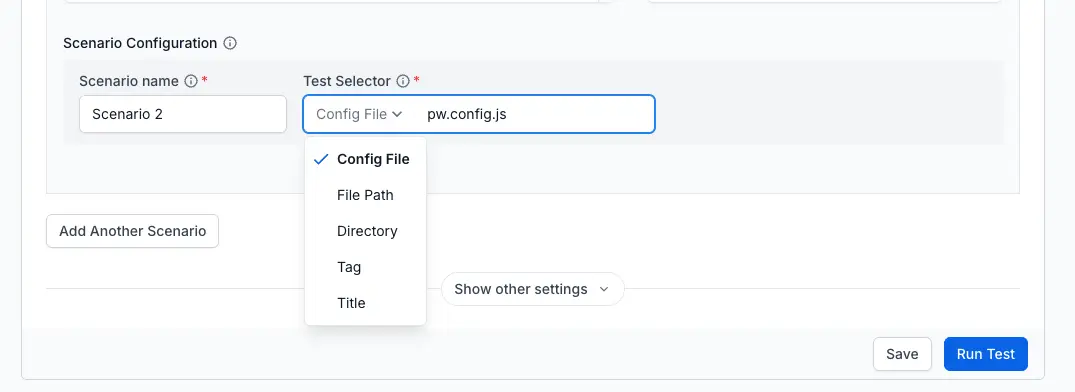
Select the desired test cases using the supported selector types.
Provide load configuration details like number of VUs, load profile and regions.
For Playwright tests, the following selector types are supported:
Repeat the process to add more scenarios as needed, up to the maximum limit of 10 scenarios per test.
Review the configuration
Review the configuration to ensure all scenarios are set up correctly.
Configure multiple scenarios
The Multiple Scenarios feature in the Load Configuration section allows you to simulate diverse user behaviors by executing different test flows simultaneously within a single load test. Instead of running a uniform workload, you can define specific user journeys to run in parallel, creating a more realistic traffic simulation.
All scenarios execute concurrently during the test run. You can configure up to 10 distinct scenarios per test.
Steps to configure multiple scenarios
Enable multiple scenarios
In the Load Configuration section, enable the Multiple Scenarios toggle.
Add a new scenario
Click Add Scenario to create a new scenario.
Configure scenario details
For each scenario:
Provide a unique name for easy identification.
Select the desired test cases using the supported selector types.
Provide load configuration details like number of VUs, load profile and regions.
For WebDriverIO tests, the following selector types are supported:
Selector type
Description
Config file
WebDriverIO configuration file path
Add additional scenarios
Repeat the process to add more scenarios as needed, up to the maximum limit of 10 scenarios per test.
Review the configuration
Review the configuration to ensure all scenarios are set up correctly.
You can configure multiple scenarios using the CLI by specifying the desired framework:
The Multiple Scenarios feature allows you to simulate diverse user behaviors by executing different test flows simultaneously within a single load test. You can configure up to 10 distinct scenarios per test using two different configuration modes.
Test selector types
For Selenium tests, the following selector types are supported:
Selector type
Description
ConfigFile
Selenium XML configuration file path
Individual config mode
Each scenario defines its own VUs, duration (or iterations), and regions independently. This mode provides complete control over each scenario’s load characteristics.
```yaml
scenarios:
- name: Login Tests
testSelector:
type: tag
value: '@login'
vus: 50 # VUs for this scenario
duration: 5m # Duration for this scenario
regions: # Regions for this scenario
- loadzone: us-east-1
percent: 100
- name: Checkout Tests
testSelector:
type: package
value: com.example.tests.checkout
vus: 20
duration: 3m
regions:
- loadzone: eu-west-2
percent: 100
```
Distribute global VUs, duration, and regions across scenarios by percentage. All scenarios must use loadPercent and percentages must sum to 100.
```yaml
scenarios:
- name: Login Tests
testSelector:
type: tag
value: '@login'
loadPercent: 20 # 20% of global VUs for this scenario
- name: Checkout Tests
testSelector:
type: package
value: com.example.tests.checkout
loadPercent: 80 # 80% of global VUs for this scenario
```
To pass native test-runner CLI flags such as -Dgroups=smoke or -k "checkout" alongside testSelector, set runCommand at the top level of your YAML. runCommand is a job-level field that applies to every scenario in the run, and its flags are appended after the args generated by testSelector, so runCommand wins on conflicts.
Configure multiple scenarios
The Multiple Scenarios feature allows you to simulate diverse user behaviors by executing different test flows simultaneously within a single load test. You can configure up to 10 distinct scenarios per test using two different configuration modes.
Test selector types
For Playwright tests, the following selector types are supported:
Each scenario defines its own VUs, duration (or iterations), and regions independently. This mode provides complete control over each scenario’s load characteristics.
```yaml
scenarios:
- name: Tag Based Tests
testSelector:
type: tag
value: @checkout
vus: 50 # VUs for this scenario
duration: 5m # Duration for this scenario
regions: # Regions for this scenario
- loadzone: us-east-1
percent: 100
- name: Specific File Tests
testSelector:
type: file
value: tests/auth/login.spec.ts
vus: 20
duration: 3m
regions:
- loadzone: eu-west-2
percent: 100
```
Distribute global VUs, duration, and regions across scenarios by percentage. All scenarios must use loadPercent and percentages must sum to 100.
```yaml
scenarios:
- name: Tag Based Tests
testSelector:
type: tag
value: @checkout
loadPercent: 20 # 20% of global VUs for this scenario
- name: Specific File Tests
testSelector:
type: file
value: tests/auth/login.spec.ts
loadPercent: 80 # 80% of global VUs for this scenario
```
To pass Playwright CLI flags such as --grep "@critical", --project chromium, or --repeat-each 3 alongside testSelector, set runCommand at the top level of your YAML. runCommand is a job-level field that applies to every scenario in the run, and its flags are appended after the args generated by testSelector, so runCommand wins on conflicts.
Configure multiple scenarios
The Multiple Scenarios feature allows you to simulate diverse user behaviors by executing different test flows simultaneously within a single load test. You can configure up to 10 distinct scenarios per test using two different configuration modes.
Test selector types
For WebDriverIO tests, the following selector types are supported:
Selector type
Description
ConfigFile
WebDriverIO XML configuration file path
Individual config mode
Each scenario defines its own VUs, duration (or iterations), and regions independently. This mode provides complete control over each scenario’s load characteristics.
```yaml
scenarios:
- name: Scenario 1
testSelector:
type: configFile
value: wdio.login.conf.js
vus: 50 # VUs for this scenario
duration: 5m # Duration for this scenario
regions: # Regions for this scenario
- loadzone: us-east-1
percent: 100
- name: Scenario 2
testSelector:
type: configFile
value: wdio.checkout.conf.js
vus: 20
duration: 3m
regions:
- loadzone: eu-west-2
percent: 100
```
To pass WebdriverIO CLI flags such as --suite smoke or --mochaOpts.grep "@critical" alongside testSelector, set runCommand at the top level of your YAML. runCommand is a job-level field that applies to every scenario in the run, and its flags are appended after the args generated by testSelector, so runCommand wins on conflicts.
In a Hybrid test, you can run multiple browser scenarios alongside a single shared API load. Each browser scenario models a different user journey, while the API load puts realistic backend traffic on your services in the background. This lets you measure production-like behavior in one test instead of splitting it into separate browser and API runs.
BrowserStack manages the API load’s lifetime for you, so you don’t set a duration or a load profile for it. You provide the script and the number of virtual users, and BrowserStack runs the API load for as long as the browser scenarios need it:
The API load starts with the first browser scenario.
It stops when all browser scenarios finish.
If any browser scenario or the API load fails, BrowserStack stops the whole test.
If the test reaches your plan’s limit, BrowserStack stops the test and shows a plan limit message.
A multi-scenario Hybrid test needs at least one browser scenario and one API script. Browser scenarios support Playwright, Selenium TestNG, and WebdriverIO. The API load supports JMeter, k6, and Gatling.
Select your preferred method to configure multiple scenarios in a Hybrid test:
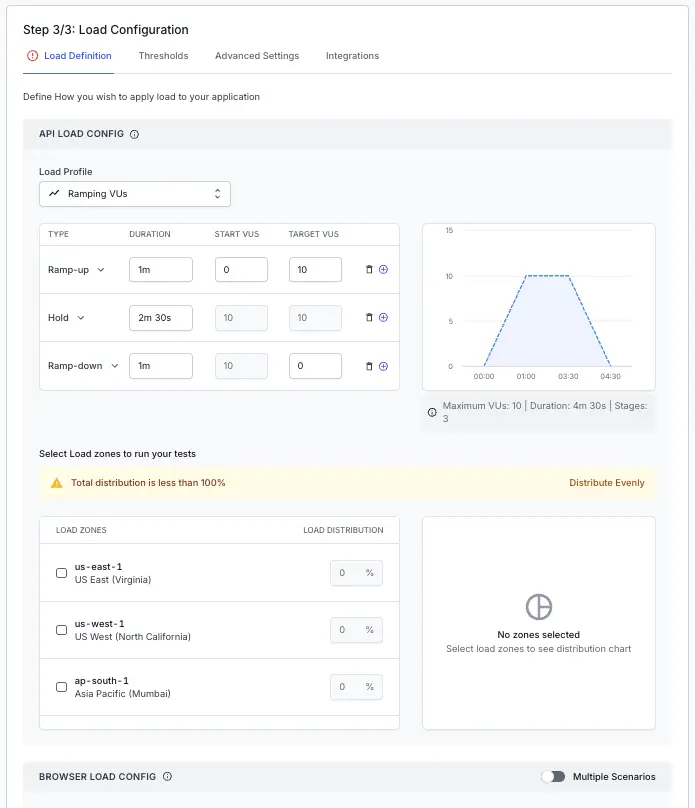
In the Hybrid test builder, the Load Configuration step has two parts: an API Load Config for the shared API load and a Browser Load Config for your scenarios.
Steps to configure multiple scenarios in a Hybrid test
Configure the API load
In API Load Config, set the number of API VUs and the load zones. You don’t set a duration or a load profile, because BrowserStack runs the API load for as long as the browser scenarios need it.
Enable multiple scenarios
In Step 3/3: Load Configuration, enable the Multiple Scenarios toggle.
Add browser scenarios
In Browser Load Config, add up to 10 scenarios. For each scenario, provide a unique name, select the tests using the supported selector types, and set the load configuration such as VUs, duration, load profile, and load zones.
Review and save
Review the API load and all browser scenarios, then save the test.
Configure multiple scenarios in a Hybrid test
In a Hybrid test, the tests block holds two entries: one API test and one browser test. The browser test carries a nested scenarios list, where each item is one scenario. The API test carries only its framework, script, and VUs. Don’t add a duration or a loadProfile to the API test, because BrowserStack manages its lifetime for you.
The following rules apply to multi-scenario Hybrid tests:
The API test is the entry whose testType is jmeter, k6, or gatling. The browser test is the entry whose testType is playwright, selenium, or webdriverio.
Add up to 10 browser scenarios under the browser test.
Each browser scenario sets its own VUs, duration, load profile, and regions, the same way it does in a browser load test.
Existing single-scenario Hybrid tests keep working without changes.
Did this page help you?
We're sorry to hear that. Please share your feedback so we can do better
Contact our Support team for immediate help while we work on improving our docs.
We're continuously improving our docs. We'd love to know what you liked
Thank you for your valuable feedback
Is this page helping you?
Yes
No
We're sorry to hear that. Please share your feedback so we can do better
Contact our Support team for immediate help while we work on improving our docs.
We're continuously improving our docs. We'd love to know what you liked

 Join our Discord