
 Join our Discord
Per-VU external inputs with test data
Configure test data inputs for repeatable load runs.
Test data lets you inject external values so each Virtual User (VU) iteration runs with different inputs. This helps you simulate real-world traffic without hard-coding values into your scripts. You can attach a file to a single load test, or store reusable files in the project-level Test Data Library and link them across multiple tests. You can also build and edit table data directly in BrowserStack, without uploading a file.
VU mapping strategies
vuMappingStrategy controls how rows are picked from a file for each VU iteration. You set it per file, so different files in the same load test can use different strategies.
The following strategies are available:
| Strategy | Behavior | When to use |
|---|---|---|
sequential |
Rows are consumed in order from the top of the file. When the file is exhausted, the runner loops back to the first row, so no rows repeat within one pass. | Even, deterministic distribution where every row is used before any row repeats. (Default) |
random |
Each iteration picks a random row from the file, so the same row can repeat within a run. | High-volume scenarios where varied input matters more than full coverage. |
If you omit vuMappingStrategy on a file, the file uses the load test’s configured default data selection mode, which is sequential. JSON files do not accept vuMappingStrategy.
Add test data to a load test
Select your preferred interface to configure test data:
Select your load test type:
Configure test data
Use test data to inject external values so each virtual user (VU) runs with different inputs. To configure test data for a Browser Load Test, do the following:
- While creating or editing a load test, open the Test Data tab in Step 3/3: Load Configuration. To add a new dataset, select Create new. To reuse a dataset already in the project, select Use from existing Test Data. You can attach up to 15 entries per load test, counting test-scoped files and Test Data Library references combined.
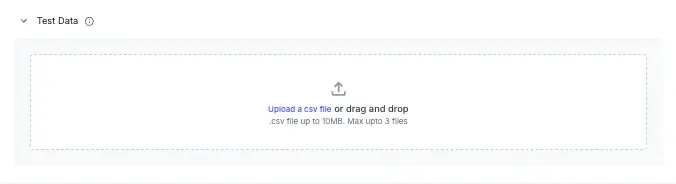
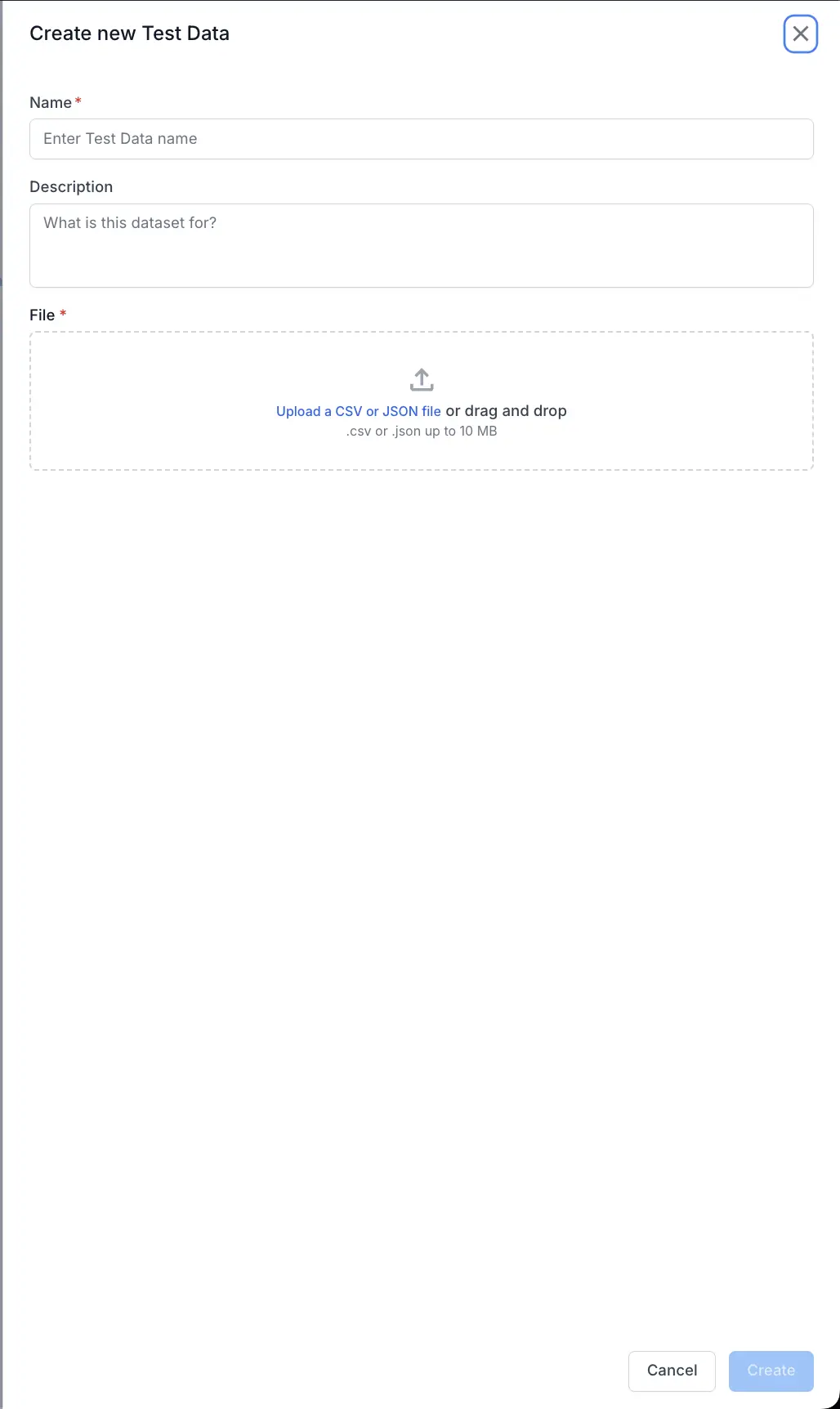
- In the Create new Test Data dialog, enter a Name and an optional Description, then upload a
.csvor.jsonfile by drag-and-drop or the file picker. Each file must not exceed 50 MB and 100 columns.
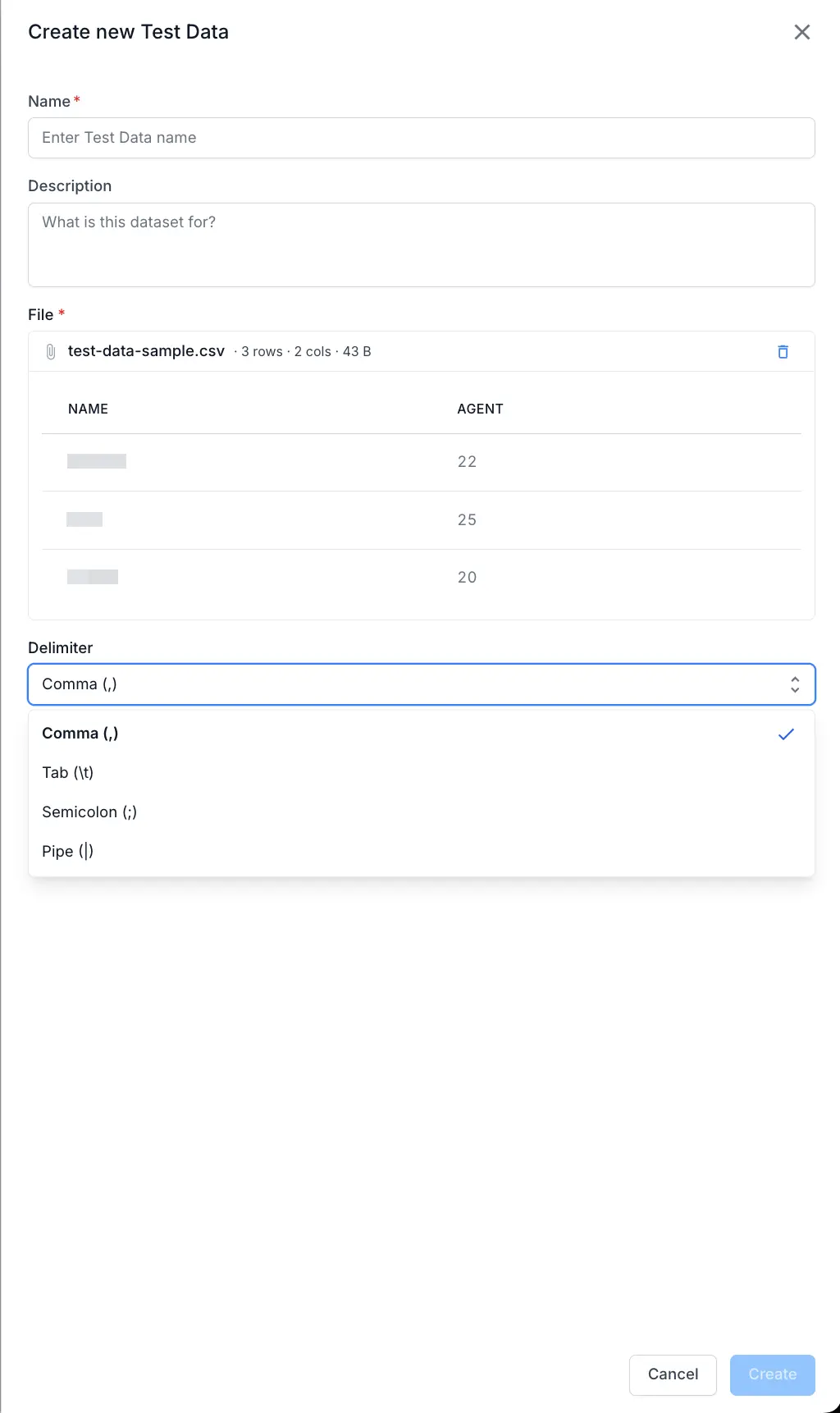
- After the file uploads, review the column preview. Ensure
.csvfiles have a header row, or.jsonfiles have keys that map to variable names in your script. Set the Delimiter toComma,Tab,Semicolon, orPipe, then select Create.
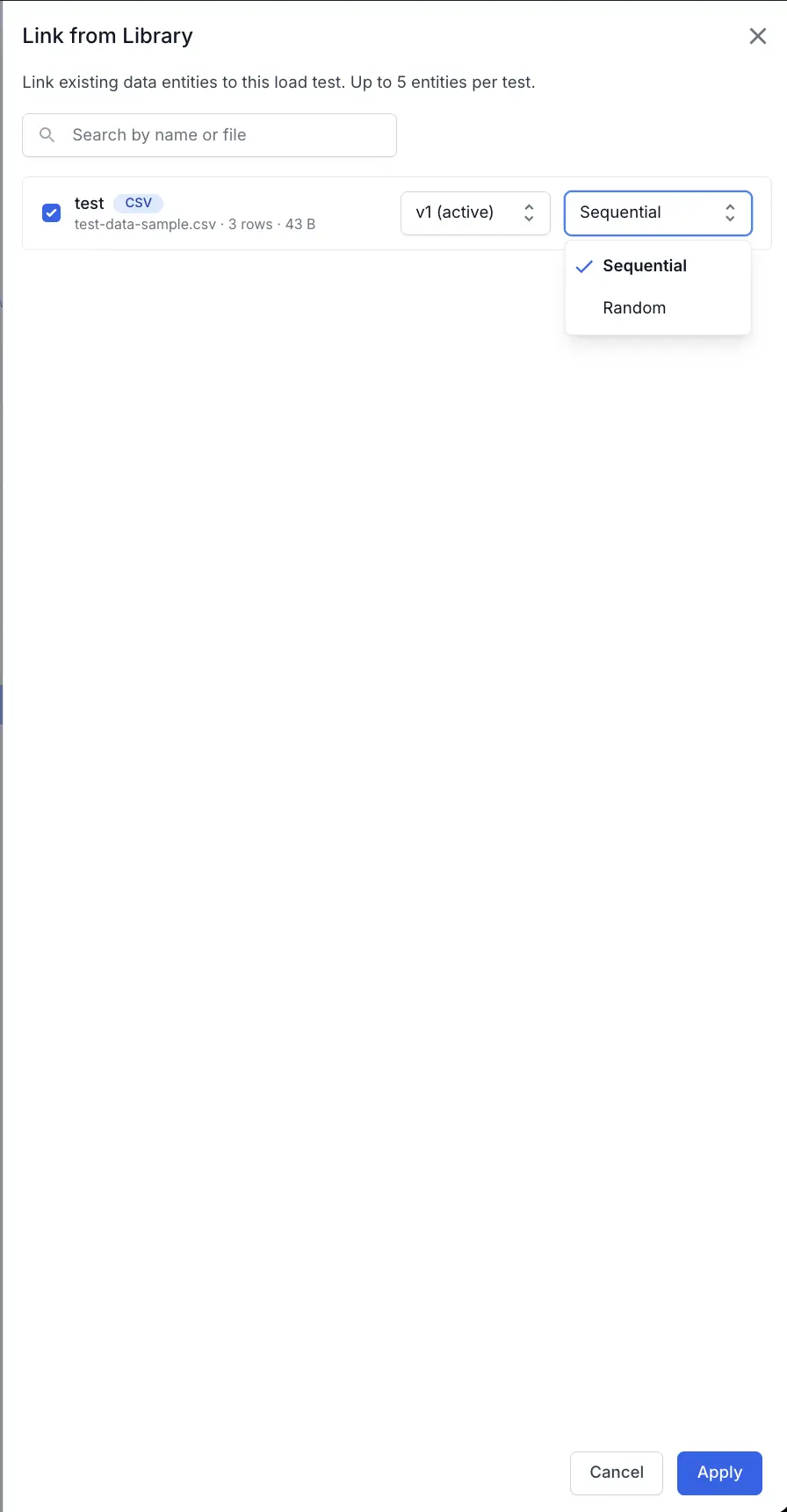
- To reuse a file across multiple tests, select Use from existing Test Data, then in the Link from Library dialog, search for and select Test Data files from the project’s Test Data Library.
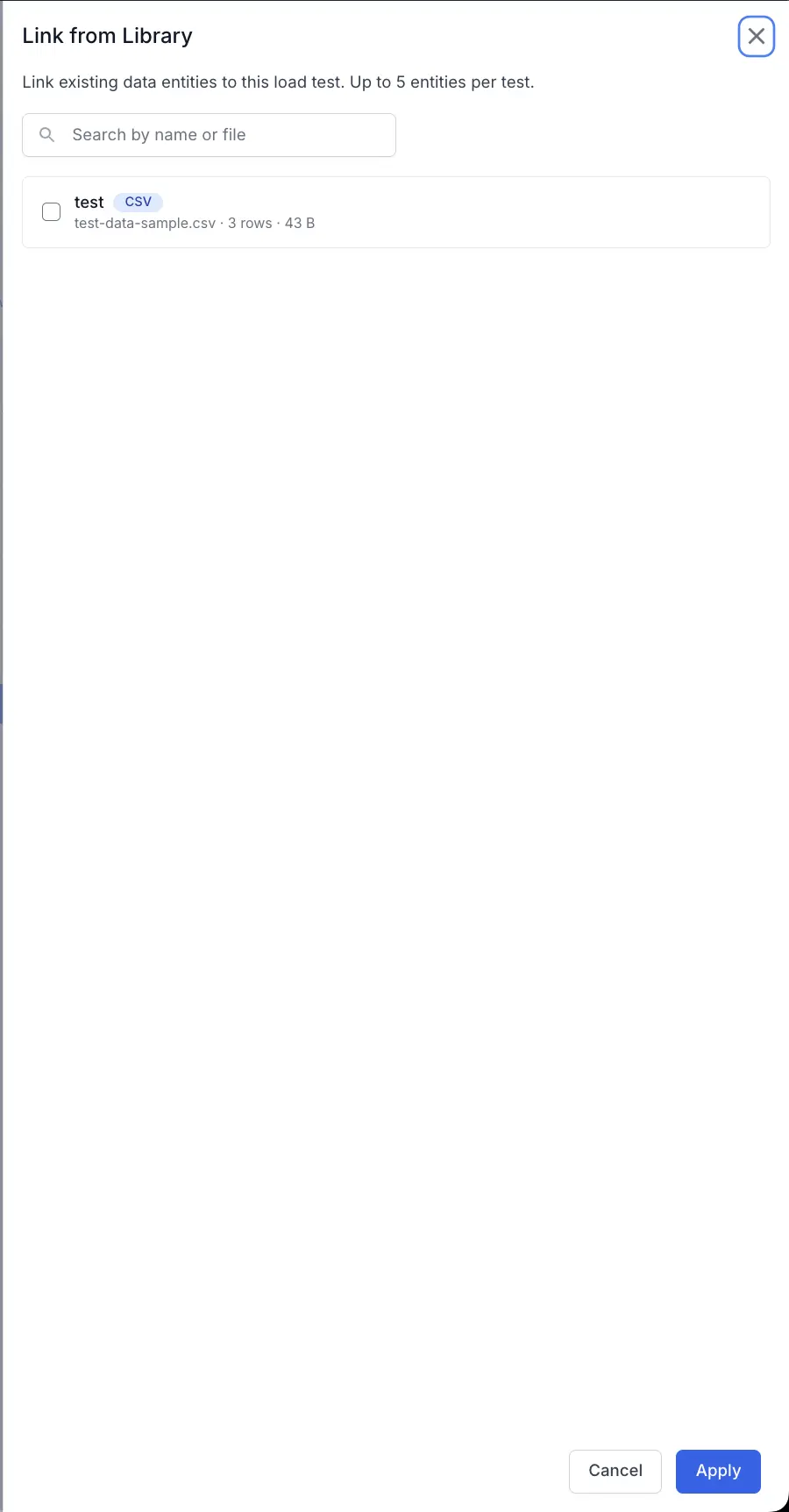
- For each selected file, choose the version to use and set the VU mapping to
SequentialorRandom, then select Apply. If you don’t specify a mapping strategy, it defaults toSequential.
- Save the test.


Bind test data to a scenario
When your Browser Load Test uses multiple scenarios, you can assign each test data file to specific scenarios. This lets each user journey run with its own dataset, so your checkout scenario reads card details while your login scenario reads credentials, all in one test.
Per-scenario test data is available for Browser Load Tests that use multiple scenarios.
You link a test data file to the load test once, then choose which scenarios use it. A file assigned to specific scenarios runs only for those scenarios. A file assigned to all scenarios runs for every scenario. The 15-entry limit applies across the whole test, counting every file regardless of how many scenarios use it.
Select your preferred interface to assign test data to scenarios:
Assign test data to scenarios
Configure your scenarios first, then link a test data file and choose which scenarios use it:
Steps to assign test data to scenarios
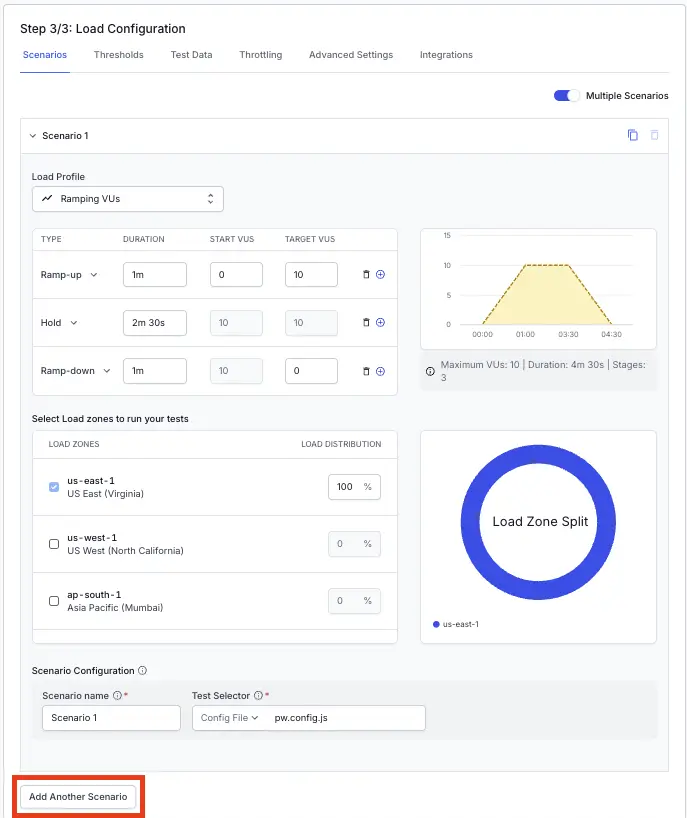
Configure your scenarios
In Step 3/3: Load Configuration, open the Scenarios tab, turn on Multiple Scenarios, and add your scenarios. For details, see Configure multiple scenarios.
Add a test data file
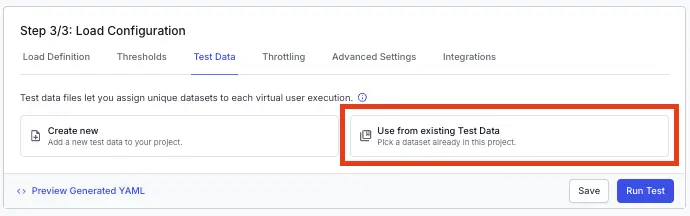
Open the Test Data tab. Select Use from existing Test Data to link a file from the Test Data Library, or select Create new to upload one.
Link the file
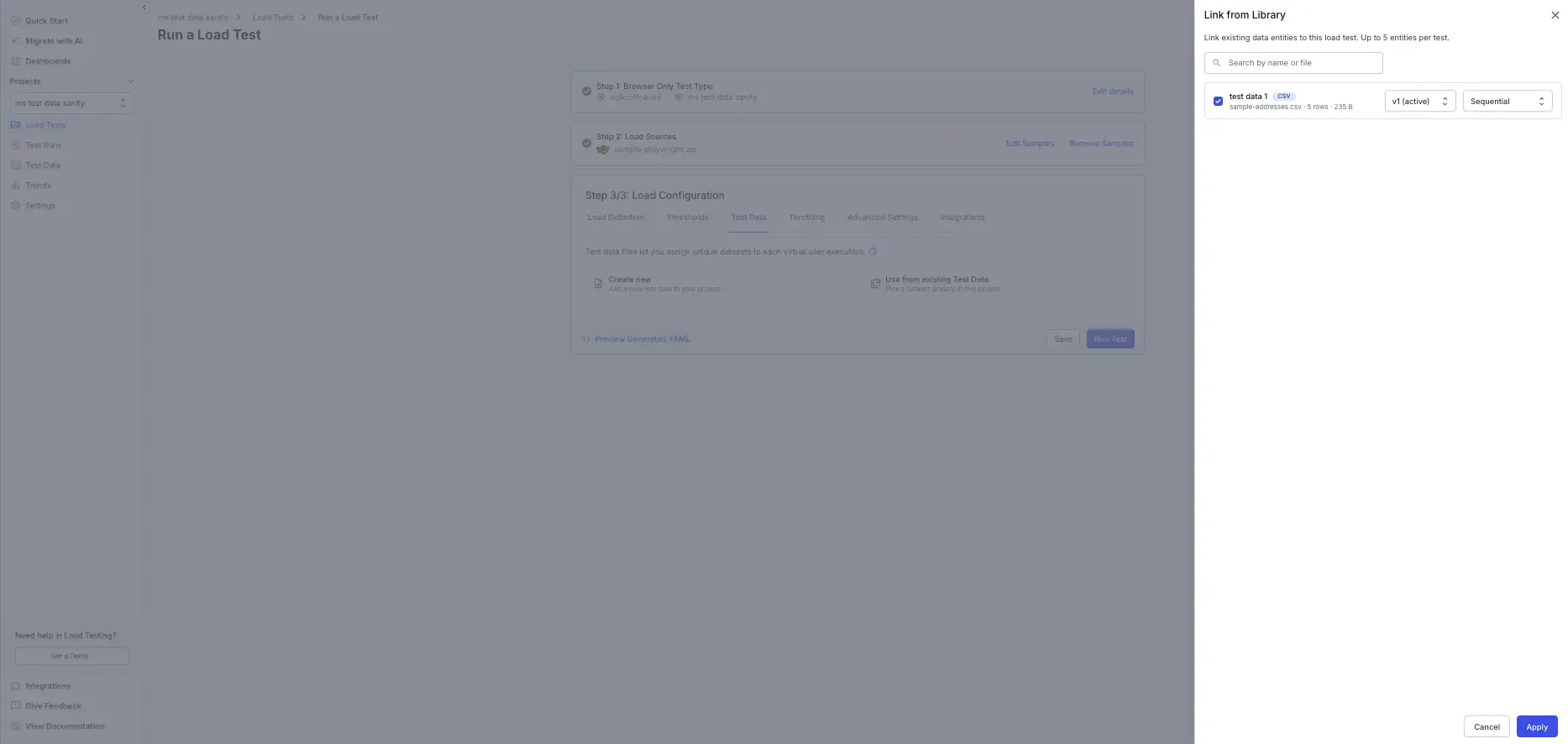
In Link from Library, select the file, choose its version and VU mapping, then select Apply.
Assign the file to scenarios
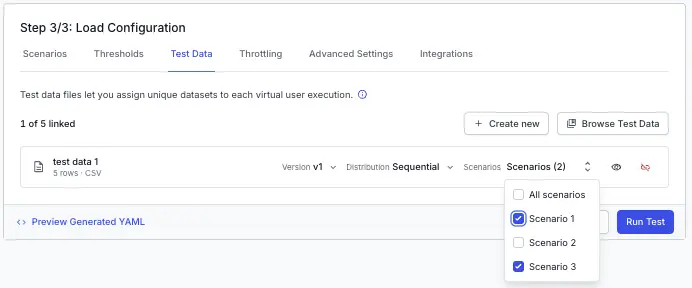
On the linked file, open the Scenarios selector and choose the scenarios that use it. Leave it set to All scenarios to apply the file to every scenario.
Access the injected values in your script
BrowserStack injects your test data file into test-docs/ alongside your test script before each run, pre-ordered according to the VU mapping strategy you configured.
Playwright, WebdriverIO, Nightwatch, and Selenium read and parse the injected CSV file themselves. Write a reader utility in your project that opens the file and returns row values by column header name. BrowserStack does not inject values as environment variables for any browser framework. Protocol frameworks, including k6, JMeter, Gatling, and Locust, each use a native or standard-library reading mechanism.
The column headers in your CSV file become the keys you reference in your test script. For example, a file with headers url, title, inputText, and timeout lets you access row.url, row.inputText, and so on in your reader code:
| url | title | inputText | timeout |
|---|---|---|---|
| https://example.com | Example Domain | Example Domain | 5000 |
| https://playwright.dev | Playwright | reliable end-to-end testing | 10000 |
| https://github.com | GitHub | GitHub | 8000 |
| https://google.com | 15000 |
Select your framework to see a working example:
Playwright (Node.js)
Add csv-parser to your package.json dependencies:
{
  "dependencies": {
    "csv-parser": "^3.2.0"
  }
}
Create utils/csvReader.js:
import fs from 'fs';
import csv from 'csv-parser';
import path from 'path';

export async function readFirstRow(csvFilePath) {
  return new Promise((resolve, reject) => {
    let firstRow = null;
    const stream = fs.createReadStream(path.resolve(csvFilePath))
      .pipe(csv())
      .on('data', (data) => { if (!firstRow) { firstRow = data; stream.destroy(); } })
      .on('end', () => resolve(firstRow))
      .on('close', () => { if (firstRow) resolve(firstRow); })
      .on('error', reject);
  });
}
In your test file:
import { test, expect } from '@playwright/test';
import { readFirstRow } from '/utils/csvReader.js';

test('text input test', async ({ page }) => {
  const row = await readFirstRow('your-data-file.csv');
  await page.goto(row.url);
  await page.locator('#newButtonName').fill(row.inputText);
  await page.locator('#updatingButton').click();
  expect((await page.locator('#updatingButton').textContent()).trim()).toBe(row.inputText);
});
WebdriverIO (Node.js)
Add csv-parser to your package.json dependencies:
{
  "dependencies": {
    "csv-parser": "^3.2.0"
  }
}
Create utils/csvReader.js:
const fs = require('fs');
const csv = require('csv-parser');
const path = require('path');

async function readFirstRow(csvFilePath) {
  return new Promise((resolve, reject) => {
    let firstRow = null;
    const stream = fs.createReadStream(path.resolve(csvFilePath))
      .pipe(csv())
      .on('data', (data) => { if (!firstRow) { firstRow = data; stream.destroy(); } })
      .on('end', () => resolve(firstRow))
      .on('close', () => { if (firstRow) resolve(firstRow); })
      .on('error', reject);
  });
}
module.exports = { readFirstRow };
In your test file:
const { readFirstRow } = require('/utils/csvReader.js');

describe('Text Input Test', () => {
  it('should update button text from CSV input', async () => {
    const row = await readFirstRow('your-data-file.csv');
    await browser.url(row.url);
    await (await $('#newButtonName')).setValue(row.inputText);
    const button = await $('#updatingButton');
    await button.click();
    expect((await button.getText()).trim()).toBe(row.inputText);
  });
});
Nightwatch (Node.js)
Add csv-parse to your package.json dev dependencies:
{
  "devDependencies": {
    "csv-parse": "^6.1.0"
  }
}
In your test file:
const fs = require('fs');
const path = require('path');
const { parse } = require('csv-parse/sync');

function readFirstRow(filename) {
  const csvFilePath = path.join(__dirname, '..', filename);
  const records = parse(fs.readFileSync(csvFilePath, 'utf-8'), {
    columns: true,
    skip_empty_lines: true
  });
  return records[0];
}

module.exports = {
  'text input test': function (browser) {
    const inputtext = readFirstRow('your-data-file.csv');
    browser
      .url(inputtext.url)
      .waitForElementVisible('#newButtonName')
      .setValue('#newButtonName', inputtext.inputText)
      .click('#updatingButton')
      .getText('#updatingButton', function (result) {
        this.assert.equal(result.value.trim(), inputtext.inputText);
      })
      .end();
  }
};
Selenium: Java and TestNG
No external CSV library is required. Create src/test/java/utils/CsvUtils.java using the JDK BufferedReader:
import java.io.BufferedReader;
import java.io.FileReader;
import java.io.IOException;

public class CsvUtils {
    public static String getFirstColumnValue(String csvFile, int columnIndex) throws IOException {
        try (BufferedReader br = new BufferedReader(new FileReader(csvFile))) {
            br.readLine();                    // skip header row
            String firstRow = br.readLine();
            if (firstRow != null) return firstRow.split(",")[columnIndex];
        }
        return null;
    }
}
In your test file:
import org.testng.Assert;
import org.testng.annotations.Test;

public class GotoProductUrl {
    @Test
    public void testWithTestParametrization() throws Exception {
        String url = CsvUtils.getFirstColumnValue("your-data-file.csv", 0);
        driver.get(url);
        Assert.assertNotNull(driver.getTitle());
    }
}
Selenium: Python and pytest
No external library is required. Create utils/csv_reader.py using the Python standard-library csv module:
import csv

def read_first_row(csv_file_path):
    with open(csv_file_path, newline="", encoding="utf-8") as fh:
        for row in csv.DictReader(fh):
            return row
    return None
In your test file:
from selenium import webdriver
from selenium.webdriver.common.by import By
from utils.csv_reader import read_first_row

def test_textinput():
    row = read_first_row("your-data-file.csv")
    assert row is not None
    driver = webdriver.Chrome()
    try:
        driver.get(row["url"])
        driver.find_element(By.ID, "newButtonName").send_keys(row["inputText"])
        driver.find_element(By.ID, "updatingButton").click()
        assert driver.find_element(By.ID, "updatingButton").text.strip() == row["inputText"]
    finally:
        driver.quit()
Protocol frameworks below use a credentials-based scenario to illustrate native CSV reading. Replace the column names with those in your own CSV file.
k6
Use SharedArray with open() and papaparse from the k6 jslib:
import http from 'k6/http';
import { check, group } from 'k6';
import { SharedArray } from 'k6/data';
import papaparse from 'https://jslib.k6.io/papaparse/5.1.1/index.js';

export const options = { vus: 1, iterations: 10 };

const credentials = new SharedArray('credentials', function () {
  const paramFile = __ENV.PARAM_FILE || 'your-data-file.csv';
  return papaparse.parse(open(paramFile), { header: true }).data;
});

export default function () {
  const { username, password } = credentials[Math.floor(Math.random() * credentials.length)];
  group('User Login', () => {
    const res = http.post(
      `${__ENV.BASE_URL}/auth/login`,
      JSON.stringify({ username, password }),
      { headers: { 'Content-Type': 'application/json' } }
    );
    check(res, { 'login status 200': (r) => r.status === 200 });
  });
}
JMeter
JMeter reads the injected CSV natively using a CSVDataSet element. Add it before your HTTP sampler in your .jmx file:
<CSVDataSet guiclass="TestBeanGUI" testclass="CSVDataSet" testname="CSV Data" enabled="true">
  <stringProp name="filename">your-data-file.csv</stringProp>
  <stringProp name="variableNames">username,password</stringProp>
  <stringProp name="delimiter">,</stringProp>
  <boolProp name="ignoreFirstLine">true</boolProp>
  <boolProp name="recycle">true</boolProp>
  <boolProp name="stopThread">false</boolProp>
</CSVDataSet>

<HTTPSamplerProxy testname="POST Login" enabled="true">
  <stringProp name="HTTPSampler.path">/auth/login</stringProp>
  <stringProp name="HTTPSampler.method">POST</stringProp>
  <stringProp name="HTTPSampler.postBody">{"username":"${username}","password":"${password}"}</stringProp>
</HTTPSamplerProxy>
Set ignoreFirstLine to true to skip the header row. Without it, JMeter reads the header row as data.
Gatling (Scala)
Gatling reads the injected CSV natively using a built-in CSV feeder:
package simulations

import io.gatling.core.Predef._
import io.gatling.http.Predef._
import scala.concurrent.duration._

class CsvParamSimulation extends Simulation {
  val httpProtocol = http
    .baseUrl("https://jsonplaceholder.typicode.com")
    .acceptHeader("application/json")

  val csvFeeder = csv("your-data-file.csv").circular

  val scn = scenario("CSV Parameterized")
    .feed(csvFeeder)
    .forever {
      exec(
        http("GET user").get("/users").queryParam("email", "#{email}").check(status.is(200))
      ).pause(1)
    }

  setUp(scn.inject(atOnceUsers(1))).protocols(httpProtocol).maxDuration(120.seconds)
}
Locust (Python)
Read the injected CSV once at module load using the Python standard-library csv module, then pick a row per task:
import csv
import random
from locust import HttpUser, task, between

with open('your-data-file.csv', newline='') as f:
    CREDENTIALS = list(csv.DictReader(f))

class LoginUser(HttpUser):
    host = 'https://dummyjson.com'
    wait_time = between(1, 2)

    @task
    def login(self):
        row = random.choice(CREDENTIALS)
        self.client.post('/auth/login', json={
            'username': row['username'],
            'password': row['password']
        })
Reuse test data with the Test Data Library
The Test Data Library is a project-level store of reusable CSV and JSON Test Data. Link one Test Data file to multiple load tests, update it in one place, and every linked test picks up the latest version on the next run.
Use the Test Data Library to:
- Share credentials, product catalogs, API tokens, and other parameter data across multiple load tests in the same project.
- Track which tests use a given Test Data file from a single detail view.
- Maintain version history per Test Data file and control which version each load test uses.
Limits
The following limits apply to the Test Data Library:
| Limit | Value |
|---|---|
| Maximum Test Data files per project | 50 |
| Maximum Test Data references per load test (test-scoped files and library references combined) | 15 |
| Maximum file size per Test Data file | 50 MB |
| Maximum columns per Test Data file | 100 |
| Project-level storage quota | 2 GB |
| Group-level storage quota | 8 GB |
Open the Test Data Library
Open your project from the BrowserStack Load Testing dashboard.
From the project side navigation, select Test Data. The Test Data Library lists every Test Data file in the project with its name, file name, row count, column count, size, last-updated timestamp, and number of linked tests.
Create test data
You can add a test data file to the library in two ways:
- Upload a file from your machine
- Build a table inline in BrowserStack Use the inline editor when you do not have a file ready, or when you want to enter values without switching to another tool.
To upload a file:
Select Create Test Data, then select Upload File.
Upload a .csv or .json file from your machine.
Enter a name and an optional description. Names must be unique within the project.
Save the file. The library lists the new Test Data file, and it is immediately available to link from any load test in the project.
To build a table inline:
Select Create Test Data, then select Create New Data Table.
Enter a header in each cell of the first row. Each header becomes a variable name that your script reads, such as username or product_id.
Enter your values in the rows below. Add more rows and columns with the Add Row and Add Column buttons, or by typing in the last empty row or column.
Enter a name and an optional description, then save. BrowserStack stores the table as a .csv file and lists it in the library, ready to link from any load test in the project.
Edit test data inline
You can edit any .csv test data file directly in BrowserStack, without downloading and re-uploading it. This helps you make quick changes during test development, such as fixing a value or adding a few rows.
To edit a Test Data file:
In the Test Data Library, open the .csv test data file you want to change, then select Edit.
Update the table. Select any cell to change its value. Use the Add Row and Add Column buttons to grow the table, and the right-click menu to delete rows or columns. You can also copy and paste cells from a spreadsheet, and undo or redo recent changes.
Save your changes. BrowserStack stores the edit as a new version. Load tests linked to an earlier version keep using it until you re-link them to the latest version.
The inline editor supports the following actions:
- Edit a cell by selecting it and typing a new value.
- Add rows and columns with the Add Row and Add Column buttons, and delete them from the right-click menu.
- Copy and paste cells from a spreadsheet such as Google Sheets or Excel.
- Undo and redo your recent changes until you save or discard them.
Column headers must be unique and cannot be empty. The editor flags duplicate or blank headers so you can correct them before you save. The editor loads up to 10,000 rows. For larger files, upload a replacement instead.
Inline editing is available for .csv files. To edit an Excel file, select Convert to CSV to open it in the editor. BrowserStack keeps the original Excel file as a previous version.
While you edit a test data file, BrowserStack locks it so that no one else can edit it at the same time. Other users in the project can still view the file. The lock releases when you save or discard your changes.
Link test data to a load test
After you create a Test Data file, link it to one or more load tests so each linked test reads from the same source:
While creating or editing a load test, open the Test Data tab in Step 3/3: Load Configuration.
Select Use from existing Test Data to open the Link from Library dialog, which lists every Test Data file in the project.
Select one or more files. You can link up to 15 Test Data references per load test, counting test-scoped files and library references combined.
For each selected file, choose the version to use and set the VU mapping to Sequential or Random, then select Apply. The strategy is stored on the link, so the same Test Data file can be sequential in one test and random in another.
Save the load test.
View linked tests and version history
Open any Test Data file from the library to inspect its usage and history:
- Linked Tests: The list of load tests that reference this Test Data file, including who linked it, when, the VU mapping strategy chosen on the link, and the timestamp of the last run that used it. Use this view before you update a Test Data file to see which tests are affected.
- Version History: Every saved version, with the author, timestamp, change summary, and file size. Select Activate this version to make a previous version the default. Future load tests that link this Test Data file use that version, while load tests already linked to a different version continue to use it. See How updates to Test Data affect existing load tests.
Update, rename, download, or delete Test Data
You can manage each test data file from the library listing or its detail view:
-
Update: Open the test data file and upload a replacement
.csvor.jsonfile, or edit a.csvfile inline. Either action creates a new version. Existing load tests continue to run against the version they were linked to. See How updates to Test Data affect existing load tests. - Rename: Inline-rename the file from the library listing or the detail view. The name must remain unique within the project.
- Download: Download the current version of the Test Data file.
- Delete: Delete the Test Data file. If any tests link to it, BrowserStack lists those tests and asks you to confirm. After deletion, affected tests no longer have a data reference and fail on the next run unless you provide replacement data.
How updates to Test Data affect existing load tests
Each load test pins a specific version of every linked Test Data file. Updating a Test Data file does not change which version your existing load tests use. They continue to run against the version they were linked to. To make a load test pick up a newer version, open the load test and re-link the file to the latest version.
We're sorry to hear that. Please share your feedback so we can do better
Contact our Support team for immediate help while we work on improving our docs.
We're continuously improving our docs. We'd love to know what you liked
We're sorry to hear that. Please share your feedback so we can do better
Contact our Support team for immediate help while we work on improving our docs.
We're continuously improving our docs. We'd love to know what you liked
Thank you for your valuable feedback!