
 Join our Discord
Debug browser load tests
Troubleshoot and optimize Browser load tests using structured debugging techniques and performance metrics.
This guide walks you through systematic debugging approaches for common browser load test failures. Use the triage questions and targeted sections below to identify root causes and optimize your tests.
30-second triage
Start with these four questions to identify the issue:
| Question | What it reveals |
|---|---|
| Is the error % high? | Navigate to Errors tab |
| Are page load times slow? | Navigate to Response time section |
| Are Web Vitals poor? | Navigate to Web Vitals section |
| Does it correlate with VU ramp? | Compare error rate with load increase in the timeseries |
Debug high error rates
High error rates indicate failures in the script execution or application response.
Steps:
- Check the Error column in the Summary tab to identify the error type and count.
- Review the Network tab to see failed requests and HTTP status codes.
- Open Tests tab for the failing test iteration:
- Watch the video recording to see what happened visually.
- Review debug logs and Unique Errors sections on the page.
- Compare error distribution across Virtual Users (VUs) to identify if the issue affects all users or specific ones.
- Check if errors spike when load increases, indicating a threshold or resource limit.
Common causes:
- Element not found or selector changed
- Page navigation timeout or unexpected redirect
- JavaScript errors on page load
- Application error response (500, 503)
- Resource exhaustion at high VU levels
Debug slow page loads
Slow response times impact user experience metrics and may indicate bottlenecks.
Steps:
- Check the Response Time metric in the Summary tab (p50, p95, p99 percentiles)
- Review the Network tab to identify which resources are slowest
- Check Web Vitals for performance metrics (LCP, FCP, TTFB)
- Hover over Page Load Time under the Browser Metrics and Timeline, click and select URLs to analyze the Page Load Phases
- Compare response times across load zones to identify regional differences
- Check if slowness correlates with increasing VU load
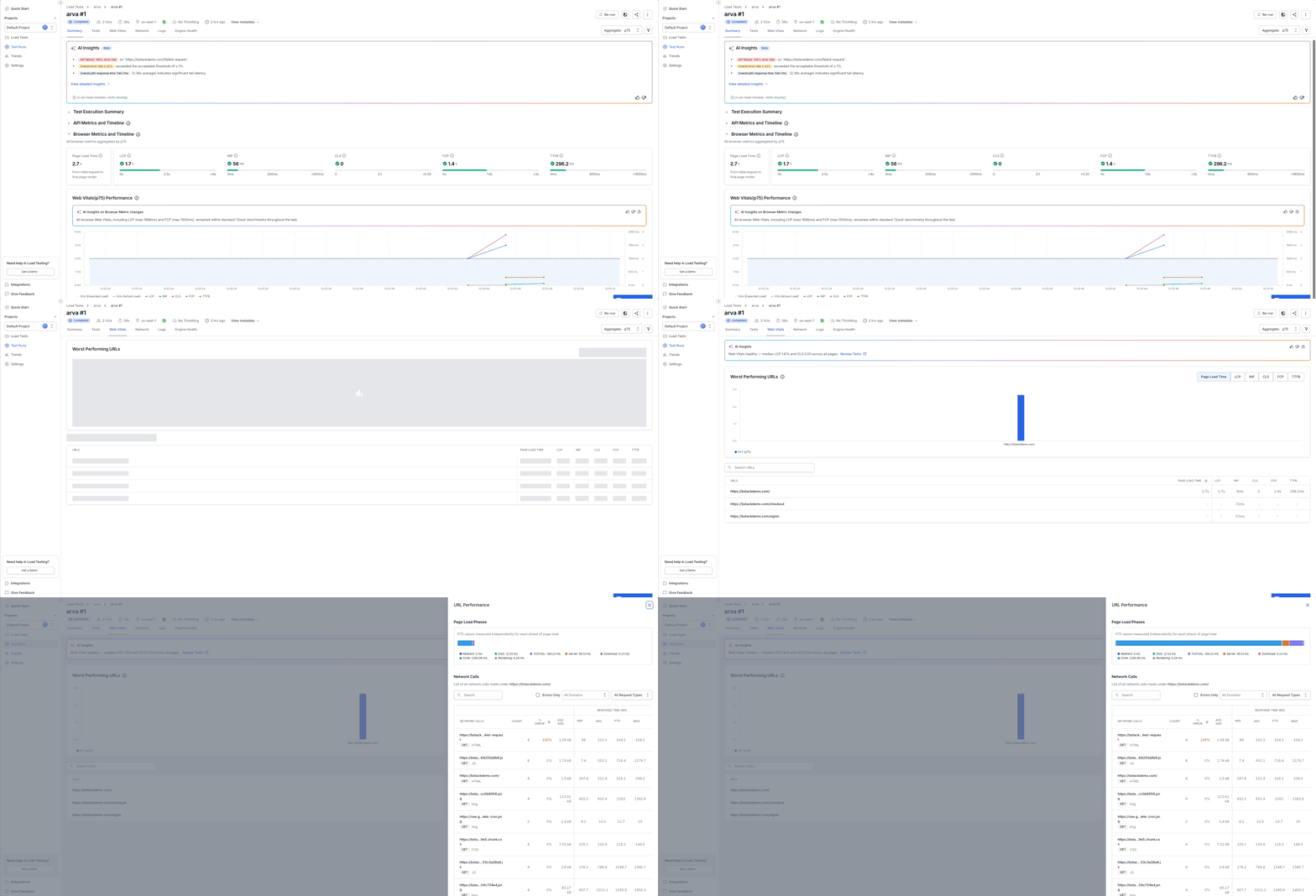
Common causes:
- Backend service under load
- Large DOM or JavaScript bundle
- Unoptimized images or assets
- Database query delays
- Network latency in specific regions
Debug poor Web Vitals
Web Vitals measure real user experience metrics like interactivity and visual stability.
Metrics to monitor:
- LCP (Largest Contentful Paint): Time for largest visible element to render. Target: < 2.5 seconds
- INP (Interaction to Next Paint): Time from user input to visual feedback. Target: < 200 milliseconds
- CLS (Cumulative Layout Shift): Unexpected layout changes during load. Target: < 0.1
- TTFB (Time to First Byte): Server response time. Target: < 600 milliseconds
- FCP (First Contentful Paint): Time for first element to render. Target: < 1.8 seconds
Steps:
- In the Web Vitals tab, identify which metric exceeds the target
- Check the Network tab for render-blocking resources
- Review JavaScript execution time and DOM operations
- Compare Web Vitals across load zones and browsers
Common causes:
- Slow backend API delaying page rendering
- Large JavaScript bundles or inefficient code
- Render-blocking CSS or JavaScript
- Heavy DOM manipulation after page load
- Third-party scripts or tracking code
Debug script-specific failures
Script failures indicate issues with test configuration or page interaction logic.
Element not found:
- Verify the selector exists on the page at the time of interaction
- Check if the page structure changed
- Confirm the element is visible and not hidden by other elements
- Use browser DevTools to test the selector in real-time
Navigation timeout:
- Check if the target URL is reachable
- Review backend logs for errors
- Increase timeout duration if the page naturally loads slowly
- Verify no redirects prevent reaching the expected URL
Browser crash:
- Check Engine Health tab for resource exhaustion (memory, CPU)
- Verify the page doesn’t have memory leaks
- Reduce VU count or duration to isolate the issue
Debug infrastructure health
Infrastructure issues affect all tests regardless of script quality.
Steps:
- Check Engine Health tab for resource metrics:
- CPU usage: Should stay below 80%
- Memory usage: Should stay below 90%
- Network I/O: Monitor for packet loss or high latency
- Look for resource exhaustion patterns that correlate with test start time
- Compare health metrics across load zones
- Identify if infrastructure issues precede errors or slowness
Common causes:
- Too many concurrent VUs for available resources
- Memory leaks in browser instances
- Network connectivity issues in load zone
- Hardware limitations of test infrastructure
Debug threshold breaches
Thresholds define acceptable performance limits.
Steps:
- Identify which threshold was exceeded in the test results
- Compare the metric value against the defined threshold
- Check if the breach is consistent or occasional
- Review the timeseries to see when the breach started
- Analyze if threshold was set appropriately for the application
Regression analysis
Compare current test results against baseline to identify performance degradation.
Steps:
- Use Compare Execution feature to select current and baseline runs
- Compare metrics side-by-side for errors, response time, Web Vitals
- Identify metrics that degraded significantly
- Check git history or deployment logs for changes between runs
- Isolate the change that caused regression
Common pitfalls
Review these common mistakes and their solutions to avoid troubleshooting issues:
| Pitfall | Solution |
|---|---|
| Timeouts too low for application SLA | Adjust timeout to match expected load-time behavior |
| Selector too broad or environment-specific | Use stable, specific selectors; avoid hardcoded URLs |
| VU spike testing production database | Use staging environment or test data with proper isolation |
| Not accounting for think time between actions | Add realistic delays between user interactions |
| Browsers crashing at high VU count | Reduce VU ramp-up rate or increase infrastructure capacity |
| Comparing apples to oranges (different load zones or times) | Use consistent test parameters and timing when comparing runs |
Next steps
- For unresolved issues, contact our technical support team with test execution IDs
- Review Load Testing FAQs for general questions
- Check the Troubleshooting guide for additional debugging techniques
We're sorry to hear that. Please share your feedback so we can do better
Contact our Support team for immediate help while we work on improving our docs.
We're continuously improving our docs. We'd love to know what you liked
We're sorry to hear that. Please share your feedback so we can do better
Contact our Support team for immediate help while we work on improving our docs.
We're continuously improving our docs. We'd love to know what you liked
Thank you for your valuable feedback!