
 Join our Discord
Export load test reports to CSV
Download a completed load test report as a ZIP of CSV files so you can run custom analysis, archive results, and feed the data into your own tools.
The report dashboard shows results at a glance, but teams often need the raw numbers in their own tools. With CSV export, you download a completed run as a ZIP of CSV files and take the data anywhere: a spreadsheet for custom calculations, Python or R for statistical analysis, or a business intelligence tool such as Power BI or Tableau for custom dashboards. The export also gives you a complete, timestamped record of a run for archival and audit.
With CSV export, you can:
- Download a full report as analysis-ready CSV files in one ZIP.
- Run custom calculations, charts, and statistics outside BrowserStack.
- Share raw performance data with stakeholders who don’t use the platform.
- Archive complete run data to meet compliance and audit requirements.
Prerequisites
Before you export a report:
- Your load test must have finished running. You can export a report only after the test reaches a completed state.
- You must be the owner of the report. If you’re viewing the report through a public share link, you can’t export it.
Export a report
To export a report:
- Open the report for a completed run.
- Select the kebab menu ⋮ in the report header, next to Download PDF Report.
- Select Download CSV Report.
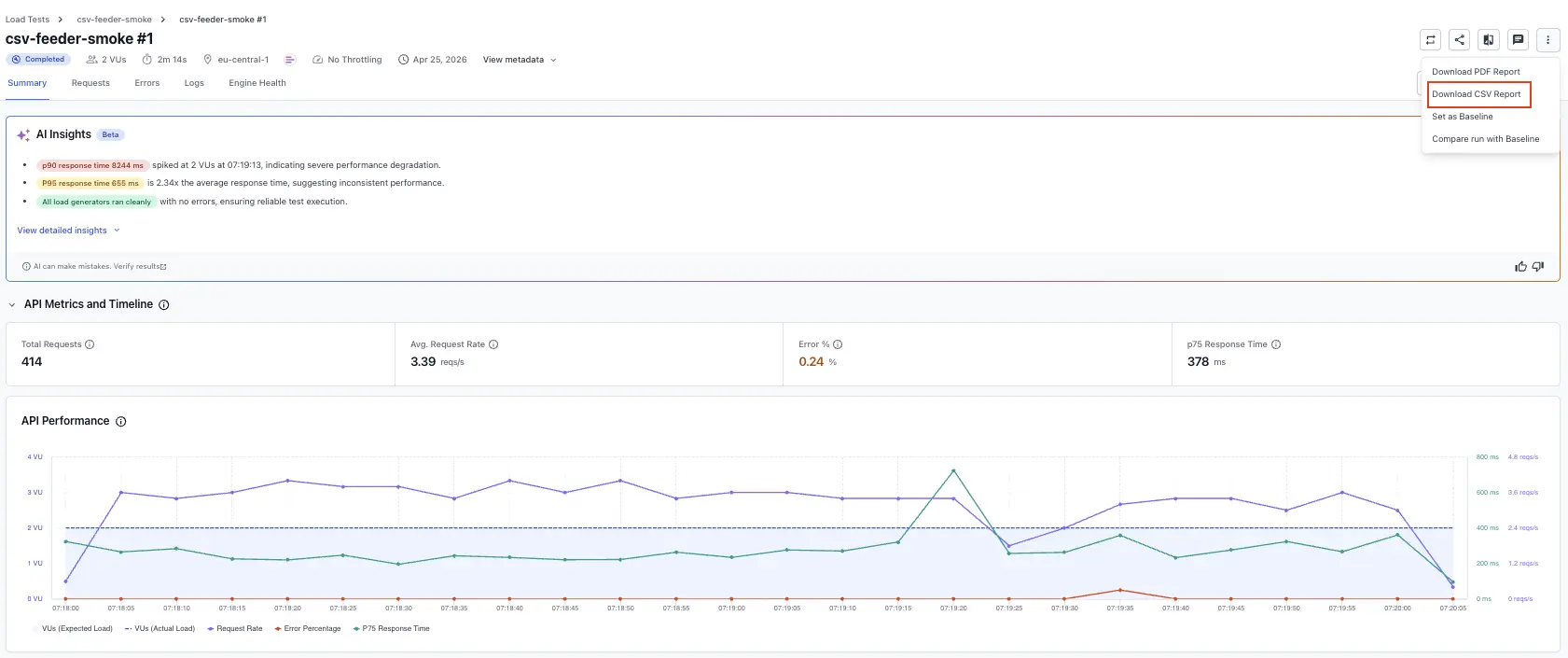
Load Testing shows a confirmation that your export is preparing, then generates the ZIP in the background. You can keep using the dashboard while it runs. When the export is ready, the ZIP downloads automatically to your browser.
What’s in the export?
The download is a single ZIP that contains several CSV files. Each file covers one part of the report: a high-level summary plus detailed breakdowns such as network requests, Web Vitals, and time-series metrics. Together they give you both the aggregated view and the granular data in one package.
Each file is named so you can tell the runs apart after you unzip several of them:
{test-name}_#{report-number}_{section}_{date}.csv
For example, checkout-flow-stress_#4821_summary_15July2026.csv.
The set of files depends on your test type. Select a test type to see what its export contains:
A browser load test export includes the following files:
| File | Contents |
|---|---|
summary.csv |
High-level metrics for the whole run. |
aggregated-web-vitals.csv |
Web Vitals for each URL. |
network-requests-by-url.csv |
Aggregated network requests for each URL. |
network-metrics-by-url-timeseries.csv |
Network metrics for each URL over time. |
browser-metrics-timeseries.csv |
Browser Web Vitals over time. |
Exports follow your report filters
The export reflects the filters applied to the report when you download it. If you scope the report to a load zone, a time window, or a specific status, the CSV files contain only the matching data. To export the complete run, clear your filters first.
Time-series files use ISO-8601 timestamps, so the data lines up with other monitoring and observability tools. Time-series data is bucketed, with a 5-second minimum. Sub-5-second resolution isn’t available.
Large reports
A single CSV file can hold up to 1,048,576 rows, the limit common spreadsheet tools support. When a run captures more network requests than one file can hold, the export splits the data across numbered files, such as aggregated-network-requests_1.csv and aggregated-network-requests_2.csv, so no data is dropped.
Points to remember
The following details help you work with exported reports:
- Export is available for completed runs only.
- The files in the ZIP depend on the test type: browser, API, or hybrid.
- The export honors the filters applied to the report when you download it.
- Time-series files report data at the lowest available granularity, so files can be large for long runs or high virtual-user counts.
Related resources
We're sorry to hear that. Please share your feedback so we can do better
Contact our Support team for immediate help while we work on improving our docs.
We're continuously improving our docs. We'd love to know what you liked
We're sorry to hear that. Please share your feedback so we can do better
Contact our Support team for immediate help while we work on improving our docs.
We're continuously improving our docs. We'd love to know what you liked
Thank you for your valuable feedback!