
 Join our Discord
Run API collections as load tests
Run an existing API collection as a load test by importing it into Requestly, with no scripting required.
Bring your collection into Requestly, the BrowserStack API client. You can create it in Requestly, or import it from Postman, a HAR capture, or another supported format. Then select it in Load Testing, choose how much load to generate and where to generate it from, and start the test. Your collection runs as an API (protocol) load test, and this guide takes about 10 minutes.
Prerequisites
- A BrowserStack account with Load Testing access.
- A Requestly account. BrowserStack creates this automatically with your Load Testing account and signs you in through your BrowserStack login, so there’s nothing extra to set up.
- At least one API collection in Requestly. You can create it in Requestly, or import it from Postman, a HAR file, or another supported format.
If your APIs are already live in Postman, a HAR capture, or another tool, import them into Requestly first, and they appear here as collections you can load test.
How it works?
When you start the test, Load Testing pulls the selected collection from Requestly and replays its requests under load. It preserves your variables, environments, headers, authentication, and pre-request and post-request scripts, and it generates load using the number of virtual users, duration, and regions you choose.
A Virtual User (VU) is one simulated client that sends requests in a loop. A region, also called a load zone, is the geographic location that traffic comes from.
Load Testing reads your collection live from Requestly each time a test runs. When you edit the collection in Requestly, the next run picks up your changes. You don’t re-import or re-upload anything.
Run a collection from the dashboard
The dashboard walks you through three steps.
Enter the basic details and choose the test type
- On the Load Testing dashboard, click Create Load Test.
- Enter a Load Test Name, for example,
checkout-api-stress. - For the test type, select API Only. Select Hybrid (API & Browser) only if you also want browser-driven load alongside your API collection.
- Click Configure Load Sources.
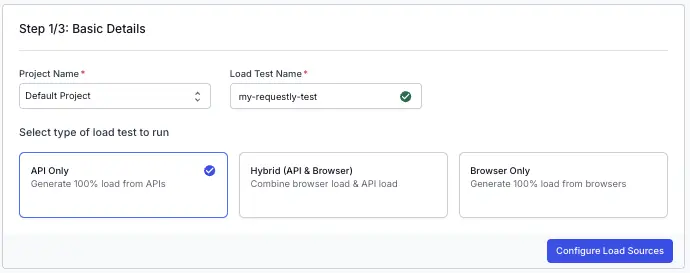
Choose your collection in Requestly
- Under Select API Load Source, choose Import API Collection.
- In the Import from Requestly panel, click Show Requestly Collections. Your Requestly projects load, followed by a list under Select from existing API Collections.
- Click Select a collection and pick the collection you want to load test.
- (Optional) Under Select Requestly Environment, pick an environment. Load Testing pulls its variables live from Requestly when the test runs. Leave it unset if your collection doesn’t use environment variables.
- Click Configure Load.
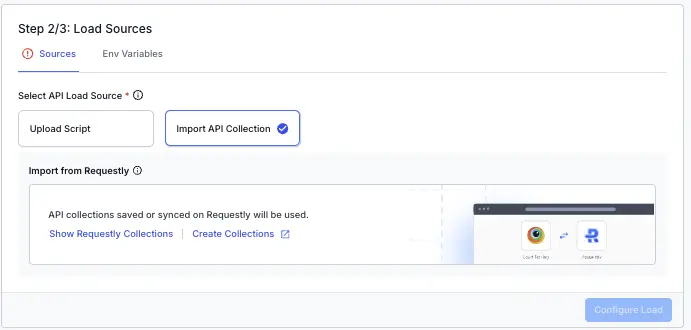
If you don’t have a collection yet, click Create Collections or Create new collection in Requestly to open Requestly in a new tab. There you can build a collection from scratch or import one from Postman, a HAR file, and more. Then, return to Load Testing and click Show Requestly Collections again.
Configure the load and run
- Choose a Load Profile. All profiles are supported:
- Constant VUs: a fixed number of virtual users for a set duration.
- Ramping VUs: ramp users up and down over stages you define.
- Per VU Iterations: each virtual user runs the collection a fixed number of times.
- Spike VUs: hold a baseline, then spike to a peak.
- Throughput: target a requests-per-second rate.
- Set the load. The fields depend on the profile you picked. For example:
-
Constant VUs: set Virtual Users, for example
200, and Duration, for example10m. - Per VU Iterations: set Virtual Users, Max Duration, and Iterations.
-
Constant VUs: set Virtual Users, for example
- Under Select Load zones to run your tests, pick one or more regions and set the Load Distribution percentages. The percentages must total 100%. For example,
us-east-1is 70% andeu-central-1is 30%. - (Optional) Enable Throttle Network to simulate constrained bandwidth.
- Click Run Test.
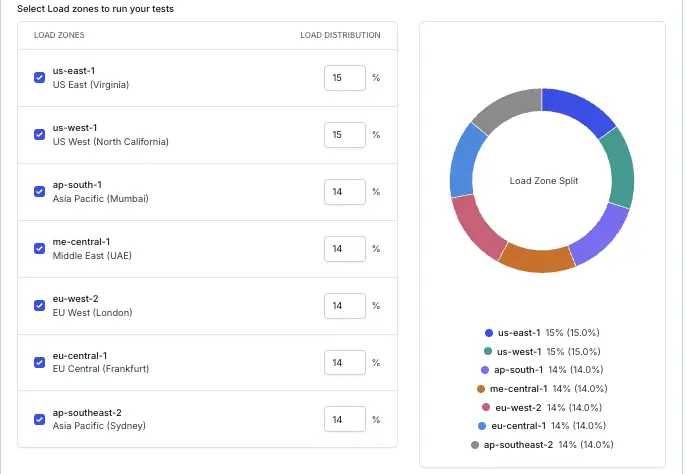
When you edit an existing test, the button reads Save & Run Test, with Save Only as the secondary action, instead of Run Test.
After you click Run Test, a new run appears in your test list and moves from provisioning into a running state. Warm-up can take 1 to 2 minutes before requests start, which is normal. Once the run is active, open it to watch live metrics for requests, response times, and errors in each region.
What carries over from your collection?
Load Testing reproduces most of your collection accurately when it runs the test. The following tables show what you can rely on.
Requests
| Collection feature | Supported? | Notes |
|---|---|---|
| HTTP methods | Yes |
GET, POST, PUT, PATCH, DELETE, and HEAD. |
| URL and path variables | Yes | Template variables and /:id-style path parameters are resolved. |
| Query parameters | Yes | Standard query string parameters are sent as-is. |
| Headers | Yes | Includes headers added dynamically by a pre-request script. |
| Request body (raw, text, JSON) | Yes | The Content-Type is preserved, or auto-detected if you didn’t set one. |
Request body (x-www-form-urlencoded) |
Yes | Form fields are sent as url-encoded data. |
Request body (multipart/form-data) |
Partial | Text fields are sent as url-encoded data. File parts are dropped, because they can’t be reconstructed from a collection export. |
| GraphQL requests | Yes | Sent as a POST with a JSON body that holds the query, variables, and operation name. |
| Folders | Yes | Nested folders are preserved, so your metrics stay grouped by folder. |
Authentication
Set authentication at the collection, folder, or request level in Requestly, and it carries over. Load Testing supports these types:
| Auth type | Supported |
|---|---|
| No Auth or Inherit | Yes |
| Basic | Yes |
| Bearer token | Yes |
| API key | Yes |
| AWS Signature v4 | Yes, with live signing |
| OAuth 1.0 | Yes, both HMAC and PLAINTEXT |
| OAuth 2.0 | Yes, Client Credentials and Password grants, or a token you paste in manually |
| JWT Bearer | Yes, HS256, HS384, and HS512, placed in a header |
| Hawk | Yes |
| Digest | Yes |
| NTLM | Yes |
Troubleshooting
| What you see | What to do |
|---|---|
| “No collections found yet. Create or sync them in Requestly to get started.” | The selected Requestly project has no collections. Click Create Collections to open Requestly, add or import a collection, then come back. |
| “Unable to import collections from Requestly.” | Load Testing couldn’t reach Requestly. Click Try Again. If it keeps failing, use Contact Us. |
| You can’t click Run Test because the regions don’t add up. | Your Load Distribution percentages must total exactly 100%. Adjust the per-region values, for example us-east-1 60% and ap-south-1 40%. |
| “Cannot start new test as parallel test execution limit exceeded.” | You’ve reached your plan’s limit on concurrent tests. Wait for running or queued tests to finish, or contact BrowserStack to raise the limit. |
What’s next
Continue with these related topics:
- Load profiles: Constant VUs, Ramping VUs, Per VU Iterations, Spike VUs, and Throughput.
- Load zones: distribute load across geographies.
- Hybrid load testing with Playwright: combine your API load with browser-driven load.
We're sorry to hear that. Please share your feedback so we can do better
Contact our Support team for immediate help while we work on improving our docs.
We're continuously improving our docs. We'd love to know what you liked
We're sorry to hear that. Please share your feedback so we can do better
Contact our Support team for immediate help while we work on improving our docs.
We're continuously improving our docs. We'd love to know what you liked
Thank you for your valuable feedback!