
 Join our Discord
Integrate with Figma
Set a Figma design as the visual testing baseline for a test suite and compare your live application against the design source of truth in Percy.
During a visual testing run, Low Code Automation captures screenshots and sends them to Percy. By default, Percy compares each screenshot against the last baseline Low Code Automation captured. You can also set your Figma frames as the baseline, so Percy validates your web application directly against your Figma designs.
Comparing screenshots with Figma designs is available only on the Low Code Automation Ultimate plan. For more details, contact us.
Prerequisites
Make sure you have the following prerequisites:
- Visual testing enabled on the test suite. For details, see Visual testing in Low Code Automation.
- At least one successful run of the suite that generated a visual testing report.
- A Figma file that Percy can access.
Percy needs Dev or Full access to your Figma file to fetch the designs. Before you configure Figma for a test suite, share your Figma file with percy.figma@browserstack.com, or make the file public through a shared link. Without this access, the configuration fails with a permission error in Percy.
Set up the Figma integration
To integrate Figma with Low Code Automation:
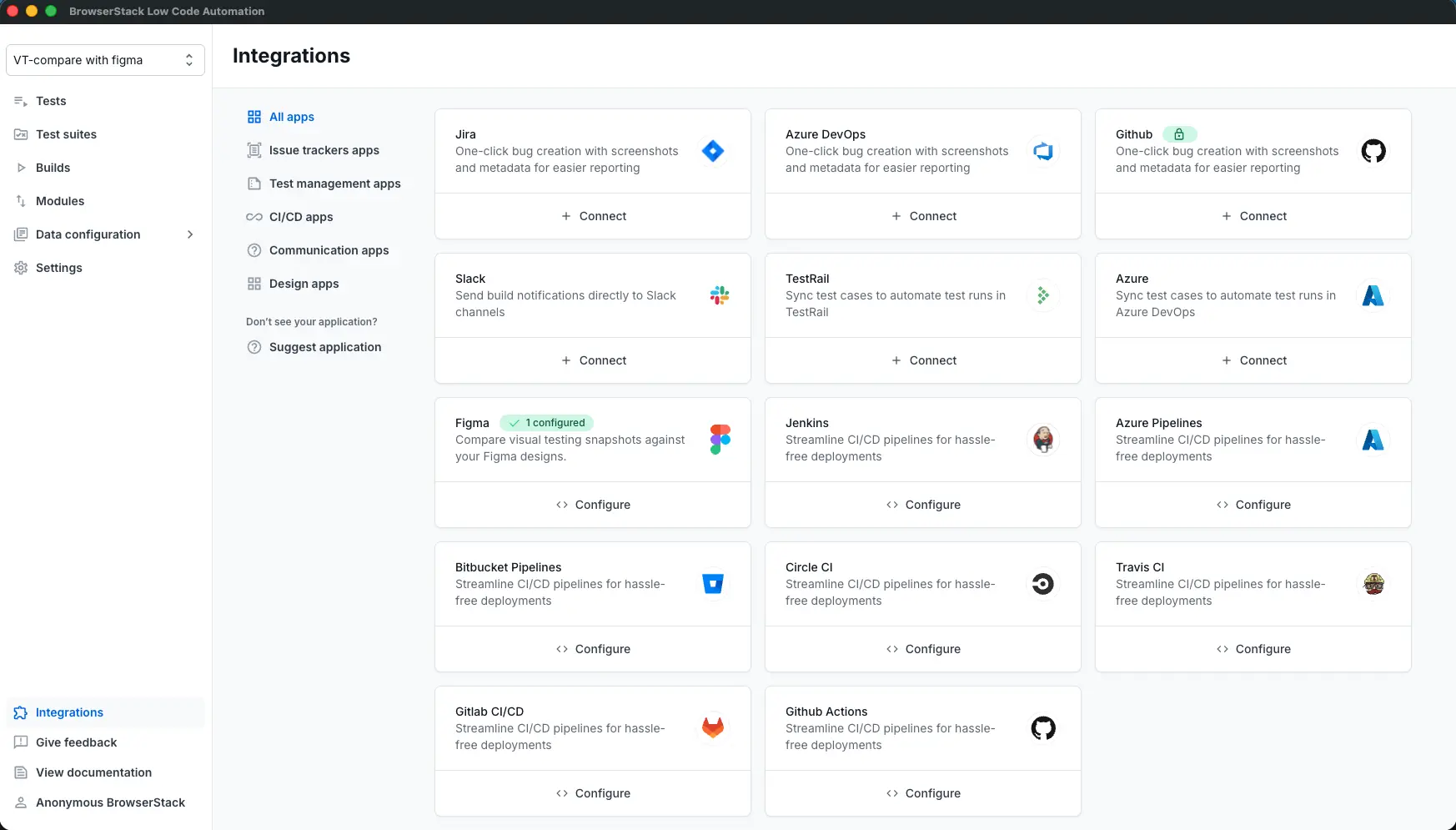
- In the Low Code Automation app, go to Integrations from the left navigation.
- Select Design apps, then click Configure on the Figma card.
- In the Configure test suites dialog, find the suite you want to configure.
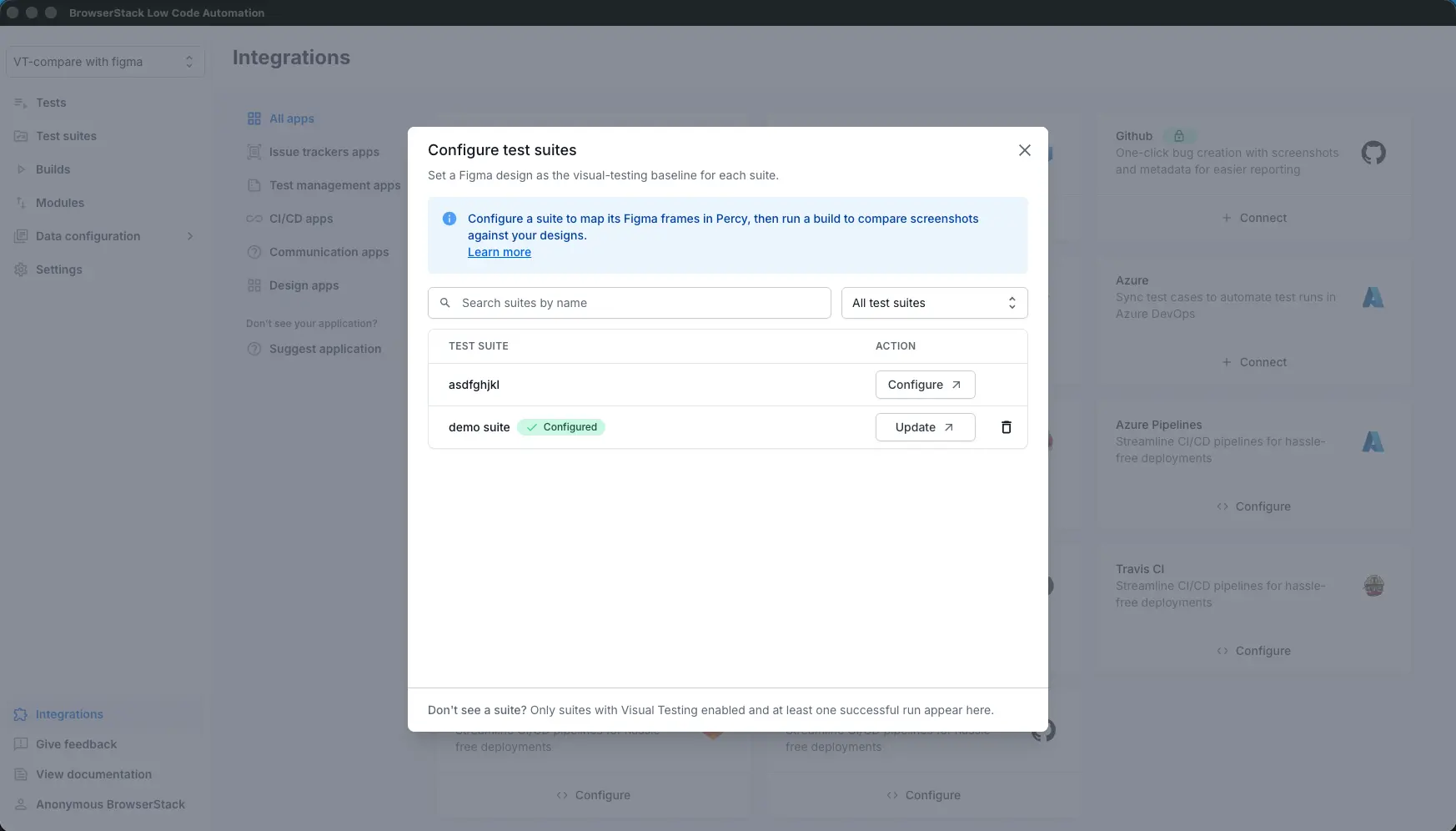
- Click Configure next to the suite. Low Code Automation redirects you to Percy to map your Figma frames.
Map Figma frames to snapshots in Percy
After the redirect, continue in Percy to map your designs to snapshots:
- Paste your Figma design or site link, then wait for Percy to run a health check against your Figma file.
- Click Import designs to load the frames. A single build supports up to 50 designs.
- Select the designs you want to use, then map each one to a snapshot name. Enable Use design name as snapshot name to map them automatically, or select an existing snapshot name.
- Click Save and run. Percy creates an auto-approved baseline build from your Figma frames and shows a confirmation screen.
For a detailed walkthrough of the Percy widget, including how to preview a design against its matching snapshot, see Configure Figma designs in Percy.
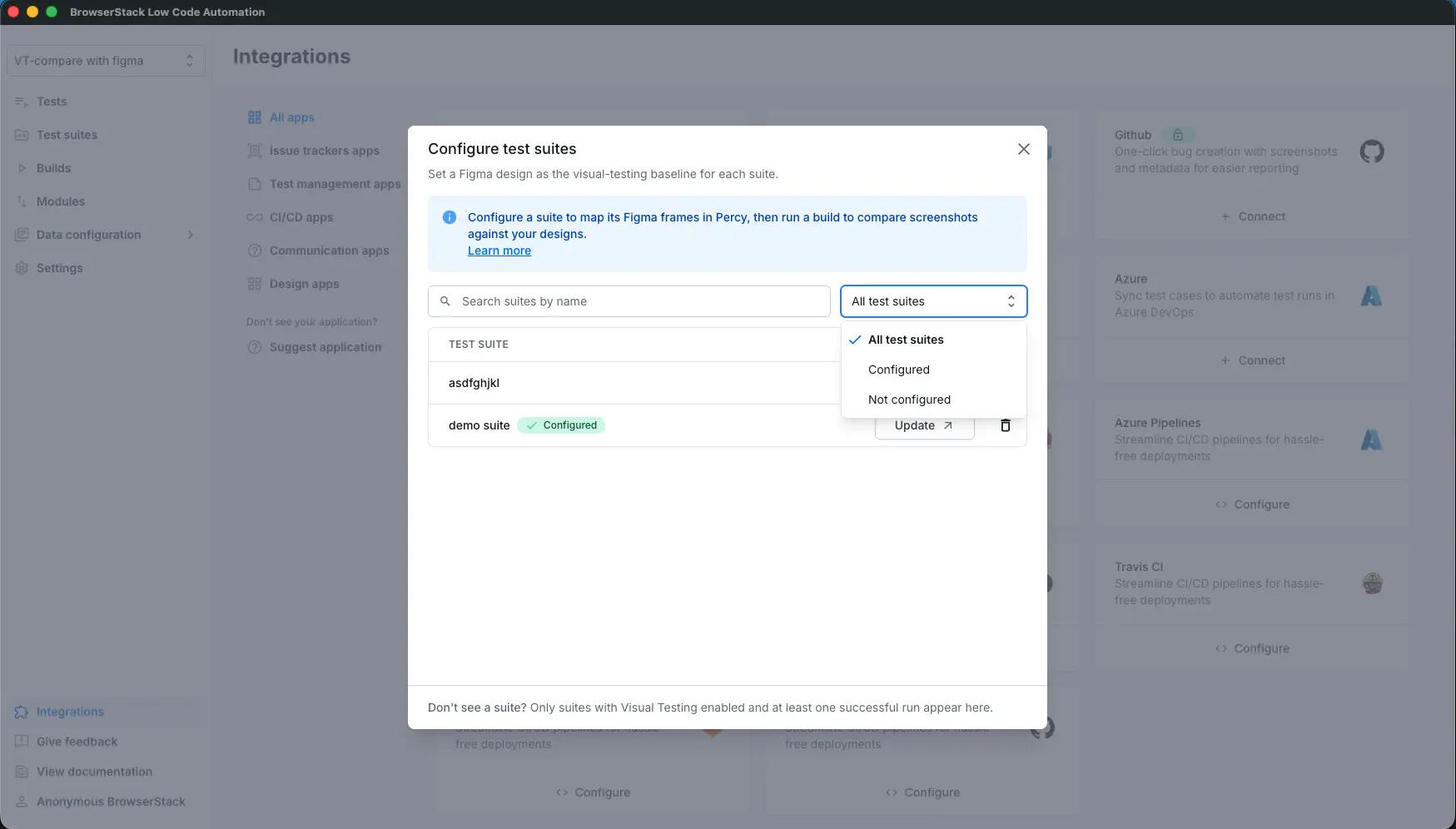
When the baseline build finishes, return to Low Code Automation. In the Configure test suites dialog, configured suites are marked as Configured. The baseline is typically ready within one to five minutes.
You can click Update next to the suite to reopen the Percy widget and re-import or remap your Figma frames.
Run a visual testing build against the Figma baseline
Run the configured test suite as usual. Once the Figma baseline build has completed, the visual testing build compares the captured screenshots against your Figma frames instead of a previous Low Code Automation screenshot. Open the Visual testing report link on the test execution page to review the comparison in Percy.
If you start a visual testing build before the Figma baseline build finishes, that build compares against the previous LCA-captured baseline. Wait until the baseline build completes before running the suite.
Remove a Figma comparison
To stop comparing a suite against Figma designs, click the delete icon next to the configured suite in the Configure test suites dialog.
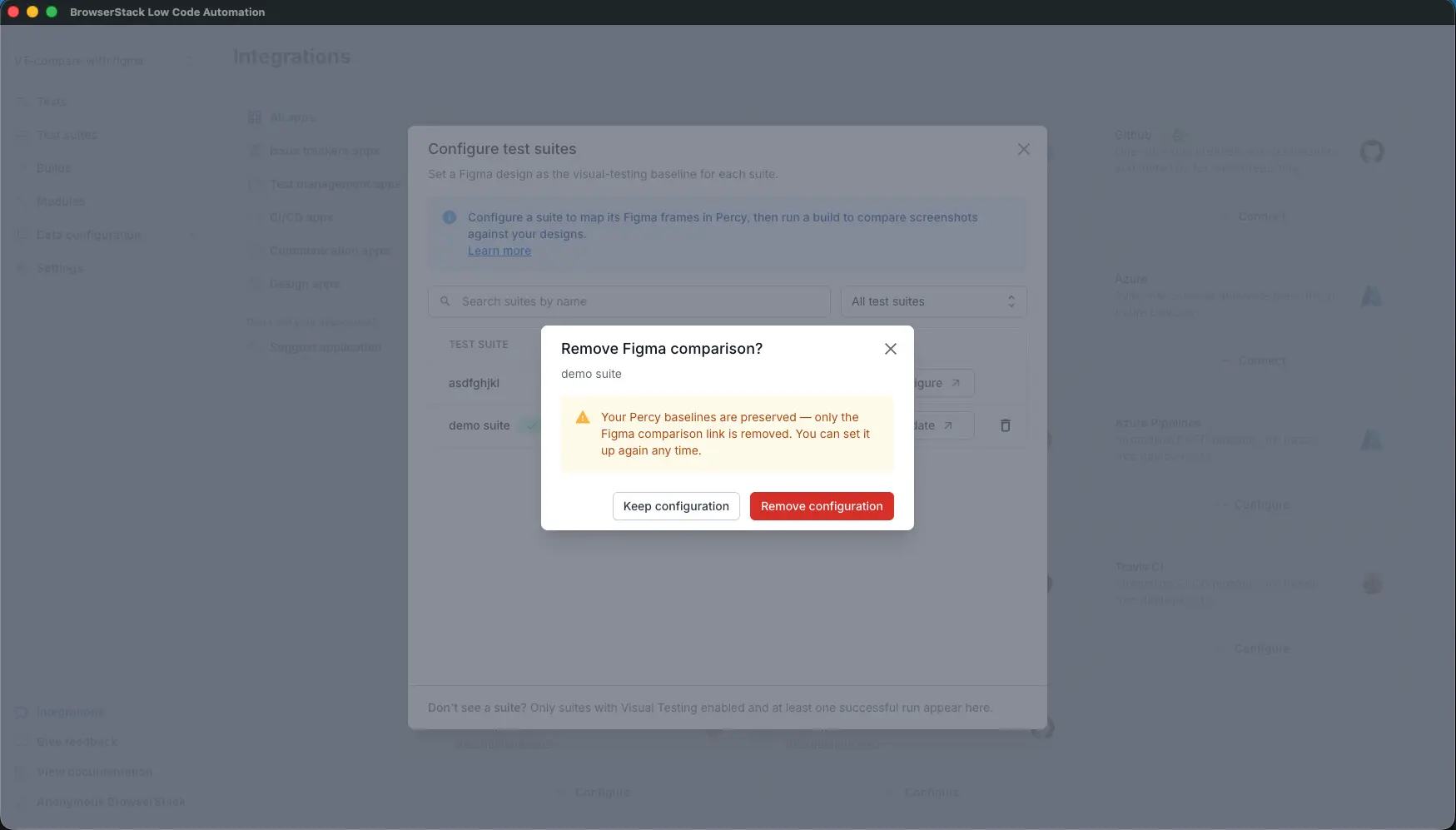
Removing the configuration unlinks the Figma comparison only. Your Percy builds are preserved, and you can set up the comparison again at any time. After you remove the configuration, the suite’s next visual testing build reverts to the LCA-captured baseline.
We're sorry to hear that. Please share your feedback so we can do better
Contact our Support team for immediate help while we work on improving our docs.
We're continuously improving our docs. We'd love to know what you liked
We're sorry to hear that. Please share your feedback so we can do better
Contact our Support team for immediate help while we work on improving our docs.
We're continuously improving our docs. We'd love to know what you liked
Thank you for your valuable feedback!