
 Join our Discord
Connect your Salesforce organization
Learn how to connect your Salesforce organization to BrowserStack Low Code Automation for Salesforce Test Automation.
Connecting your Salesforce organization is the first step to running automated tests with BrowserStack Low Code Automation. Once connected, you can add personas, run tests across environments, and validate user experiences for different roles.
Review these key concepts before you begin:
- Salesforce environments: You can connect to either Sandbox (recommended for testing) or Production environments. Sandbox is safe for development and does not affect production data.
-
Adding an organization (initial connection):
- System Administrator account: Provides access to the Login As feature, which lets you impersonate other Salesforce users during your session.
- Non-admin account (with API permissions): Establishes a connection successfully, but the Login As feature is not available.
- Personas: A persona is a role used during test execution, mapped to one Salesforce user account in each organization you connect. Personas let you simulate how different users with different roles, permissions, and access levels interact with your application. The administrative requirements listed above apply only to the initial organization setup. Once an organization is connected, you can map a persona to any Salesforce profile.
Connect to a Salesforce organization
You can connect your Salesforce organization using one of the following methods:
Using OAuth 2.0
Use OAuth 2.0 to securely connect your Salesforce organization to BrowserStack without sharing your credentials. This method is recommended for most users.
To connect your Salesforce organization:
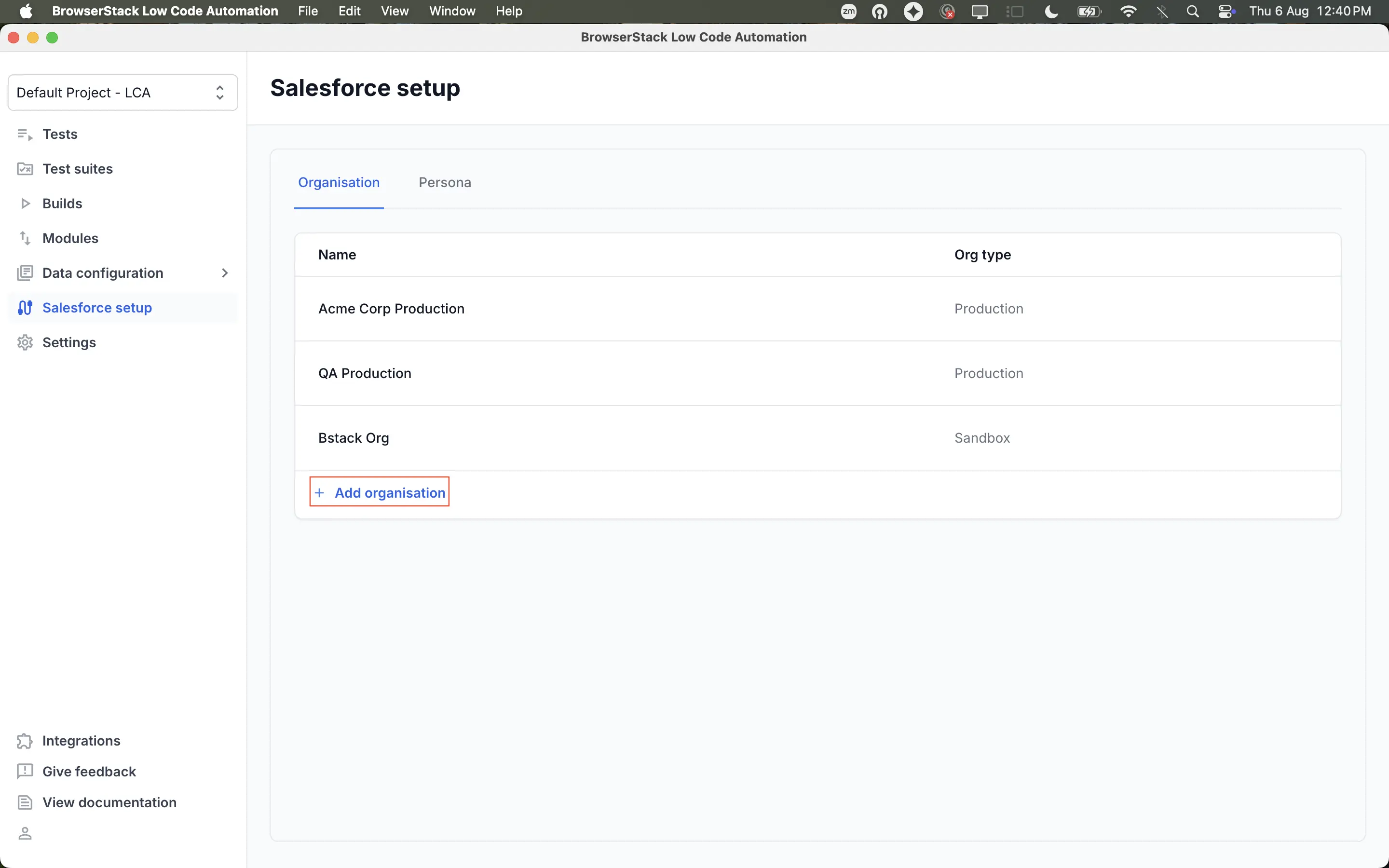
In BrowserStack Low Code Automation, click Salesforce setup.
On the Organisation tab, click + Add organisation.
In the Connect Salesforce (Use Admin Account) dialog, select OAuth 2.0 as the authentication method.
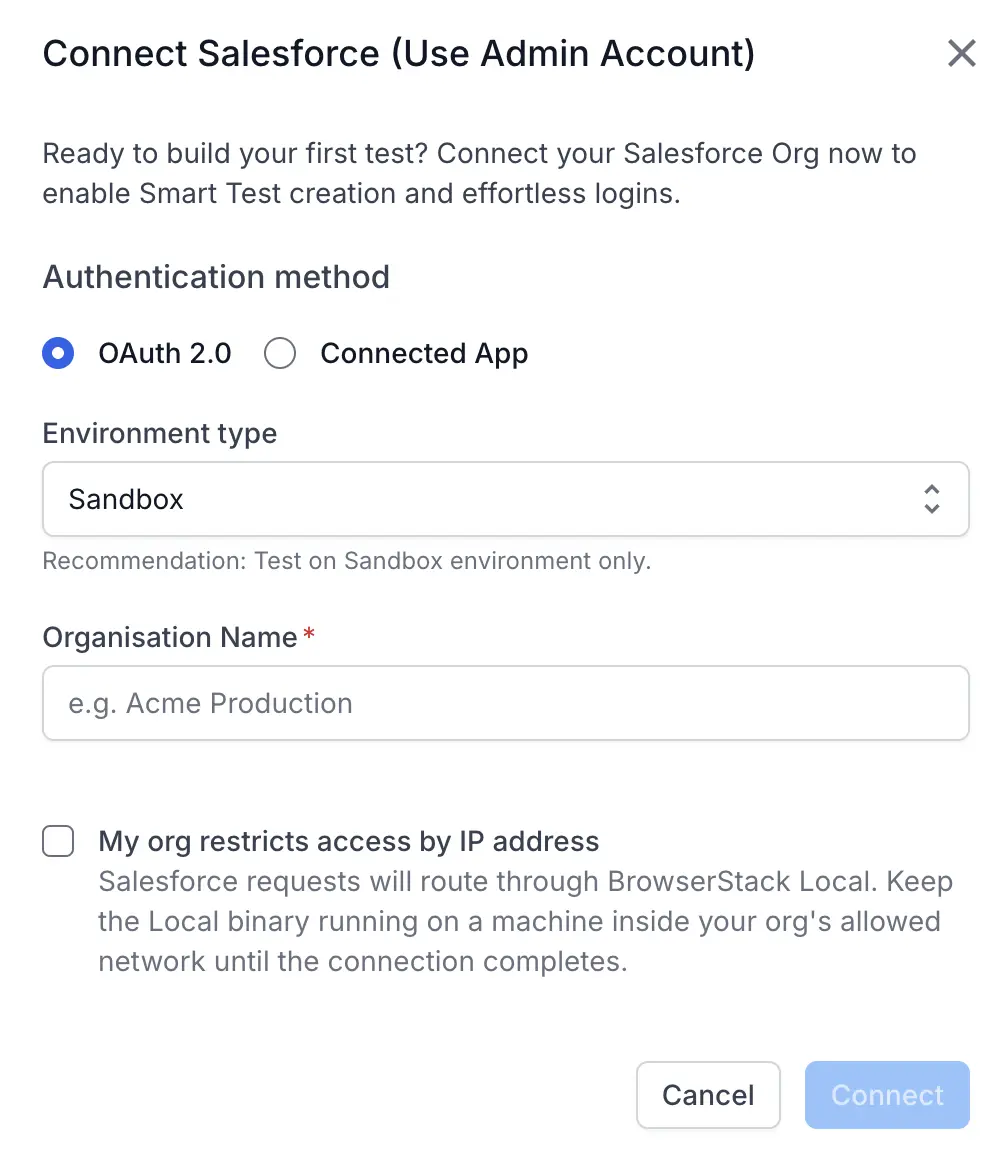
Select the Environment type:
- Sandbox (recommended)
- Production
Enter a unique Organisation Name to identify your Salesforce environment. For example, QA Sandbox or Dev Production.
If your org restricts access by IP address, select My org restricts access by IP address to route Salesforce requests through BrowserStack Local. For more information, see Test on internal networks.
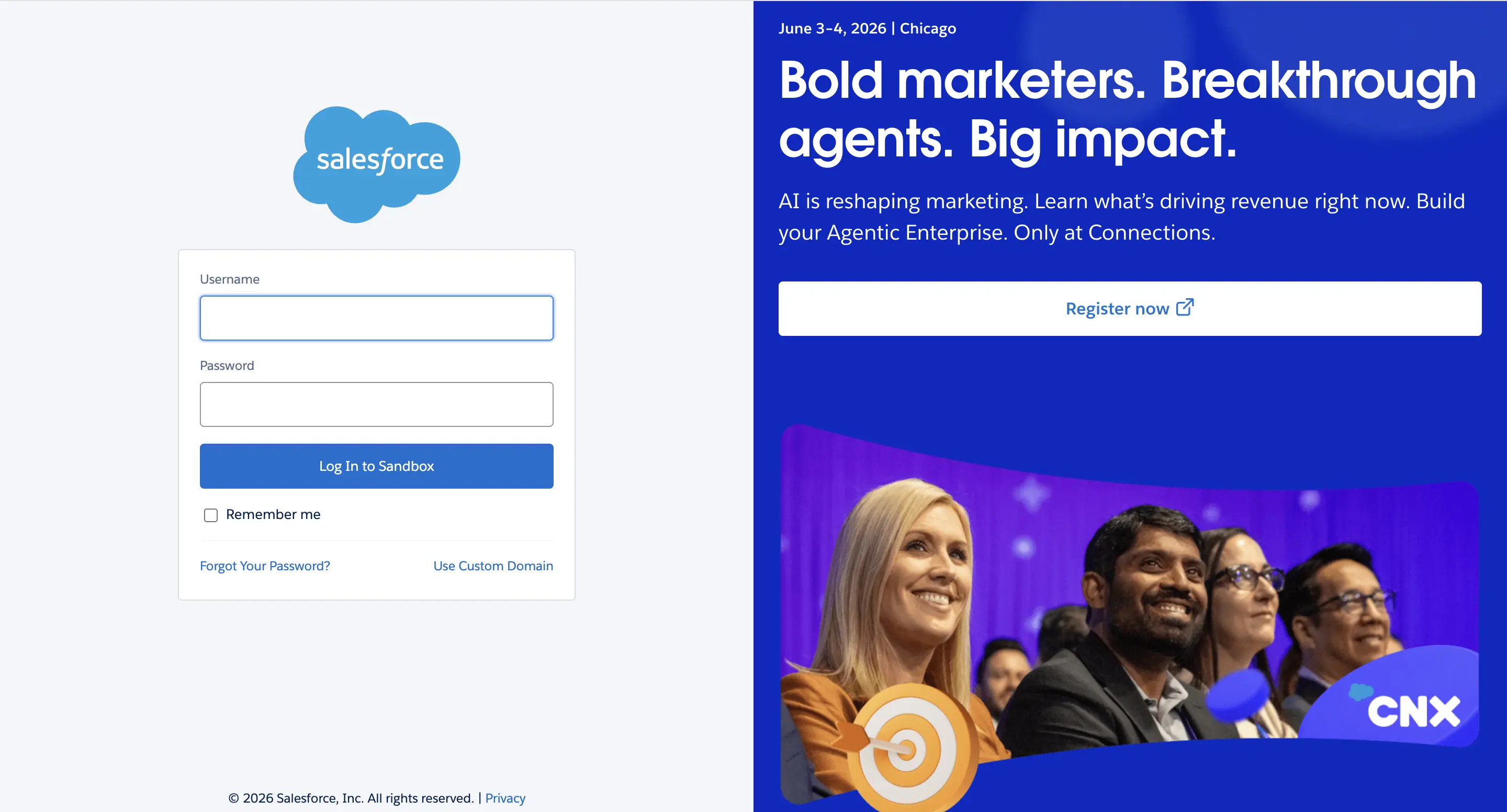
Click Connect. You are redirected to the Salesforce login page.
Enter your credentials and complete the login.
After authorization, the organization appears as a row in the Organisation tab, along with its environment type and the number of tests that use it. It also appears in the Organisation drop-down when you start a recording.
Using Connected App
You can also connect your Salesforce organization using a Connected App. A Connected App is a Salesforce application that enables external applications, like BrowserStack, to integrate with Salesforce using secure authentication protocols.
To connect your Salesforce organization using a Connected App, follow these steps:
Go to Salesforce setup, select the Organisation tab, and click + Add organisation.
In the Connect Salesforce (Use Admin Account) dialog, select Connected App as the authentication method.
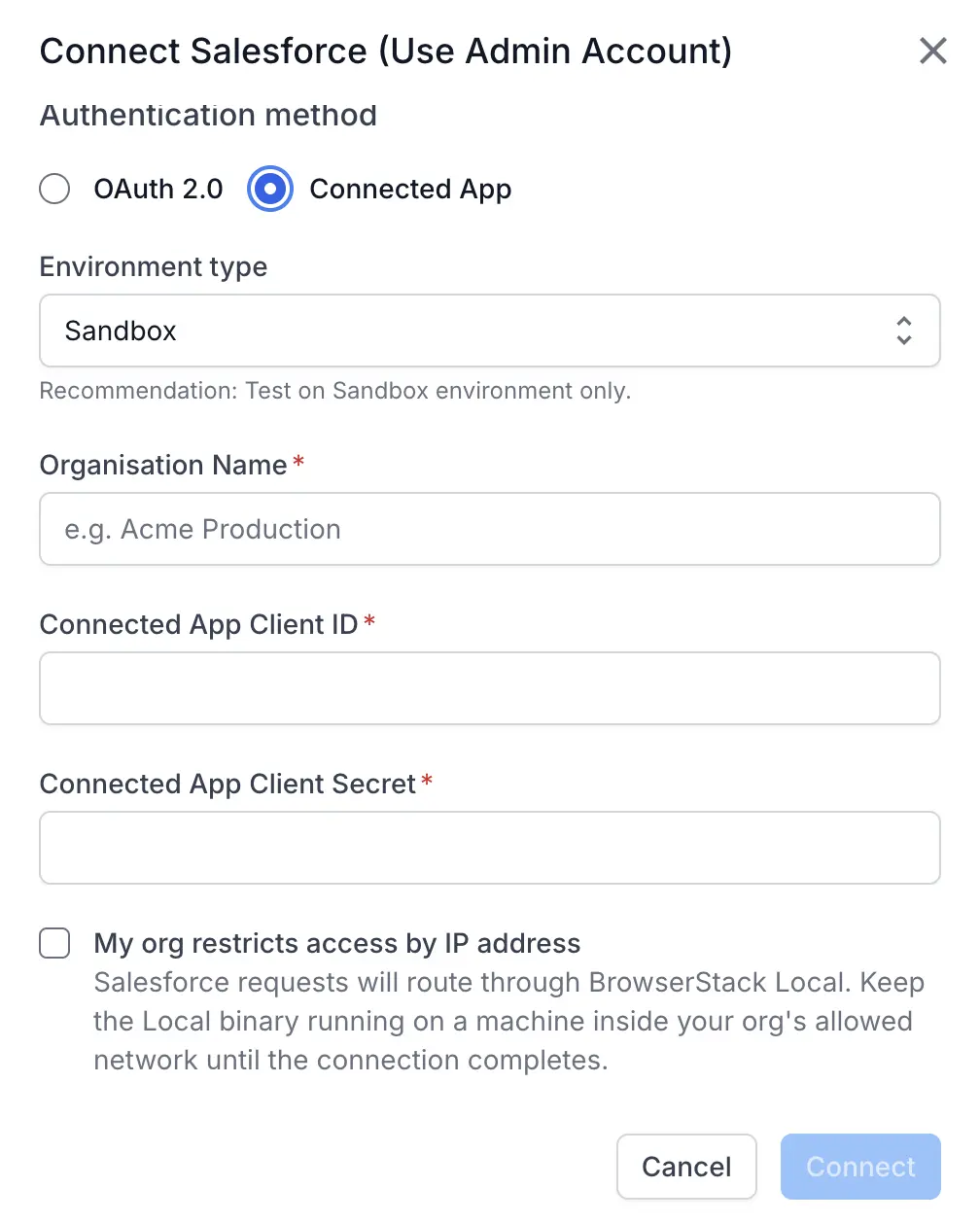
Enter the following details:
- Environment type: Select either Sandbox (recommended) or Production.
- Organisation Name: Enter a unique name to identify your Salesforce environment.
Enter the Connected App Client ID and Connected App Client Secret of your Connected App.
If your org restricts access by IP address, select My org restricts access by IP address to route Salesforce requests through BrowserStack Local. For more information, see Test on internal networks.
Click Connect.
For detailed steps to create a Connected App and get the Client ID and Client Secret, see Create a connected app.
Add personas
Add personas to simulate different users during test execution.
To add a persona:
In BrowserStack Low Code Automation, go to Salesforce setup, select the Persona tab, and click + Add persona.
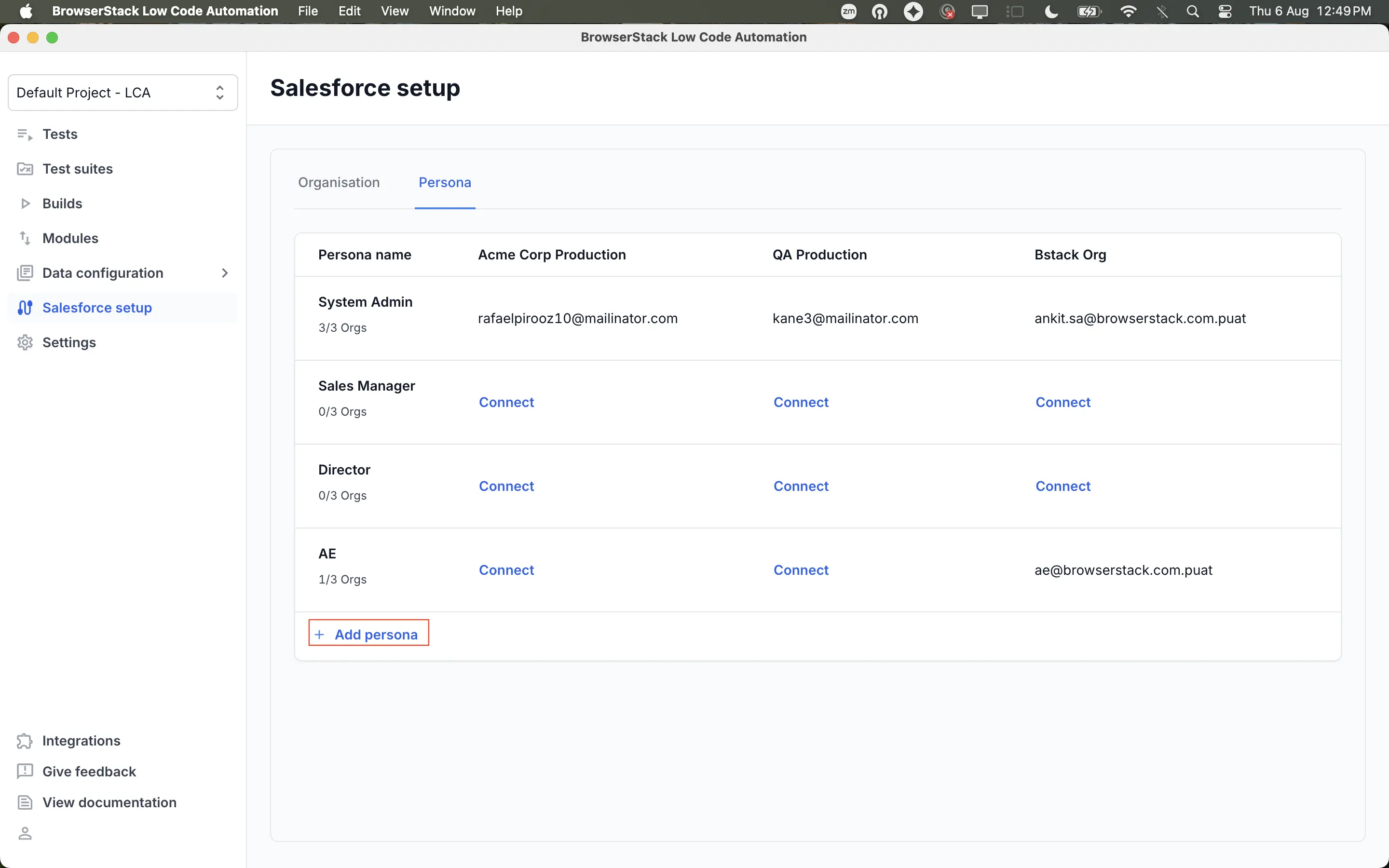
In Persona name, enter a name to identify the role. For example, Sales Manager or Director.
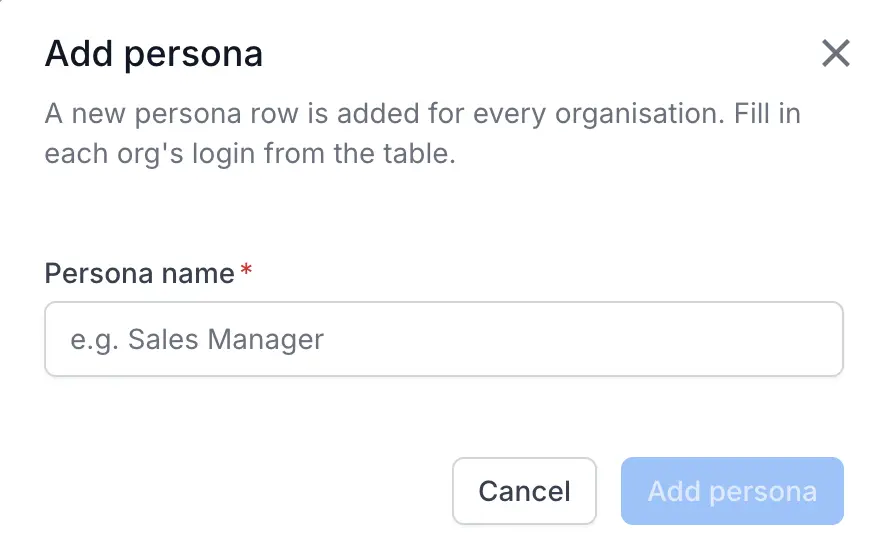
Click Add persona. The persona appears as a row, with one column for every organization you have connected.
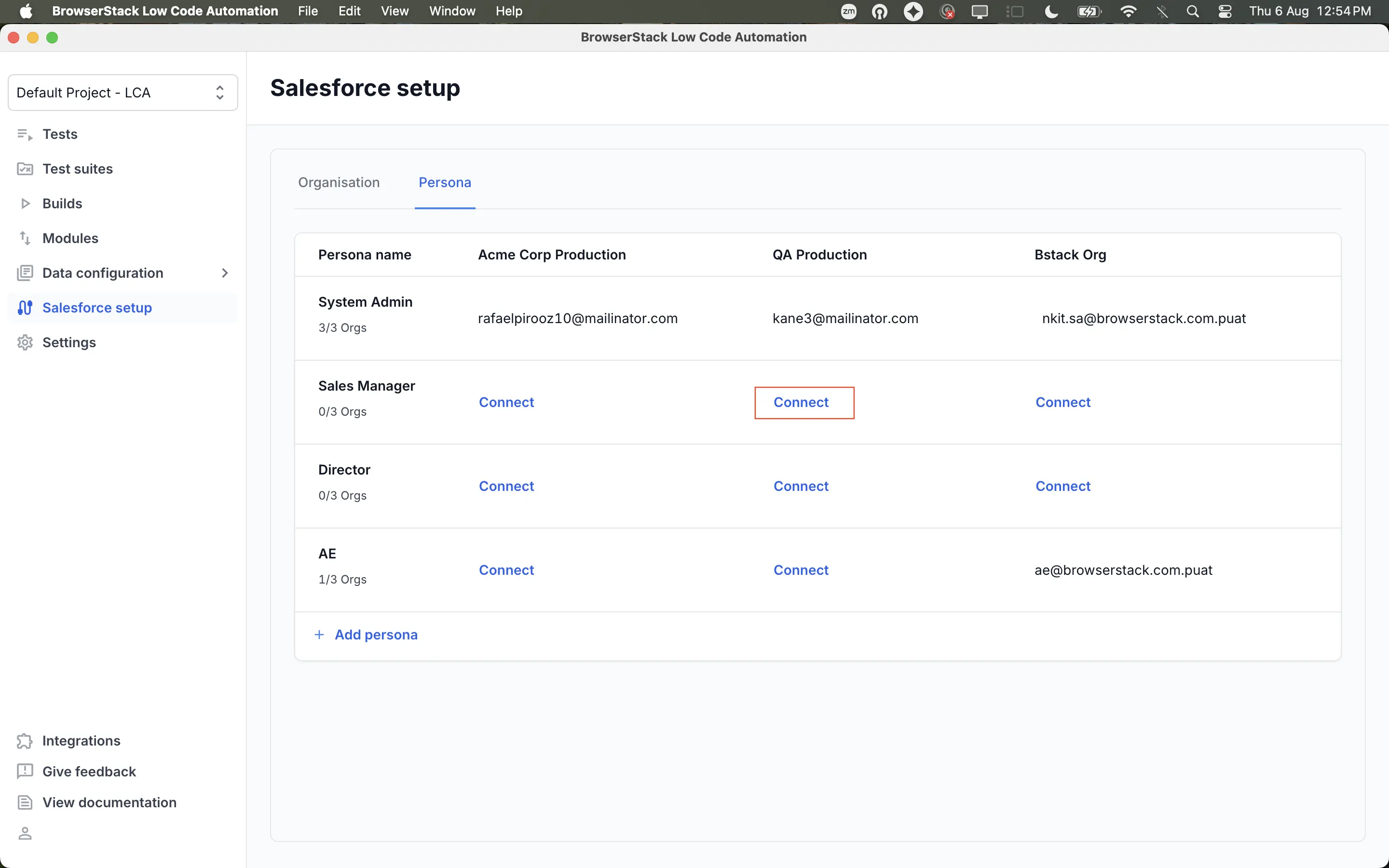
To make the persona usable in an organization, map a Salesforce login to it using the Connect option.
Connect a persona to an organization
A persona is a single, cross-organization entity, so the same role can point to a different Salesforce login in each organization. This lets you reuse one test suite across your organizations, because the persona resolves to the login that belongs to the organization you run against.
To map a persona to an organization:
In the persona row, click Connect in the column of the organization for which you want to add a login.
You are redirected to the Salesforce login page.
On the Salesforce login page, enter the Username and Password of the Salesforce user account for that organization.
Click Log In. You return to the Persona tab after the authentication completes, and the cell shows the mapped username.
Repeat these steps for every organization in which you want to use the persona. The persona is available for test execution in each organization that has a mapped login.
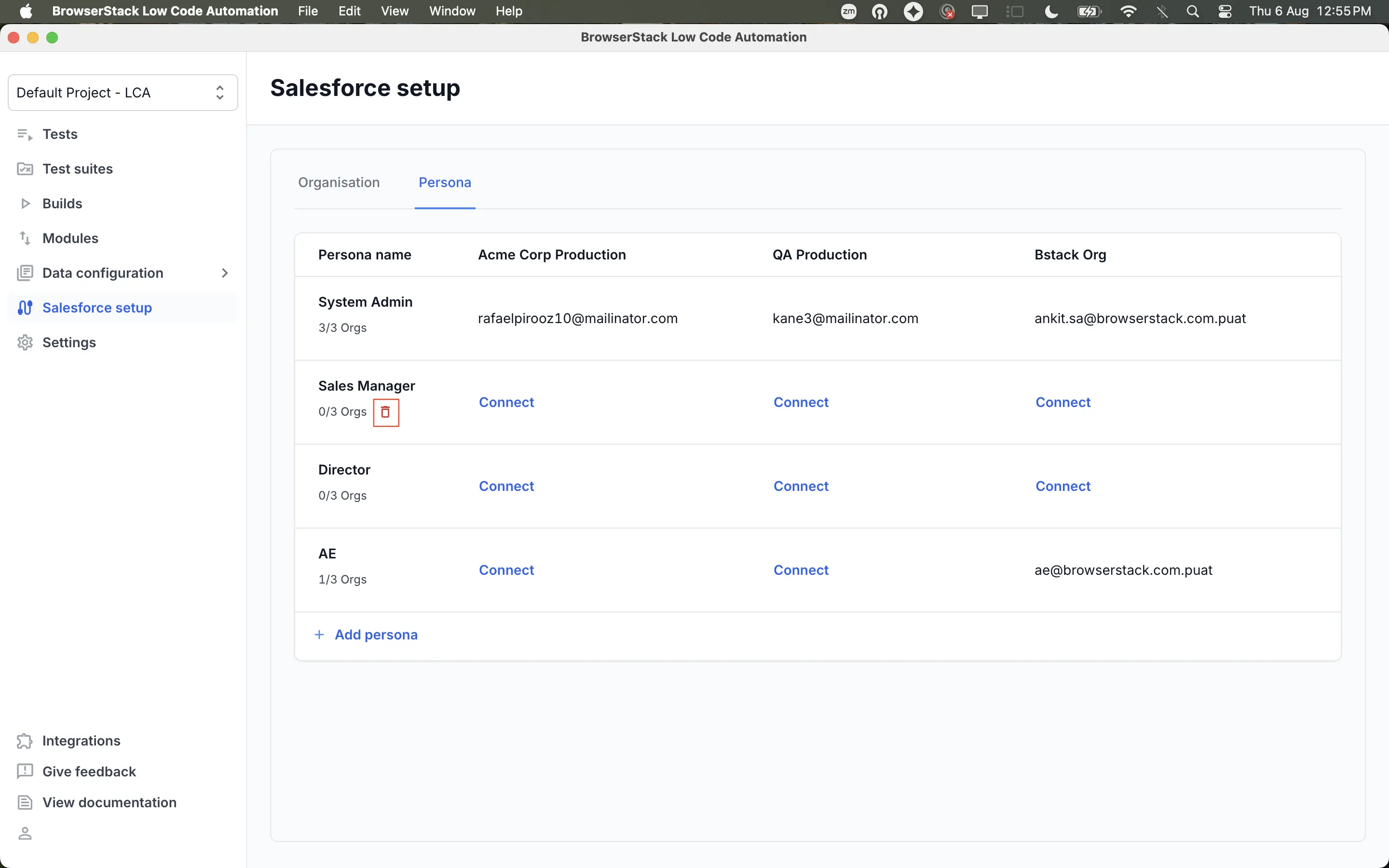
To remove a persona, hover over its row and click the delete icon next to the organization count.
If you encounter an error adding additional persona, install the BrowserStack Salesforce connected app in your Salesforce org through the System Admin account first. Go to Setup > Connected Apps OAuth Usage to install the app in Salesforce.
Next steps
We're sorry to hear that. Please share your feedback so we can do better
Contact our Support team for immediate help while we work on improving our docs.
We're continuously improving our docs. We'd love to know what you liked
We're sorry to hear that. Please share your feedback so we can do better
Contact our Support team for immediate help while we work on improving our docs.
We're continuously improving our docs. We'd love to know what you liked
Thank you for your valuable feedback!