
 Join our Discord
Configure proxy settings
Configure proxy settings in Low Code Automation to connect to BrowserStack from behind an enterprise firewall.
If your network routes outbound traffic through a proxy, set the proxy in the desktop app so that Low Code Automation reaches BrowserStack services.
Configure proxy
To configure a proxy in the desktop app, do the following:
Click BrowserStack Low Code Automation in the menu bar, then select Proxy Configuration.
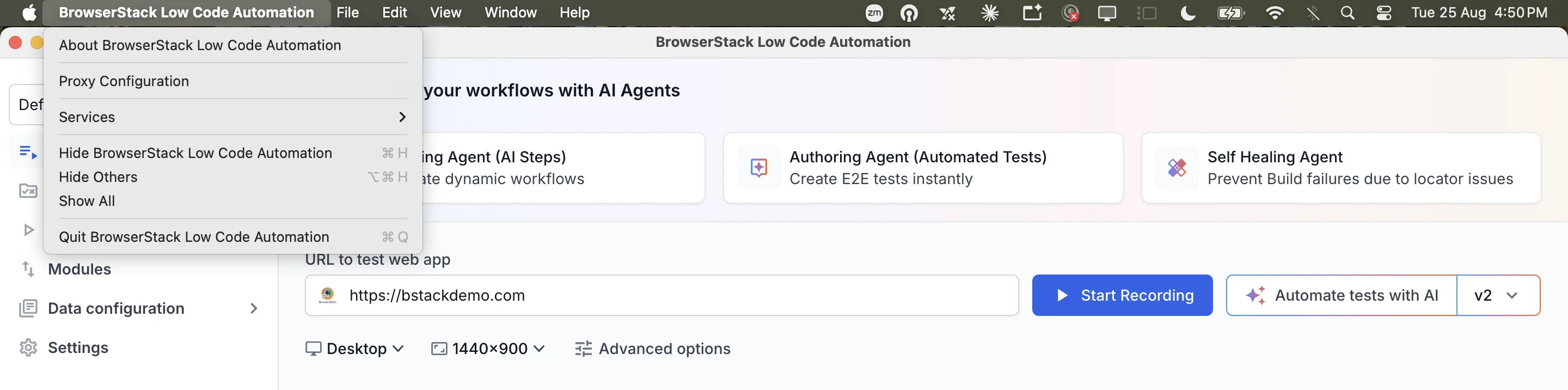
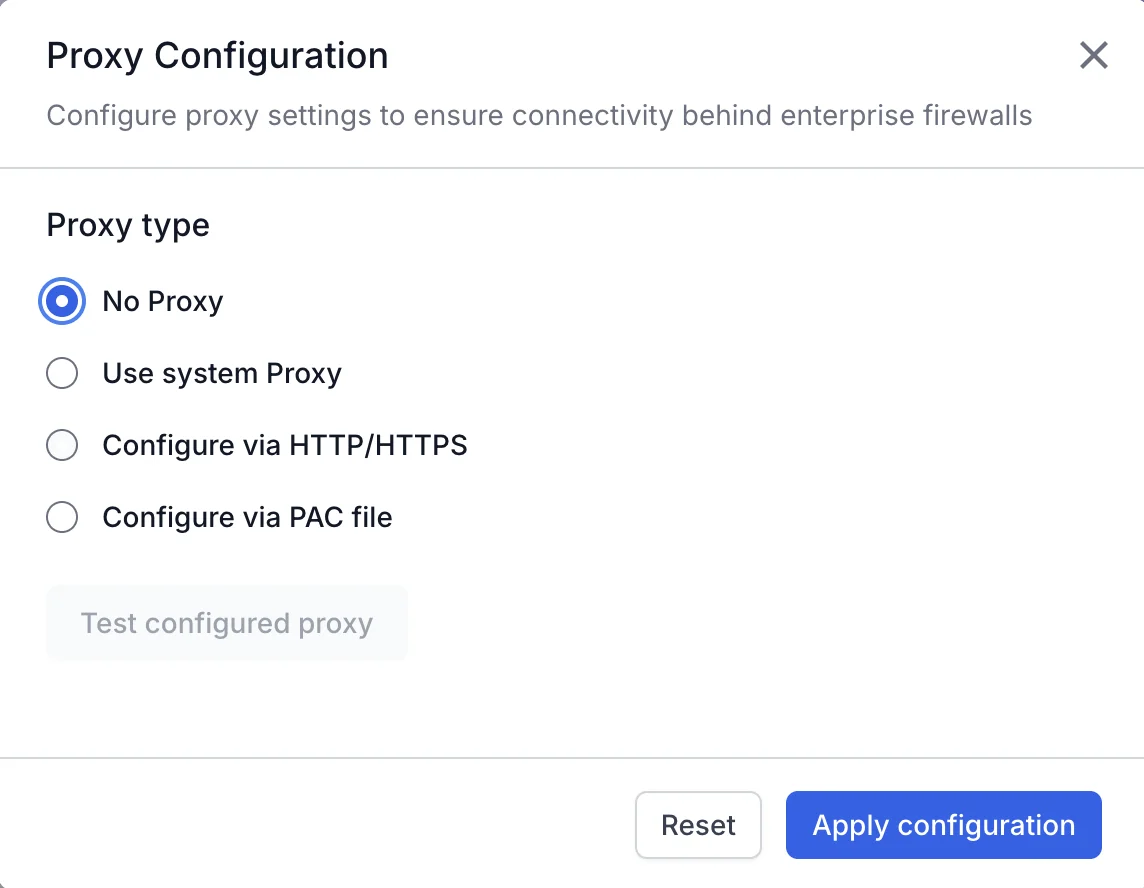
Select a proxy type, then set the fields for that type.
Low Code Automation connects directly to BrowserStack.
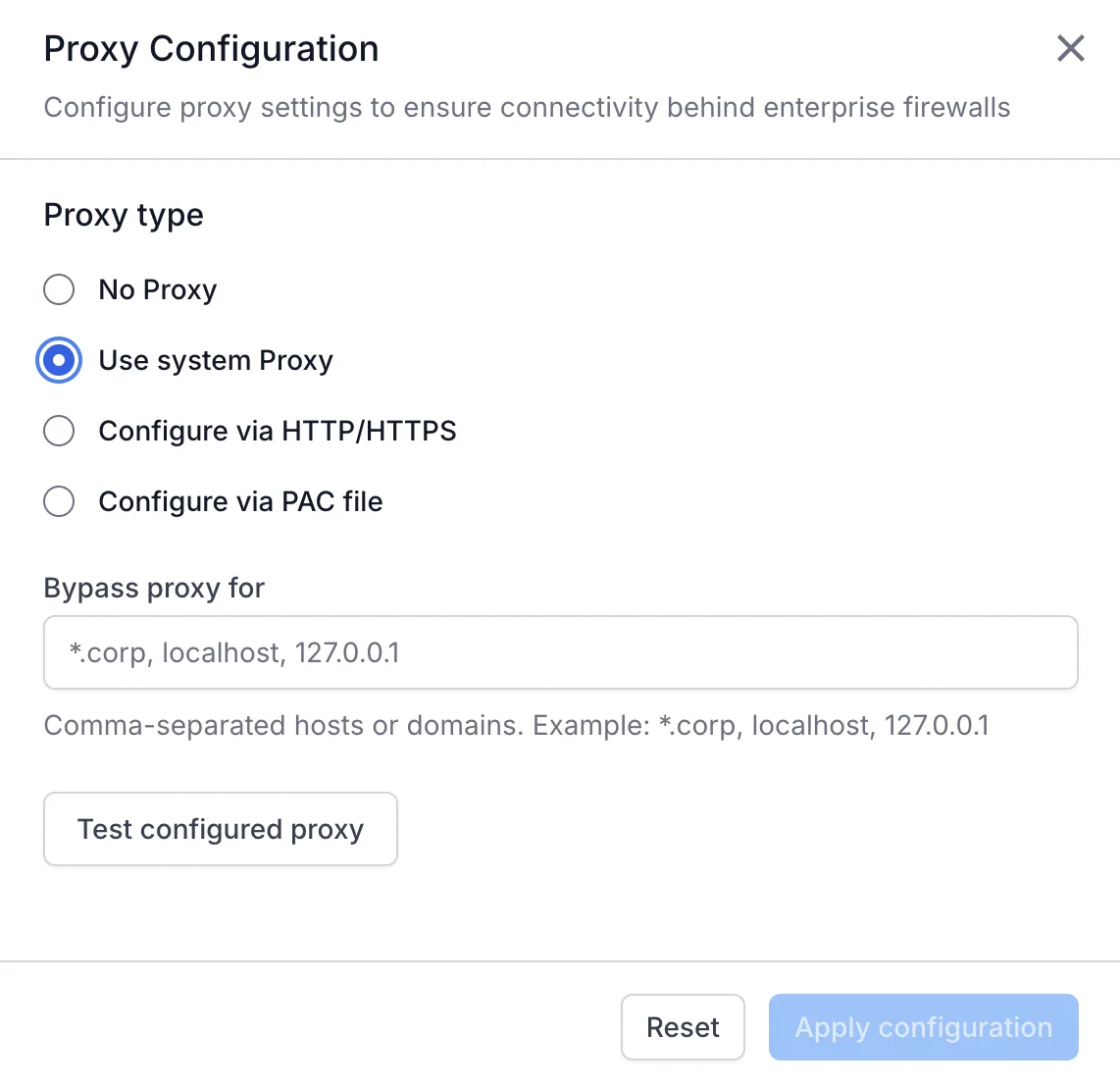
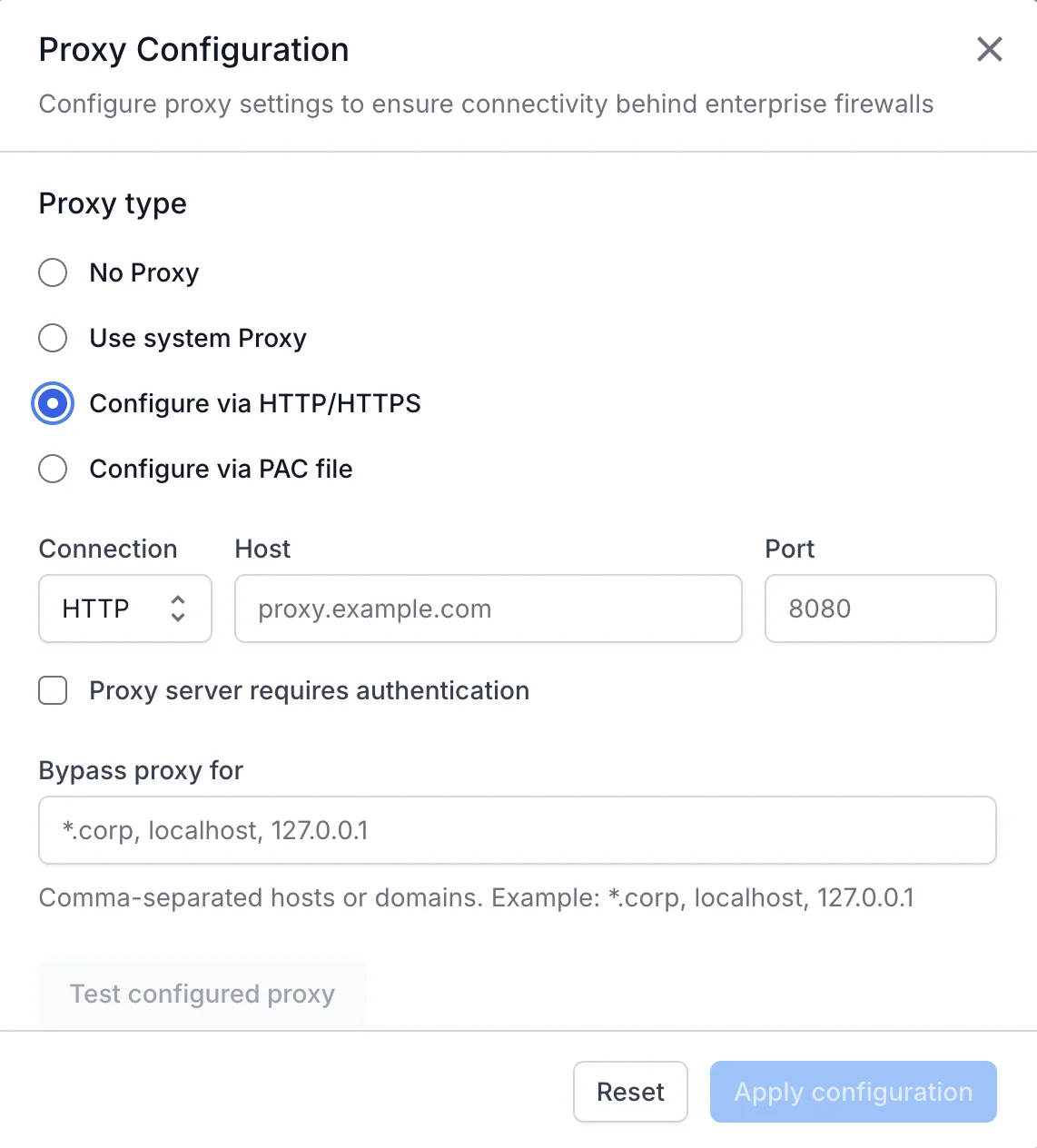
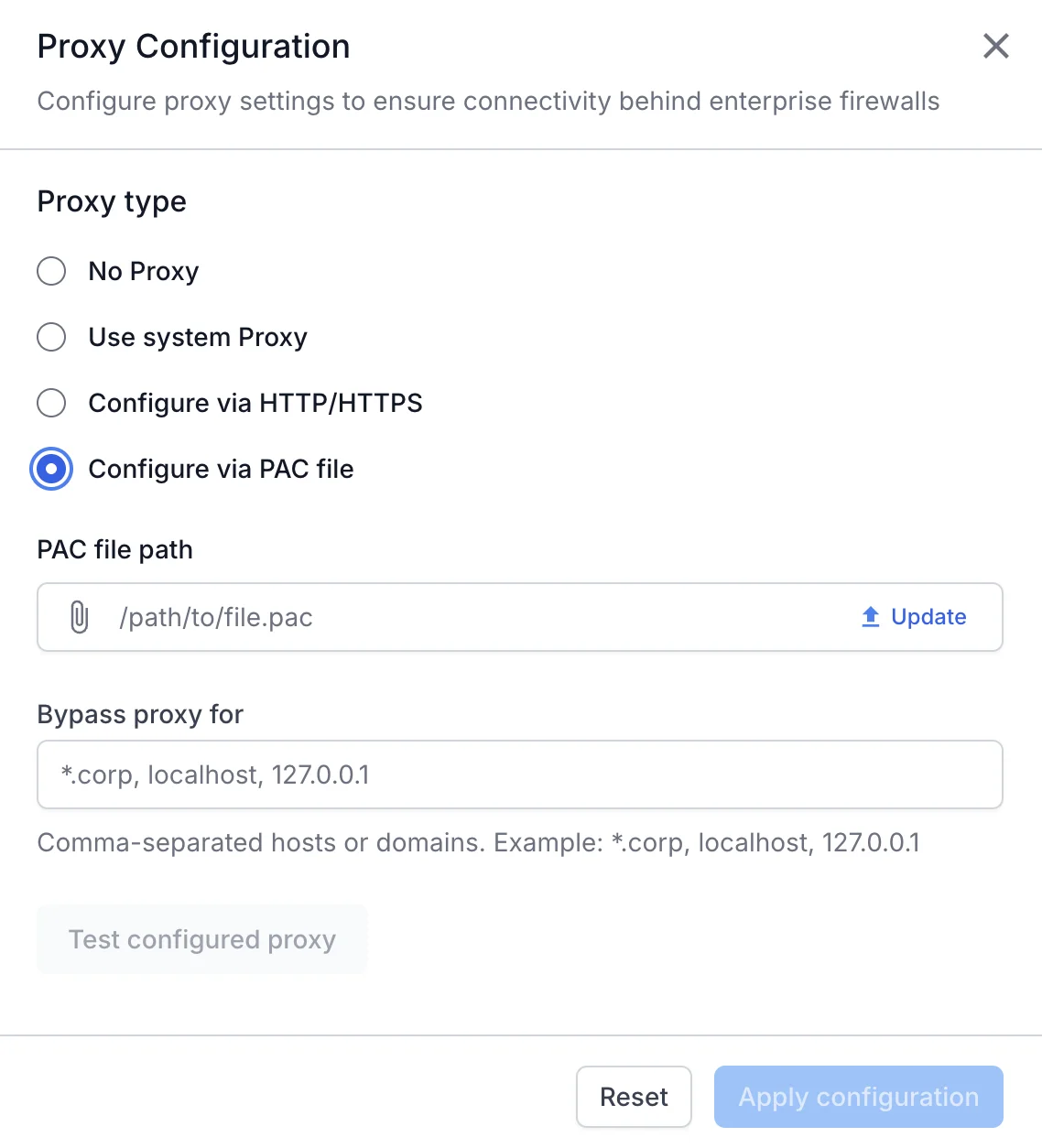
In Bypass proxy for, enter comma-separated hosts or domains that connect directly, or leave the field empty. Example: *.corp, localhost, 127.0.0.1.
Click Test configured proxy, then check the connection results.
Click Apply configuration.
To clear the fields, click Reset.
Open proxy configuration from a warning
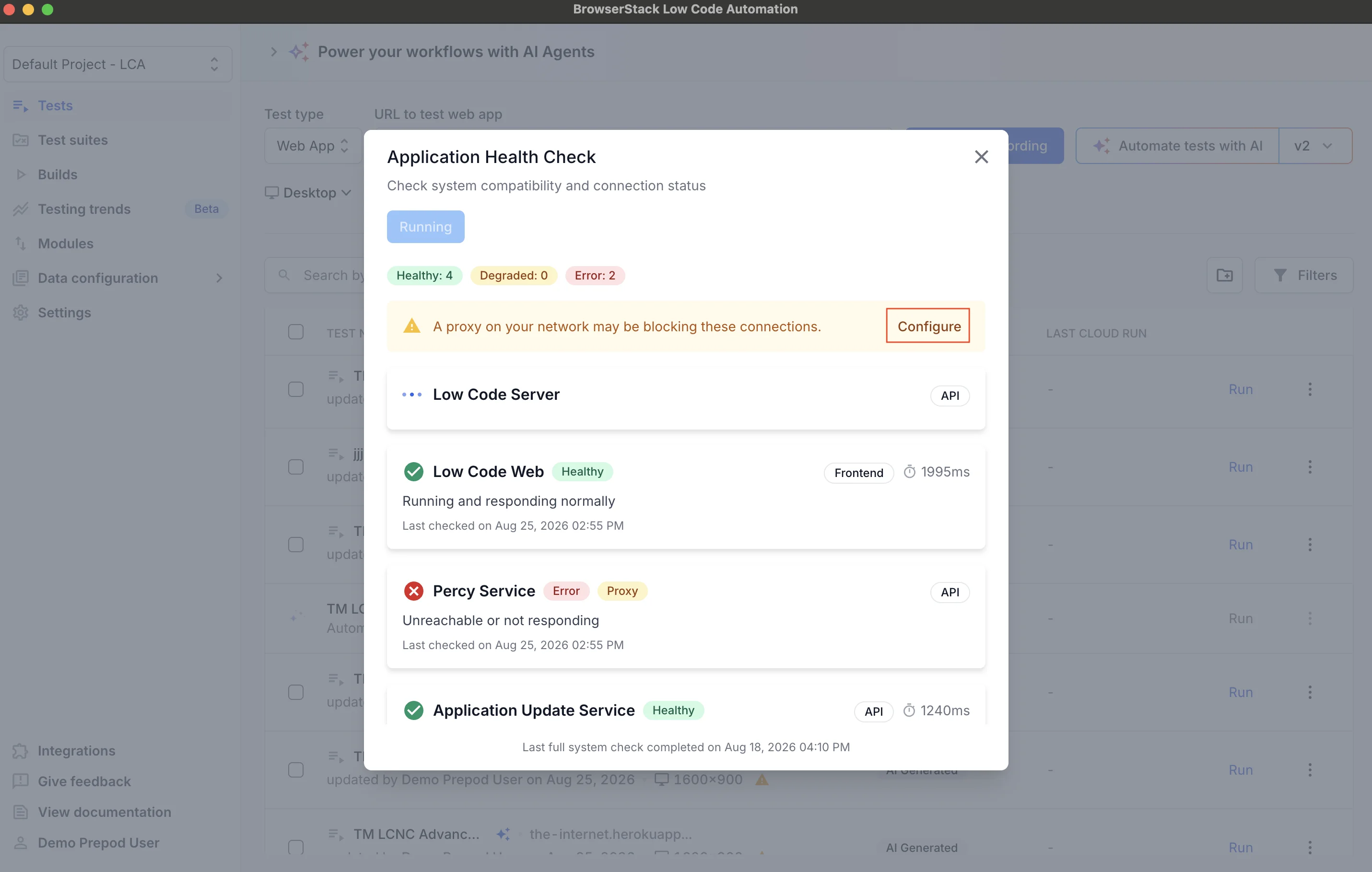
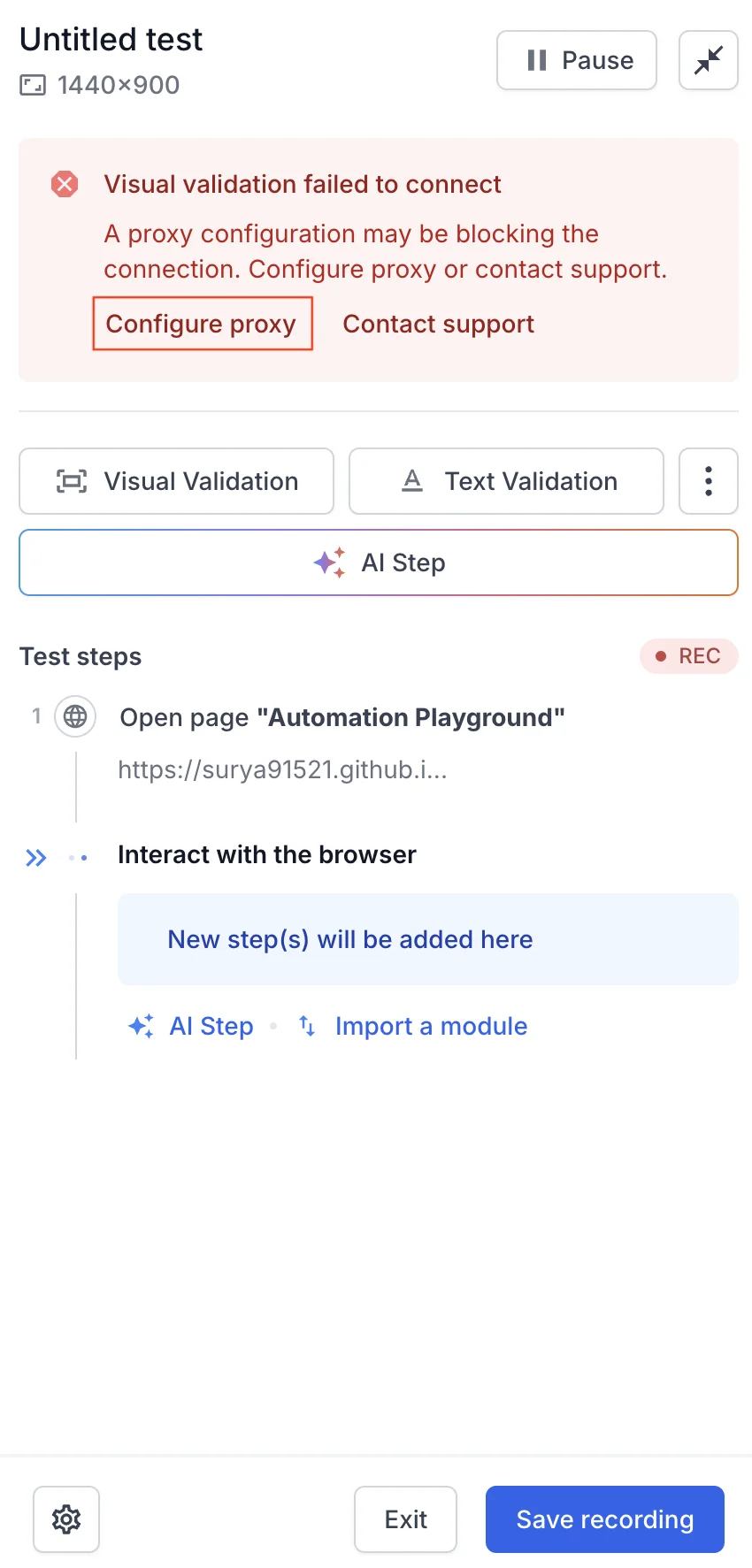
Low Code Automation flags a proxy as the likely cause when a service or a validation cannot connect. You can open Proxy Configuration from either warning and fix the connection without leaving your current task.
From the health check
When a service is unreachable, the Application Health Check dialog shows the number of failed services and the warning “A proxy on your network may be blocking these connections”. Click Configure in the warning to set the proxy, then run the check again.
For more information, see Run health check on Low Code Automation.
From a visual validation error
When visual validation can’t reach the Percy service during a recording, the recorder panel shows the error. Click Configure proxy in the error to set the proxy, then continue recording.
We're sorry to hear that. Please share your feedback so we can do better
Contact our Support team for immediate help while we work on improving our docs.
We're continuously improving our docs. We'd love to know what you liked
We're sorry to hear that. Please share your feedback so we can do better
Contact our Support team for immediate help while we work on improving our docs.
We're continuously improving our docs. We'd love to know what you liked
Thank you for your valuable feedback!