
 Join our Discord
Visual Git
Use Visual Git when you want Percy to compare against approved visuals instead of Git commits.
If you are still choosing a strategy, see how to choose between Git and Visual Git.
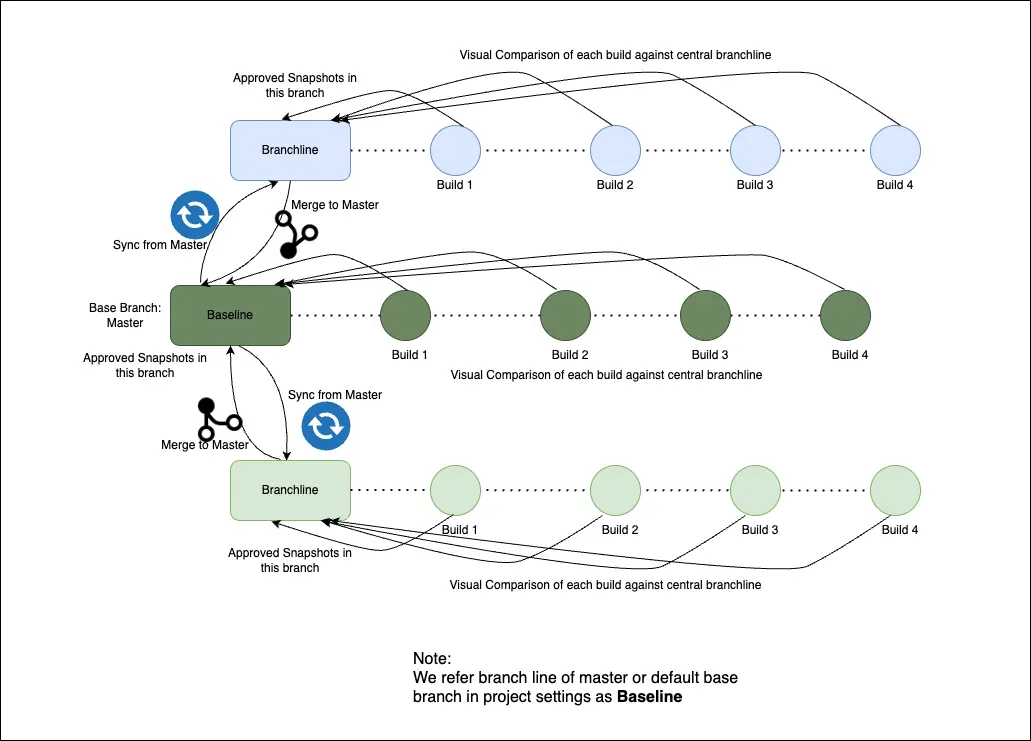
Visual Git creates a branchline for each branch. A branchline stores the approved snapshots for that branch and becomes the source for future comparisons.
Use Visual Git when:
- Your visual tests run independently of commit-based CI workflows, such as a nightly sweep of a staging environment.
- You need snapshot-level approvals, so that newly approved changes become the baseline immediately.
Key terms:
- Baseline: The central approved snapshot set, usually from your default base branch.
- Branchline: The approved snapshot set for a specific branch.
How Visual Git selects baselines
Percy builds and updates a branchline as follows:
- Percy creates a branchline for the branch.
- If approved baseline snapshots exist, Percy uses them to initialize the branchline.
- New builds compare against the latest approved snapshots in that branchline.
- Newly approved snapshots are added immediately and become the baseline for the next build.
- Rejected snapshots continue to compare against the previous approved version.
For example, if a QA team approves most of the snapshots in a build and rejects the rest, the approved snapshots become the baseline for the next build right away. The rejected ones keep comparing against their last approved versions, so the next build flags only the snapshots that still need work.
The latest approved snapshots from the earlier builds will be used as the base snapshots for the current build’s snapshots.
The following diagram shows the branchline lifecycle, from initializing a branchline to approving snapshots and reusing them in the next build:
Sync and merge options
You can move approved snapshots between a branchline and the baseline:
- Sync from master: Copies approved snapshots from the baseline into your branchline. Use it when your branch baseline is outdated and you want the latest approved state. Supports full and selective sync, and is available in the UI and through the API.
- Merge to master: Copies approved snapshots from your branchline into the baseline. Use it when your branch changes are verified and ready to become the new reference. Supports full and selective merge, and is available in the UI and through the API.
To sync stale baselines directly from the build review UI, see Sync snapshots from default baseline.
After you merge, you can also unmerge a build, or unmerge and unapprove it. For the complete list of merge actions, see Build lifecycle actions.
For API implementation details, see:
Default base branch
Percy uses master as the default base branch. If your main branch is different, update Project settings > Project details > Default base branch.
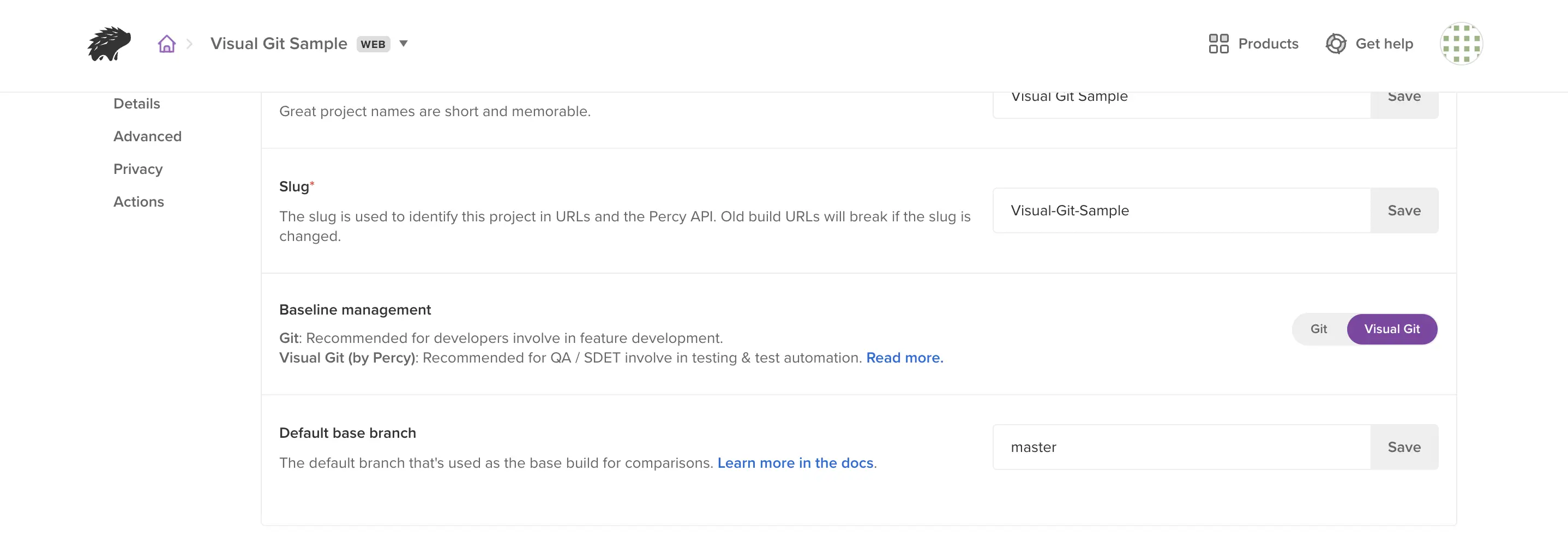
To change the strategy later, go to Project settings > Baseline management.
Troubleshooting
If the baseline is not what you expected, open the build and check the Baseline details panel. It shows which snapshots were used for comparison and why. For more information, see Understand the selected baseline.
Related topics
We're sorry to hear that. Please share your feedback so we can do better
Contact our Support team for immediate help while we work on improving our docs.
We're continuously improving our docs. We'd love to know what you liked
We're sorry to hear that. Please share your feedback so we can do better
Contact our Support team for immediate help while we work on improving our docs.
We're continuously improving our docs. We'd love to know what you liked
Thank you for your valuable feedback!