
 Ask the Community
Use predefined steps
Learn how to use predefined steps in Salesforce Test Automation.
To accelerate Salesforce testing, use predefined steps to automate complex tasks like record creation or API calls. These steps are designed specifically for common Salesforce operations, allowing you to perform actions without writing complex commands.
Use a predefined step
To use a predefined step:
- In the test editor, click Know your commands and select the predefined step or type the command name in the input box.
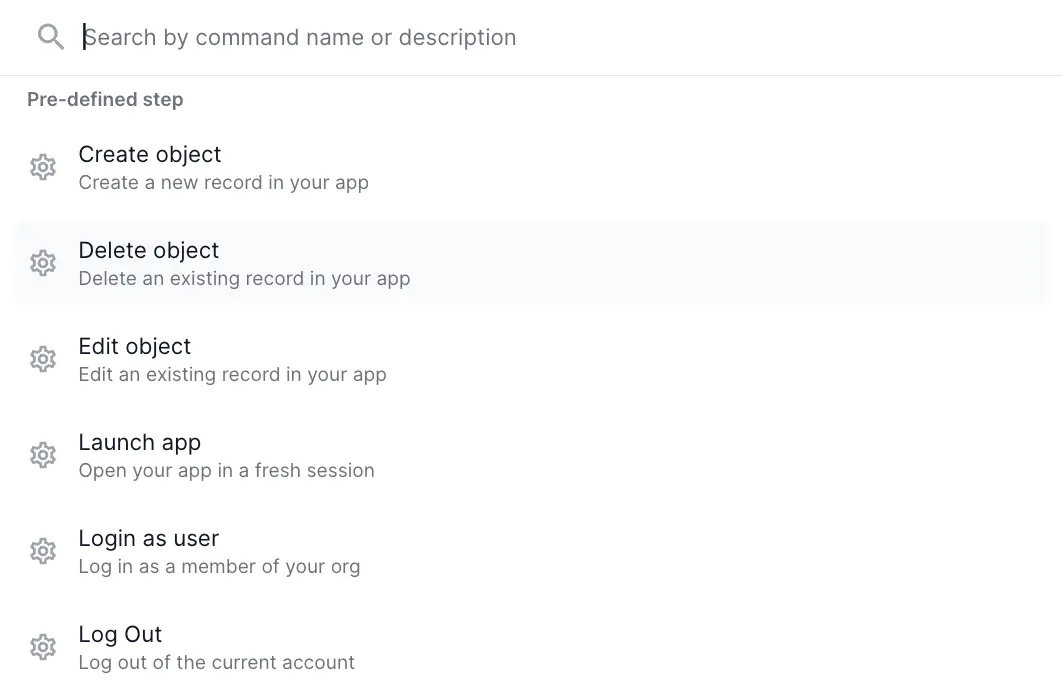
- Select the predefined step you want to use (for example, Create object). Check the available predefined steps.
- In the side panel that appears, configure the step details. For example:
- Select the Object type (for example, Leads, Contacts, Accounts)
- Select the Record type if applicable
- Fill in the required Form fields
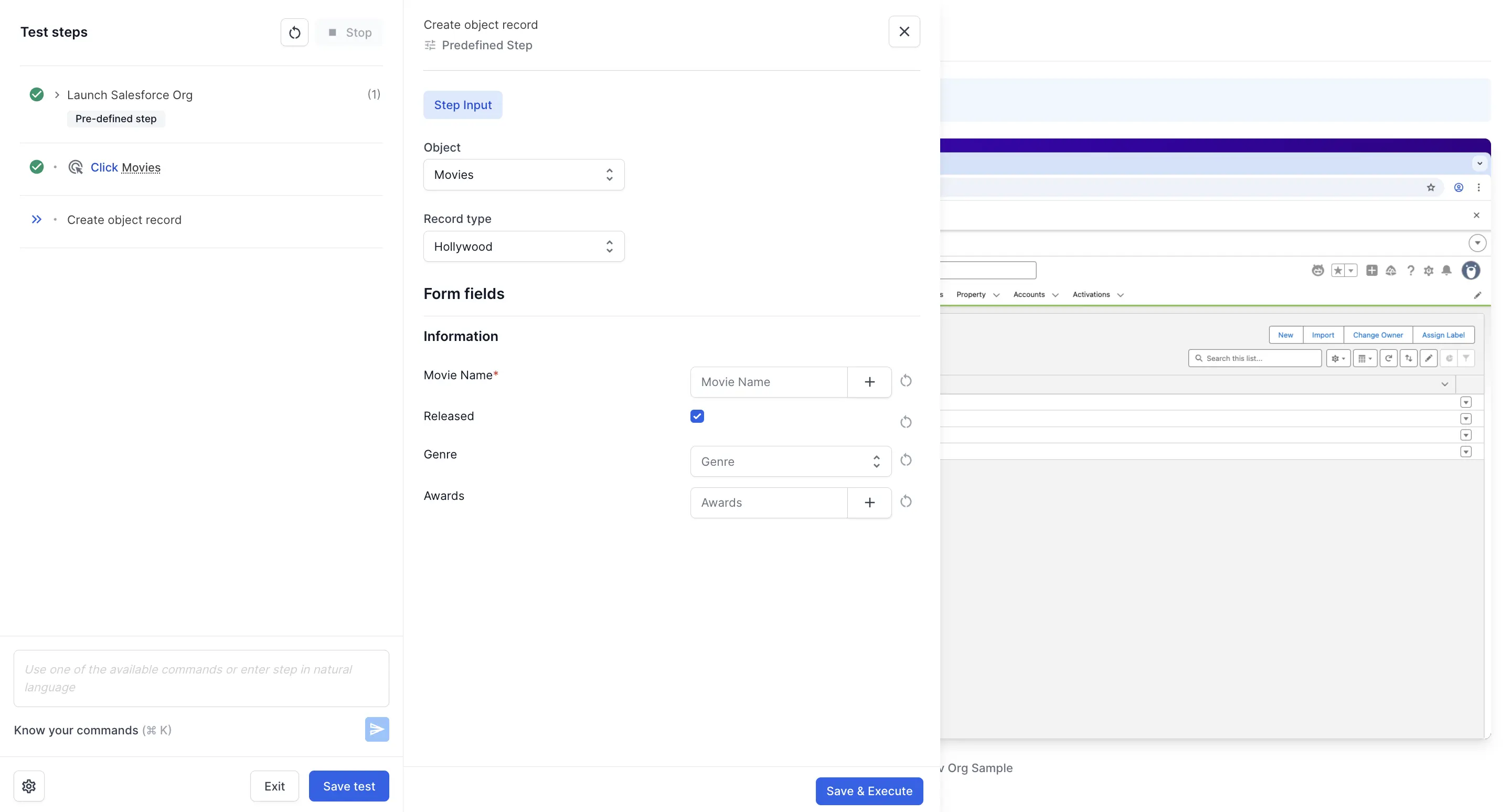
- Click Save & Execute to run the step.
The predefined step is added to your test flow and executes the configured action in your Salesforce org.
Available predefined steps
This section covers the following predefined steps:
- Add API
- Create object
- Delete object
- Edit object
- Launch app
- Login as user
- Log out
- Navigate to tab
- Perform quick actions
Add API
Execute Salesforce or external API calls to store or assert the API response data.
Command: Add API
Use case: Use this step to:
- Call Salesforce REST APIs to retrieve or manipulate data
- Execute external API calls
- Store API response data in variables
- Assert API response values
Create object
Create a new record in your app for any standard or custom object.
Command: Create object
Prerequisites: You must be on a list view page (for example, ‘All Leads’) to execute this step.
Use case: Use this step to quickly create records such as Leads, Accounts, Opportunities, or any custom object without manually filling out forms.
Example: To create a new Lead, navigate to the Leads tab and ensure you are on the ‘All Leads’ list view before executing this step.
Delete object
Delete an existing record in your app for a given object.
Command: Delete object
Prerequisites: You must be on the specific record detail page to execute this step.
Use case: Use this step to remove records during test cleanup or to test deletion workflows.
Example: To delete a Lead, navigate to the specific Lead’s detail page before executing this step.
Edit object
Edit an existing record in your app for a given object.
Command: Edit object
Prerequisites: You must be on the specific record detail page to execute this step.
Use case: Use this step to update record fields, change status, or modify any field values in an existing record.
Example: To edit an Account, navigate to the specific Account’s detail page before executing this step.
Launch app
Switches to different apps in the same session.
Command: Launch app
Use case: Use this step to switch between different Salesforce applications (for example, Sales, Service, Marketing) without starting a new session.
Login as user
Log in as a member of your org by mimicking the specified user from the admin account.
Command: Login as user
Prerequisites: This requires the initial session to be logged in as a system administrator with permission to login as other users.
Use case: Use this step to:
- Test user-specific permissions and access levels
- Validate user experience for different roles
- Test record visibility and sharing settings
Log out
Log out of the current account.
Command: Log out
Use case: Use this step to:
- End the current user session
- Test login workflows
- Switch between different user accounts
Navigate to tab
Navigate to a specific tab in your app.
Command: Navigate to tab
Use case: Use this step to quickly navigate to standard or custom tabs such as Leads, Accounts, Opportunities, or any custom tab in your Salesforce org.
Perform quick actions
Clicks on a particular quick action on the record detail page of any object.
Command: Perform quick actions
Prerequisites: You must be on the specific record detail page to execute this step.
Use case: Use this step to:
- Execute quick actions like Send Email, Log a Call, New Task
- Trigger custom quick actions
- Perform common actions without navigating away from the record
Example: To perform a quick action on an Opportunity, navigate to the specific Opportunity’s detail page before executing this step.
Best practices
Follow these best practices when using predefined steps:
- Navigate to the correct page: Always ensure you are on the required page (list view or detail page) before executing a predefined step. The step may fail if executed from the wrong page.
- Use for complex operations: Predefined steps are ideal for tasks that would otherwise require multiple DSL commands or complex configurations.
- Validate after execution: After executing a predefined step, use assertion commands to verify the action completed successfully.
We're sorry to hear that. Please share your feedback so we can do better
Contact our Support team for immediate help while we work on improving our docs.
We're continuously improving our docs. We'd love to know what you liked
We're sorry to hear that. Please share your feedback so we can do better
Contact our Support team for immediate help while we work on improving our docs.
We're continuously improving our docs. We'd love to know what you liked
Thank you for your valuable feedback!