
 Ask the Community
Connect your Salesforce organization
Learn how to connect your Salesforce organization to BrowserStack for Salesforce Test Automation.
Connecting your Salesforce organization is the first step to start running automated tests with BrowserStack Salesforce Test Automation. Once connected, you can create personas, run tests across environments, and validate user experiences for different roles.
Before you begin, familiarize yourself with these key concepts:
- Salesforce environments: You can connect to either Sandbox (recommended for testing) or Production environments. Sandbox is safe for development and does not affect production data.
- Admin vs non-admin access: System administrators can connect organizations, add personas, and use the Login as capability. Non-admin users can connect if they have API Enabled, View Setup and Configuration, and other required permissions.
- Personas: Personas represent Salesforce user accounts used during test execution. They allow you to test how different users with different permissions, roles, and access levels experience your application.
Connect to a Salesforce organization
To connect your Salesforce organization:
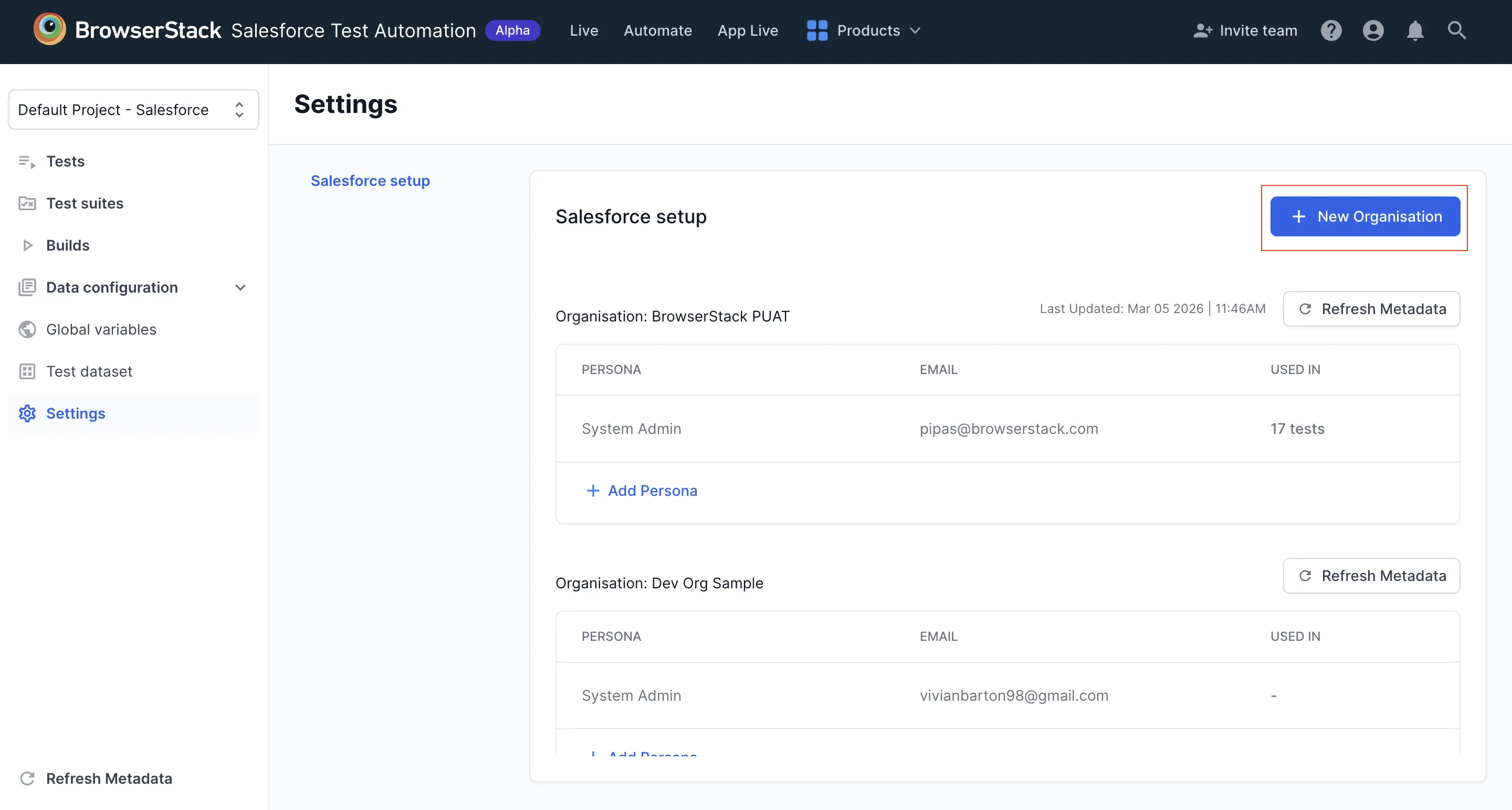
- Navigate to Settings in the Salesforce Test Automation dashboard and click + New Organisation.
- Select the Environment type:
- Sandbox (recommended)
- Production
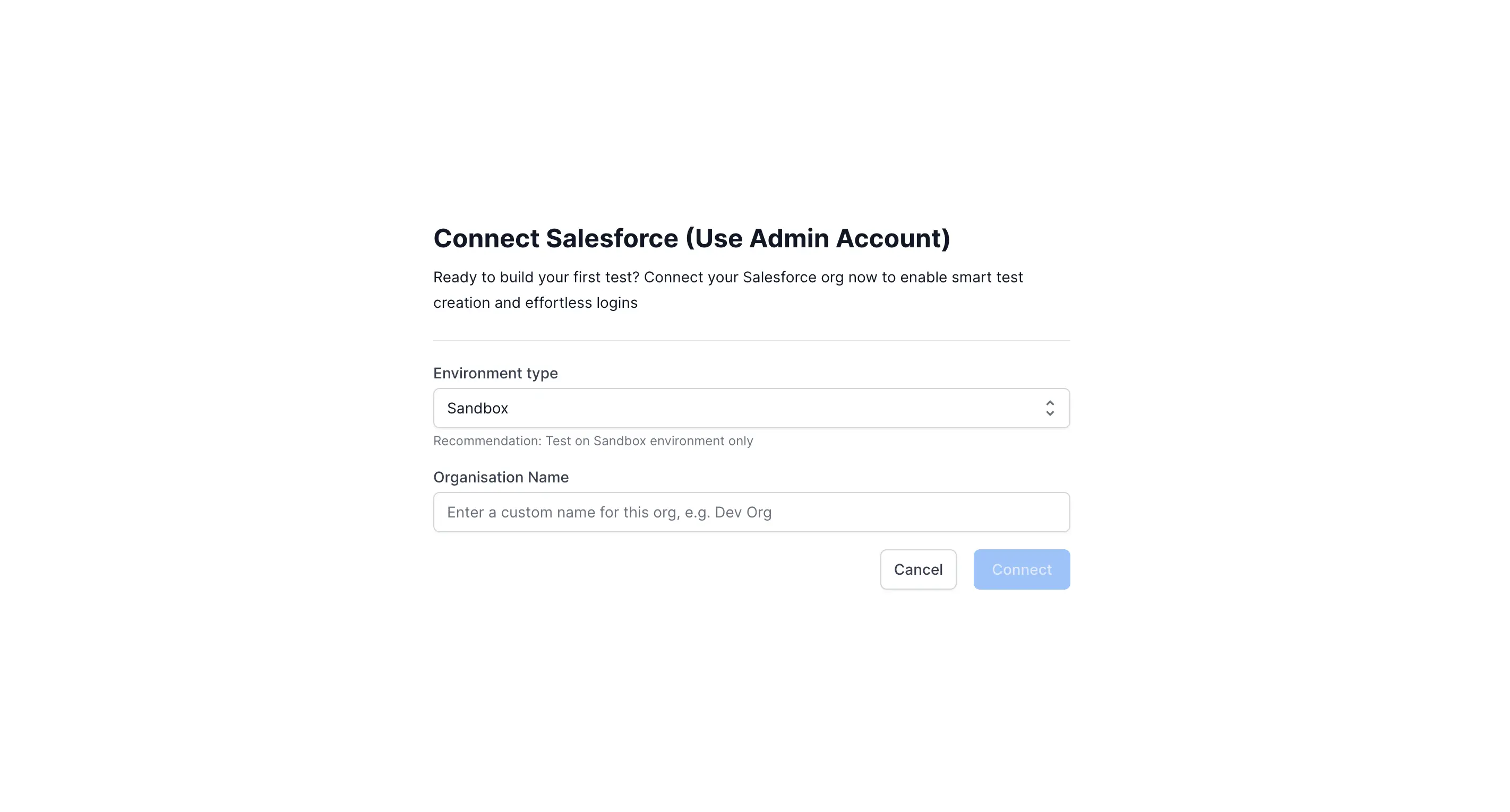
- Enter a unique Organization name to identify your Salesforce environment. For example, BrowserStack Sandbox or BrowserStack Production.
- Click Connect. You will be redirected to the Salesforce login page.
- Enter the credentials and click Log In to Sandbox.

After authorization, your Salesforce organization appears in the Organization drop-down on the home page.
Add personas
You can add a persona using either Salesforce OAuth or username and password authentication.
Add a persona using OAuth
To add a persona using OAuth:
- Navigate to Settings.
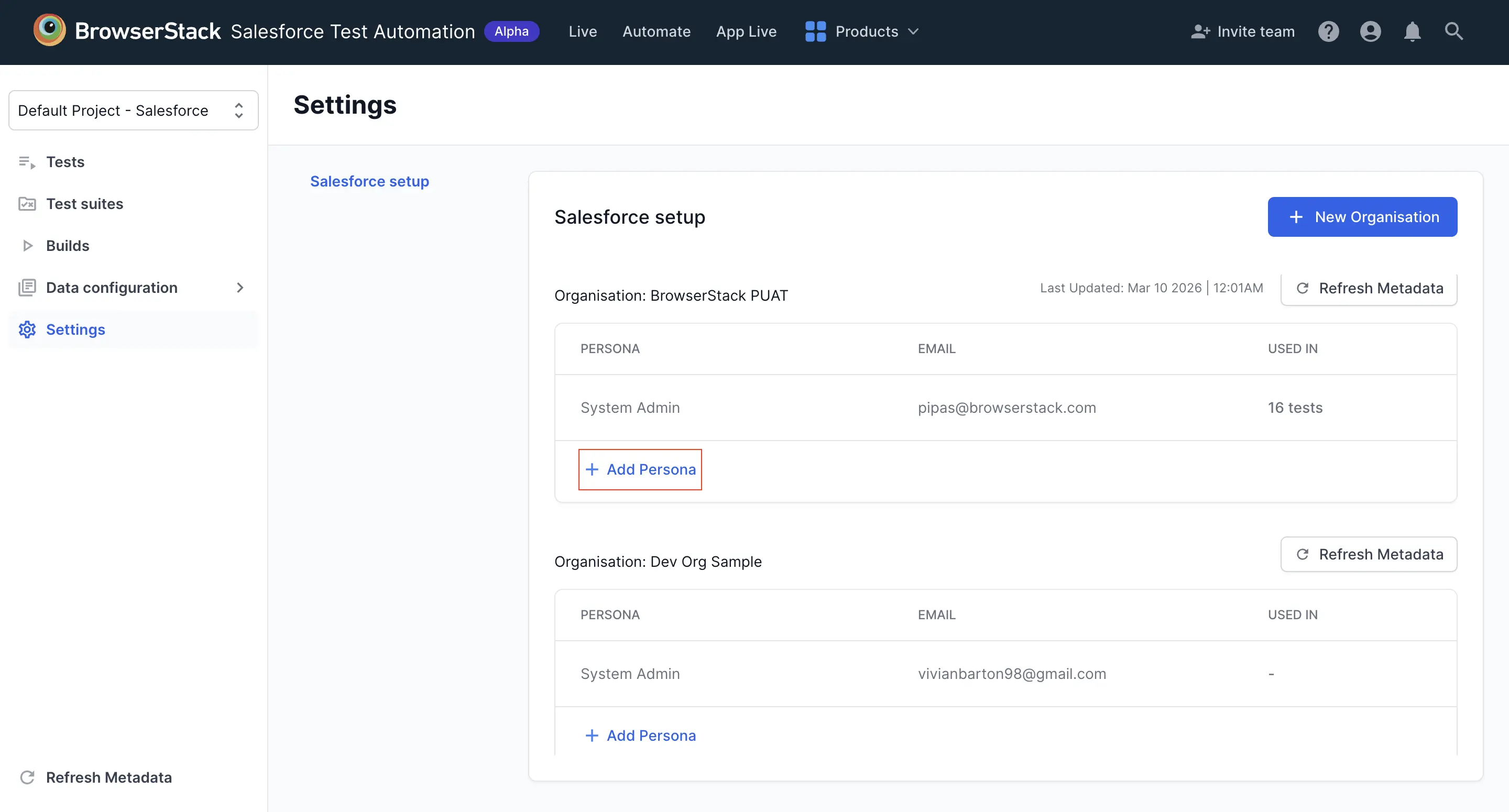
- In the required Organization card, click + Add Persona.
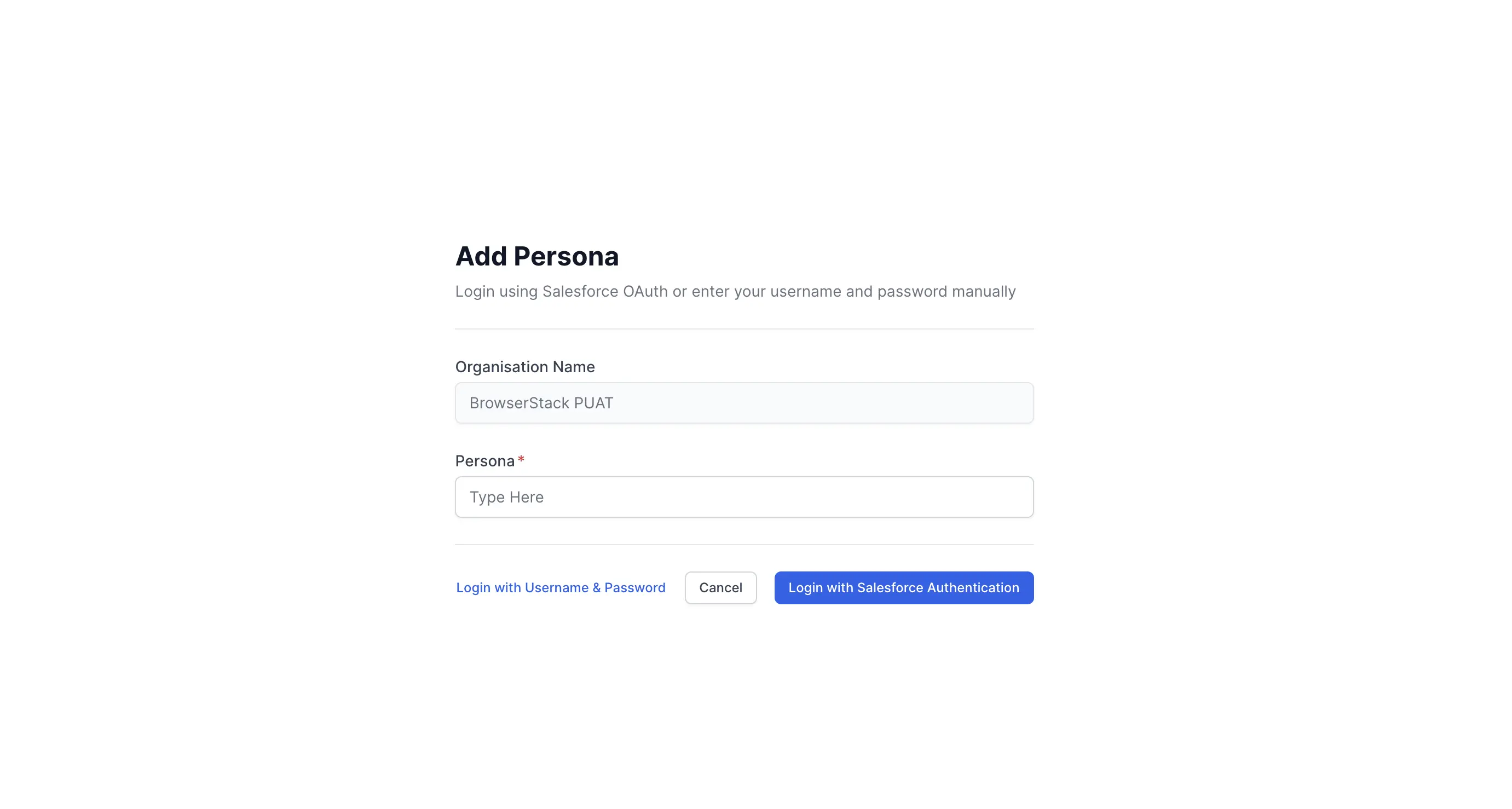
- In the Persona field, enter a name to identify this user (for example,
Sales ManagerorStandard User). - Click Login with Salesforce Authentication. You will be redirected to the Salesforce login page.
- Log in with the credentials of the user you want to add as a persona.
The persona becomes available for test execution. The USED IN column shows how many tests currently use each persona.
Add a persona using username and password
To add a persona using username and password:
- Navigate to Settings.
- In the required Organization card, Click + Add Persona.
- In the Persona field, enter a name to identify this user. This is mandatory.
- Click Login with Username & Password.
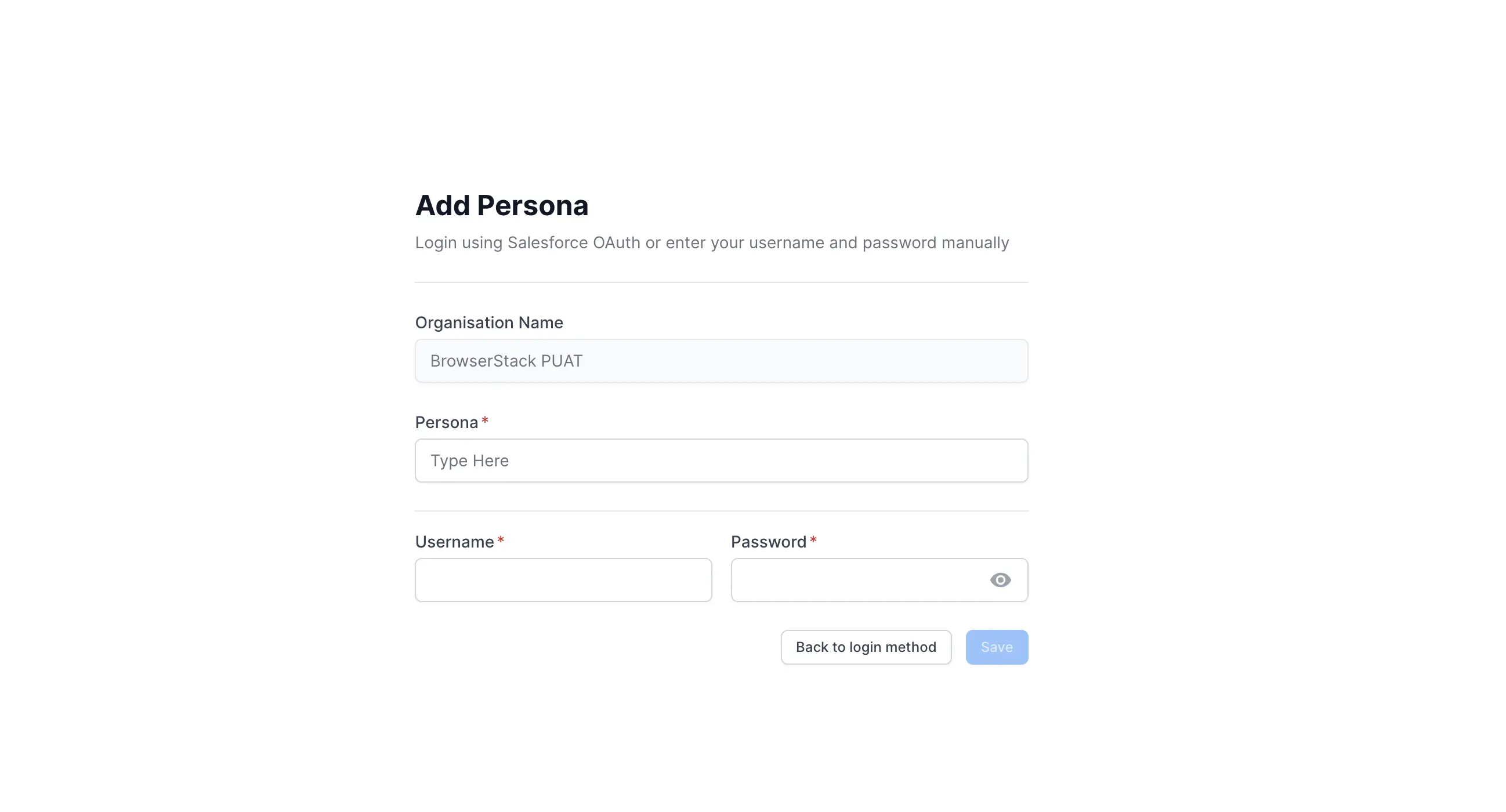
- Enter the Username and Password for the Salesforce user account.
- Click Save.
The persona becomes available for test execution.
Next steps
We're sorry to hear that. Please share your feedback so we can do better
Contact our Support team for immediate help while we work on improving our docs.
We're continuously improving our docs. We'd love to know what you liked
We're sorry to hear that. Please share your feedback so we can do better
Contact our Support team for immediate help while we work on improving our docs.
We're continuously improving our docs. We'd love to know what you liked
Thank you for your valuable feedback!