
 Ask the Community
View test results in Salesforce Test Automation
View, filter, and debug build runs and test results in BrowserStack Salesforce Test Automation.
The Builds section in Salesforce Test Automation displays a list of all test builds executed for your selected project. You can quickly see the status, duration, and results for each build run. This helps you track test coverage and identify issues.
View build runs
To view build runs in Salesforce Test Automation:
- Go to the Builds section in the left navigation panel.
- Select a build from the list or use the search bar to find a build run by name.
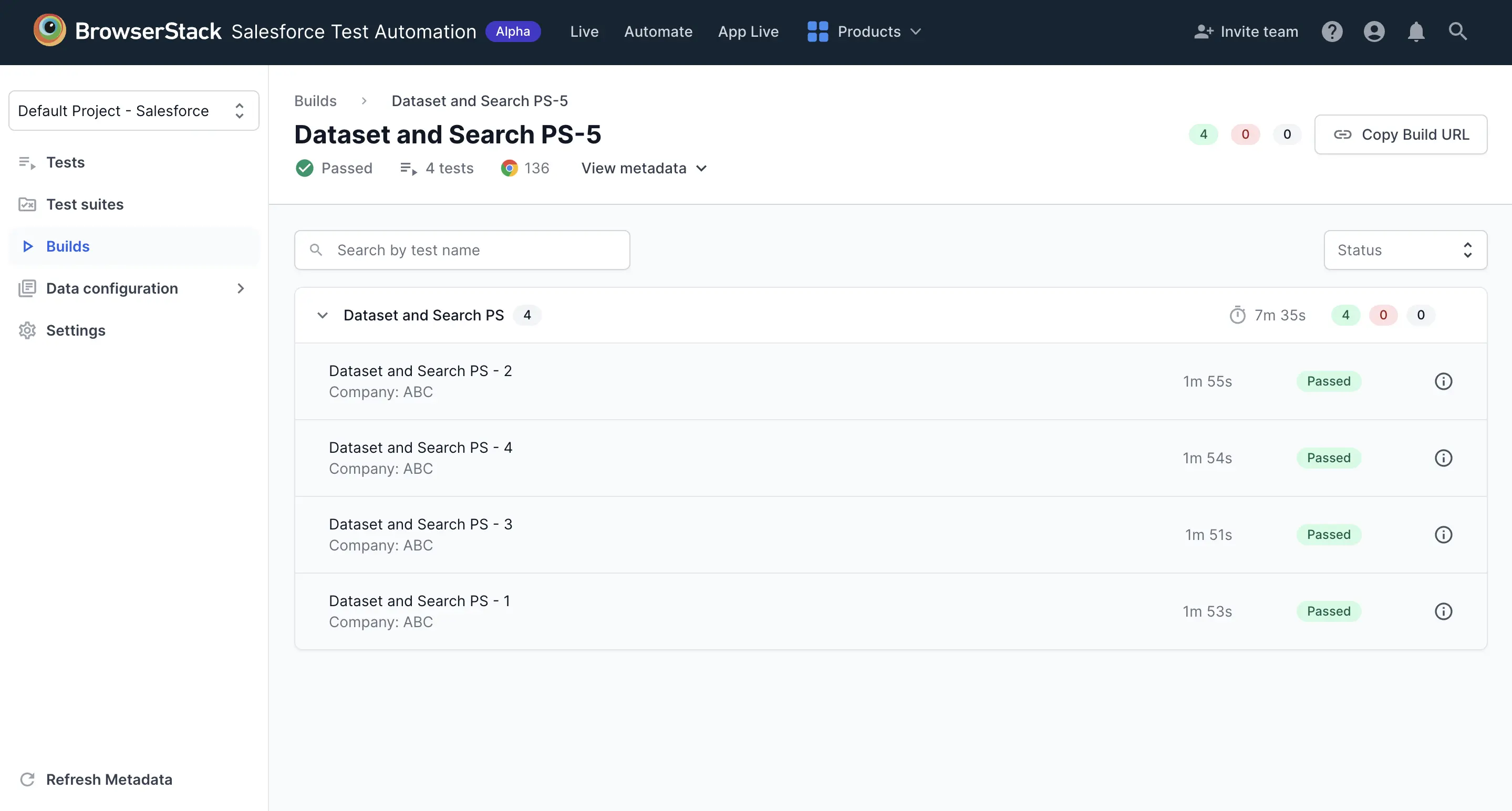
- Each build run shows:
- Build name and test suite name
- Execution trigger (for example, Scheduler) and timestamp
- Browser icon
- Duration
- Status indicators showing passed (green), failed (red), and skipped (gray) test counts
You can click Copy build URL to share the build with other users.
To filter tests in a build, use Filters to narrow results by status.
Build run status
- Green check: Indicates test is passed
- Red cross: Indicates test is failed
- Status numbers: Displays count of passed, failed, and skipped tests (for example, 2 passed, 0 failed, 0 skipped)
View build details
Click on a build run to view detailed results:
- The build details page displays:
- Build name and status (Passed/Failed)
- Number of tests executed
- Browser information
- Screen resolution used (for example, 1920×1080)
- Test execution details
- Video recording player
-
Steps tab showing step-by-step execution
- Total execution duration
- Individual test steps with pass/fail status
- Pre-defined steps (for example, Launch Salesforce Org, Navigate to Leads tab)
- Step execution count (for example, (1) indicating sub-steps)
- Console Logs and Network Logs download options
For more information on debugging, refer to Video recording and Debugging logs.
Debug failed tests
For failed tests, you can:
- Watch the video recording to see what happened during execution
- Review step-by-step execution in the Steps tab
- Download console logs to identify JavaScript errors
- Download network logs to analyze API calls and responses
- View which specific step failed
- Click Edit Test to modify and fix the test
We're sorry to hear that. Please share your feedback so we can do better
Contact our Support team for immediate help while we work on improving our docs.
We're continuously improving our docs. We'd love to know what you liked
We're sorry to hear that. Please share your feedback so we can do better
Contact our Support team for immediate help while we work on improving our docs.
We're continuously improving our docs. We'd love to know what you liked
Thank you for your valuable feedback!