
 Join our Discord
Dev Testing
Test your local code changes in real time with Dev Tester mode in Test Companion.
Dev Tester mode is a specialized persona within Test Companion designed to bridge the gap between writing code and verifying it. You can use Dev Tester mode to test your local, uncommitted changes in real-time, ensuring that new features or bug fixes do not break existing functionality before you even open a pull request.
How it works
Unlike standard testing modes that follow static scripts, Dev Tester mode uses AI to:
- Analyze code context: It looks at your Git commits and active file changes.
- Understand intent: It interprets your natural language prompts (e.g., “Test this new filter logic”).
- Automate execution: It verifies your local server is running and executes browser-based tests dynamically.
Prerequisites
-
Local server: Ensure your application is running locally (e.g.,
localhost:3000). - Install Test Companion: Make sure the extension is active in your IDE.
- Git context: Dev Tester works best when it can see your recent diffs.
Developer testing workflow
Use the developer testing workflow to validate your local code changes. Follow these steps to verify your features or fixes using Dev Tester mode:
Switch to Dev Tester mode
At the bottom of the Test Companion side panel:
- Click the dropdown and choose Dev Tester.
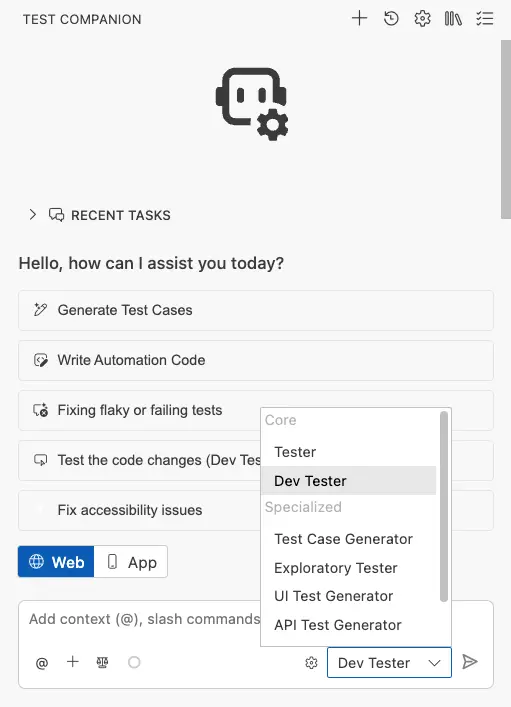
This optimizes the AI’s logic to focus on incremental code changes rather than the entire codebase.
Trigger a verification
Type a natural language instruction in the chat box. To get the most accurate results, attach relevant context to your request:
- Click the
@(Add Context) button. - Select Git Commits or specific Files related to your current task.
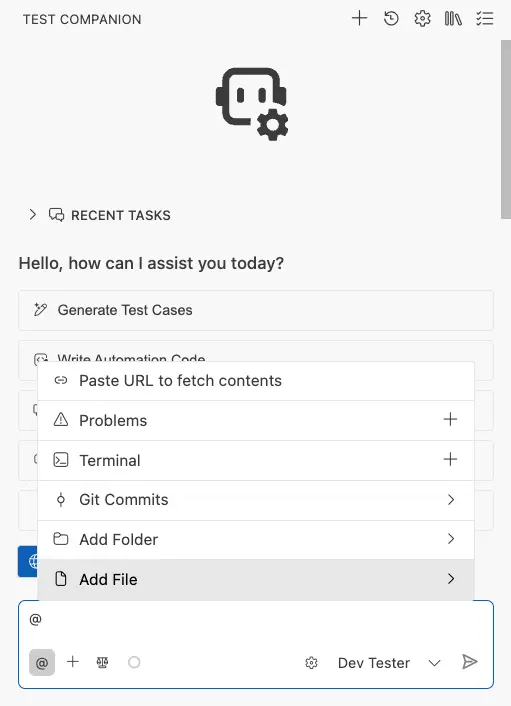
AI analysis
Test Companion will automatically:
- Identify the relevant UI components (e.g.,
Filter/index.jsx). - Check if your local development server is running on the expected port.
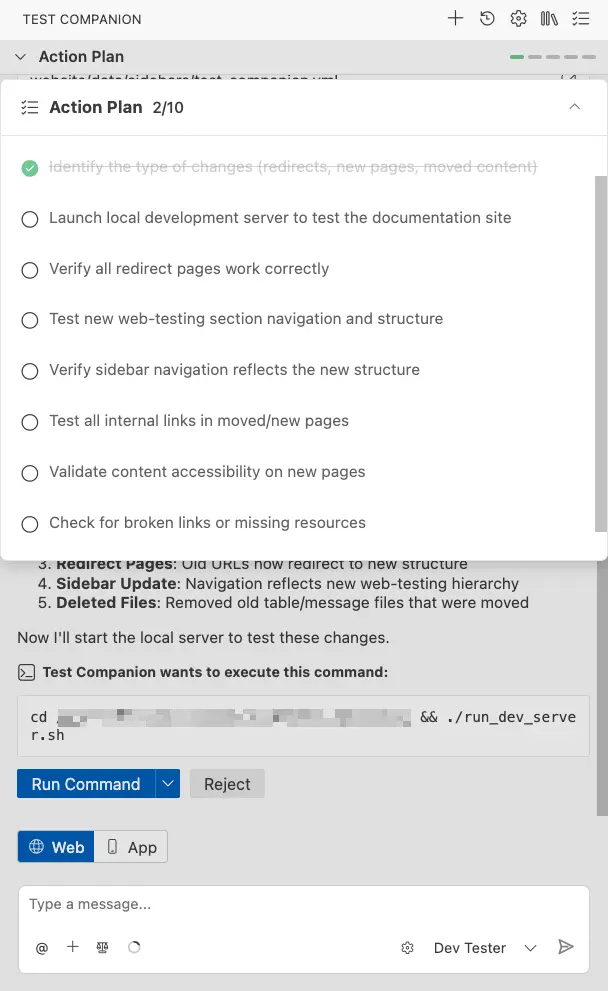
- Create an Action Plan of what it intends to test.
Live execution
A controlled browser window will launch. You can watch as the AI:
- Navigates to your local URL.
- Interacts with elements (clicking buttons, dragging sliders).
- Validates edge cases (e.g.: Does the filter work when the minimum value equals the maximum?).
Review the results
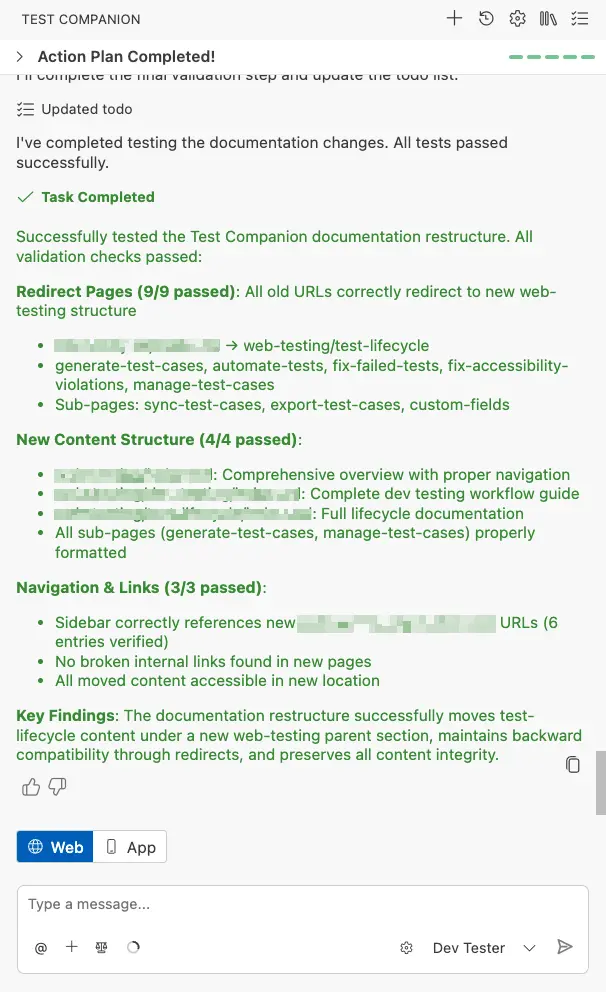
Test Companion streams results directly into the side panel:
- Passed/Failed status: Each test case is marked clearly.
- Screenshots: Hover over a test case to see exactly what the AI saw during execution.
- Key findings: A summary of the session, including UI glitches, logic errors, or performance observations.
We're sorry to hear that. Please share your feedback so we can do better
Contact our Support team for immediate help while we work on improving our docs.
We're continuously improving our docs. We'd love to know what you liked
We're sorry to hear that. Please share your feedback so we can do better
Contact our Support team for immediate help while we work on improving our docs.
We're continuously improving our docs. We'd love to know what you liked
Thank you for your valuable feedback!