
 Join our Discord
Connect Azure Boards to Test Companion
Connect Azure Boards to Test Companion to use work item context directly in chat for generating test cases and automation scripts.
Your Azure Boards work items already contain the acceptance criteria, edge cases, and issue details you need to test. After you connect Azure Boards, you share a work item in the chat, by ID or by link. Test Companion reads the work item for you, so you do not copy details by hand.
This integration helps you generate test cases and automate processes more quickly while staying inside your Test Companion.
After you connect Azure Boards, you can:
- Generate test cases from any work item: by sharing the work item in chat. User Stories, Bugs, Features, and any other work item type are supported.
- Turn work-item-driven scenarios into automation code: by asking for scripts in your framework.
Test Companion can only fetch work items that your Azure DevOps account can access. Your Azure DevOps permissions still apply when Test Companion reads work item context.
Set up Azure Boards for your IDE
In Visual Studio Code, Test Companion reaches Azure Boards through the Azure DevOps MCP server. In every IDE, it reaches Azure Boards through the BrowserStack integration. Select your IDE:
In Visual Studio Code, Test Companion finds, reads, creates, and updates work items through the Azure DevOps MCP server. You name the work item in chat. Test Companion asks for your approval before it fetches the work item.
Prerequisites for the MCP server
Ensure you have the following:
- Test Companion is installed in Visual Studio Code and you are signed in.
- A Microsoft account with access to the Azure DevOps projects you want to use.
- An Azure administrator has completed the one-time setup for your Microsoft Entra tenant. Until then, the Microsoft sign-in fails for everyone in your organization. The steps are in One-time setup by an Azure administrator.
Connect the Azure DevOps MCP server
To connect the server:
- Click
...(more options) on the Test Companion panel, then select MCP Servers. -
Select the Catalog tab, then click Connect on the Azure DevOps card.
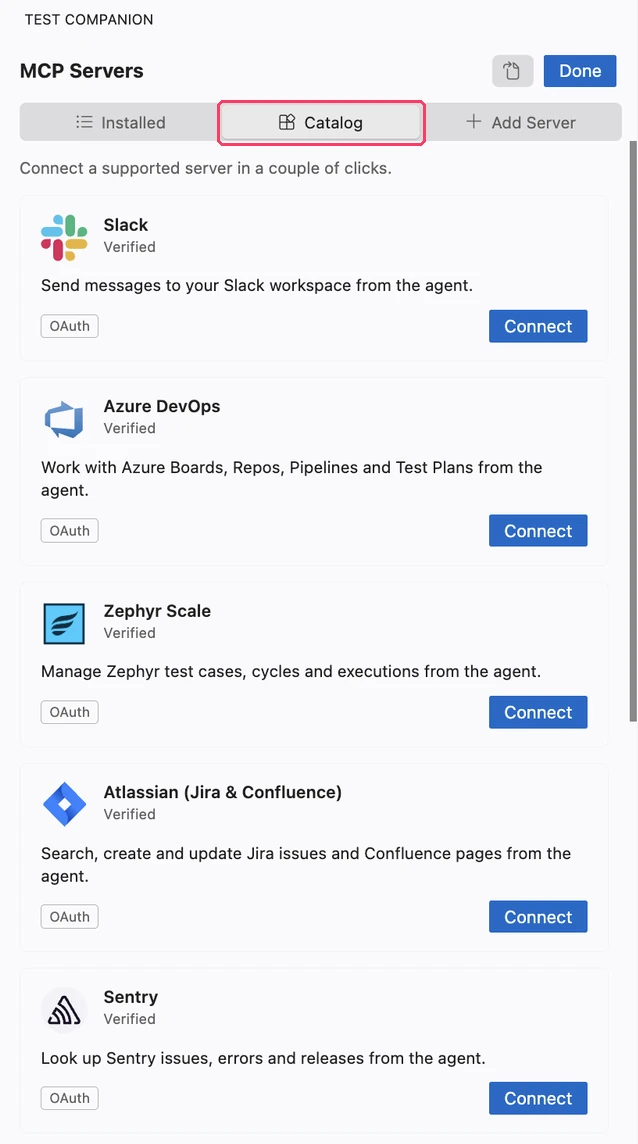
- Sign in with your Microsoft account in the browser and grant the requested access, then return to your IDE. The Installed tab shows the server with a green dot and its tool count.
For the controls of a connected server, see Azure DevOps in Connect an MCP server to Test Companion.
Use Azure Boards work items in chat
To work with a work item:
- Describe the task and name the work item by its ID. For example:
Get user story 4812 from Azure Boards and generate test cases for its acceptance criteria. - When the approval card appears, click Approve.
Test Companion reads the work item and continues the task. It can also create and update work items when you ask. Each change shows an approval card first.
You can also paste a work item link in chat. A pasted link uses the BrowserStack integration described in the Other IDEs tab, not the MCP server.
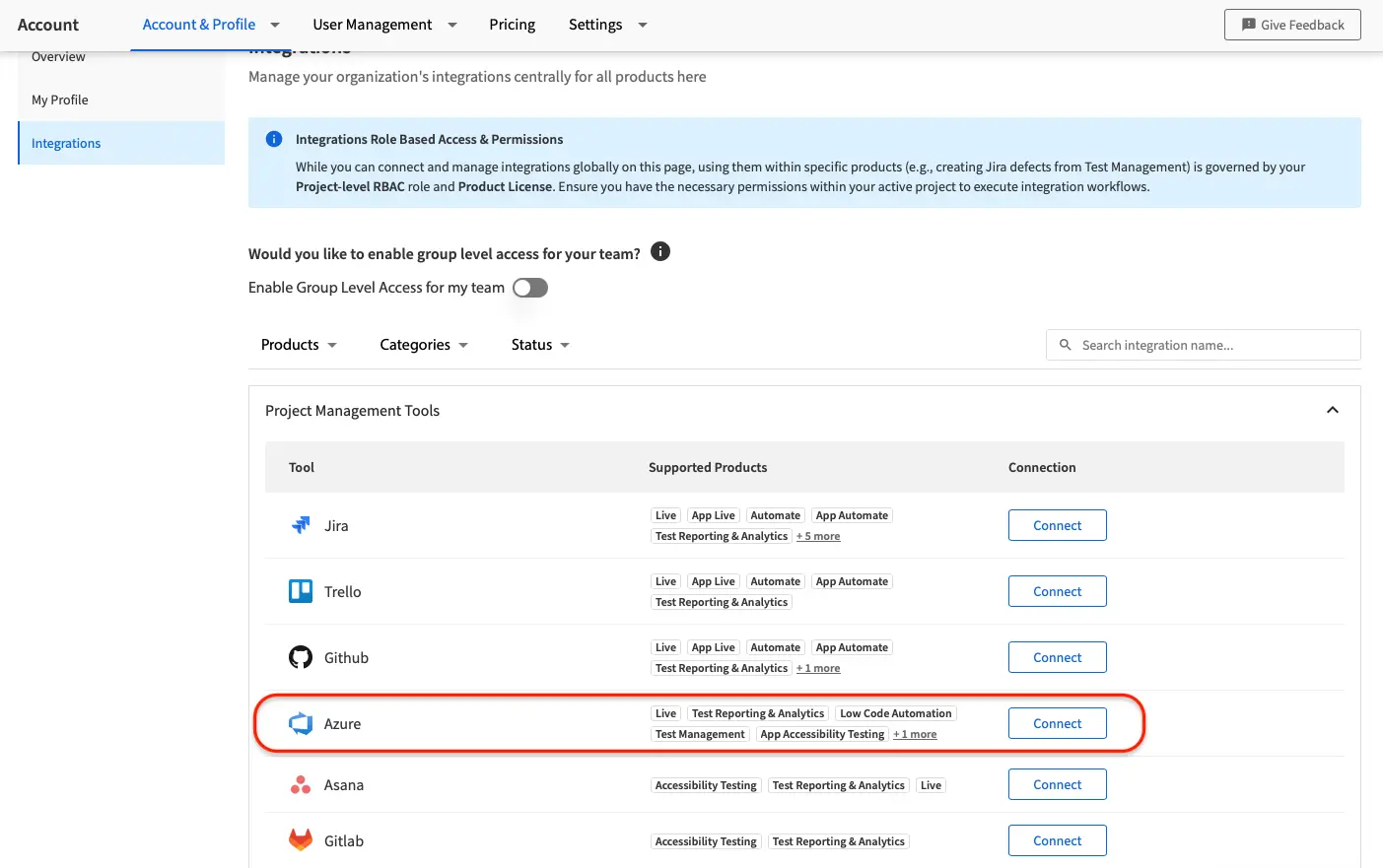
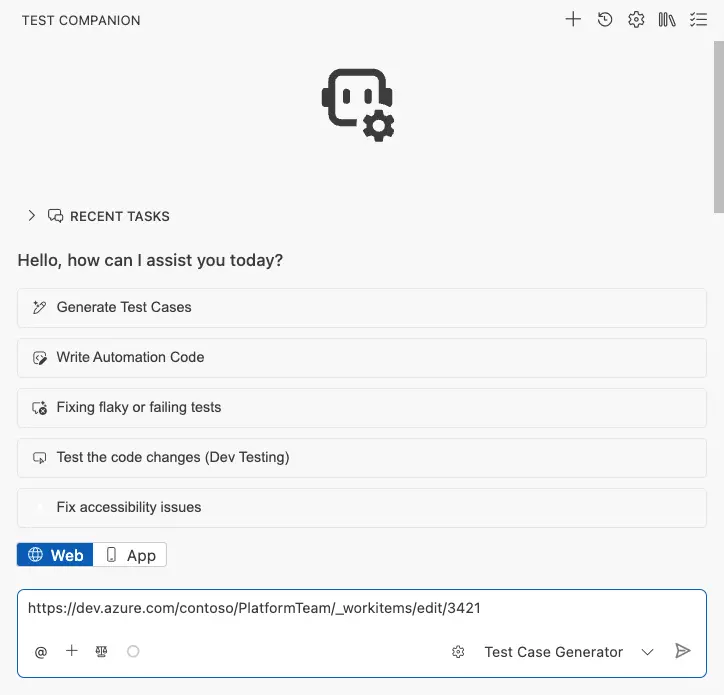
Auto-link requirements to generated test cases
Share a requirement work item, such as a User Story or Feature, and generate test cases from it. Test Companion then fills the Requirement field in Test Management with the link to that work item. You get traceability from the requirement to the test case without any extra step.
Supported process types
Azure Boards supports multiple process types, including Agile, Scrum, Basic, and CMMI. Test Companion is compatible with all of them. Your project can track User Stories, Product Backlog Items, Issues, or Requirements. In every case, you share the work item and Test Companion reads the context.
We're sorry to hear that. Please share your feedback so we can do better
Contact our Support team for immediate help while we work on improving our docs.
We're continuously improving our docs. We'd love to know what you liked
We're sorry to hear that. Please share your feedback so we can do better
Contact our Support team for immediate help while we work on improving our docs.
We're continuously improving our docs. We'd love to know what you liked
Thank you for your valuable feedback!